Set up notifications for target agreements
Your target agreement process is starting, the agreements are being created, and everyone involved should stay in the loop automatically: about new and changed target agreements, goal updates, and in good time before deadlines. This guide walks you through the notifications of a target agreement process so everything is in place before launch.
Open the Notification Center
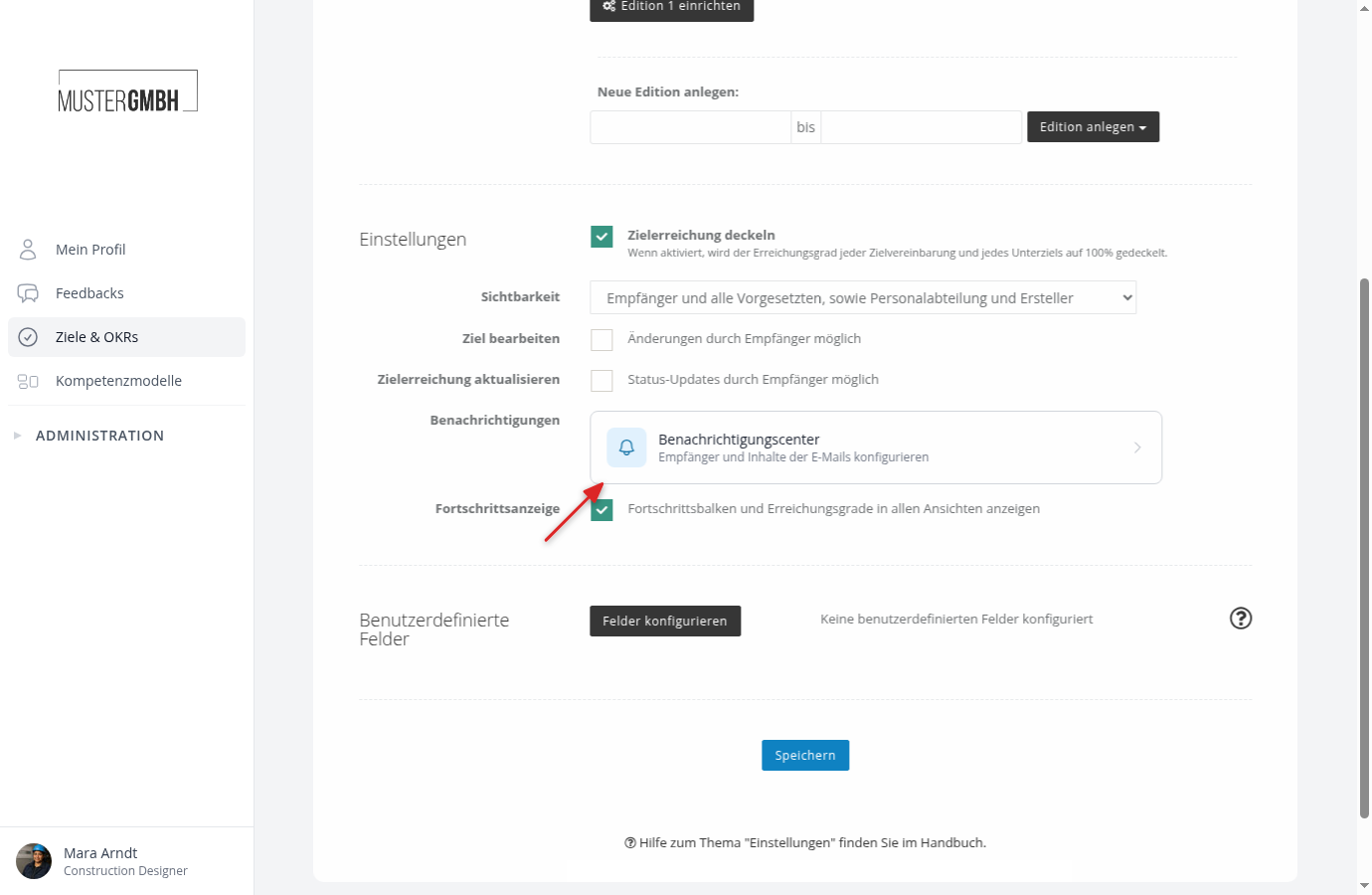
Open the settings of your target agreement process and, in the settings section, click the "Notification Center" tile in the "Notifications" row.
Decide what to notify about
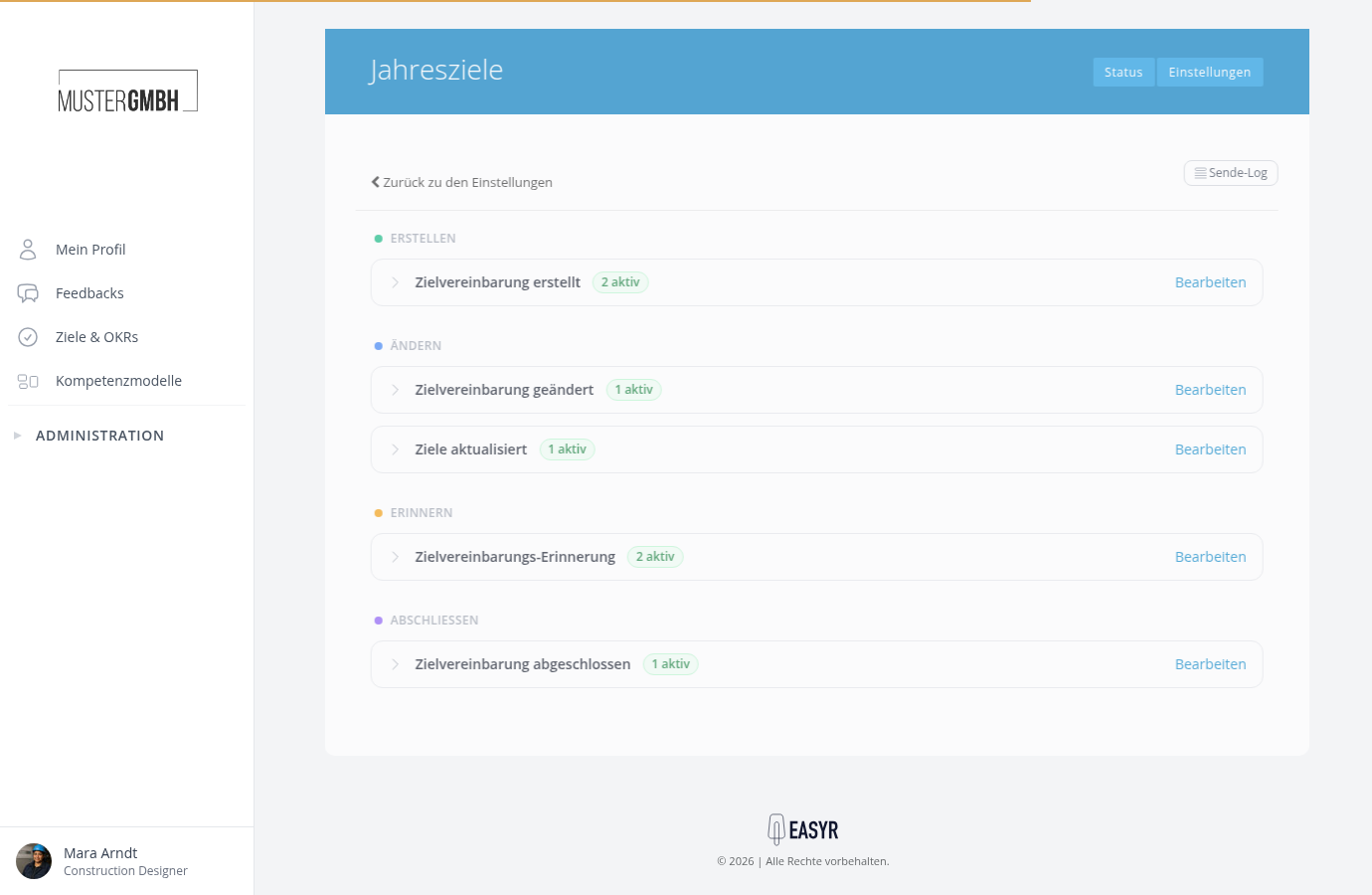
The center shows five occasions: Target Agreement Created, Target Agreement Changed, Goals Updated, Target Agreement Reminder, and Target Agreement Completed. Check which of them should be active for your process; each can be switched off individually with its checkbox. The emails for changes, updated goals, and completion go to the subscribers of the respective target agreement by default; creators and recipients are subscribed automatically.
Adjust the content
Click "Edit" on a rule and adjust the subject and text in the Content tab. Useful building blocks and placeholders include the target agreement link (a button leading to the agreement), the change overview, [TA title], and [due date]. Check the result with "Show preview".
Set up reminders before the deadline
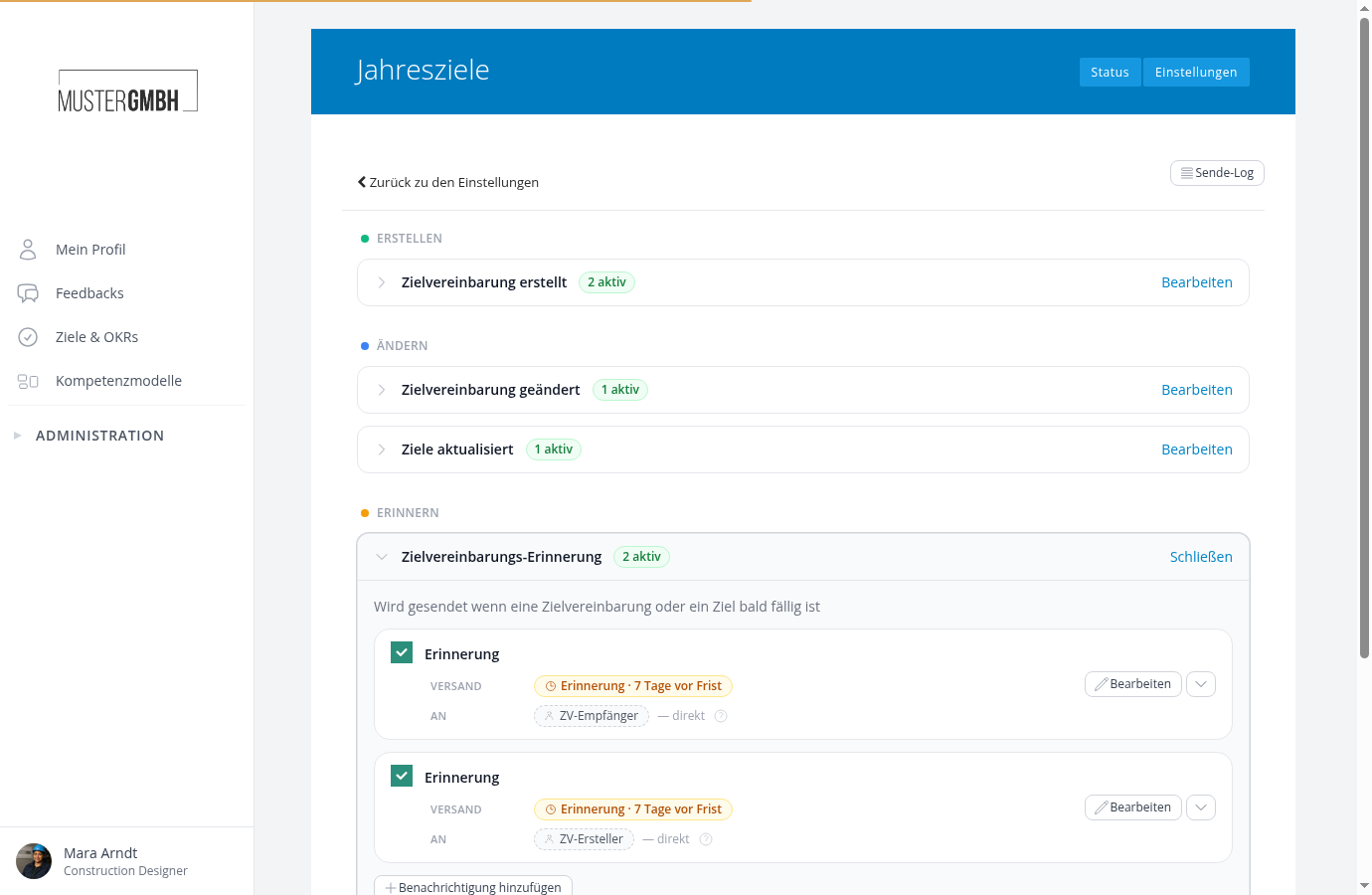
Expand "Target Agreement Reminder". By default, recipients and creators of a target agreement are reminded 7 days before each deadline. Deadlines are the overall due date of the target agreement and the due dates of its individual goals; goals that are already achieved are not reminded about. You can change the lead time per rule in the settings tab ("days before the deadline").
Verify delivery
The Delivery Log (button at the top right of the center) lists every email sent for the target agreement process, including recipient and status.
Reached the end?
Done – guide completed!
Check off the steps as you work through them. Your progress is shown on the left.
You have completed every step.