Switch to the new Notification Center
easyreview has rebuilt the way all email notifications are managed. The main thing up front: your existing settings were carried over automatically. Email texts, reminder intervals, and recipients all remain, and nothing about sending changes as long as you don't reconfigure anything. What's new: freely chosen recipients, additional rules, a preview, and the Delivery Log. This guide walks you through the check after the switch.
Get an overview
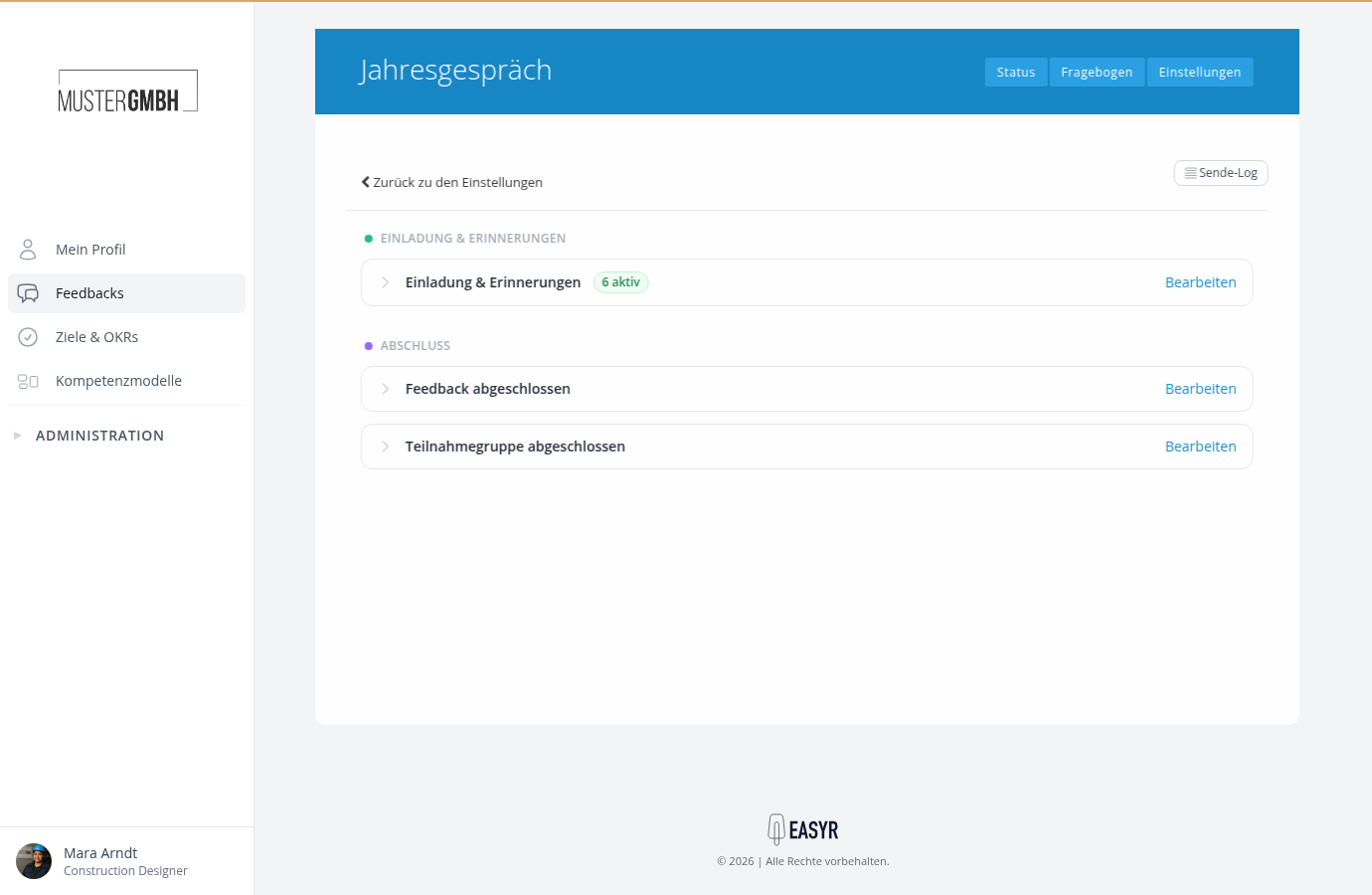
Open the Notification Center of your active feedback processes and target agreement processes. Here is where your familiar settings now live:
- Email texts per perspective (formerly "Edit email texts"): now rules under "Invitation & reminders", still split by perspective. You reach the center in the settings of the feedback process through the "E-mails" row.
- Reminder intervals (formerly dropdown menus): now separate reminder rules with freely chosen days.
- Reminder per target agreement (formerly "To:"/lead time in the form): now the "Target Agreement Reminder" rule per target agreement process.
- The "Notifications" switch on the target agreement process: now the center tile; each email can be switched individually.
- Subscription in the target agreement detail view: unchanged.
Check the carried-over email texts
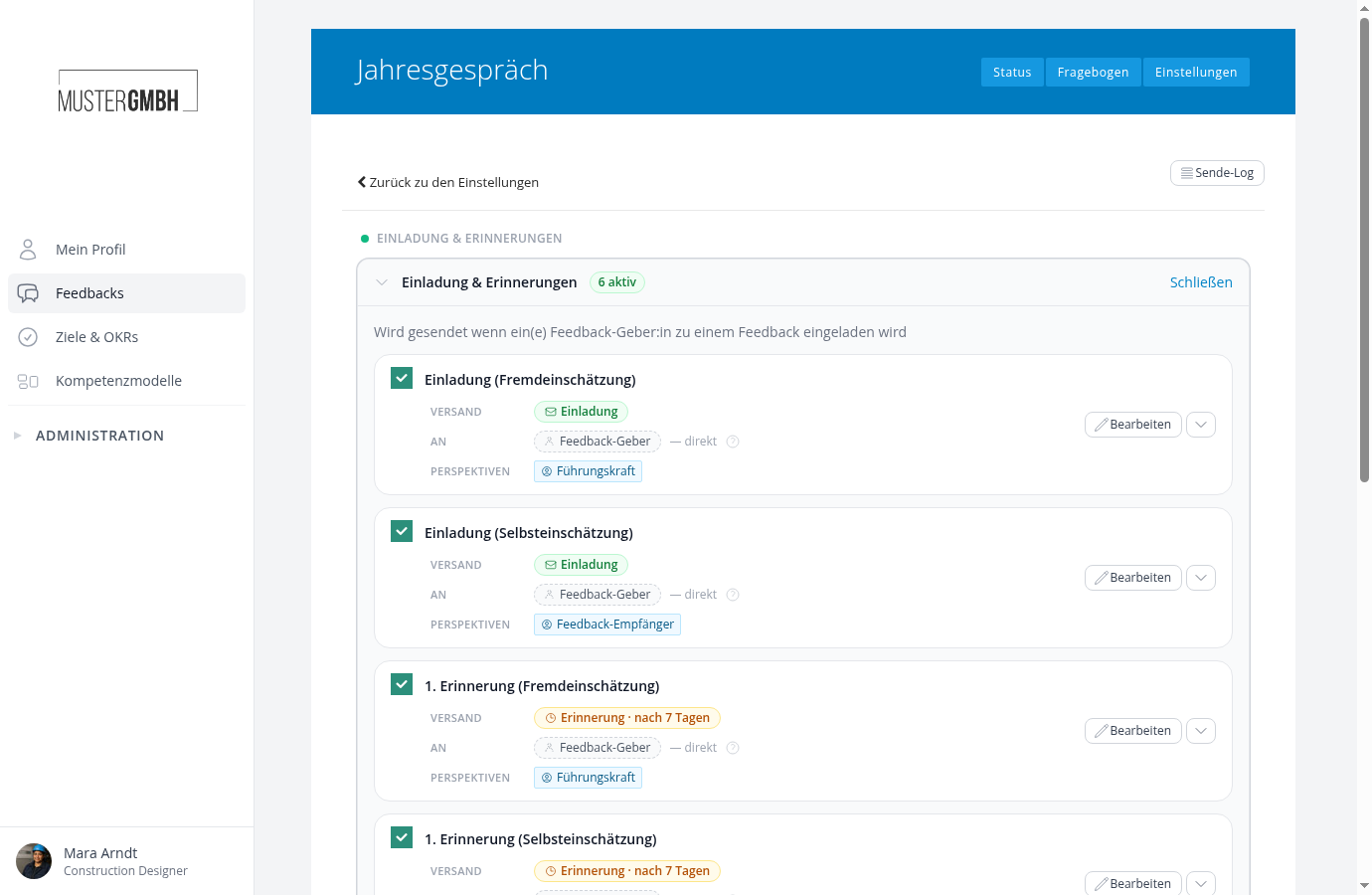
Open the most important rules with "Edit" and check the texts with "Show preview". The preview renders the finished email with sample data in the placeholders.
Check recipients and warnings
Take a look at the TO field of each rule row and watch for warnings, especially about people who are no longer active or groups with no active members. Adjust the affected recipients so no email goes nowhere.
Test-send important emails to yourself
Send yourself key emails such as the invitation once as a test with "Send Preview". That way you see the email exactly as your employees will later.
Check the Delivery Log after the first sends
After the first real sends, open the Delivery Log (button at the top right of the center). It shows every email sent, with recipient and status — handy for follow-up questions like "I never got an invitation".
Reached the end?
Done – guide completed!
Check off the steps as you work through them. Your progress is shown on the left.
You have completed every step.