Design content and use placeholders
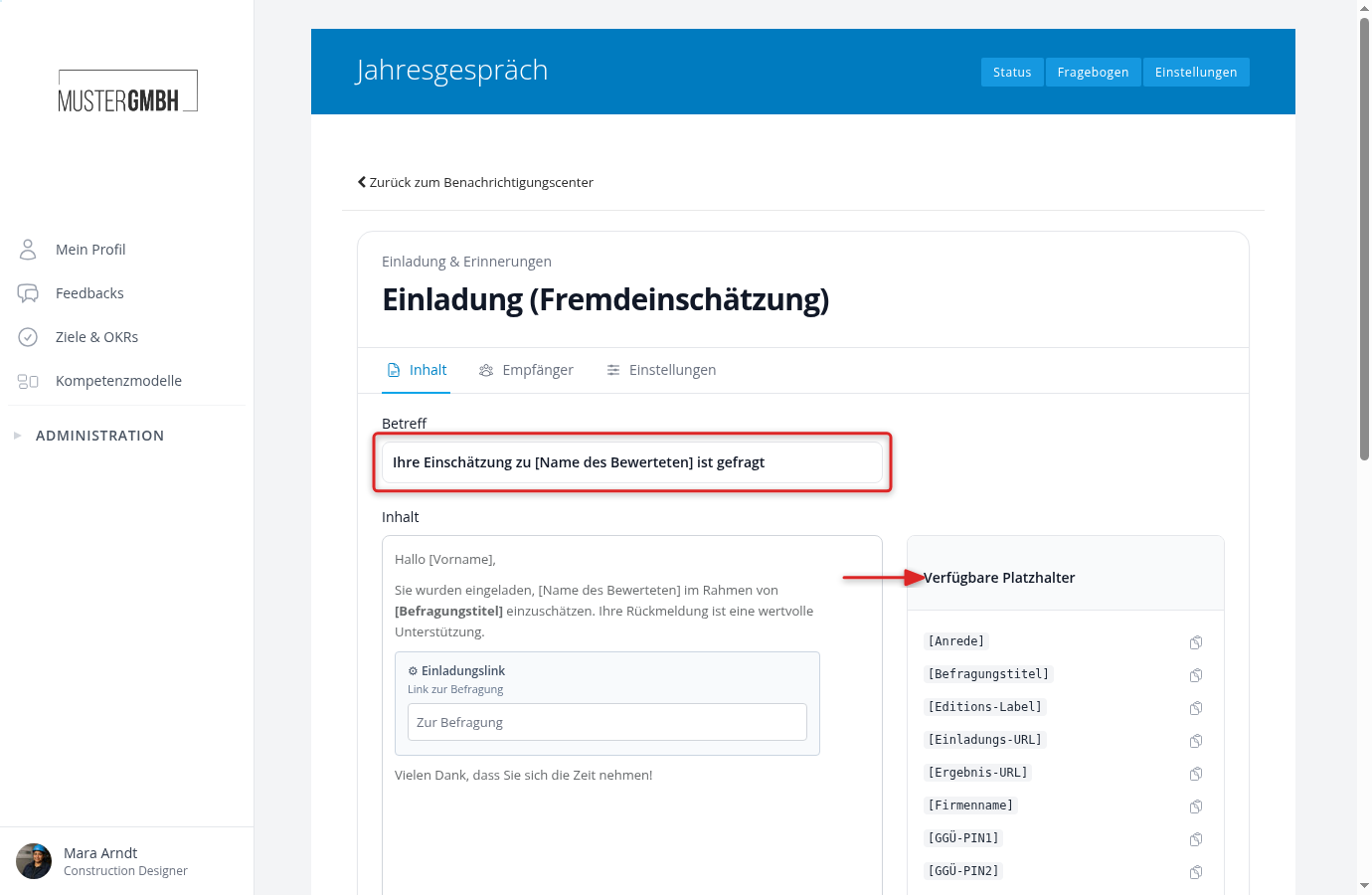
The emails easyreview sends should sound like your organization: your tone, your wording, the right names and dates. You set all of this in the Content tab of the rule editor. Each rule has its own subject and body, so a change only affects that one email.
If the tab says “Template”, subject and body are still the built-in default text. As soon as you change something, the note disappears.
If a rule can bundle several notifications into one email, there is a Bundled tab next to it. It holds the text of that digest, and you edit it the same way. When it applies is described in Sending and reminders.
Edit the text
The editor works with blocks. Click into the text to edit it, or add new blocks with the plus icon. Alongside paragraphs, headings, and lists, there are blocks for buttons, images, dividers, and spacing. Depending on the notification type, additional matching content blocks are available, for example the invitation link in feedback invitations, the invitation list for bundled invitations, the goal list in target agreements, the activation link in account invitations, or “Automatically invited users” in the automatic invitations summary.
Two more blocks appear only in the notifications around nominations. “Nomination link” is the button of the email and leads to the nomination page of the feedback recipient, or, in the acceptance email, to that person’s own acceptance page. “Nomination list” lists the nominations the email is about, each with name, status and link. Which block sits in which email is described in Notifications for nominations.
The “Target agreements to create” email has a block of its own, “Open creations link”. It is the button of the email, labeled “Create target agreements” by default, and takes the person receiving the email to their own profile. There, the “To create” block lists every target agreement they still have to create. New rules already include the button in their default text. Existing rules keep their text. Add the block there with the plus icon if you need it.
Select text to make it bold or italic, or to turn it into a link. Blocks can be moved or deleted from their context menu.
Insert names and dates automatically
So that every email feels personal, don’t write “Hello” but “Hello [First name]”: placeholders are automatically replaced with the matching values when the email is sent, for example [First name] with the recipient’s first name or [Survey title] with the title of the feedback process.
The Available Placeholders sidebar lists every placeholder the current notification type supports. Use the copy icon to put a placeholder on your clipboard, then paste it into the subject or the body.
Multiple languages
If your organization uses more than one language, a language switcher appears above the editor. Maintain the content per language. Each recipient automatically receives the email in the language they have set.
Check it before anyone reads it
No edited text has to reach employees unchecked. Below the placeholder sidebar you’ll find the Preview area. It shows the text of the tab you’re in: the single email in the Content tab, the digest with sample rows in its list block in the Bundled tab.
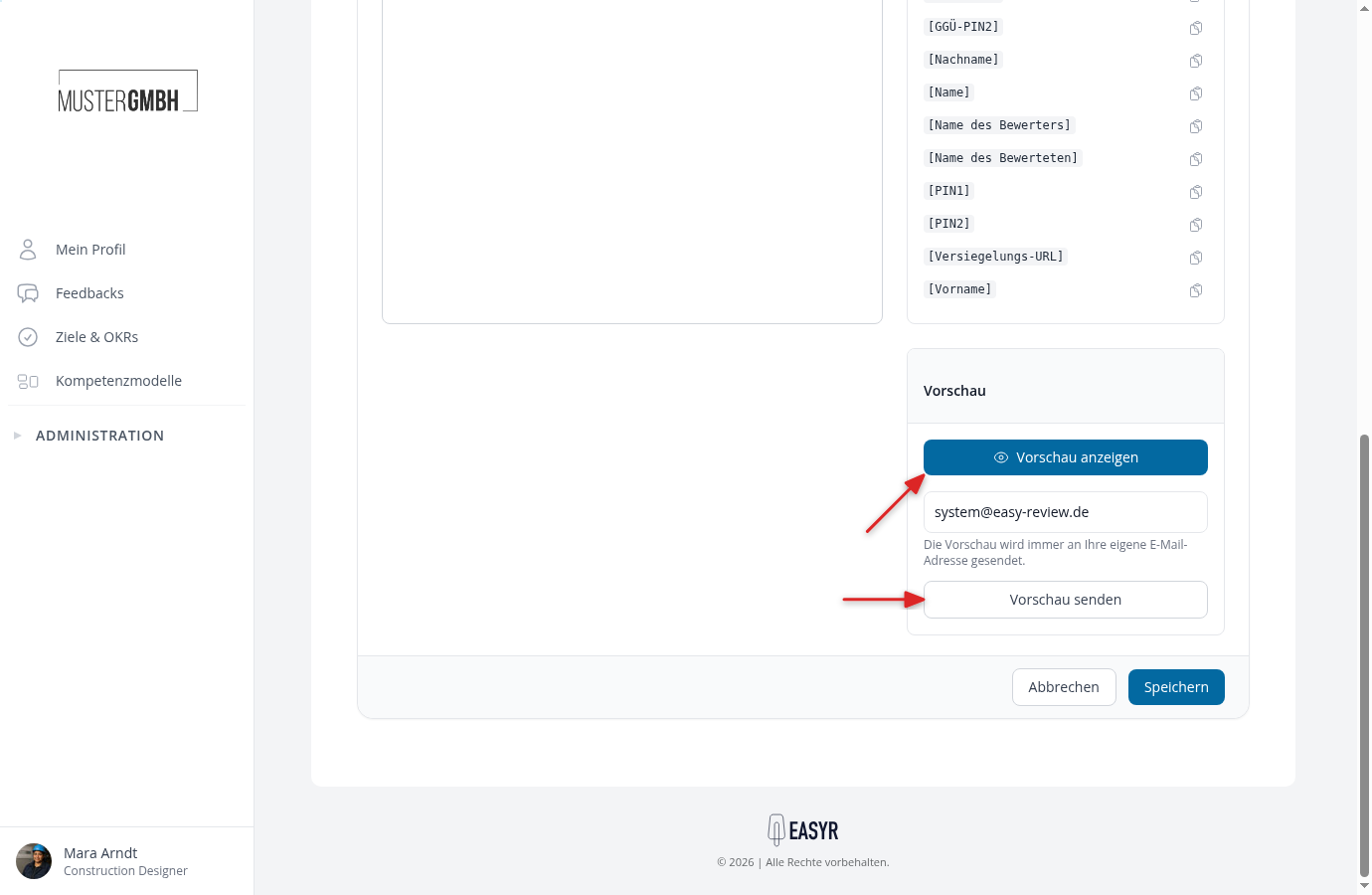
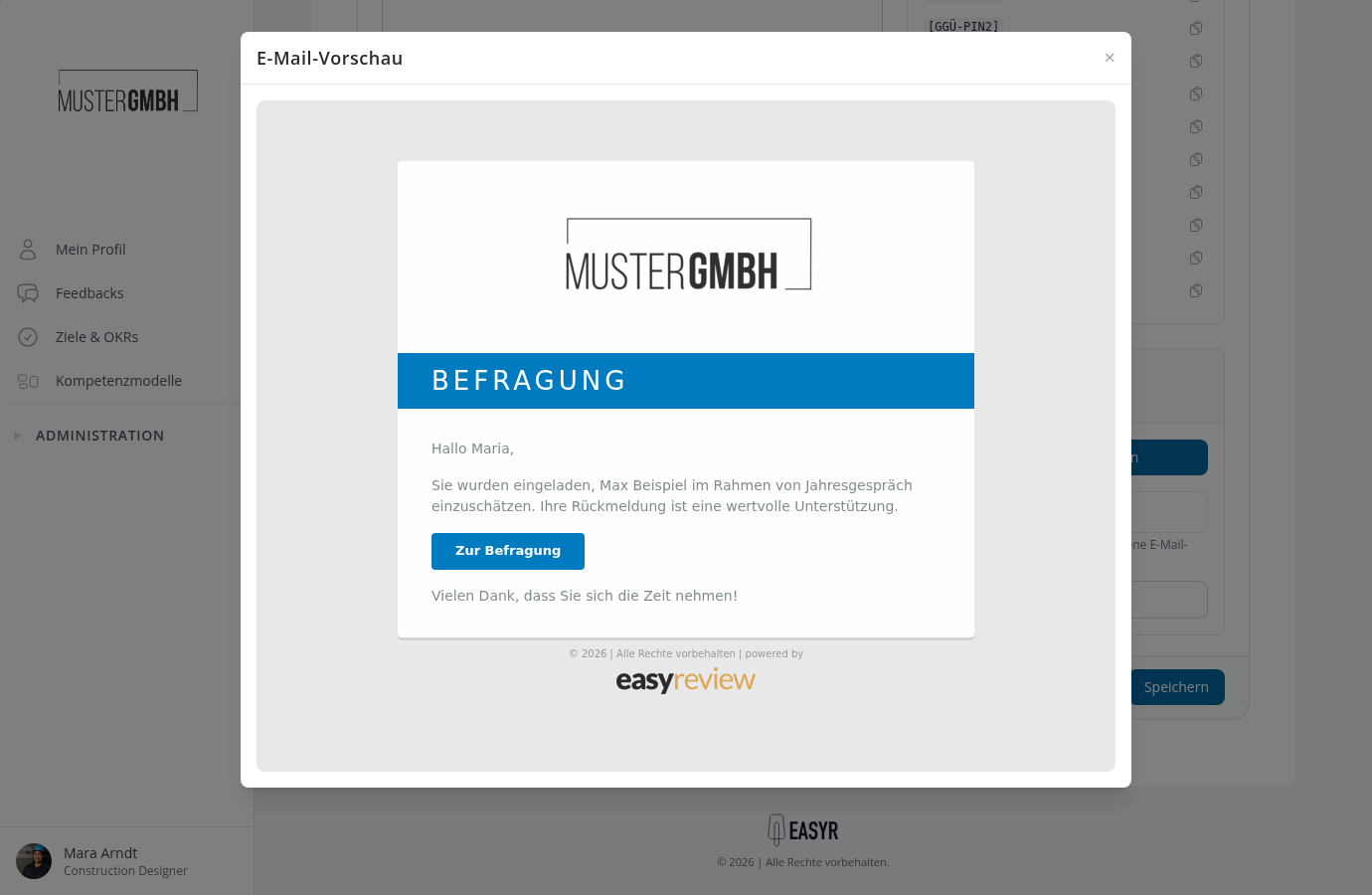
- Show preview opens the fully rendered email right in your browser. Placeholders are filled with sample values.
- Send Preview sends the email as a test message to your own email address, so you see it exactly as the recipients will. Sending to other addresses isn’t possible.
The line below says which text the preview shows and which address it goes to.