Set recipients
Every email should land with the right person: the invitation with the feedback provider, the completion notice perhaps with the supervisor, a copy permanently with an HR contact. You set all of this per rule in the Recipients tab of the rule editor. This article walks through the most common cases step by step.
The concept behind it (function and assignment) is explained in Who receives a notification?
Check who currently receives the email
- Open the rule and switch to the Recipients tab.
- Under Function you see which role the rule targets, e.g. “Feedback provider”. Here you can pick a different role if needed.
- The sentence under Delivery describes in plain language who actually receives the email. If it is correct, you are done.
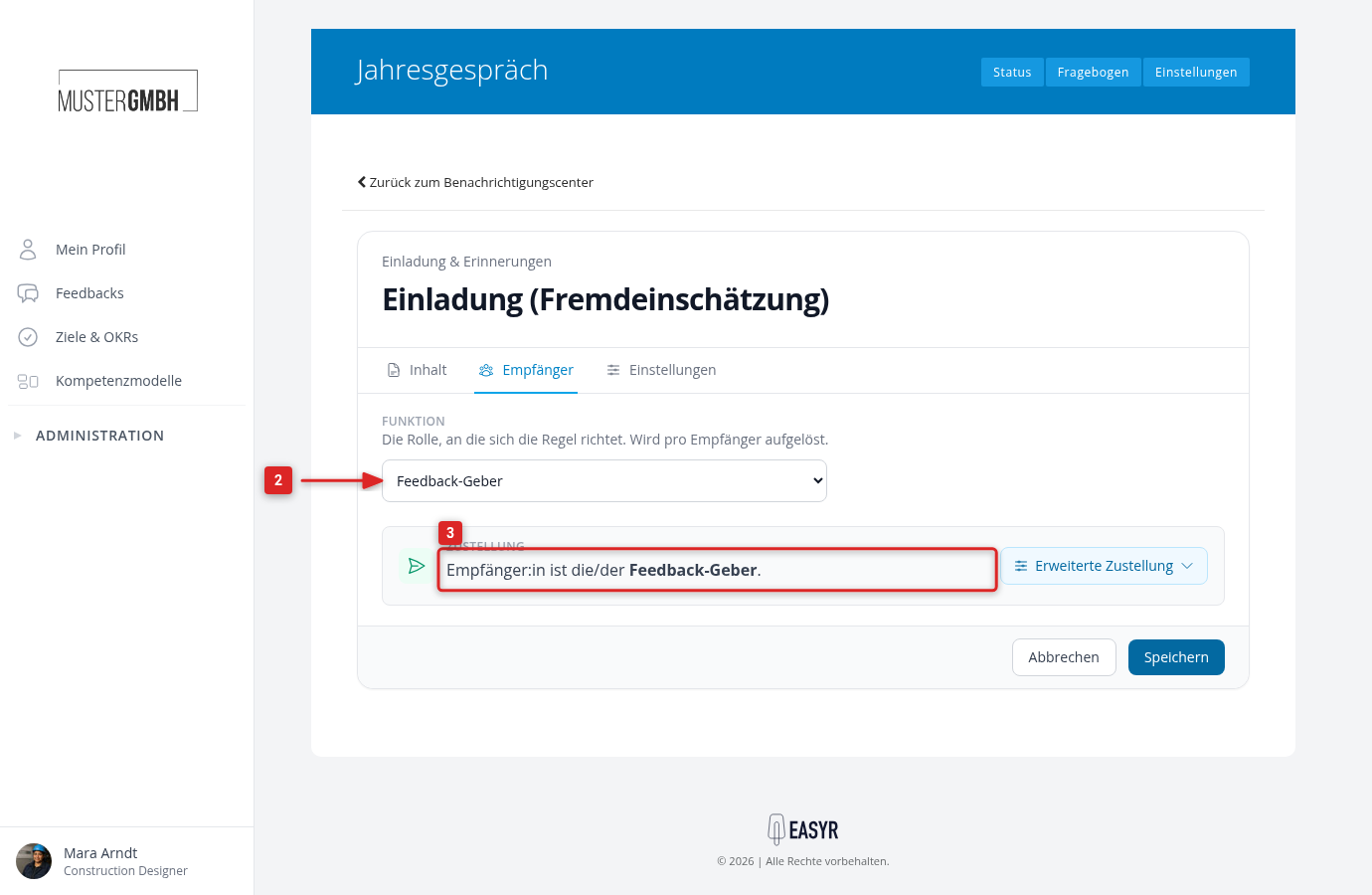
By default the email goes straight to the chosen role itself.
The email should go to the supervisor
For example: the supervisor should be informed when their team member has completed a feedback.
- In the Recipients tab, click “Advanced delivery”.
- Under Via the hierarchy, choose the matching card: Supervisor (one level up), Supervisor’s Supervisor or Top-level Supervisor.
- Check the sentence under Delivery and save.
The email should always go to a fixed person or group
For example: an HR contact or the “HR” team should receive every one of these emails, no matter who it is about.
- In the Recipients tab, click “Advanced delivery”.
- Under Redirect to someone else, choose the card Specific Employee or Specific User Group.
- Below the card, the target selection opens. Choose the concrete person or group there.
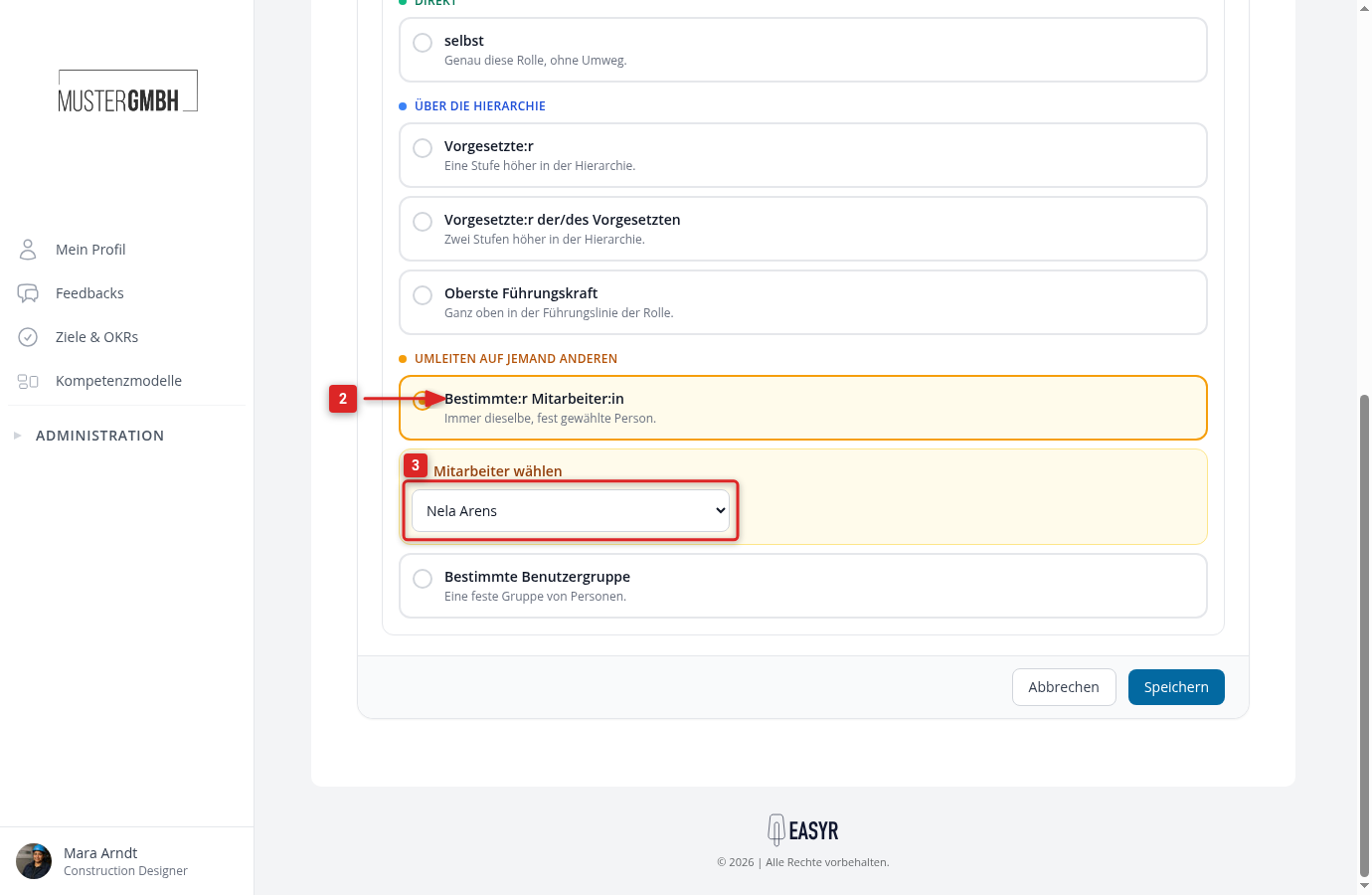
- Check the sentence under Delivery; it adjusts immediately to your choice.
- Click “Save”.
The email should go to a person recorded in the profile
For example: every employee has a mentor recorded in their master data, and that mentor should receive the email. To do this, under Redirect to someone else choose the card Custom Field and then the matching field in the target selection.
Several recipients at once
A rule describes exactly one recipient path. If the same email should go to several different recipients (e.g. the person themselves and, in addition, their supervisor), create a separate rule for each. Create and edit a notification rule shows you how.