Getting started in easyreview
New to easyreview? This article helps you settle in: you get to know how the interface is laid out and learn how to sign in, manage your password, and change the language.
How easyreview is laid out
After you sign in, the interface has two areas: the sidebar on the left with the navigation, and the content area on the right, where the current page is shown.
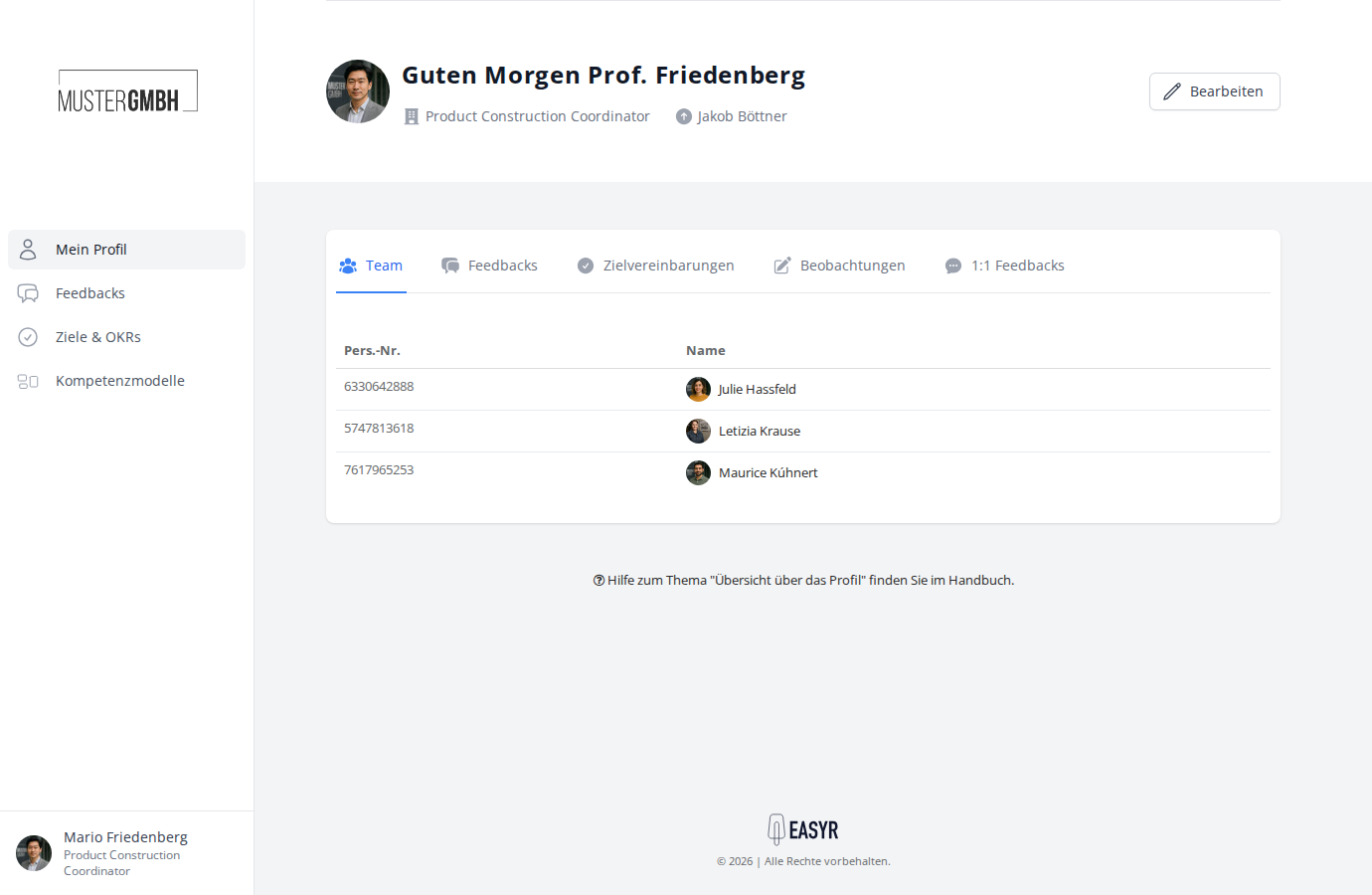
What appears in the sidebar depends on your role, so don’t be surprised if colleagues see more or fewer entries than you do:
- Every employee sees Profile, their own employee profile.
- Supervisors, HR staff, and management additionally see Reviews (your feedback processes) and Objectives (target agreements), and, depending on the modules you have, Competency models.
- HR staff and administrators also see the expandable Administration area, where you manage employees, user groups, and custom fields, and — depending on the configuration — the audit log.
At the very bottom of the sidebar you find your profile picture, name, and position. Clicking your profile picture opens the user menu with the language selector and the sign-out option.
Your home page: your profile
After you sign in, you land on your own employee profile. There, organized into tabs depending on your role and configuration, you find everything that concerns you: your team (if you manage people), your feedbacks, your target agreements, observations, and 1:1 feedback.
Signing in and out
Every company has its own easyreview address in the form your-company.easy-review.de. Ask your HR or IT department for this address.
On the sign-in page you log in with your email address or staff number and your password. Depending on your company’s configuration, there may also be sign-in via Microsoft 365 (SSO) and sign-in with a PIN for employees without an email address (for taking part in feedbacks only).
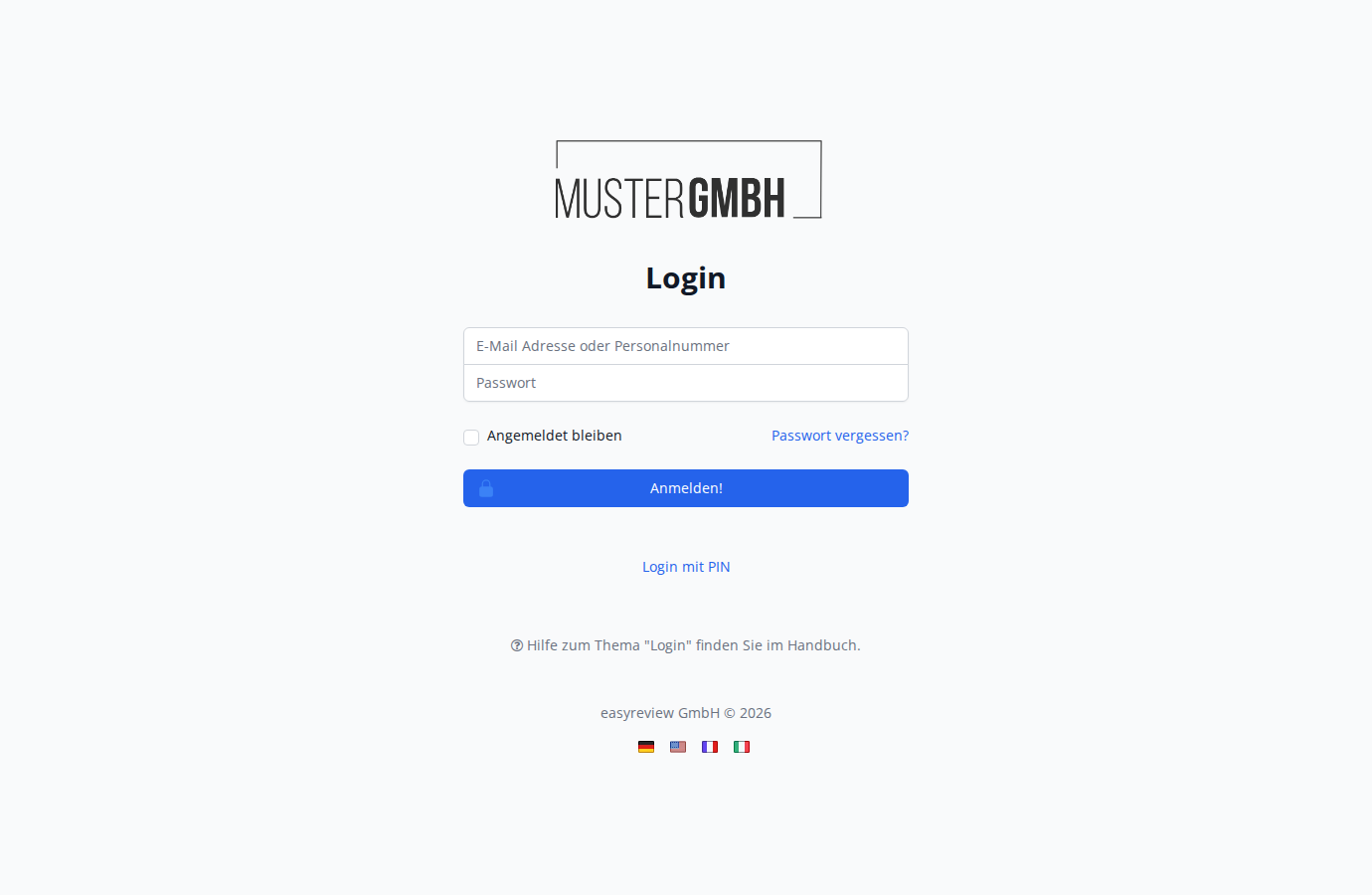
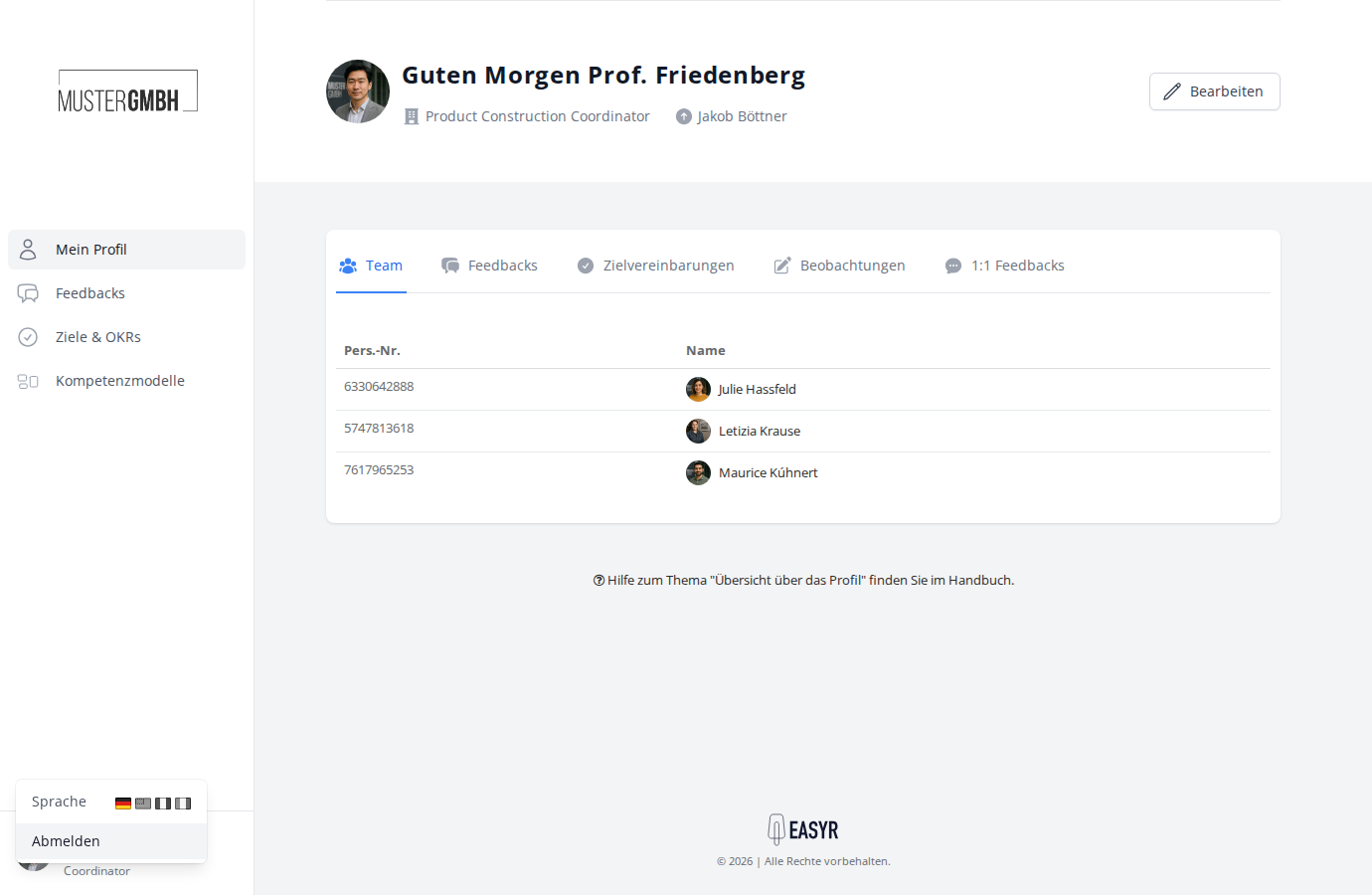
To sign out, click your profile picture at the bottom left of the sidebar, then click Sign out.
Detailed guides:
Changing or resetting your password
You can change your password at any time from your profile. If you have forgotten it, reset it yourself: click “Forgot password?” on the sign-in page and follow the link in the email.
Changing the language
easyreview is available in several languages, usually German, English, French, and Italian. Your company decides which languages are active. You switch the language using the flag icons, either on the sign-in page or in the user menu at the bottom left:
For HR and administrators
In the sidebar’s Administration area you maintain your company’s master data: employees, user groups, and custom fields.