Change group filters
In a filter-based user group, filters determine who is a member. You edit these filters directly in the group’s member list. Before saving, easyreview shows a preview of who the changed filters match.
View and change the filters
-
Under Administration > User groups, open the group by clicking its name.
-
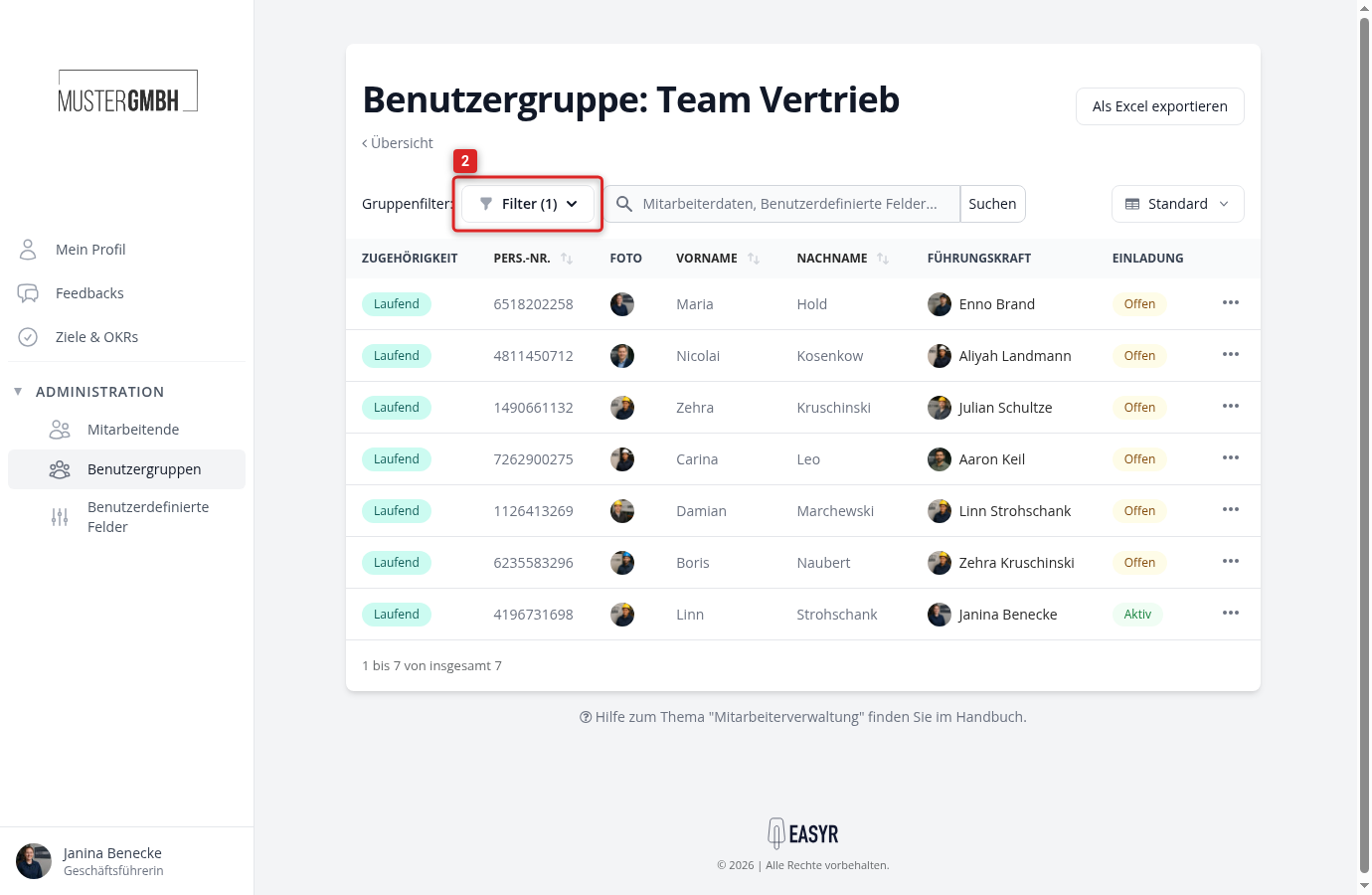
Next to Group filters:, click Filters to expand the filter rows.
-
Adjust the filters: change field, operator, or value, add more rows with +, or remove rows with -. Multiple filter rows apply together, a member has to match all of them.
-
Click Search. Above the list you see the note Changed filters – preview: X matches, and below it exactly the people the new filters match. Nothing is saved at this point.
-
If the result looks right, click Save as group filters. Discard takes you back to the saved filters without changing anything.
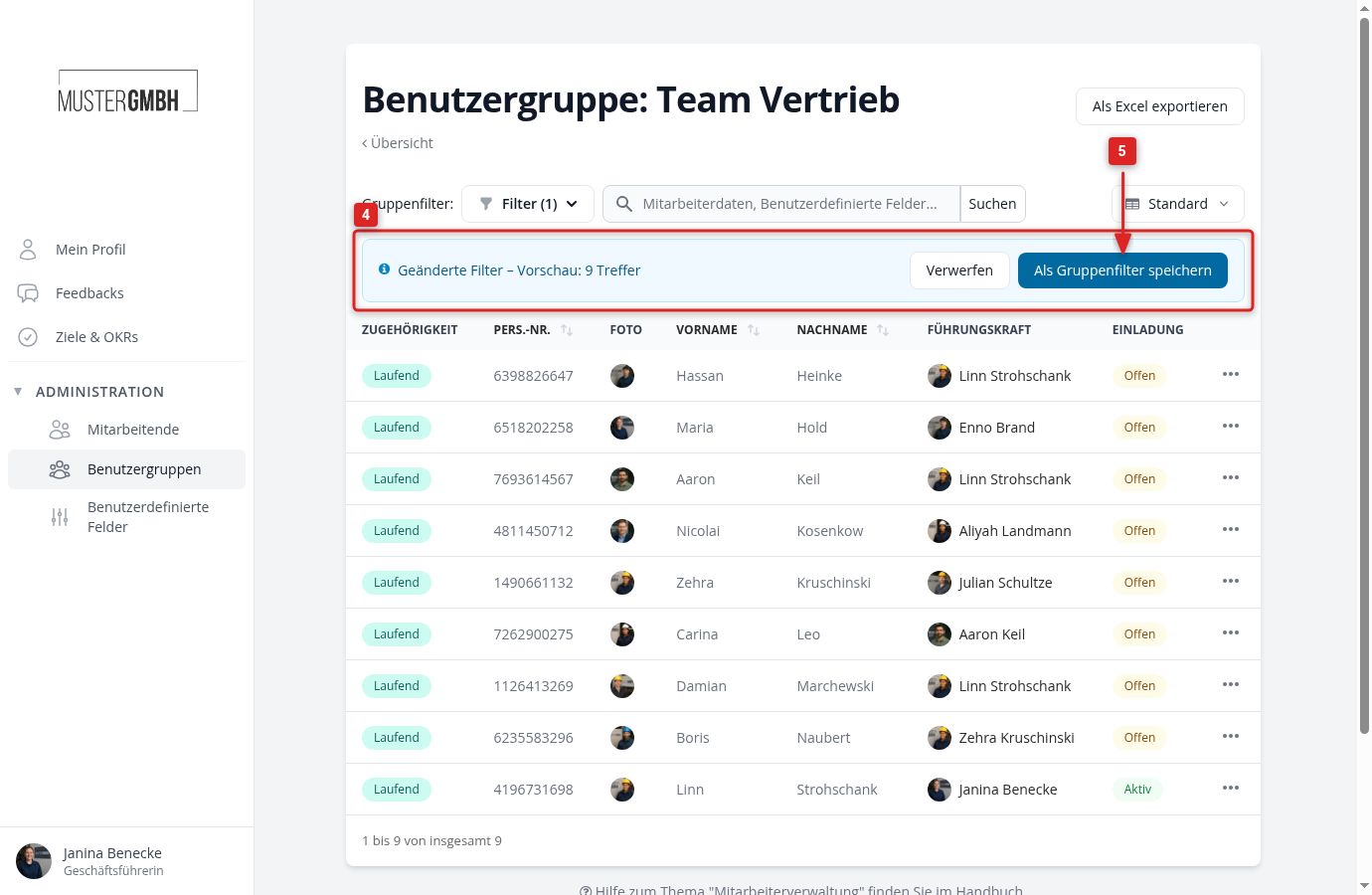
On saving, easyreview recalculates the members immediately.
When the members change
After saving there is nothing more to do, easyreview applies the filters continuously. When an employee record changes, for example through a department change or an import from your HR system, the person joins or leaves the group automatically.
You can also create a new filter-based group straight from the employee list, see Create and manage user groups.