Employee profile
The employee profile gives you access to all the relevant information about a colleague. From there you can review past results, target agreements, observations and feedback with just a few clicks.
Open an employee profile
There are two ways to open an employee profile:
-
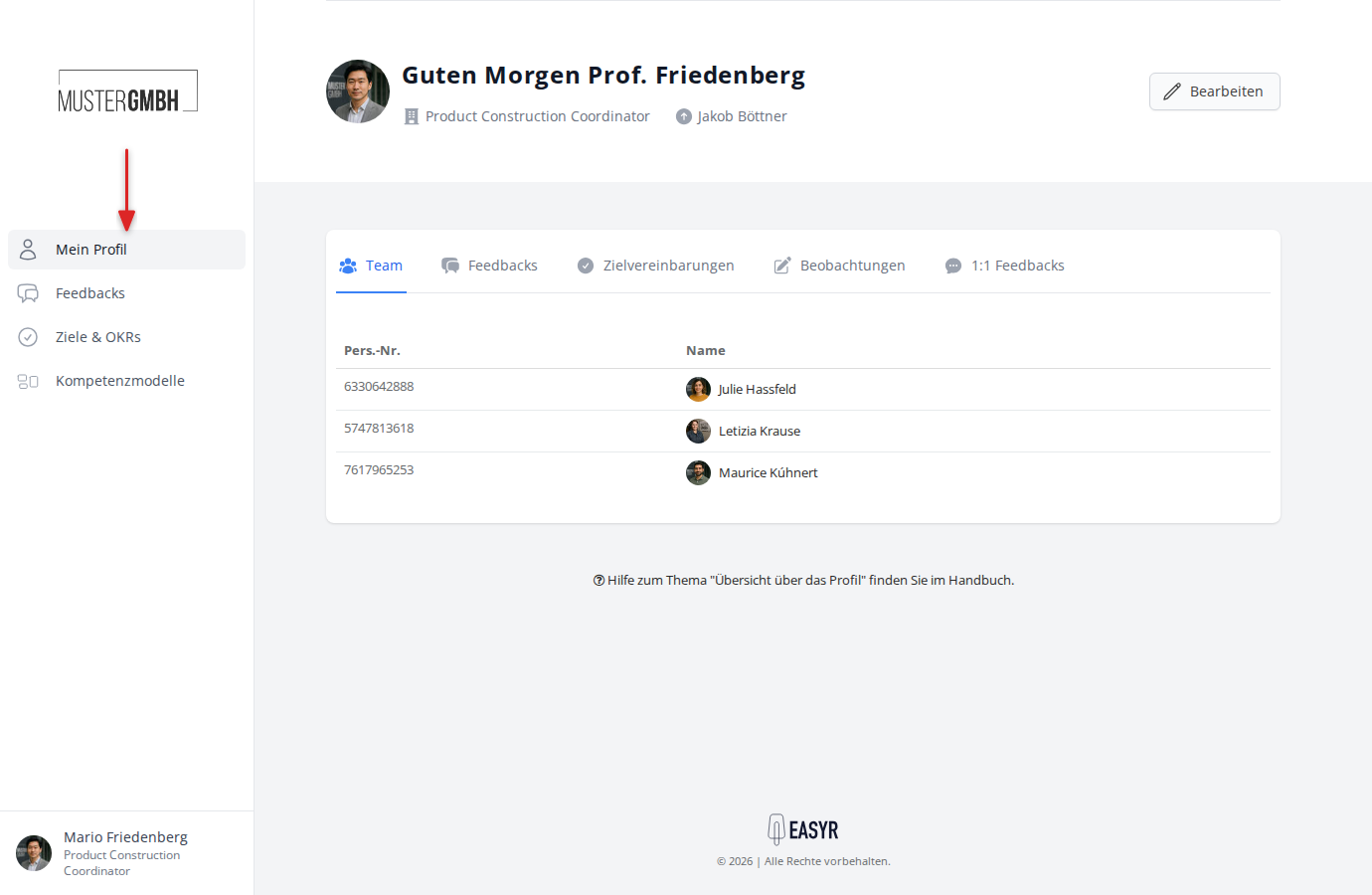
From the sidebar: Click Profile in the navigation bar on the left to open your own profile.
-
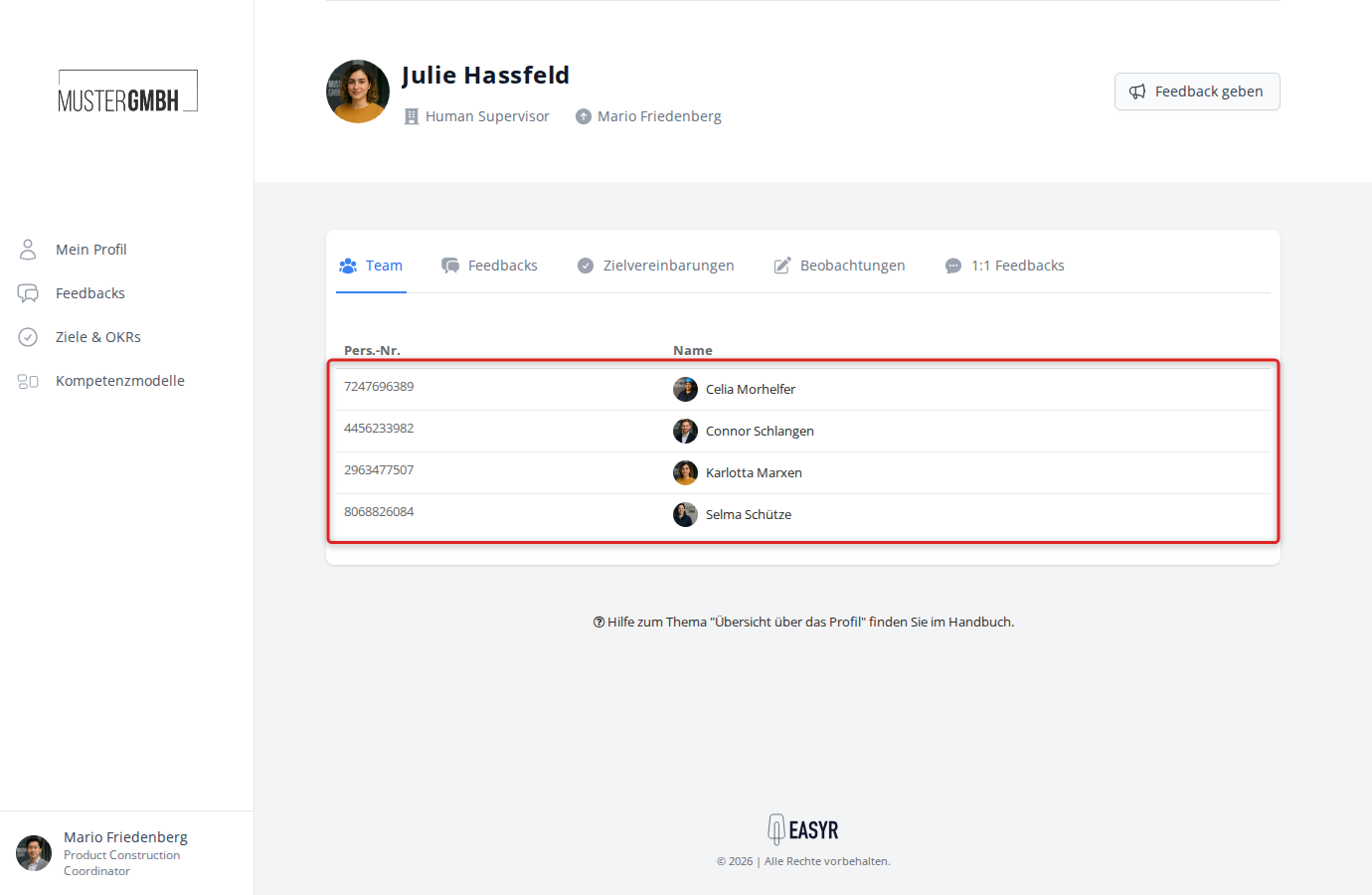
By clicking an employee’s name: In many places across easyreview, employee names are links. Click a name to jump straight to that colleague’s profile. In the team overview, for example, the names of direct reports are linked.
Overview of the profile
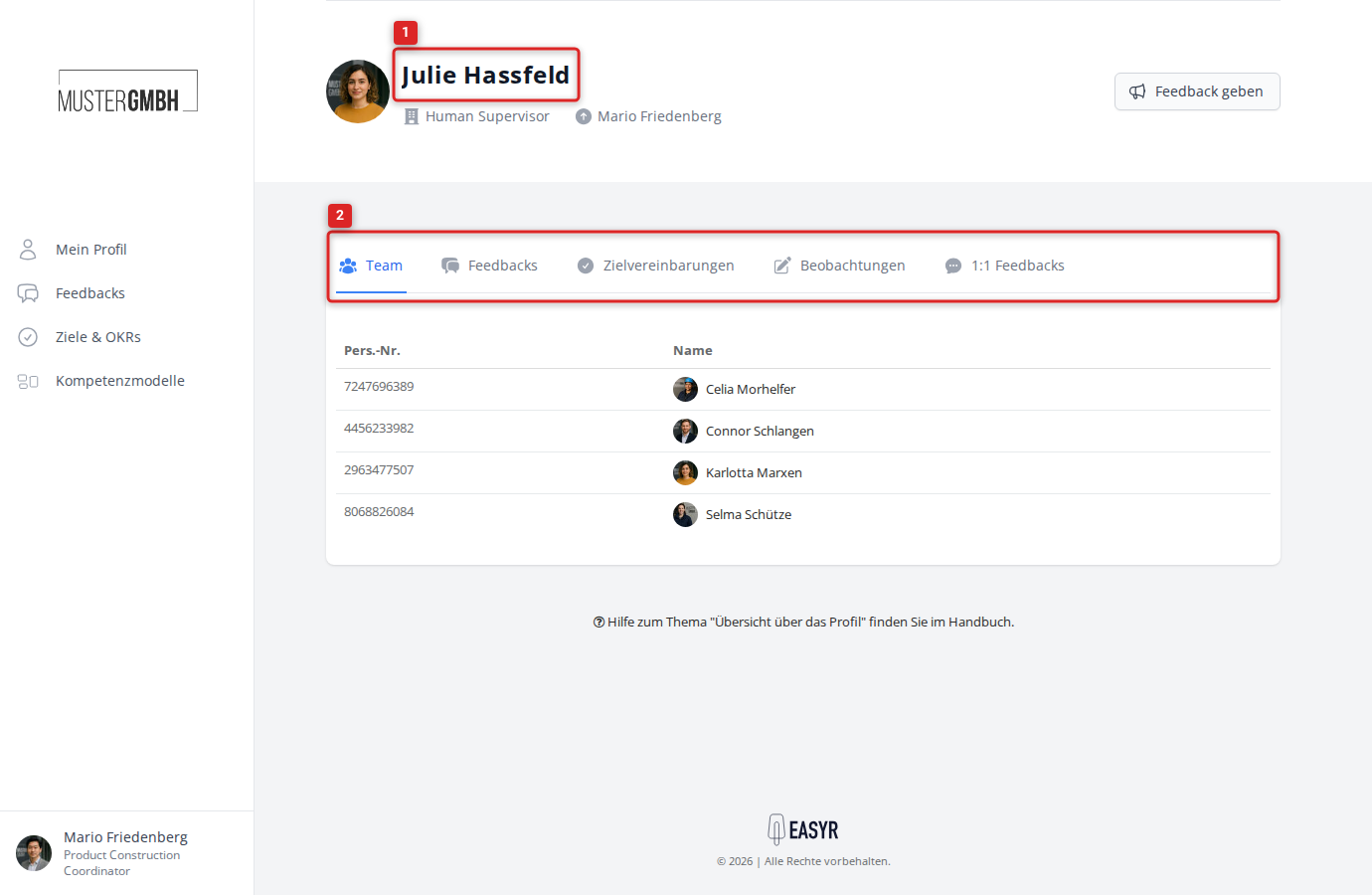
An employee profile has two areas:
- A header with a short summary about the employee and action buttons.
- A tab bar with detailed information and past results.
Header
The header of the profile shows:
- The employee’s profile picture
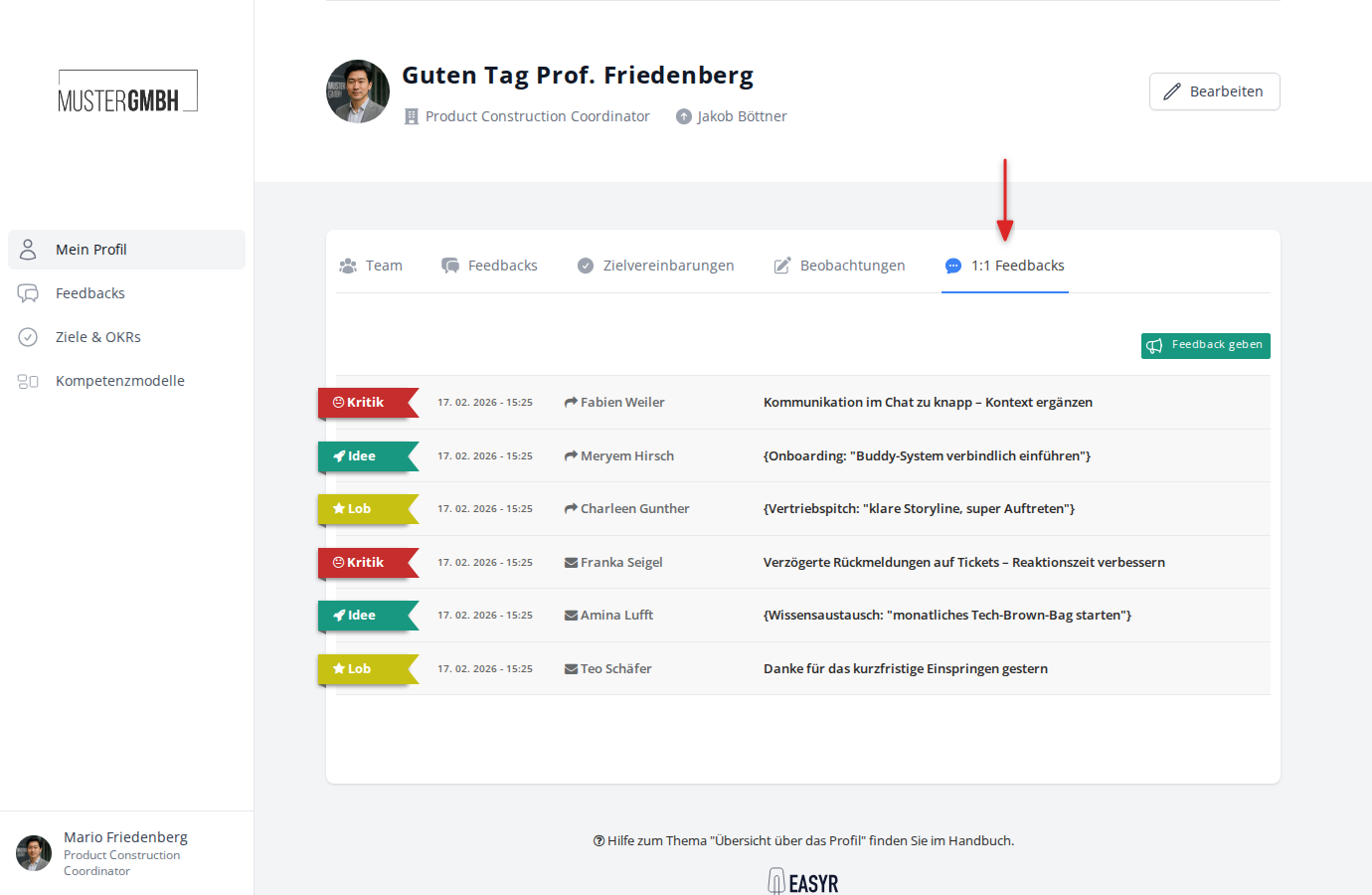
- The employee’s name (on your own profile a greeting is shown, for example “Good morning, Prof. Friedenberg”)
- The position (if set)
- The supervisor (if set). The name is clickable and opens the supervisor’s profile.
Depending on your permissions, the following buttons appear on the right of the header:
- Edit: Opens the employee’s edit page (only visible if you have permission to edit).
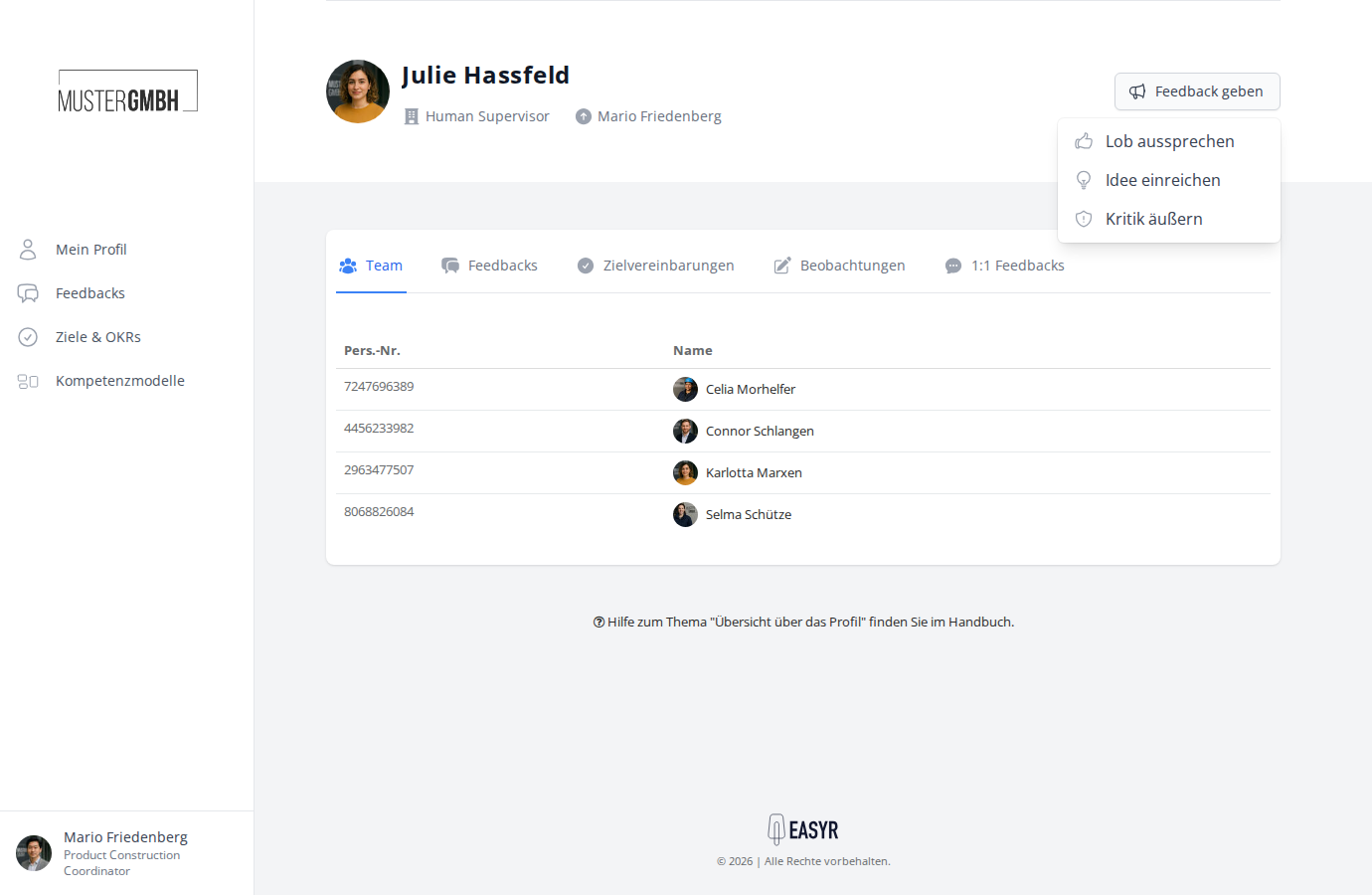
- Give feedback: A dropdown menu for giving 1:1 feedback (only visible when you are viewing another employee’s profile).
Give feedback
When you view another employee’s profile, a Give feedback button appears in the top right. Click it to open a dropdown menu with three options:
- Praise somebody — give positive feedback
- Submit idea — share a suggestion for improvement
- Express critique — offer constructive criticism
Tab bar
Below the header you’ll find a tab bar with up to six tabs. Which tabs appear depends on how your easyreview account is configured.
Team
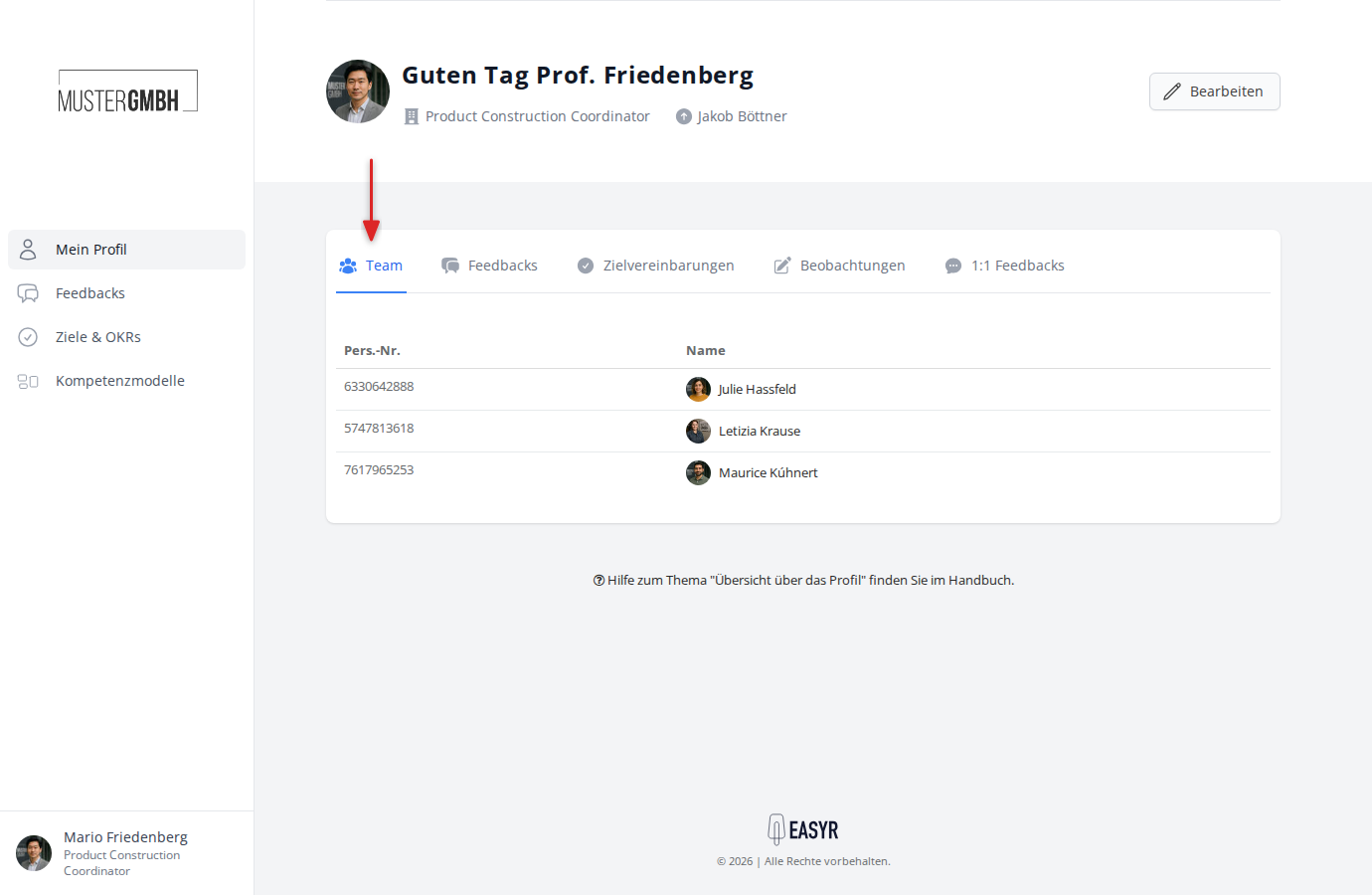
The Team tab shows a list of all employees who report directly to the employee you’re viewing. The table lists each team member’s staff number and name. Click a name to open that colleague’s profile.
Reviews
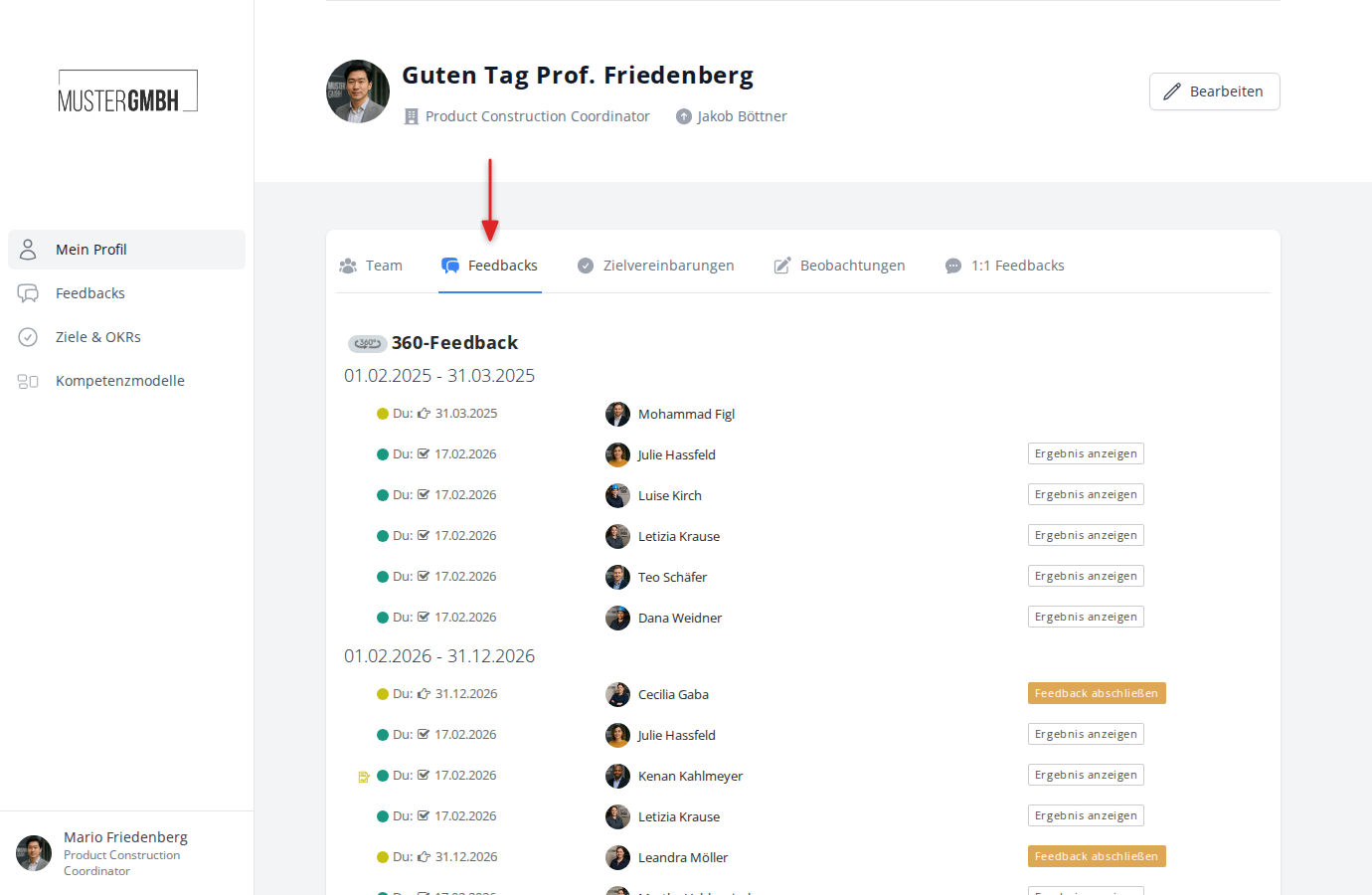
The Reviews tab shows every review process the employee is or was part of. Reviews are grouped by process type (for example 360° feedback, annual review, pulse feedback).
For each review you see:
- The name of the reviewee or the process
- The current status
- The due date
- The review partner
- A button to view the result, or to start or resume participation
Objectives
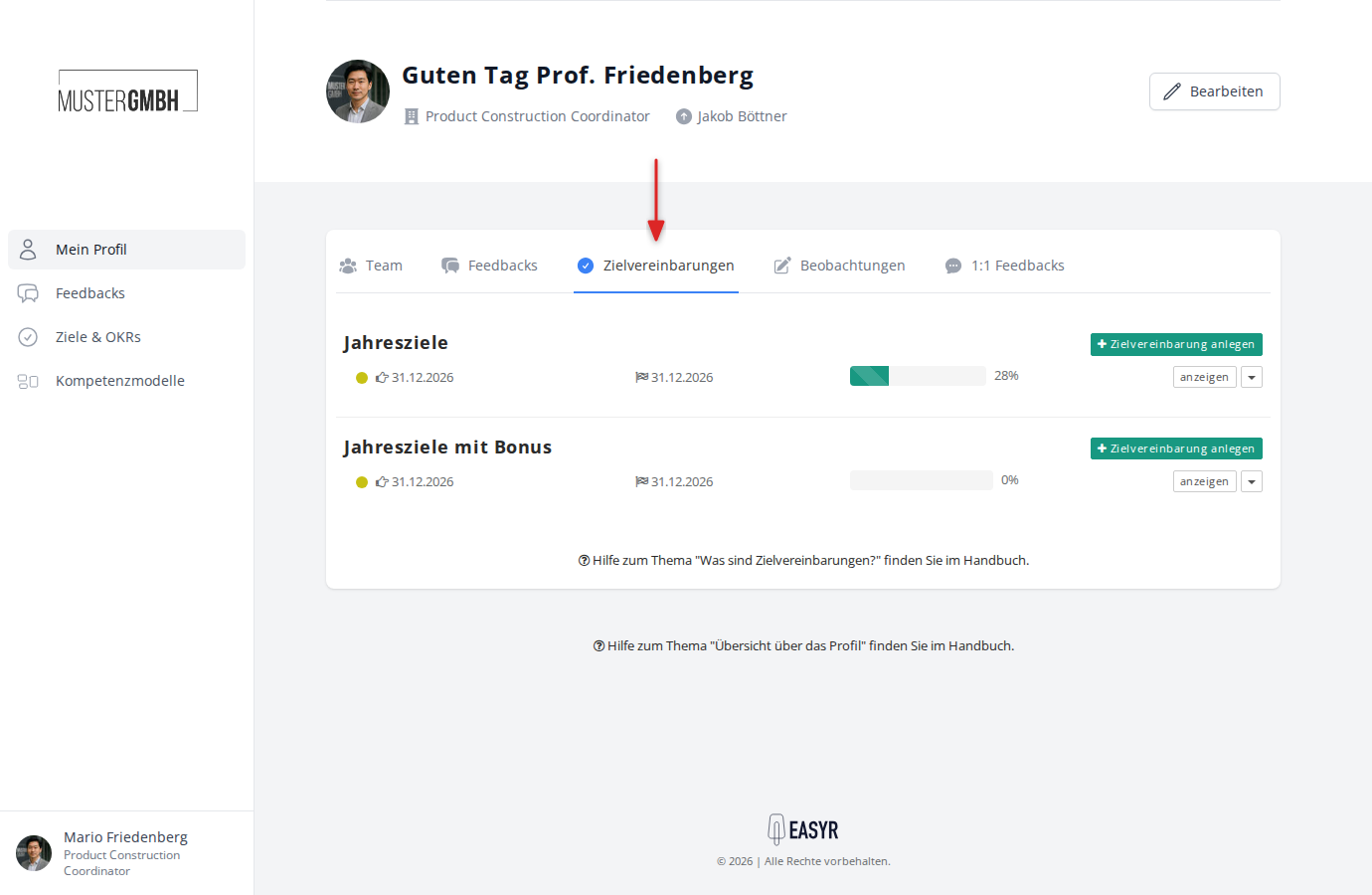
The Objectives tab shows the employee’s current and past target agreements. Target agreements are grouped by category and edition. For each one you see the status, the due date and the current progress as a percentage with a progress bar.
Notes
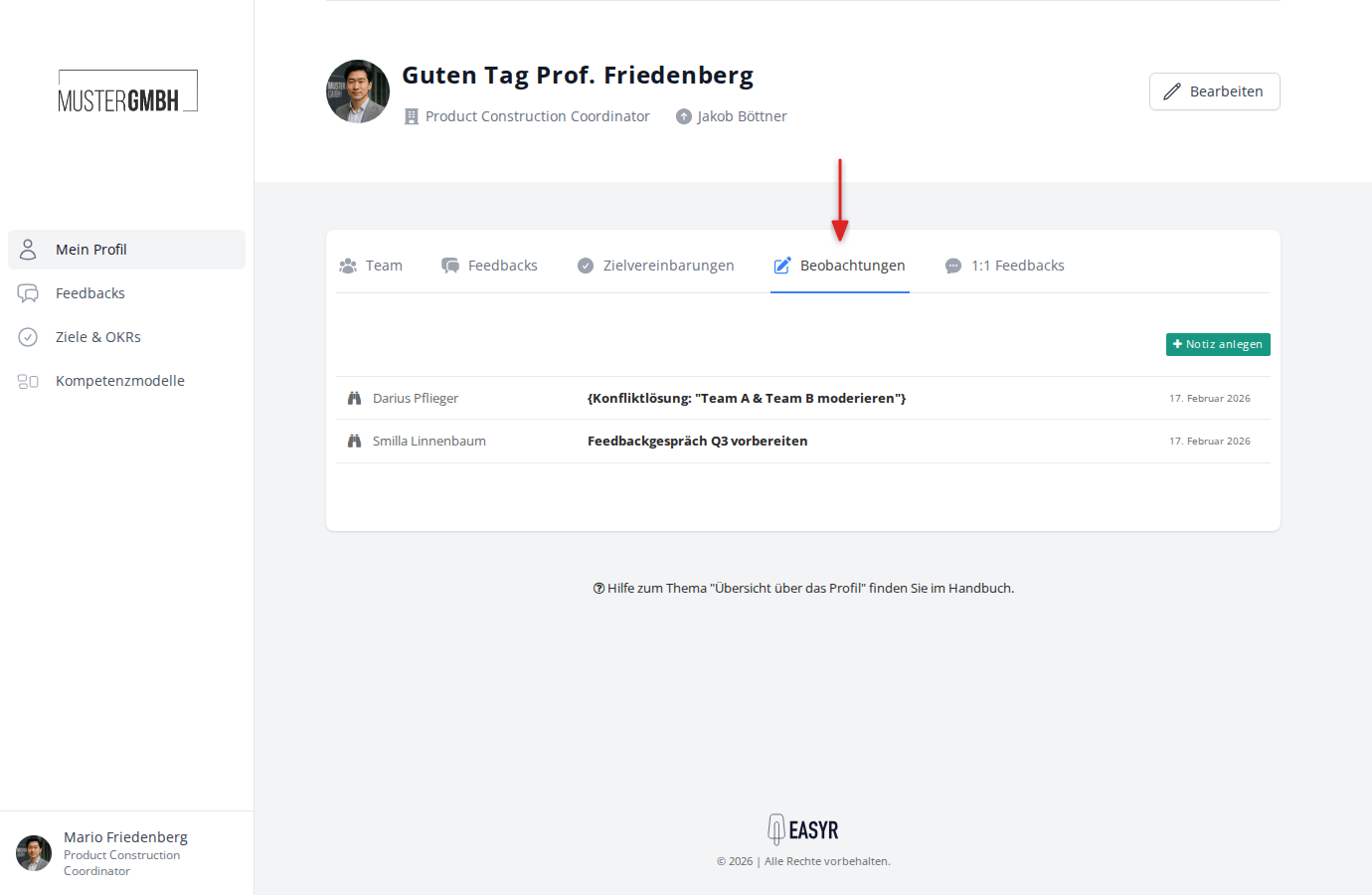
The Notes tab shows all observations and notes recorded about this employee. You can also create a new observation directly here by clicking Add note.
Feedbacks
The Feedbacks tab shows the personal 1:1 feedback (praise, ideas, critique) given about this employee or received by them.
Details
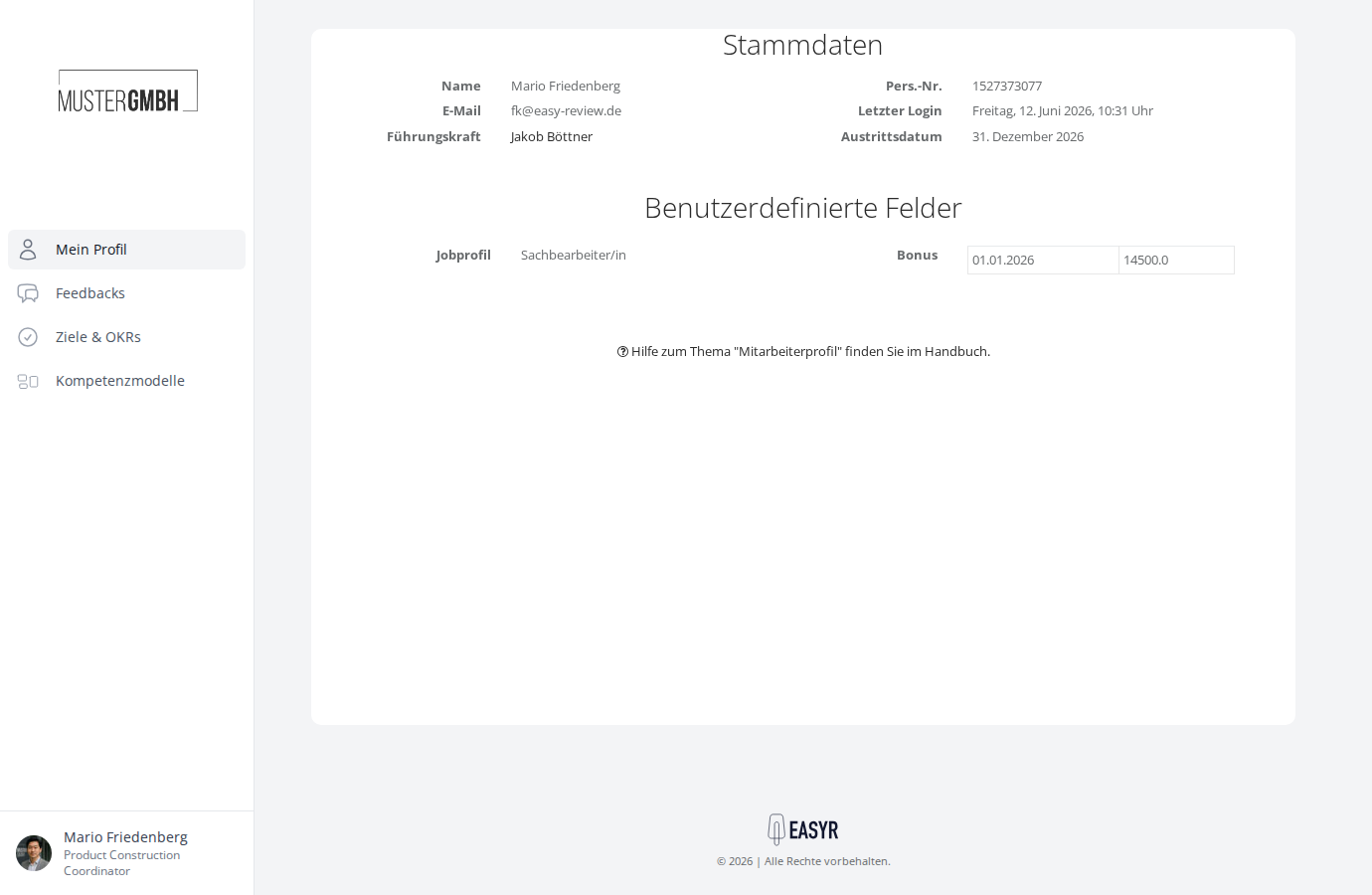
The Details tab shows further master data for the employee. It is divided into these sections:
- Master data: Name, staff number, email address, last sign-in, supervisor and, if applicable, termination date
- Custom fields: Additional fields configured by your company (for example job profile, department)
- User groups: The groups the employee is assigned to (only visible to administrators and HR employees)
At the bottom of the Details tab you’ll find the Show audit log link. There you can trace which changes have been made to the employee’s master data.