Terminology
With the terminology feature you adapt easyreview’s wording to the language of your organization. For example, you can replace “Employee” with “Team member”, and the change is applied everywhere in the interface.
Open the terminology
- In the left navigation, under Administration, click Terminology.
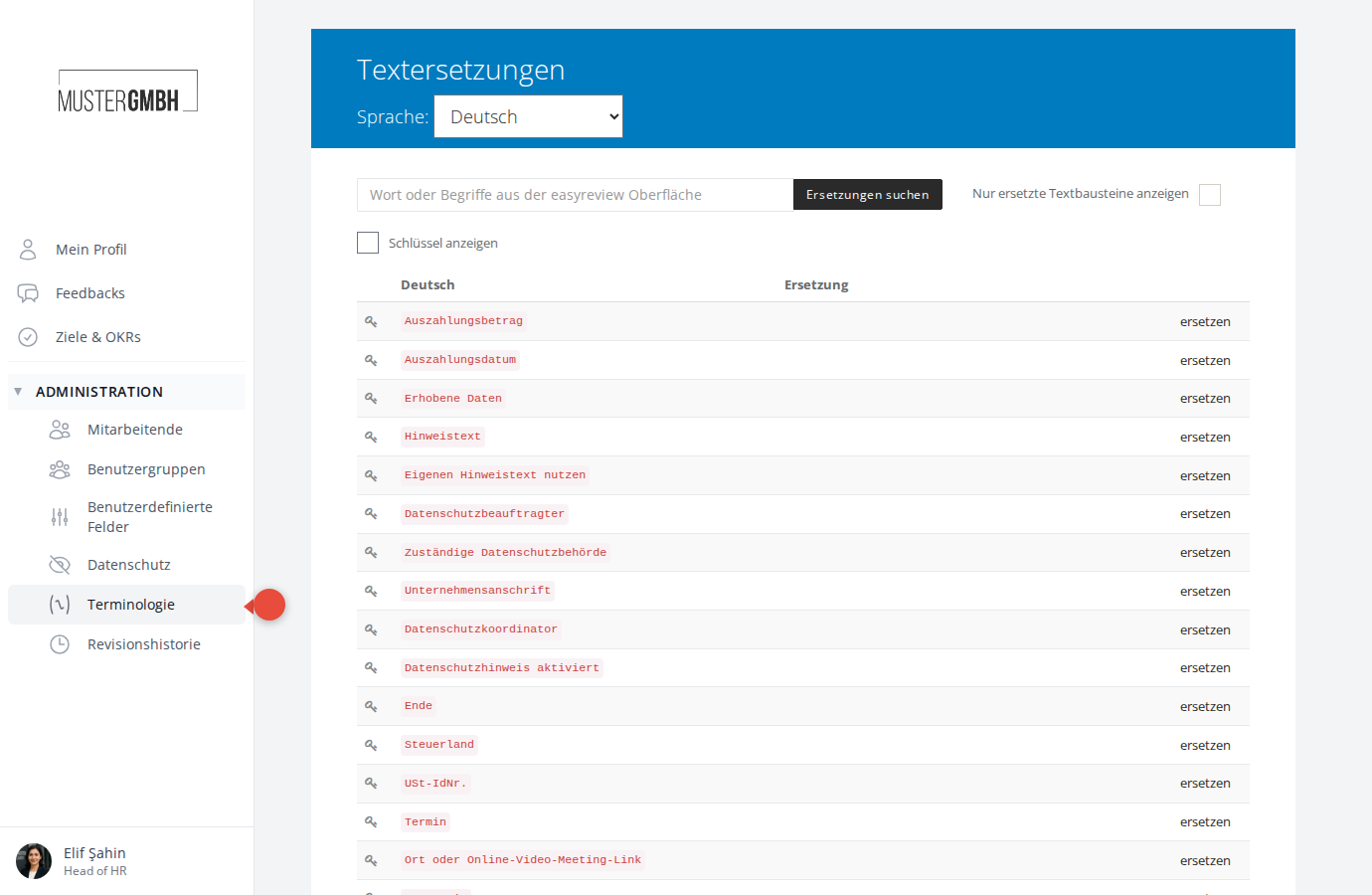
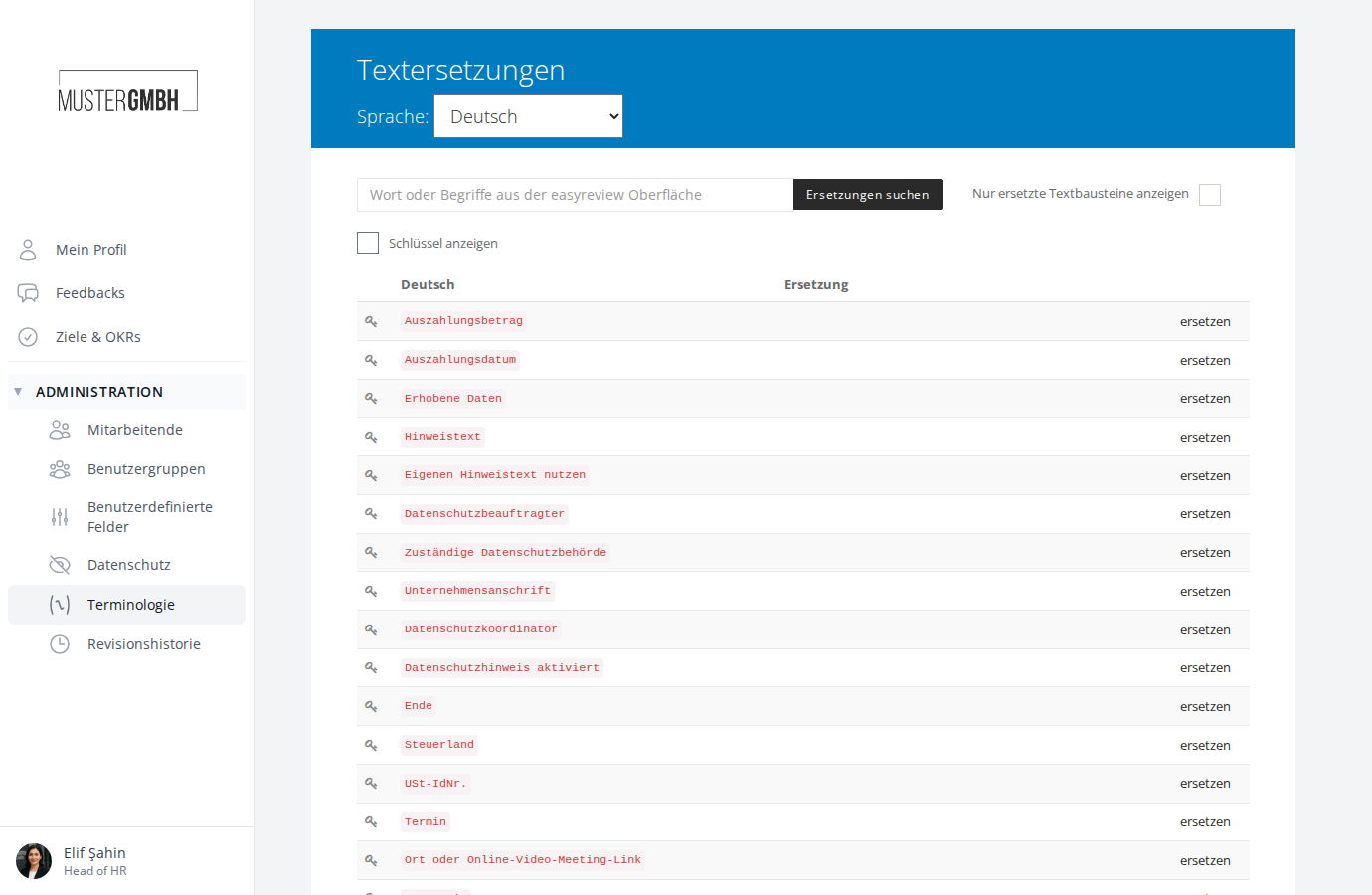
The Text replacements page opens. Here you see all the available pieces of text for the currently selected language.
Search and filter pieces of text
The list contains many entries and is split across several pages (25 per page). You can find pieces of text in two ways:
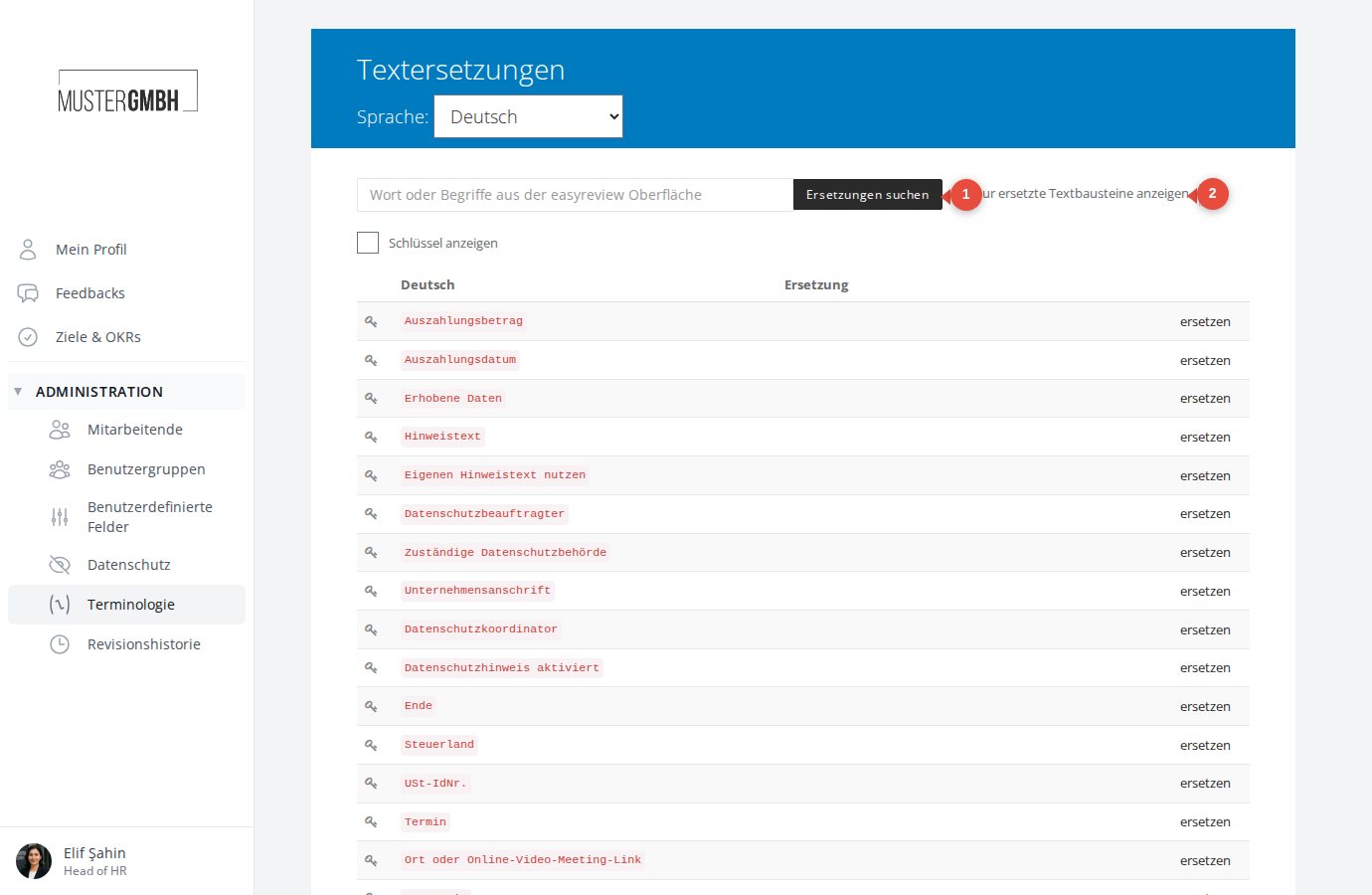
- Type a term into the search field and click Find replacements. Only pieces of text that contain the search term are shown.
- Turn on the Show only replaced text checkbox to see only the entries you’ve already changed.
You can also turn on the Show keys checkbox. This shows the technical key that easyreview uses internally to reference each piece of text, right below it.
Replace a piece of text
- Click replace to the right of a piece of text.
- An input field appears in the Replacement column. Enter your wording there.
- Click Save at the bottom of the list.
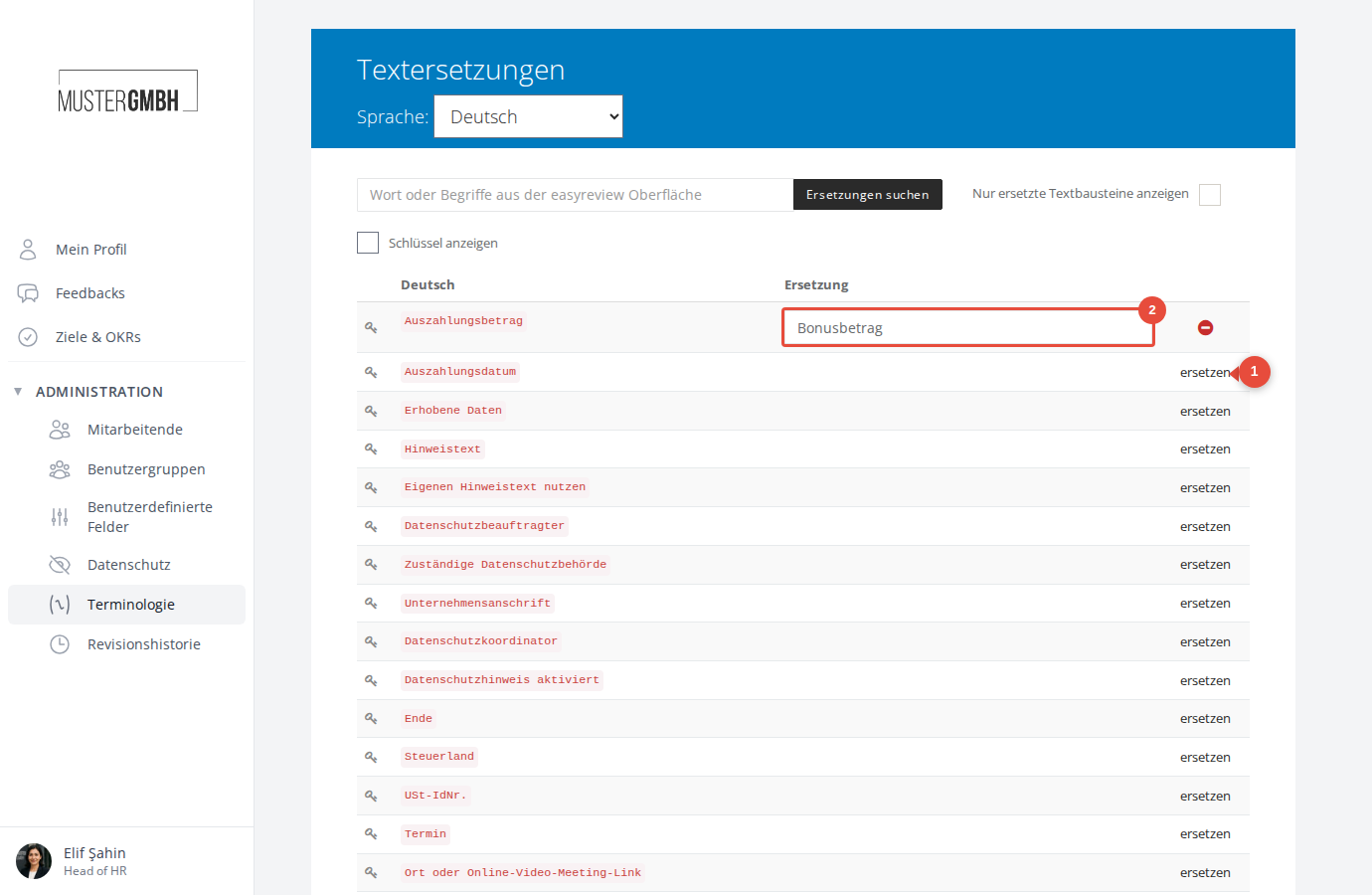
The change takes effect immediately across the entire easyreview interface.
For a detailed step-by-step guide, see Add terminology.
Remove a replacement
To delete a replacement again:
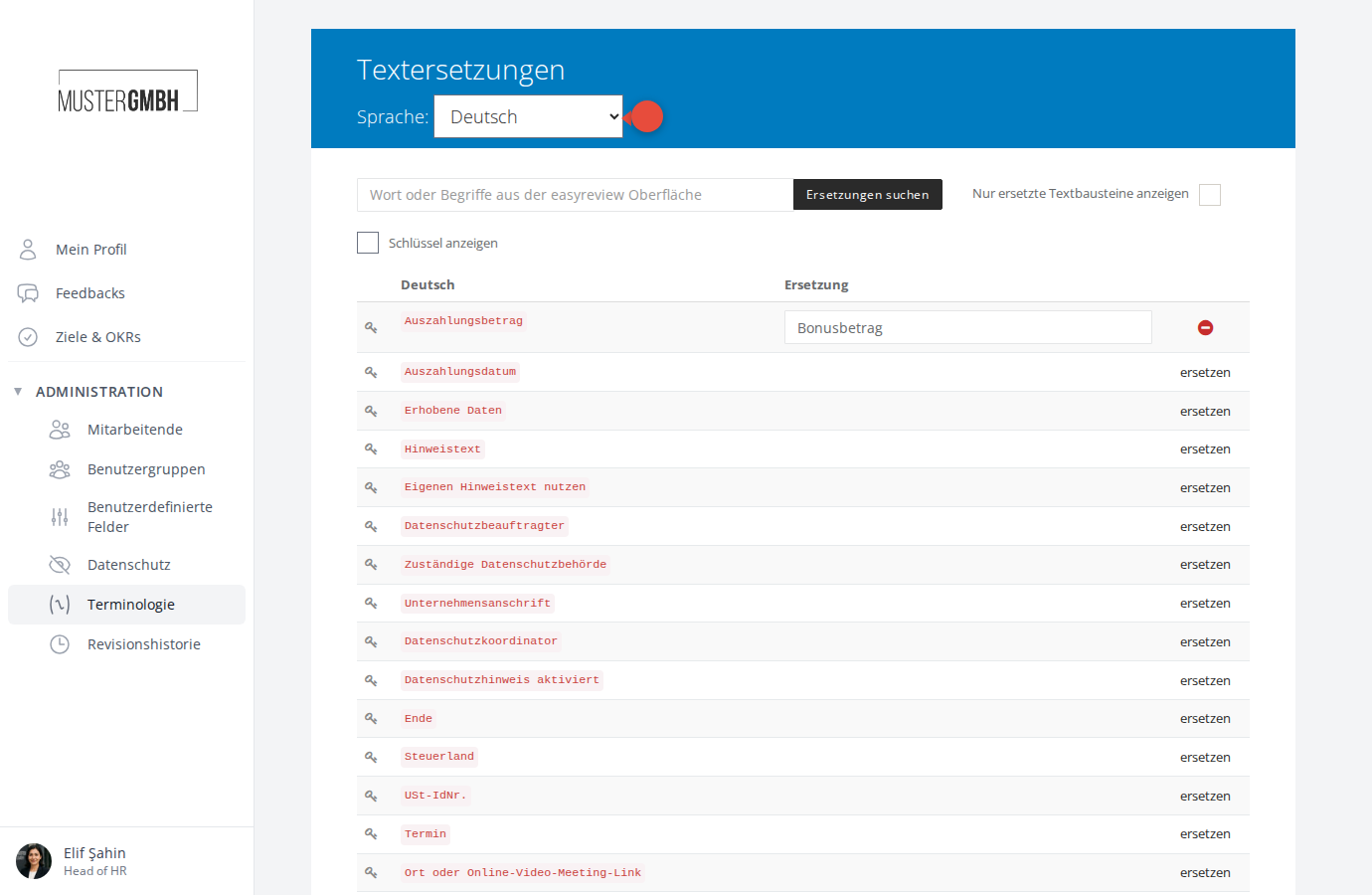
- Click the red minus icon next to the replaced piece of text.
- The input field disappears and the original wording is restored.
- Click Save.
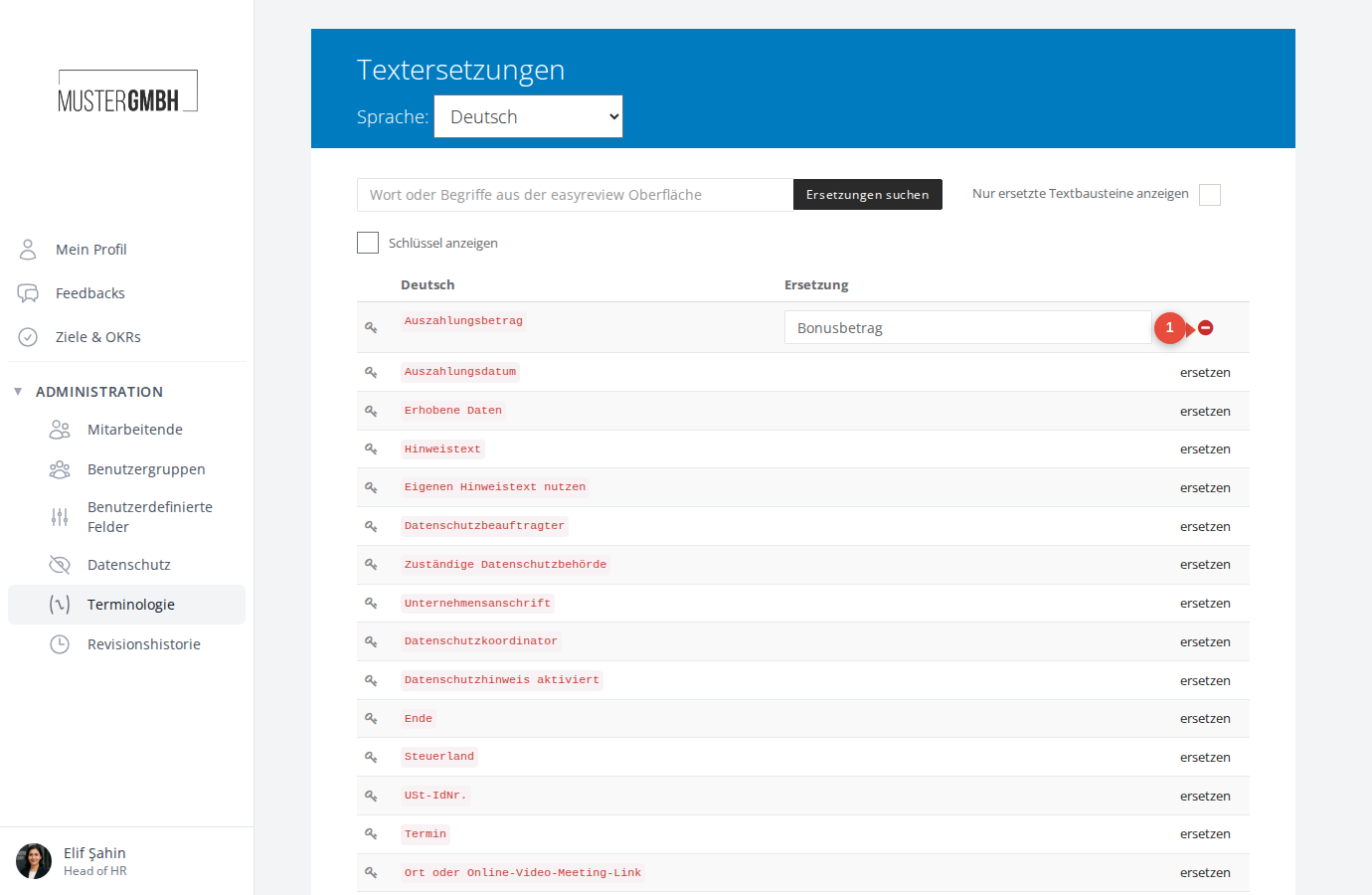
For a detailed guide, see Delete terminology.
Change the language
You can adapt pieces of text for each of the available languages. Open the Language dropdown in the blue header and select the language you want. The page reloads and shows the pieces of text in that language.
Available languages: German, English, French, Italian, Polish, Thai, Vietnamese.