Add terminology
Change individual pieces of text in easyreview so they fit your organization perfectly. For example, you can turn the navigation label Objectives into your own preferred term.
Replace a piece of text
To replace a piece of text with your own term:
-
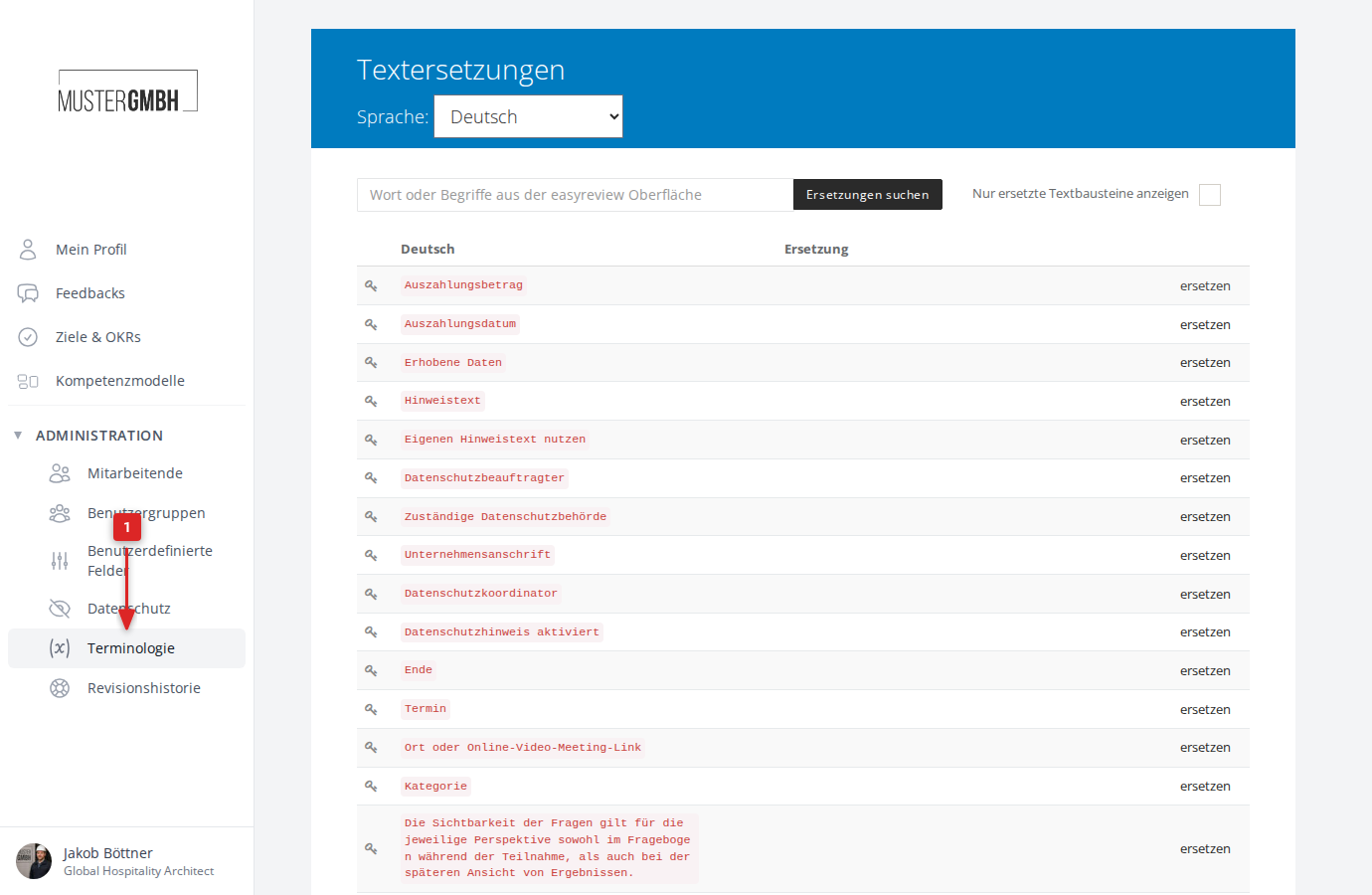
In the left navigation, under Administration, click Terminology.
-
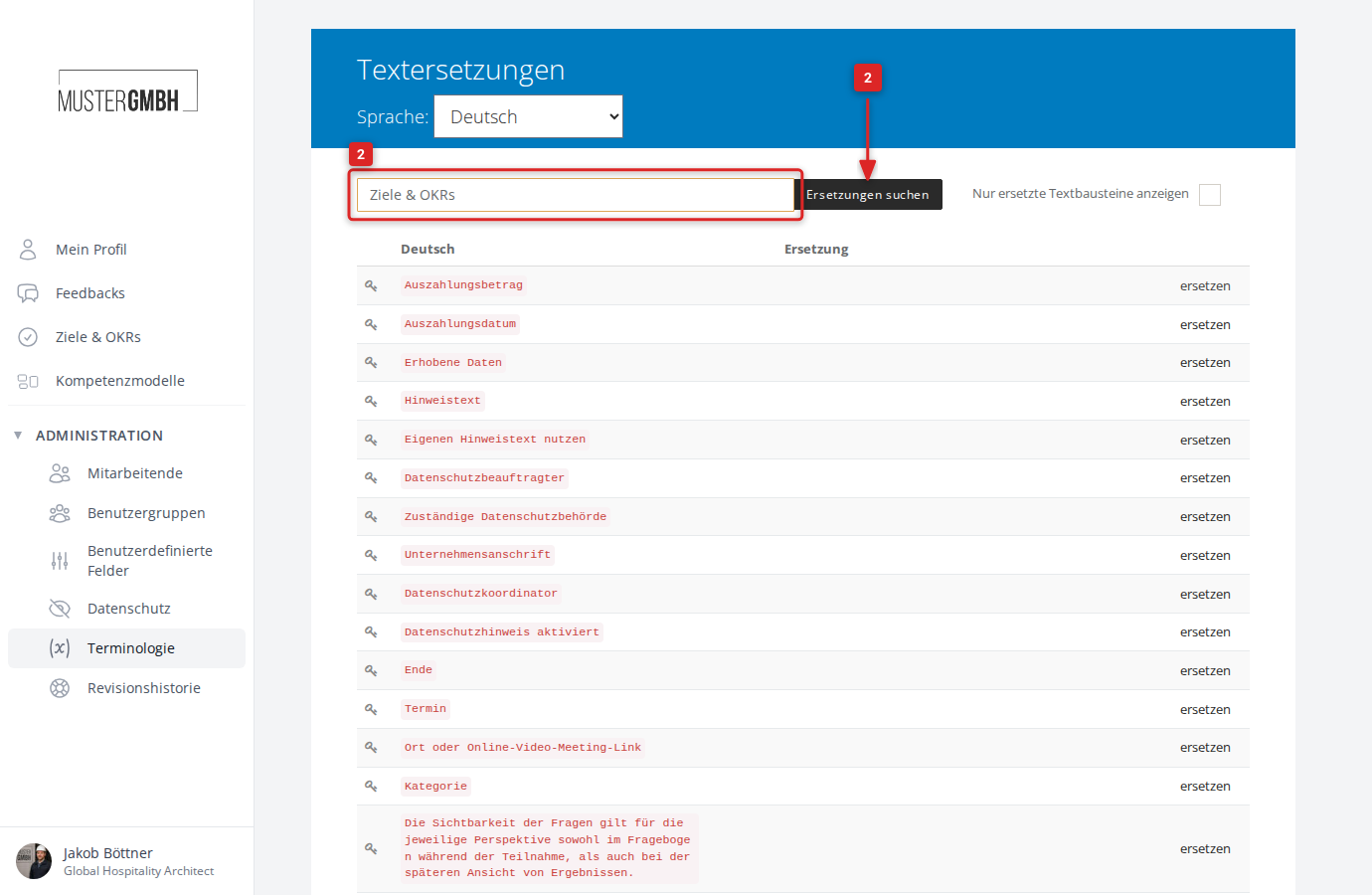
Find the text you want in the list, or type a search term into the search field and click Find replacements.
-
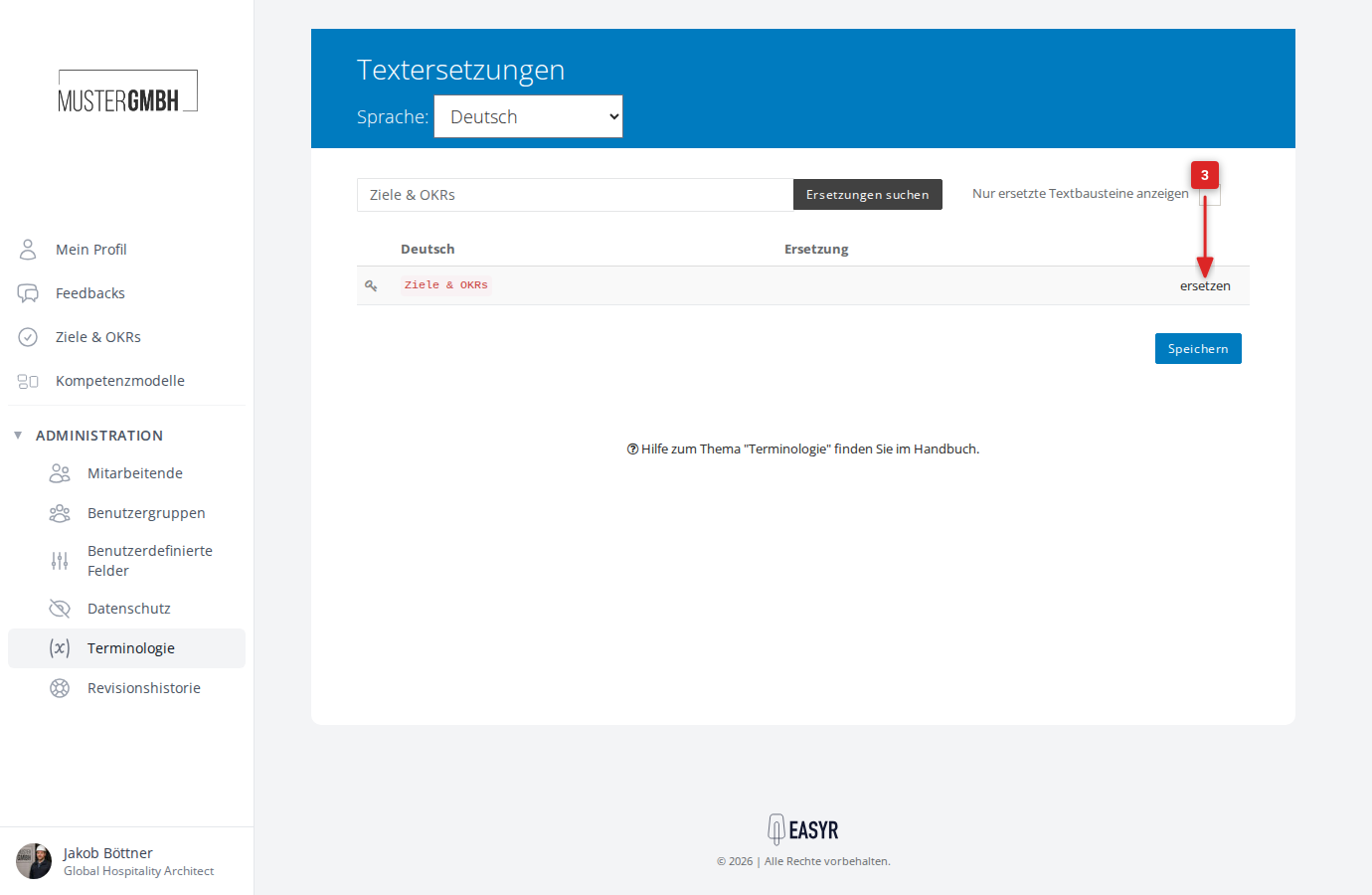
Click replace next to the text you want to change.
-
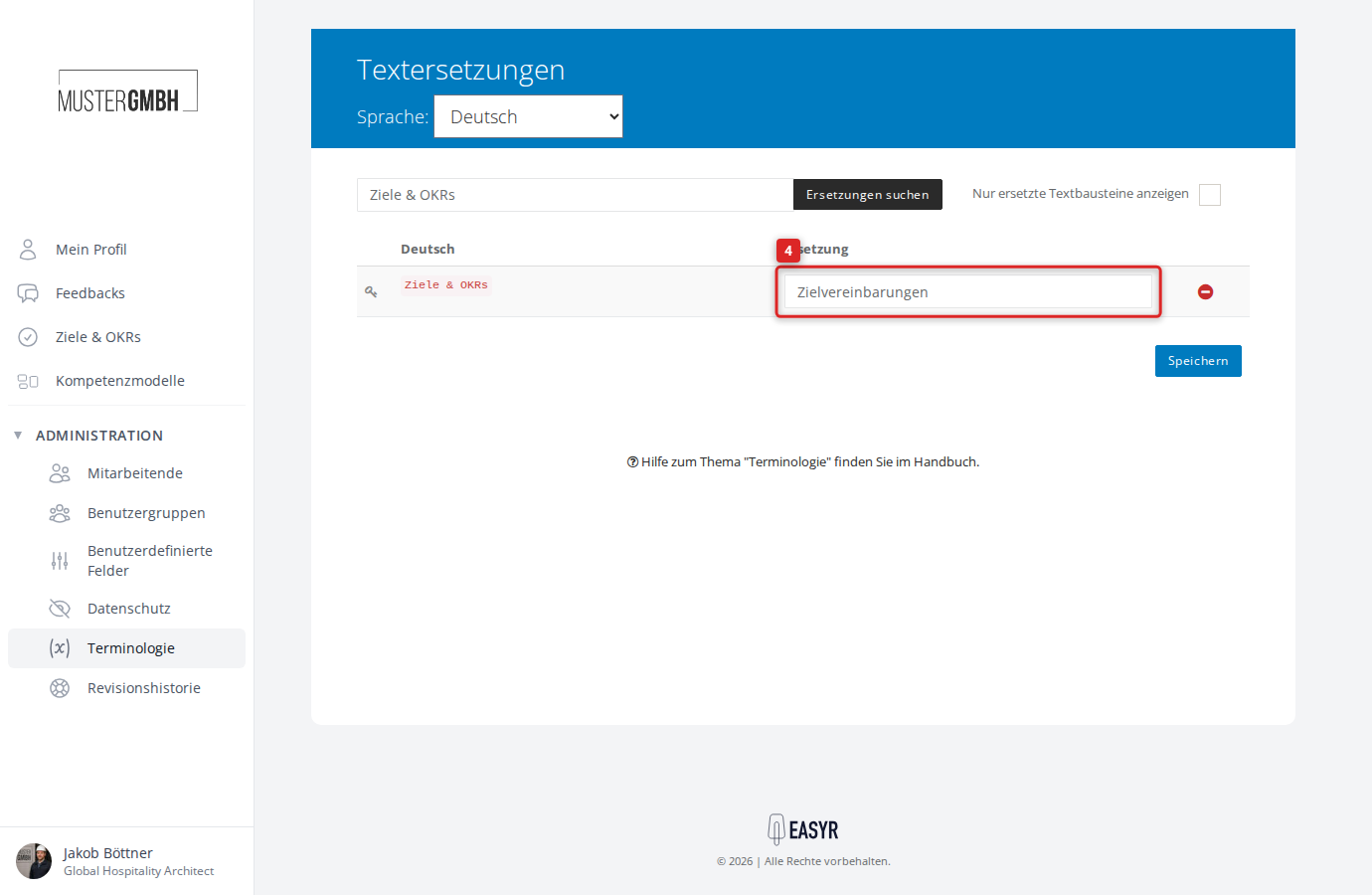
Enter the new wording in the input field.
-
Click Save.
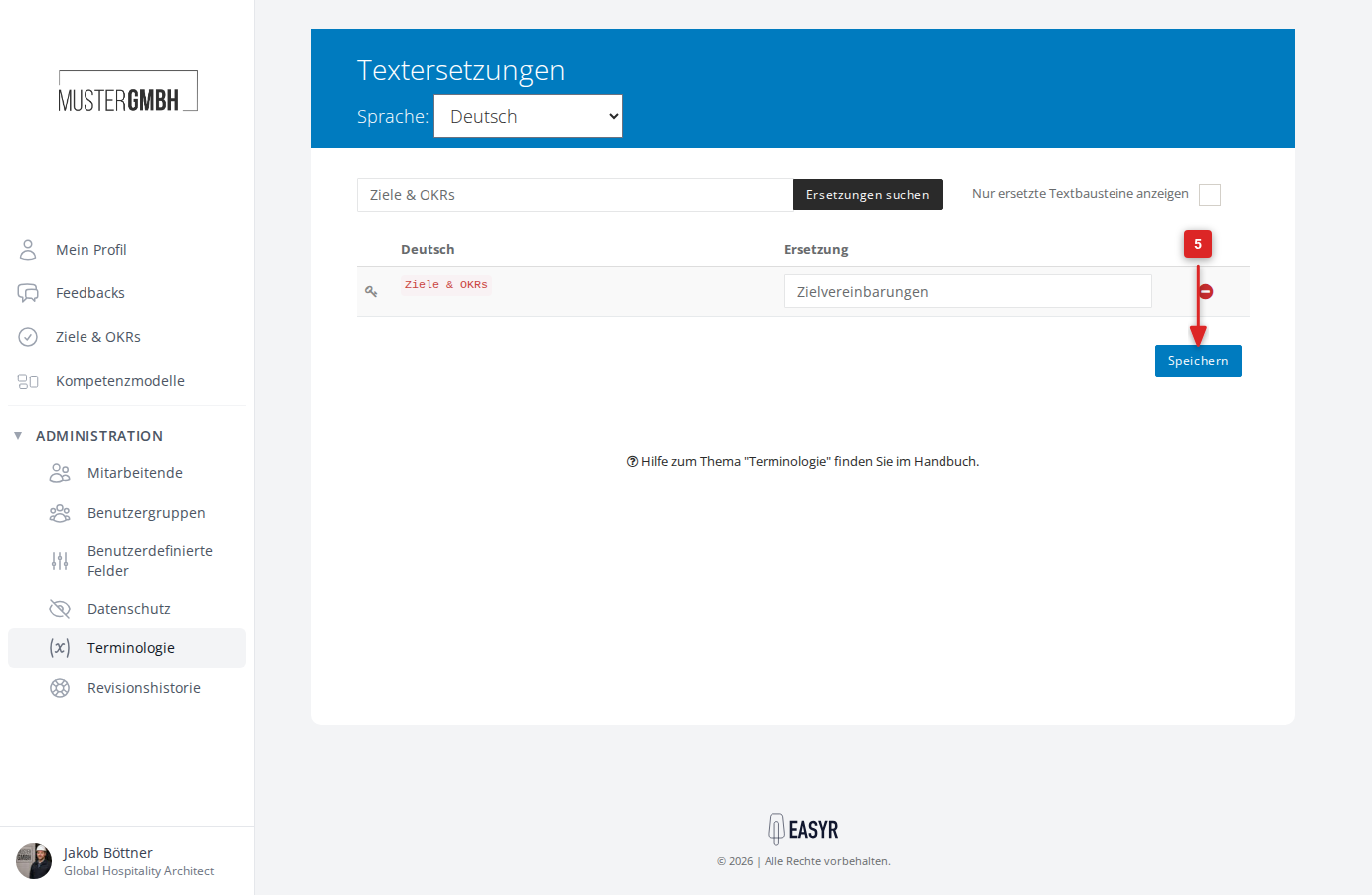
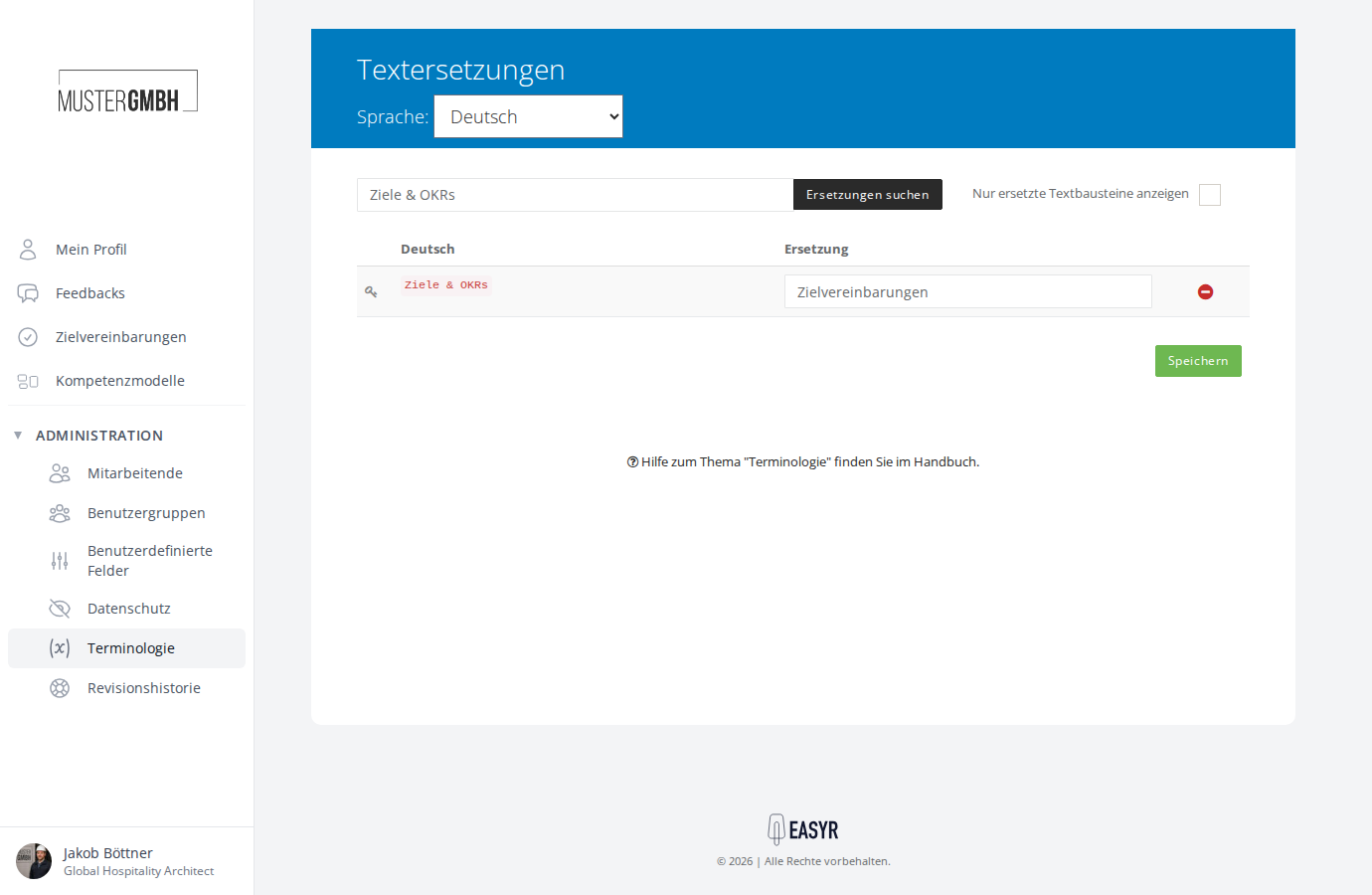
The page reloads. Your new wording is now visible throughout easyreview.
Replace several pieces of text at once
You can replace several pieces of text on one page in a single step. Click replace for each piece of text you want to change, enter the new wording for each, and then click Save once. All the changes are applied together.
Undo a replacement
If you want to reset a piece of text to its original wording, see Delete terminology.