Delete terminology
If you have replaced a piece of text in the Terminology and want to reset it to the original wording, you can delete the replacement. easyreview’s original text is then used again.
Prerequisite
To delete a replacement, the piece of text must first have been replaced using Add terminology.
Delete a replacement
To reset a piece of text to its original wording:
-
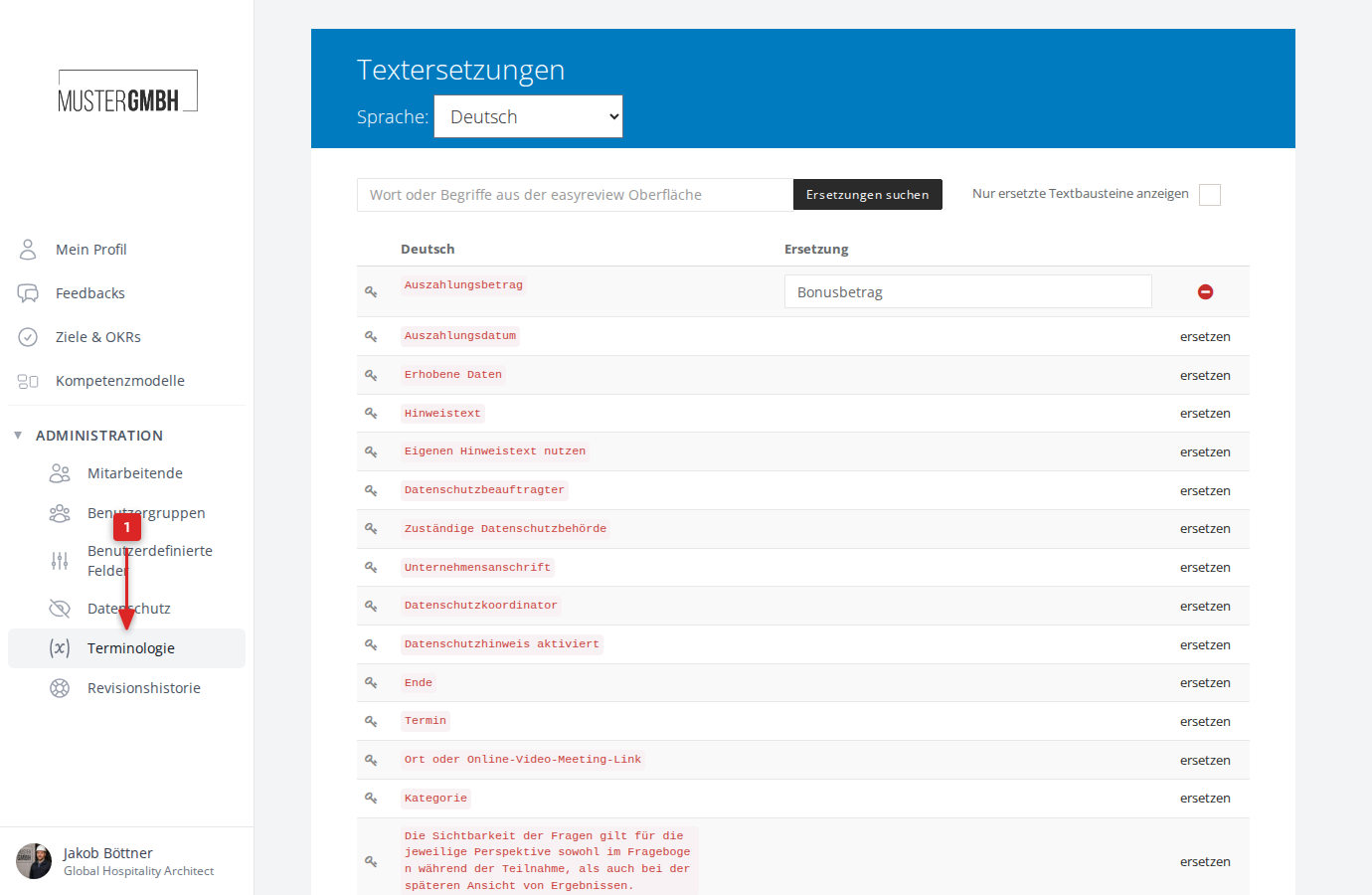
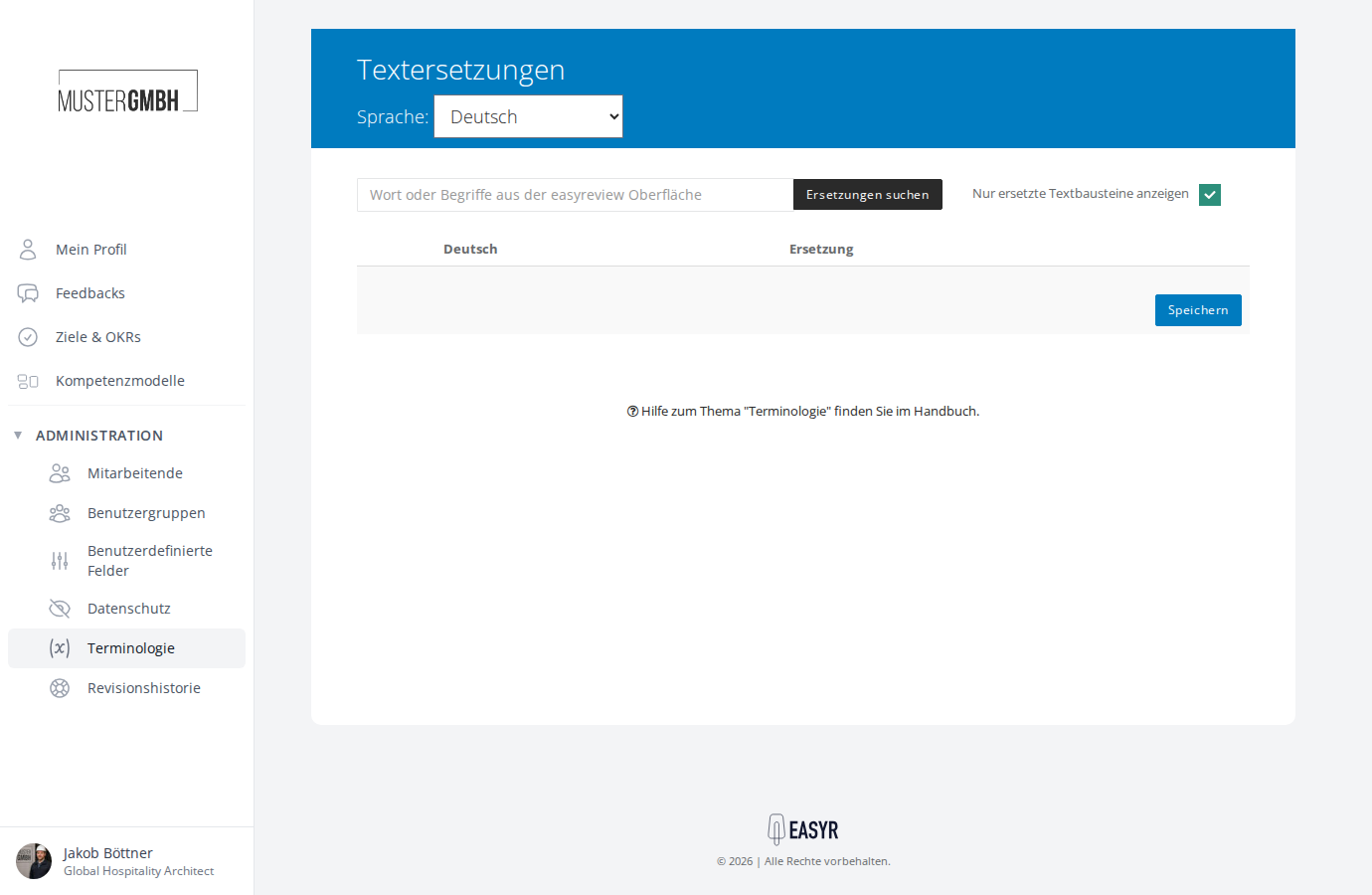
In the left navigation, under Administration, click Terminology.
-
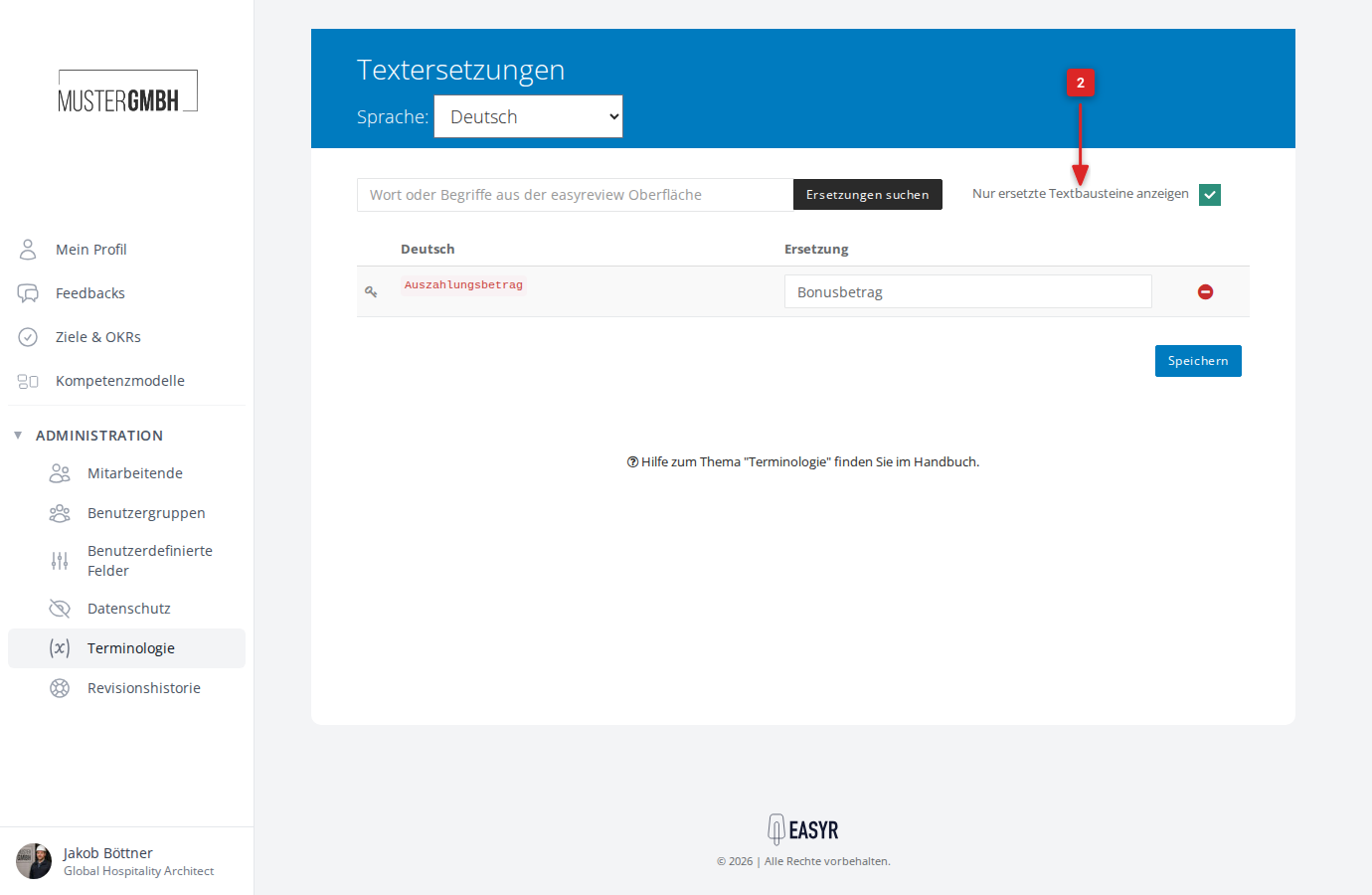
Turn on the Show only replaced text checkbox to limit the list to entries that have already been replaced. This makes it easier to find the one you want.
-
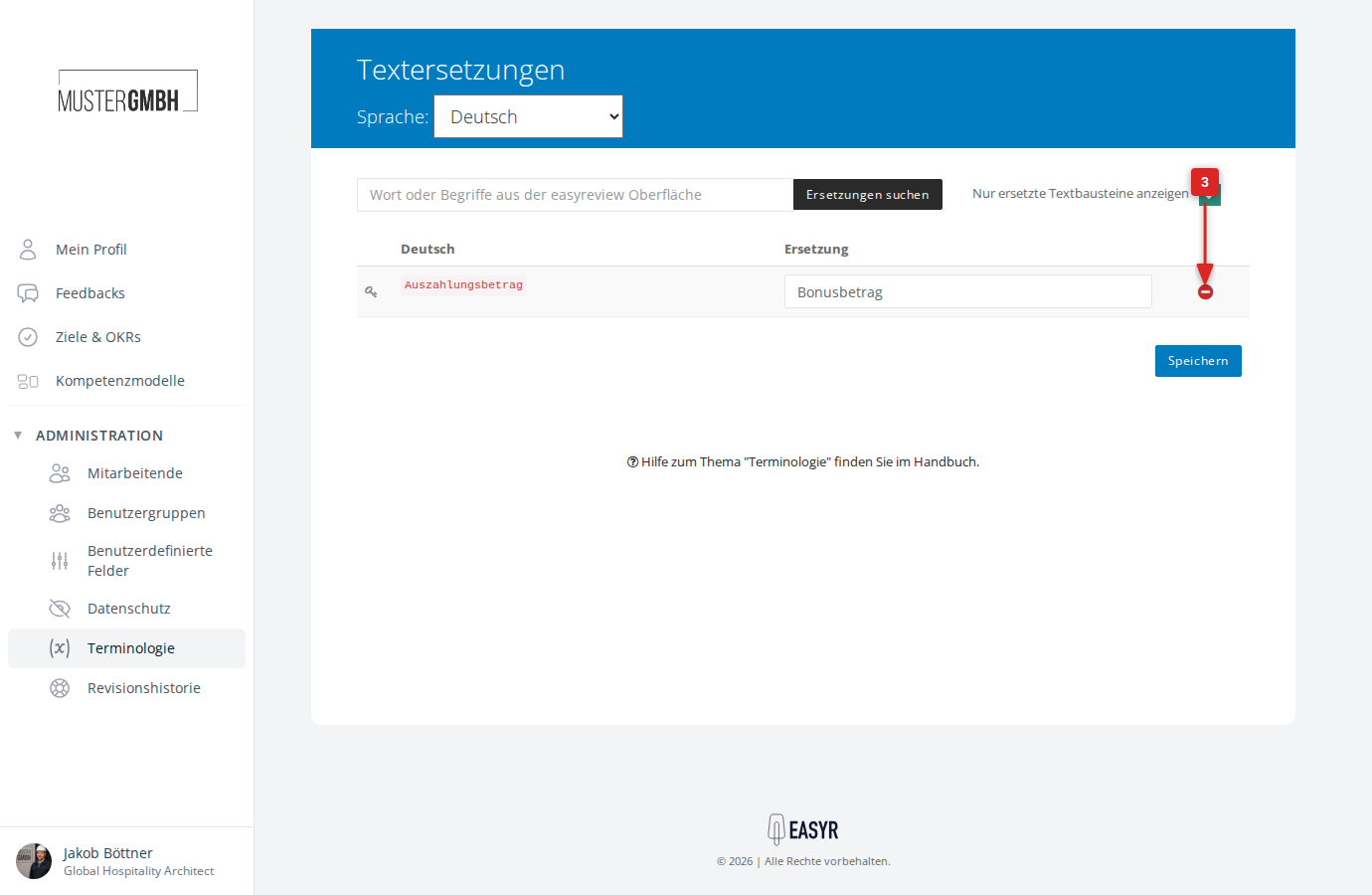
Click the red delete icon (⊖) to the right of the text you want to reset. The replacement input field is then hidden.
-
Click Save to apply the change. The replacement is only actually removed once you save.
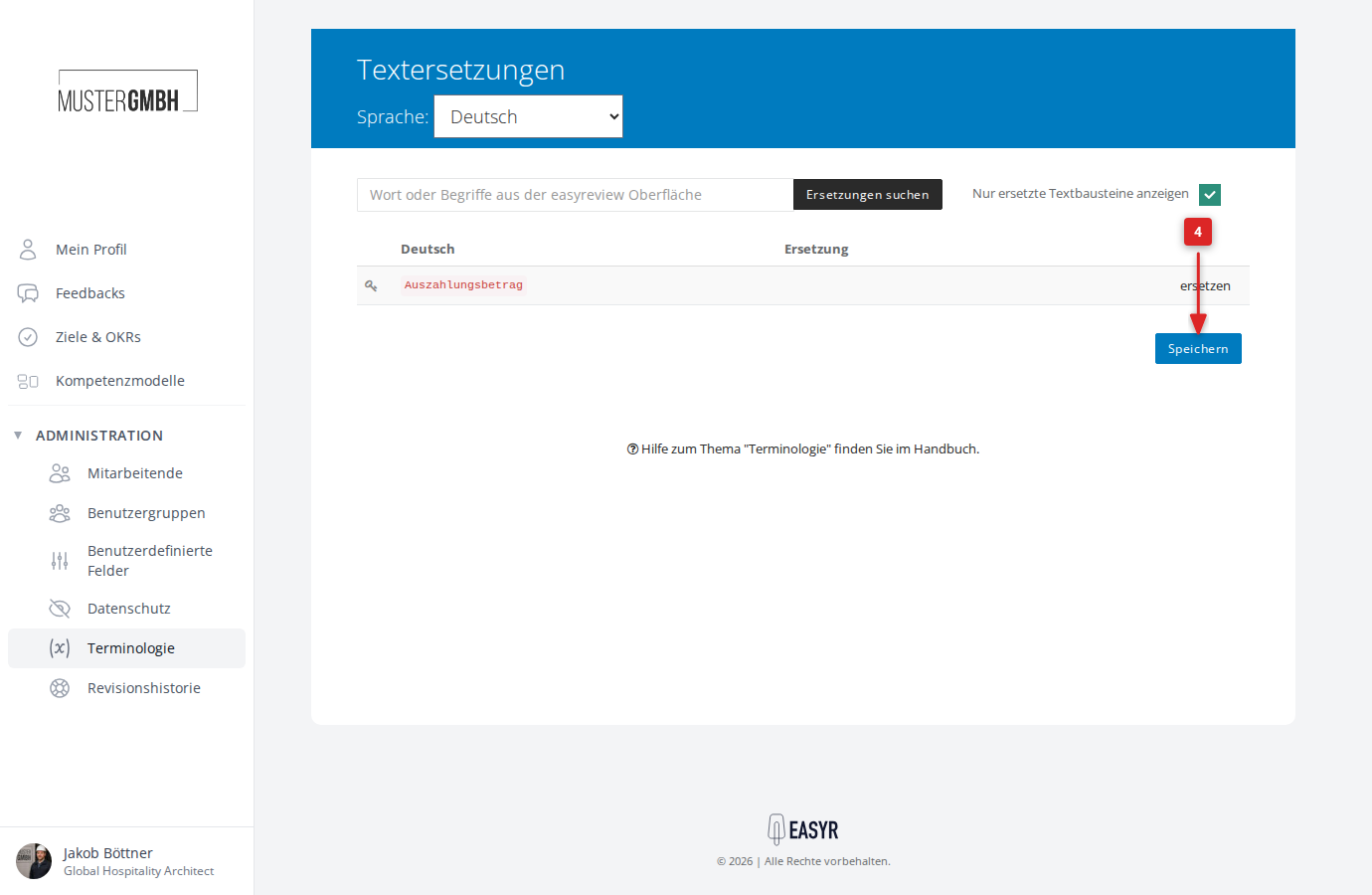
The text is now shown again with easyreview’s original wording.
Delete several replacements at once
You can also delete several replacements on one page in a single step. Click the delete icon for each piece of text you want to reset, then click Save once. All the marked replacements are reset together.