Audit log details
To view the details of a change:
- Open the audit log overview
- Click the displayed timestamp of the change you want
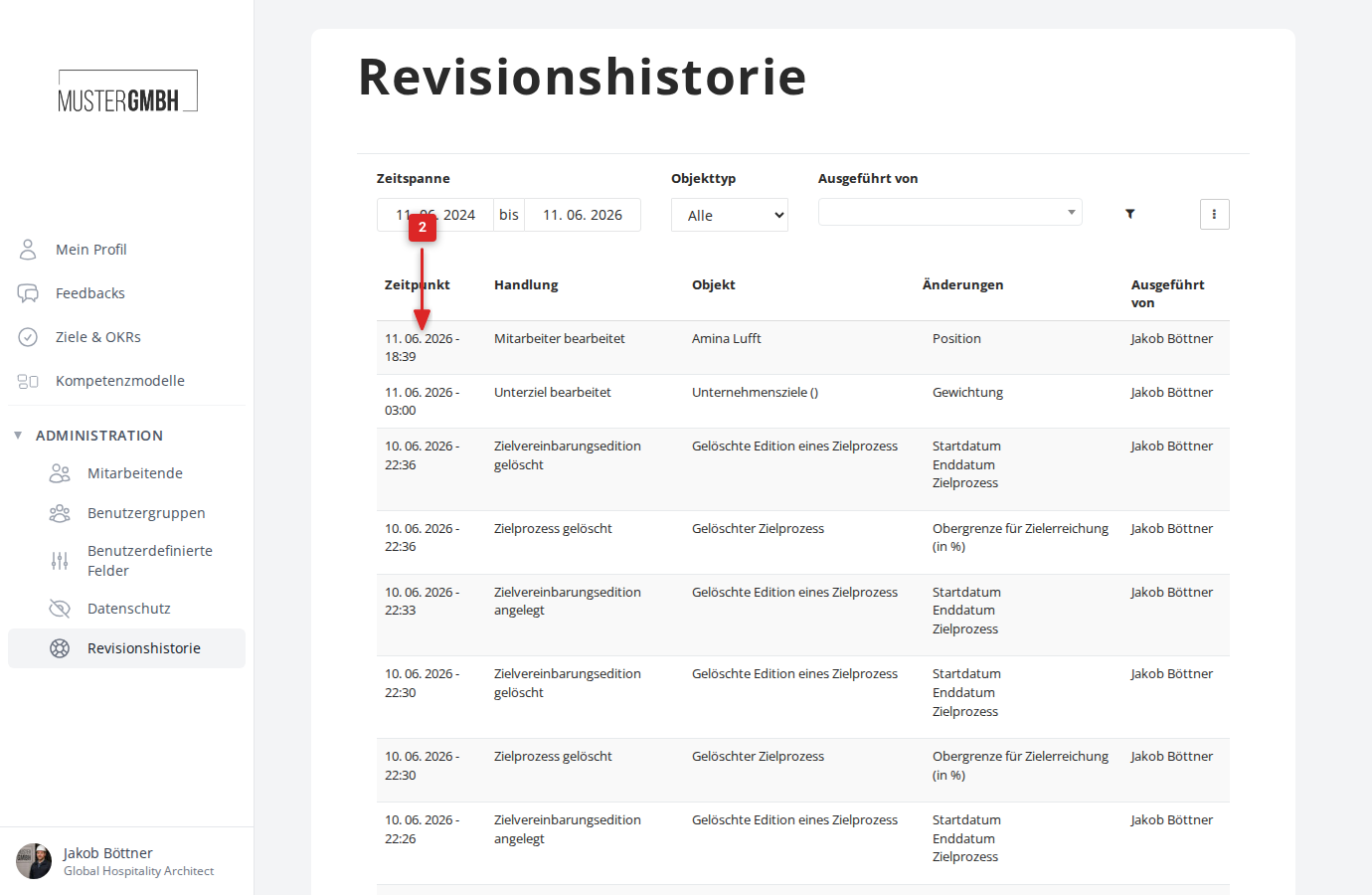
- You now see all information about the change
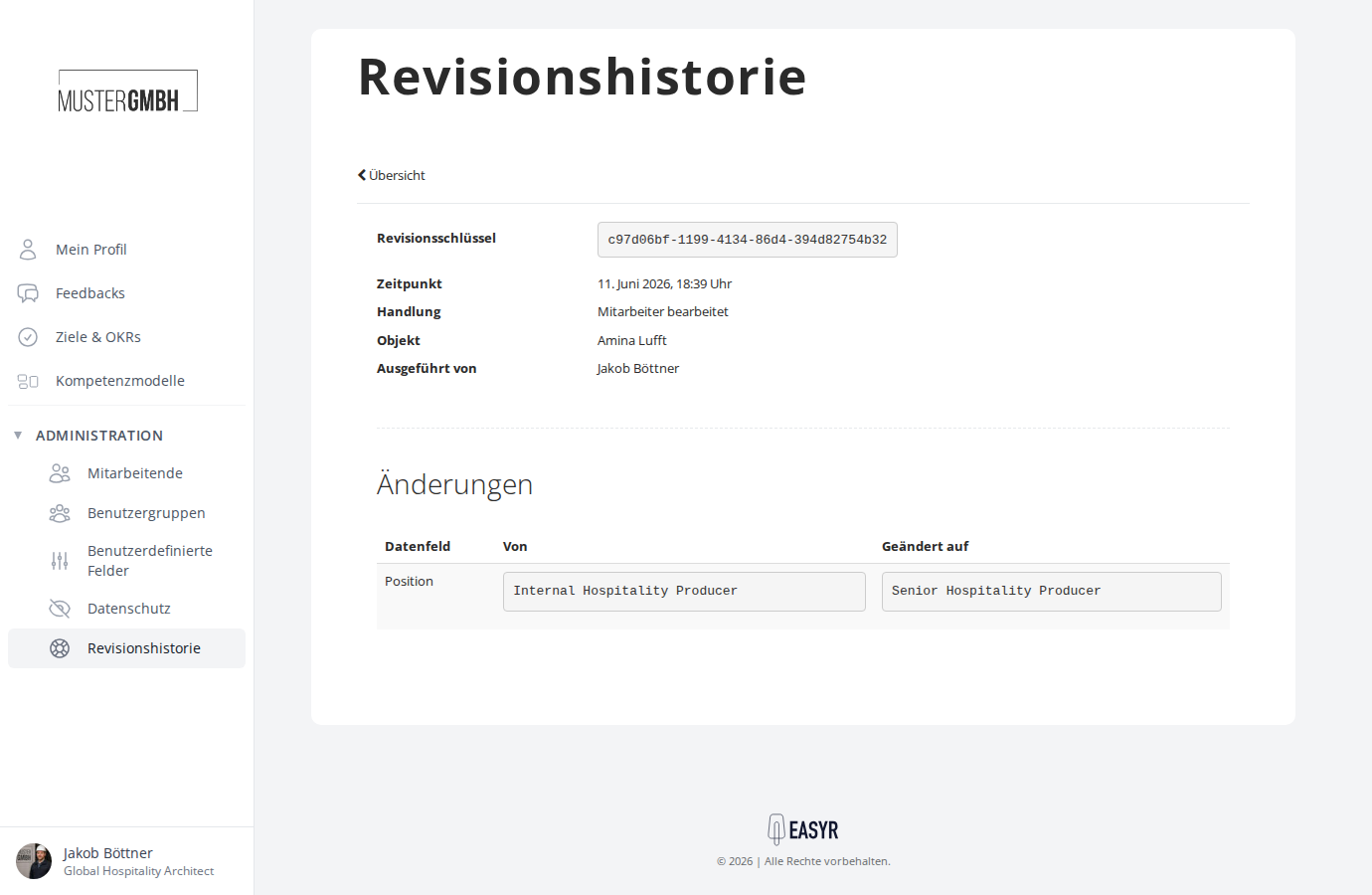
Layout
Top section
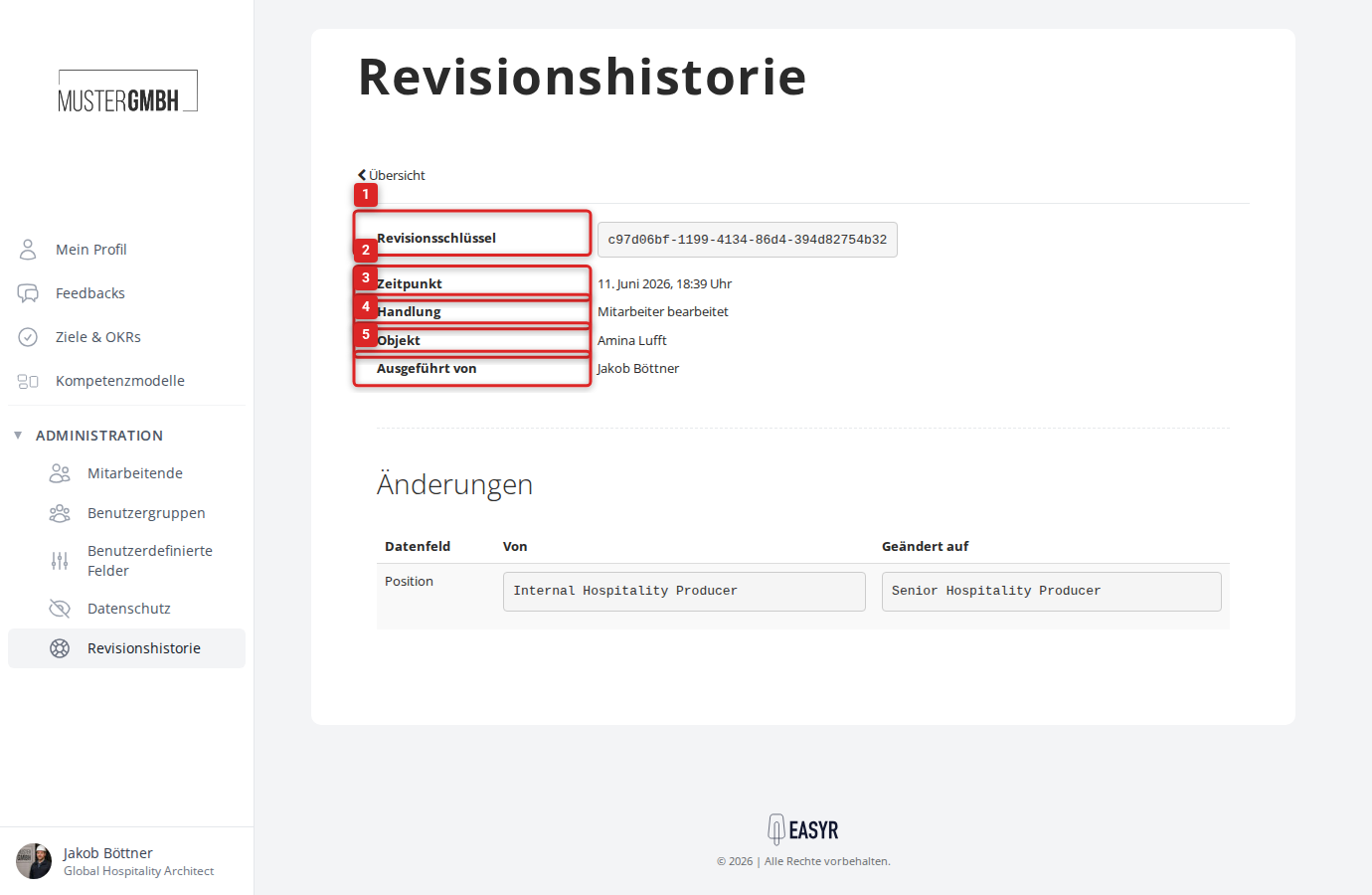
The top section shows general information about the change:
- Revision ID: a unique, technical identifier for the change
- Timestamp: the exact time the change was made
- Action: the kind of change and the type of data changed. Possible actions are:
- created — a new record was created (e.g. “Employee created”)
- changed — an existing record was changed (e.g. “Target agreement changed”)
- deleted — a record was removed (e.g. “Feedback deleted”)
- Affected: the changed record, e.g. a link to the affected employee or target agreement. For deleted records, a note like “Deleted employee” or “Deleted feedback” appears.
- Operator: who made the change. For changes made by easyreview support, “easyreview Team” appears. For automatic system actions (e.g. email invitations), “n/a” appears.
Bottom section
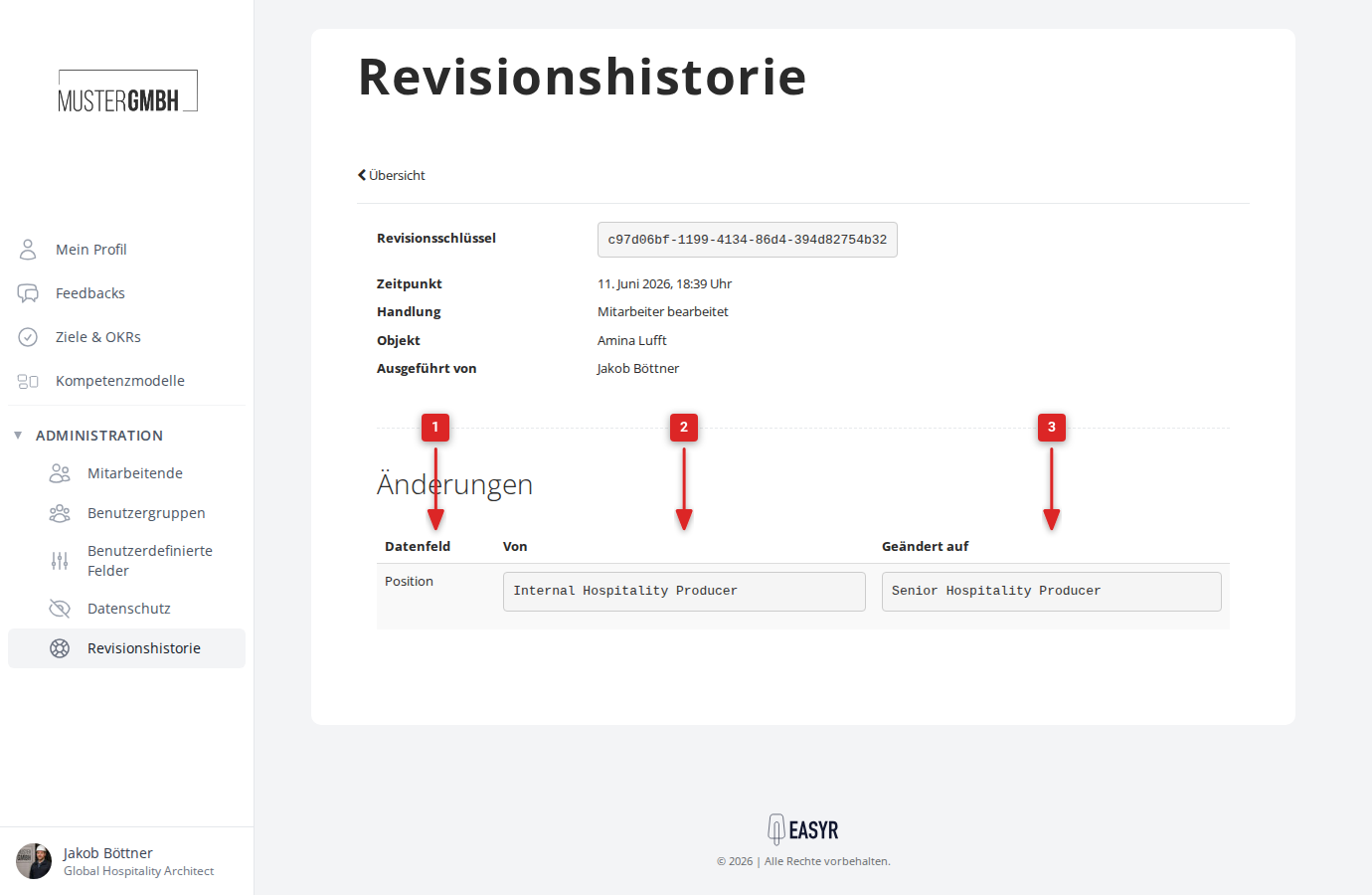
The bottom section shows a table of the changed data fields. Each row is one changed field with the following columns:
- Data field: the name of the changed field
- From: the value before the change
- Changed to: the new value after the change
Which fields appear in the change table depends on the object type. For employees, fields like first name, last name, position or access permissions are shown. For target agreements, fields like recipient, target date or visibility appear.
Tip: Want to see all changes to a specific record (e.g. an employee or a target agreement) at a glance? Use the object filter to filter the audit log to a single object.