Audit log: object filter
You can open the audit log so that it shows only the changes to a specific object. This works for individual employees, feedback processes and target agreements.
View changes to an employee
- Open the employee profile of the employee you want.
- Click the “Details” tab in the employee profile’s tab bar.
- Scroll to the end of the Details tab and click “Show audit log”.
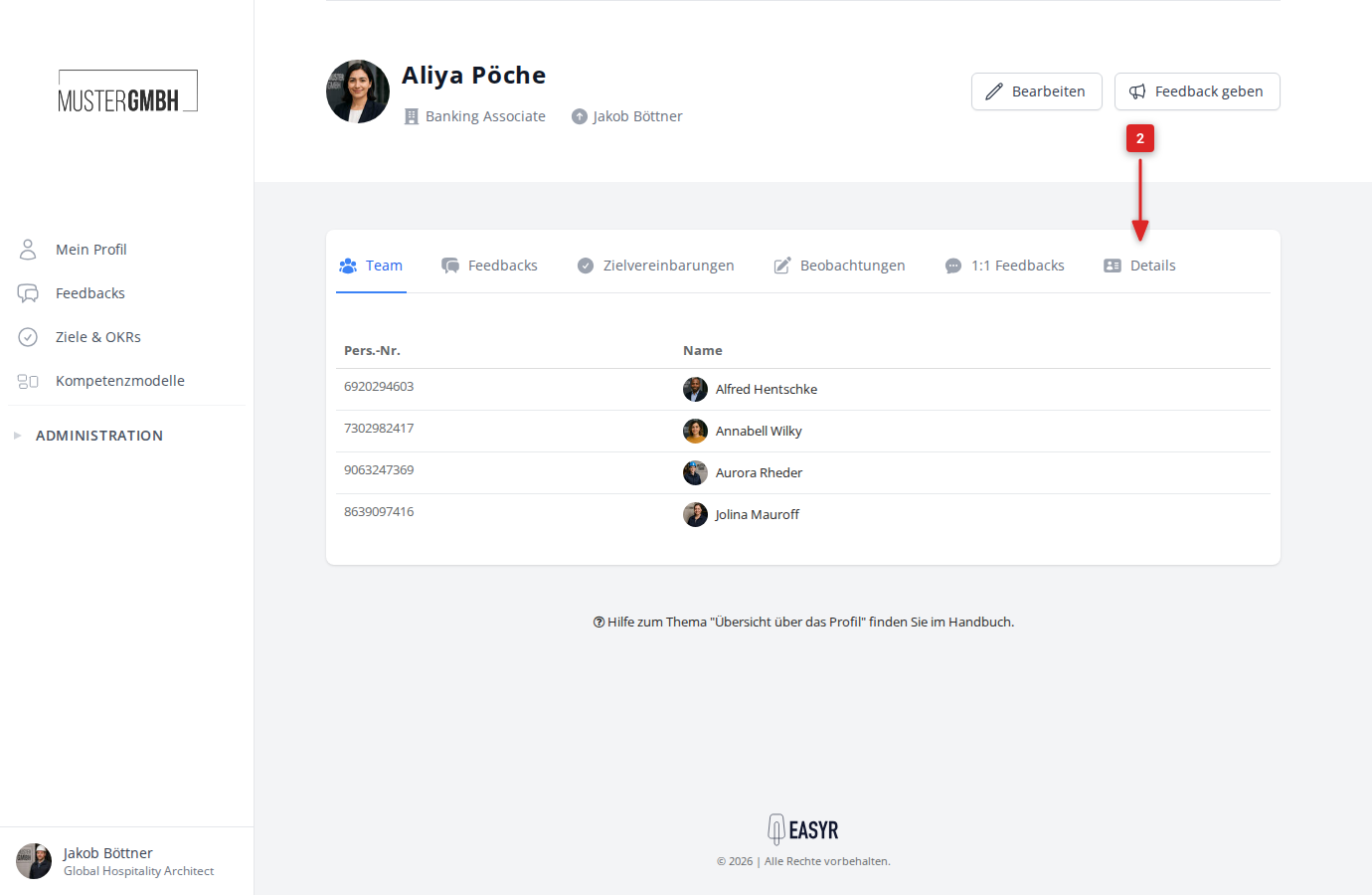
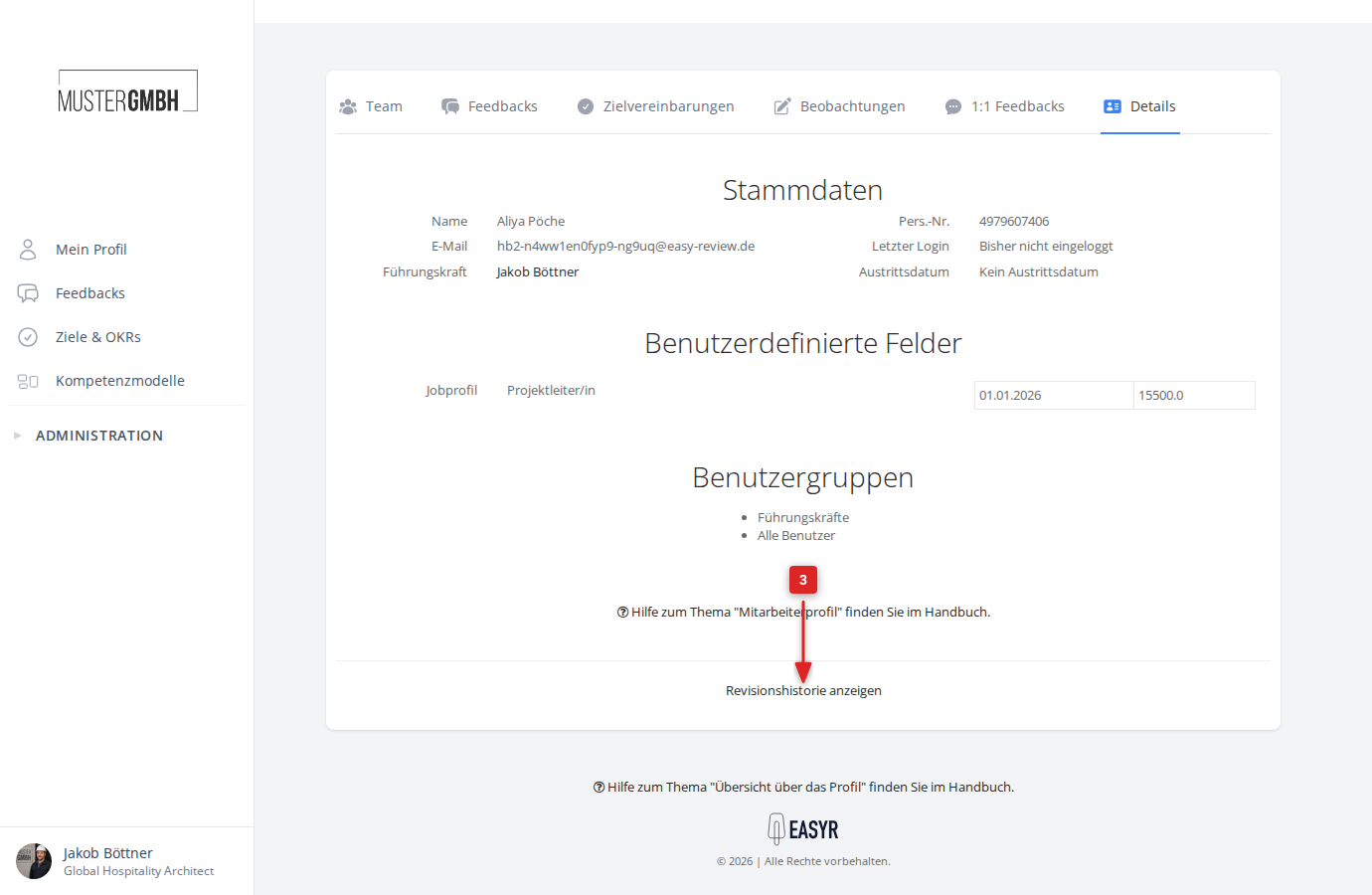
The audit log opens with the object type “Employee” and shows only the changes to the selected employee.
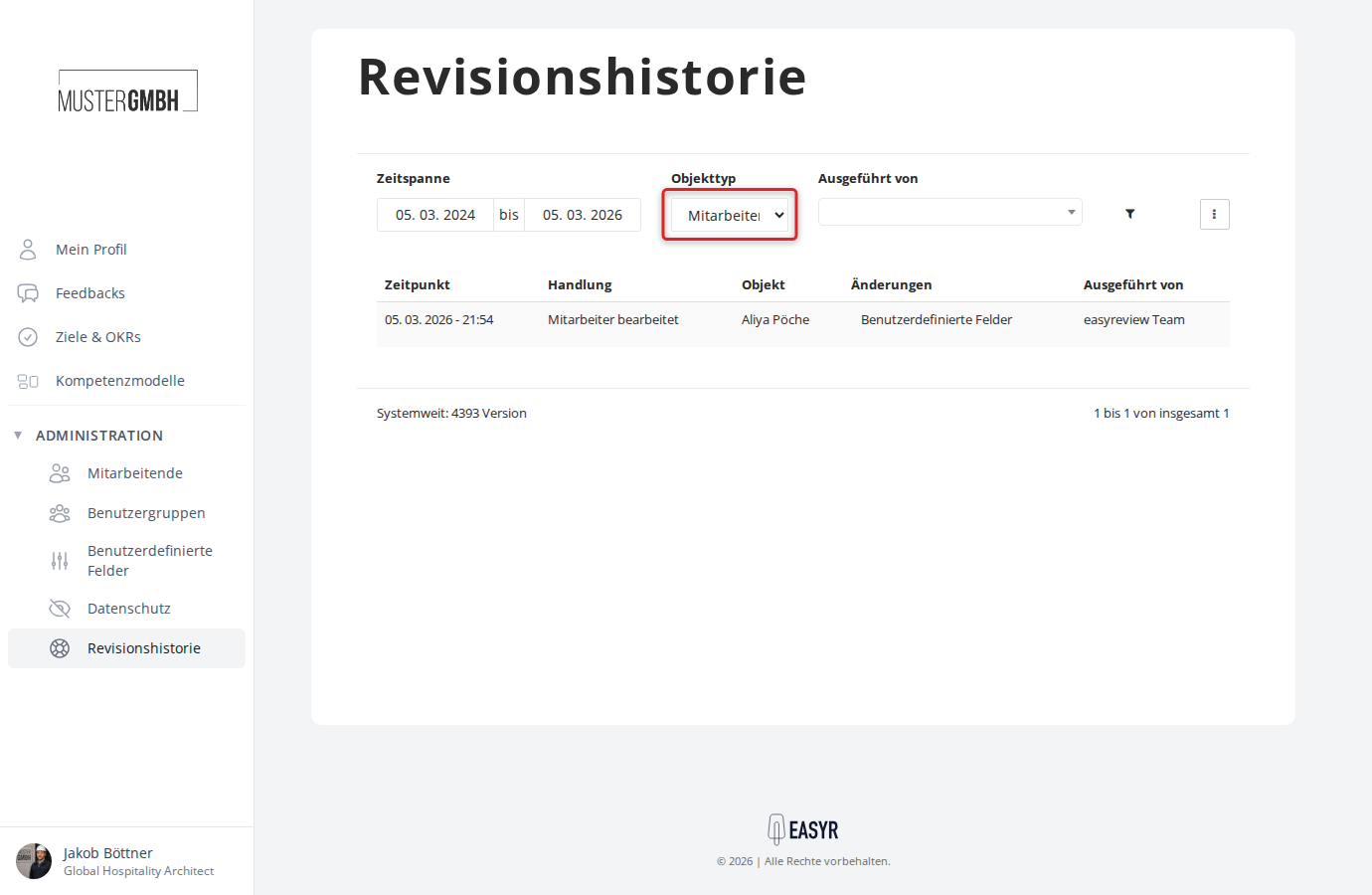
View changes to a feedback process
- Open the participant list of an edition of the feedback process you want.
- Click the three-dot menu (⋮) to the right of the ”+ Participant” button.
- In the menu, click “Show audit log”.
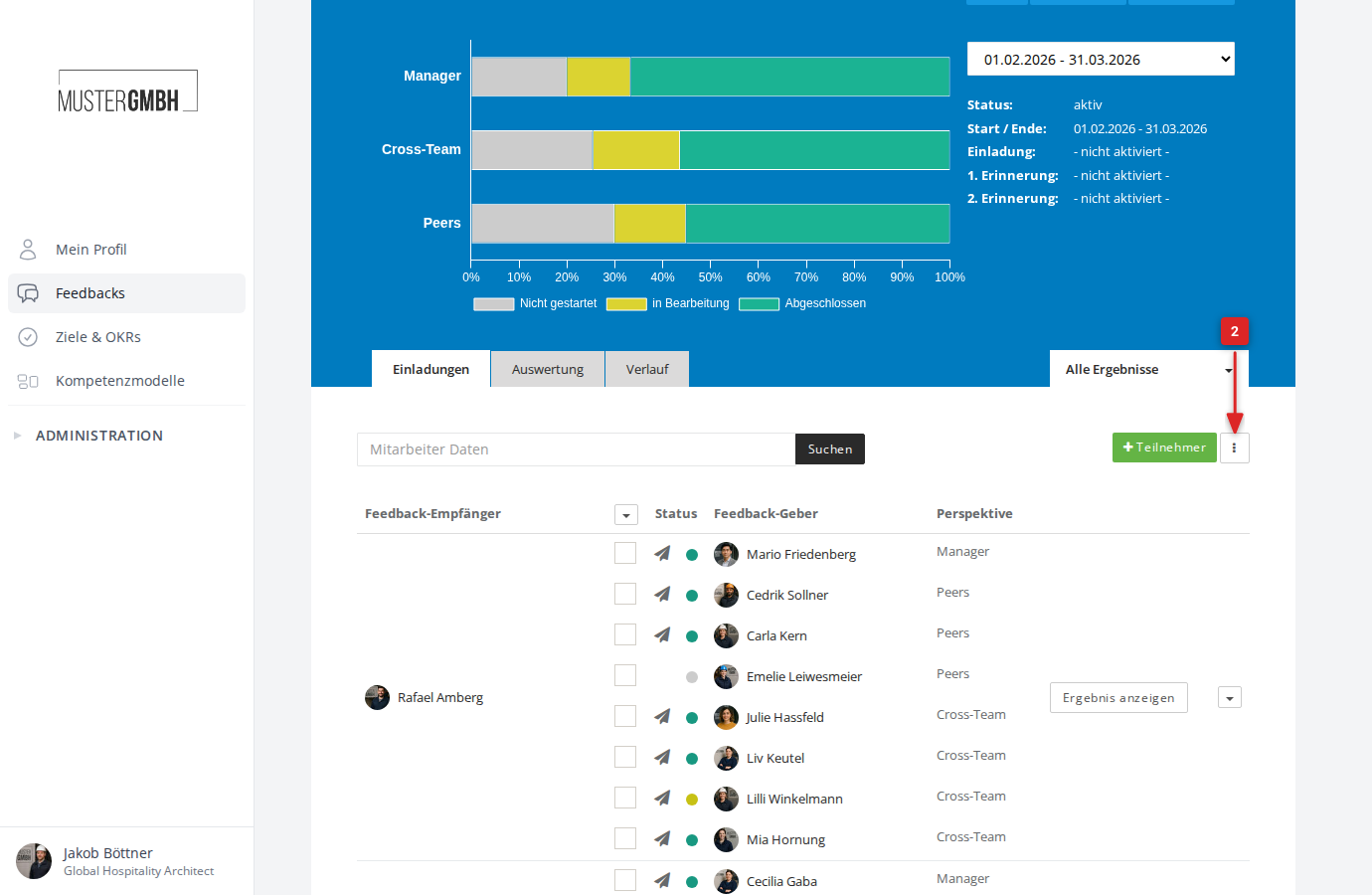
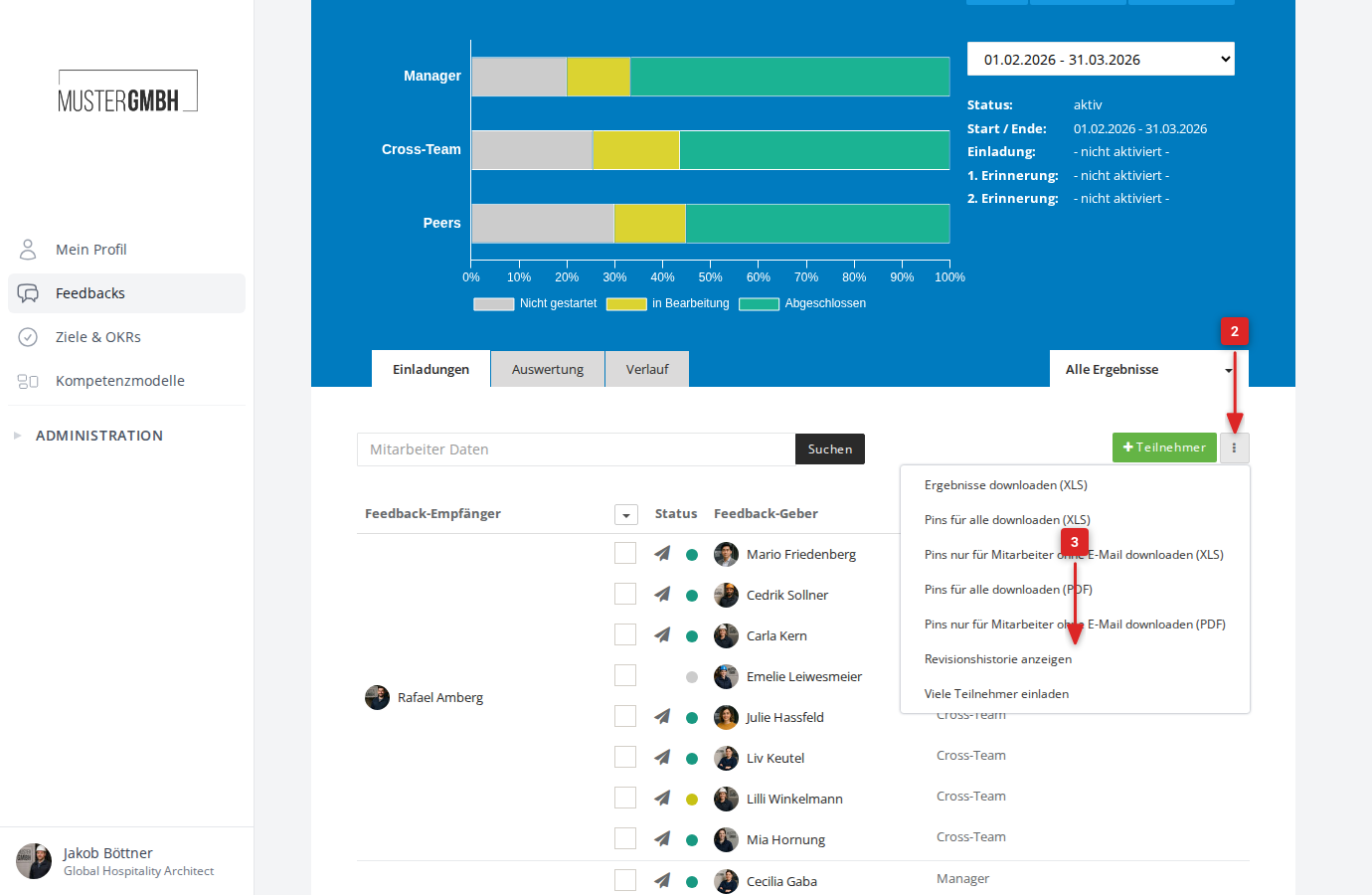
The audit log opens with the object type “Feedback” and shows only the changes to the selected feedback process.
View changes to a target agreement
- Open the detail page of a target agreement (e.g. via Objectives in the sidebar, then select the edition and the target agreement).
- Scroll to the end of the page and click “Show audit log”.
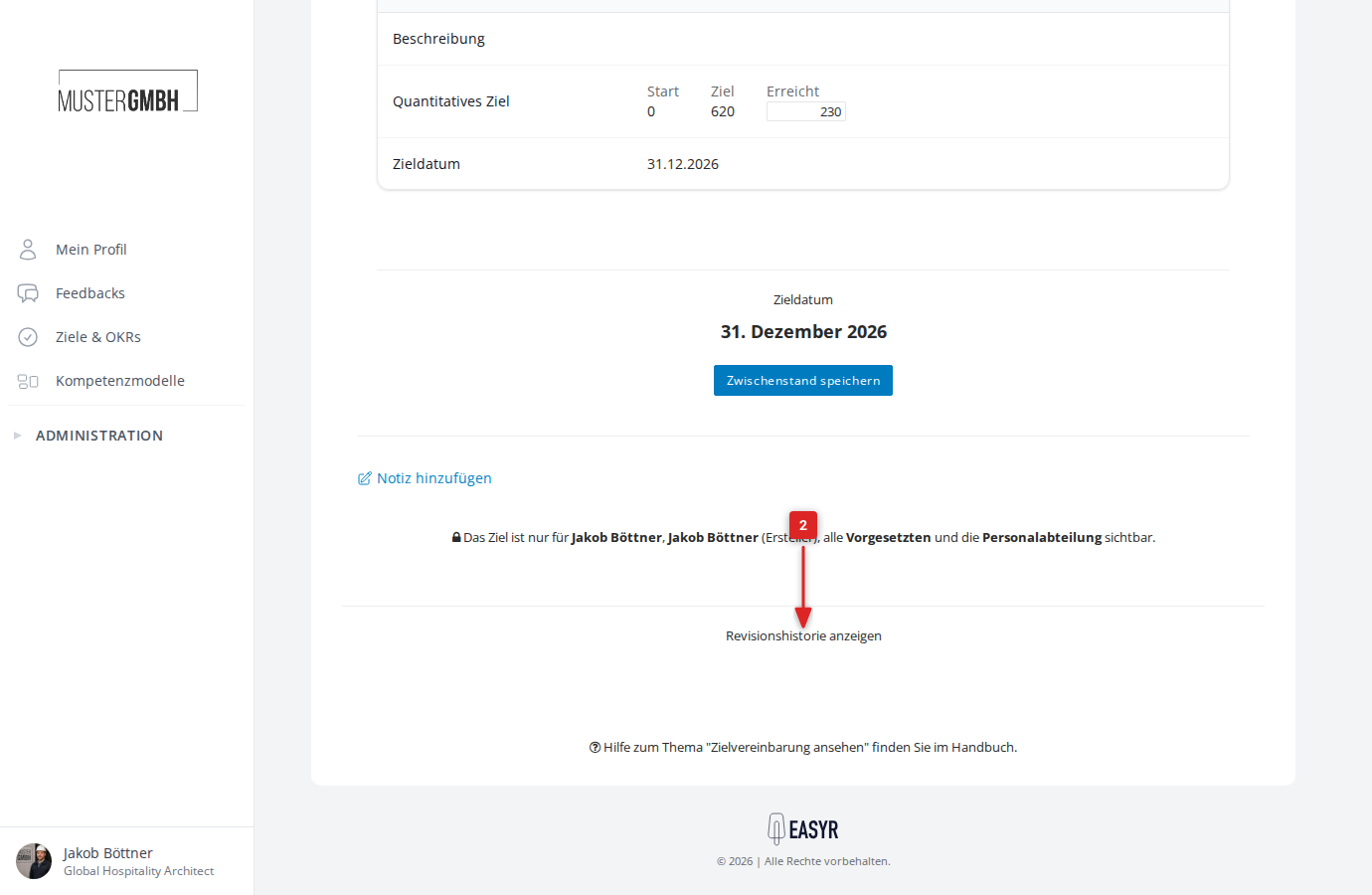
The audit log opens with the object type “Target agreement” and shows the changes to the selected target agreement and its intermediate goals.