List of participants
To see all participants of a feedback edition:
- Open the status page of the review
- The participant list is open in the “Invitations” tab, which is active by default when you open the status page
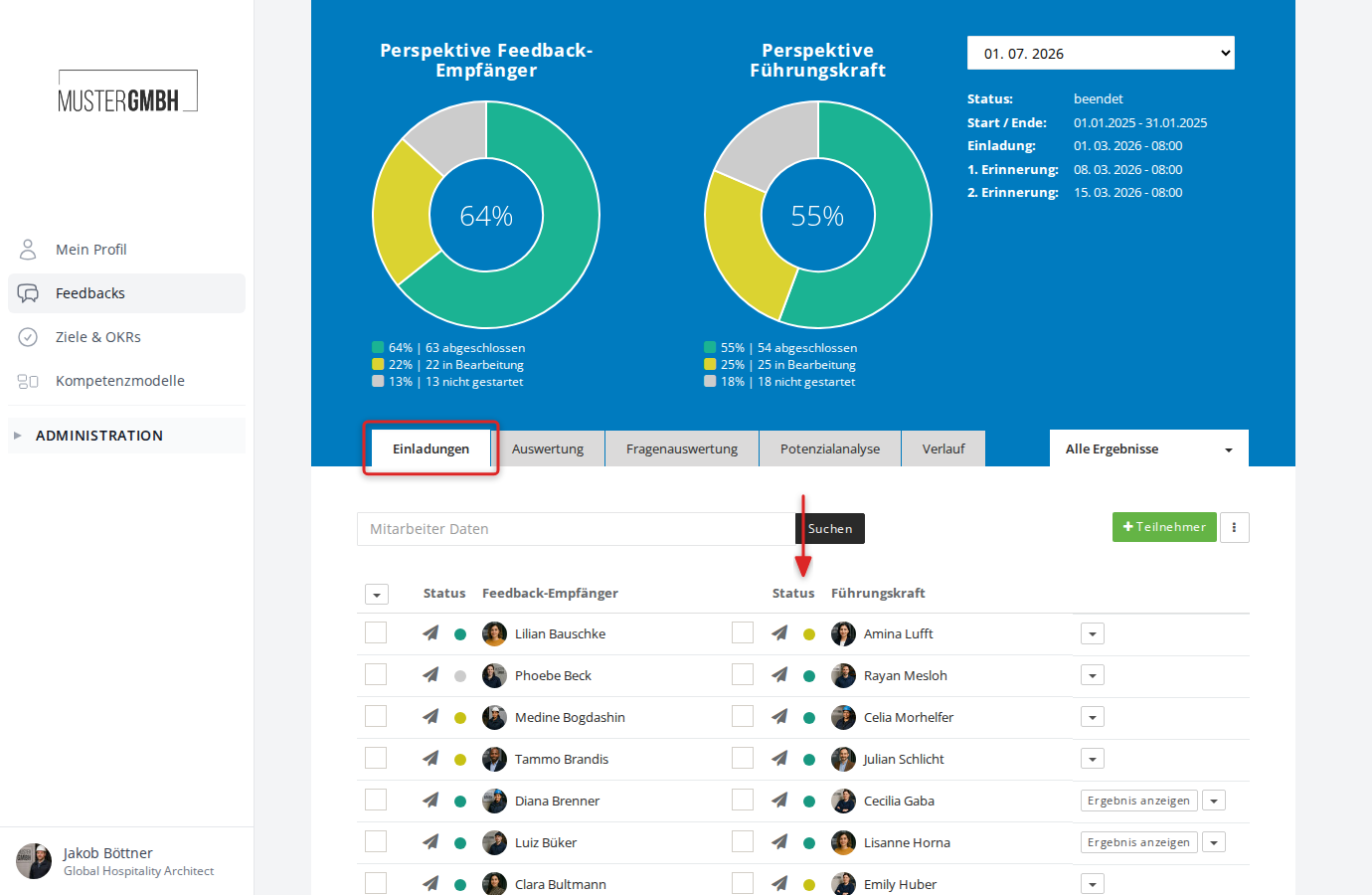
Switching to the participant list
If you’re on a different tab of the status page (for example “Evaluation” or “Time series”), click the “Invitations” tab to return to the participant list.
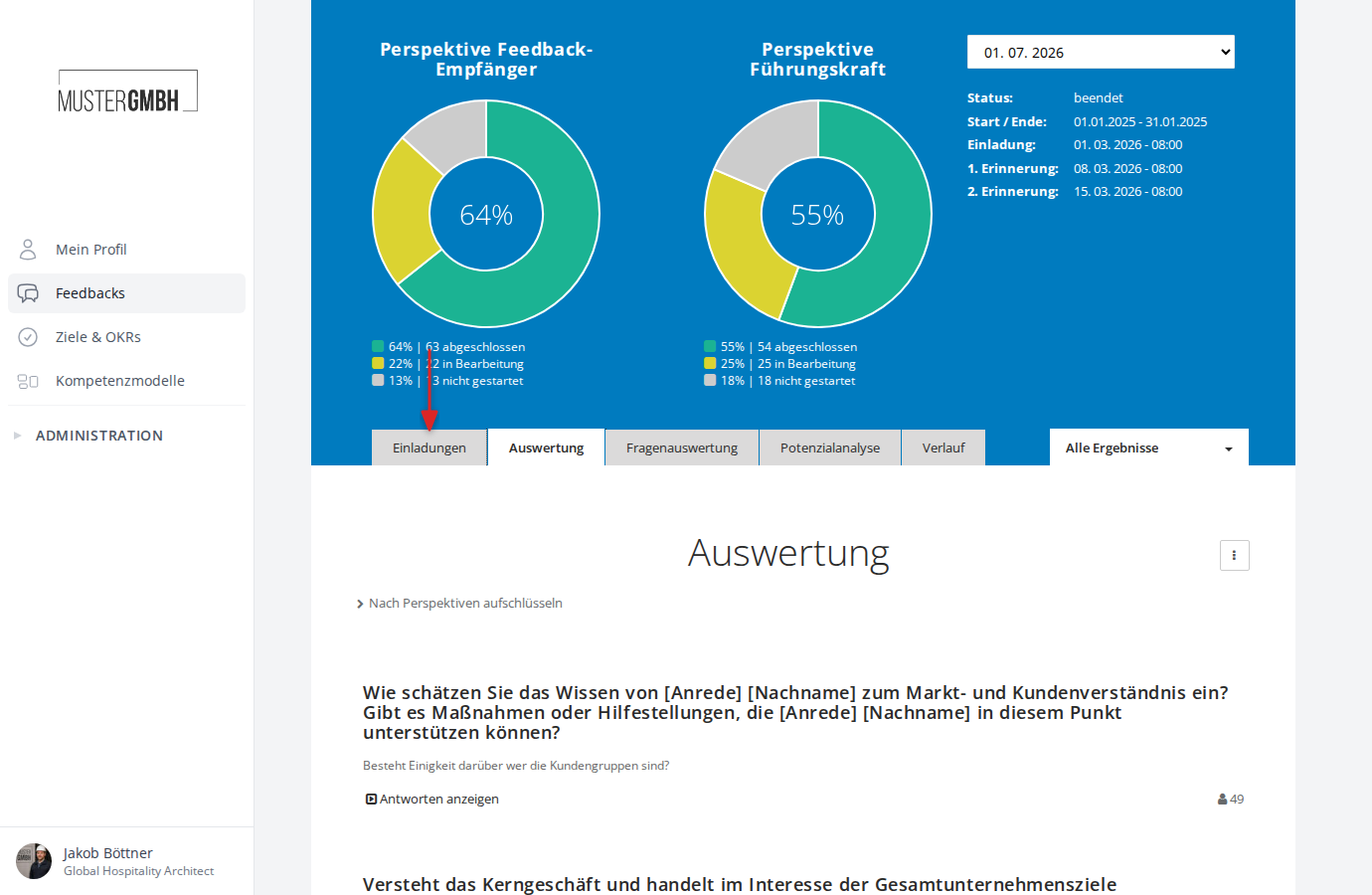
How the participant list is structured
The participant list gives you the following functions:
- Search participants
- Invite (add) participants
- Advanced functions (three-dot menu)
- Download results (XLS)
- Download participation PINs (XLS or PDF, for everyone or only for employees without email)
- Invite many participants
- Show audit log
- Bulk operations (via checkboxes)
- Details of a participation
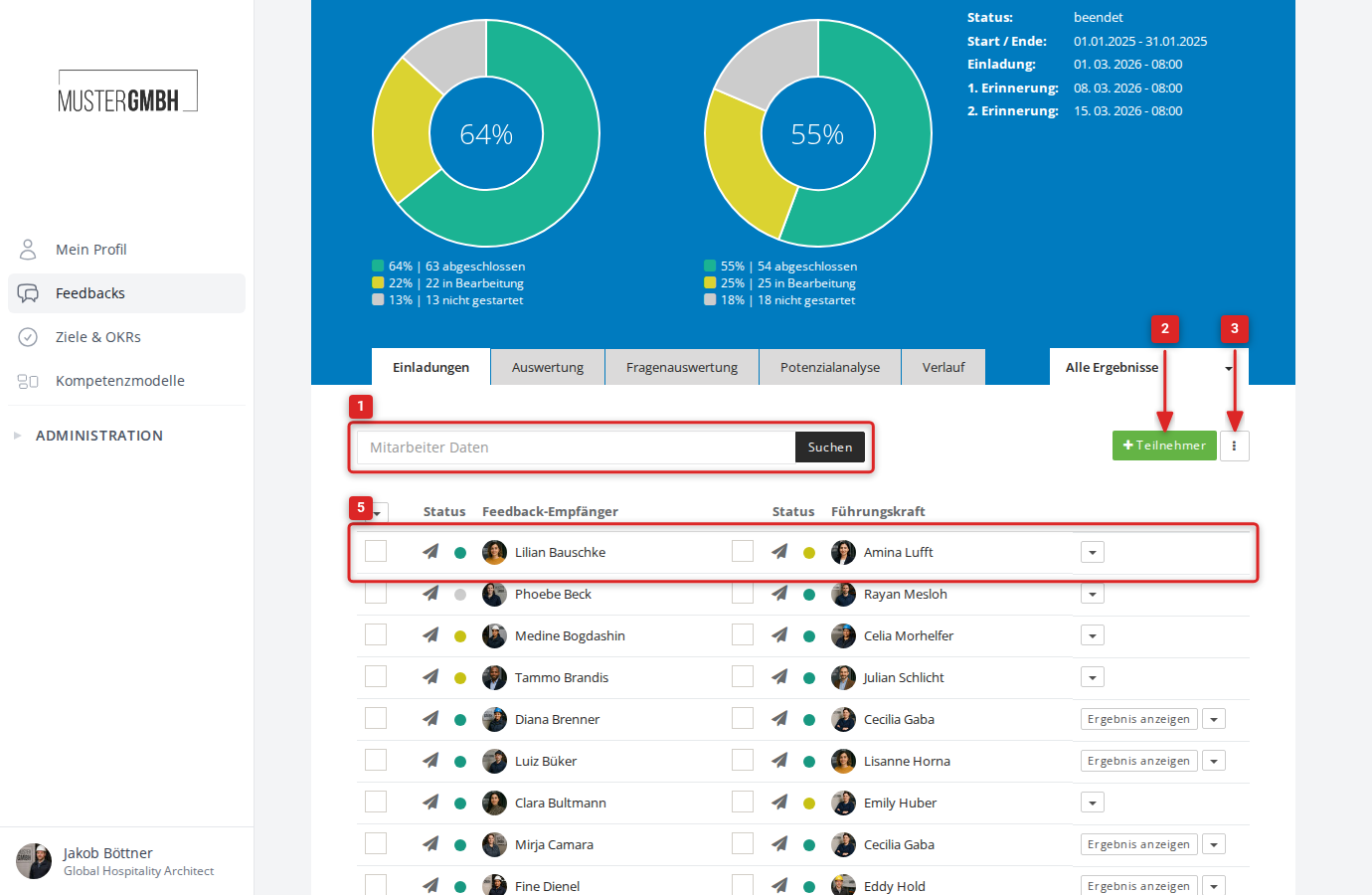
For a full overview of everything to do with invitations and participants, see Review invitations.
Three-dot menu
The three-dot menu to the right of the “+Participant” button offers the following functions:
- Download results (XLS)
- Download PINs for everyone (XLS)
- Download PINs only for employees without email (XLS)
- Download PINs for everyone (PDF)
- Download PINs only for employees without email (PDF)
- Show audit log
- Invite many participants
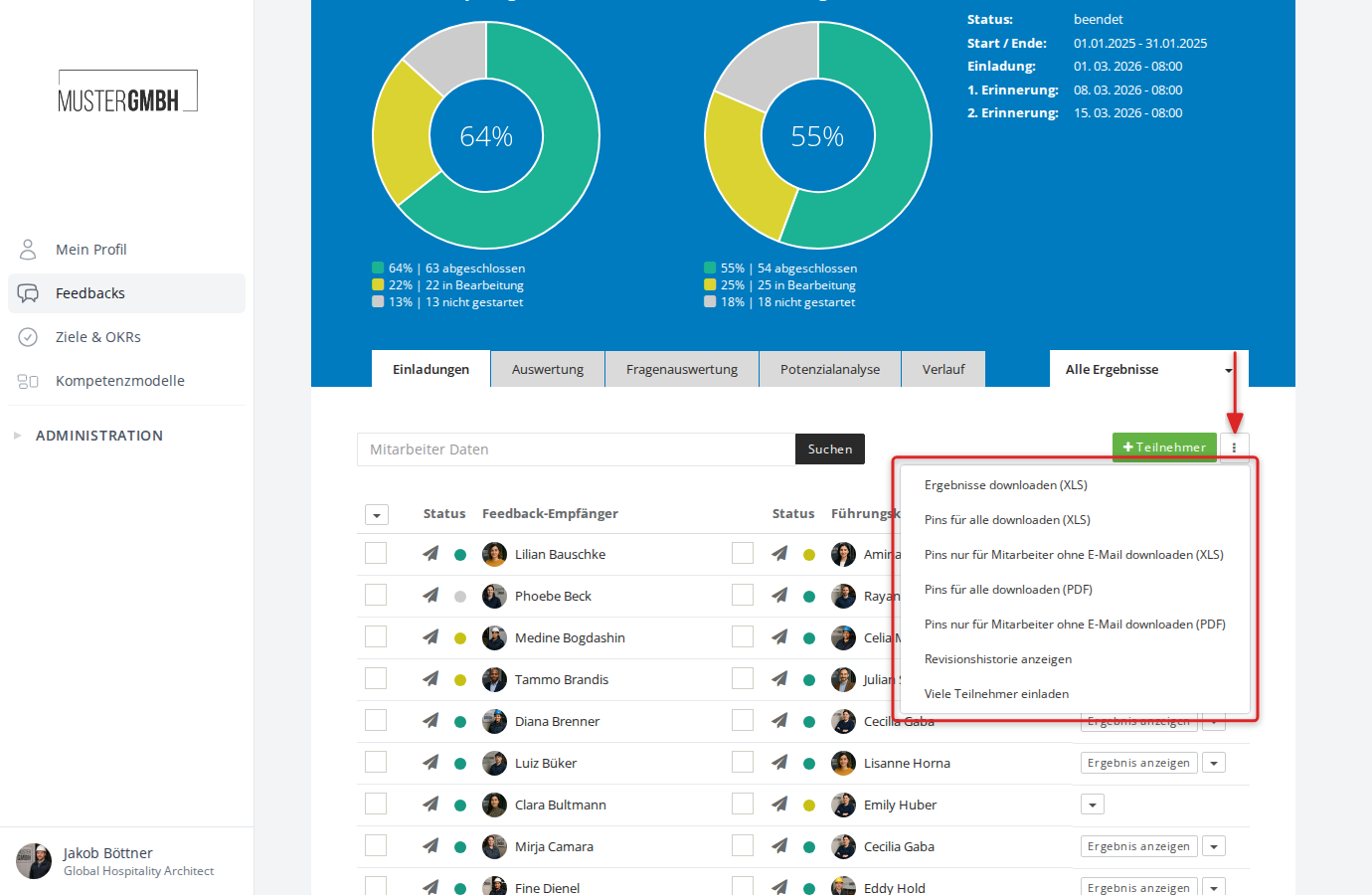
Participation details
Each participant is shown in one row. For two-sided reviews, you see both the feedback recipient and the associated supervisor.
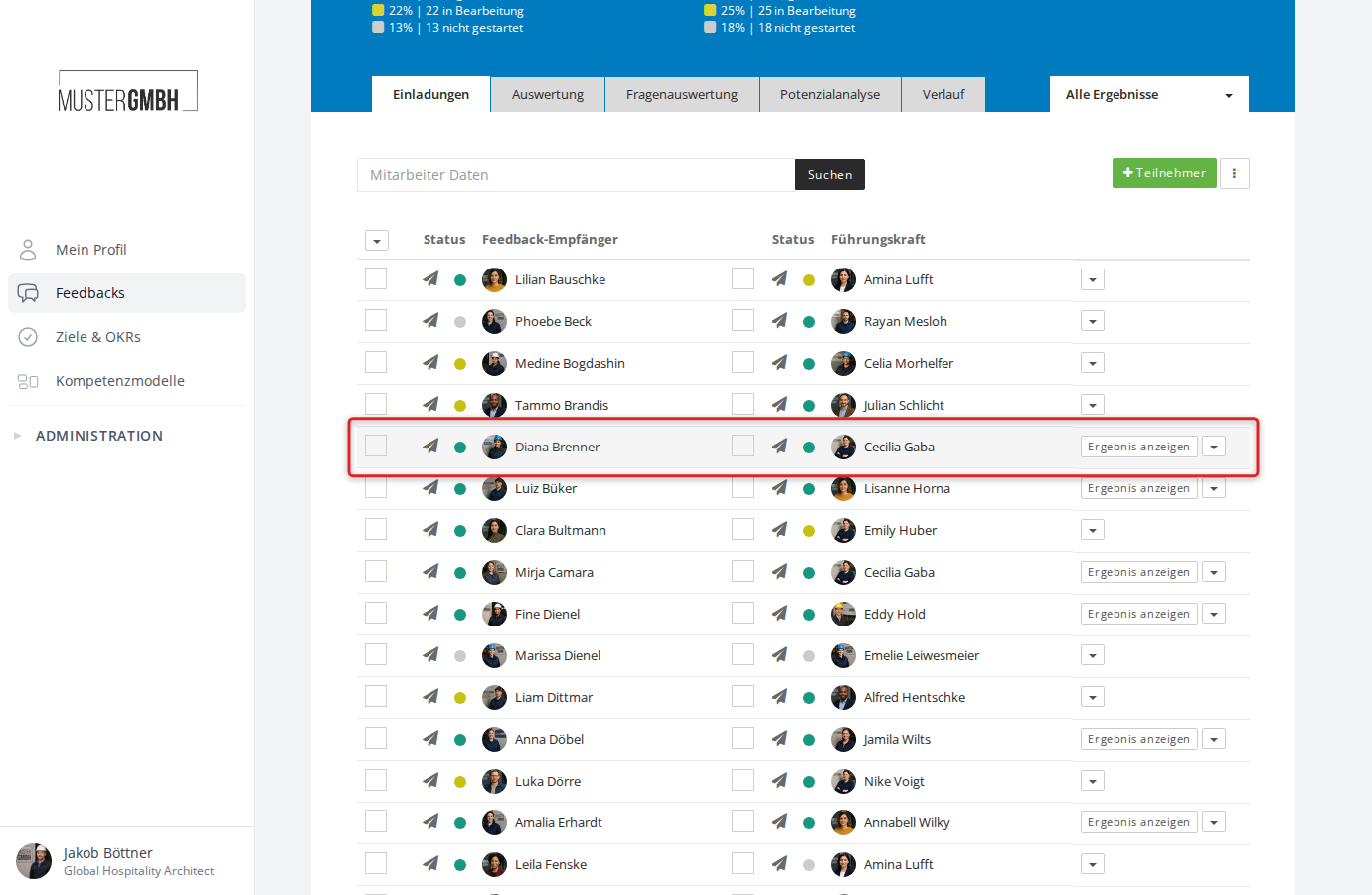
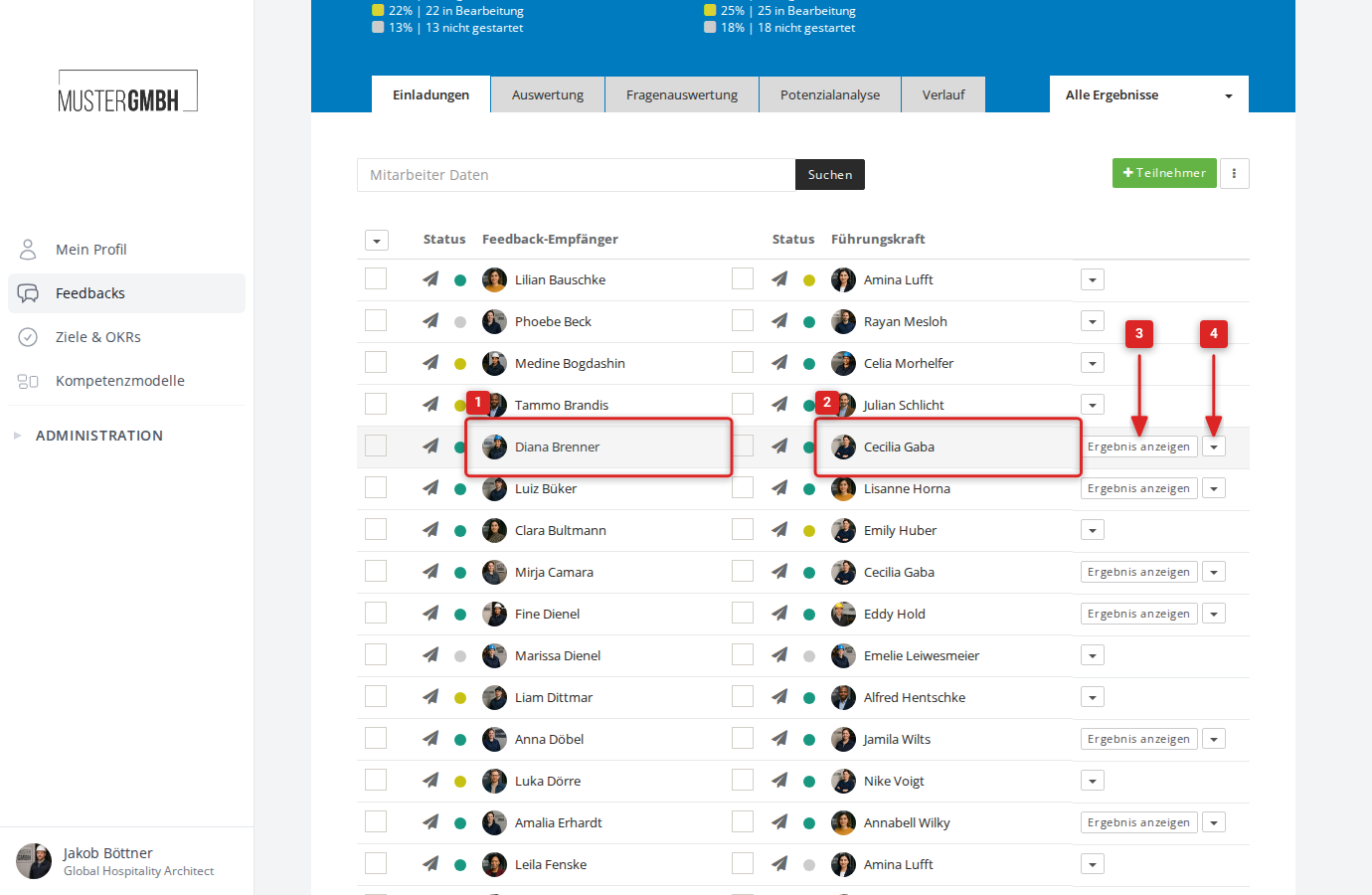
Each row contains the following elements:
- Feedback recipient data (left side)
- Supervisor data (right side, for two-sided reviews)
- Action button at the right edge
- Action dropdown with advanced functions
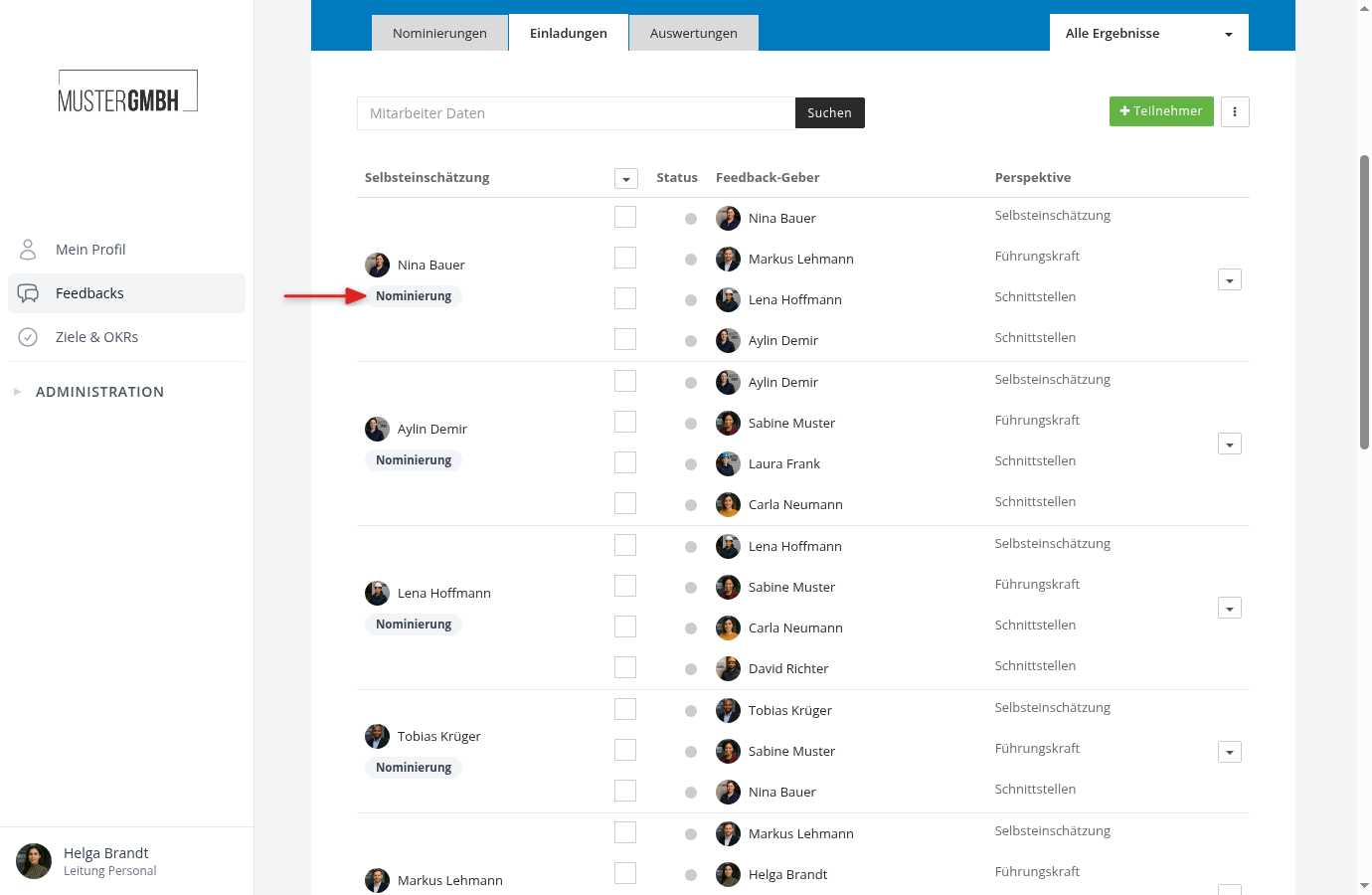
For feedbacks with nominations switched on, the chip “Nomination” sits under the name of a person whose nomination is still running. It leads to their nomination page. Their feedback providers who are not approved yet are missing from the participant list. They only join once the nomination ends with “Invitation confirmed”. Until then they appear in the “Nominations” tab only (Keep an eye on nominations).
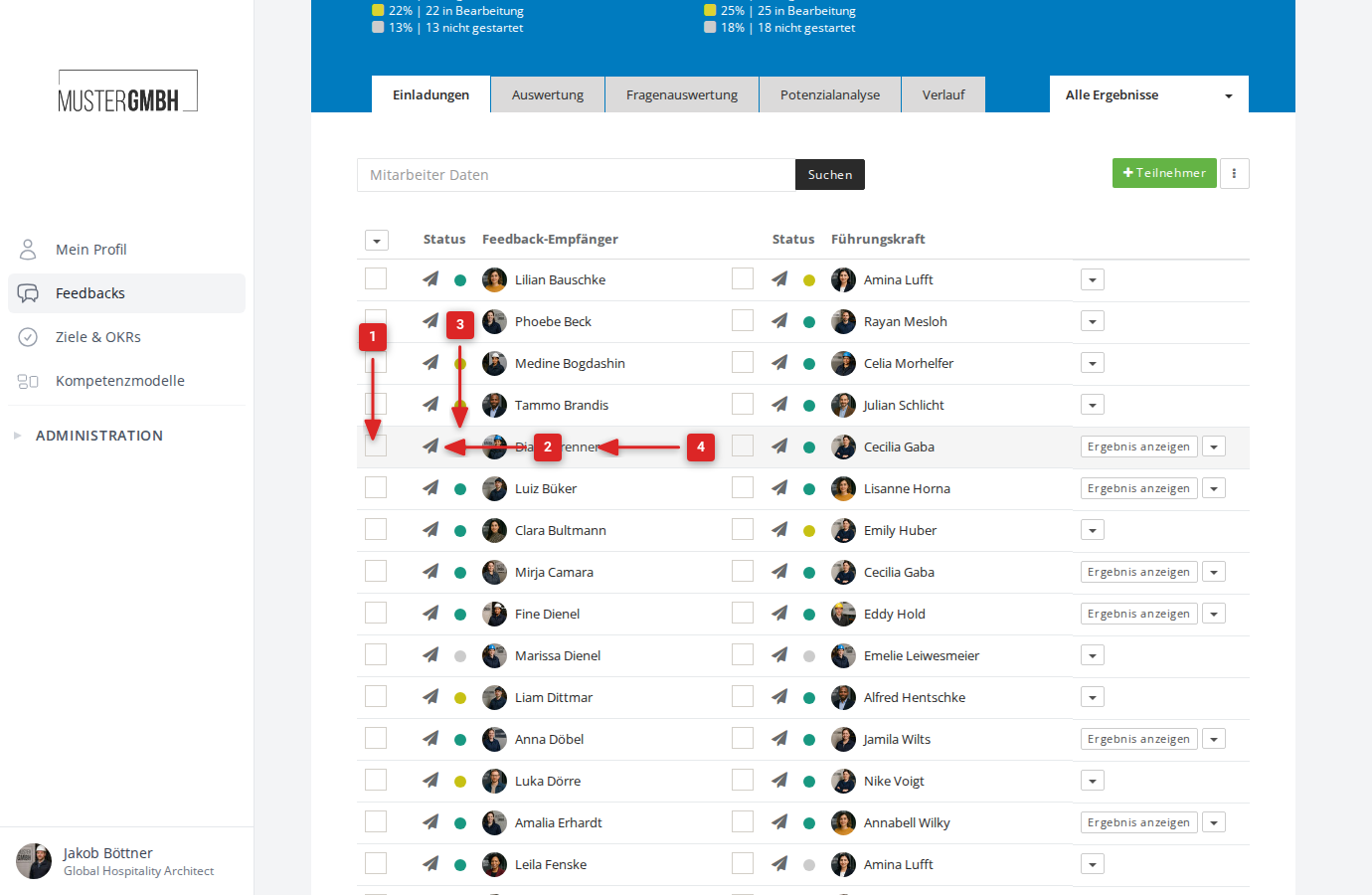
An employee’s data
Each employee’s display in the participant list contains the following elements:
- Selection box for bulk operations
- Invitation indicator (paper-plane icon): shows whether an email invitation has been sent
- Participation status (colored dot): the color coding is explained in Overview of response rates
- Name of the employee with profile picture
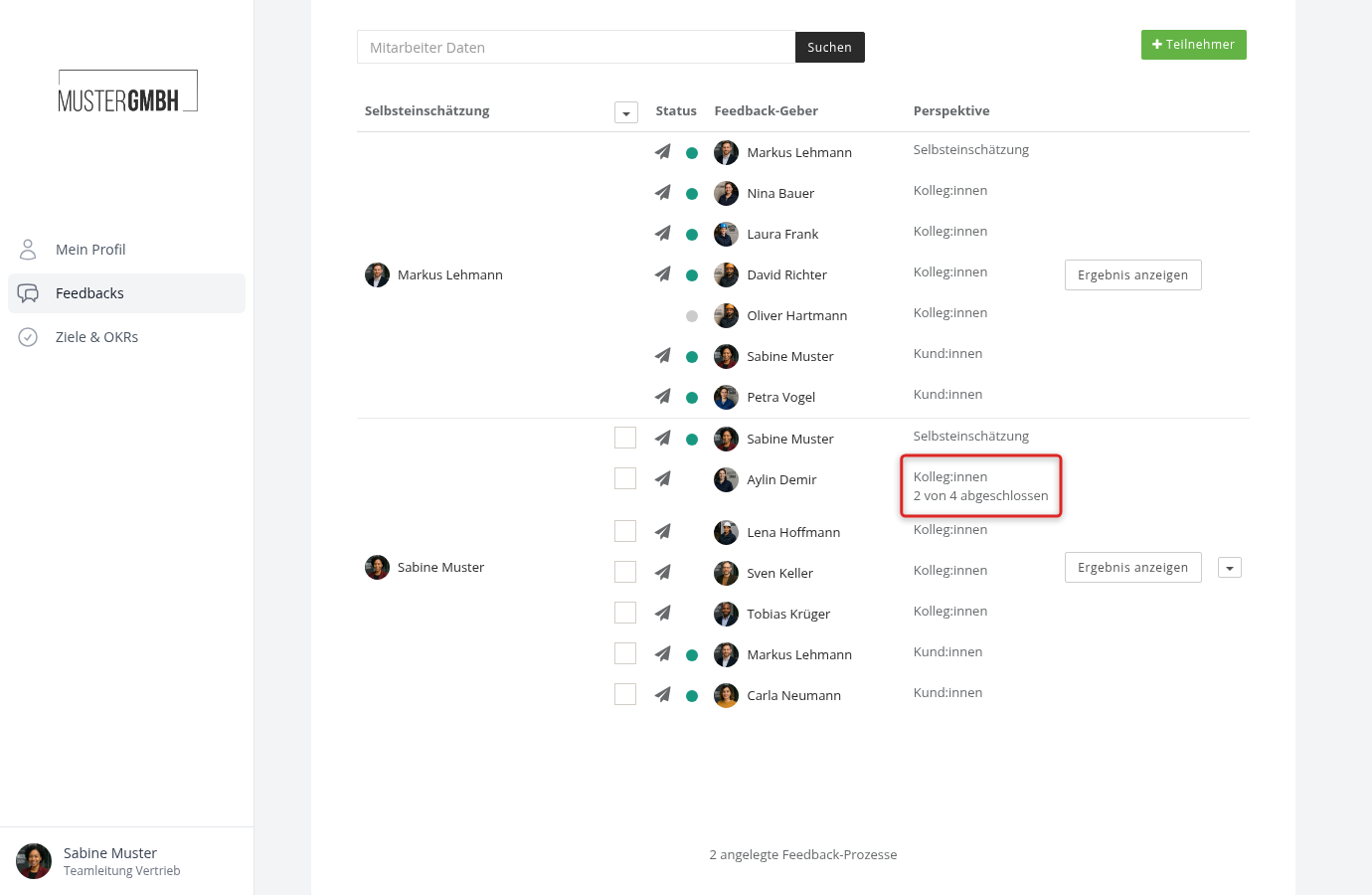
Some feedback recipients see the participant list of their own participation group, for example supervisors who create participations for themselves. For a perspective with a quorum, the list shows them no status dots of individual feedback providers. Instead, the perspective shows how many of its participations are completed, for example “2 of 4 completed”. That way they don’t learn who has already finished. HR and everyone else see the status dots as usual.
Action button
The action button at the right edge of each row adapts to the current status of the participation.
Depending on the status, the action button lets you:
- View the result of a review
- Take part in a review
- Finalize a participation that has already been started
Action dropdown
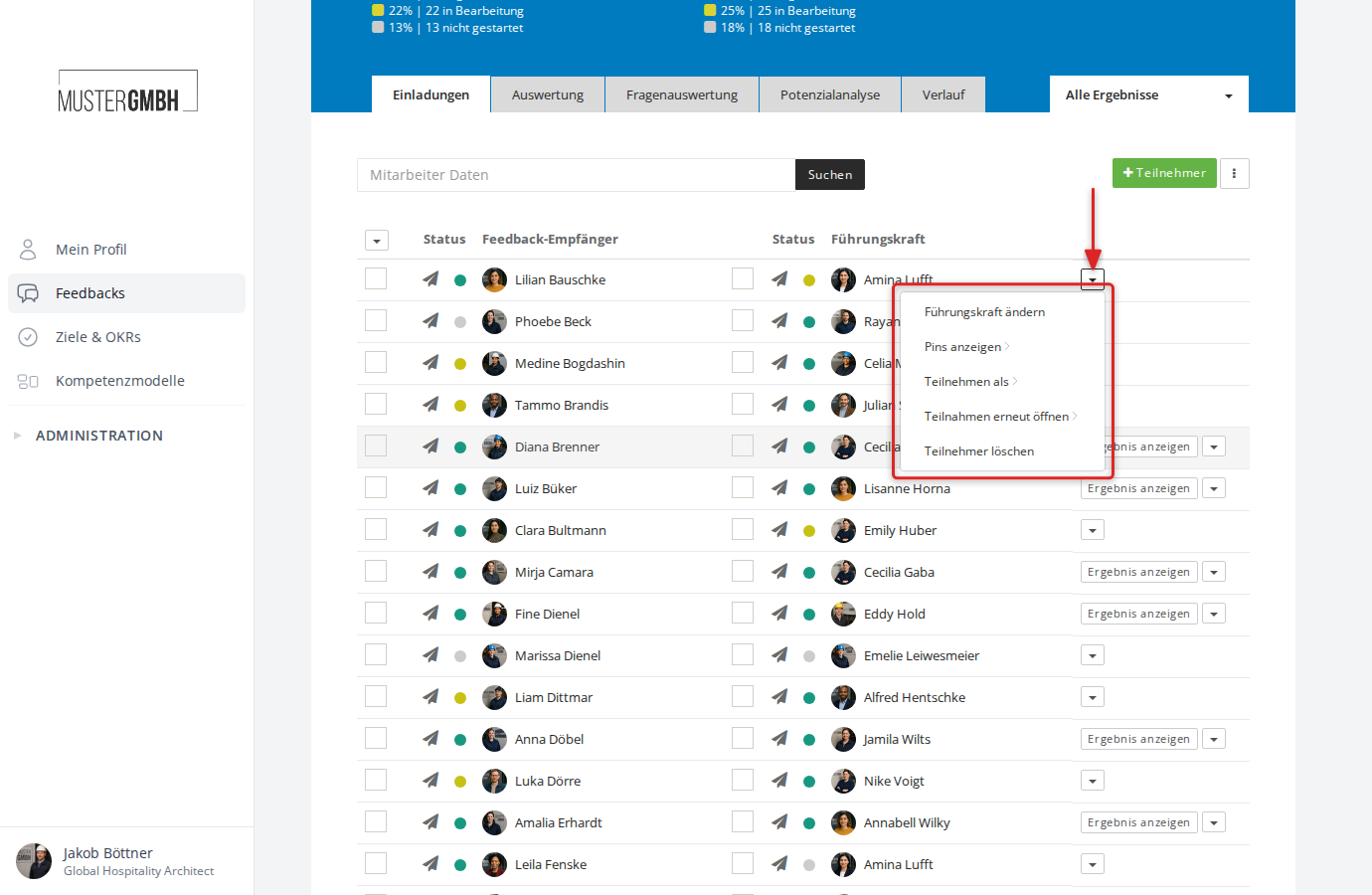
The small arrow next to the action button opens a dropdown menu with more functions:
- Change supervisor
- Show PINs
- Participate as (HR function)
- Reopen participations
- Remove participants
- Invite external person, if a perspective is open to external people
- Lift quorum (HR function), after the edition has ended, while a perspective is below its quorum
Page navigation
The participant list shows up to 50 entries per page. When there are more participants, a page navigation appears at the bottom of the list so you can move between pages. The total number of feedback processes created is shown below the navigation.