What are performance questions?
Performance questions are ready-made question sets provided by the easyreview team. They let you assess performance consistently across your whole organization within your feedback processes.
Using them is optional. You can switch each performance question on individually or leave it off. The advantage: because easyreview knows exactly how these questions are structured, their answers can be presented and highlighted separately in the results.
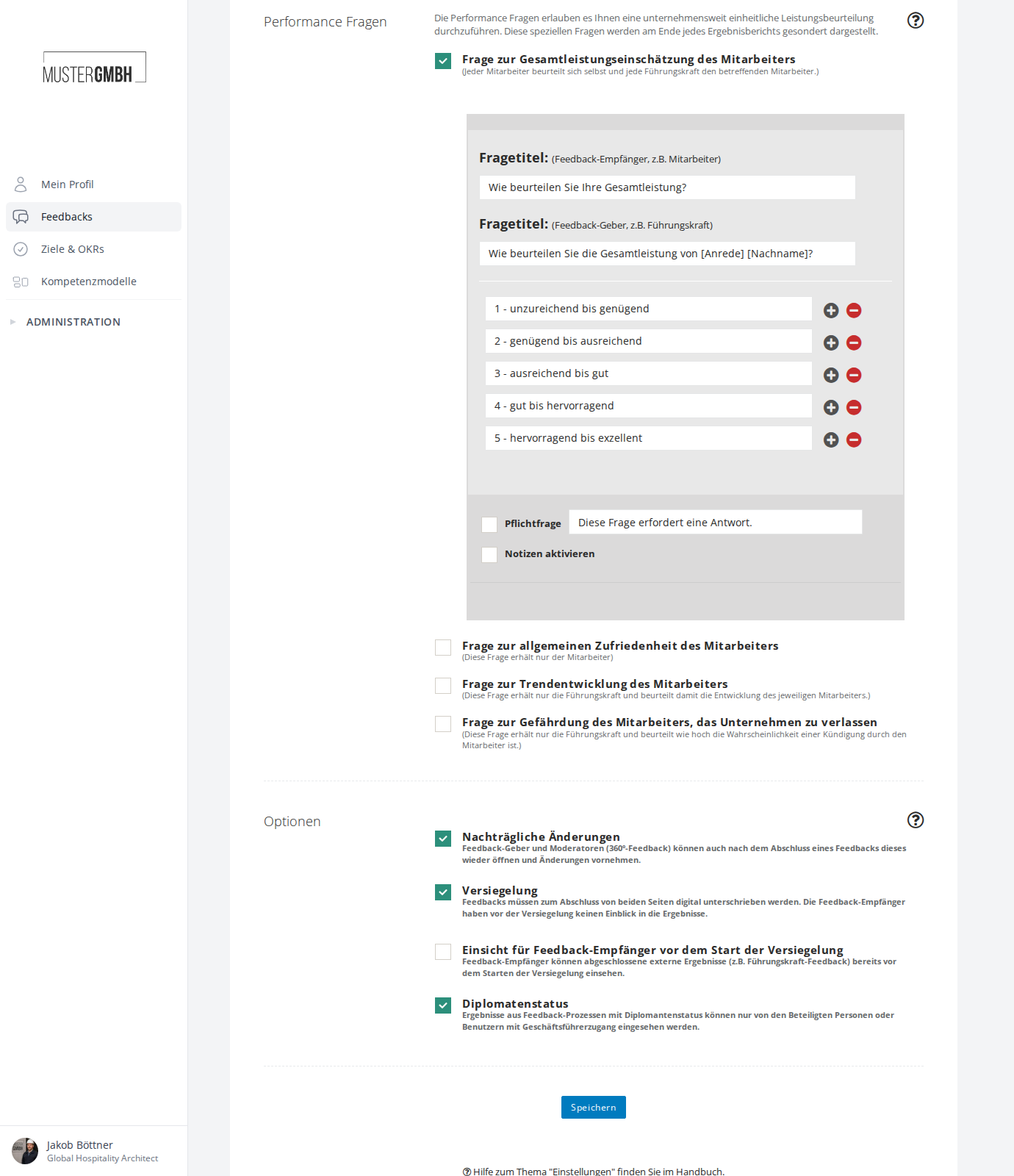
Performance questions are not edited in the questionnaire editor. You switch them on in the Settings of the feedback process, and every active performance question then appears automatically as part of the questionnaire.
The four performance questions
easyreview offers four performance questions:
Overall performance
This appears as a multiple-choice question with one possible answer. Both the feedback recipient (self-assessment) and the supervisor (external assessment) answer it.
The default answer options are five levels ranging from “1 - insufficient to enough” up to “5 - superb to excellent”. You can rename the labels and add or remove options.
General satisfaction
This appears as a rating question (star rating). It goes only to the feedback recipient in the self-assessment; the supervisor does not see it.
You can configure the number of levels (default: 6).
Trend
This appears as a multiple-choice question with three answer options. It goes only to the supervisor (external assessment); the feedback recipient does not see it.
The three default levels are “weaker”, “stable” and “stronger”. You can rename the labels.
Risk of leaving the company
This appears as a multiple-choice question with three answer options. It goes only to the supervisor (external assessment); the feedback recipient does not see it.
The three default levels are “unlikely”, “at risk” and “likely”. You can rename the labels.
Switching performance questions on
You switch performance questions on in the settings of the feedback process: in the “Performance questions” row, click “Set up” and tick the questions you want. The page lists all four questions, each with a note on who answers it. Question texts, answer options and further settings are covered in Configure performance questions.
How they appear in the results
Active performance questions are shown separately in a feedback’s results report. They appear in their own summary area, apart from the regular questionnaire questions.
Overall performance is shown in two columns: the feedback recipient’s self-assessment on the left, the supervisor’s rating on the right. Satisfaction and trend are also shown side by side: the employee’s satisfaction rating on the left, the supervisor’s trend assessment on the right.
Visibility at a glance
| Performance question | Feedback recipient | Supervisor |
|---|---|---|
| Overall performance | Yes | Yes |
| General satisfaction | Yes | No |
| Trend | No | Yes |
| Risk of leaving the company | No | Yes |