Invite new employees automatically
A feedback edition often runs for weeks or months. New employees join during that time, and somebody has to remember to invite them afterwards. You can hand that job to a nightly invitation rule: save the filters of the mass invitation as a rule once, and easyreview invites every newly matching employee into the edition each night.
Each edition has exactly one rule. You set it up in the same place where you invite many participants manually.
Set up the rule
- Go to Feedbacks in the sidebar and click the feedback process you want.
- Make sure the Invitations tab is active and the right edition is selected.
- Click the three-dot menu (⋮) next to the + Participant button and choose Invite many participants.
- Set the filters that describe who should take part and click Show matching employees.
- Under Configure perspectives, define who takes on the feedback-giver role, for example the direct supervisor.
- At the bottom of the page, in the Nightly invitation rule box, click Save as nightly rule.
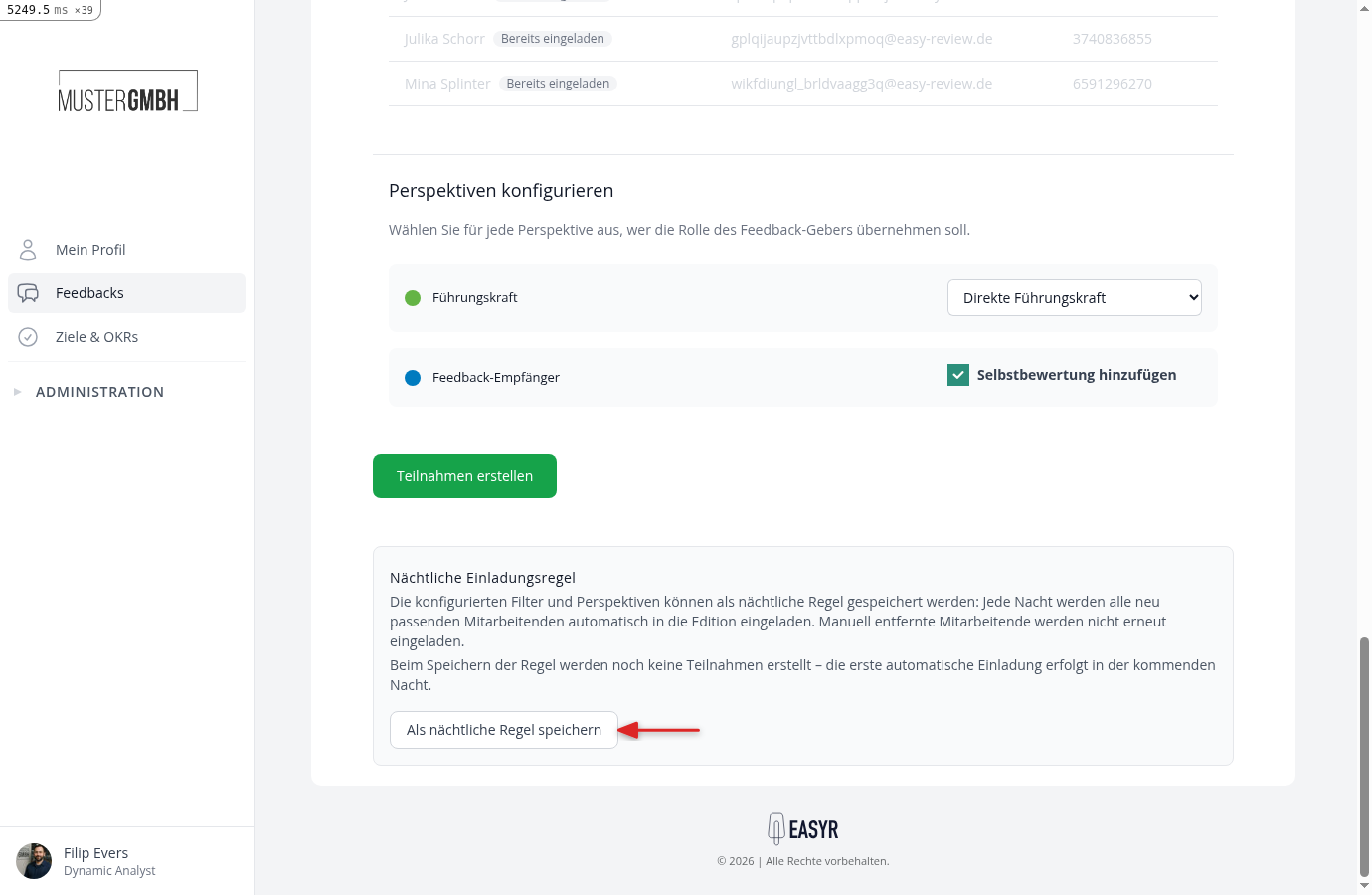
The rule takes exactly the filters and perspectives you set above. Without any filter, the rule applies to all employees.
Who does the rule invite each night?
Every night easyreview evaluates the saved filters again and compares the result with the edition. Anyone who newly matches and has not been processed by the rule yet gets invited. Everyone who already participates stays untouched.
Two things matter here:
- The basis is always the employees who are employed at the time of the run. Anyone who has left the company according to their leaving date is no longer invited.
- The rule touches each employee only once. If you remove a participation later, the rule does not bring that person back.
If a perspective cannot be resolved for someone, because their supervisor is not set yet for instance, the rule skips that person for now. They are tried again on one of the next nights, as soon as the data is complete.
Do automatically invited employees receive an email?
Only if a sending time for invitations is set on the edition. If that time already lies in the past, the invitation goes out shortly after the nightly run.
If no sending time is set, participations are created but no emails are sent. The rule points this out in the box at the top of the page. You can send the invitations manually at any time.
See what the rule did
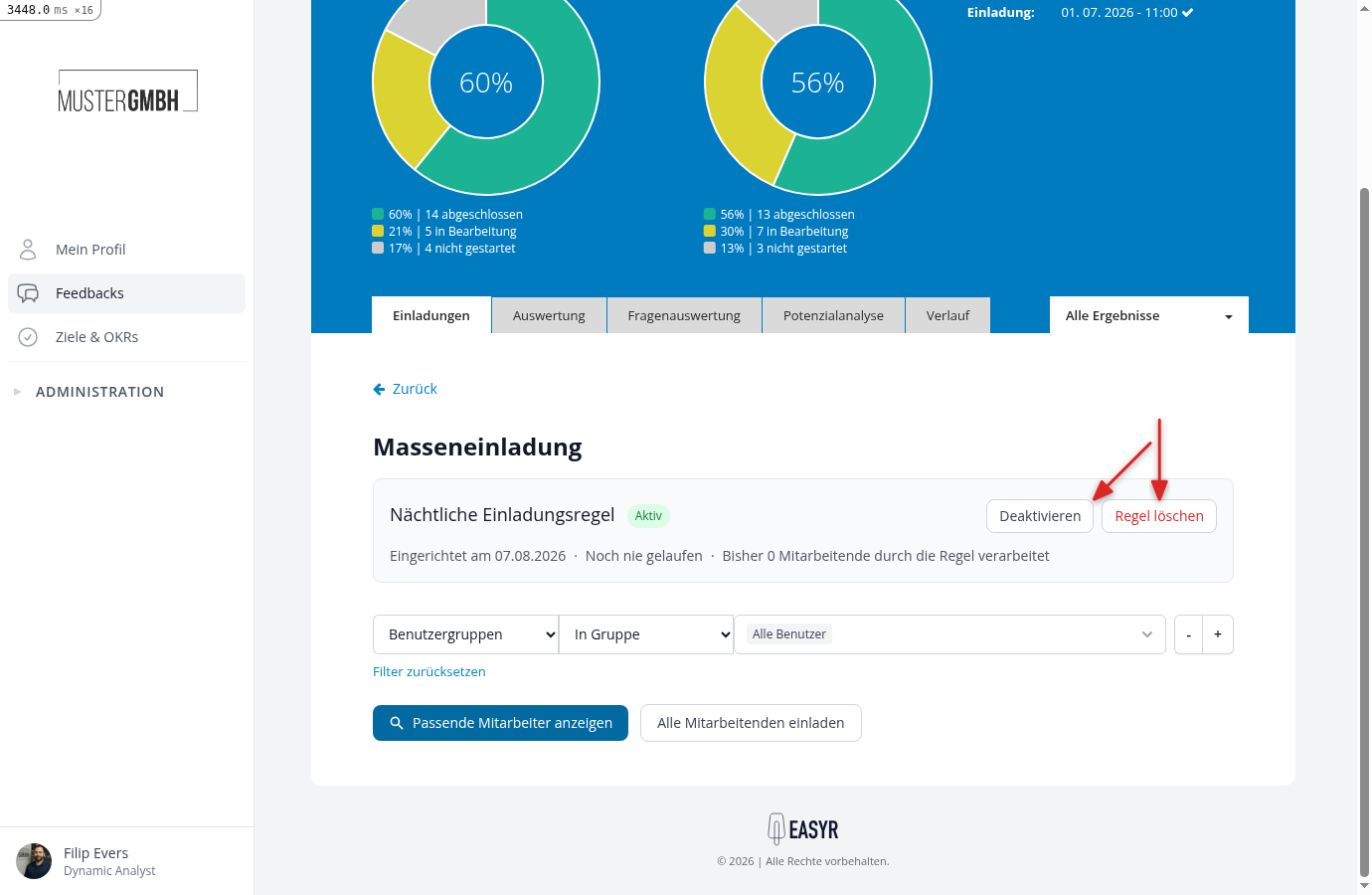
As soon as a rule is saved, it appears as a box at the top of the mass invitation page. It shows when the rule was set up, when it last ran, and how many employees it has processed so far.
easyreview can also inform HR about each run by email. This summary lists every employee invited during the night. It is switched off by default and is turned on in the Notification Center of the feedback process under “Automatic invitations summary”.
Change, pause or delete the rule
To change the filters and perspectives, set them up again on the page and click Save as nightly rule once more. This overwrites the previous rule.
The box at the top holds two more actions:
- Deactivate pauses the rule. It keeps all its settings and stops running at night until you activate it again.
- Delete rule removes it completely. Participations that were already created remain.
Both only affect future runs. Participations the rule has already created stay in the edition until you delete them yourself.
When the rule does not run
The rule pauses automatically once the edition has ended, meaning its end date has passed. It also does not run while it is deactivated or after the feedback process has been deleted.