Edit answers
As an HR employee or member of the executive leadership, you can correct a participant’s answers after the fact. This is useful when someone submitted the wrong answer by mistake or a correction has to be made.
Before you start
Answers can only be edited when all of the following are true:
- The person’s participation is finished (status: completed).
- The participation group is not sealed and no sealing process is running.
- The feedback is not anonymized.
- You have the HR employee or executive leadership role.
Edit an answer
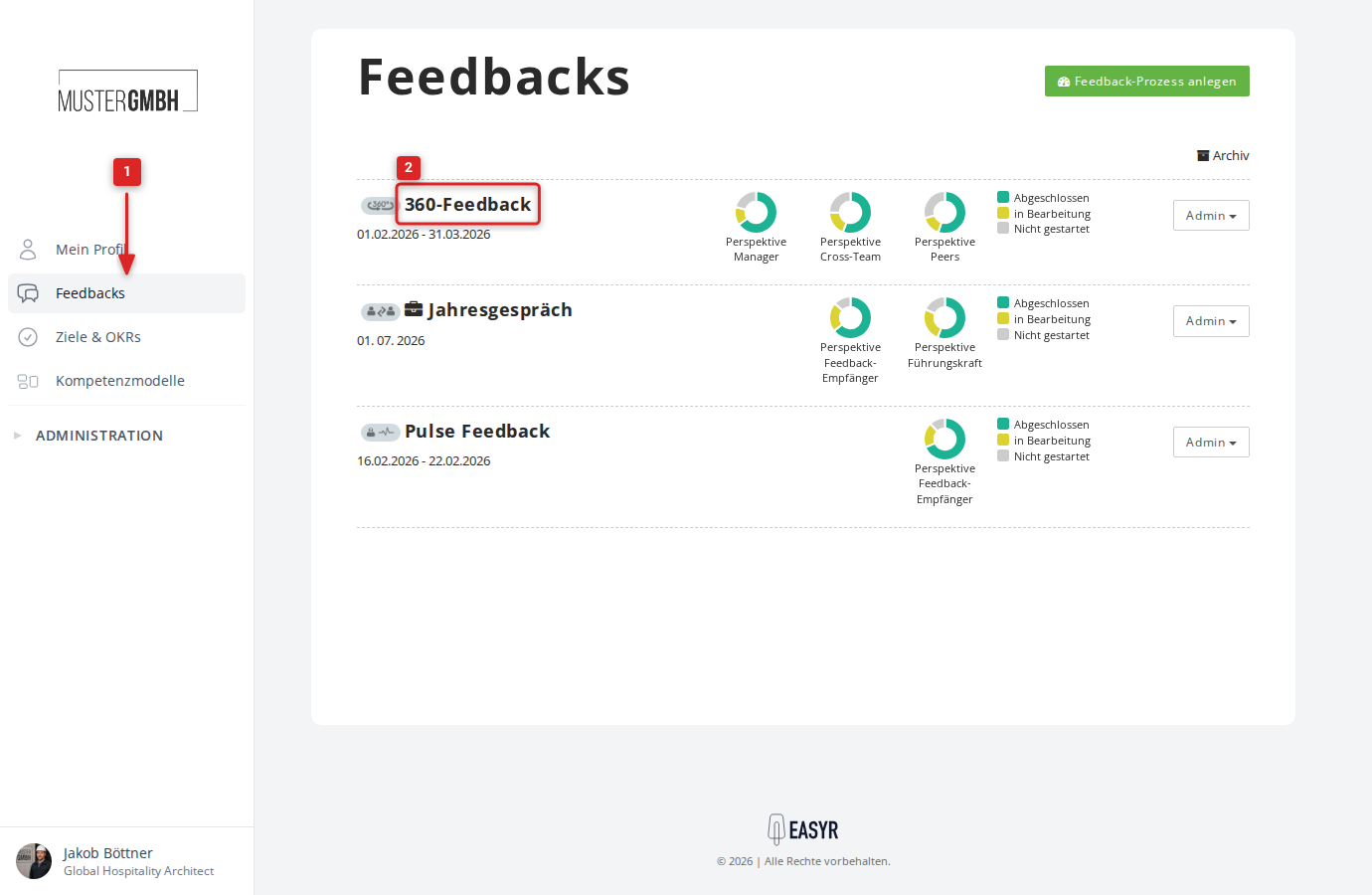
- Open the feedback overview from the Feedbacks entry in the sidebar.
- Click the name of the feedback process you want (for example “Annual review”).
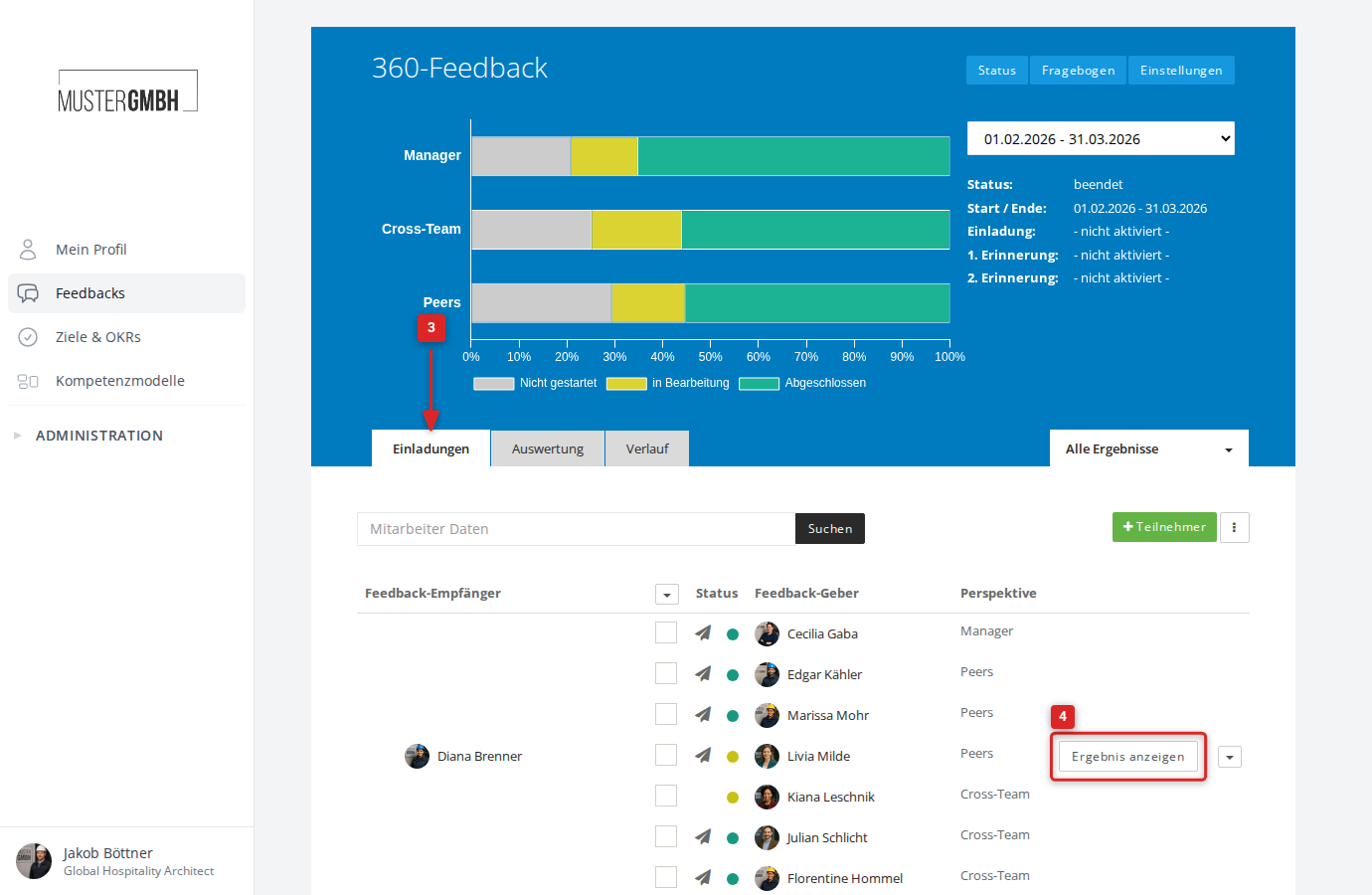
- Switch to the Invitations tab and find the person whose answer you want to change.
- In that person’s row, click Show review.
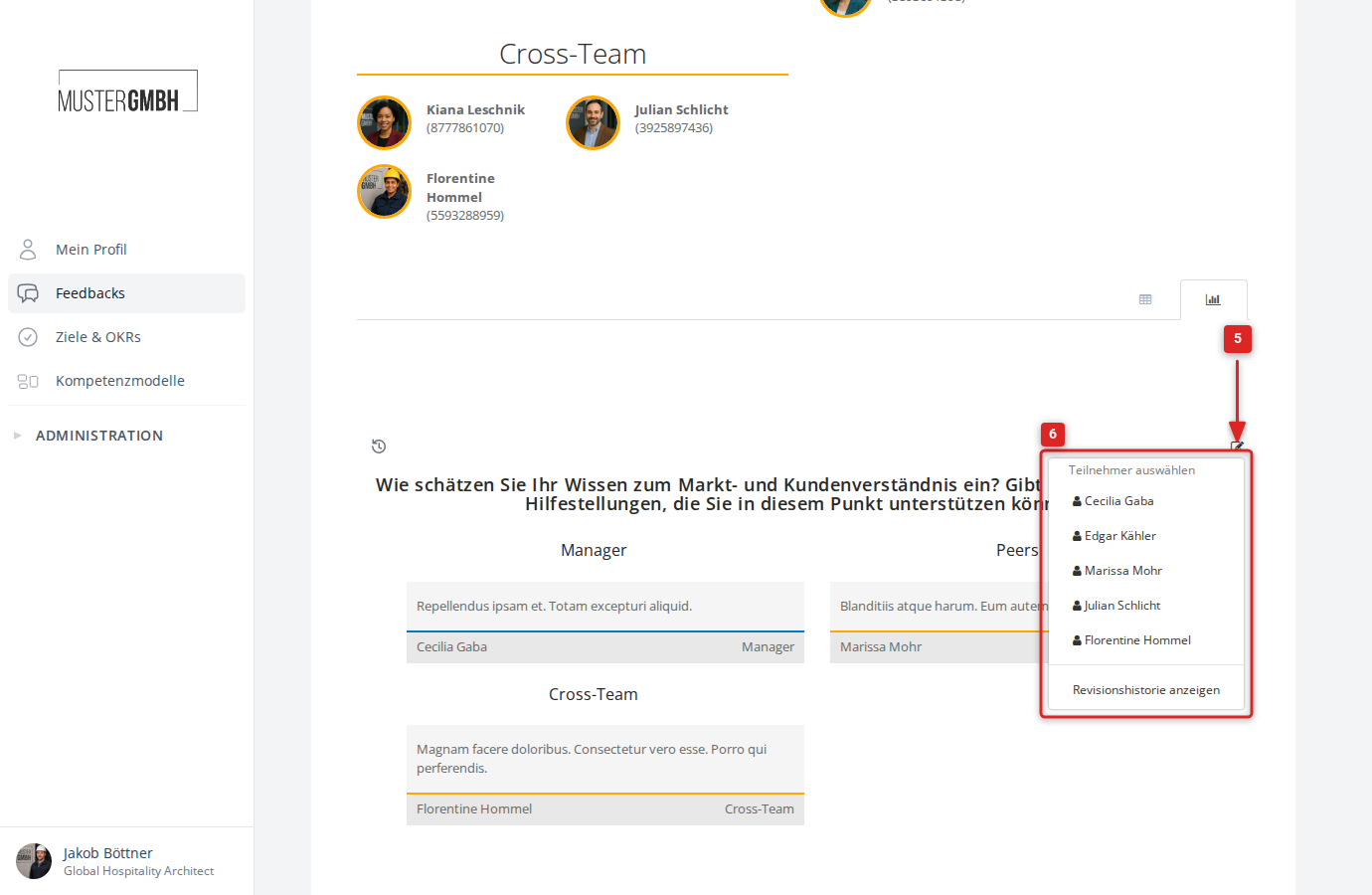
- On the result page, click the small pencil icon next to the question you want to change.
- In the dropdown, use Select participant to choose the person whose answer you want to edit.
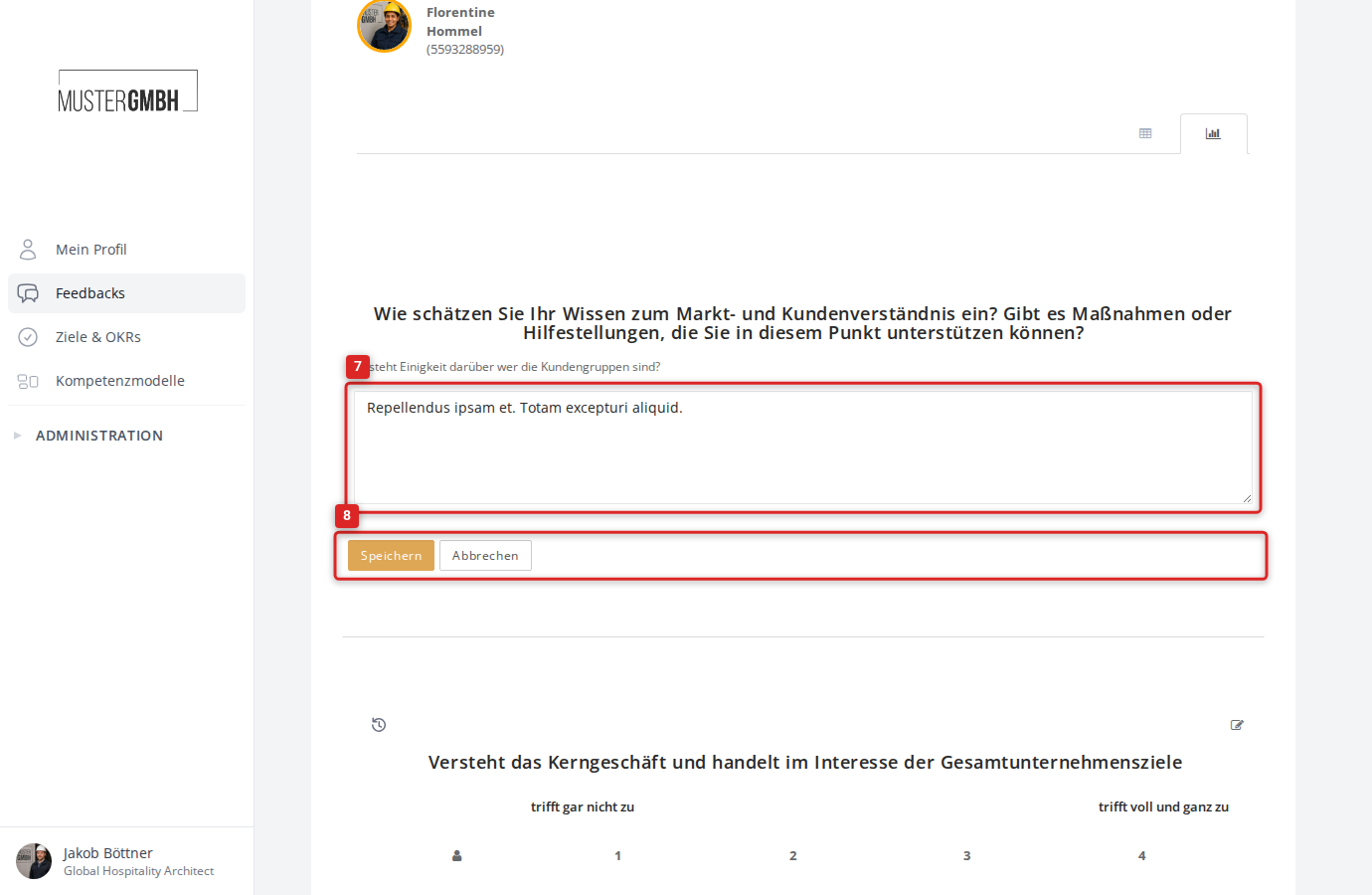
- The answer now appears as an editable form. Make your change.
- Click Save to apply the change, or Cancel to return without changing anything.
Audit log
Every change to an answer is logged automatically. To see the change history for a specific question, click Show audit log in the pencil dropdown. You are taken to the audit log, which lists every change with its timestamp and the person who made it.
How this differs from “Subsequent changes”
Editing answers, as described here, is meant for HR employees and executive leadership who want to correct individual answers on purpose. It is different from the Subsequent changes feature: that one lets reviewers and moderators reopen their own finished participation and make changes themselves. The two features are independent and can both be active at the same time.
Related articles
- Reviews: status page — overview of the status page with its Invitations, Results and History tabs
- Sealing — how the sealing process works and why it prevents answer editing
- Subsequent changes — self-correction by reviewers and moderators