Set up reminders for feedbacks
Not everyone responds to the first invitation. So that you don’t have to chase people down, easyreview automatically emails reminders for open participations. You don’t need to set anything up: by default there’s a 1st reminder after 7 days and a 2nd reminder after 14 days, each handled separately for the self-assessment and the external assessment. This article shows how to adjust the intervals, the number of reminders, and the recipients to fit your process.
Who gets reminded, and when?
Only people who still need it are reminded: those who haven’t finished their participation yet. Anyone who is done receives no more reminders.
The interval counts in days from when the invitation is sent. Reminders therefore depend on the invitation having gone out already. When invitations are sent is controlled per edition, either through automatic invitation sending or through manual sending.
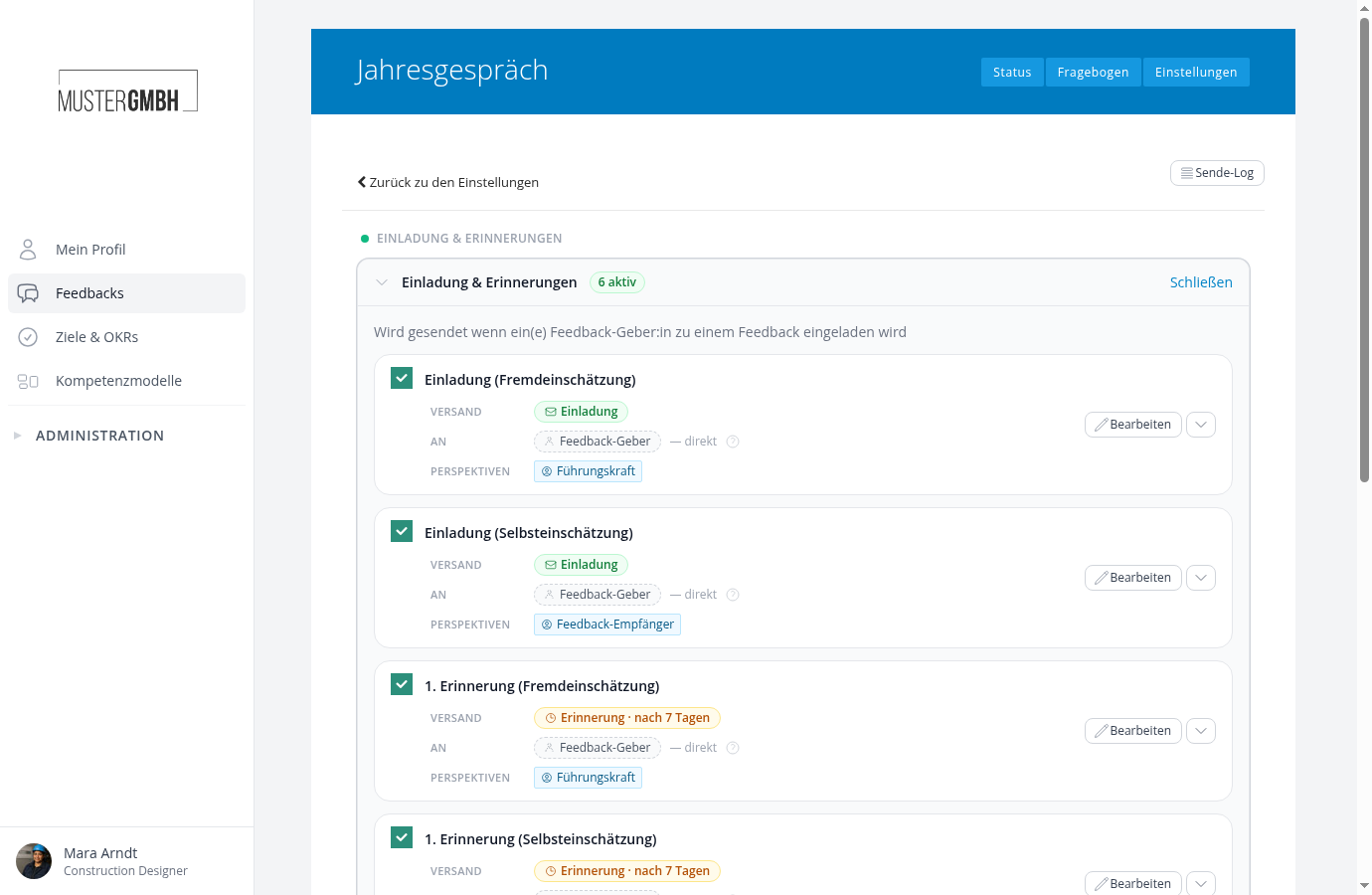
You’ll find the reminders in the feedback process’s Notification Center, under “Invitation & reminders”:
Change the reminder interval
Want to remind earlier, later, or at a different pace?
- Open the Notification Center of the feedback process and expand “Invitation & reminders”.
- Click “Edit” on the reminder you want.
- Switch to the Settings tab and adjust the number of days in the Delivery area.
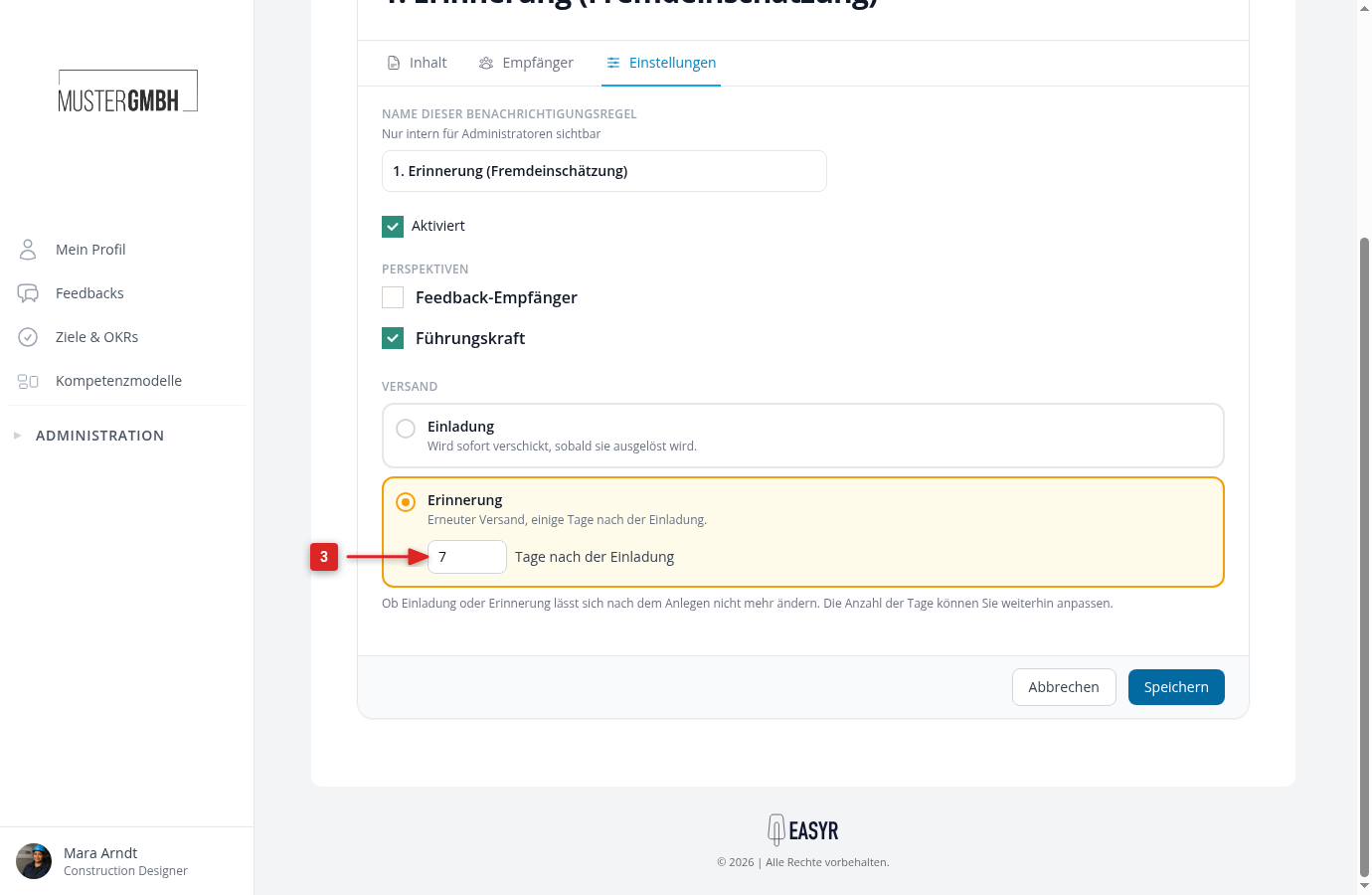
- Click “Save”.
Turn a reminder off
Is one reminder enough, or would you rather send none at all? Turn off the checkbox on the left of the rule row. The reminder is then no longer sent, but it stays in place and can be reactivated at any time. The 1st and 2nd reminders can be turned off independently.
Add another reminder
For stubborn cases you can add as many further reminders as you like, for example a third one after 21 days with a firmer message:
- In the expanded “Invitation & reminders” type, click “Add Notification”.
- In the Content step, set the subject and text (see Design content and use placeholders).
- In the Settings step, under Delivery, choose the “Reminder” option and enter the number of days.
- Select the perspectives you want and save.