Sealing
Sealing is a digital signature for feedback results. It makes sure that every party involved has seen and confirmed the result before it is locked for good. After sealing, no more changes to the results are possible.
When sealing is turned on, feedback recipients by default have no insight into the results until the result has been sealed. The idea is that the result is discussed in a shared conversation and then confirmed digitally by everyone involved.
Turn on sealing
Sealing is turned on in a feedback process’s settings.
- Open the settings of the feedback process.
- In the “Process & visibility” row, click “Edit”.
- In the “Closing” card, tick the Sealing checkbox.
- Click Save at the bottom of the page.
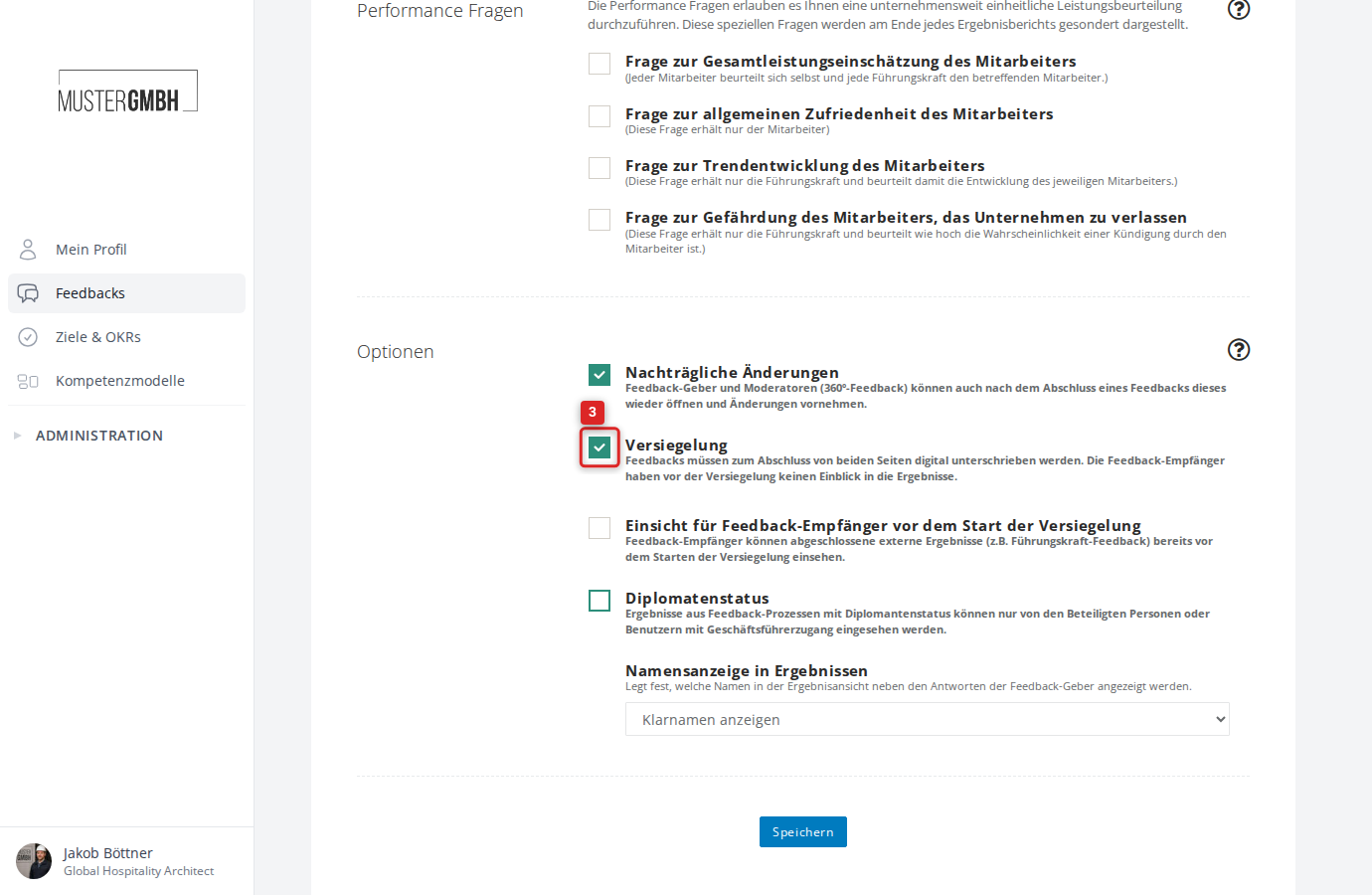
The sealing committee
The sealing committee is everyone who has to confirm the sealing individually. It is put together automatically from:
- Moderator: a moderator of the review (for 360° feedbacks, for example the supervisor)
- Feedback recipient: the person being reviewed (if they have a participation or the “result access without own participation” option is on)
- Further perspectives: participants from perspectives where the “add to sealing committee” option is turned on
Start the sealing process
Once all feedback givers have completed their feedbacks, the sealing process can be started. Sealing can be initiated by HR users or by moderators of the review.
- Open the result of a review
- Scroll to the Sealing section at the bottom of the result page. There you see the status “Sealing Pending”
- Click Seal Now
- Confirm in the dialog with Start Process
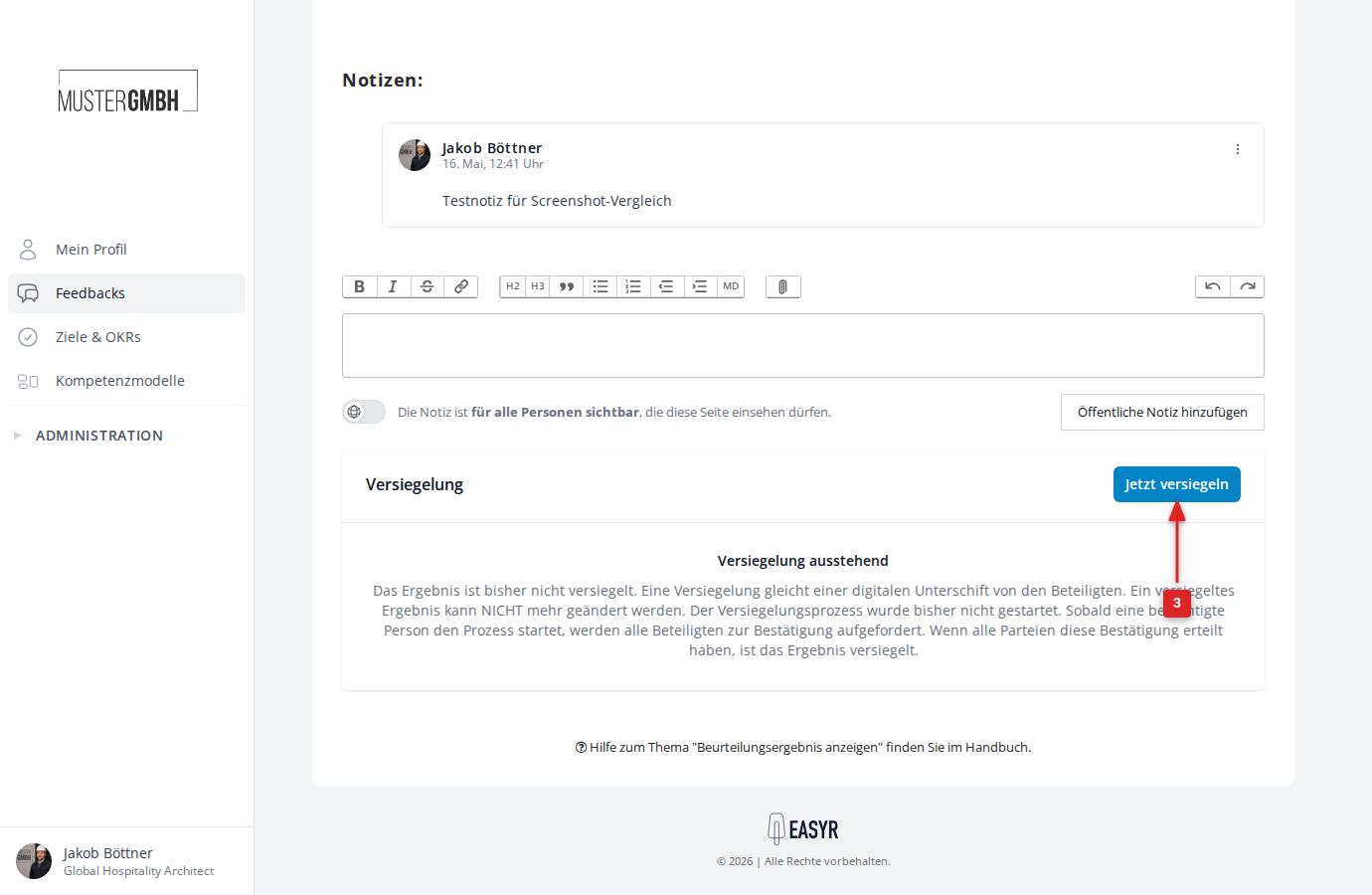
All members of the sealing committee then receive an email invitation to confirm the sealing.
Track the sealing status
After the sealing process is started, the sealing box on the result page shows the progress:
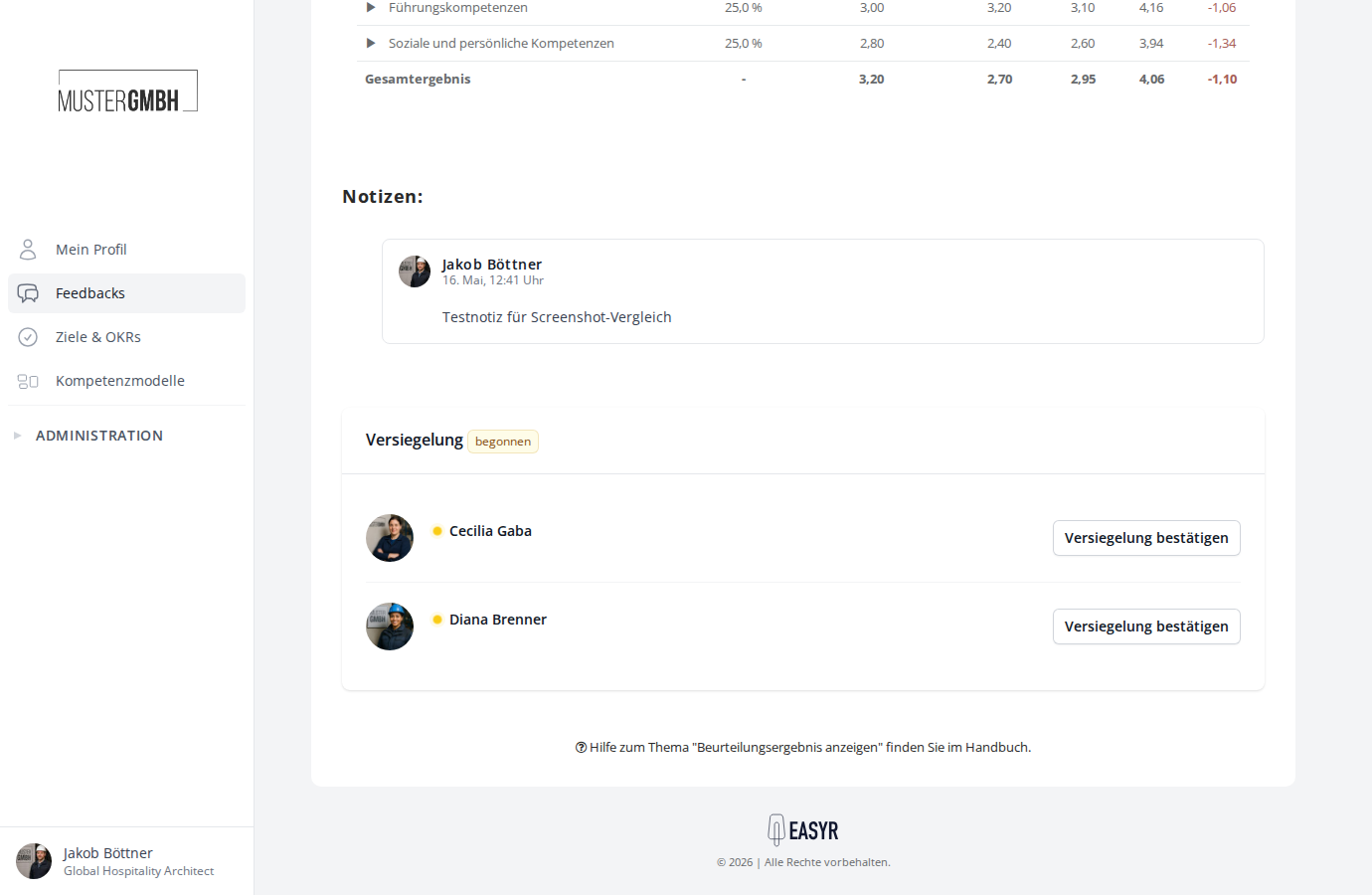
Each member of the sealing committee is shown with a status dot:
- Green dot: confirmation given (with a timestamp)
- Yellow, pulsing dot: confirmation pending
- Gray dot: waiting on dependencies (another participant has to confirm first)
Next to each participant with a pending confirmation, a Confirm Sealing button appears. HR users can use it to go straight to that participant’s confirmation page.
Confirm the sealing
Each member of the sealing committee confirms the sealing individually. You reach the confirmation page via the link in the email invitation or via the Confirm Sealing button in the sealing box.
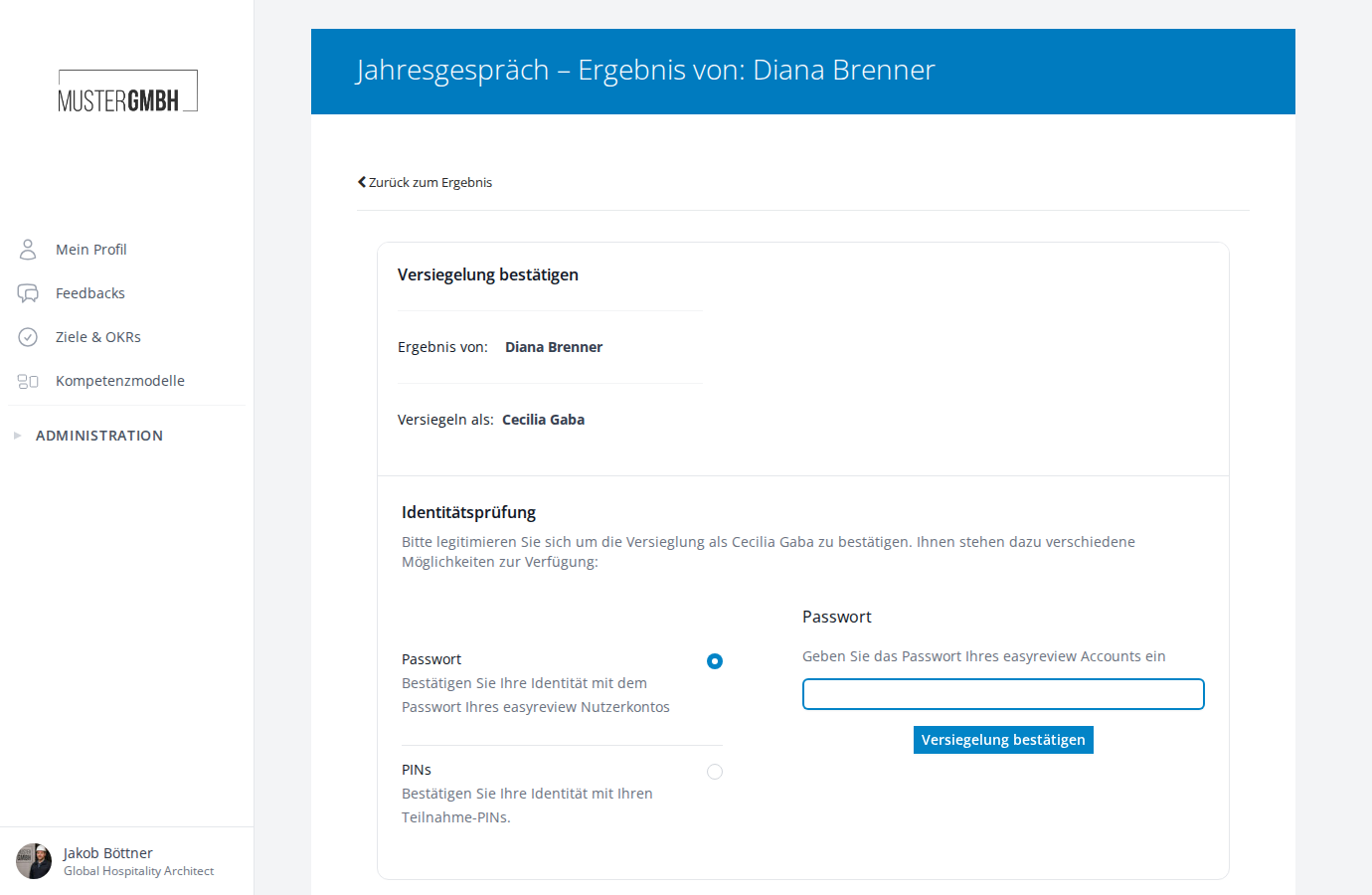
The confirmation page shows:
- Result of: the name of the feedback recipient
- Sealing as: your own name
The following methods are available to verify your identity:
- Password: confirm with the password of your easyreview account
- PINs: confirm with your two participation PINs (4 digits each)
- Single sign-on (SSO): confirm via your Microsoft 365 account (if configured)
Choose the method you want, enter your credentials and click Confirm Sealing.
Once all members of the sealing committee have confirmed, the result is sealed and locked for good.
View a sealed result
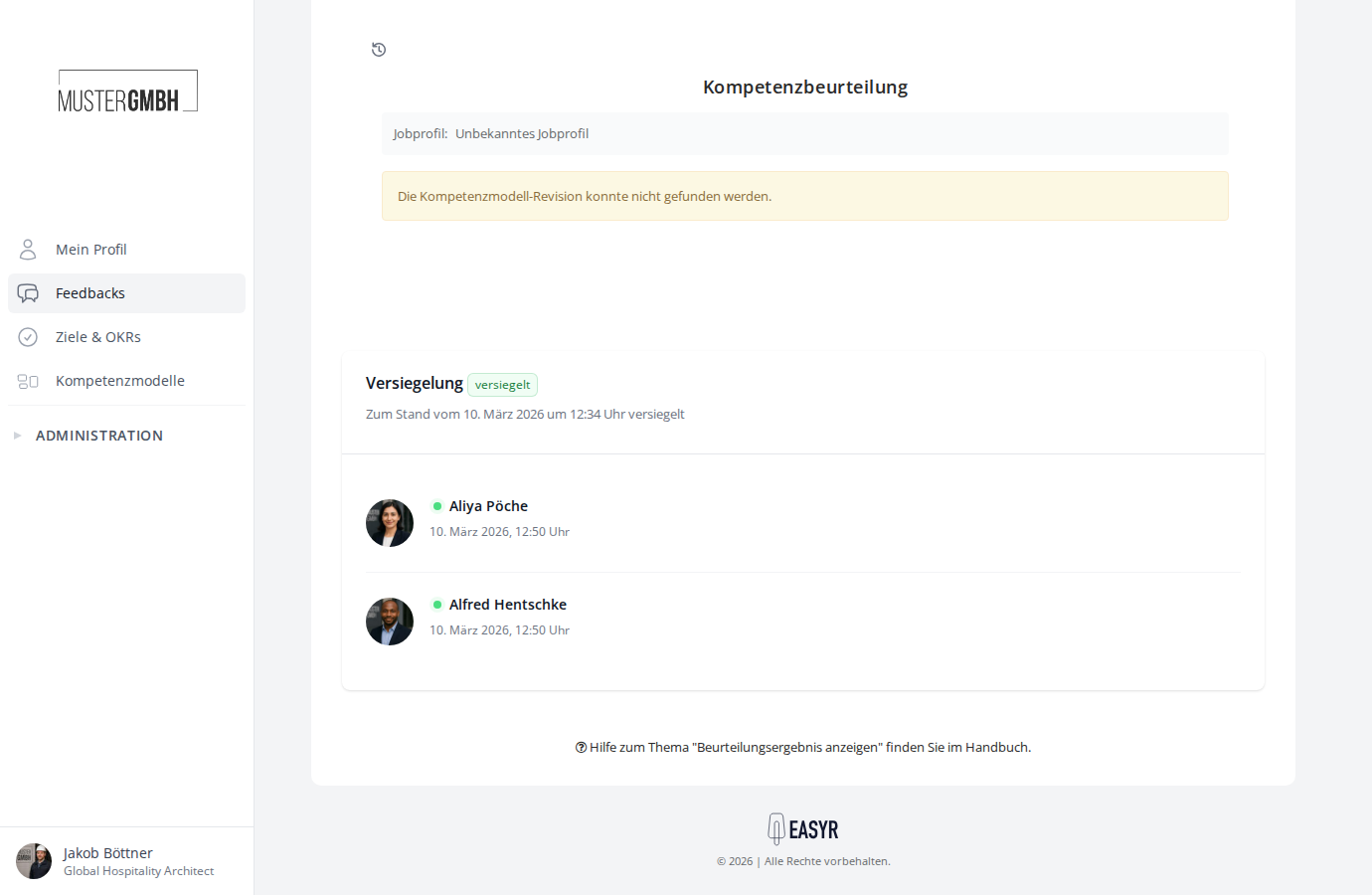
After a successful sealing, the sealing box shows the state “sealed” (green) with the time of sealing. Everyone involved is shown with their confirmation timestamps.
Remove a seal (unsealing)
In exceptional cases, HR users can undo a sealing. This makes it possible to edit the result again — for example to make corrections.
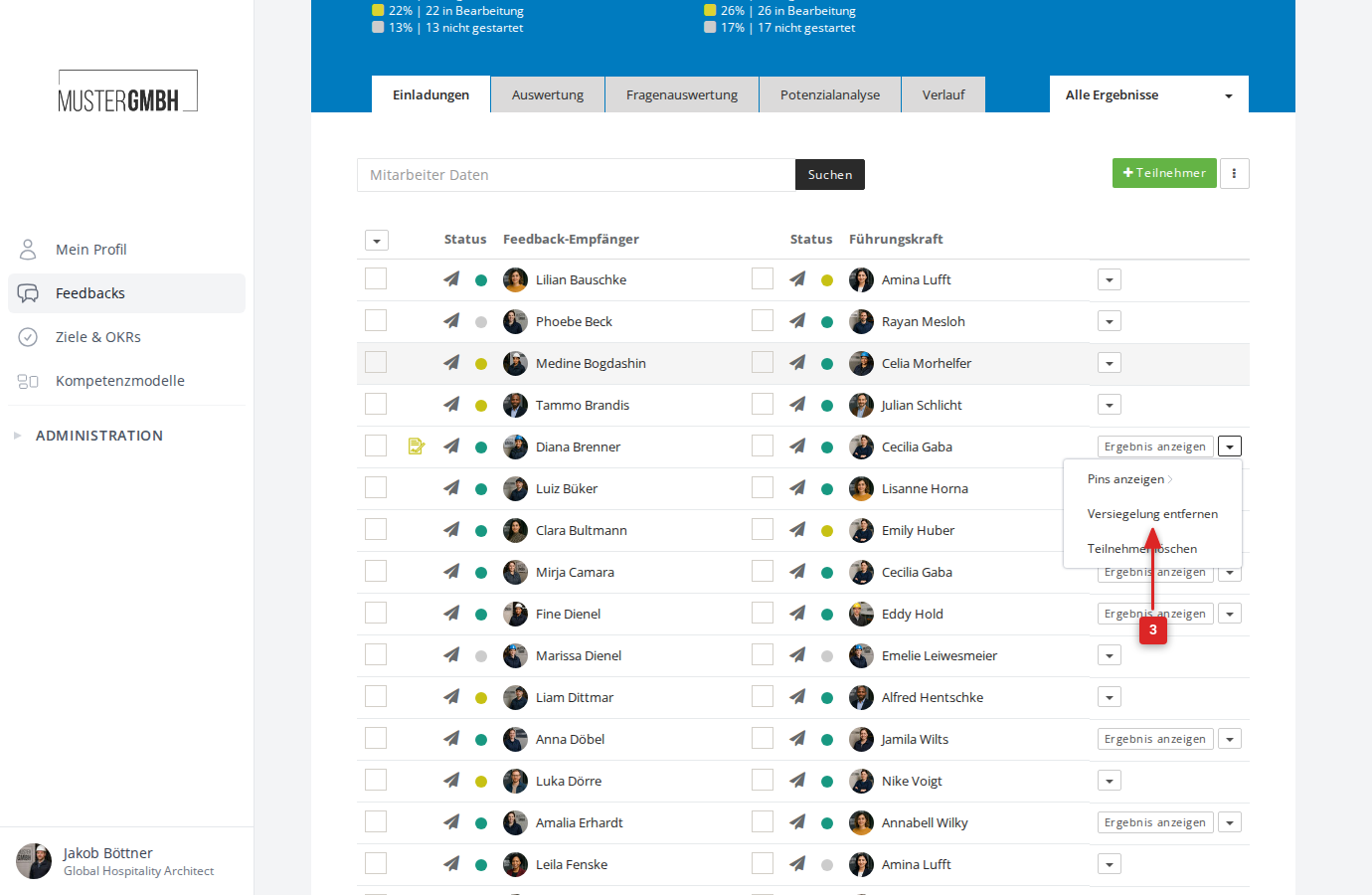
- Open the status page of the feedback edition
- Click the dropdown menu (▼) next to “View result” on the review in question
- Select Remove Seal
- Confirm the unsealing in the dialog with Unseal Result
After unsealing, a new sealing process can be started once the desired changes have been made.