Reviews: status page
The status page is the cockpit for your reviews. It shows everything about a review at a glance: response rates, status, time period and email invitations. From here you reach the settings, the questionnaire, the results and the participant management.
Open the status page
- Click “Feedbacks” in the sidebar.
- Click the title of the review you want.
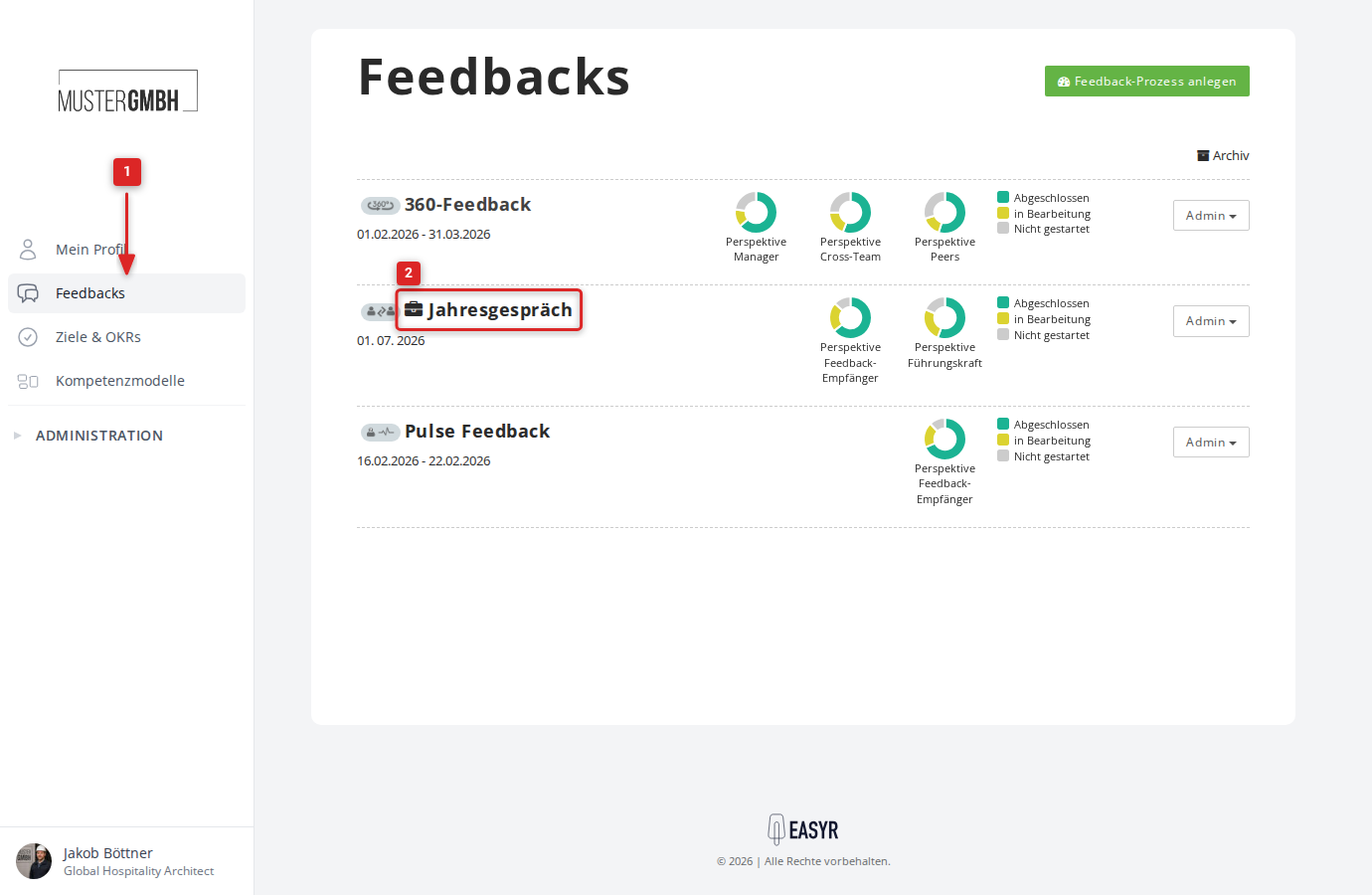
You land directly on the status page of the currently running edition.
Header
The blue header shows the most important information about the review.
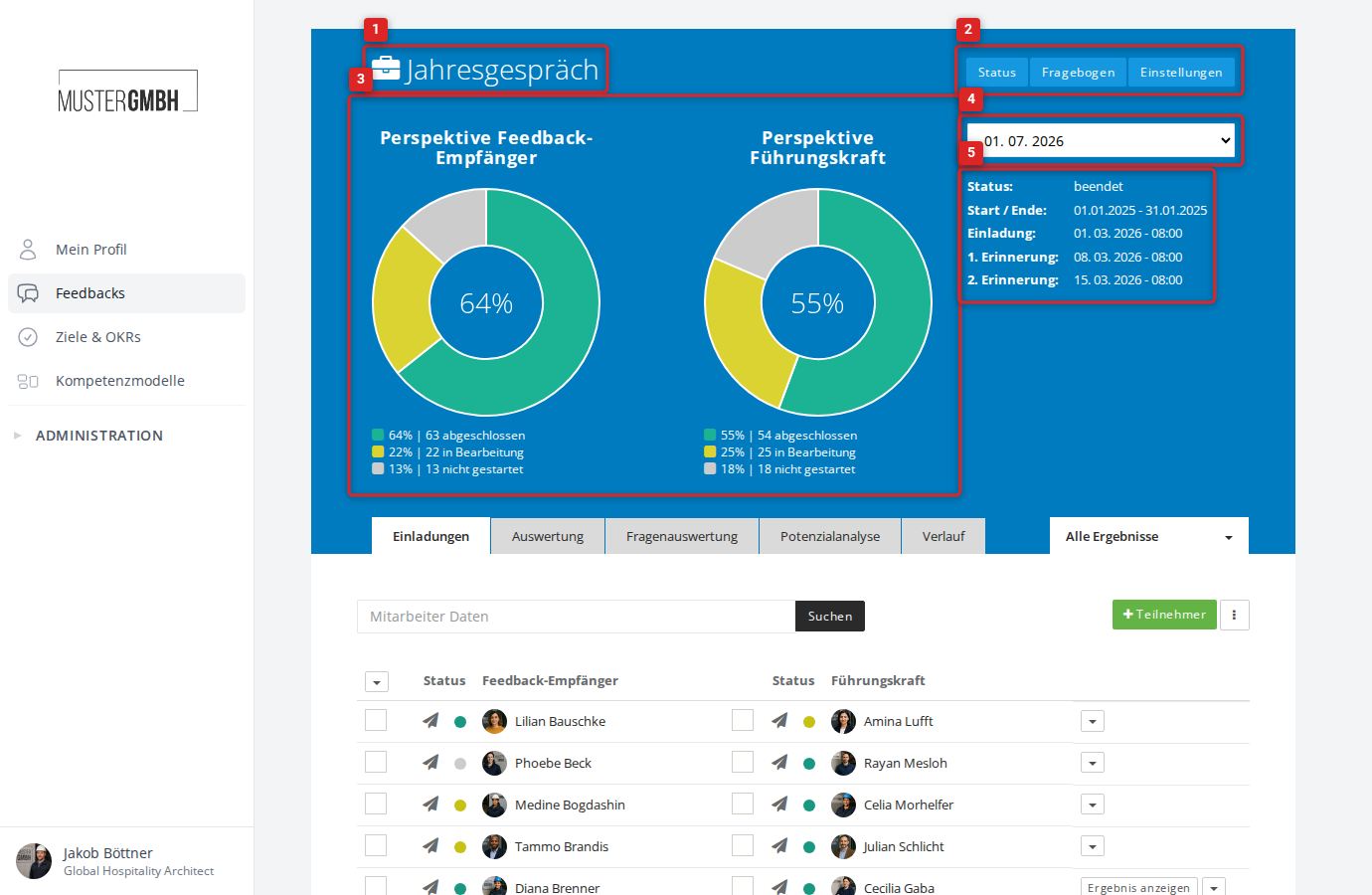
- Title of the review
- Quick access to Status, Questionnaire and Settings
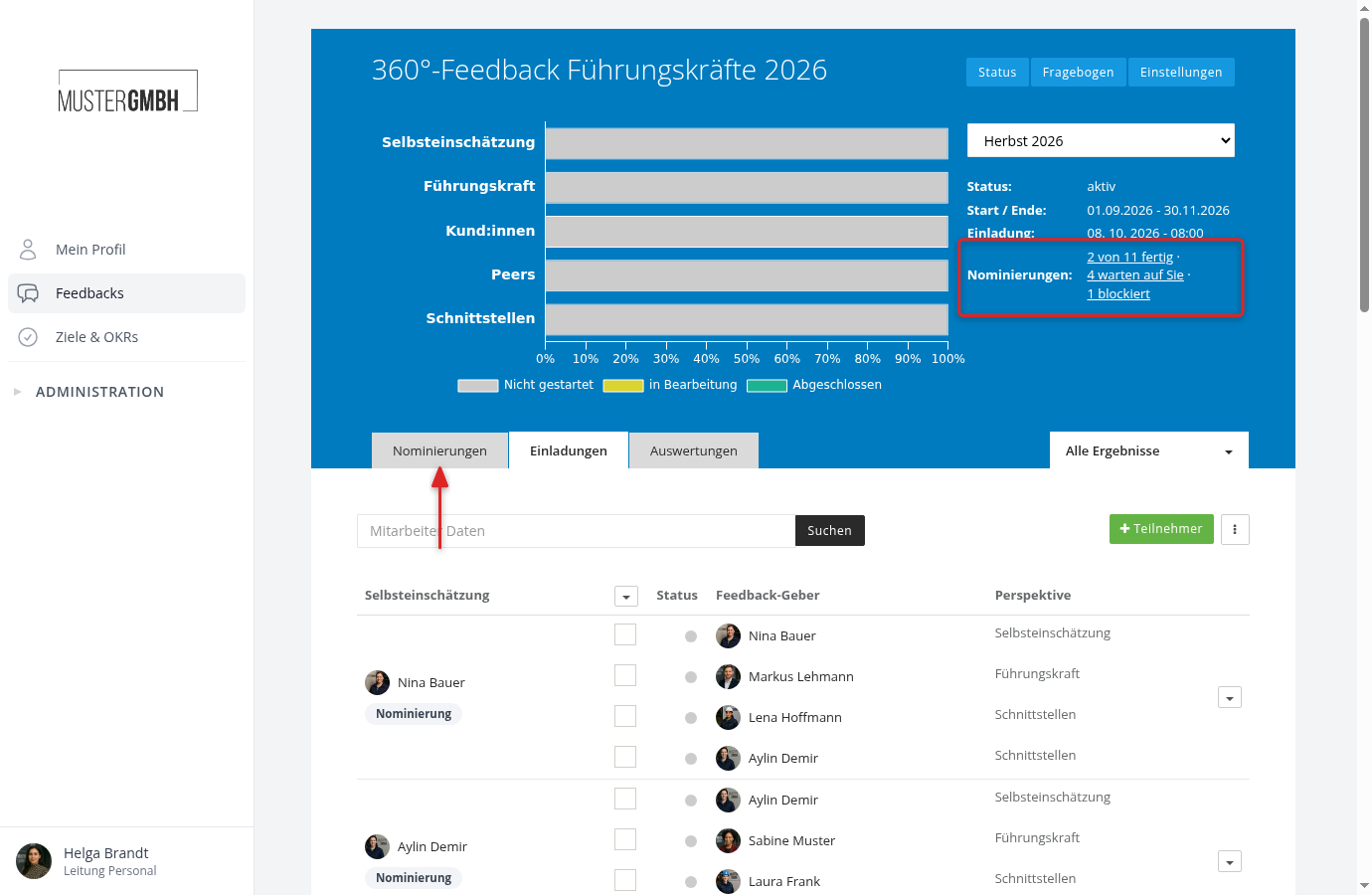
- Response rates as charts (per perspective)
- Edition selector to switch between editions
- Status information (status, time period, email invitations)
Response rates
The charts in the header show the progress per perspective. The label above each chart matches the perspective name you set in the review settings.
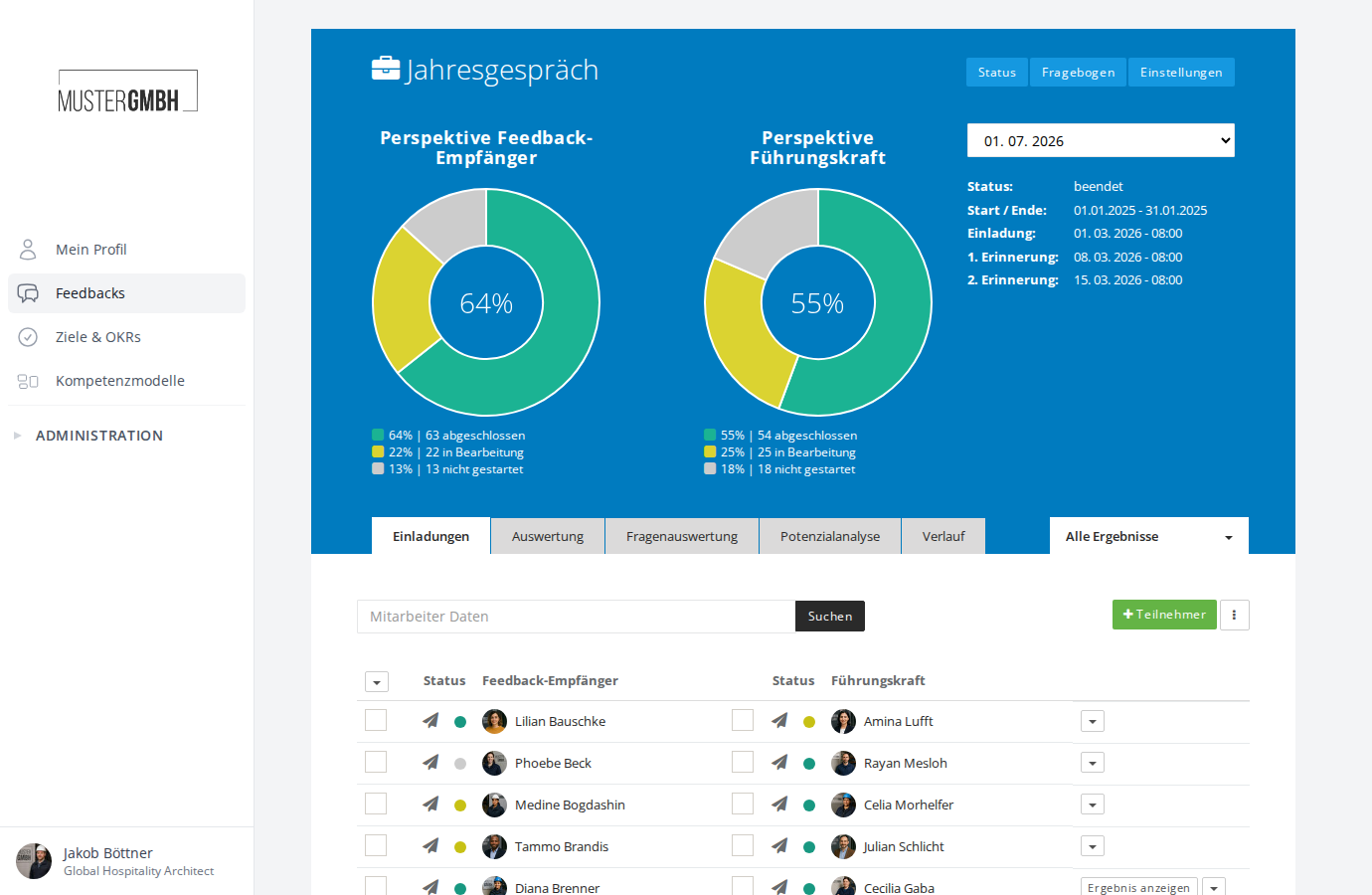
Reviews with up to two perspectives show pie charts.
With three or more perspectives (for example a 360° feedback), a horizontal bar chart is shown.
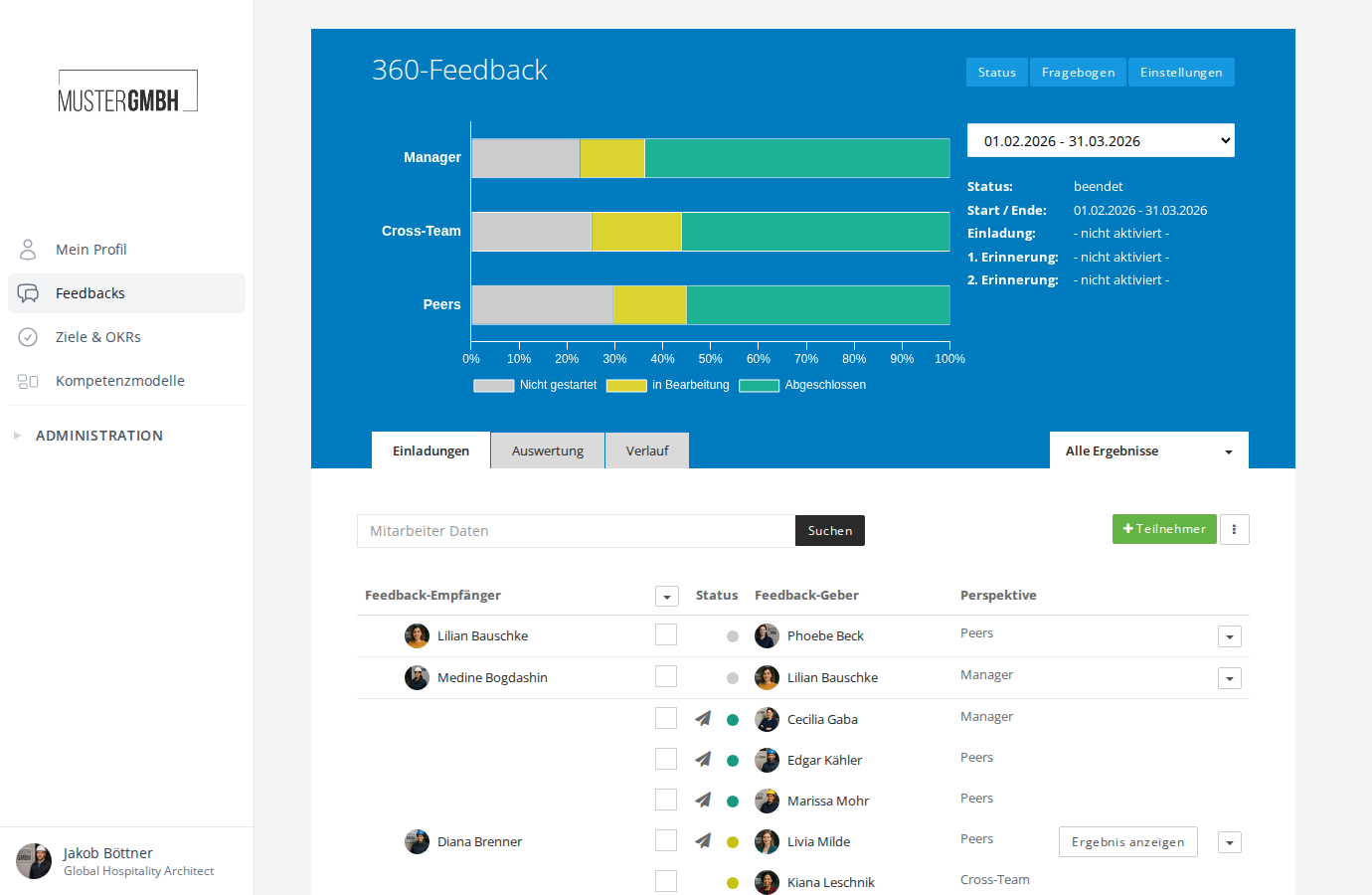
Each chart distinguishes three states:
- Green (Completed): participation fully filled in and finished
- Yellow (In progress): participation opened but not yet finished
- Grey (Not started): participation not opened yet
You can read more about response rates in Overview of response rates.
Status information
To the right of the charts you see:
- Status: shows whether the edition is active, finished or not started yet.
- Start / End: the time period of the current edition.
- Invitation: the time of the automatic email invitation (if configured).
- 1st reminder and 2nd reminder: the times of the automatic email reminders (if configured).
If no automatic email invitations are configured, ”- not activated -” is shown.
For feedbacks with nominations switched on, the row “Nominations: 2 of 11 done · 4 are waiting for you · 1 blocked” is added. Each of the three figures is a link and opens the “Nominations” tab with the matching filter. Only what you are allowed to see is counted.
Tabs in the detail area
Below the header are tabs that open different views of the review.

Which tabs are visible depends on the configuration of your review:
| Tab | Description | Visibility |
|---|---|---|
| Nominations | State of the nominations per feedback recipient, to the left of “Invitations” | When nominations are switched on |
| Invitations | Participant list with invitation and status management | Always visible |
| Evaluation | Combined view of all answers received | When classic analyses are active |
| Question evaluation | Results per question as a chart | When classic analyses are active and strength values are configured |
| Potential analysis | Overview of potential values per participant | When classic analyses are active, for non-anonymous reviews with strength values (not for 360° feedback) |
| Time series | Development of results across several editions | When classic analyses are active |
| Analyses | Configurable dashboards | When new dashboards are active |
| Analyses (new) | Configurable dashboards alongside classic analyses | When both versions are active |
When new dashboards are active, the tab is called Analyses. When classic analyses are active as well, it is called Analyses (new). See Classic and new analyses and Open and manage dashboards.
Filter results
To the right of the tabs is the “All results” dropdown. Use it to create and activate filters that limit the results to specific participant groups (for example by department or location).
The same dropdown also lets you start a result comparison to compare filtered results or different editions against each other.
Switch editions
The dropdown in the header lets you switch between the editions of a review. All tabs and results always refer to the currently selected edition.
Read more in Select an edition.