Configure potential levels
Every participation in the potential analysis is sorted into one of five levels. This lets you see at a glance in the evaluation which employees fall into which performance band, so you can support them in a targeted way.
The five levels of a questionnaire can be labeled however you like, and the point ranges in which a level is reached are freely configurable.
The levels are color-coded from red (lowest level) through yellow to green (highest level). This color coding also appears in the potential analysis evaluation.
Configure the levels
- Open the review settings.
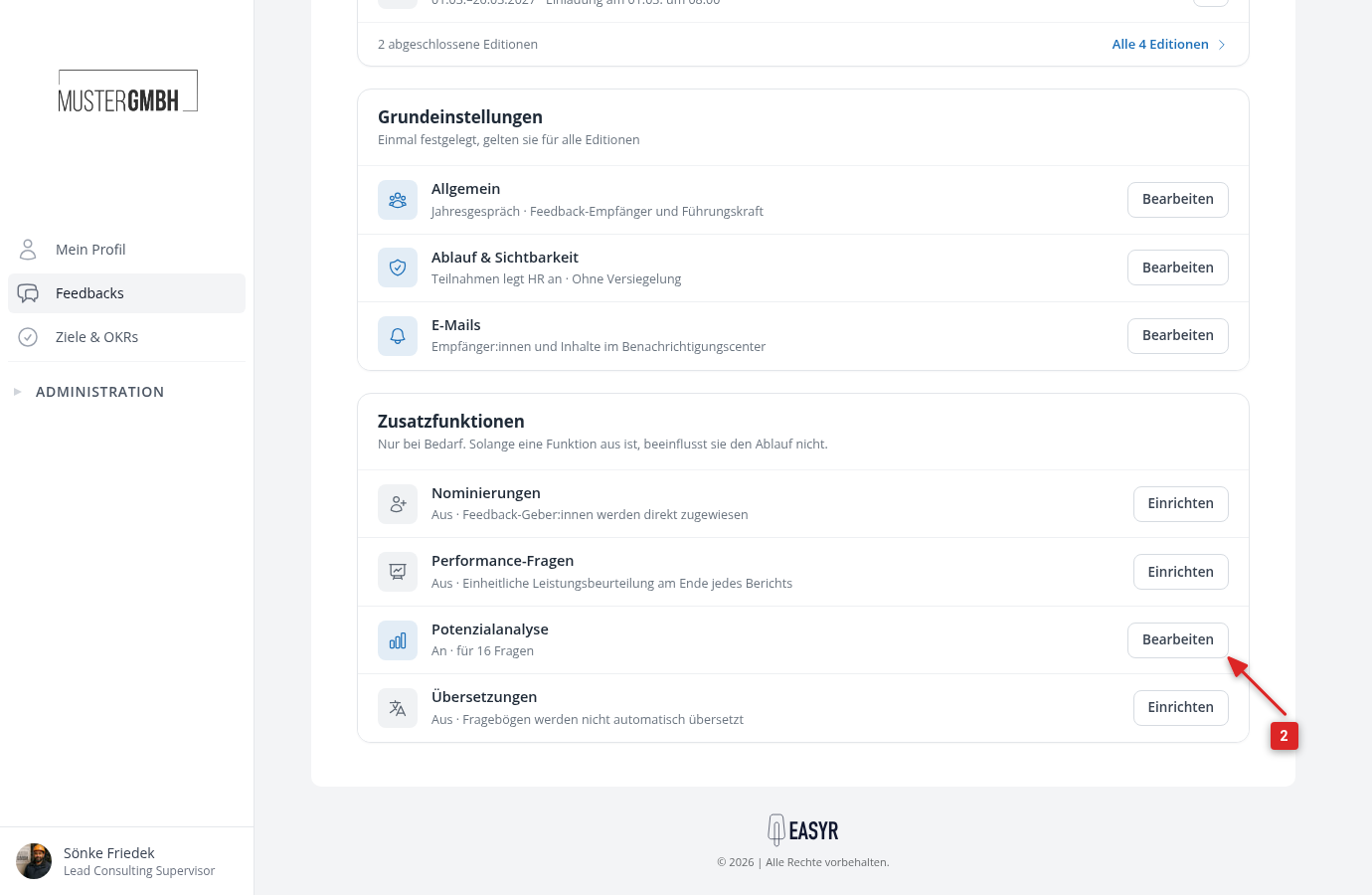
- In the “Additional functions” card, click “Set up” in the “Potential analysis” row. If the potential analysis is already set up, the button reads “Edit”.
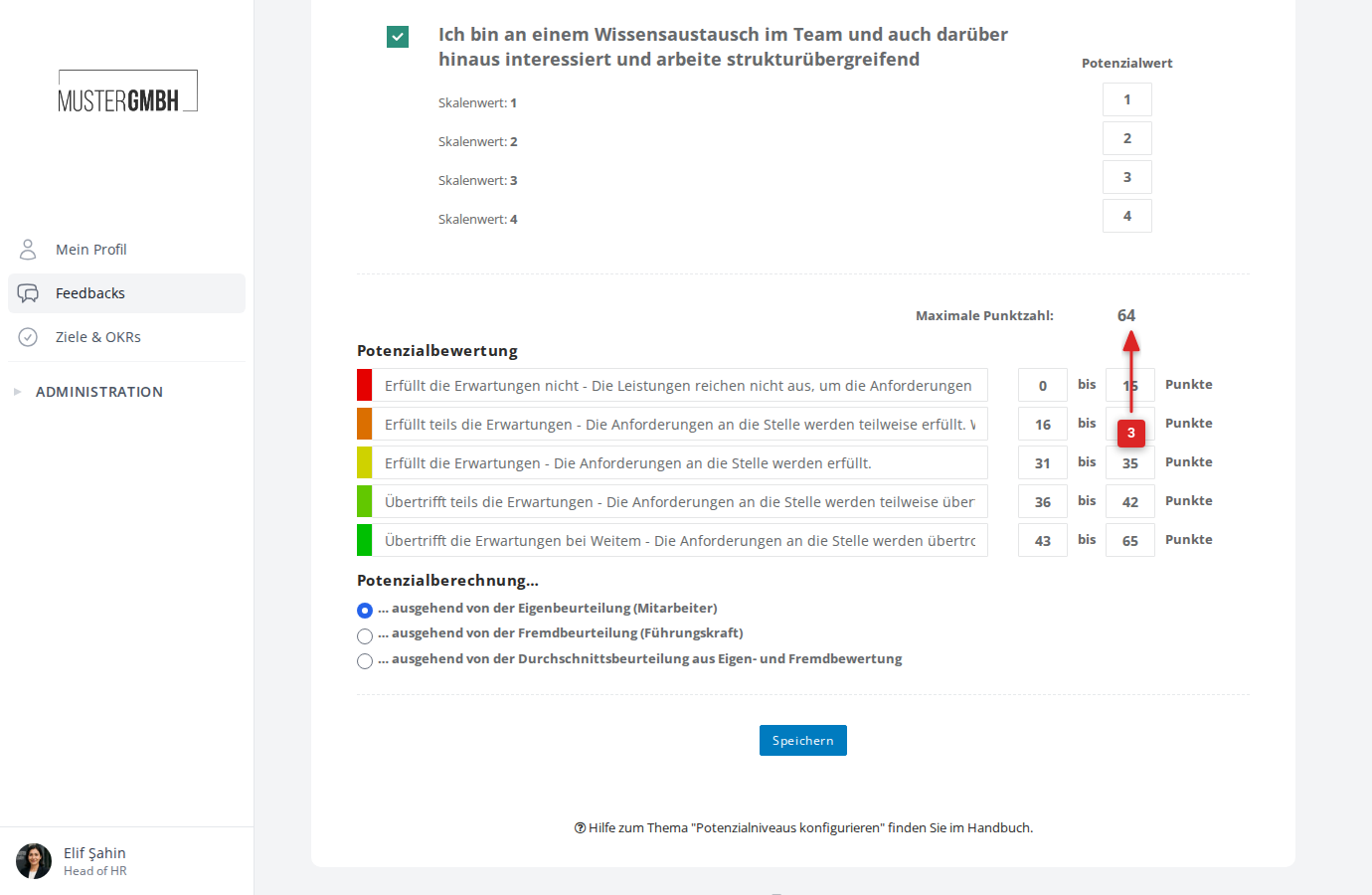
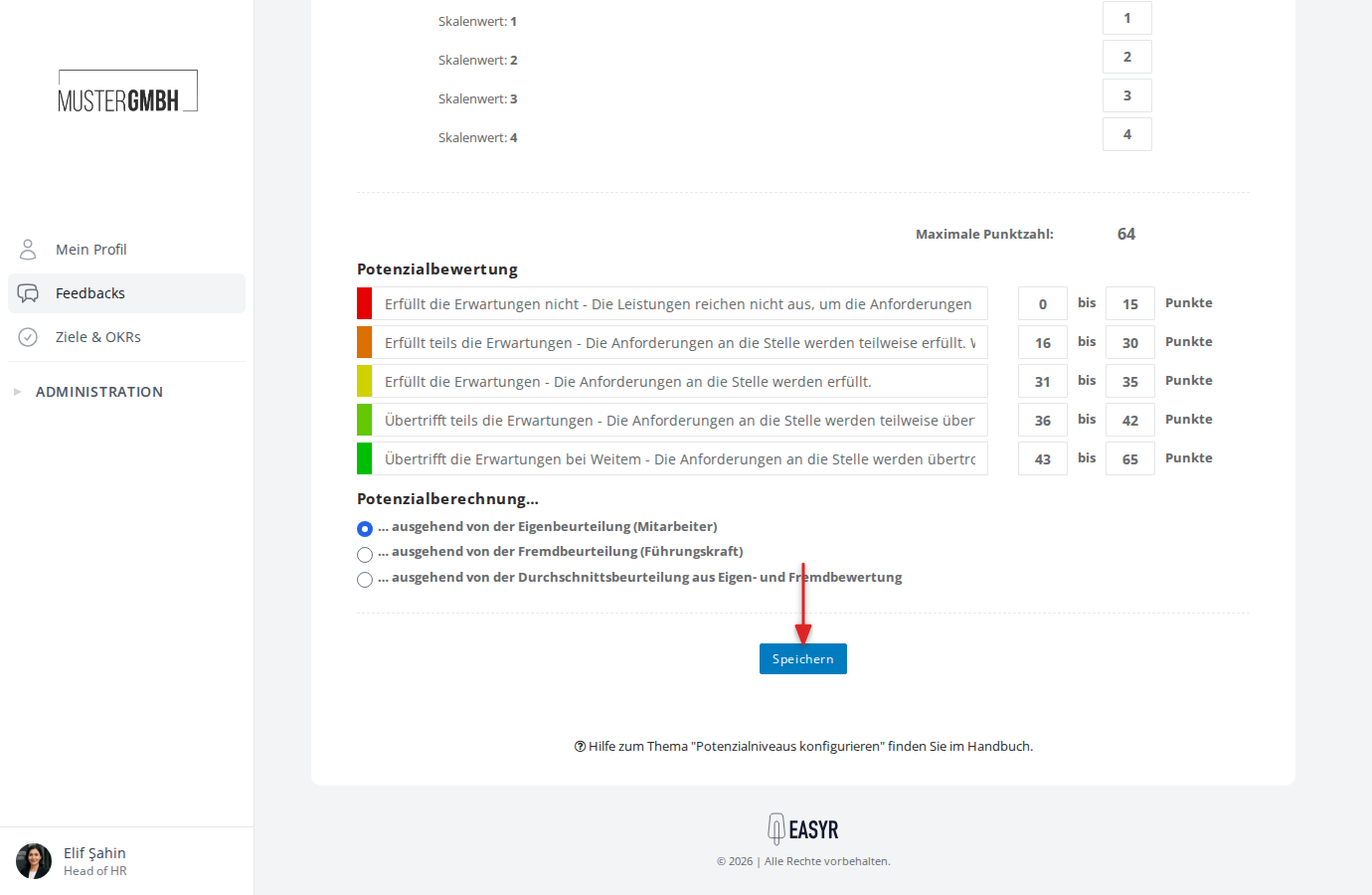
- On the configuration page, scroll down to the Potential rating area. In the top right you see the Maximum points achievable for a participation in the questionnaire.
- Enter a label for each level in the text field next to the color coding.
- In the field to the left of to, enter the lower point limit.
- In the field to the right of to, enter the upper point limit.
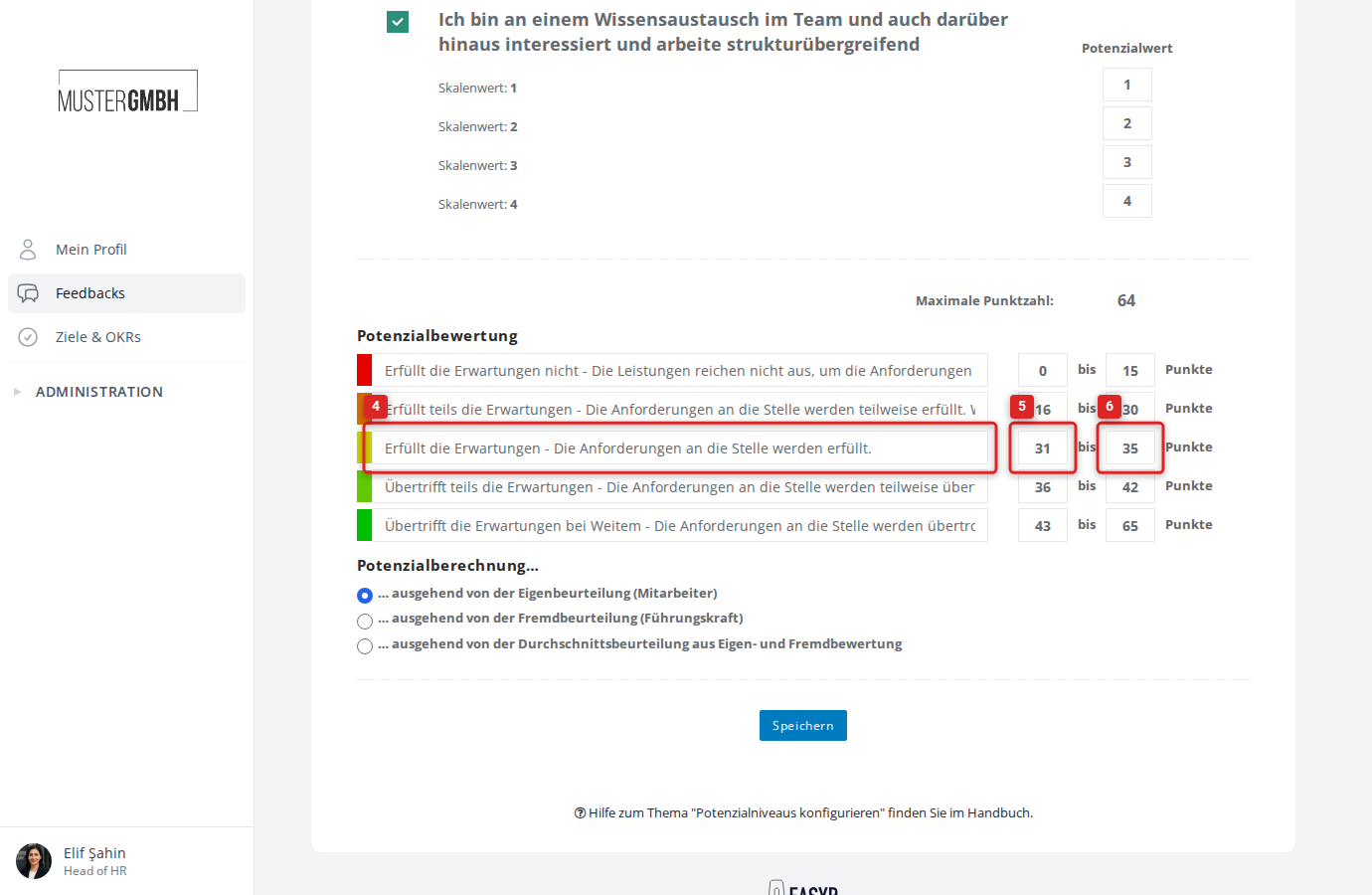
- Repeat steps 4 to 6 for all five levels.
Choose the potential calculation
Below the levels you find the Potential calculation area. Here you set the basis for the overall strength value:
- Self-assessment (employee): only the score from the self-assessment counts.
- External assessment (supervisor): only the score from the external assessment counts.
- Average assessment: the average of both perspectives is used.
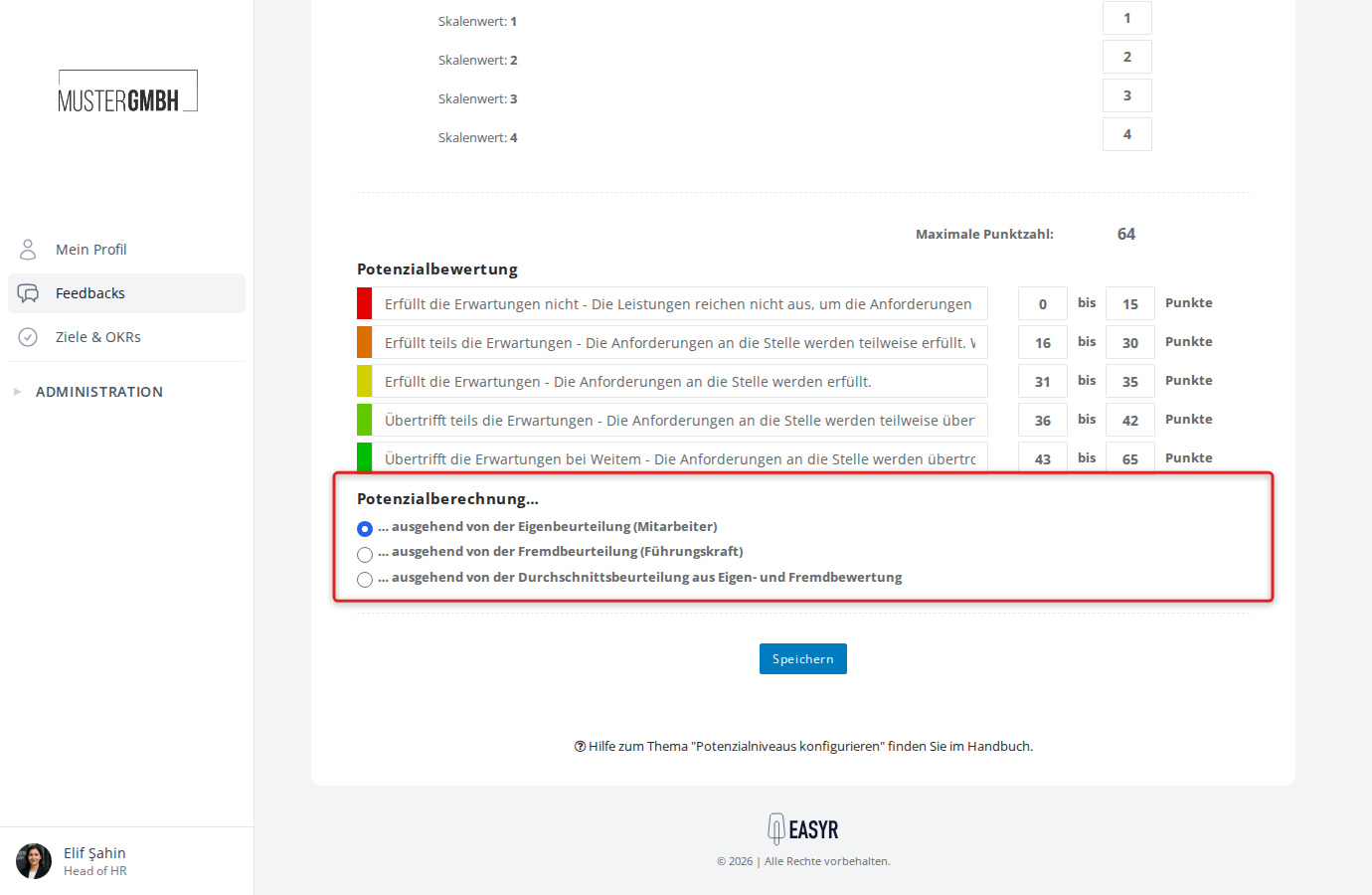
Choose the option you want and click Save.
easyreview confirms that the change was saved.