Edit an element
To edit an element or question in a feedback process’s questionnaire:
- Open the questionnaire editor
- Hover over the element or question you want to change. A toolbar appears at its top right.
- Click Edit.
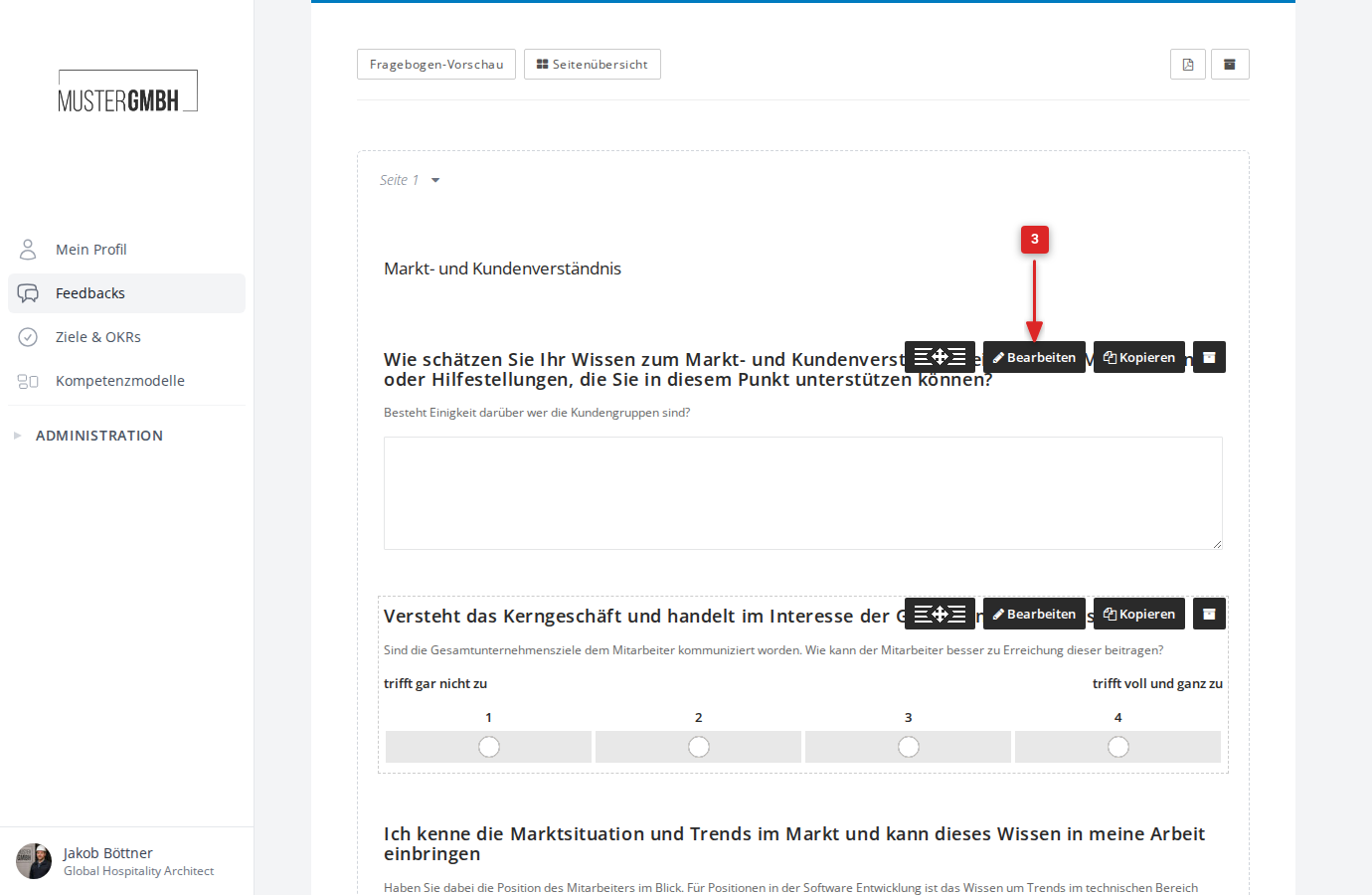
The edit form opens right in the questionnaire editor. The type of the element or question is shown at the top (for example “Question: large text box (multi-line)”).
Question title
- Enter the question title for the Reviewee perspective (for example the employee’s self-assessment).
- If needed, enter a separate question title for the Reviewer perspective (for example the supervisor’s assessment).
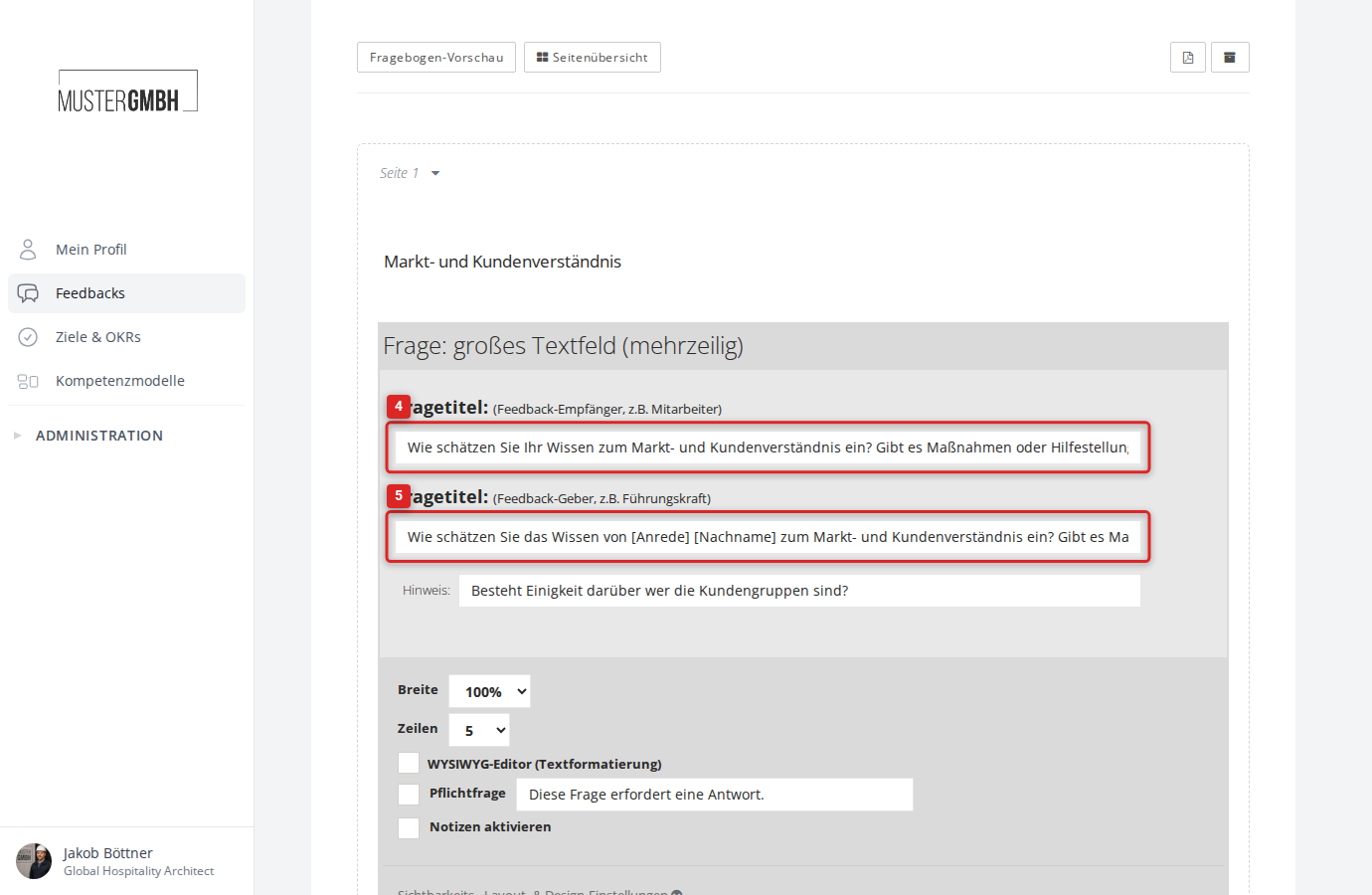
Hint
- Optionally enter a hint. It is shown to all participants below the question title.
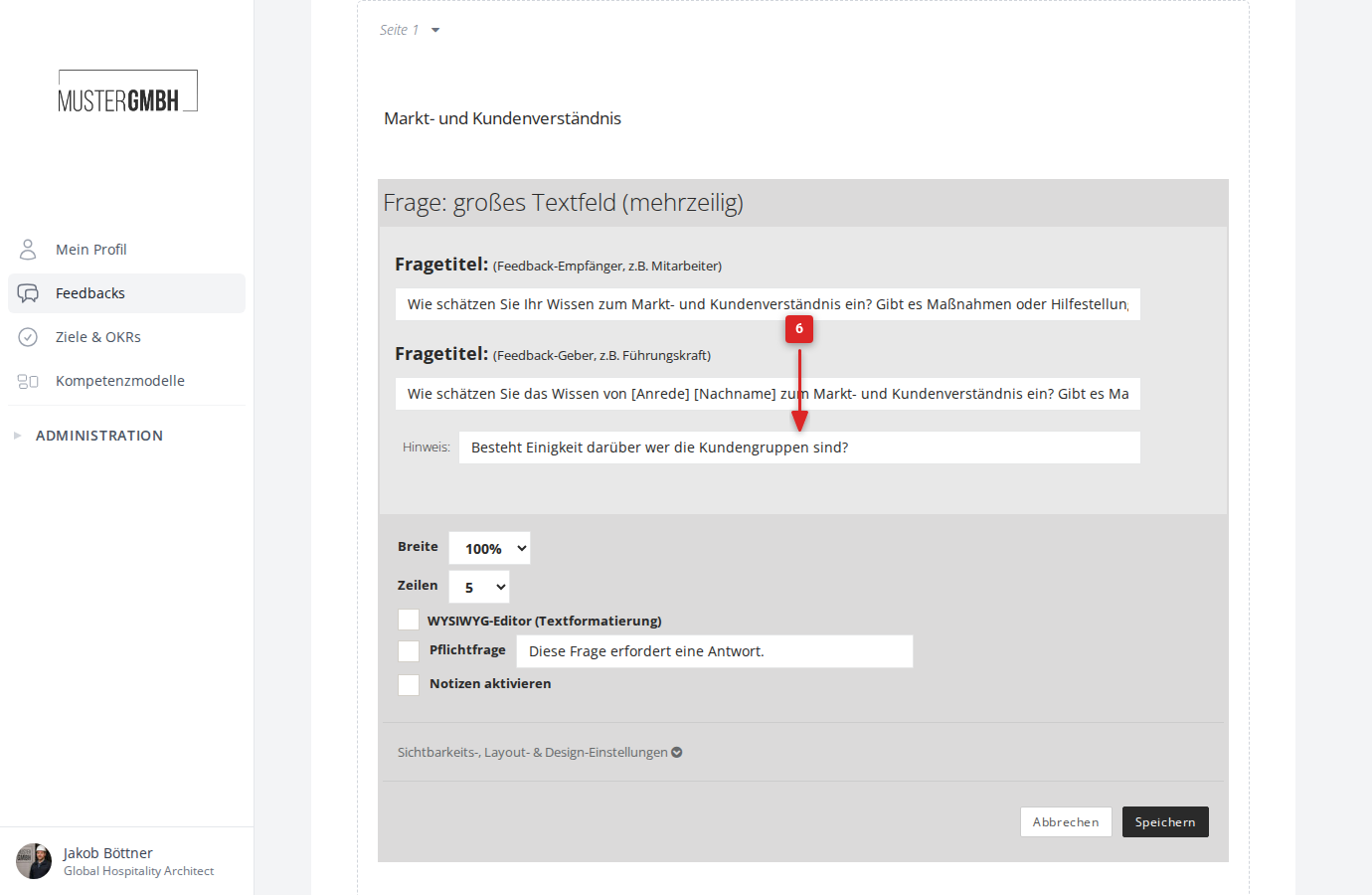
Settings
- Configure the settings for the element or question.
The available settings vary by question type. Typical options are:
- Required question: whether the question must be answered.
- Enable notes: lets participants add their own notes to the question.
Depending on the question type, further options are available, such as the icon and number of levels for rating questions, a dropdown display for multiple-choice questions, or the width and number of rows for text fields. For an overview, see Element and question types.
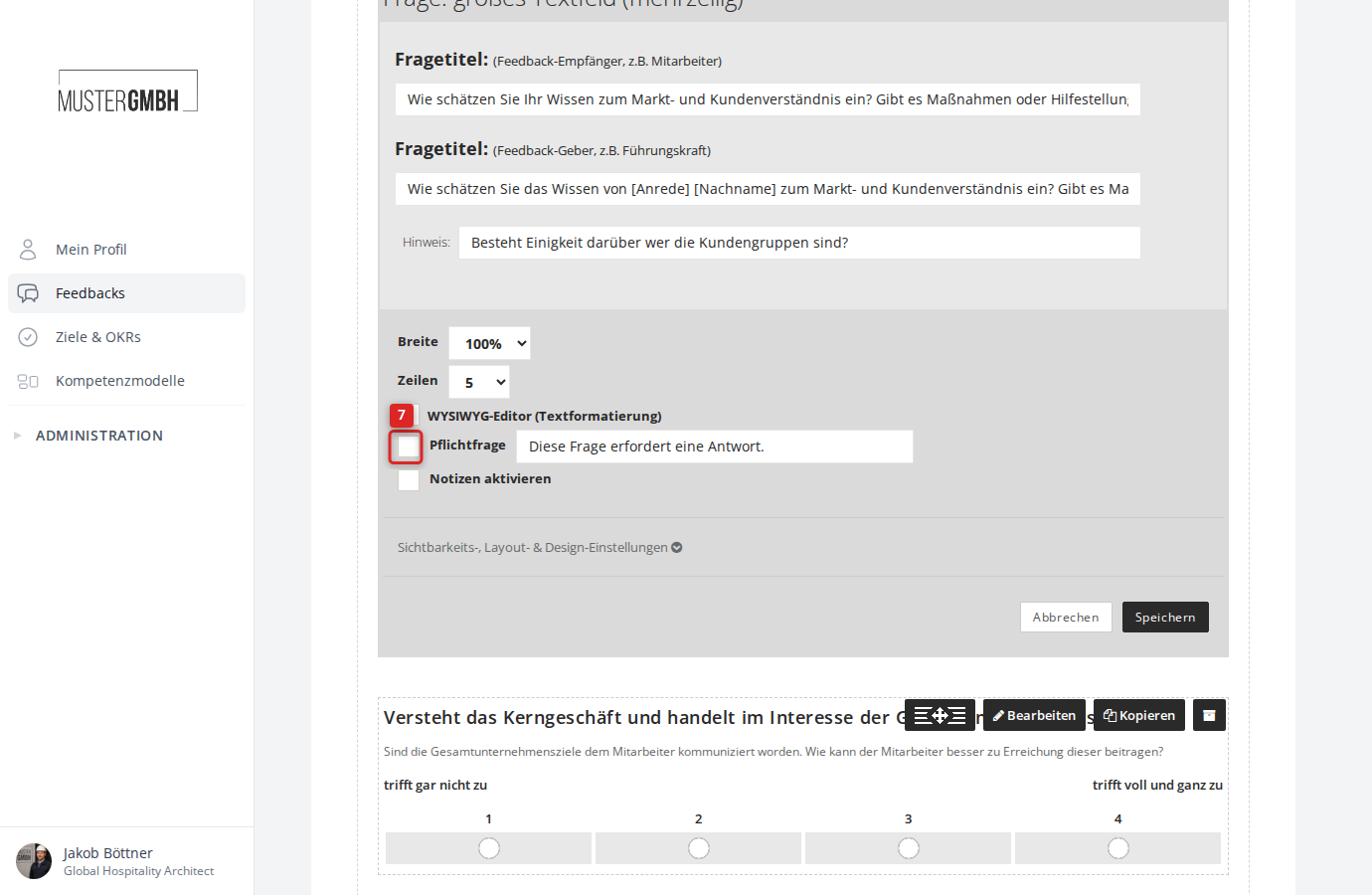
Visibility, layout & design settings
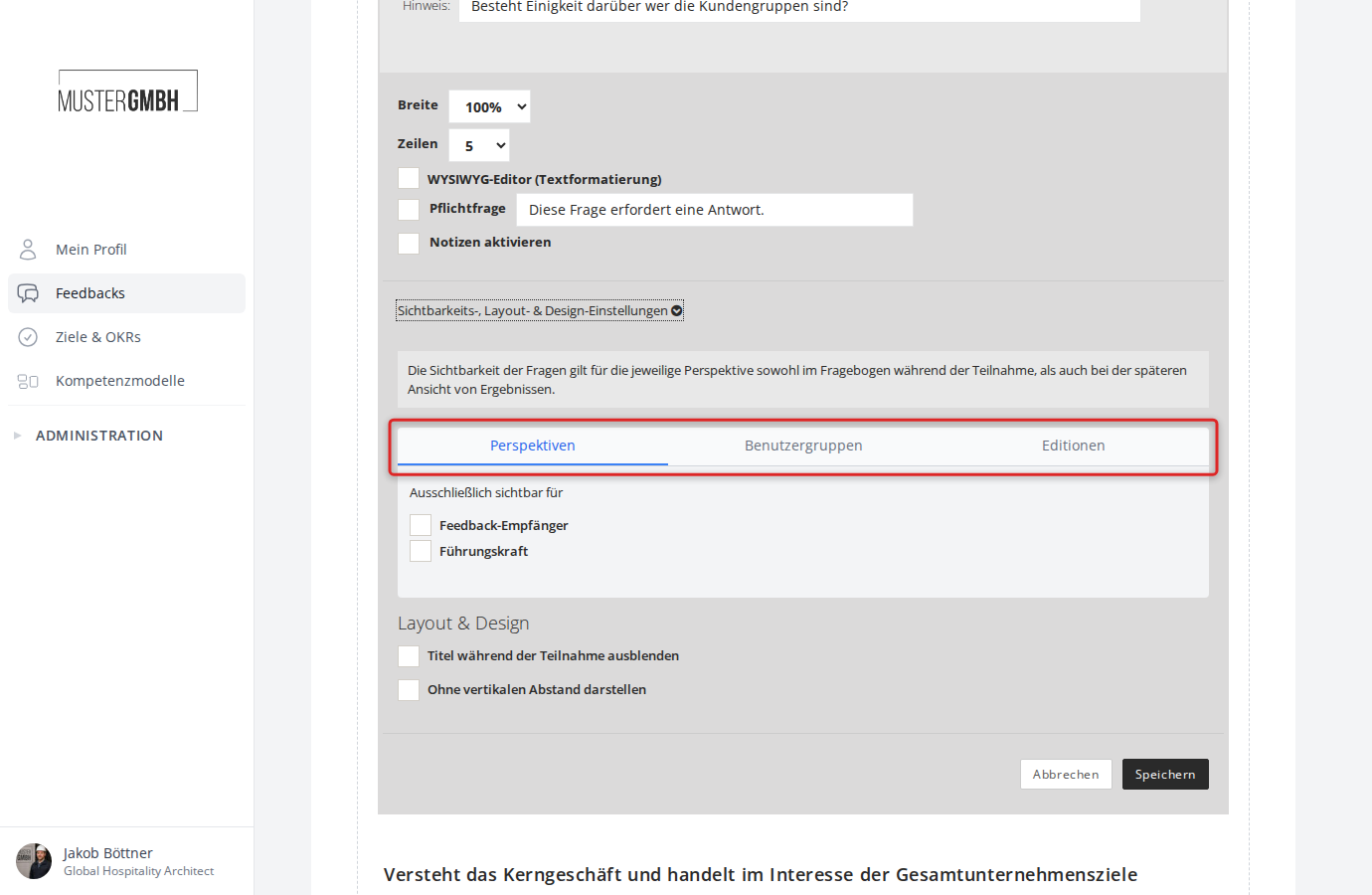
Click Visibility, layout & design settings to expand the advanced settings area. It contains three tabs plus an extra section for layout and design.
Visibility
The visibility settings control which perspectives, user groups, and editions the element is visible to. They apply both while filling out the questionnaire and when viewing results.
The settings are organized into tabs:
- Perspectives: restricts the question to specific perspectives (for example, visible only to the reviewee).
- User groups: shows the question only to specific user groups.
- Editions: controls which edition cycles the question is visible in. Completed editions are locked and can no longer be changed.
Layout & design
Below the visibility tabs you find the Layout & Design section with these options:
- Hide title during participation: hides the question title during participation.
- Display without vertical padding: shows the element without the usual vertical spacing to the next element.
- Collapsible (text elements only): makes the text content collapsible, so participants can show and hide it as needed.
Saving
- Click Save at the bottom right of the form.
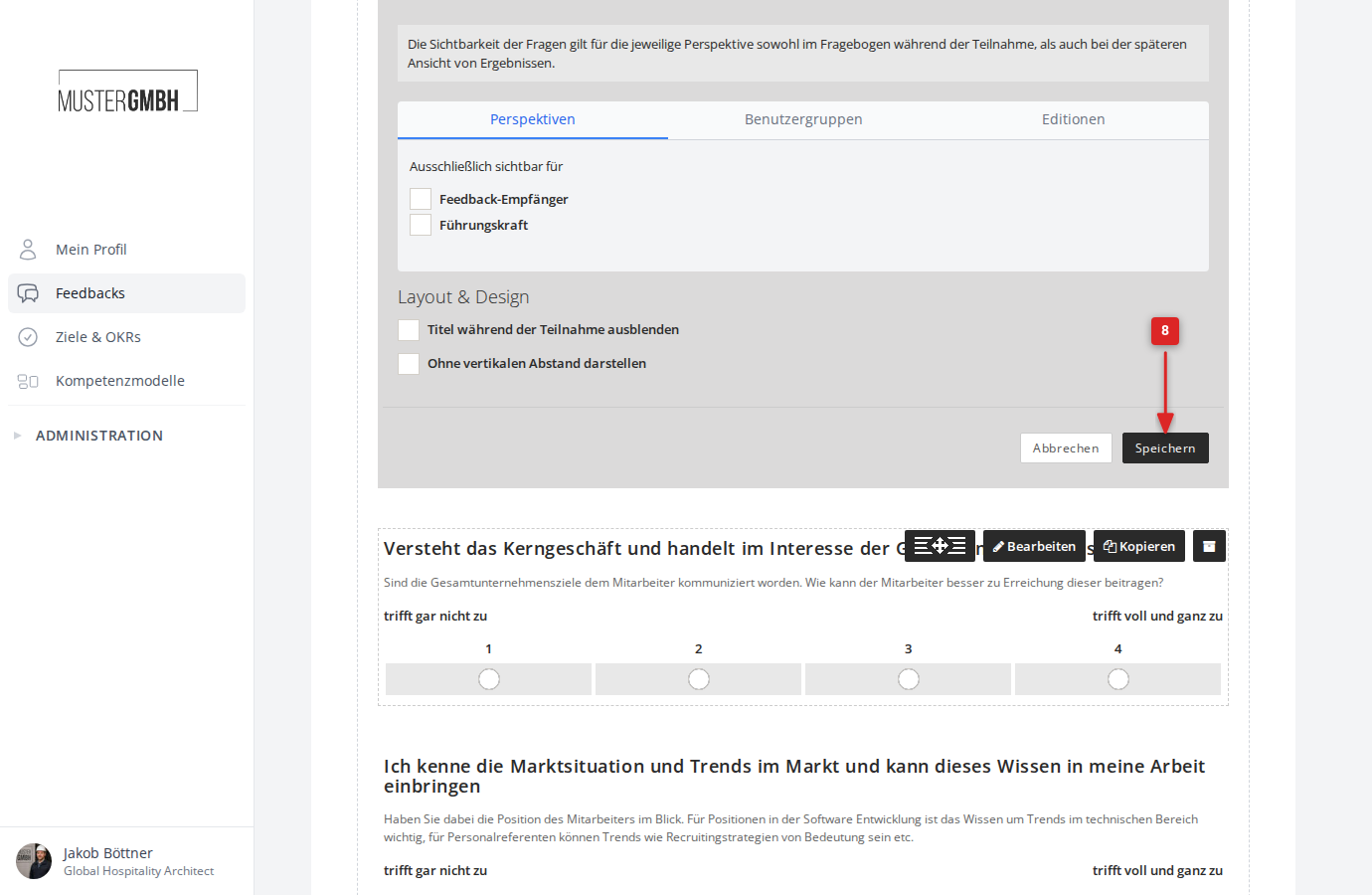
After saving, the element or question appears with its new settings in the questionnaire editor right away.