Review invitations
Before your colleagues can take part in a review, you have to add them to the participant list of the relevant edition. This step is called “inviting”. Adding someone to the participant list does not yet send an email — it only puts them on the list of participants.
All functions around invitations and participants live on the status page of a review, on the “Invitations” tab.
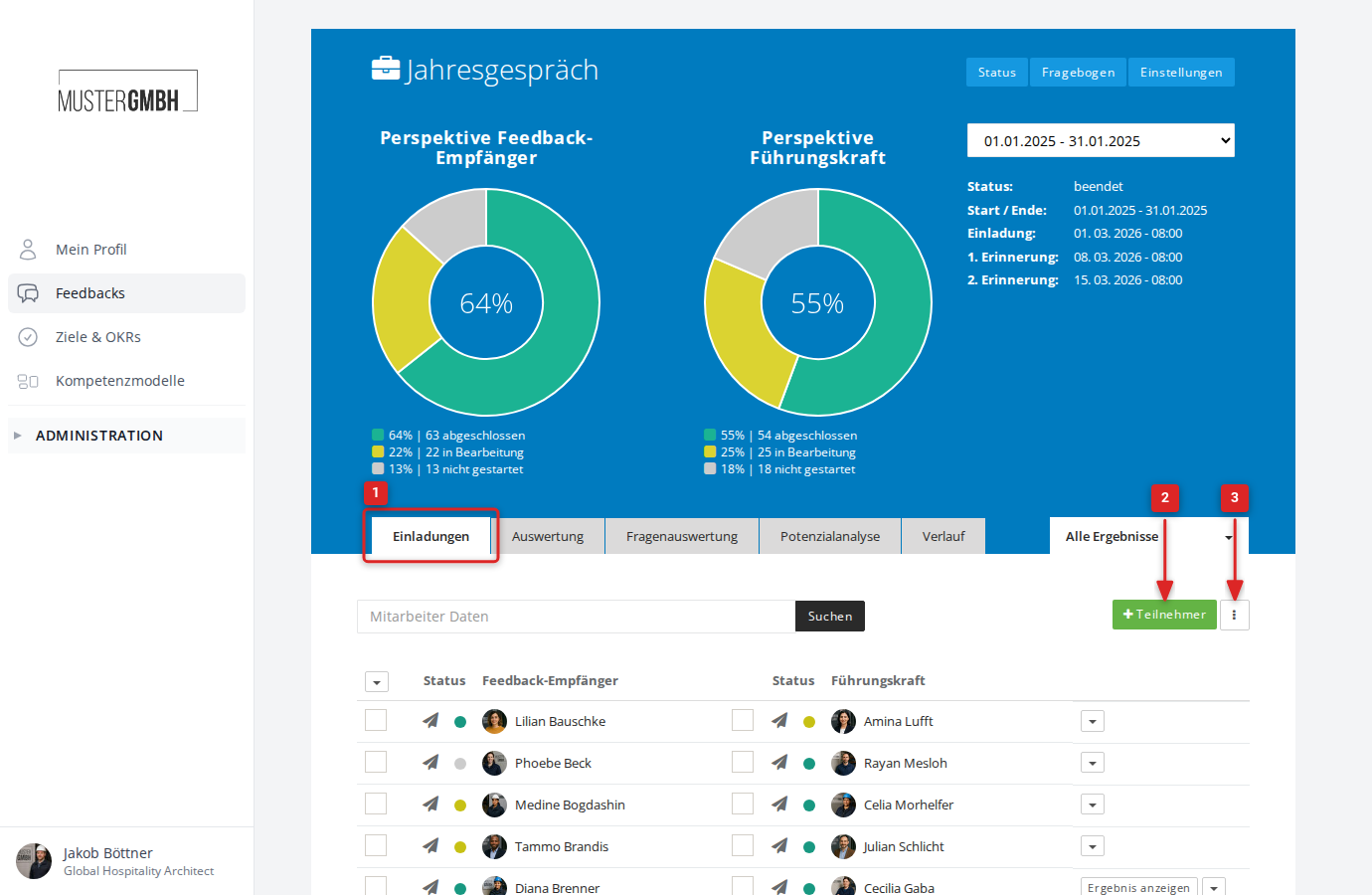
Participant list
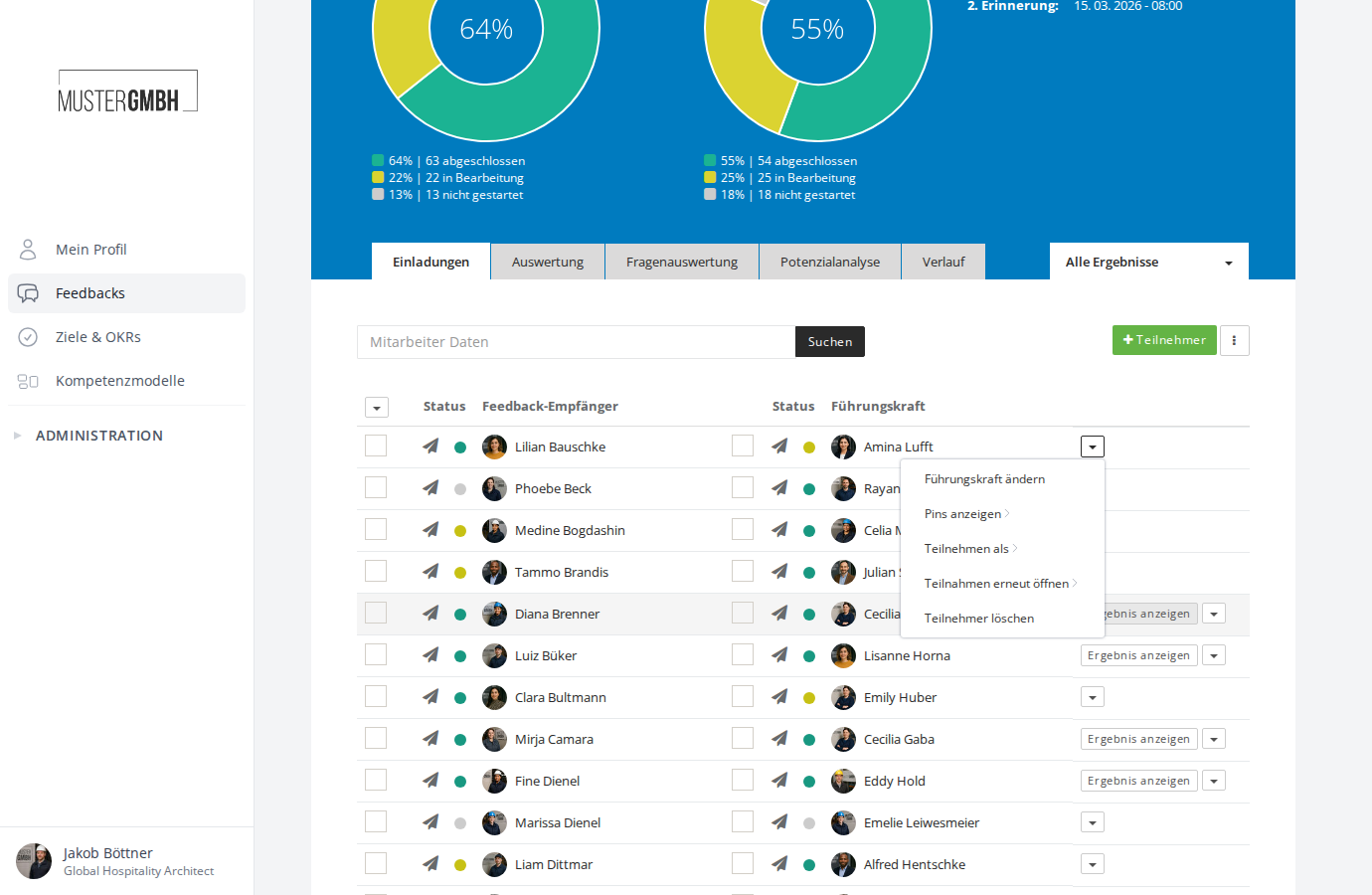
The participant list shows all participants of the currently selected edition. For two-sided reviews, each participation shows both the feedback recipient and the assigned supervisor. For one-sided reviews, only the participant is shown.
Each row contains:
- Checkbox for selecting individual participations for bulk actions
- Invitation status (paper-plane icon): shows whether an email invitation has been sent
- Participation status (coloured dot): not started (grey), in progress (yellow), finalized (green)
- Name of the employee with their profile picture
- Action button: depending on status, for example “Show review” or “Finalize review”
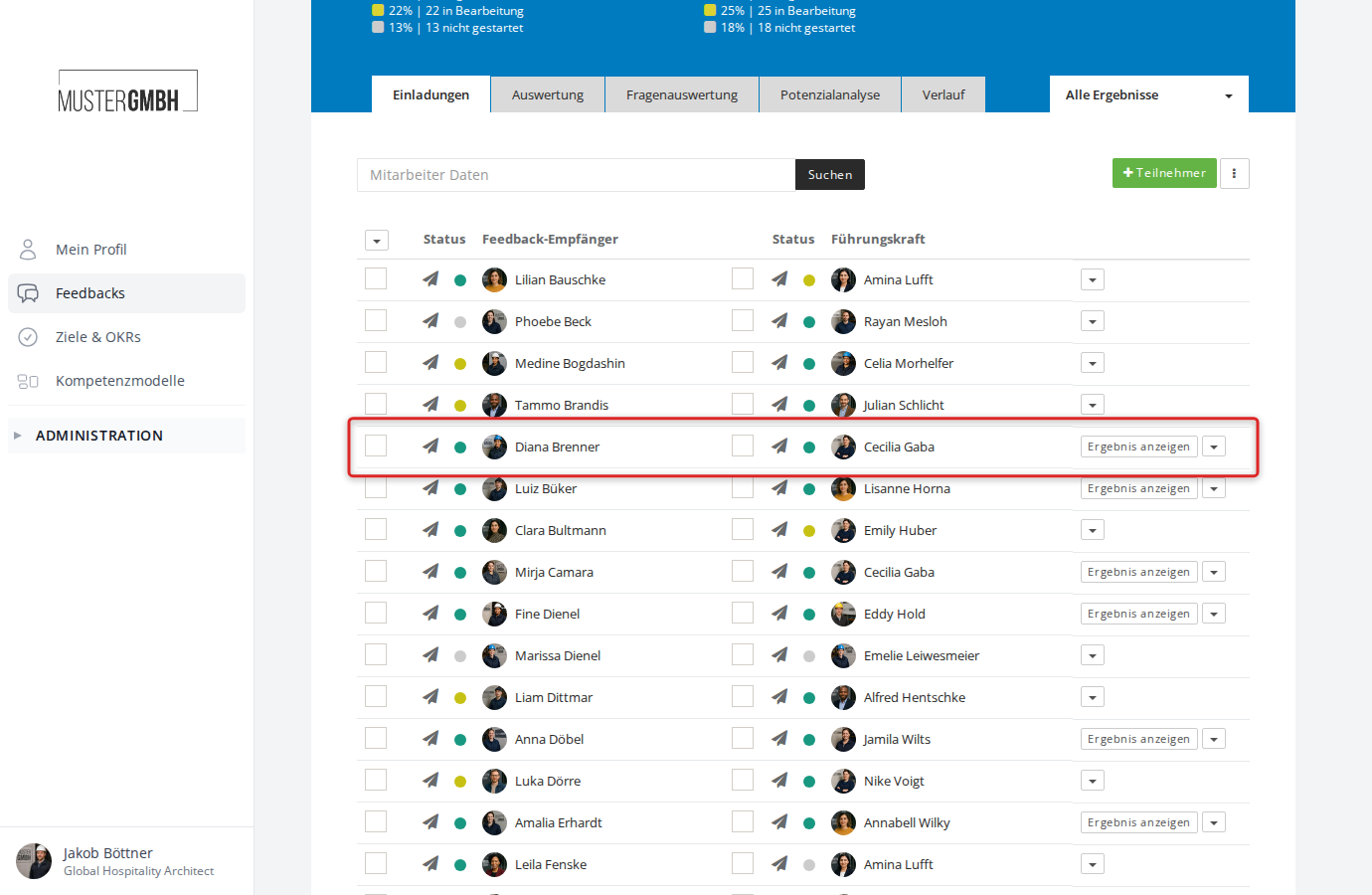
For more detail on the structure of the participant list, see List of participants.
Add participants
Click ”+ Participant” at the right edge of the participant list to add new participants. The flow depends on the review kind:
- General feedback: pick employees directly from the list. This variant suits satisfaction surveys, for example.
- Two-sided feedback: first pick the supervisor (feedback giver), then the assigned employees (feedback recipients). Typical use: annual reviews.
- External feedback: like two-sided feedback, but only the supervisor gives feedback (no self-review).
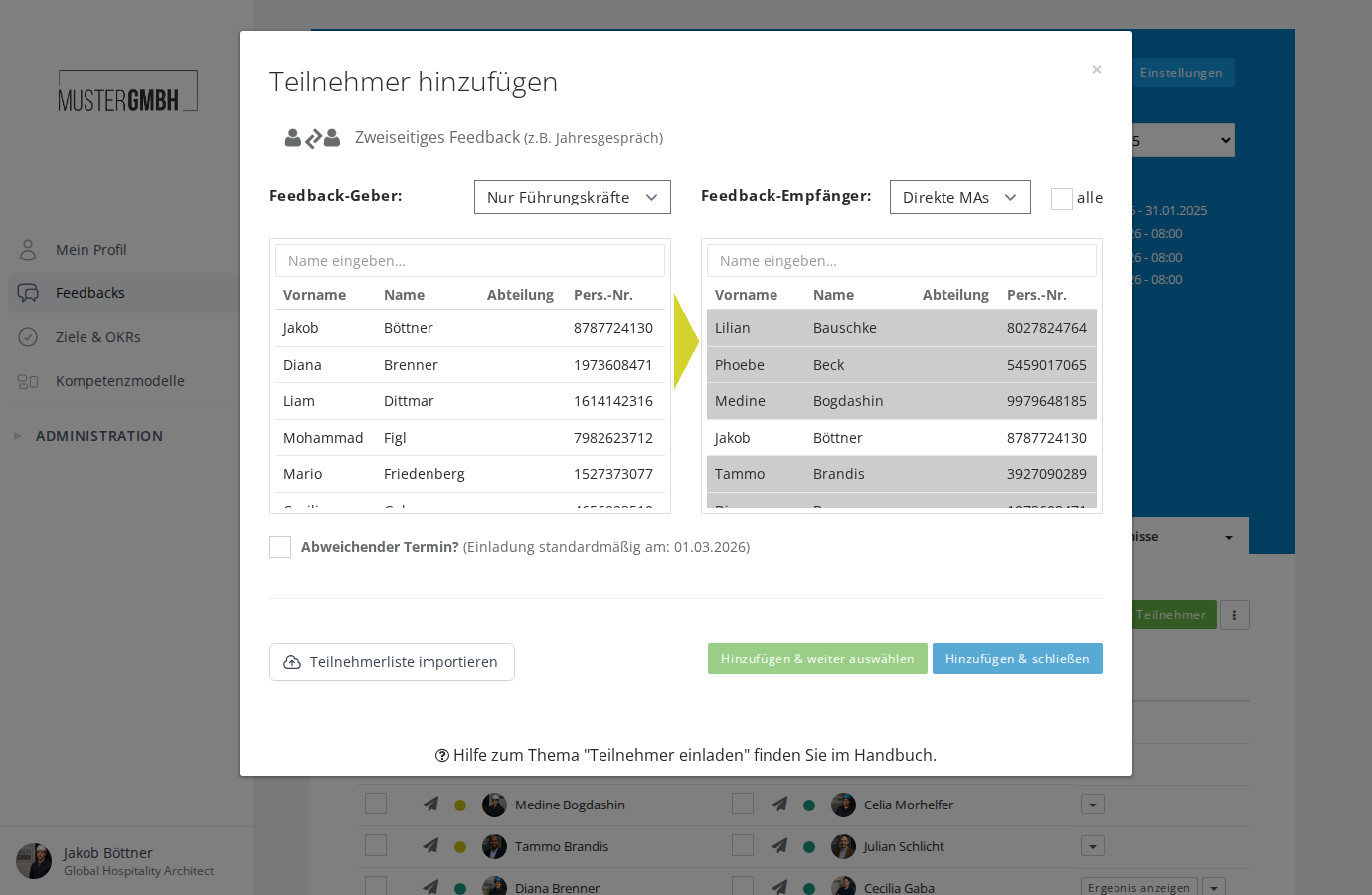
If an automatic invitation date is configured for your review, the dialog offers a “Divergent invitation?” checkbox to set an individual invitation date for the new participations.
For a step-by-step guide, see Invite participants.
Invite participants by email
Once you have added participants to the list, you can invite them by email. Each invitation email contains a personal link that lets the recipient take part in the review directly.
There are two ways:
- Automatic sending: in the review settings, set a date and time. At the chosen moment, easyreview sends the invitations automatically.
- Manual sending: select the participants you want with the checkbox and click “Invite selected participants”. For details, see Invite participants by email.
You can adjust the subject and content of the emails, separately per perspective. See Notifications for feedbacks.
Participants without an email address
Not all employees have an email address on file. For those colleagues there are participation PINs: two four-digit codes per participation that let the employee take part in the review through a dedicated sign-in page. The PINs can be downloaded as an Excel list or a PDF mail merge and distributed internally.
For more, see Download participation PINs.
Bulk actions
Using the checkboxes in the participant list, you can select several participations at once and run bulk actions:
- Send email invitations: send invitation emails to all selected participations. Details: Invite participants by email
- Remove participants: remove selected participations from the list. Details: Remove participants
Using the dropdown in the table’s header row, you can also select or deselect all feedback recipients or all supervisors at once.
Advanced functions
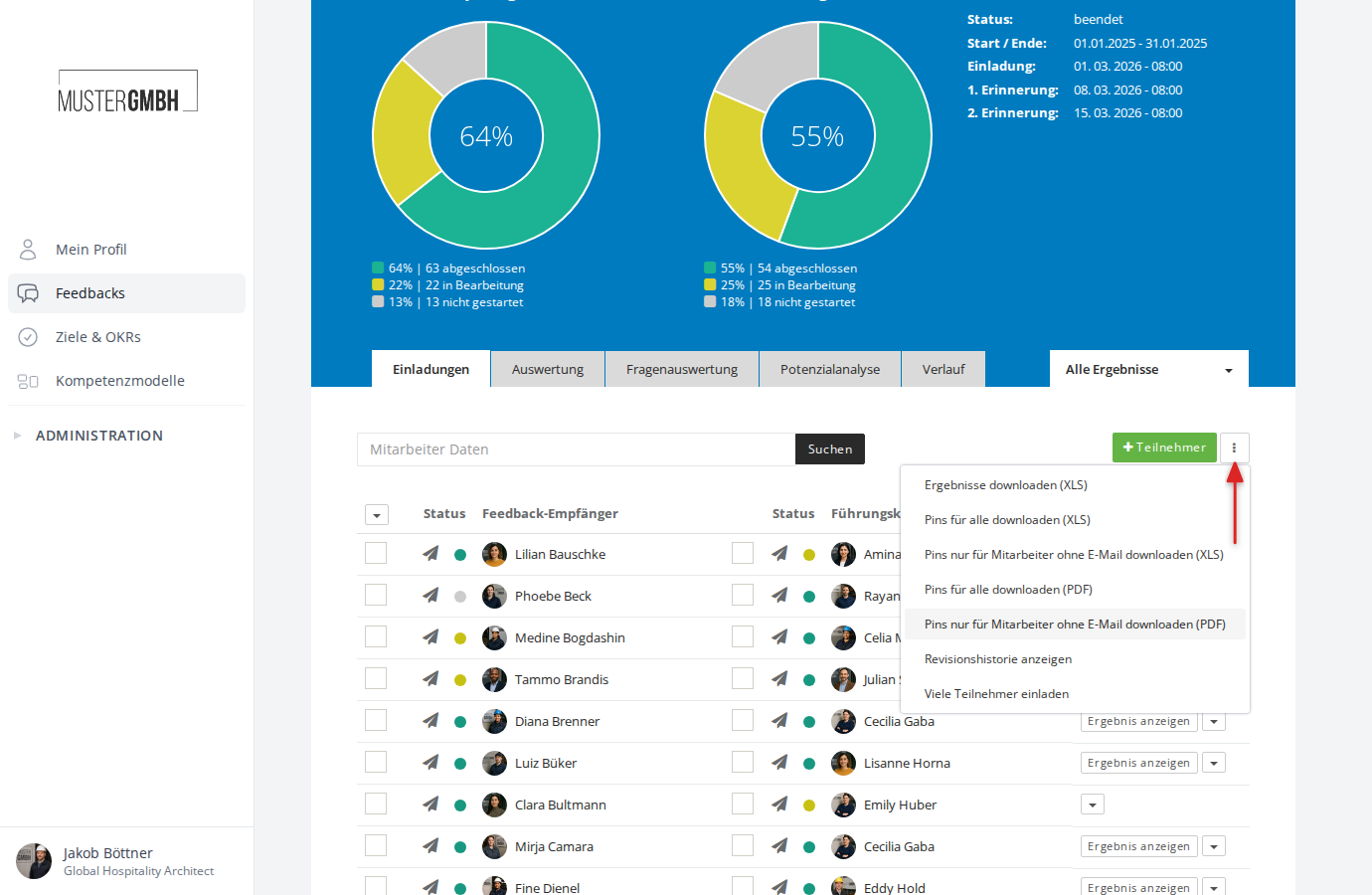
The three-dot menu (⋮) next to the ”+ Participant” button gives you further functions:
- Download results (XLS): exports the results of all participations as an Excel file. Details: Export review results (XLS)
- Download pins: downloads the participation PINs as XLS or PDF, either for all participants or only for employees without an email address. Details: Download participation PINs
- Show audit log: shows the change history of the review
- Invite many participants: opens the bulk-invitation dialog to invite a large number of participants in one step
Search participants
Use the “Employee data” search field at the top of the participant list to search the list by name, staff number, or other master data. The search also works together with active filters.
For more, see Search participants.
Further actions per participation
The dropdown menu at the right edge of each row offers further functions, depending on the participation’s status:
- Show review: shows the results of a finalized or started participation
- Change supervisor: changes the assigned supervisor of a two-sided review
- Show Pins: shows the participation PINs for a participation directly
- Participate as: lets HR users take part in a review on someone’s behalf
- Re-open participation: reopens an already finalized participation for further editing
- Remove Seal: undoes a seal that has already been applied (HR users only)
- Change invitation date: sets a different invitation date for individual participations
- Remove participants: removes the participation from the list
Automatic reminders
easyreview automatically reminds participants who have not yet finalized their participation, by email. By default there is a 1st reminder after 7 days and a 2nd reminder after 14 days. You adjust the intervals, content, and recipients in the Notification Center of the feedback process, and you can add further reminders there.
For more, see Set up reminders for feedbacks.