Dynamic visibility
You can show and hide elements and questions in the questionnaire for individual perspectives, user groups, or editions. By default, every element and question is visible to all perspectives, user groups, and editions.
Dynamic visibility lets you, for example, address certain questions only to an employee’s supervisor and other questions only to the employee. You can also limit questions to specific user groups or editions. On top of that, you can make a question’s visibility depend on the answer to an earlier question.
Setting up dynamic visibility
To configure dynamic visibility:
- Add a new element or question, or edit an existing element or question.
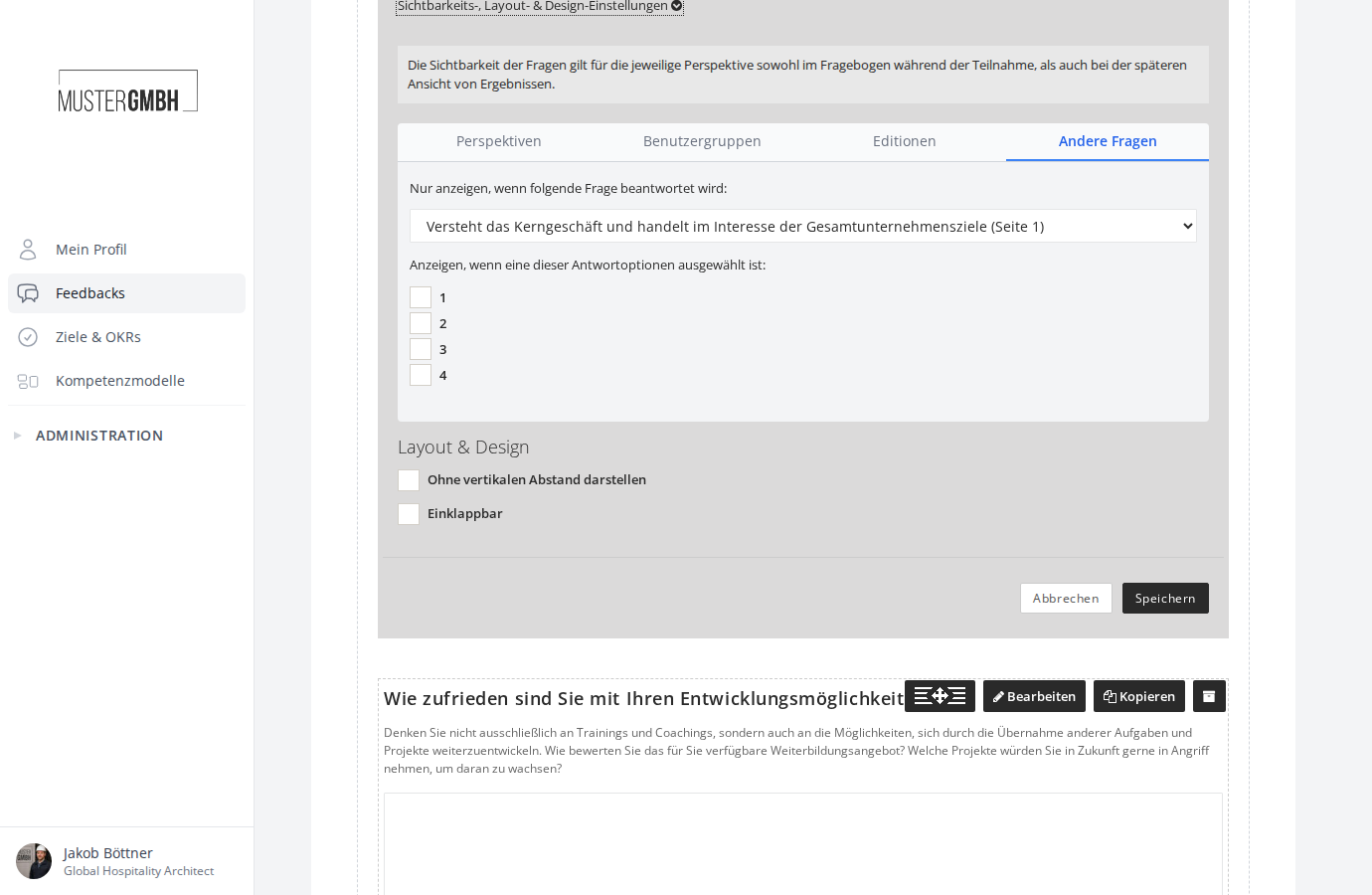
- At the bottom of the settings area, click Visibility, layout & design settings to open the panel.
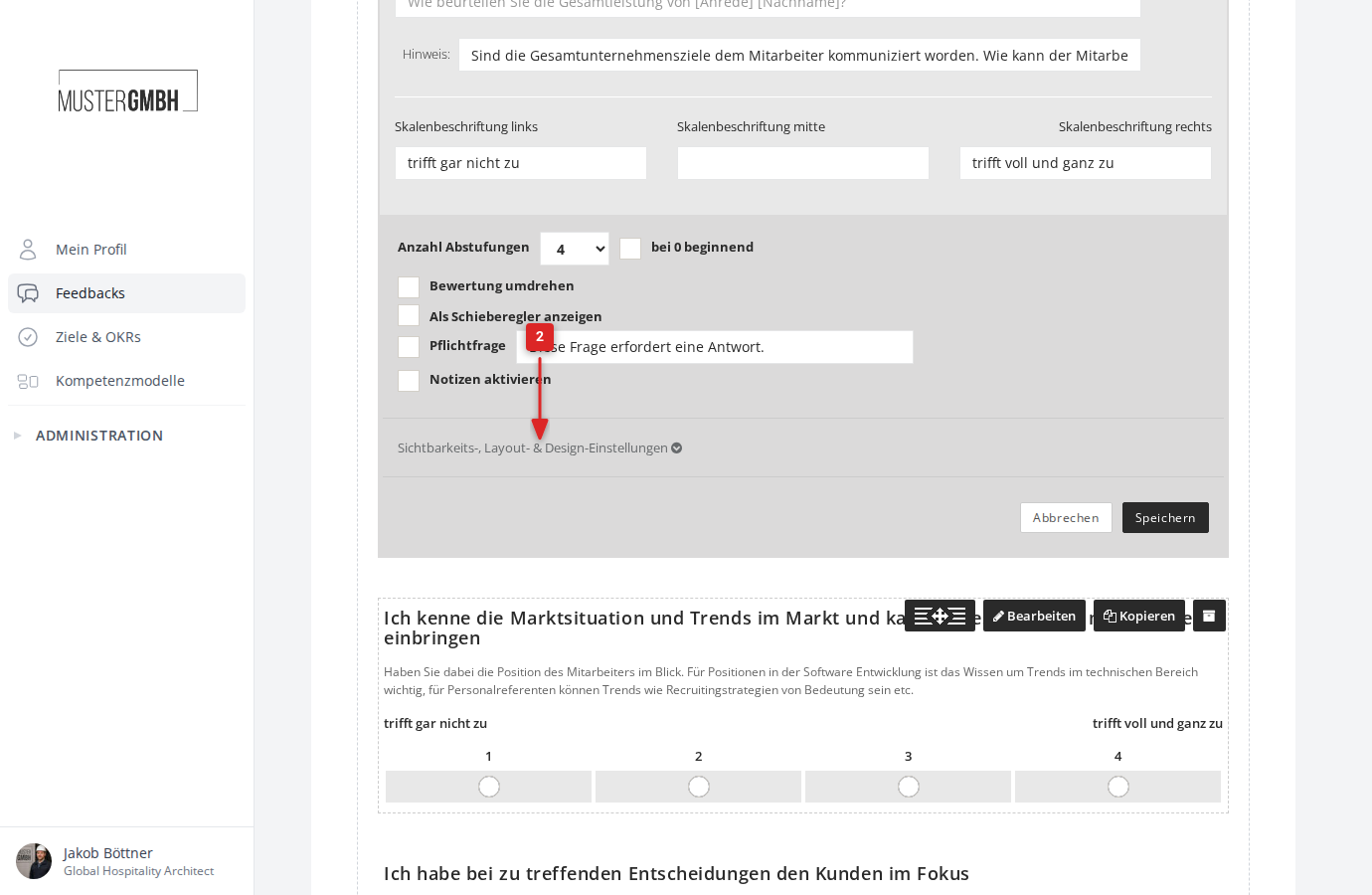
The open panel shows the visibility controls as tabs, with the layout options below them:
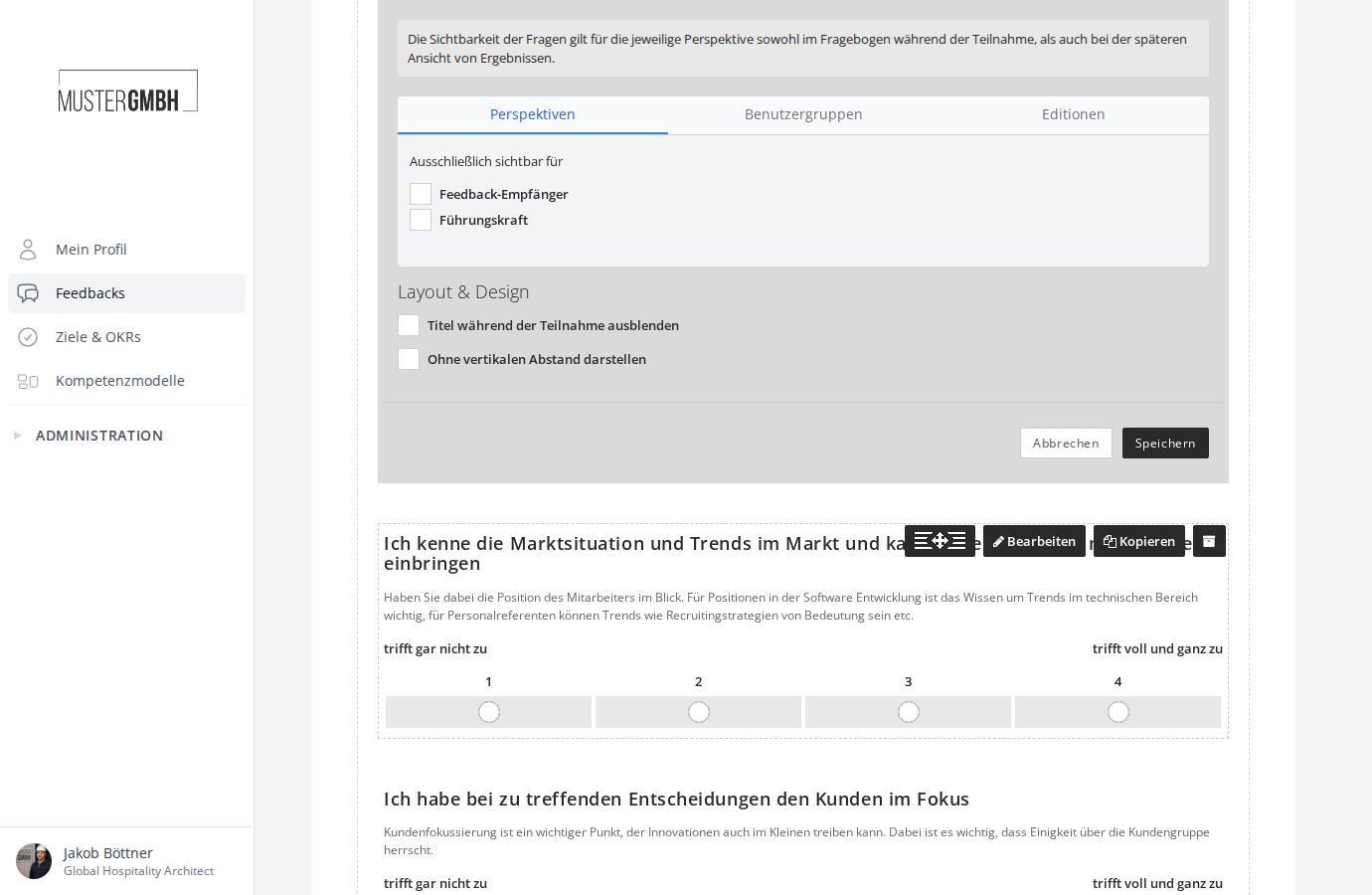
The visibility settings are organized into tabs:
- Perspectives: restrict to specific perspectives
- User groups: restrict to specific user groups
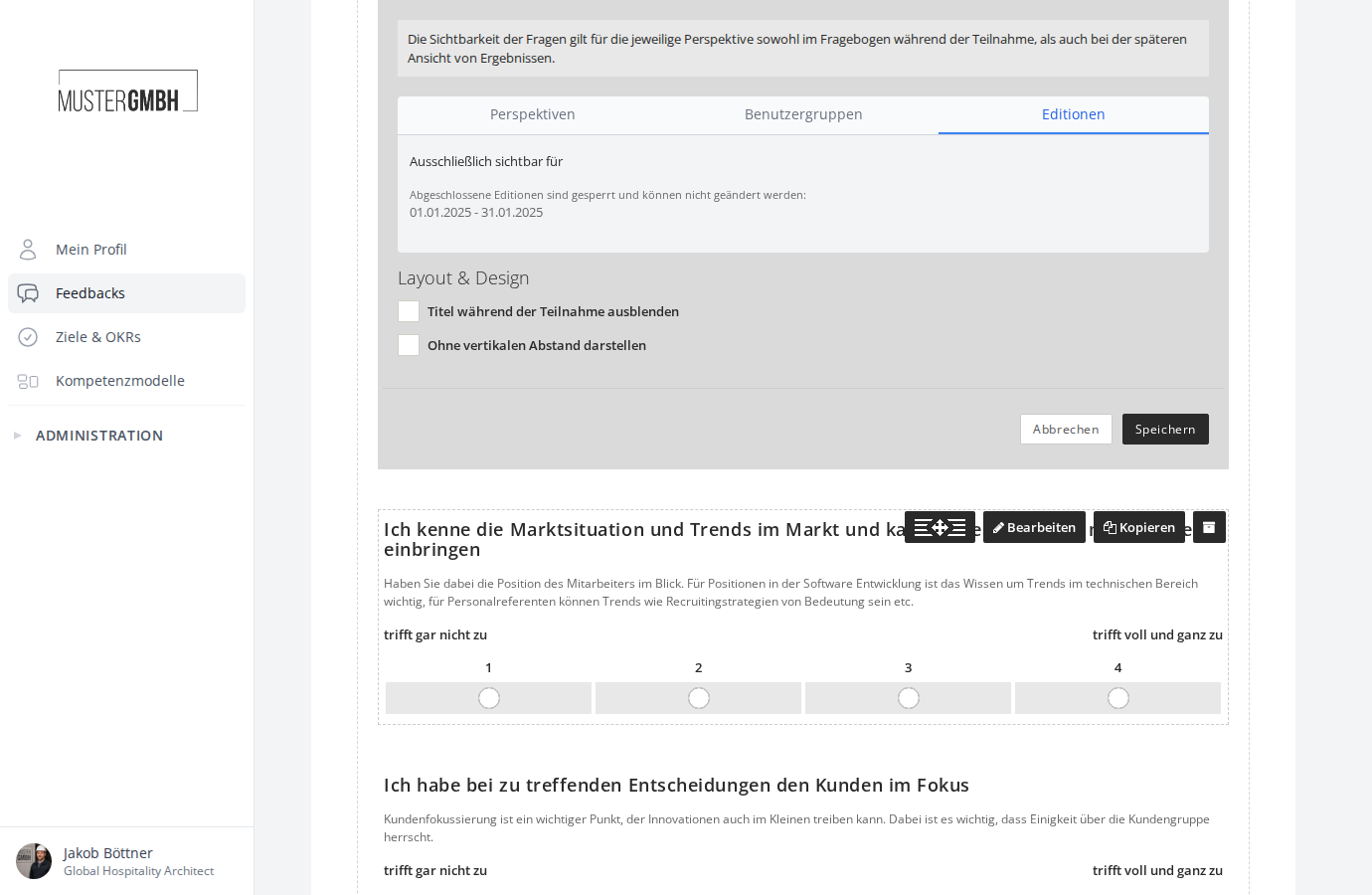
- Editions: restrict to specific editions
- Other questions: conditional visibility based on answers (only shown when suitable questions exist in the questionnaire)
Any tab that has a restriction configured is shown in bold.
Perspectives
In the Perspectives tab, you decide which perspectives can see a question or element. Select the checkbox next to a perspective to make the question visible only to that perspective.
If you select no checkbox, the question stays visible to all perspectives. As soon as you select at least one checkbox, the question is shown only to the perspectives you picked.
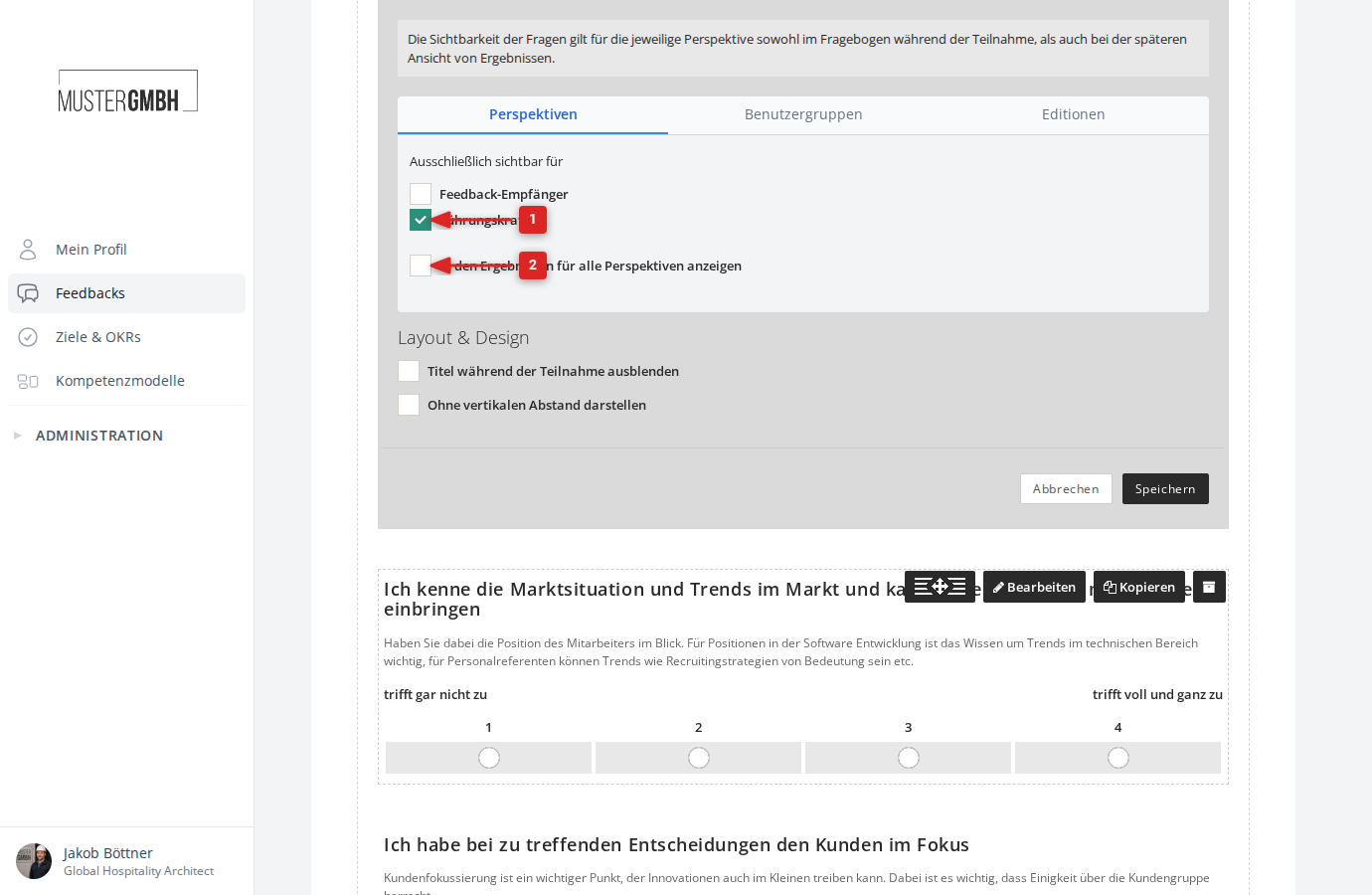
Show to all perspectives in results
Once you have set a perspective restriction, the option Show to all perspectives in results appears. Enable it when a question should be answered only by certain perspectives, but its result should be visible to everyone.
User groups
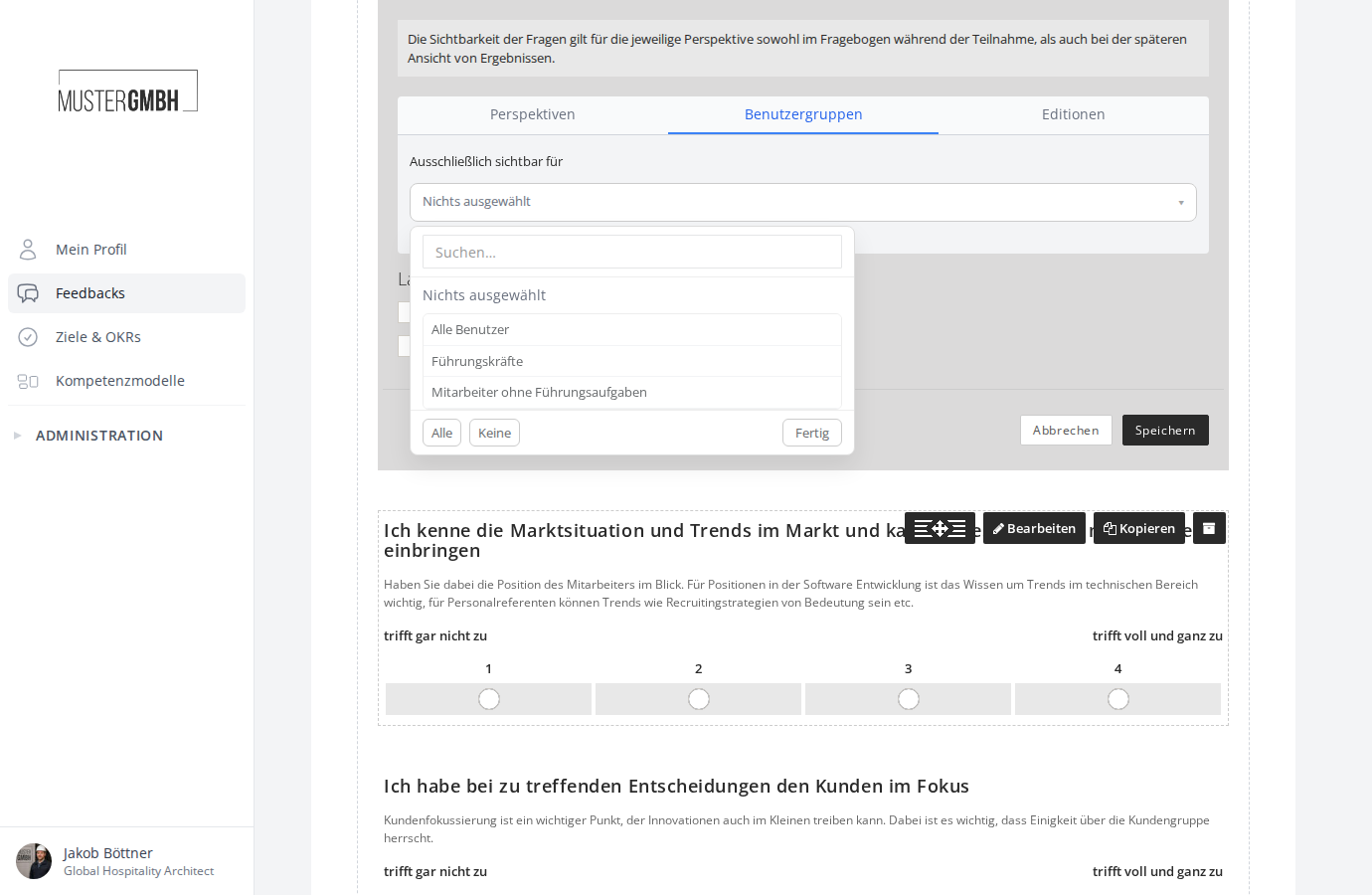
In the User groups tab, you can limit a question’s visibility to specific user groups. Use the dropdown to select one or more user groups. The question is then shown only to reviewees who belong to at least one of the selected groups.
Editions
In the Editions tab, you set which editions a question is visible in. This is useful when you want to add or remove questions in a new edition without changing the questionnaire for running or completed editions.
Select the checkboxes next to the editions the question should be visible in.
Other questions (conditional visibility)
In the Other questions tab, you can show or hide a question or element depending on the answer to an earlier question. This lets you, for example, only show follow-up questions when a particular value was chosen on a scale question.
To set up conditional visibility:
- Switch to the Other questions tab.
- In the dropdown, select the question the visibility should depend on.
- Select the checkboxes for the answer options that should make the current question visible.
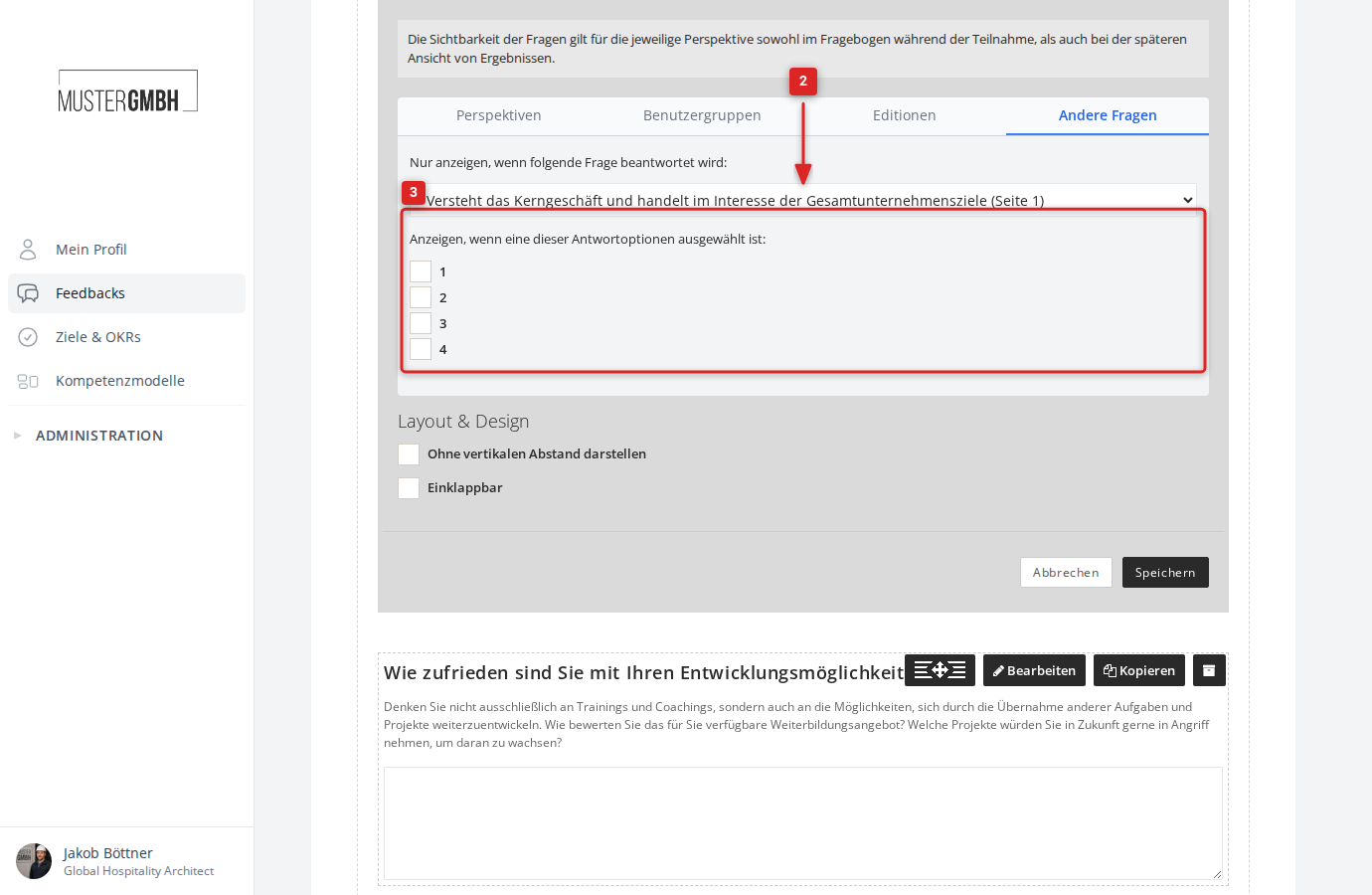
For scale questions, the numeric values (for example 1, 2, 3, 4) appear as answer options. For multiple-choice questions, the answer options appear with their text.
Saving the visibility
After configuring, click Save to apply the settings.
Layout & design
Below the visibility tabs you find the layout options. The available options depend on the element type:
- Hide title during participation: the element’s or question’s title is not shown during participation, but still appears in the results.
- Display without vertical padding: removes the spacing to the previous element. Useful for visually grouping elements that belong together.
- Collapsible (text block elements only): participants can expand and collapse the text block.
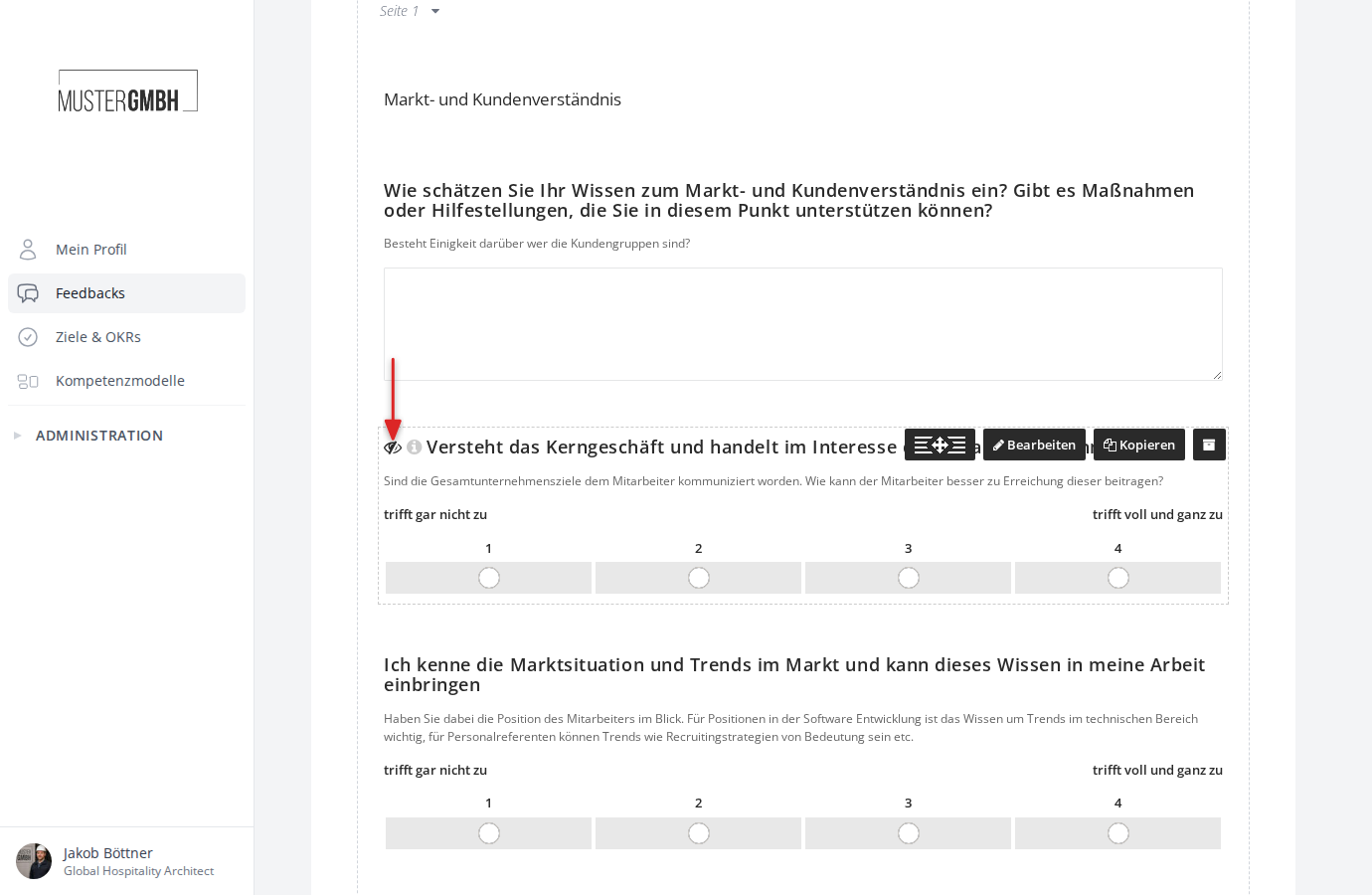
Restricted-visibility indicator in the questionnaire editor
Elements and questions with restricted visibility are marked in the questionnaire editor with a red crossed-out eye icon. This lets you see at a glance which questions go to everyone and which are visible only to certain perspectives, user groups, or editions.
Click the icon to see the visibility details in a popup.
Warning: hidden from everyone
If all options in a tab are cleared (for example, every perspective checkbox deselected), the question is visible to no one. In that case a warning appears, such as “Hidden from all perspectives”, together with a checkbox to clear the restriction.
Visibility at the page level
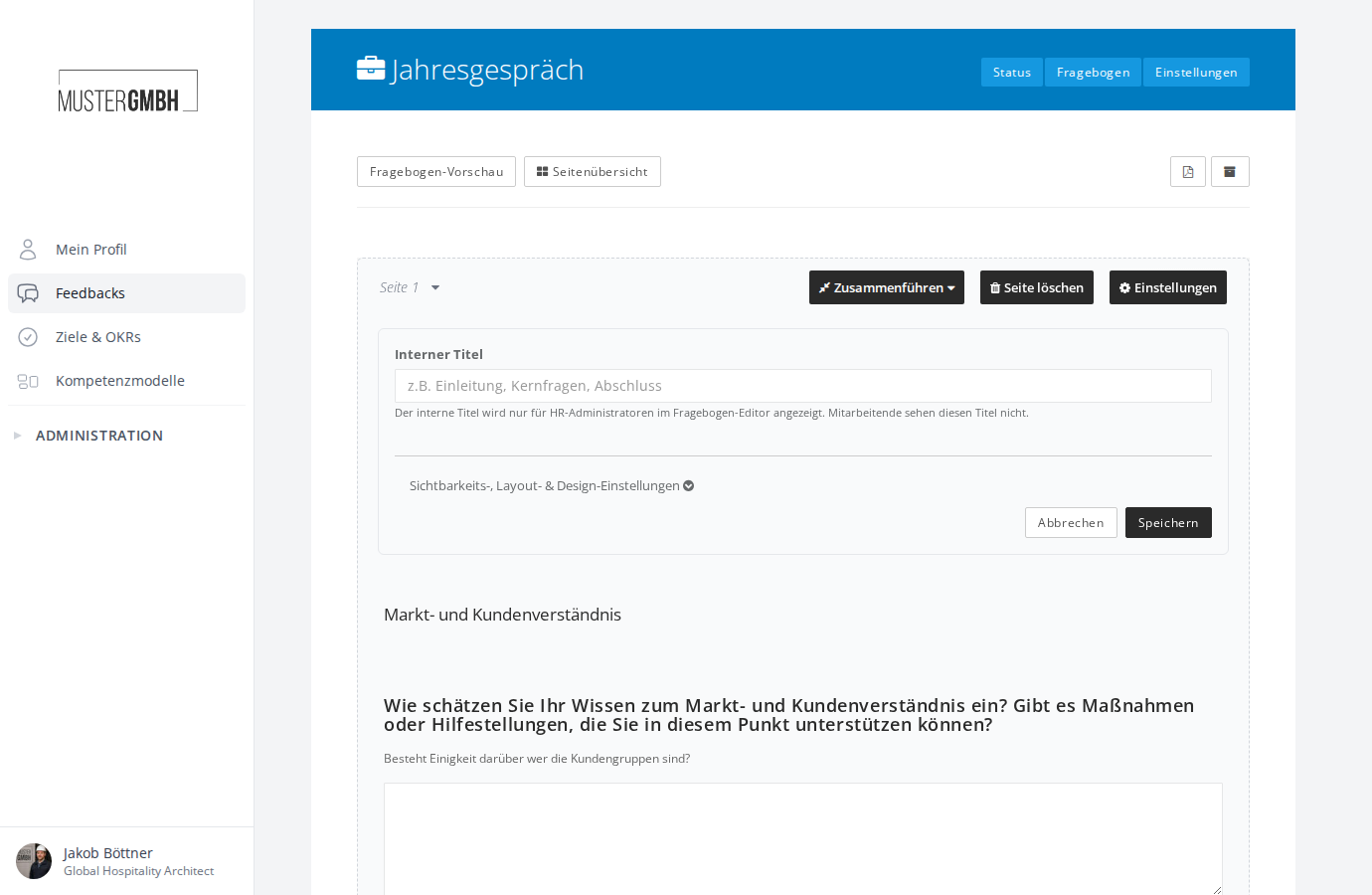
Visibility settings are available not only for individual questions and elements, but also for whole pages. Open the page settings with the Settings button next to the page title in the questionnaire editor.
Empty pages
Dynamic visibility can lead to situations where a whole questionnaire page has no visible elements or questions for a given perspective. Those pages are skipped automatically during participation.
Required questions
When you mark a question as required, that setting only applies to the perspectives the question is visible to. Perspectives that don’t see a question don’t have to answer it either.
In the results
In the results, the result stays empty for perspectives that couldn’t see a question. This is the same as when a question was left unanswered.
If the Show to all perspectives in results option is enabled, the result is still shown for all perspectives.