Questionnaire preview
The questionnaire editor shows all questions on a single page and always from the self-review perspective, so you keep the overview while editing.
The preview shows the questionnaire exactly as your participants experience it while filling it in. You can check the page flow, switch between perspectives, and test how every question type looks.
Open the preview
- Open the questionnaire editor.
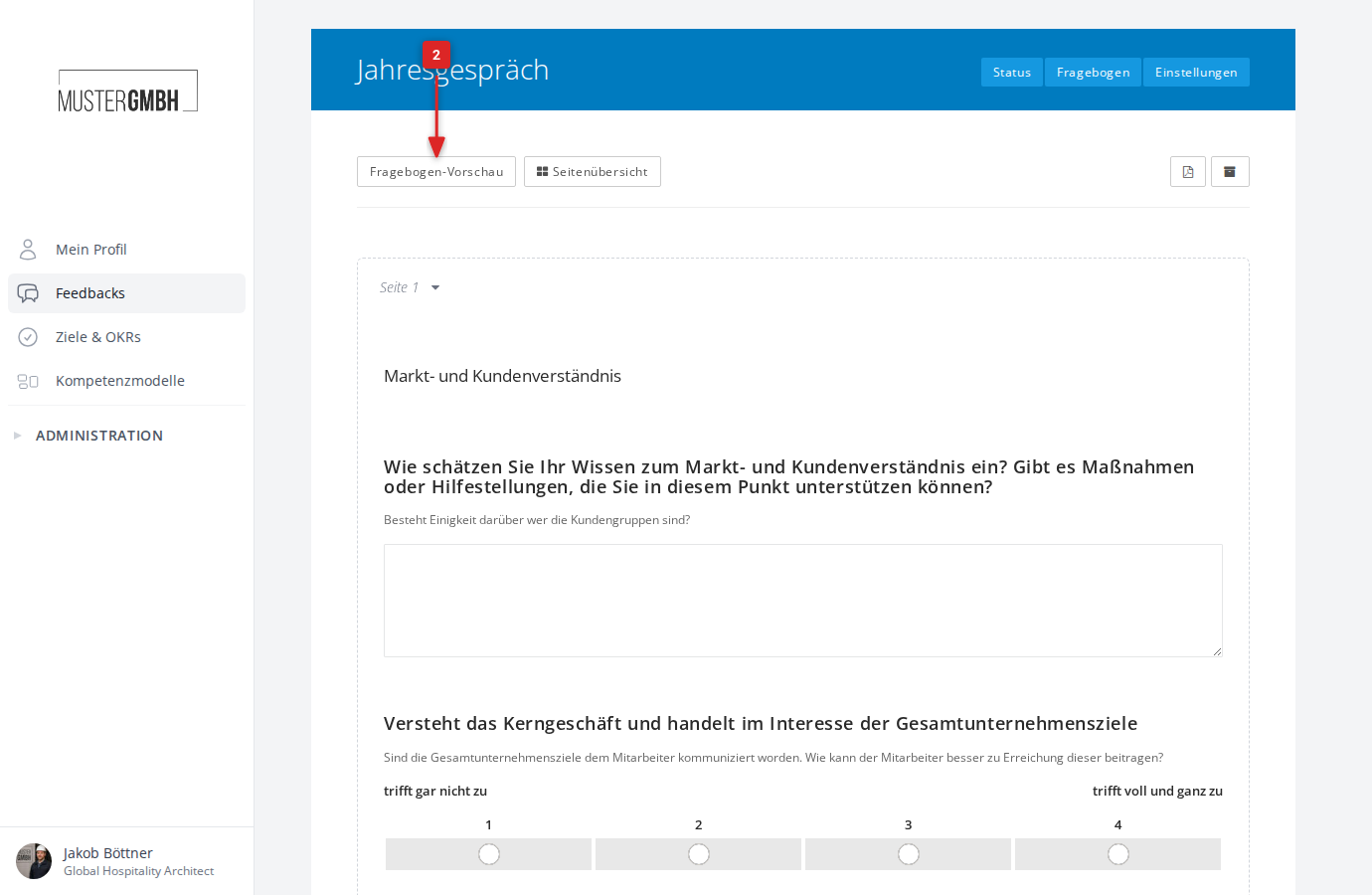
- Click “Preview questionnaire” at the top left.
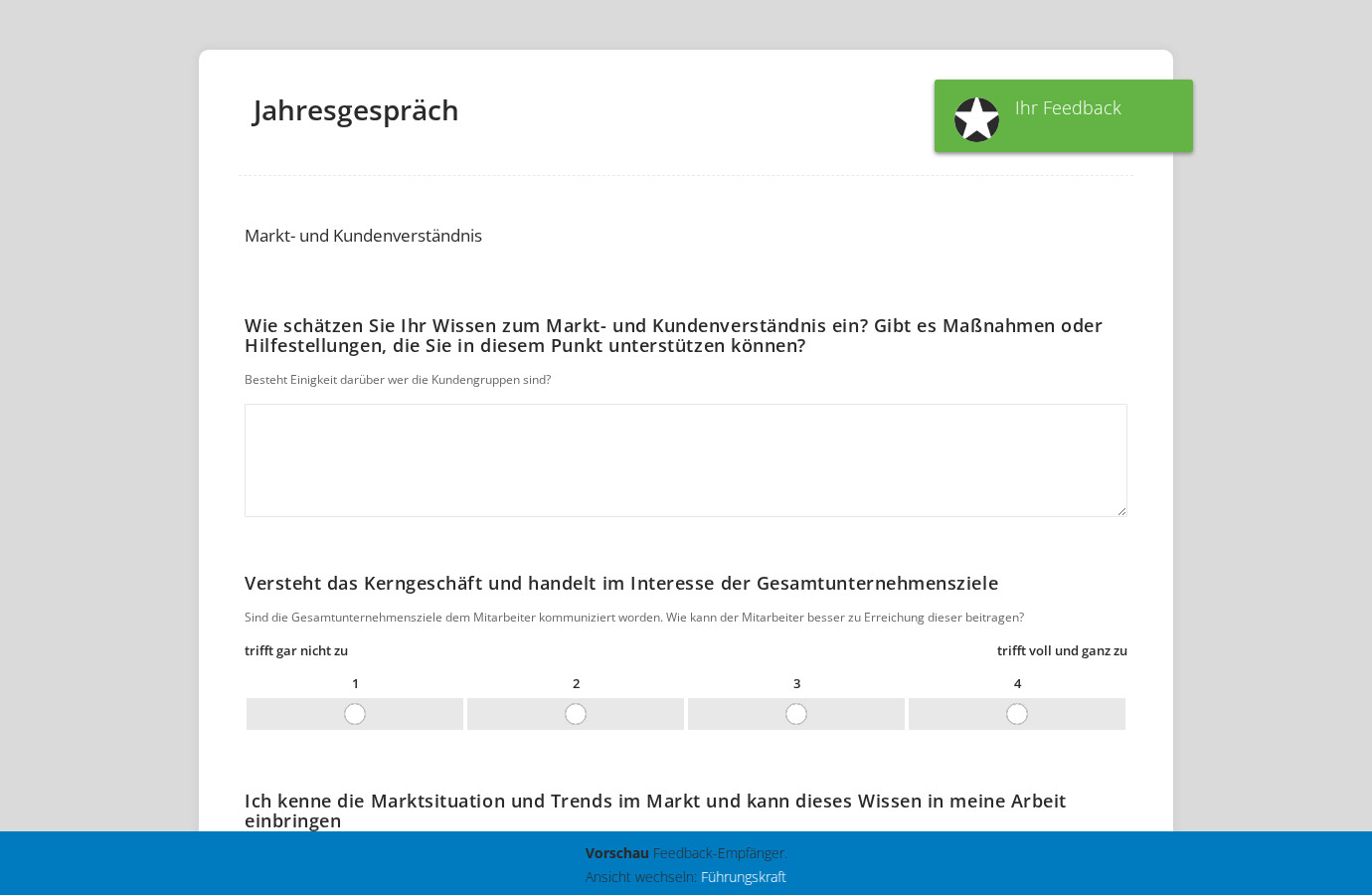
- The preview opens in a new browser tab and shows the questionnaire from the self-review perspective.
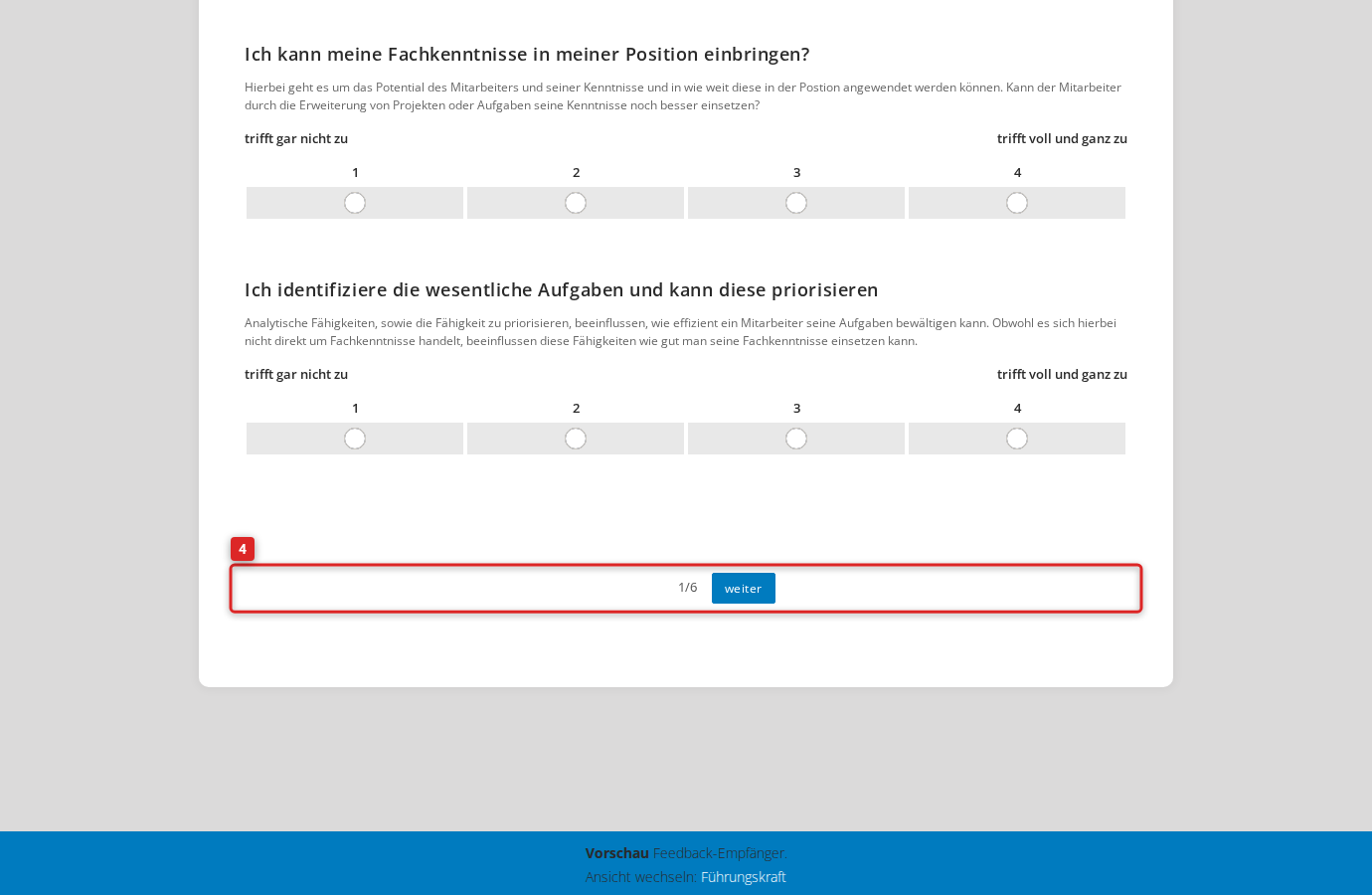
- Use the “next” button at the end of the page to move on to the following pages. The page counter (for example “1/6”) shows your position in the questionnaire.
Switch perspective
The preview starts in the self-review perspective. At the bottom of the screen, the preview banner shows the current perspective and offers links to switch.
- Open the questionnaire preview as described above.
- In the preview banner at the bottom of the screen, click the name of the perspective you want (for example “Supervisor”).
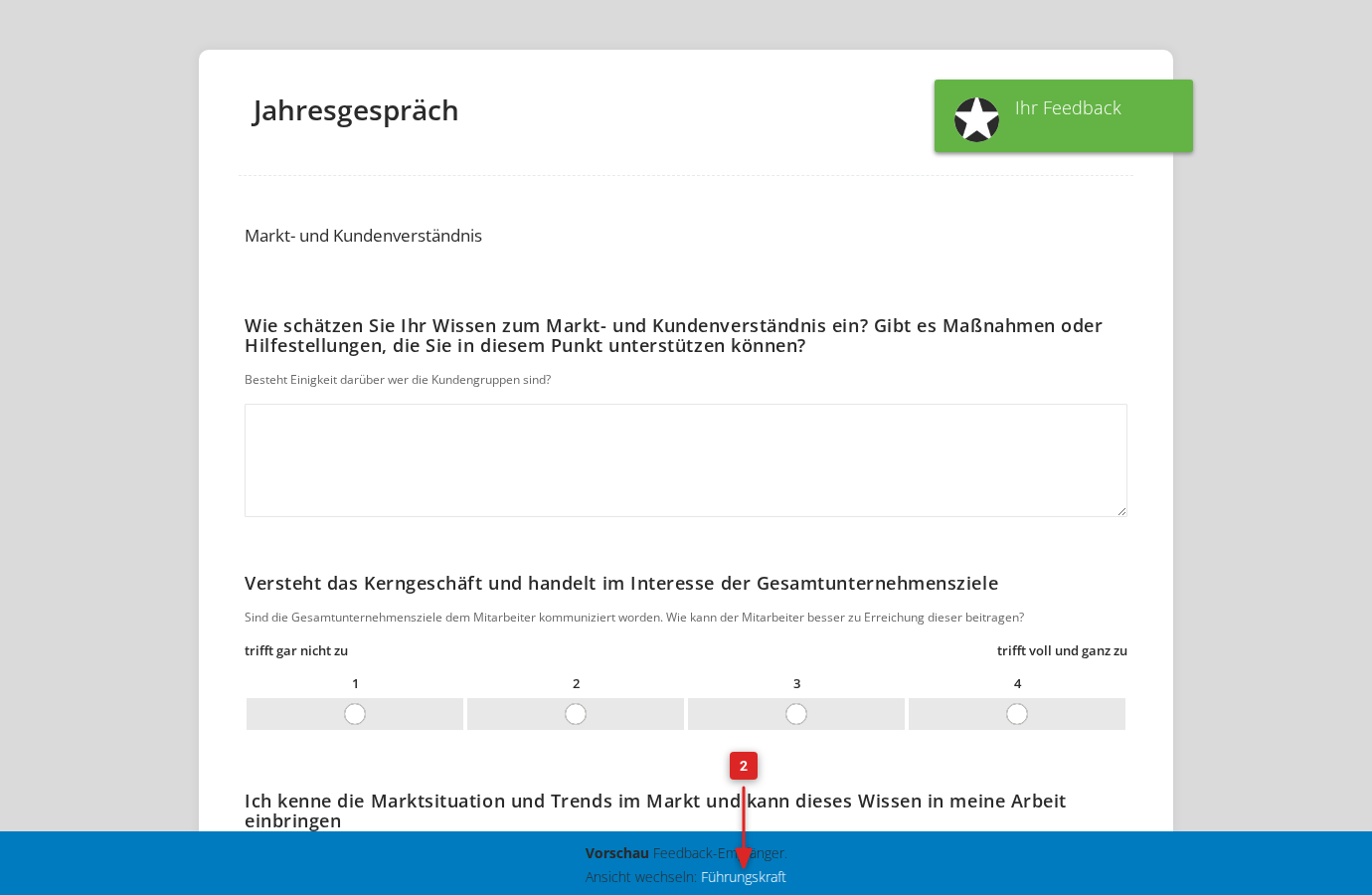
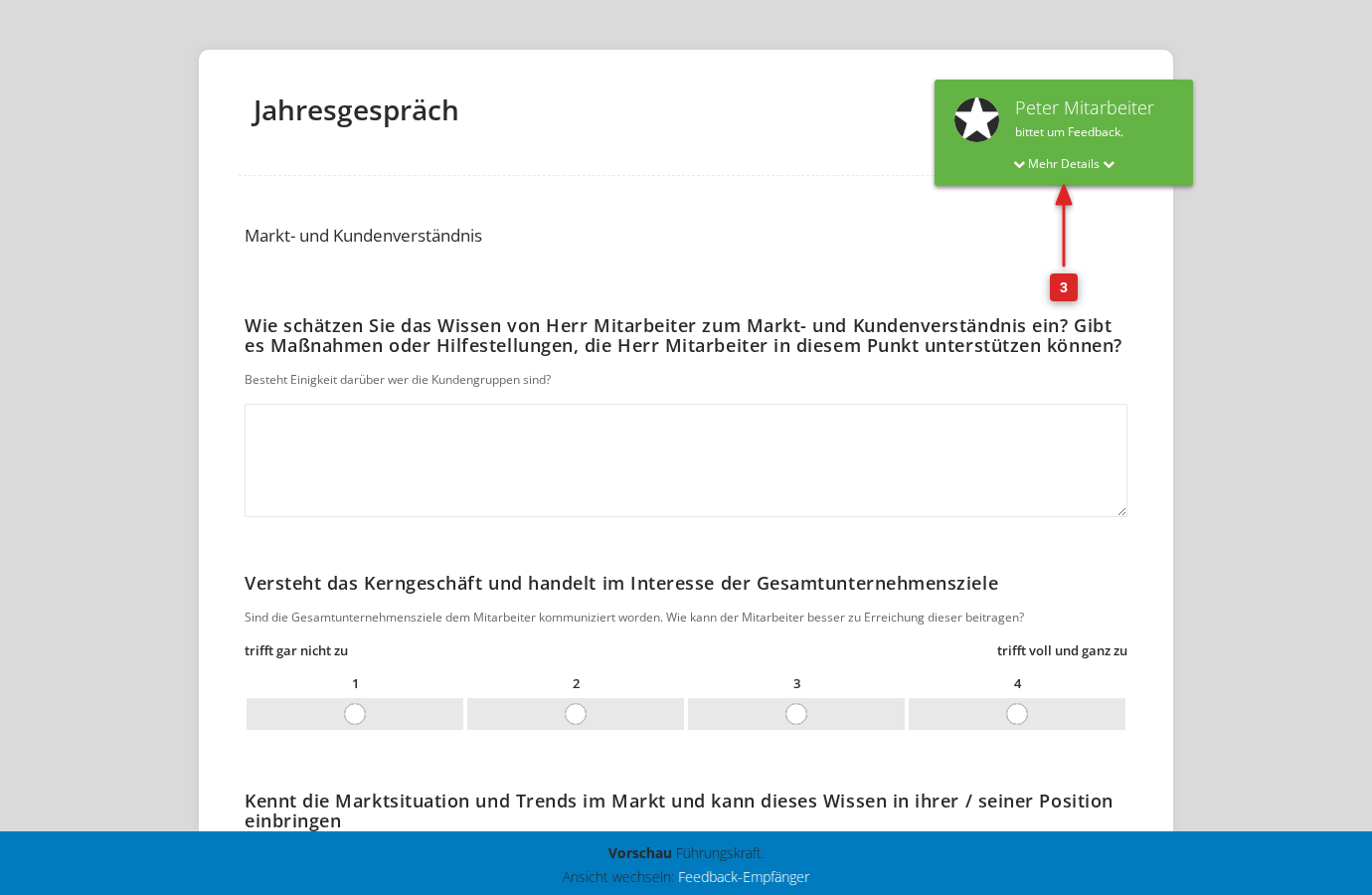
- The page reloads and shows the questionnaire from the chosen perspective. In the green badge at the top right you can tell it is an external review from the name of the fictional test person (for example “Peter Mitarbeiter”).