What are 360° feedbacks?
A 360° feedback is a special feedback type in easyreview where one person receives feedback from several perspectives at once. Unlike a classic annual review (a two-sided feedback between an employee and their supervisor), a 360° feedback also brings in colleagues, team members, and contacts from other departments.
Each feedback group consists of one feedback recipient and several feedback givers. The feedback givers are grouped into perspectives, such as “Manager”, “Peers”, or “Cross-Team”. This builds a rounded picture of a person’s competencies and performance.
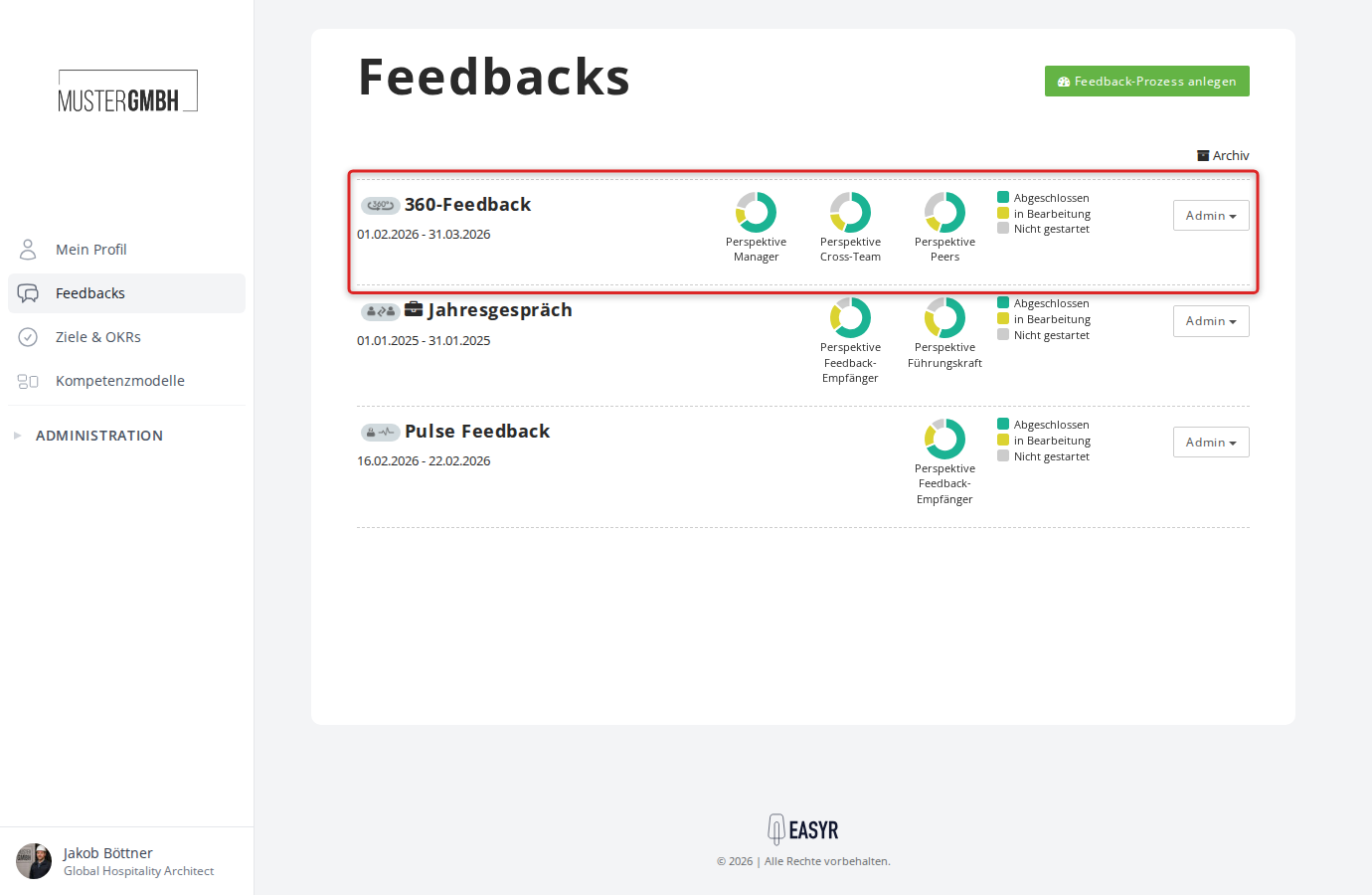
How it differs from other feedback types
easyreview offers several feedback types. A 360° feedback differs in these ways:
- Several feedback givers per person: A two-sided feedback has only one feedback recipient and one supervisor. A 360° feedback can have any number of people giving feedback.
- Perspectives: Each feedback giver is assigned to a perspective (for example Manager, Peers, Cross-Team). In the results, answers are grouped by perspective.
- Moderator role: A perspective can be marked as a “Moderator”. Moderators have extended permissions, for example when sealing results.
- Anonymization options: Results can be shown with or without the real names of the feedback givers.
How a 360° feedback is structured
A 360° feedback in easyreview is made up of the following parts:
Perspectives
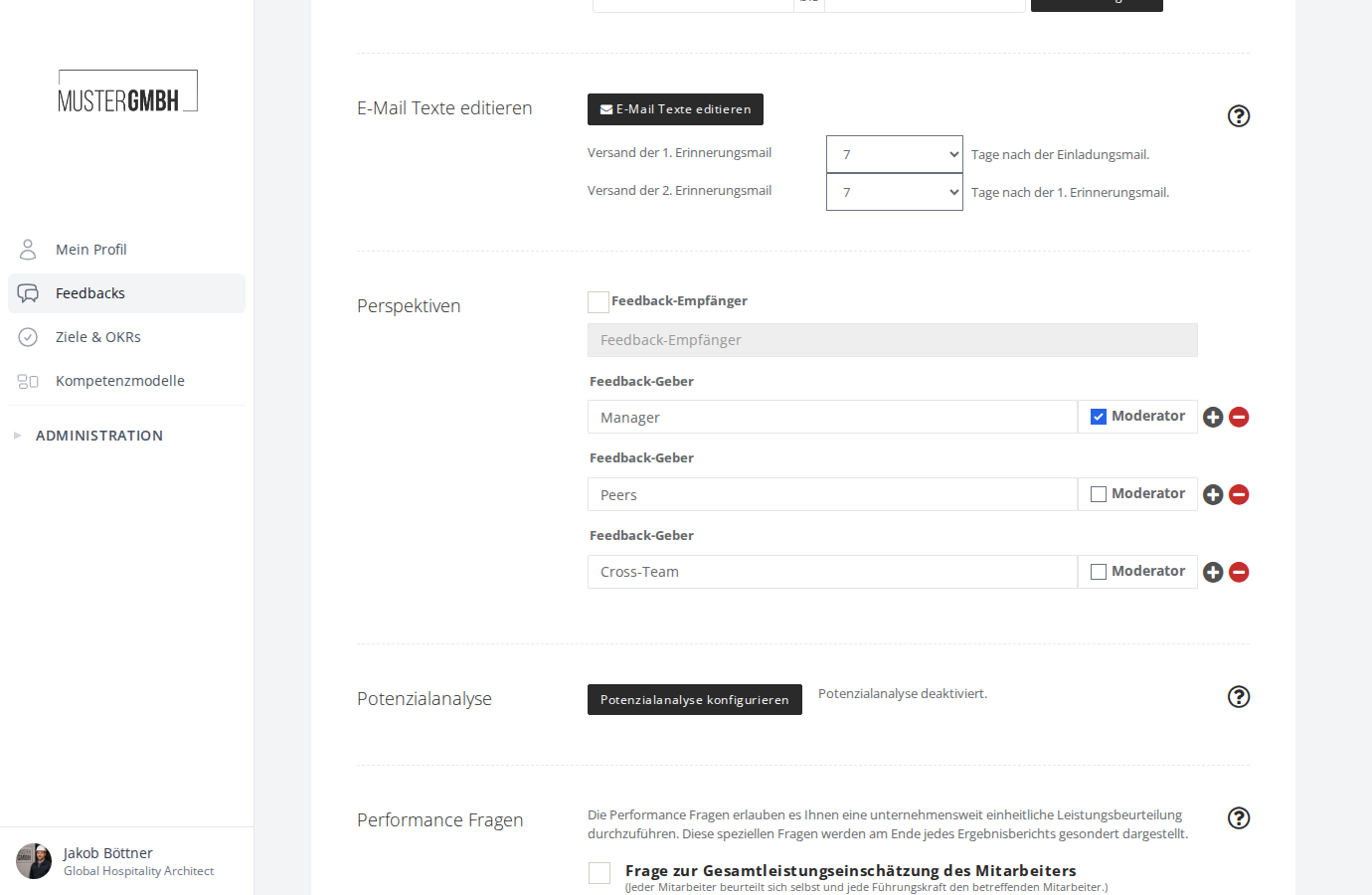
Perspectives define the role a person gives feedback from. When you create a 360° feedback, two perspectives are created automatically:
- Feedback recipient: the person being assessed (optional — this perspective can be disabled)
- Feedback giver: the first feedback-giver perspective (for example “Manager”), which has moderator permissions by default
You can add as many further perspectives as you like, such as “Peers”, “Cross-Team”, or “Customers”. Each perspective has a name you choose freely and can be marked as a moderator.
Questionnaire
The questionnaire holds the questions that all feedback givers answer. You can configure a question so that it is visible only to certain perspectives. For example, one question can be shown only to the Manager perspective, while others apply to everyone.
Editions
Like all feedback processes in easyreview, 360° feedbacks can be run across several editions (cycles). This lets you repeat feedback rounds — annually, for example — and compare results over time.
The status page
After you create a 360° feedback, you land on the status page. It shows:
- Progress chart: a bar chart per perspective showing how far participants have got (Not started, In progress, Completed)
- Edition selector: switch between editions in the top right
- Status information: start and end date, invitation and reminder status
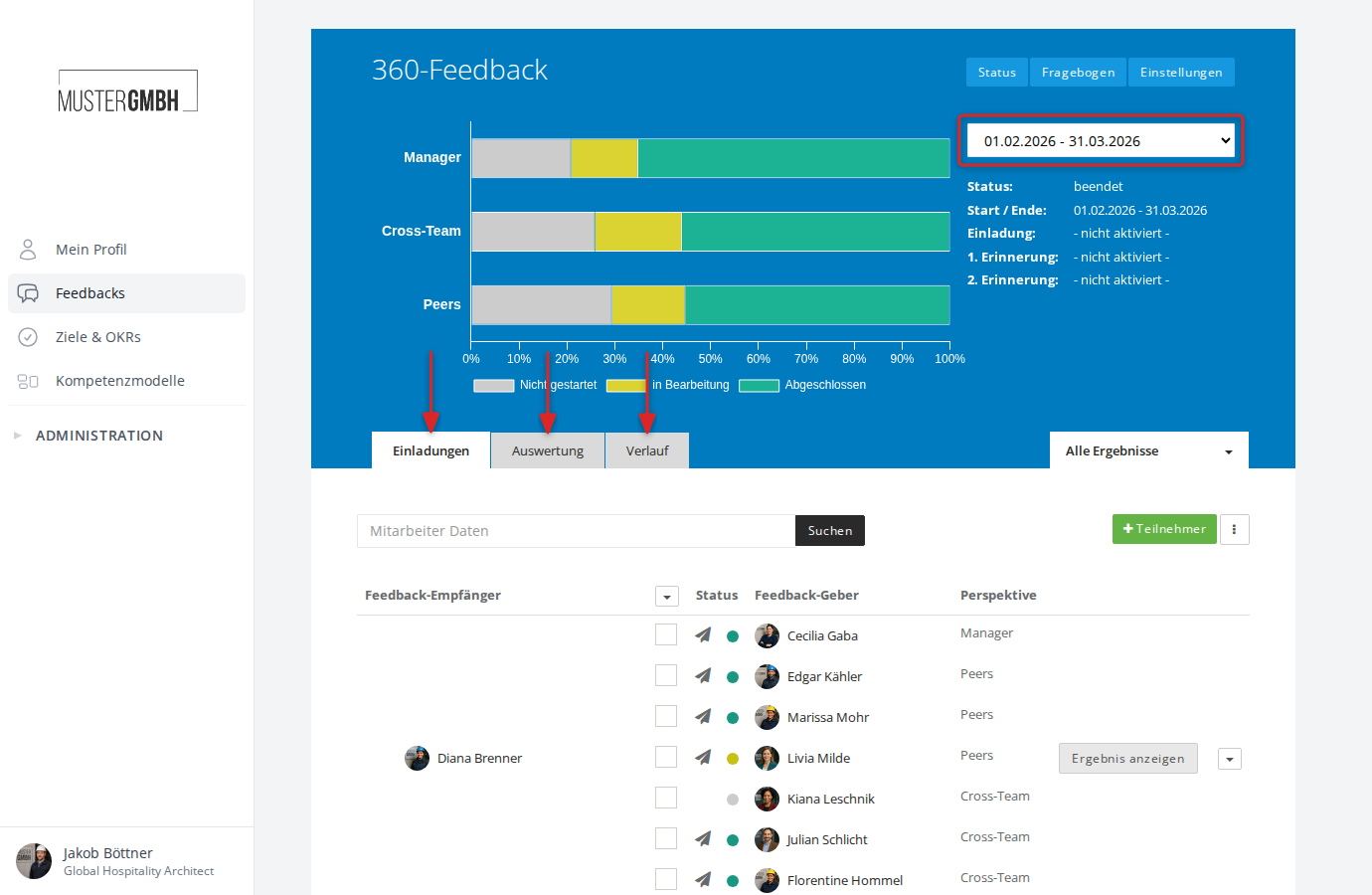
Below the chart are three tabs.
“Invitations” tab
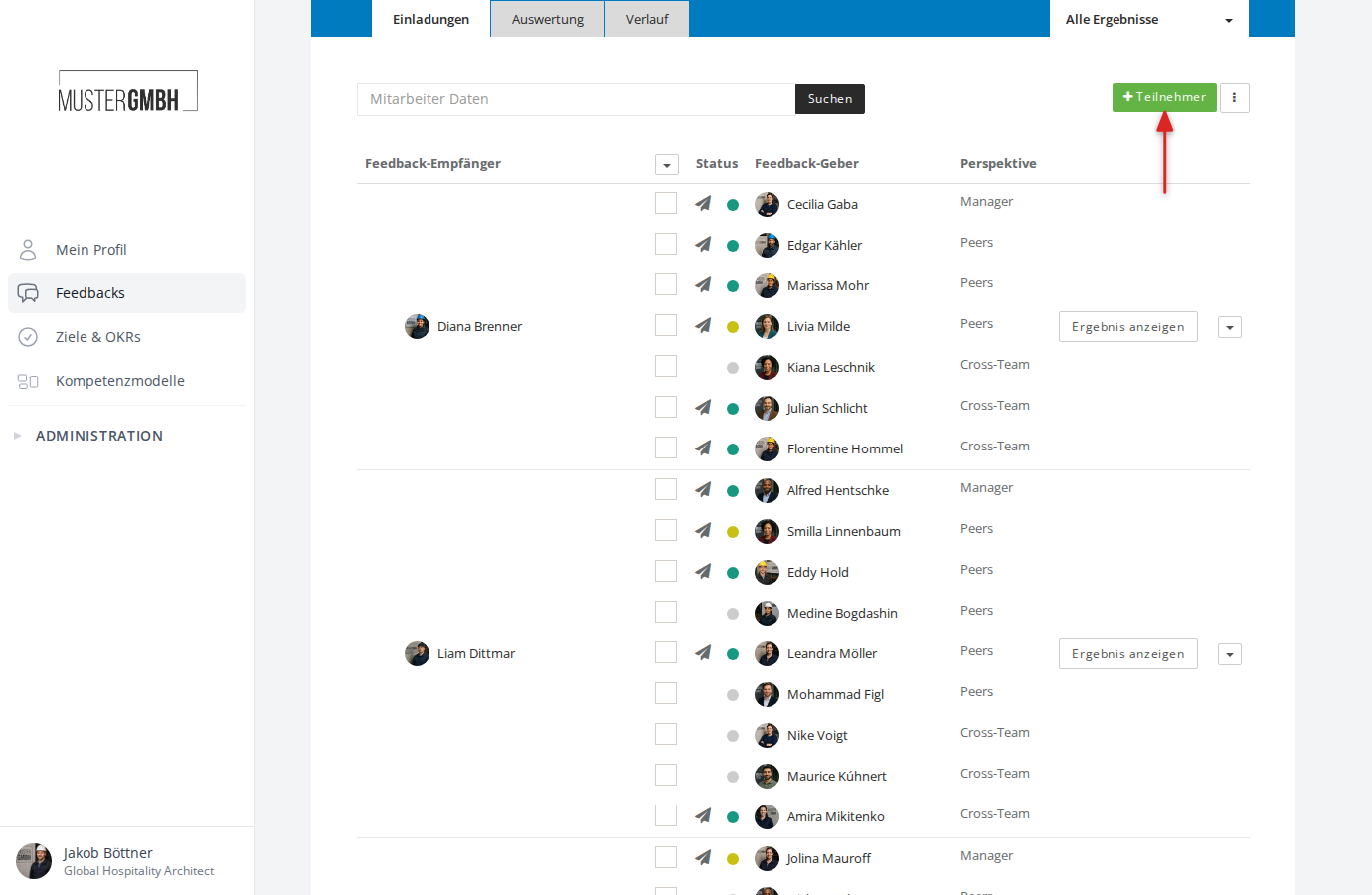
Here you see the participant list. For each feedback recipient, all assigned feedback givers are listed with their perspective. The columns show:
- Feedback recipient: the name of the person being assessed
- Status: invitation and completion status (paper-plane icon = invited, colored dot = progress)
- Feedback giver: the name of the feedback giver
- Perspective: the assigned perspective (for example Manager, Peers, Cross-Team)
Use the ”+ Participant” button to add new feedback groups.
Usually HR enters the feedback providers. It also works the other way round: with nominations the feedback recipients propose their own feedback providers, and their supervisor and HR review the proposals and approve them. Determine feedback providers through nominations explains how to turn that on.
“Evaluation” tab
The evaluation shows the aggregated results of all participants per question. For scale or rating questions, answers are shown as a bar chart. Text answers can be expanded with “Show answers”.
Use “Break down by perspectives” to view the results separately per perspective.
“Time series” tab
The time series shows how results developed across several editions. Two charts are shown:
- Participation rate: how the response rate changed across editions
- Result overall: how the average ratings developed over time
This tab is especially useful when a 360° feedback runs regularly (for example annually) and you want to spot trends.
Individual results
Use “Show review” in the participant list to open a feedback recipient’s individual result. The result view shows:
- Overview of feedback givers: everyone who gave feedback, grouped by perspective. Each perspective has its own color.
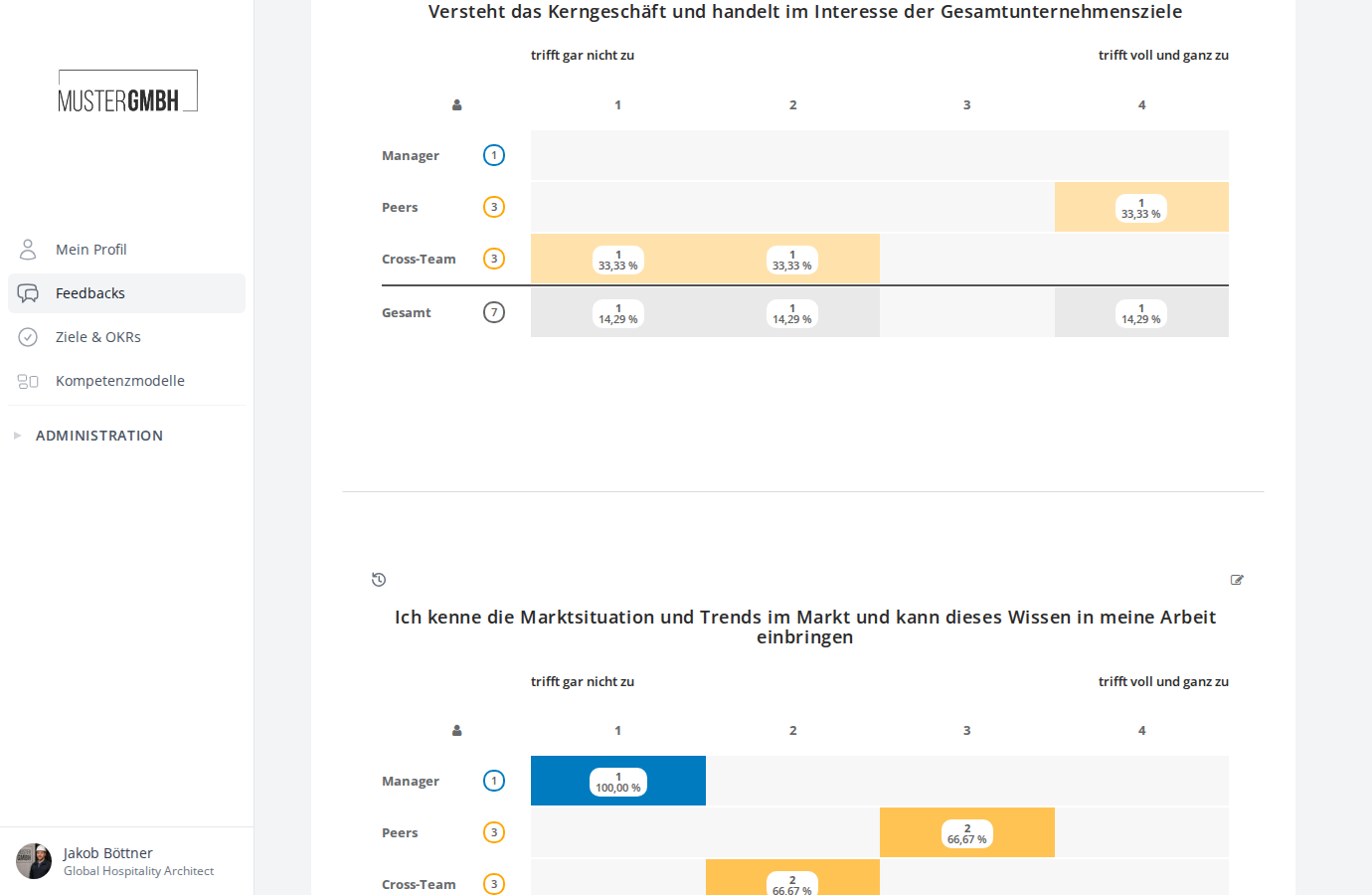
- Answers per question: answers are grouped by perspective. For text questions you see the answers side by side. For scale questions, a chart shows each feedback giver’s rating on the scale.
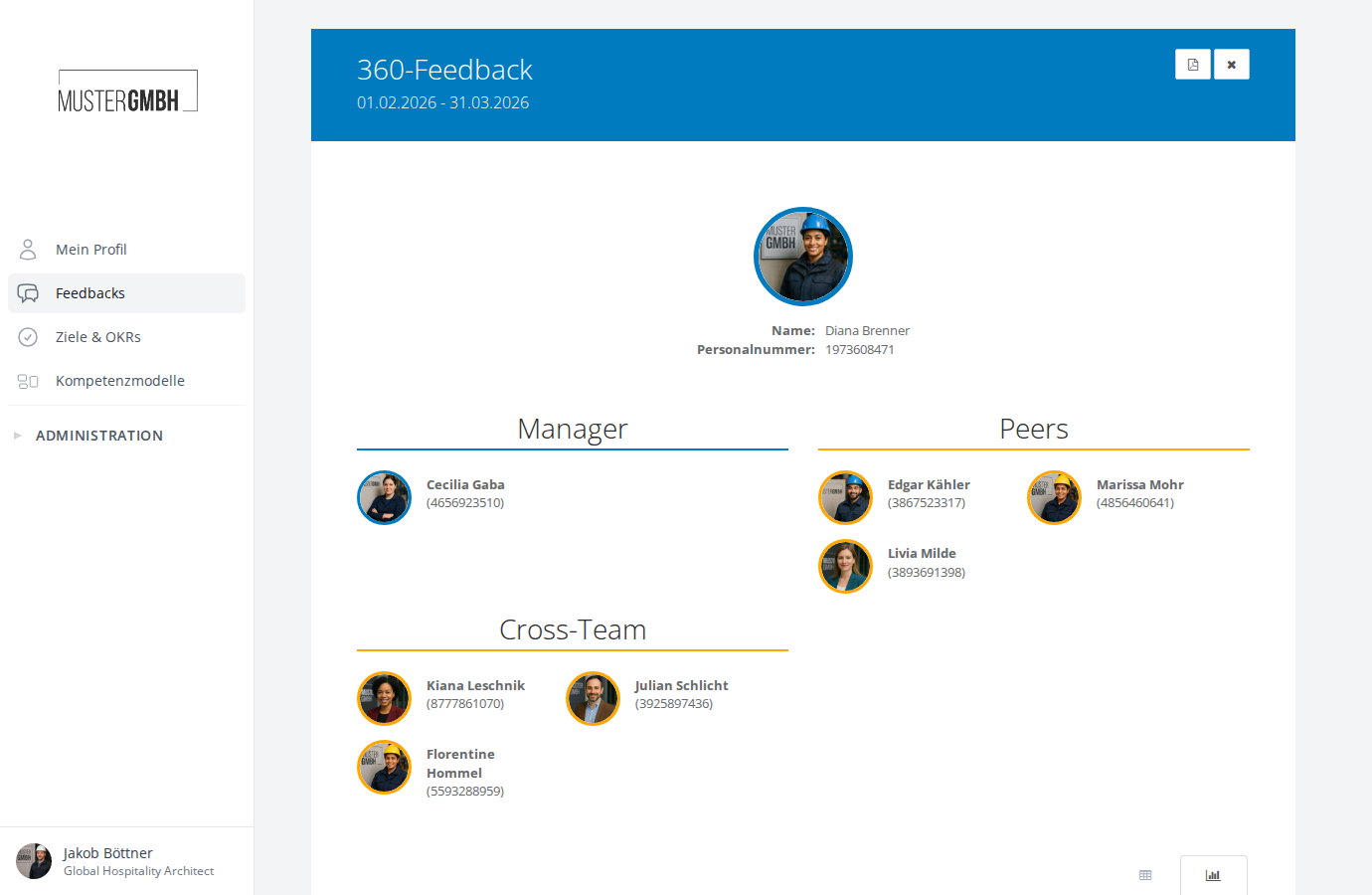
Switch between the table and chart view using the icons above the results on the right.
Settings
You reach a 360° feedback’s settings via the “Settings” tab in the top navigation bar. The rules for closing and visibility are on the “Process & visibility” page: click “Edit” in the row of the same name. Among others, you find these settings there:
- Later changes: feedback givers and moderators can still change their answers after completion.
- Sealing: results must be signed digitally by everyone involved before the feedback recipient can view them.
- Show assessments before sealing: feedback recipients can view completed external results (for example the supervisor’s feedback) before sealing begins. This option appears only when sealing is enabled.
- Diplomatic status: results can only be viewed by the people directly involved and by users with executive access.
- Names of feedback providers in answers: sets what is shown next to the answers in the result view: the name (“Show names”), the perspective (“Perspective instead of name”, also with free texts without names) or nothing (“Without names”, also with participants hidden).
- Participation groups and perspectives: in this card, the “Every participation group” row sets how many participations of a participation group must be completed before its results become visible. The self-assessment counts too. Once everyone has completed, the group is visible below that number as well.
- Quorum per perspective: sets for each feedback-giver perspective how many of its participations must be completed before others see its answers, HR included. Once all of its participations are completed, the answers are visible below that number as well. Without a value there is no quorum.
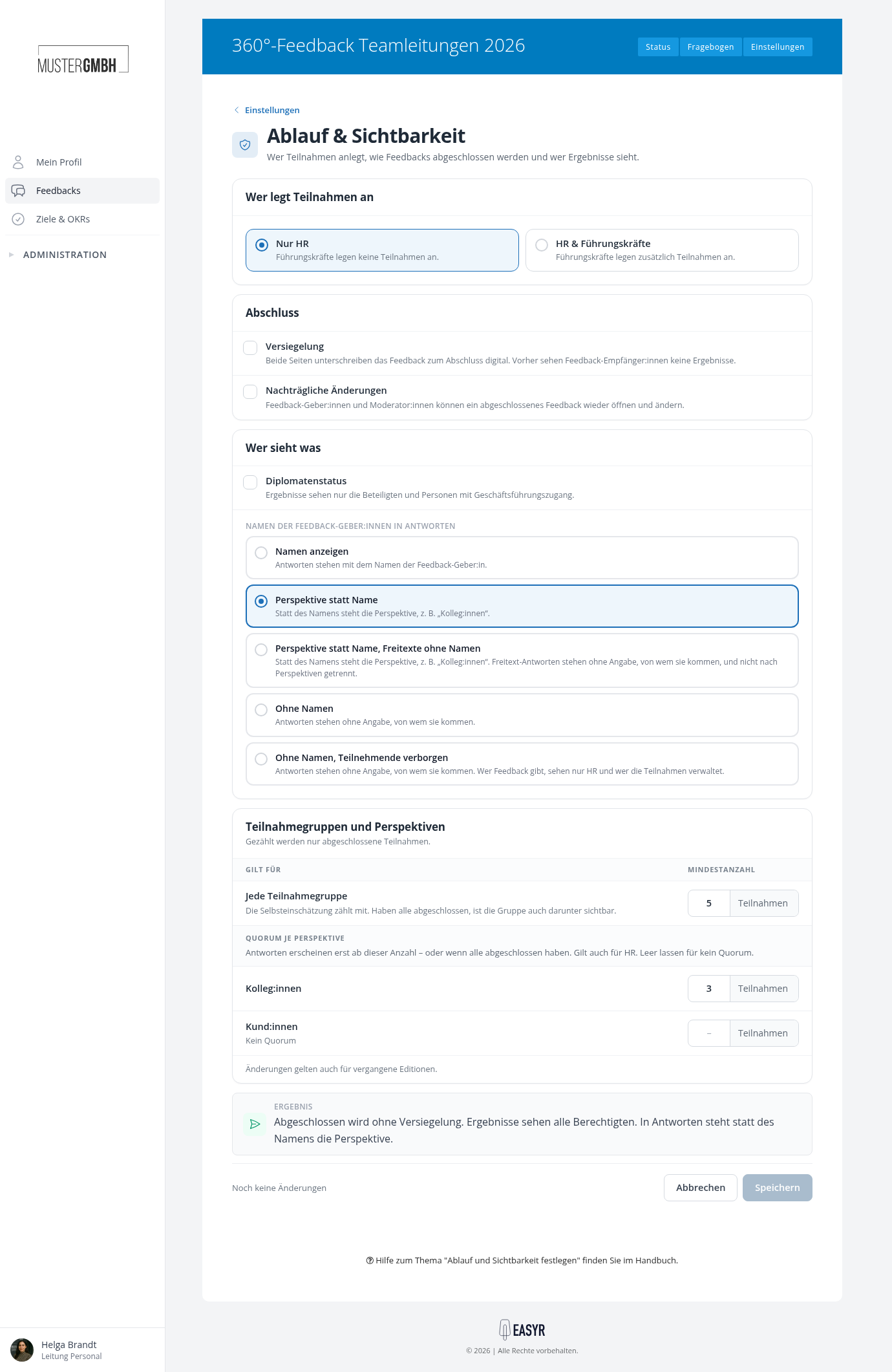
All options of this page are described in Set up process and visibility.