Question types
The easyreview questionnaire editor offers several question types. Each one suits a particular kind of feedback or rating. You choose the question type when you add a new element from the ”+ Element” dropdown in the questionnaire editor.
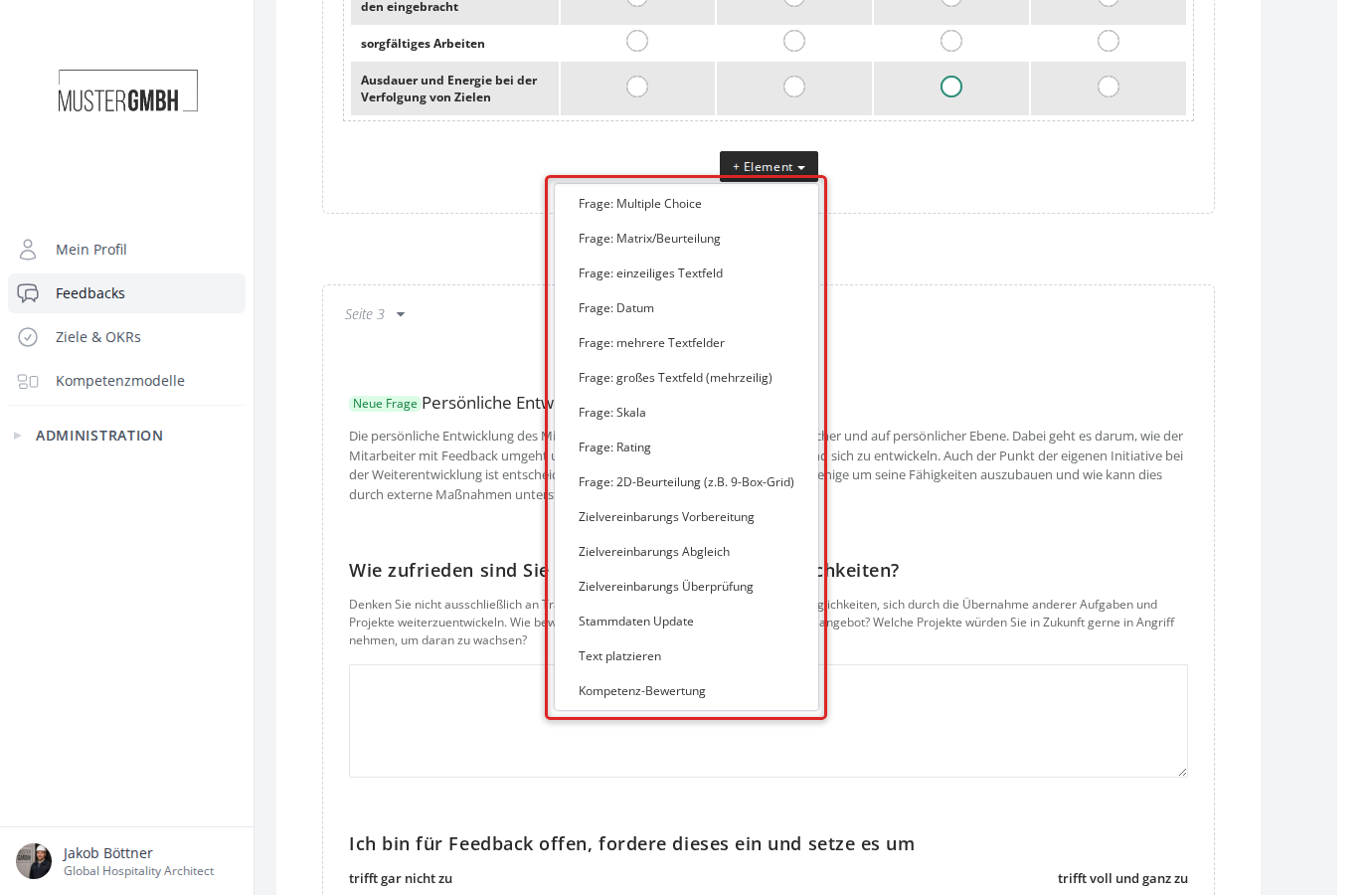
Alongside the question types described here, the dropdown also contains special types (for example the target agreement elements, Master Data Update, Competency assessment) and element types (for example Place text). These are covered in Element and question types and Element types.
The question types at a glance
Question: Multiple choice
Closed questions with predefined answer options. Participants select one or more options. You can choose between three display forms:
- Dropdown with single selection
- Radio buttons with single selection
- Checkboxes with multiple selection
See the Multiple choice article for details.
Question: Matrix
Rate several aspects of a topic in a single uniform grid. You define columns (for example rating levels) and rows (the individual aspects). Participants pick one column per row.
See the Matrix article for details.
Question: Single-line text field
A short free-text field for brief, qualitative answers. Suitable for open questions that need only a short reply.
See the Text field article for details.
Question: Date
A date input field. Participants can pick a date. Suitable, for example, for questions about deadlines or dates.
Question: Multiple text fields
Several labeled text fields under one shared question. This lets you collect qualitative feedback on several specific sub-topics without creating a separate question for each one.
See the Multiple text fields article for details.
Question: Large text box (multi-line)
A multi-line text field for longer, qualitative answers. You can set the width and number of rows.
See the Large text field (multi-line) article for details.
Question: Scale
Rating on an integer scale with labeled endpoints (for example “does not apply at all” to “fully applies”). You can configure the number of steps, the start value, and the direction of the scale.
See the Scale article for details.
Question: Rating
A visual rating with stars or dots, similar to ratings in app stores. You can choose the number of steps and the symbol (stars or dots).
See the Rating article for details.
Question: 2D assessment (e.g. 9-box grid)
A two-dimensional grid for positioning ratings on two axes. Suitable, for example, for the classic 9-box assessment (performance vs. potential). You define the axis labels and the number of rows and columns.
Question: File uploads
Participants can upload one or more files. You can set the allowed file types (all, images, documents) and the minimum and maximum number of files.
General settings
All question types share a common set of settings you can configure when editing a question:
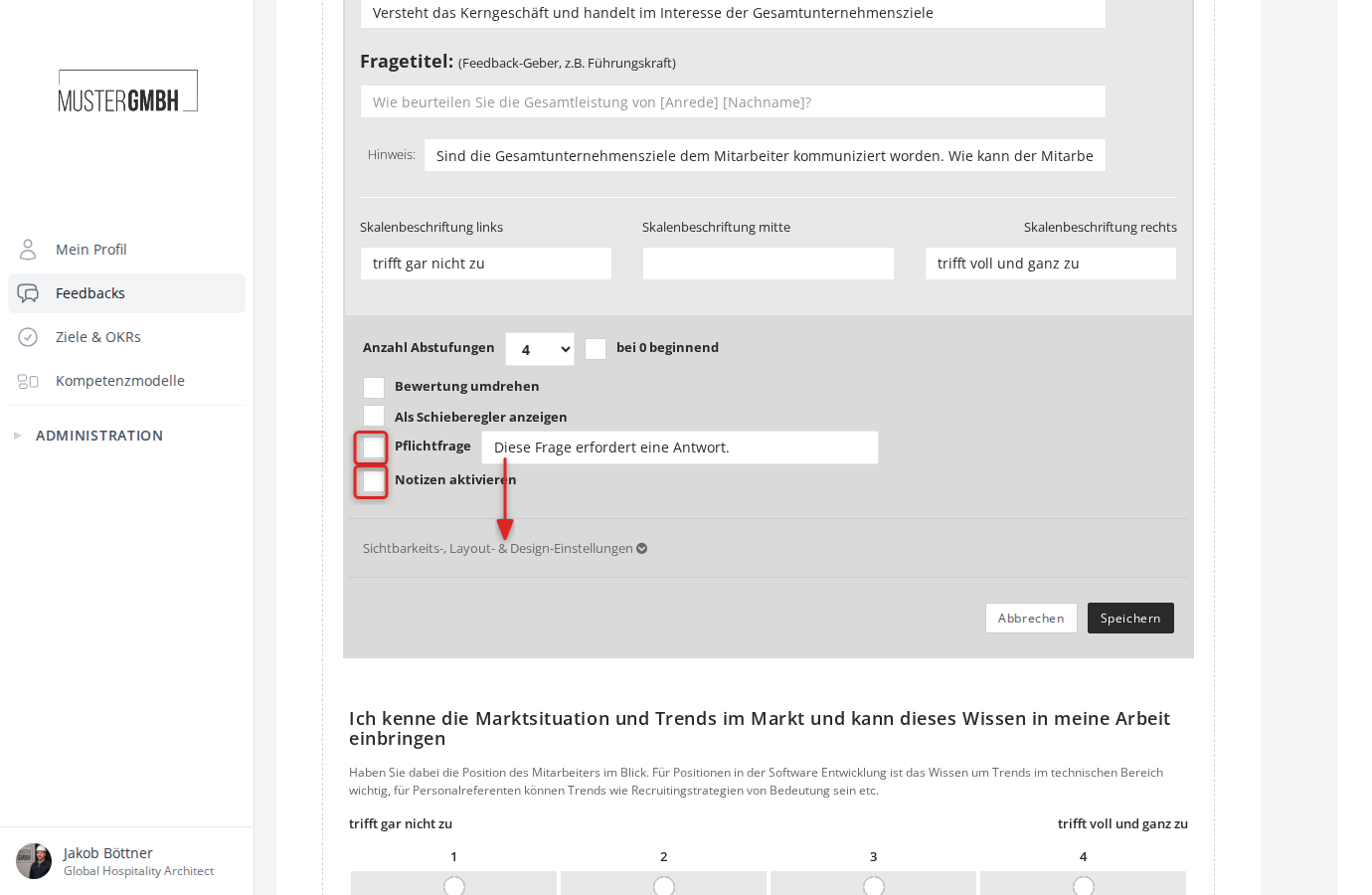
- Required question: Determines whether the question must be answered. You can adjust the hint shown when the question is left unanswered.
- Enable notes: Lets participants add a note to their answer.
- Visibility, layout & design settings: In this expandable section you decide which perspectives, user groups, and editions see the question. This lets you show questions only to the supervisor or only to the feedback recipient, for example. Layout options are also available, such as hiding the title during participation or displaying the question without vertical spacing.