Edit the closing text
At the end of a participation, participants are prompted to finalize the feedback for good. The last page of the questionnaire shows a customizable closing text before the participation is completed with the Close review button.
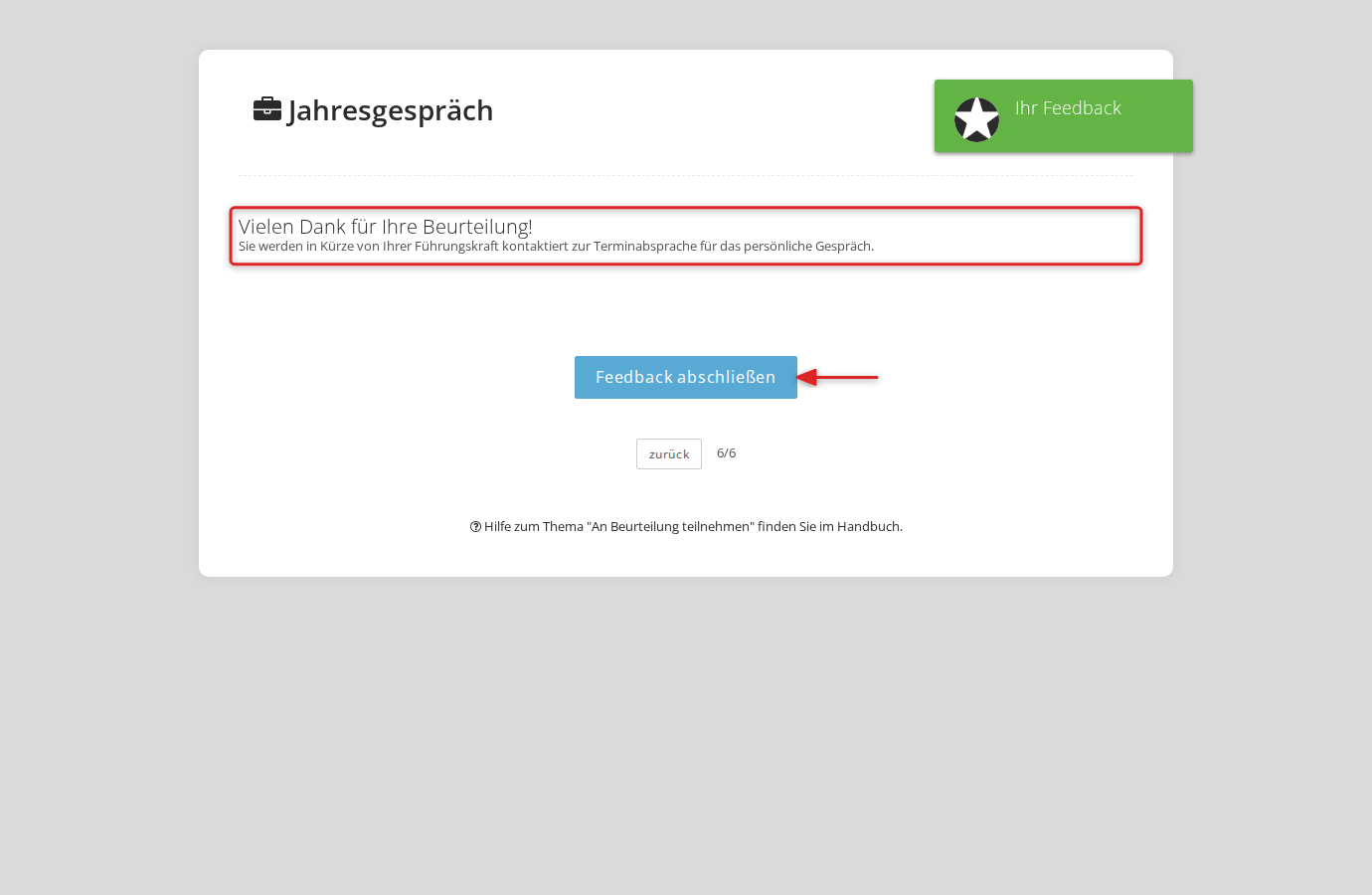
If you have not set your own closing text, a default text is shown: “Thank you for your participation. Please click on ‘Finish’ to complete and release the review.”
Where to find the closing text
The closing text lives at the bottom of the questionnaire editor. The section is headed Finalize participation and shows the current closing text along with a disabled Close review button as a preview.
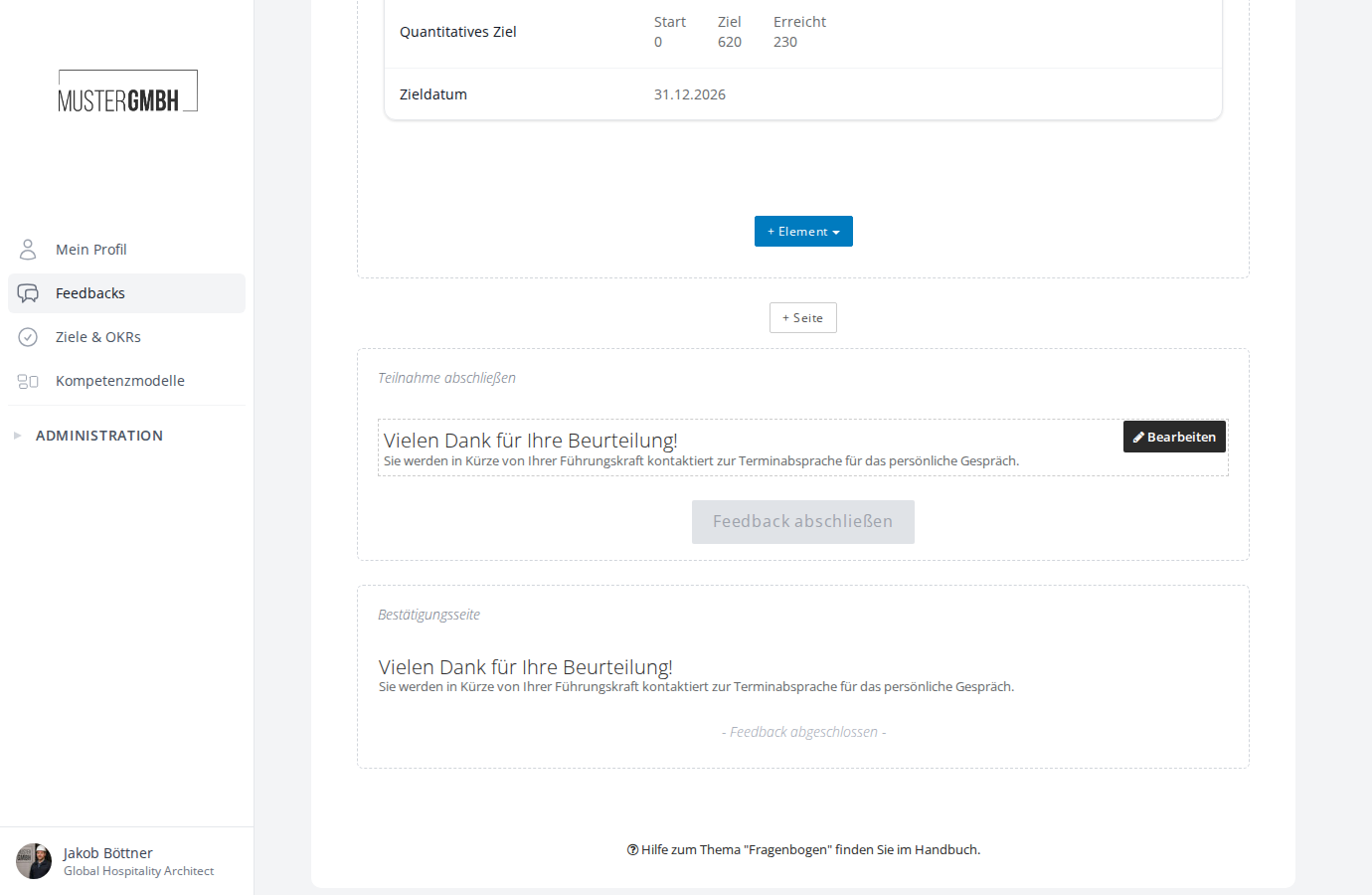
When you hover over the section, two buttons appear: Settings and Edit.
Changing the closing text
To adapt a questionnaire’s closing text:
- Open the questionnaire editor.
- Scroll to the bottom of the page, to the Finalize participation section.
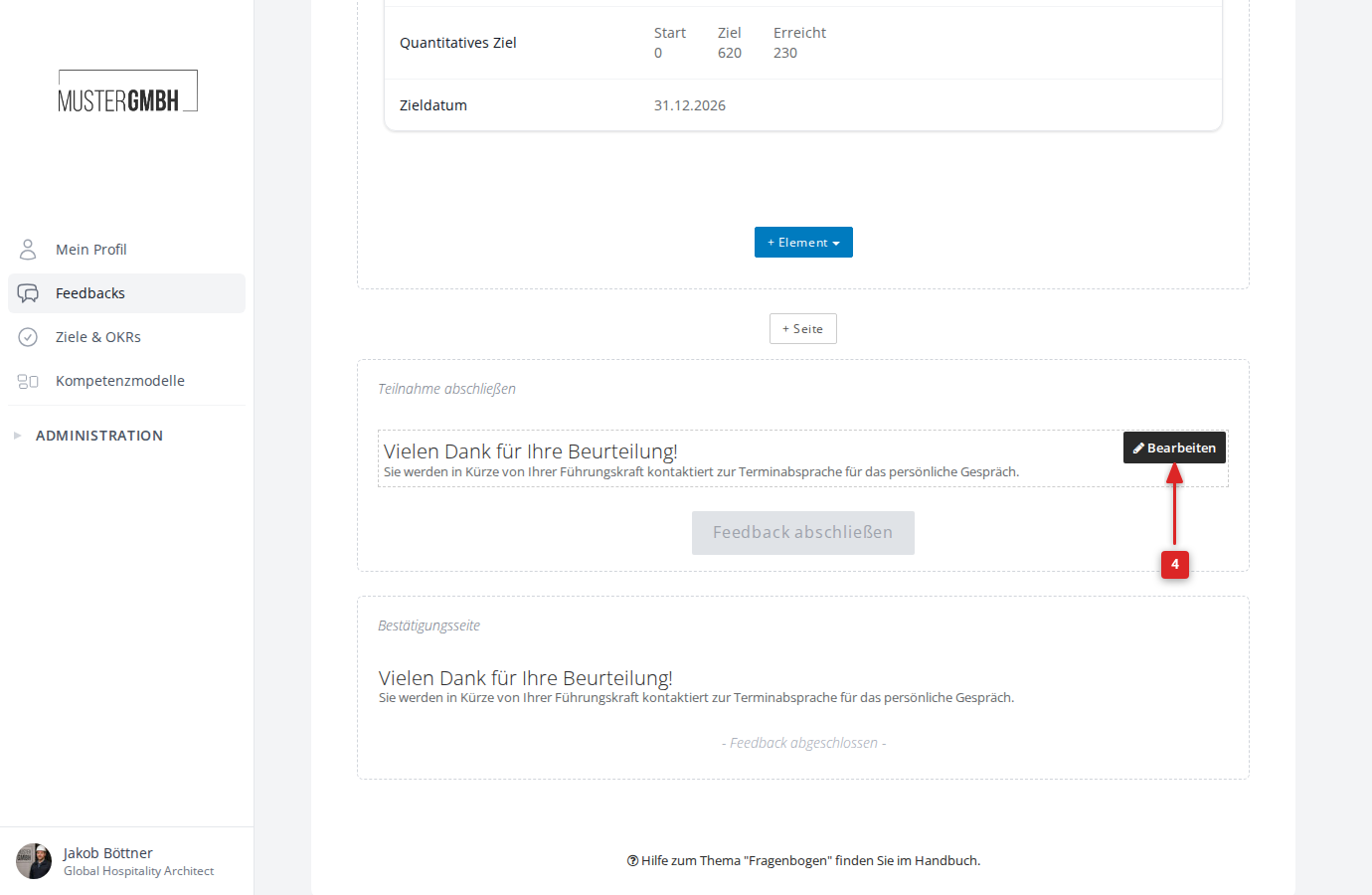
- Hover over the closing text. An Edit button appears on the right edge.
- Click Edit.
- The closing text opens in a text editor. Click into the text field and adjust the text.
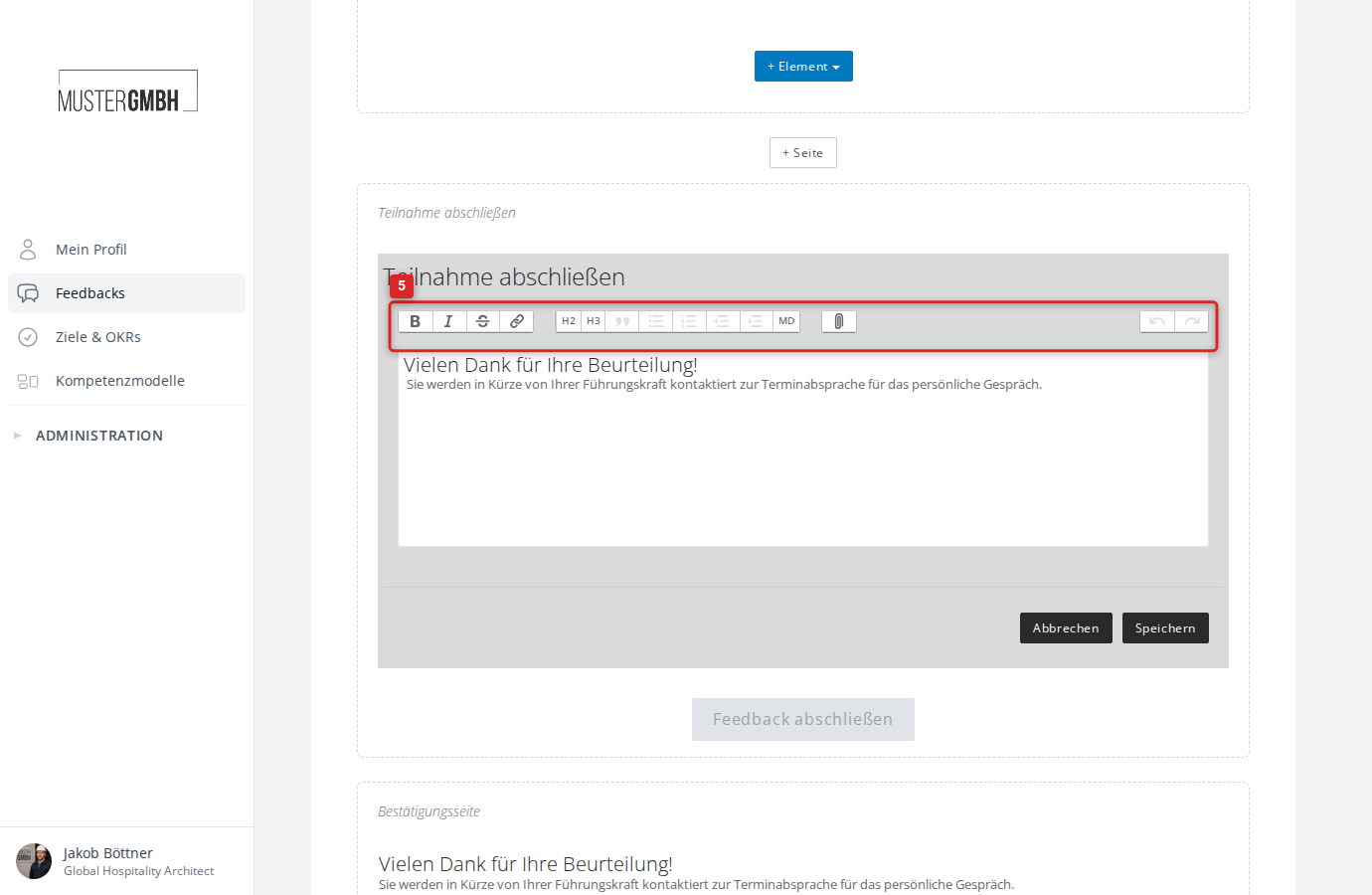
- Click Save to apply your changes.
The updated closing text appears in the questionnaire editor right away and takes effect for all future participations.
Placeholders in the closing text
You can use placeholders in the closing text; when the text is shown to participants, each placeholder is replaced automatically with the matching value. Write the placeholder in square brackets directly in the text.
Available placeholders:
[Salutation]– the participant’s salutation[First Name]– first name[Last Name]– last name[Title]– title of the feedback process[Reviewee]– name of the person being assessed[Reviewer]– name of the person giving the assessment
Settings for the closing page
The Settings button in the Finalize participation section lets you configure two options:
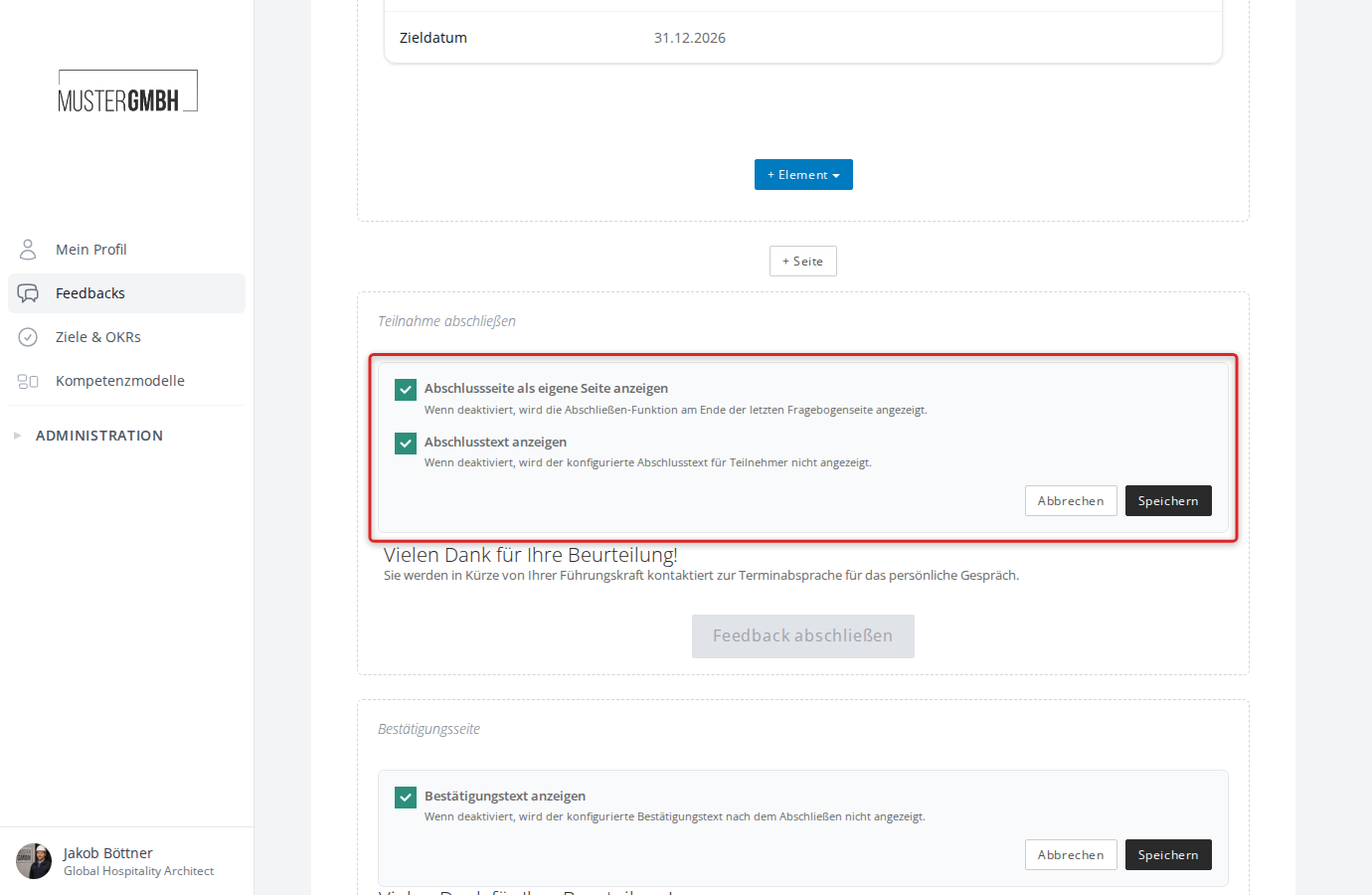
- Show final page as a separate page: When enabled, the closing page appears as its own page after the last questionnaire page. When disabled, the closing text appears right at the end of the last questionnaire page.
- Show final text: When disabled, the closing text is not shown to participants. The Close review button stays visible.
Confirmation page
Below the Finalize participation section there is a second text area: the Confirmation page. This text is shown to participants after they have finalized the feedback.
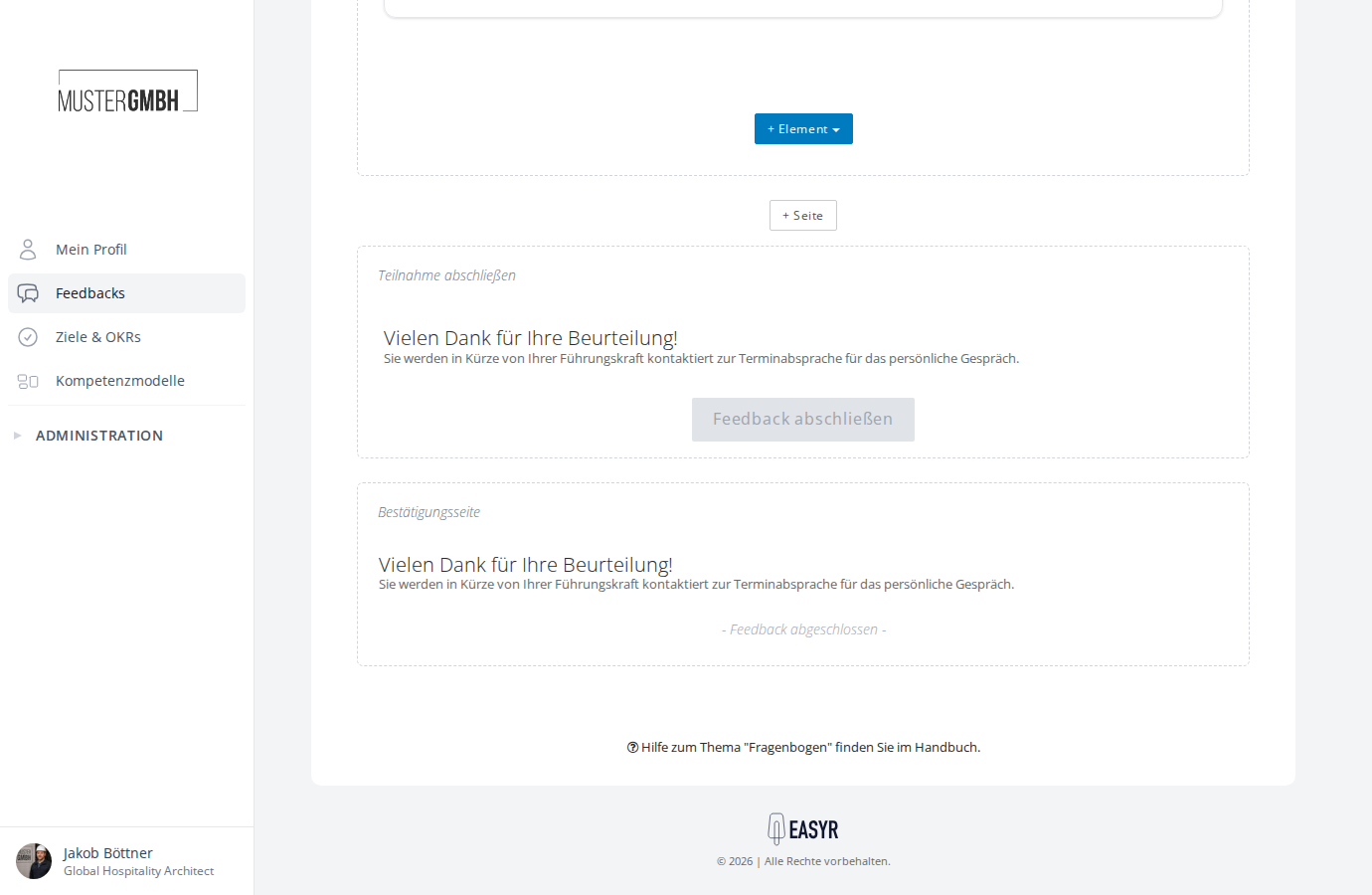
The confirmation page works just like the closing text: hover over the section, click Edit, and adjust the text. Placeholders can be used here too.
If you have not set your own confirmation text, the default text is shown: “Your feedback has been successfully finalized.”
Use the Confirmation page button to open the settings and hide the confirmation text if you want.