Create editions
You set up the next round of a feedback process as a new edition. You choose the period and decide whether the participants of the last edition are copied. You set the sending time of the invitations afterwards on the saved edition.
This function is only available to users with the HR employee access level.
Create a new edition
-
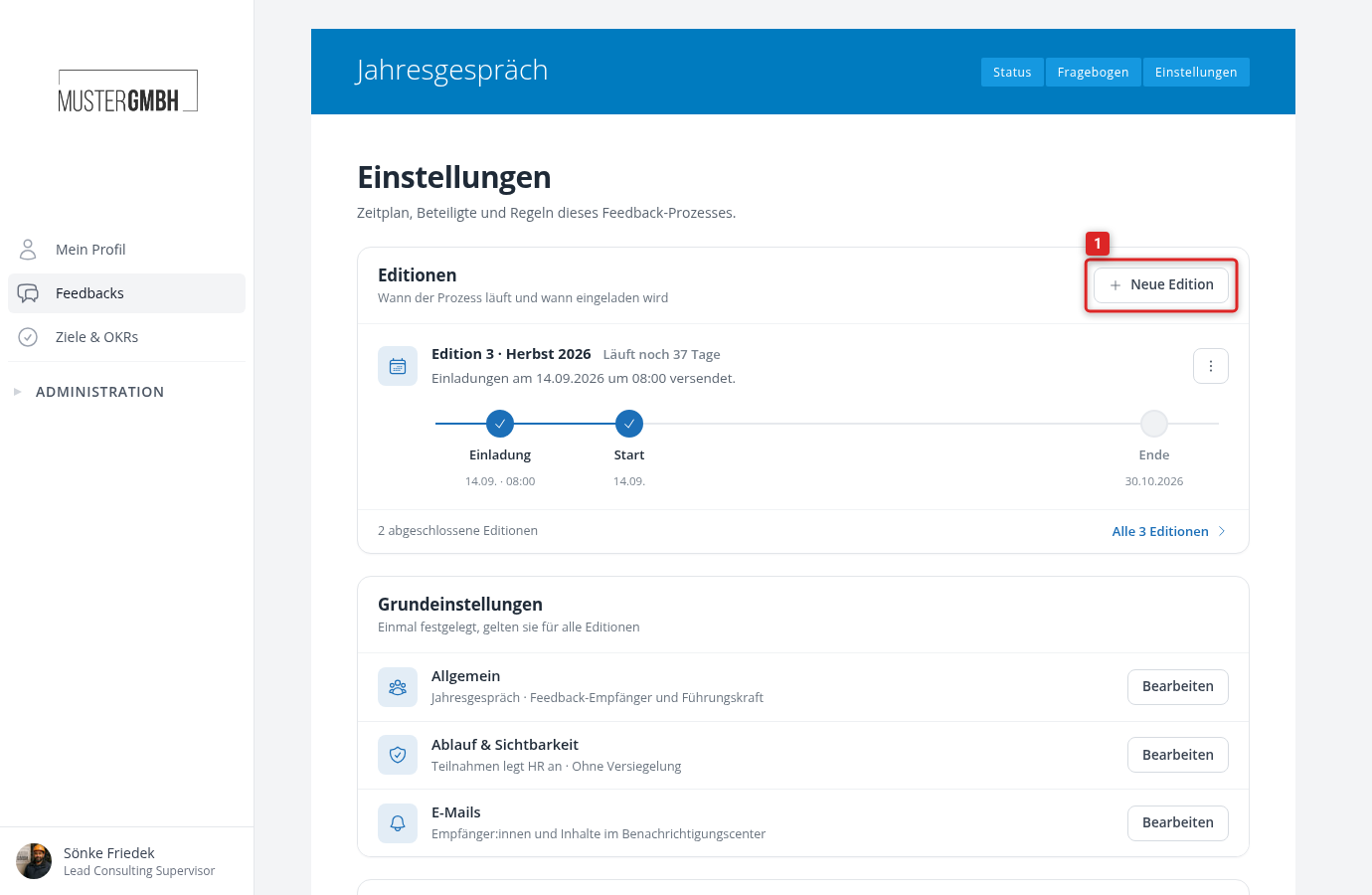
Open the settings of the feedback process and click “New edition” in the “Editions” card. The button is also on the “All editions” page.
-
Under “Period”, choose the start and end date.
-
Enter a title if you want, for example “Spring 2027”. It then appears next to the number (“Edition 4 · Spring 2027”). Without a title, the edition is simply called “Edition 4”.
-
Under “Participations”, choose whether to copy the participants of the last edition or to start empty.
-
Click “Create edition”.
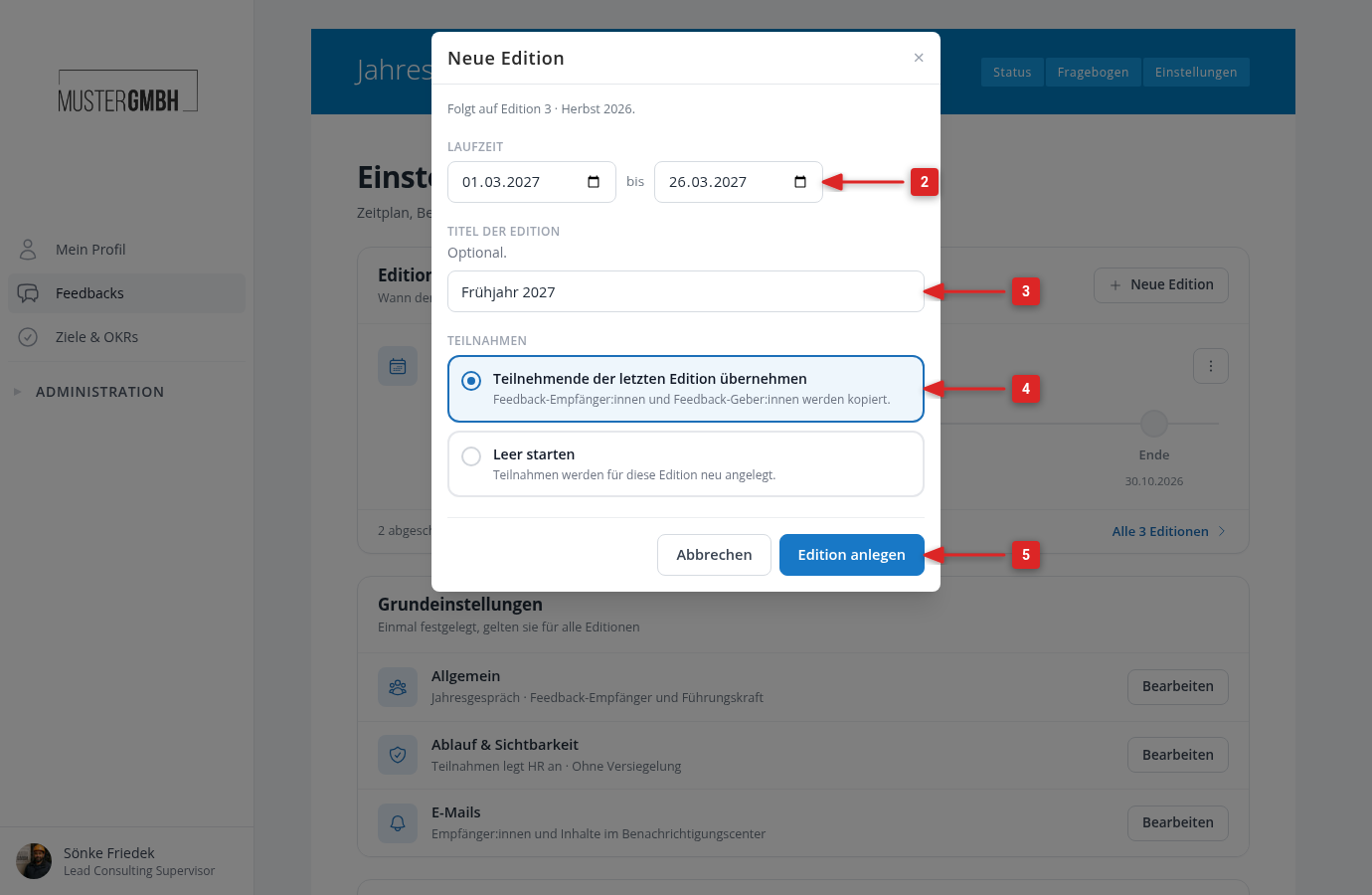
As long as the period is missing or the end lies before the start, “Create edition” stays grayed out and the reason is shown next to it. While easyreview creates the edition, the dialog stays open. The page then reloads and reports, for example, “Edition 4 created with the participants of the last edition.”
Who gets copied
With “Copy participants from the last edition”, easyreview copies all participations of the edition that ended last before the new edition starts. Feedback recipients and feedback providers are copied together. Nobody is invited by this.
With “Start empty”, the new edition has no participations. You add the participants afterwards on the status page, see Invite participants.
Set invitations and details
After creating it, the new edition appears on the overview under “Up next”. Use its ⋮ menu and “Edit” to open the dialog with all details of the edition:
- Send invitations: the date and time at which easyreview sends the invitations automatically, see Set up automatic email invitations for editions.
- Edition title: can be changed here at any time.
- Nomination period: only if nominations are switched on for the feedback process. Without a period, no nomination starts.
- Links: If the questionnaire contains a target agreement question, earlier results or a competency assessment, choose the matching target agreement edition, the earlier edition or the revision of the competency model here.