Questionnaire
The questionnaire is at the heart of every review in easyreview. In the questionnaire you decide which questions your participants are asked, in what order they appear, and how the answers are captured.
Each feedback process has exactly one questionnaire. That questionnaire is shared by all editions of the process. So you can build the questionnaire once and reuse it across several cycles.
Open the questionnaire
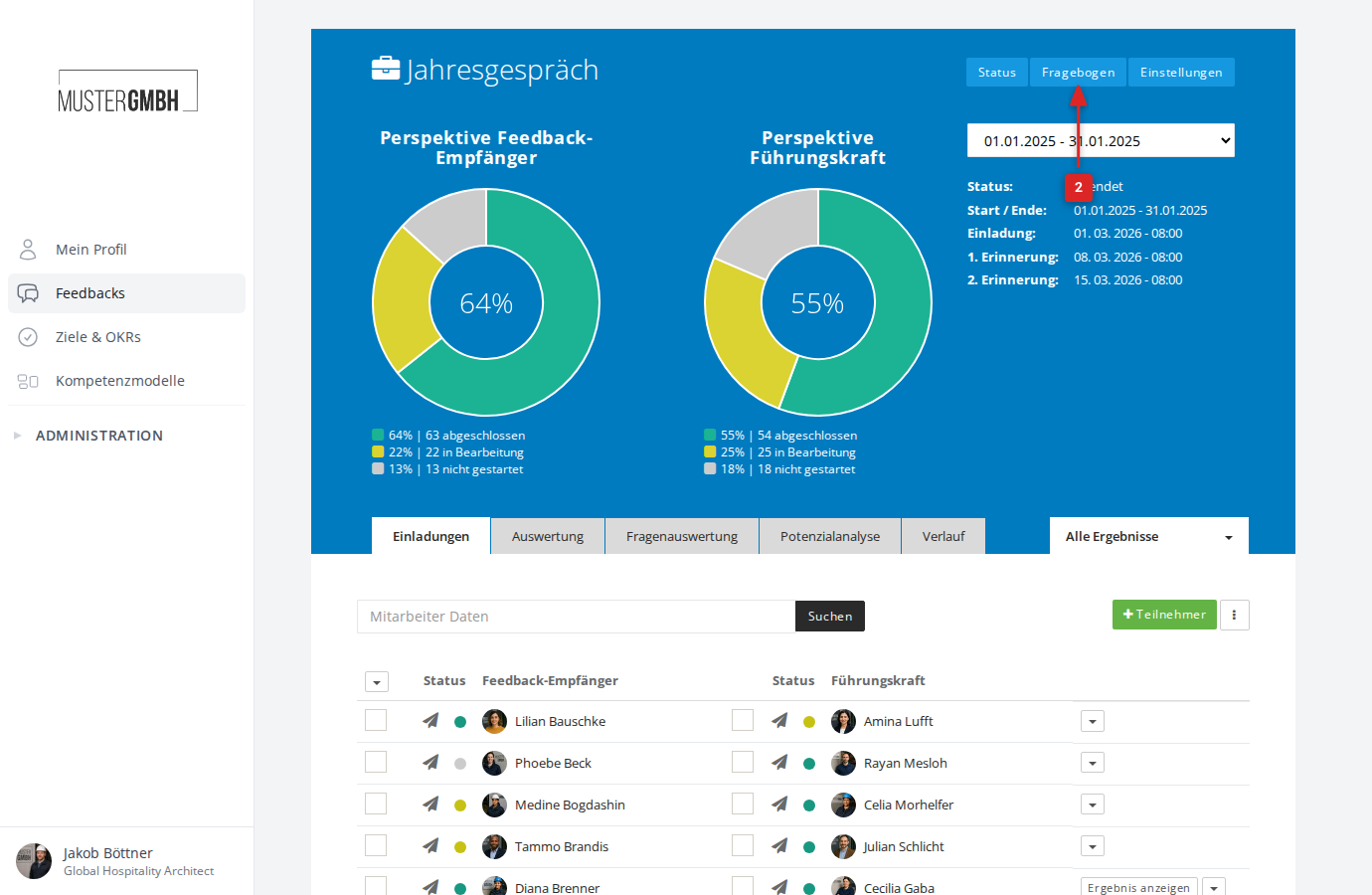
To reach the questionnaire editor:
- Open the status page of the review you want.
- Click “Questionnaire” in the navigation bar at the top.
How the questionnaire editor is laid out
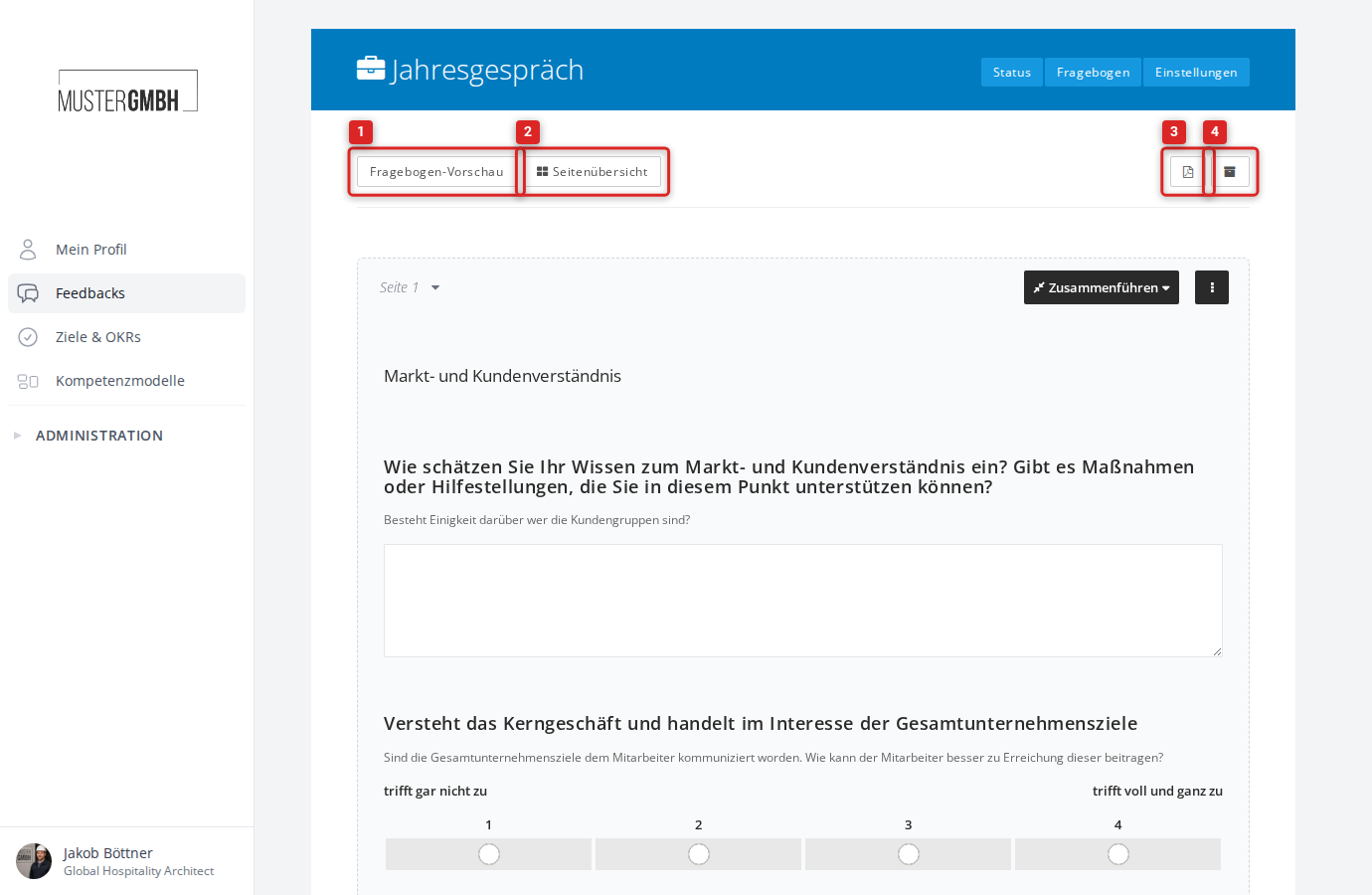
The questionnaire editor lists all pages and questions of your questionnaire one below the other. At the top you find the tools:
- Preview questionnaire: Shows the questionnaire as participants see it.
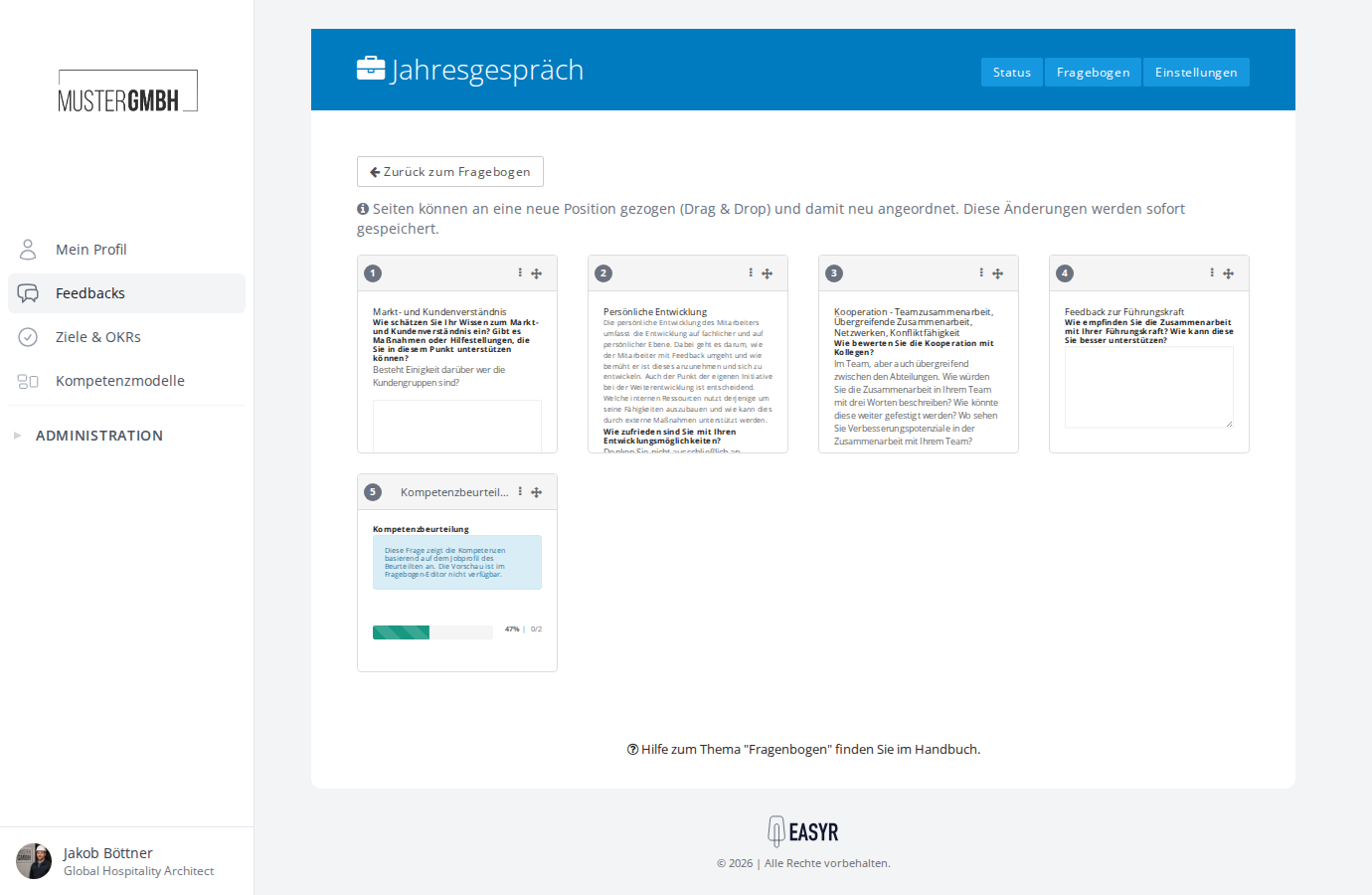
- Page overview: A compact display of all pages as cards, with drag and drop to rearrange them.
- PDF export: Downloads the questionnaire as a PDF file.
- Archive view: Shows or hides archived (deactivated) questions.
Pages
A questionnaire is divided into pages. Each page groups several questions and elements. While filling in the questionnaire, participants see one page at a time and move between pages with “next” and “back”.
Add a new page
Between two pages sits the ”+ Page” button. Click it to insert a new empty page at that spot.
Managing pages
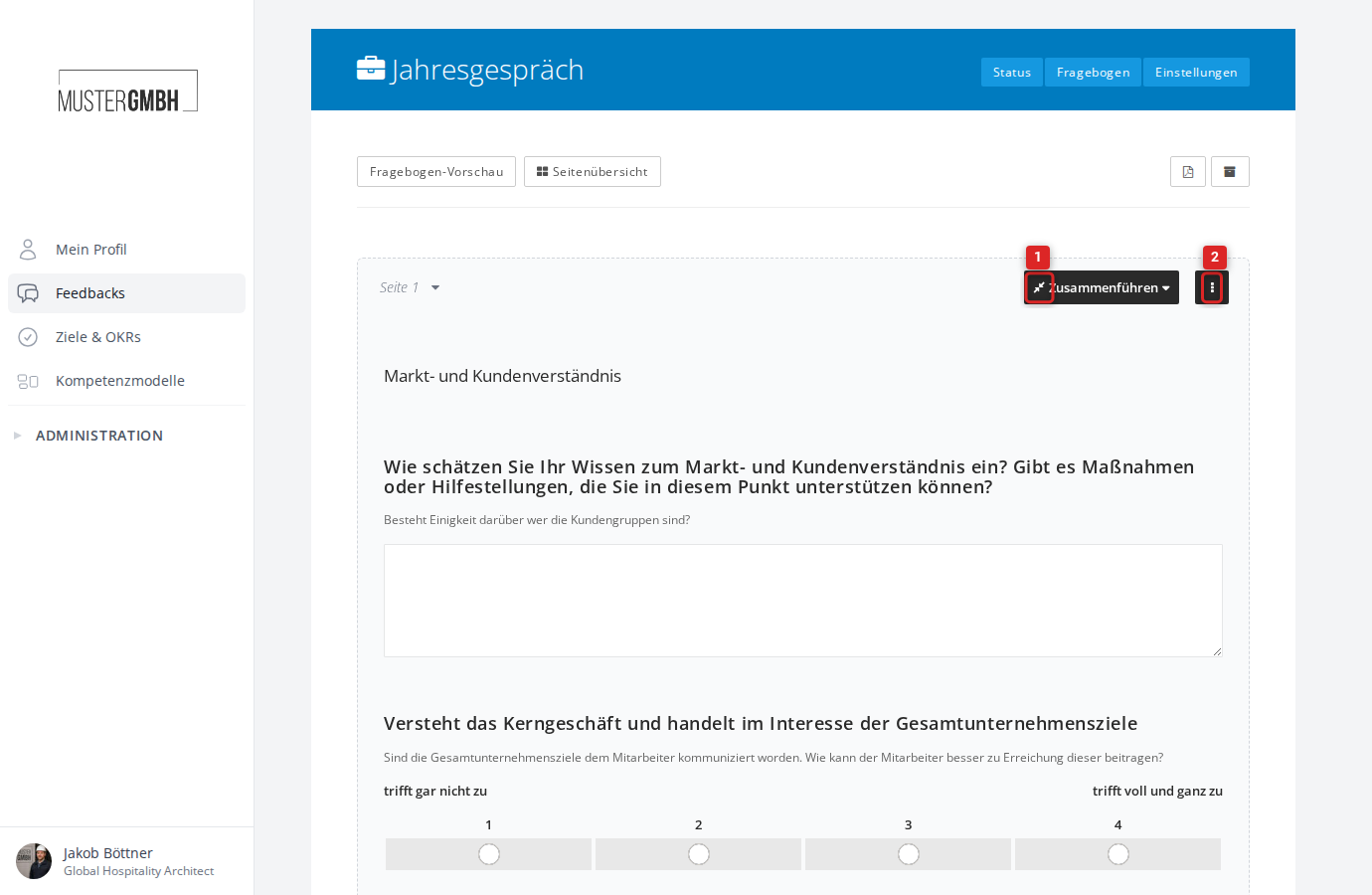
Each page has a toolbar at the top with:
- Page navigation: A dropdown with the page number (for example “Page 1”) that lets you jump straight to other pages.
- Merge: Moves all questions to the previous or next page and deletes the empty page.
- Actions (⋮ menu): Contains the options Settings, Copy page, and Delete page.
In a page’s Settings, you define which perspectives, user groups, or editions the page is visible for.
Copy page duplicates the page with all its elements. The copy is inserted directly after the original page.
Delete page removes the page and all questions it contains, irreversibly.
Page overview
Click “Page overview” in the toolbar to see all pages side by side as compact cards. Drag and drop a page to a new position. Changes are saved immediately.
Element and question types
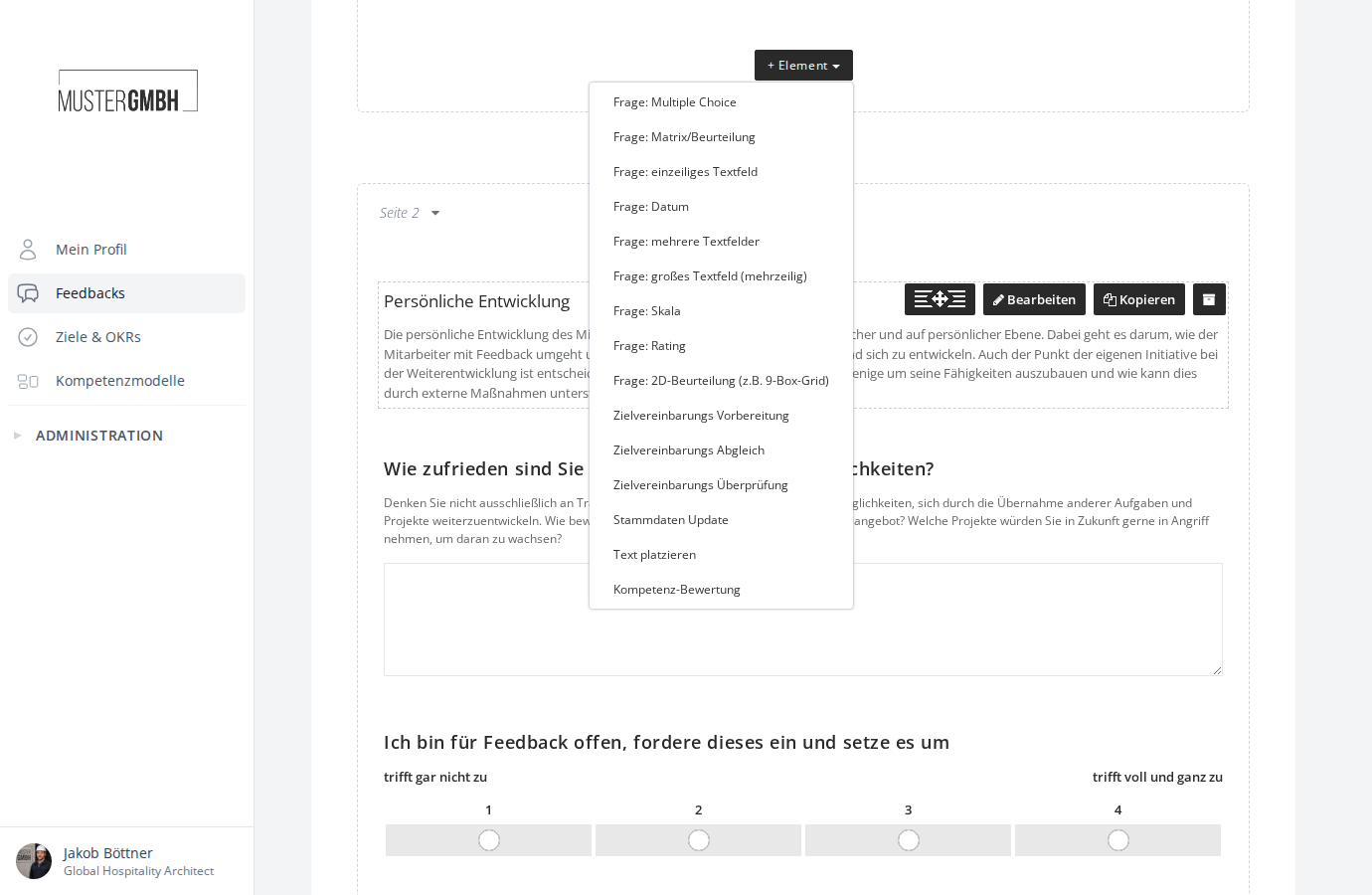
Click the ”+ Element” button at the end of each page to open a dropdown with every available building block. These fall into two groups: question types (require an answer) and element types (structure the questionnaire).
Question types
Question types are recognizable in the dropdown by the “Question:” prefix:
| Question type | Description |
|---|---|
| Multiple choice | Closed questions with predefined answer options (dropdown, radio buttons, or checkboxes). |
| Matrix | Rate several aspects in a grid of rows and columns. |
| Single-line text field | Short free-text field for brief answers. |
| Date | Input field for picking a date. |
| Multiple text fields | Several labeled text fields under one question. |
| Large text box (multi-line) | Multi-line text field for longer answers. |
| Scale | Rating on an integer scale with labeled endpoints. |
| Rating | Visual rating with stars or dots. |
| 2D assessment (e.g. 9-box grid) | Two-dimensional grid for positioning on two axes. |
| File uploads | Participants upload files (for example documents or images). Must be enabled for your company. |
For a detailed description of every question type, see Question types.
Element types
Element types require no answer and serve to structure the questionnaire:
| Element type | Description |
|---|---|
| Place text | Formatted text anywhere, for example for hints or section headings. |
| Objectives review | Shows an existing target agreement read-only in the questionnaire. Available only with the Objectives module. |
For a detailed description of every element type, see Element types.
Special types
Special types embed particular easyreview features in the questionnaire:
| Type | Description |
|---|---|
| Objectives preparation | Create and edit target agreements directly in the questionnaire. Available only with the Objectives module. |
| Objectives update | Update the progress of existing target agreements. Available only with the Objectives module. |
| Master Data Update | Participants update certain master-data fields directly in the questionnaire. |
| Competency assessment | Rate competencies based on a competency model. Must be enabled separately. |
All question and element types are described in Element and question types.
Edit questions
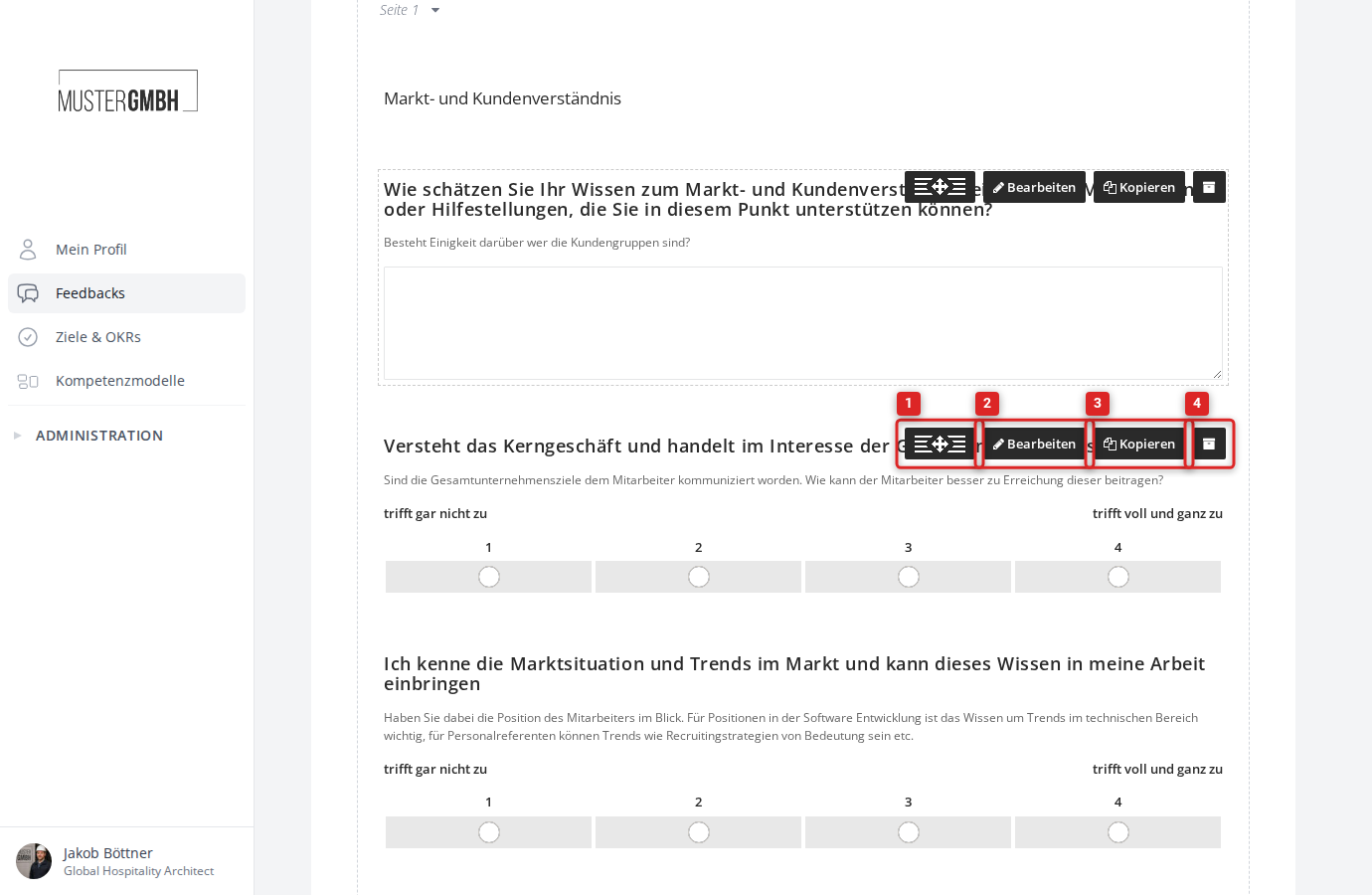
When you hover over a question, a toolbar appears:
- Move (handle icon): Drag and drop the question to another position, including onto a different page.
- Edit: Opens the form for editing the question.
- Copy: Creates a copy of the question directly below.
- Archive (archive icon): Deactivates the question without deleting it. Archived questions are not visible to participants and can be reactivated later.
Step-by-step guides are available in Add an element, Edit an element, Move an element, and Delete an element.
General settings for questions
All question types share a common set of settings:
- Required question: Determines whether the question must be answered.
- Enable notes: Lets participants add a note to their answer.
- Visibility: You decide which perspectives, user groups, or editions see the question. This lets you show questions only to the supervisor or only to the feedback recipient, for example.
For more on visibility, see Dynamic visibility.
Questionnaire preview
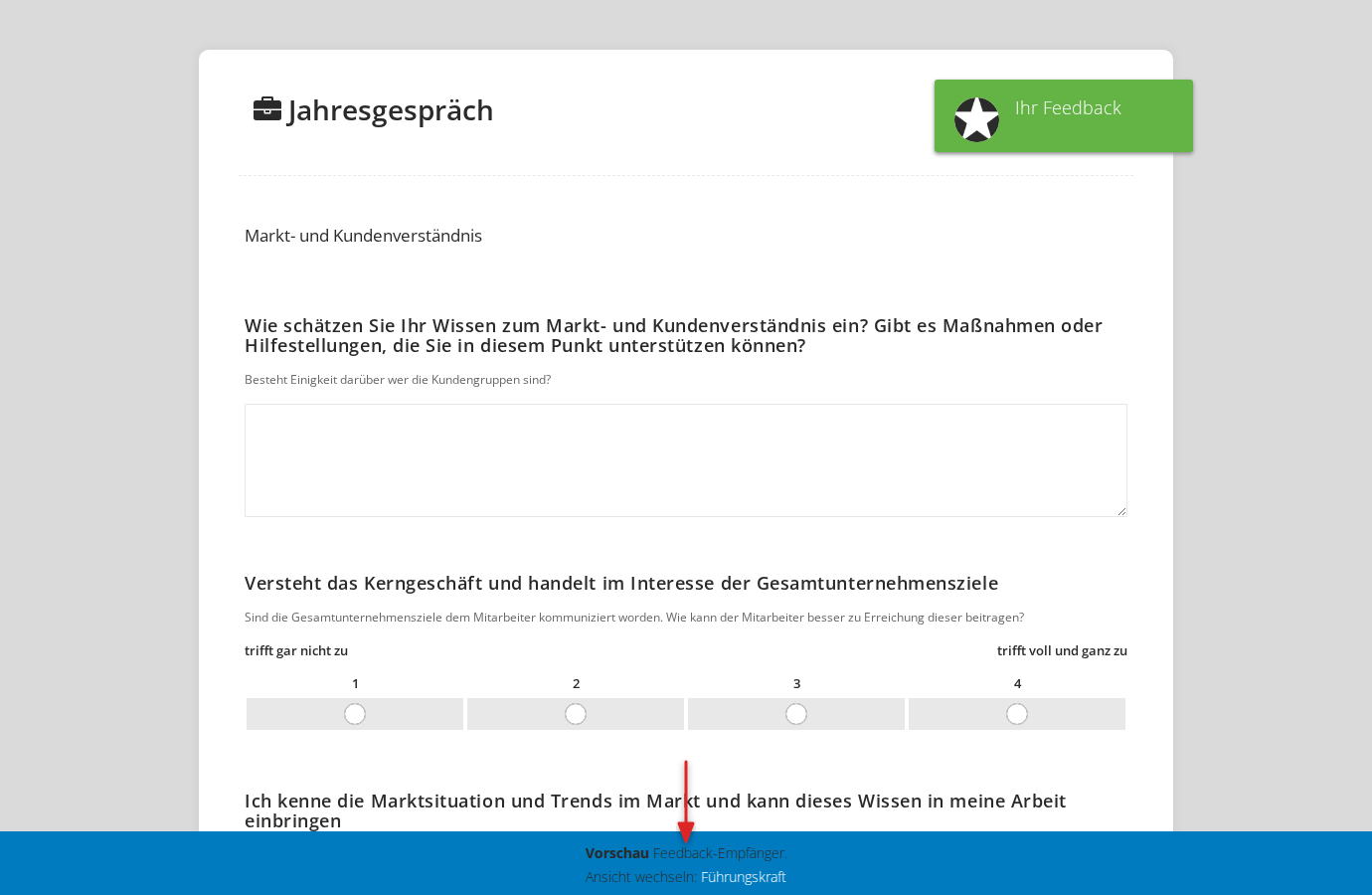
The preview shows the questionnaire exactly as participants see it while filling it in. At the bottom of the screen you can switch the view between the different perspectives (for example “Feedback recipient” and “Supervisor”) to check which questions are visible to which role.
For more on the preview, see Questionnaire preview.
Closing text
At the end of the questionnaire you can add a closing text. Participants see it after they have answered all questions and complete their participation. Typical content is a thank-you or a note on what happens next.
For more, see Edit the closing text.
PDF export
You can export the whole questionnaire as a PDF file. To do so, click the PDF icon in the editor toolbar. The PDF file contains all questions and answer options for viewing or printing.
For more, see Export the questionnaire (PDF).