Add an analysis to a dashboard
Use Add analysis to create a new card. The wizard takes you from the right category through a preview to the questions and settings. If you are using the standard dashboard, first create your own copy.
Which category fits my task?
First choose what you want to examine. The category determines which analyses are offered next.
| Category | Use it to |
|---|---|
| One question | Examine a specific question: responses, a metric, written feedback, or a breakdown by department. |
| Multiple questions | Look at at least two questions together: compare strengths or perspectives, or create an index. |
| Entire feedback round | Track participation or examine the strengths and competencies of people and departments. You do not select individual questions here. |
| Text and heading | Add an introduction, a prompt for the feedback conversation, or a note. |
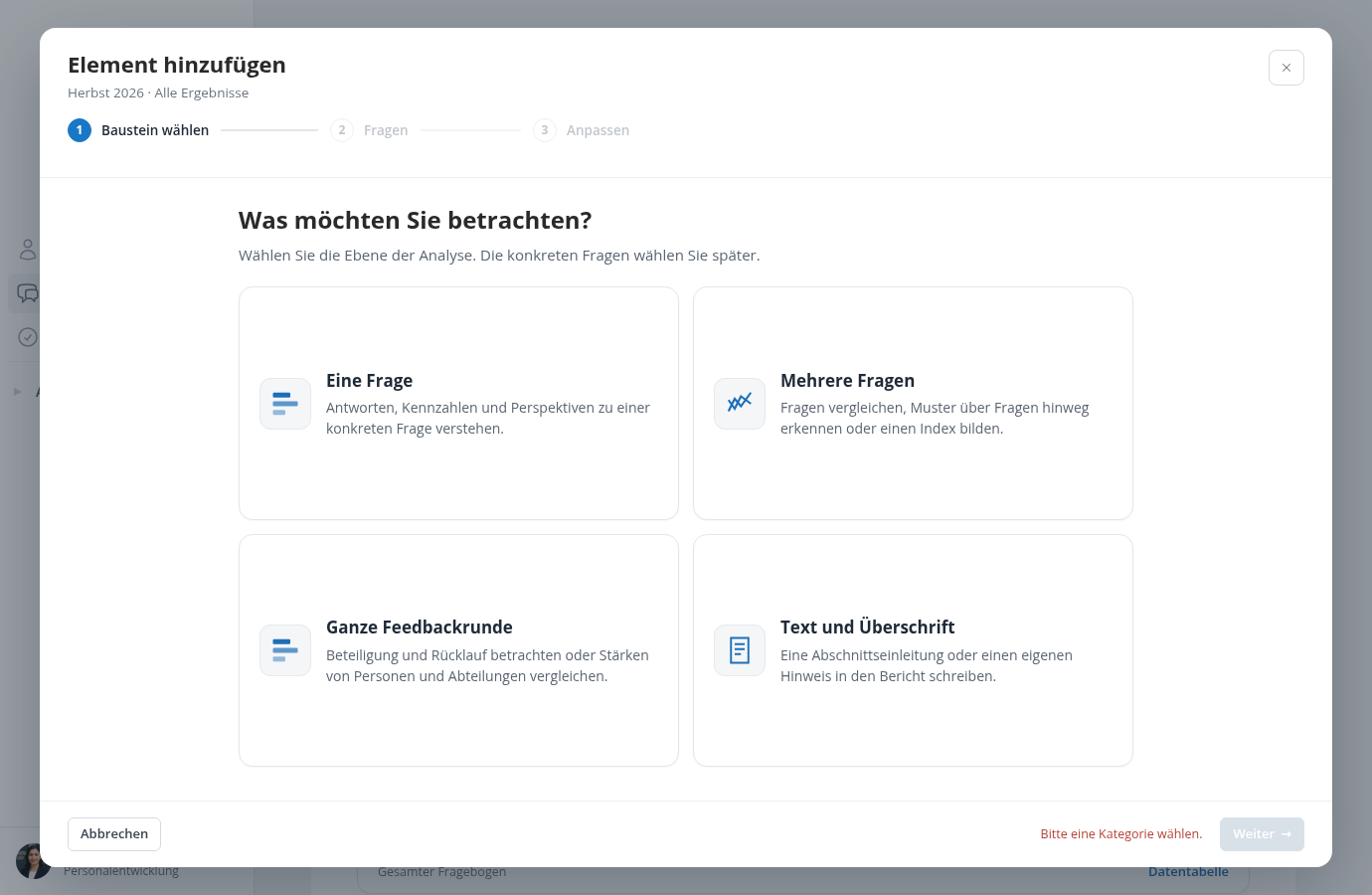
Entire feedback round does not mean “select all questions”. To examine several questions side by side, choose Multiple questions.
Choose a display using the preview
The gallery lists analyses on the left. Select an entry to see a larger preview on the right. For a response distribution, for example, you can switch between bars, columns, and a table. Other elements use a fixed display, such as a text list.
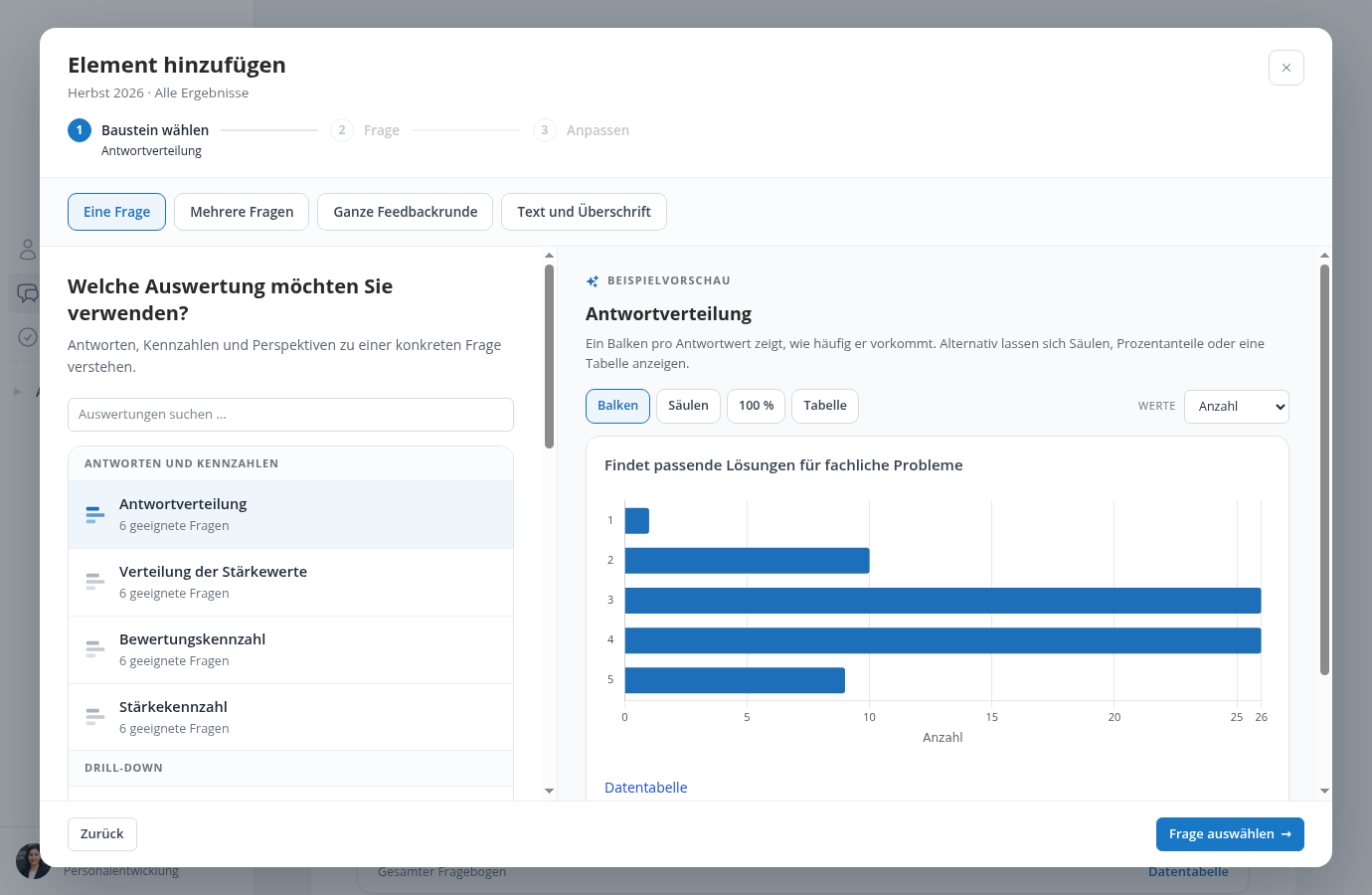
At first, the preview uses suitable sample questions from your current data selection. You choose your own questions afterward. A notice such as No strength scores or At least two perspectives explains why an analysis is unavailable for this process.
Select the questions
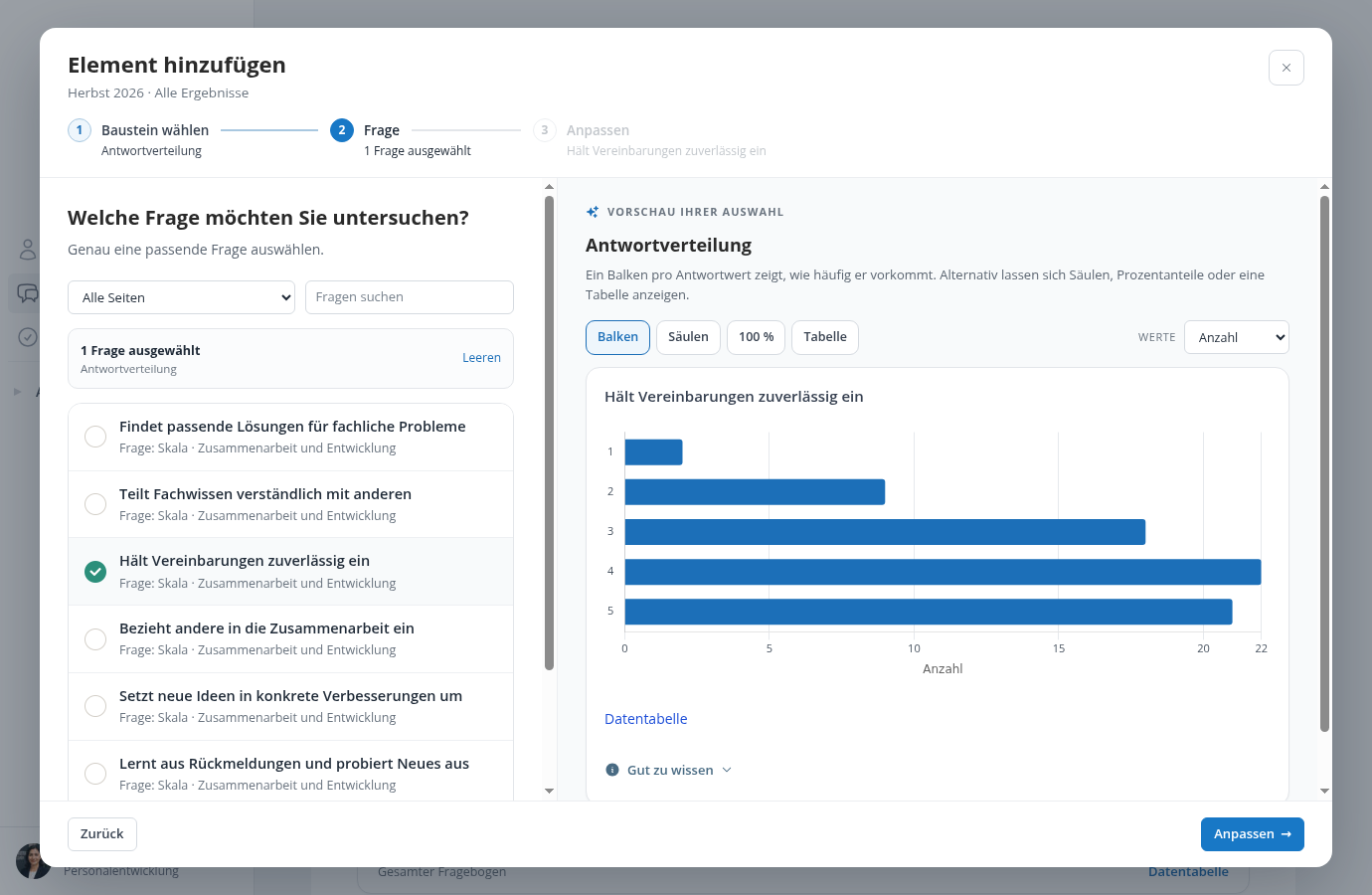
Choose Select question or Select questions to open the question list. Select exactly one question for a single-question analysis, or at least two for a comparison.
Search helps with long questionnaires. The All pages selector can limit the list to one questionnaire page. It does not add that page as an analysis: the checked questions determine what is included.
Check the settings and add the card
Under Customise, you can enter a custom title and choose the included perspectives. Other fields depend on the element, such as the metric, a matrix row, the drill-down criterion, or the rounds to include in a trend.
The preview updates with your settings and respects active filters. Choose Add element to add the card. Later, use Edit on the card to open these settings again.
For Text and heading, there is no analysis or question selection to make. Enter your title and text, check the preview, and add the section.
For examples, see Analyze one question, Compare questions and perspectives, or Analyze the whole feedback round.