Take part in a feedback
There are several ways to start taking part in a feedback.
Take part from an email invitation
If you received an invitation or reminder by email, do the following:
- Open the email invitation in your inbox
- Click the direct participation link in the email
- The participation opens and you can start answering the questions
Take part from your employee profile
You can take part in all of your active feedbacks at any time from your own employee profile:
- Open your own employee profile
- Click the “Feedbacks” tab
- The list of your feedback participations opens
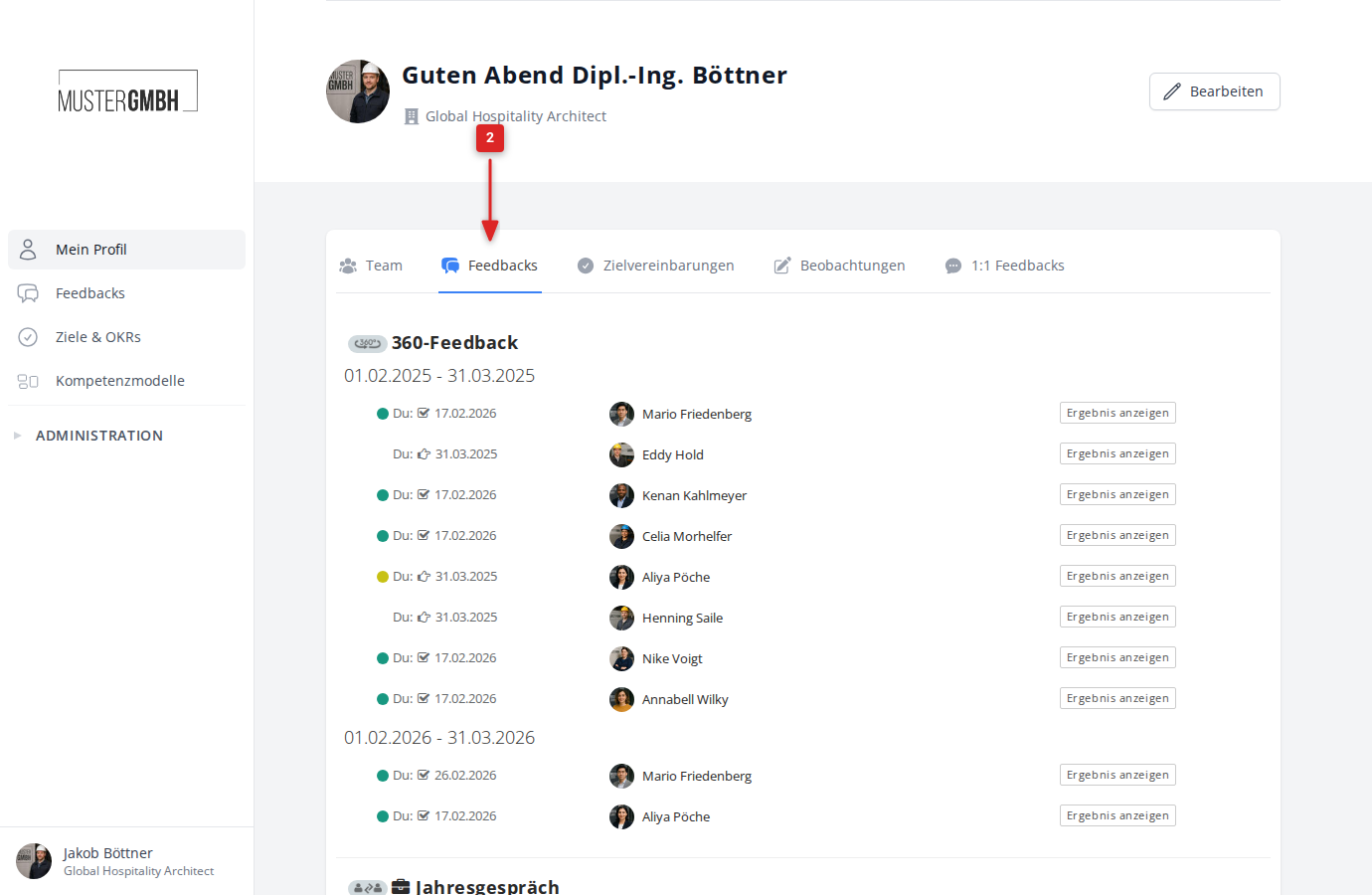
- Start a participation you have not begun yet by clicking “Start participation” at the right edge of its row
- Continue a participation you have begun but not yet finished by clicking “Continue participation” at the right edge of its row
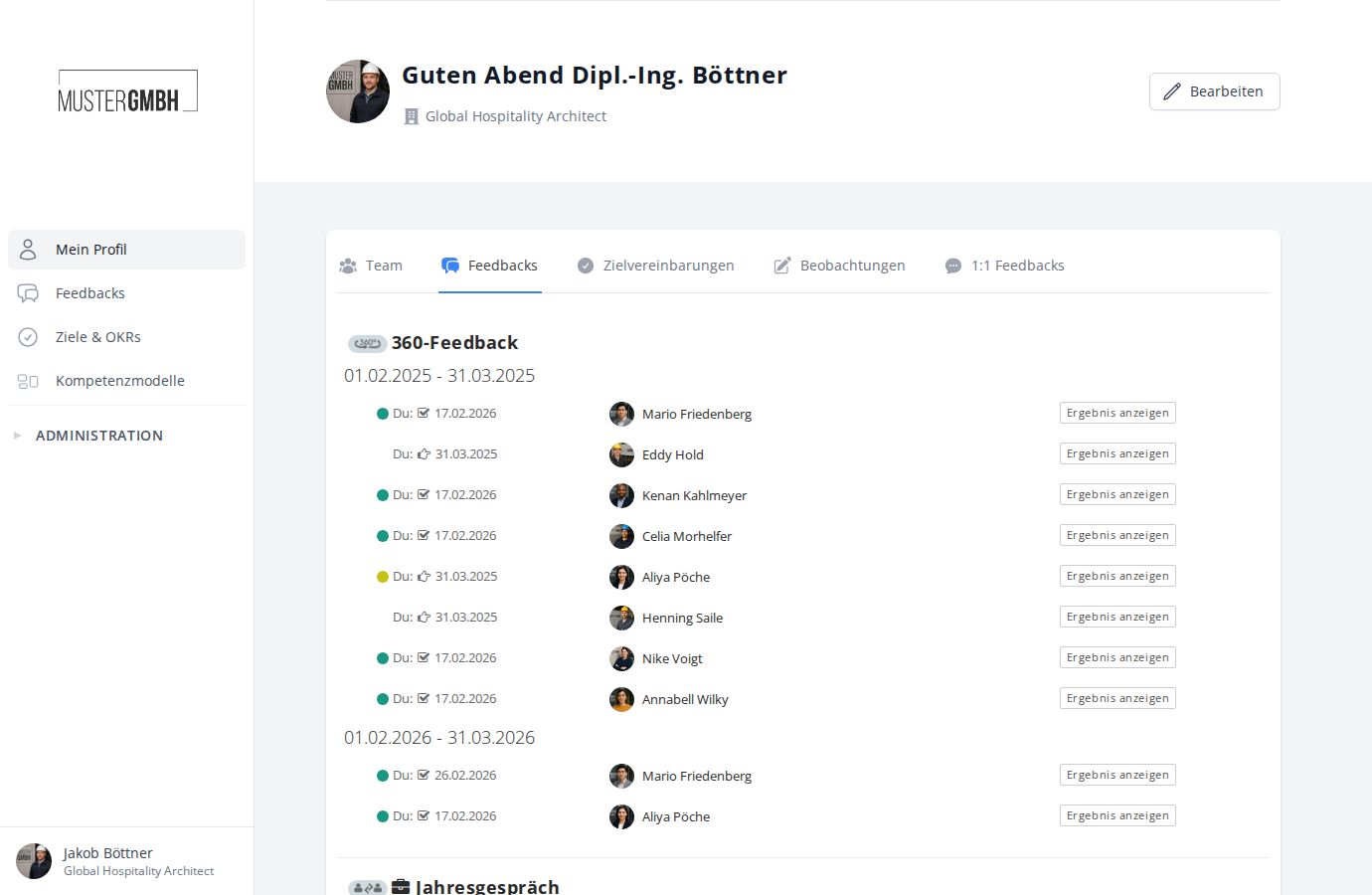
- The participation opens and you can continue answering the questions
Take part with PINs
If your HR department gave you participation PINs, do the following:
- Open the web address (URL) your HR department gave you
- Enter your PIN 1 in the “PIN1” field
- Enter your PIN 2 in the “PIN2” field
- Click “Submit!”
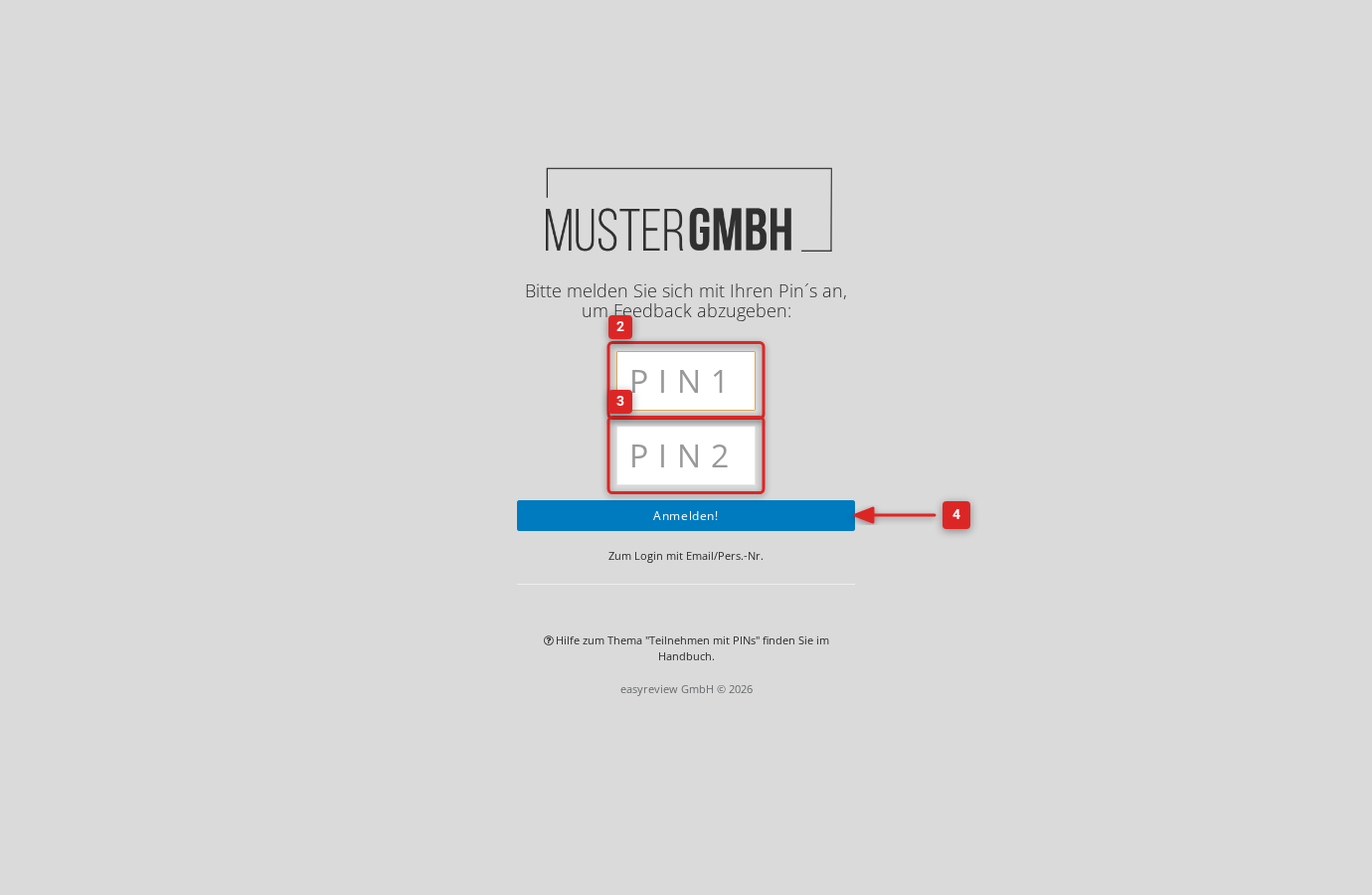
- The participation opens and you can start answering the questions
Answering the questions
Every question looks different depending on its question type.
To answer closed questions, click the answer options you want:
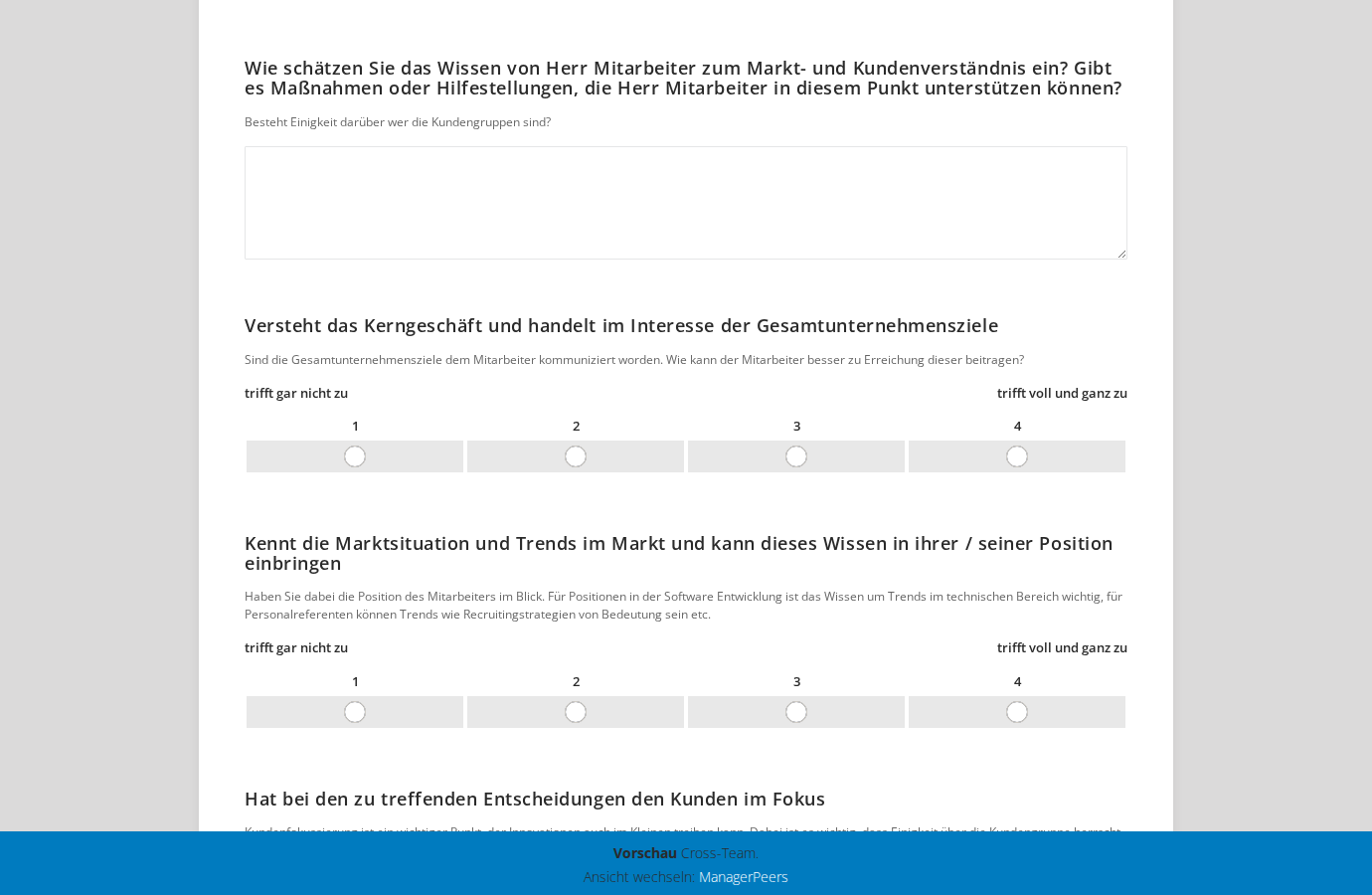
For open questions, type your answer into the text field:
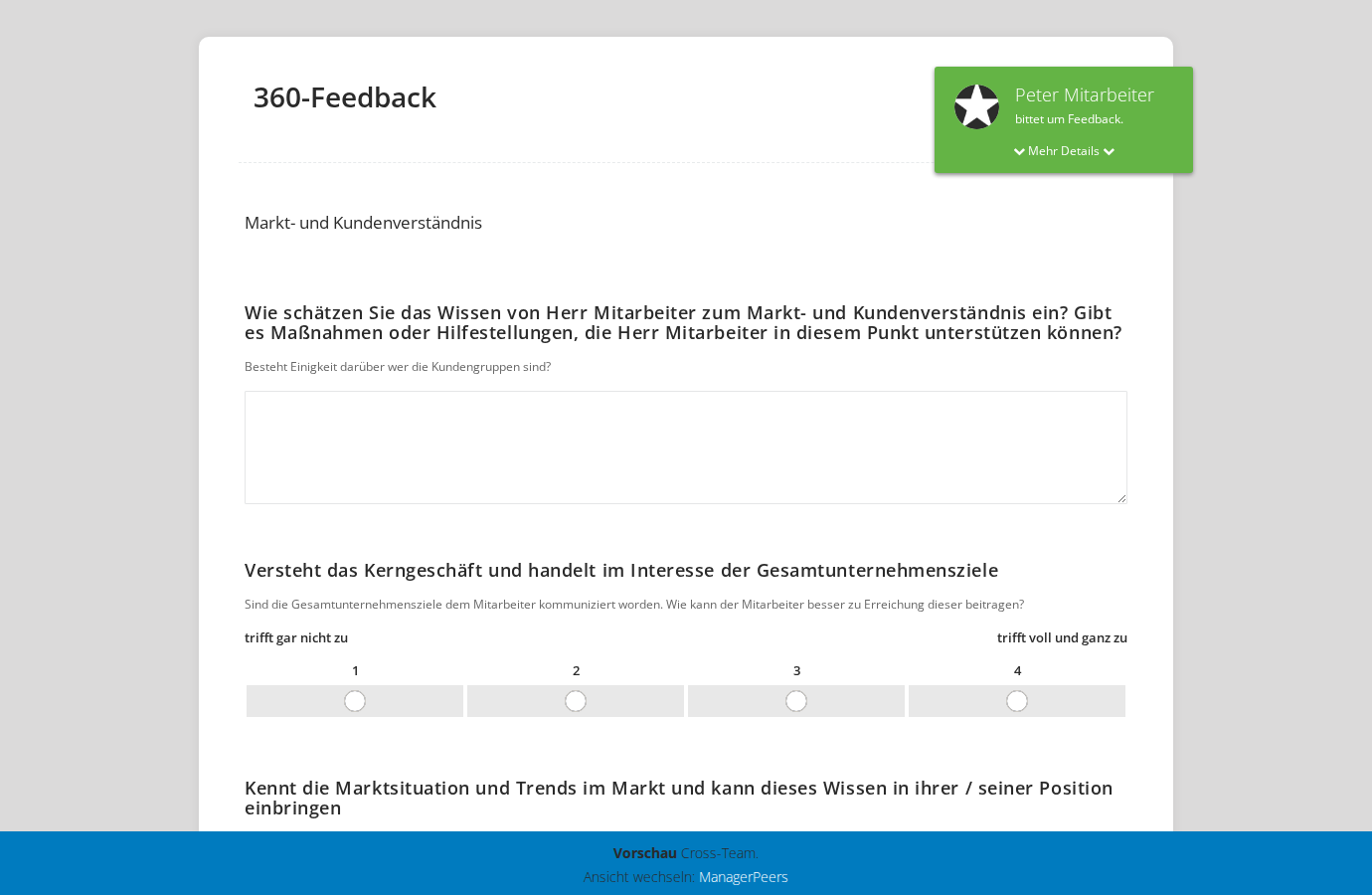
Details about the employee
When you take part from an external-review perspective (for example, as a supervisor), the top right of the screen shows information about the employee you are reviewing.
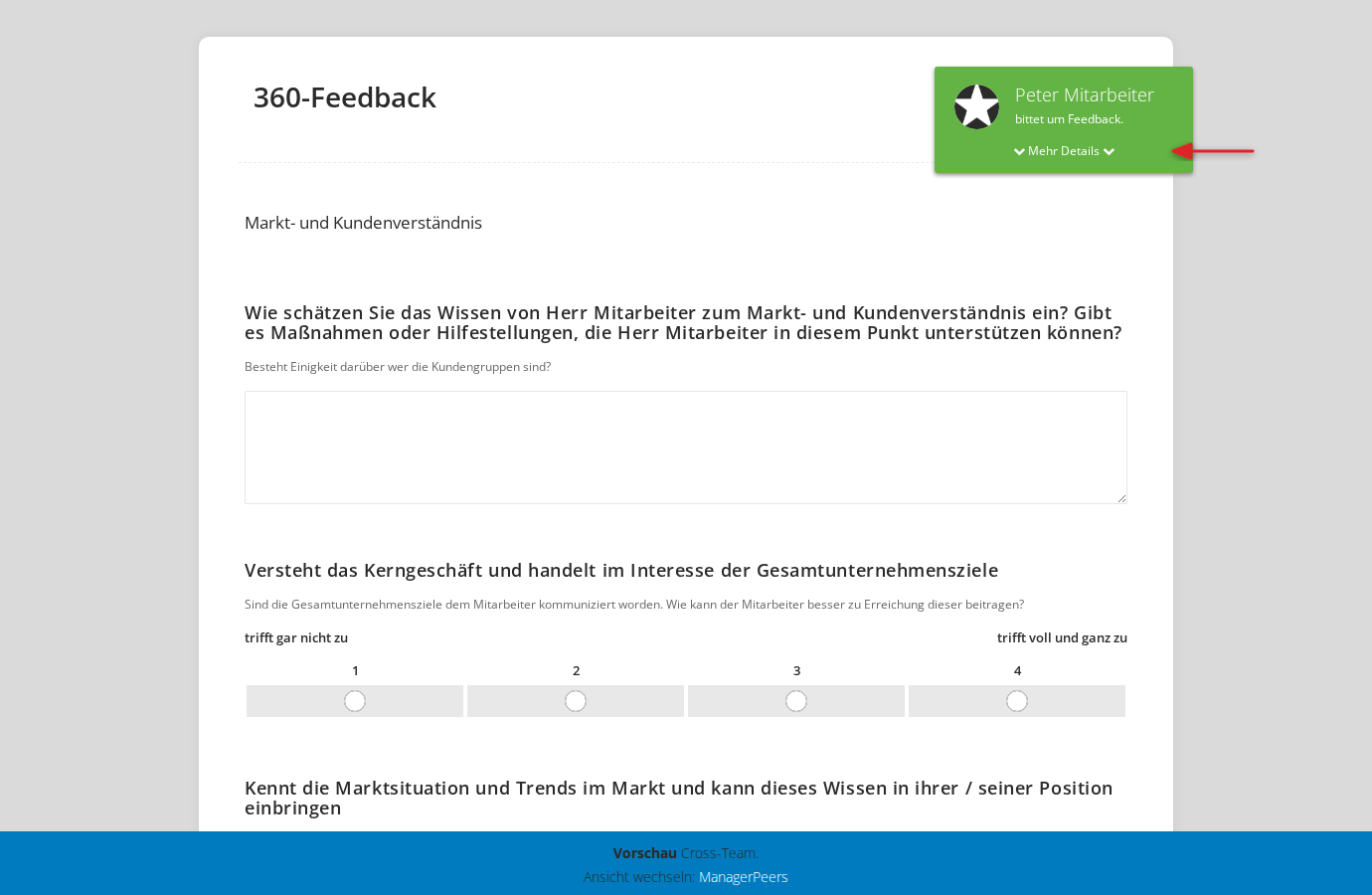
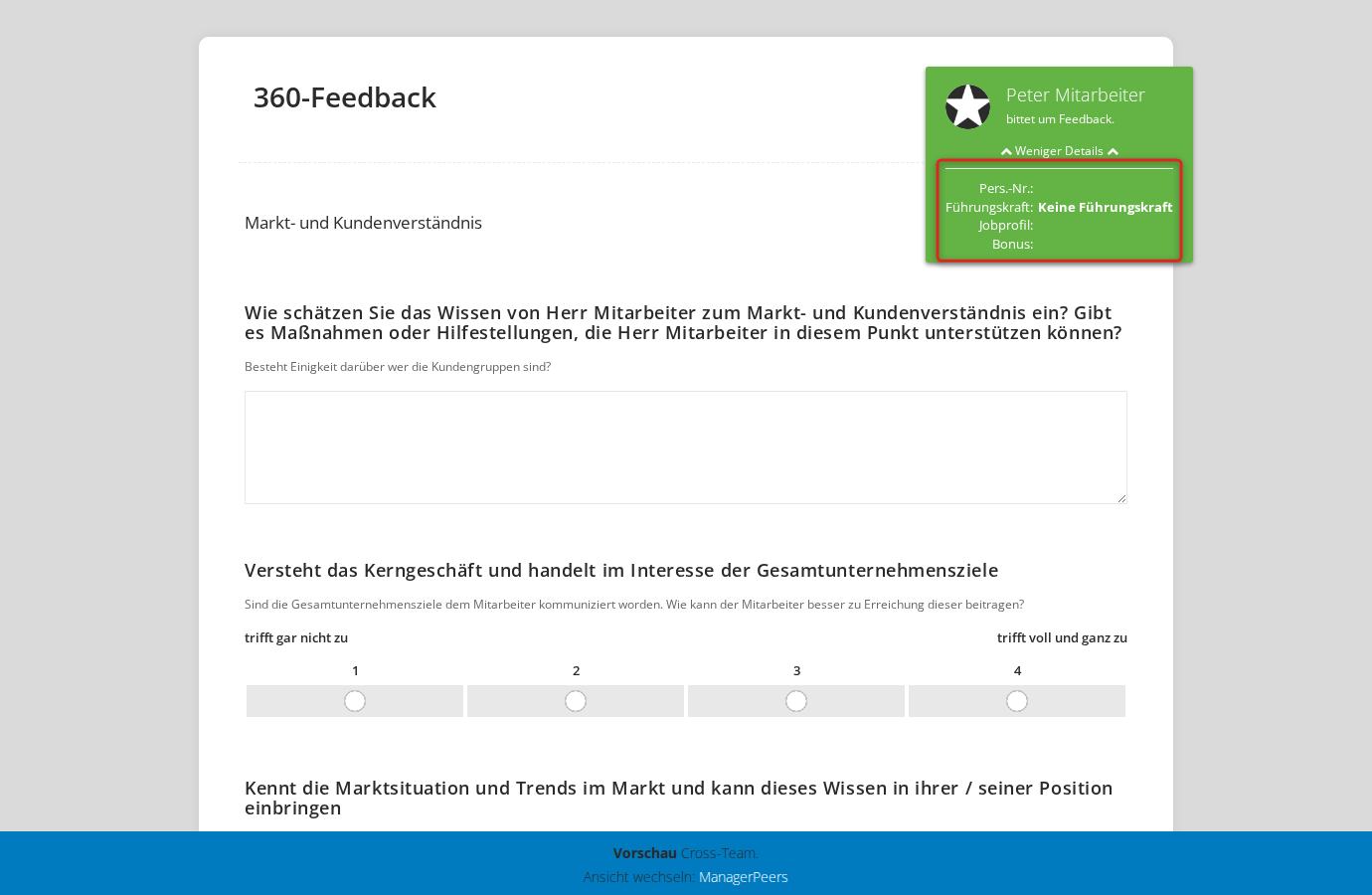
Click “more details” to reveal further information about the employee. The details shown also include, for example, every custom field that is visible on the employee profile.
Navigation
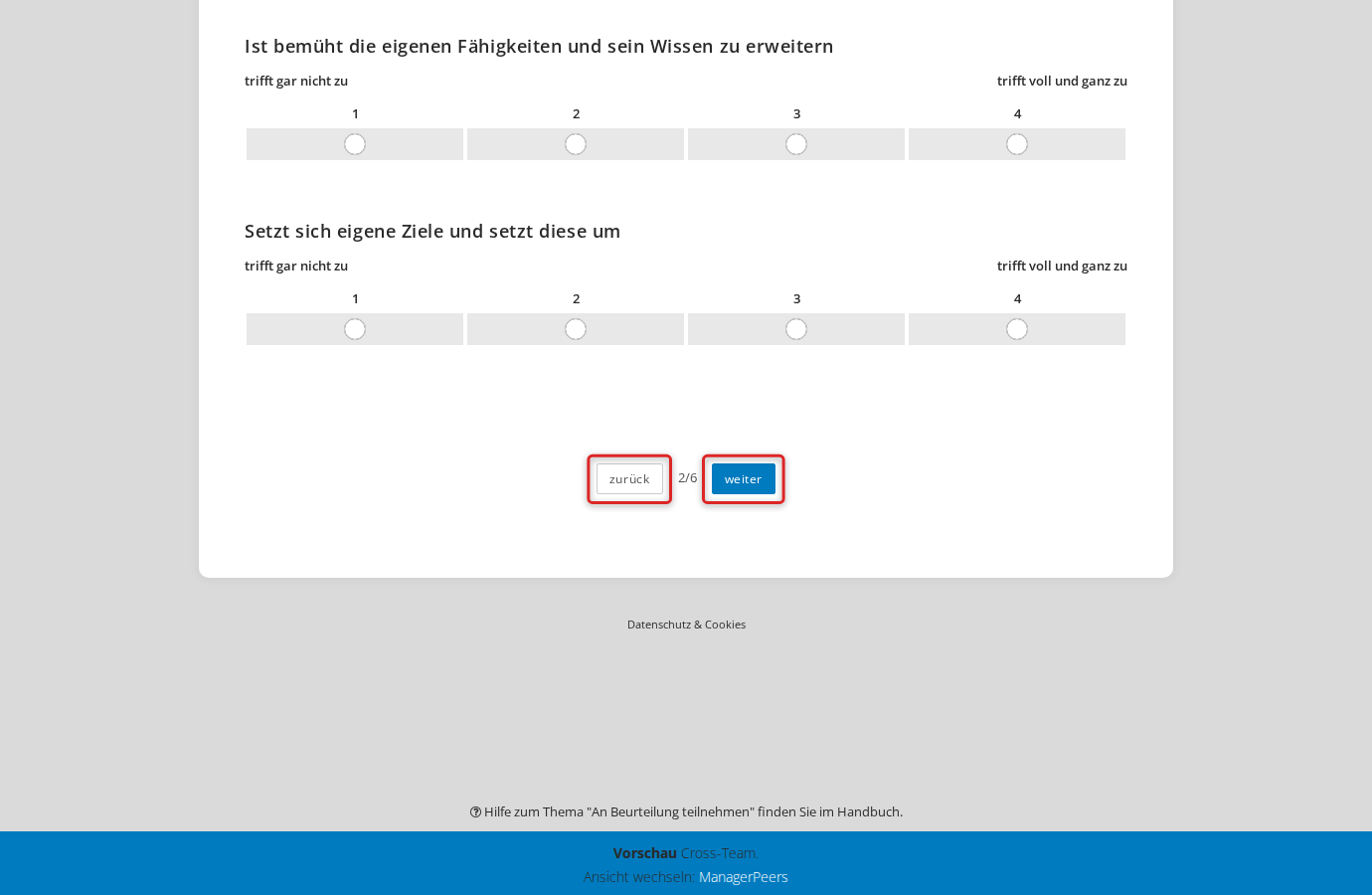
At the bottom of every questionnaire page you can move one page forward or one page back. Changing the page automatically saves your progress and all the answers you have given.
To move one page forward:
- Scroll to the bottom of the questionnaire page
- Click “next”
To move one page back:
- Scroll to the bottom of the questionnaire page
- Click “back”
Next to the page counter there is also a dropdown you can use to jump directly to a specific page. Pages you have not reached yet are greyed out and cannot be selected.
Save and continue later
You can save an intermediate state of your participation at any time and continue later. This is especially useful when you are on a page with required questions and cannot fill them all in before saving.
To save an intermediate state of your participation:
- Click “Save & continue later” at the bottom of the screen
- The system confirms that the save was successful
- Closing the survey returns you to your easyreview account
- Resuming the survey lets you continue your participation right away
Finalize the review
At the end of the questionnaire you have to finalize your participation. This locks the result against further changes and makes it visible, for example, to your supervisor and the HR department.
To finalize your participation:
- Go to the last page of the questionnaire
- Click “Finalize review”
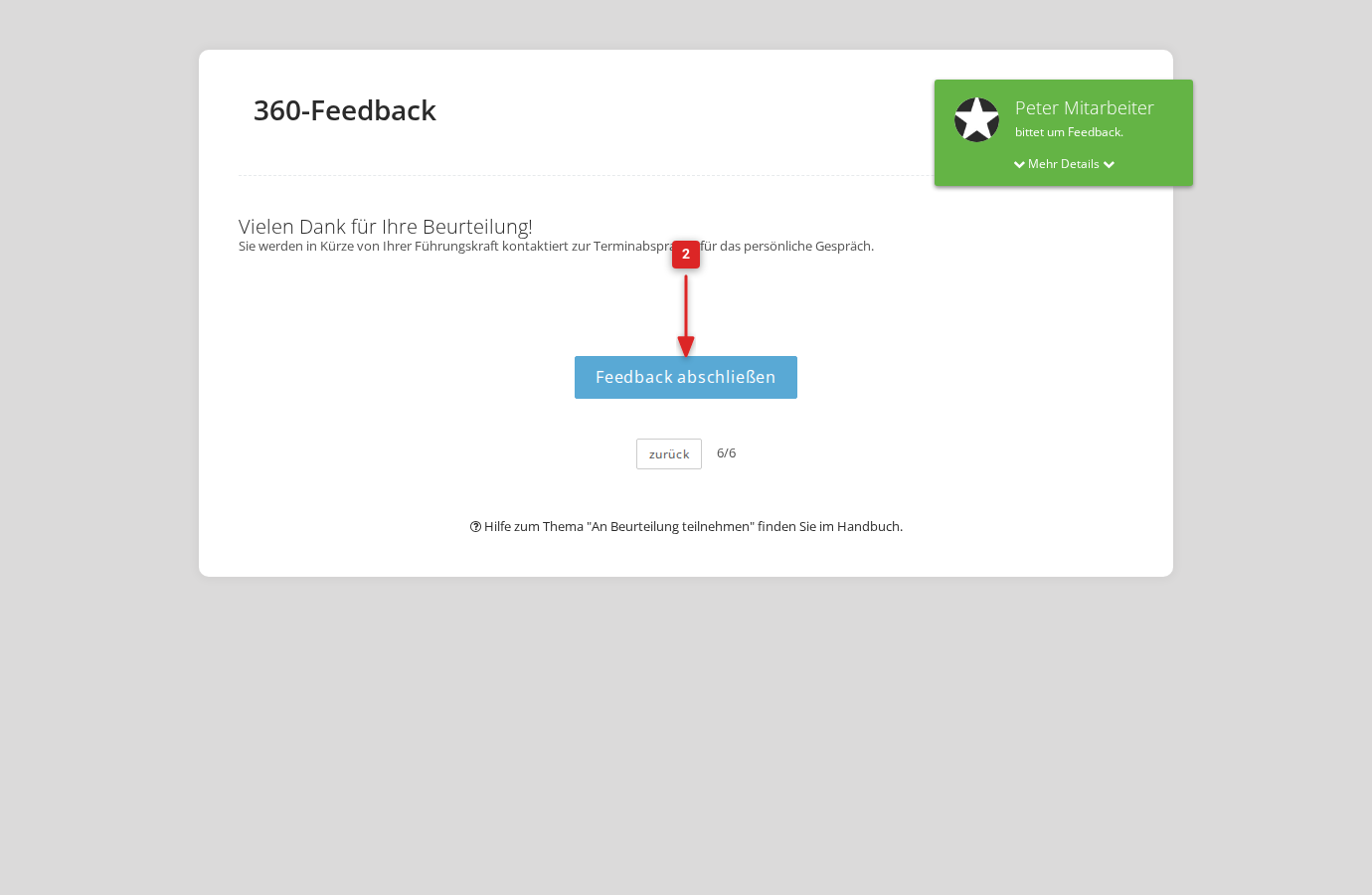
- The page reloads and your feedback is finalized
- “Close review” returns you to your easyreview account
- “Download review (PDF)” lets you download a PDF version of your finalized feedback
Participation period ended
Every feedback has a fixed window during which participation is possible. If you open the questionnaire after that window closes, you see the message “Participation period ended” and can no longer take part. In that case, contact your HR department.