Invite participants
When you invite participants to a feedback edition, you add employees to the participant list. The invitation dialog looks different depending on the feedback process.
Open the dialog
To open the invitation dialog:
- Go to Feedbacks in the sidebar and click the feedback process you want.
- Make sure the Invitations tab is active.
- Click + Participant at the top right.
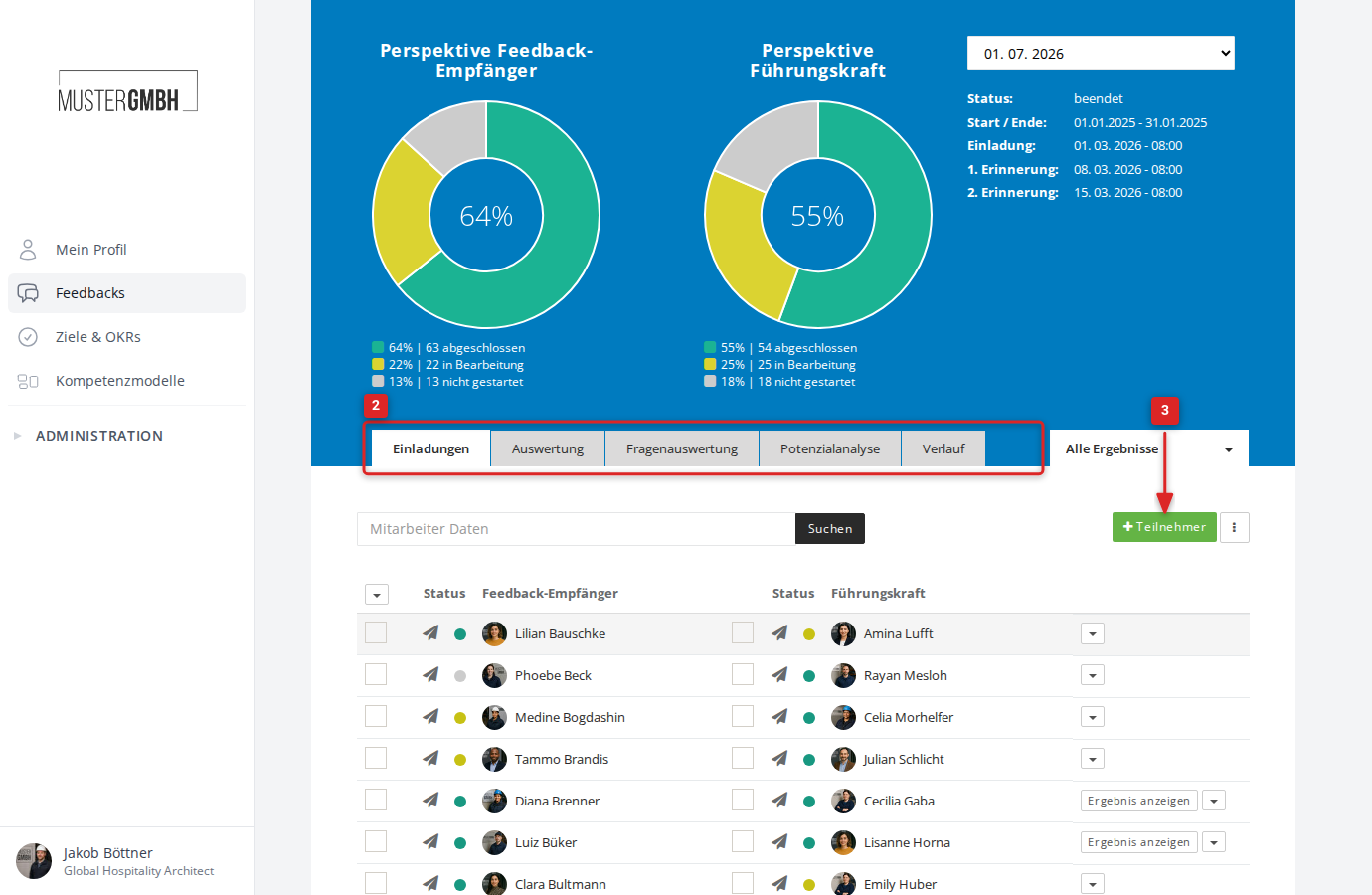
The dialog adapts to the type of feedback process. A general feedback shows a single employee list; a two-sided feedback shows two columns, one for feedback givers and one for feedback recipients.
General feedback
A general feedback (for example a process review or a pulse survey) shows a single employee list.
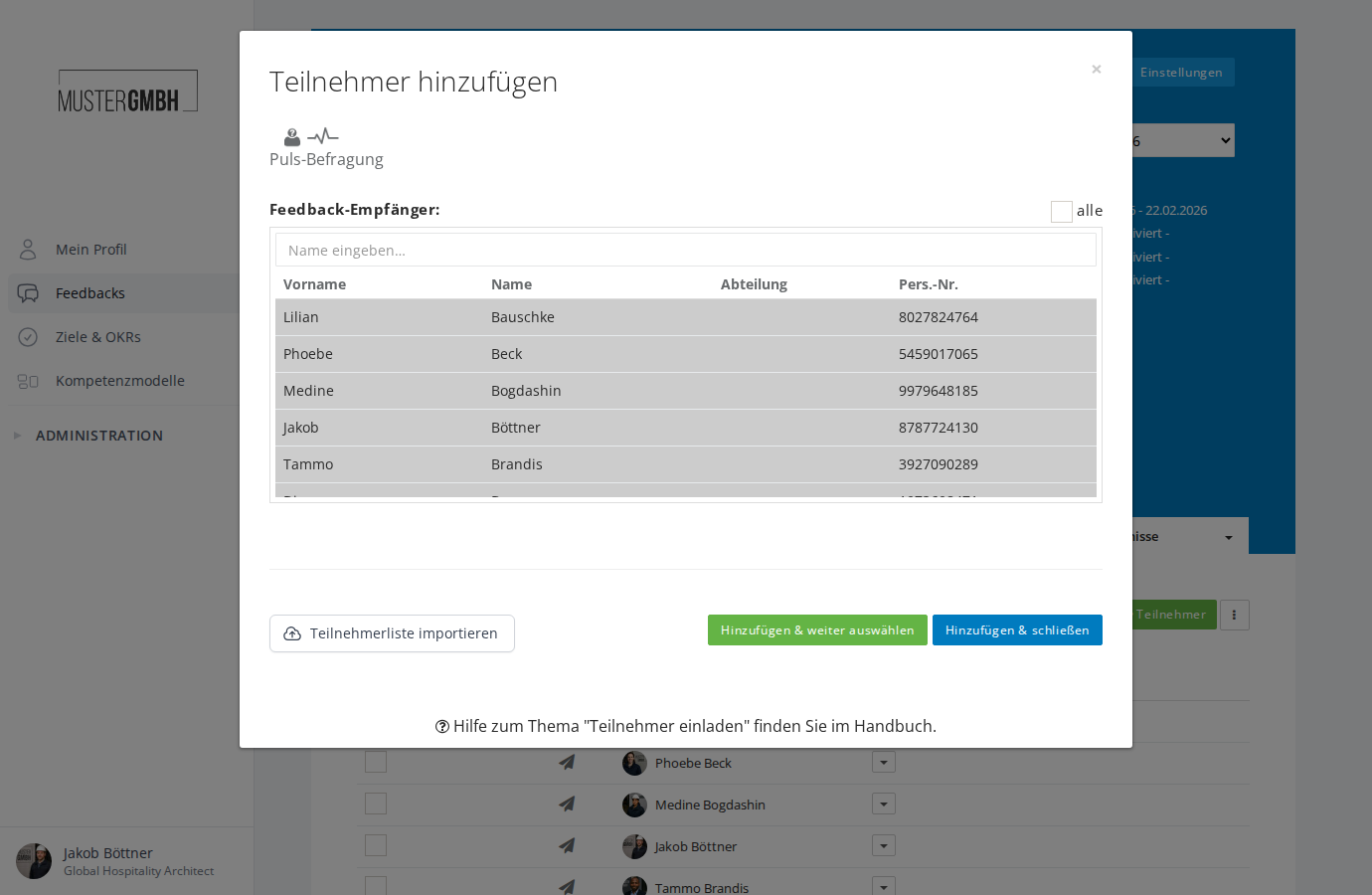
To invite participants:
- Select one or more employees by clicking them.
- Use the search field to search the employee list. The list filters automatically once you’ve typed at least 3 characters.
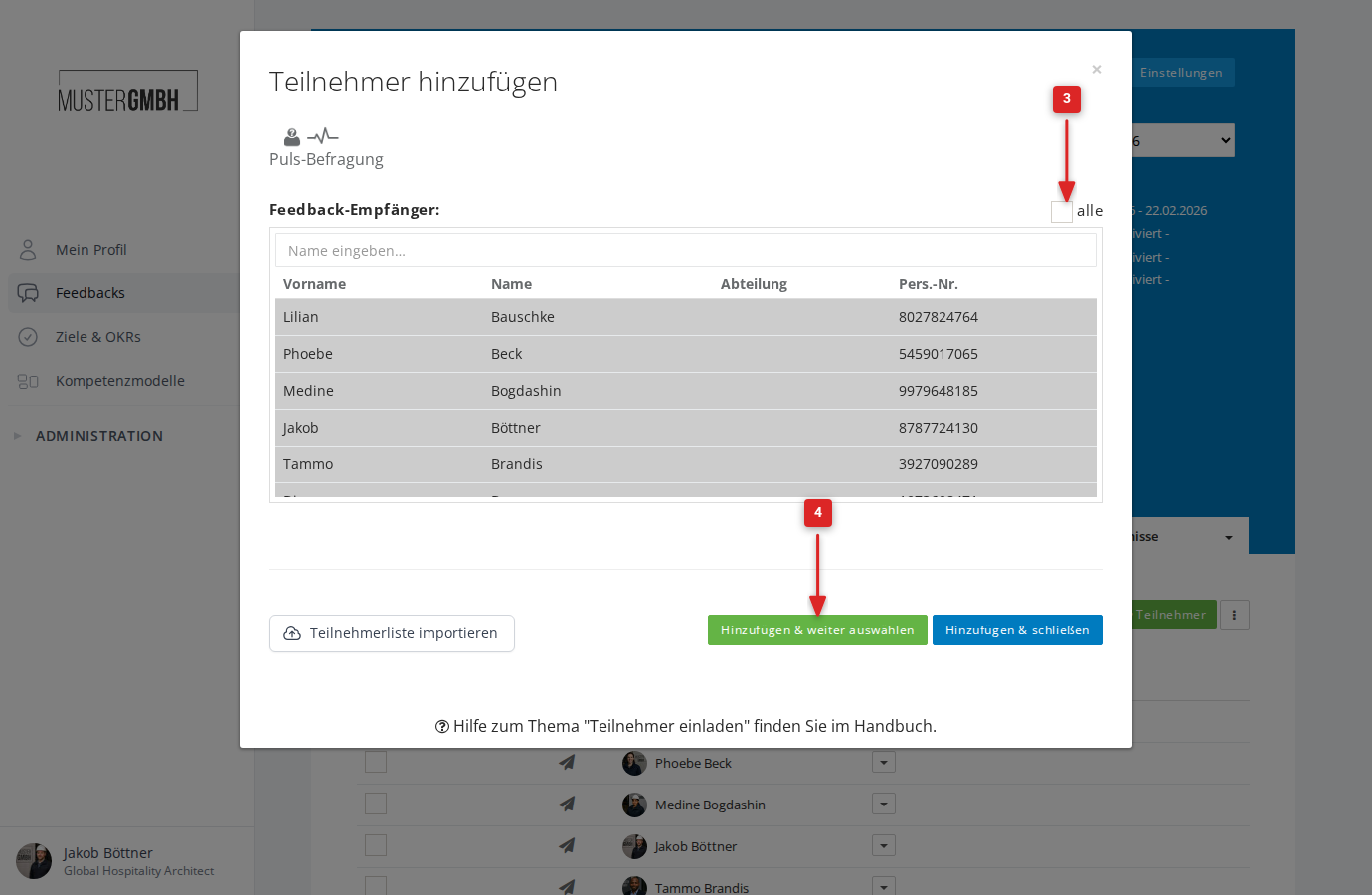
- The all checkbox selects every visible employee at once.
- Click Add & close to confirm your selection and close the dialog.
Alternatively, click Add & select more to add the current selection and keep picking more employees.
Two-sided feedback
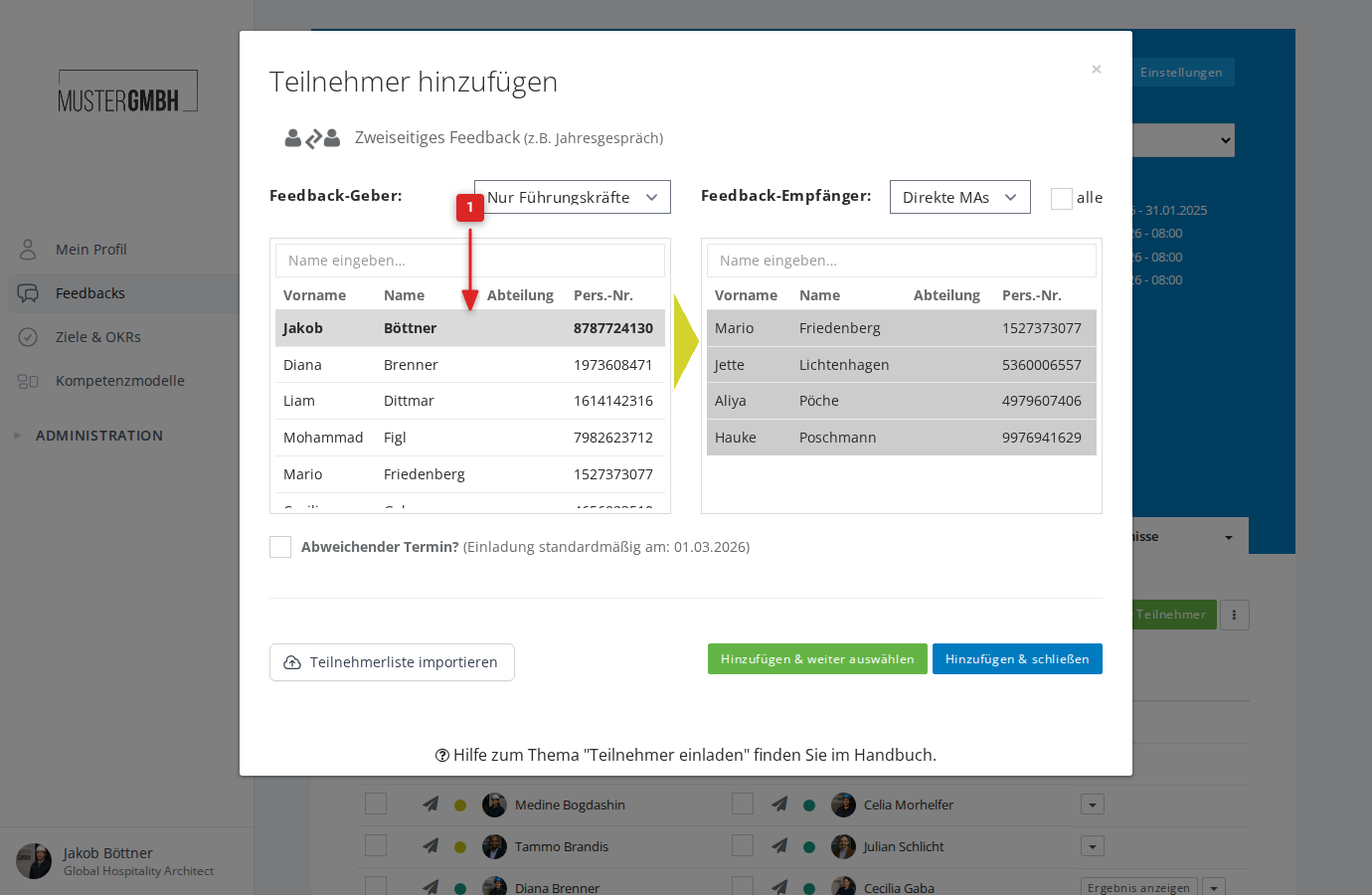
A two-sided feedback (for example an annual review) shows two columns: on the left the feedback givers (supervisors), on the right the feedback recipients.
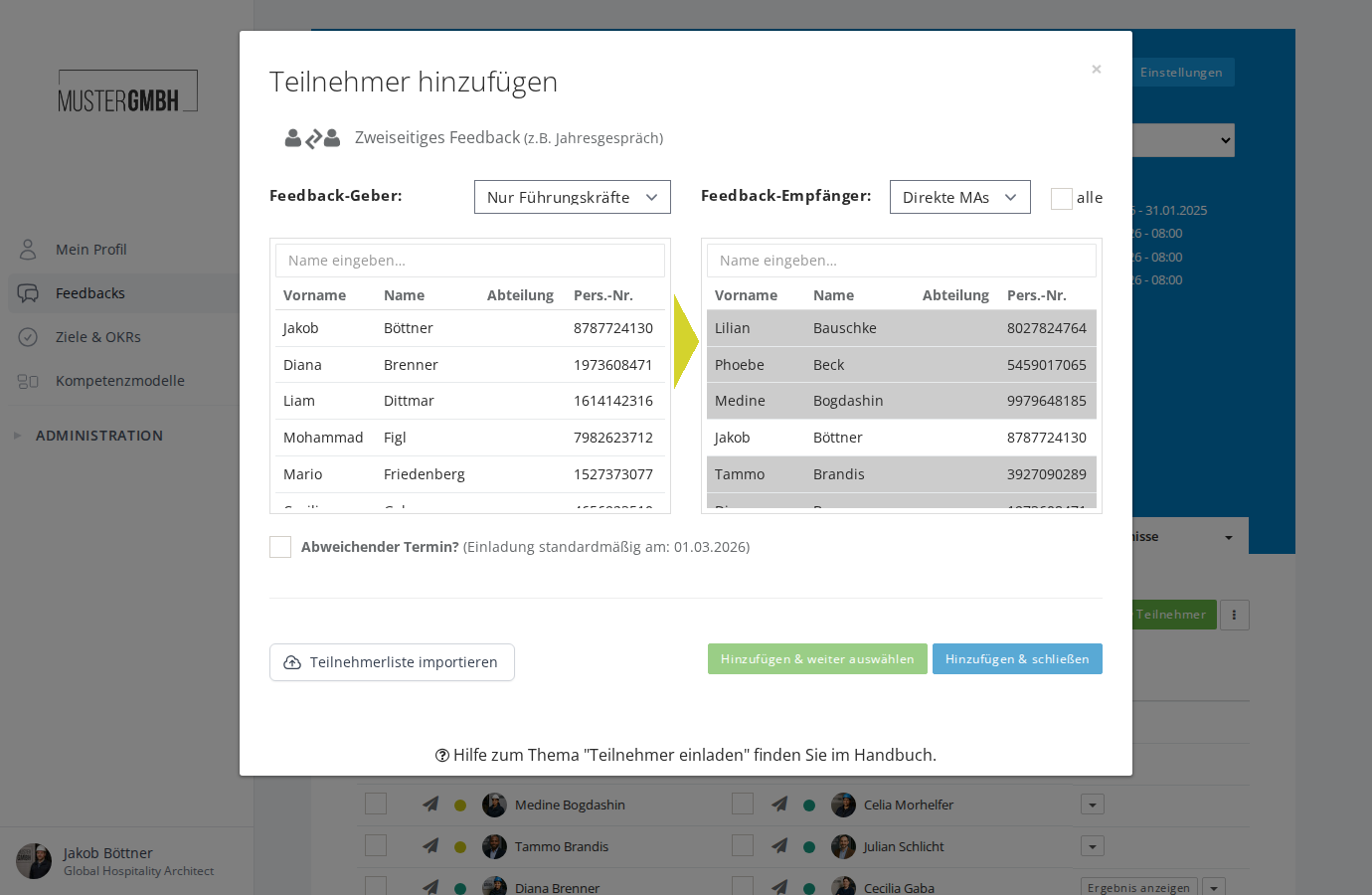
To invite participants:
- On the left, click to select a supervisor (feedback giver).
- The employees assigned to that supervisor then appear on the right.
- On the right, select one or more employees (feedback recipients).
- Click Add & close or Add & select more.
Filter employees
The dropdowns let you filter who’s shown:
- Feedback givers (left column):
- supervisors: only employees with management responsibility.
- everybody: all employees.
- Feedback recipients (right column):
- Direct reports: only employees reporting directly to the selected supervisor.
- All reports: all directly and indirectly reporting employees.
- everybody: all employees in the company.
The all checkbox selects every visible feedback recipient at once.
Both columns have a search field. The search filters the list automatically after at least 3 characters.
External feedback
An external feedback shows the same two columns as a two-sided feedback, and the flow is identical: pick a feedback giver on the left and the feedback recipients on the right. With a nomination path you can leave out the feedback giver here as well.
The difference: in an external feedback only the feedback giver fills in the questionnaire; the feedback recipient doesn’t take an active part.
Invite many participants (mass invitation)
For larger invitations there’s a separate mass-invitation feature. It’s especially useful when you want to invite many or all employees at once.
To open the mass invitation:
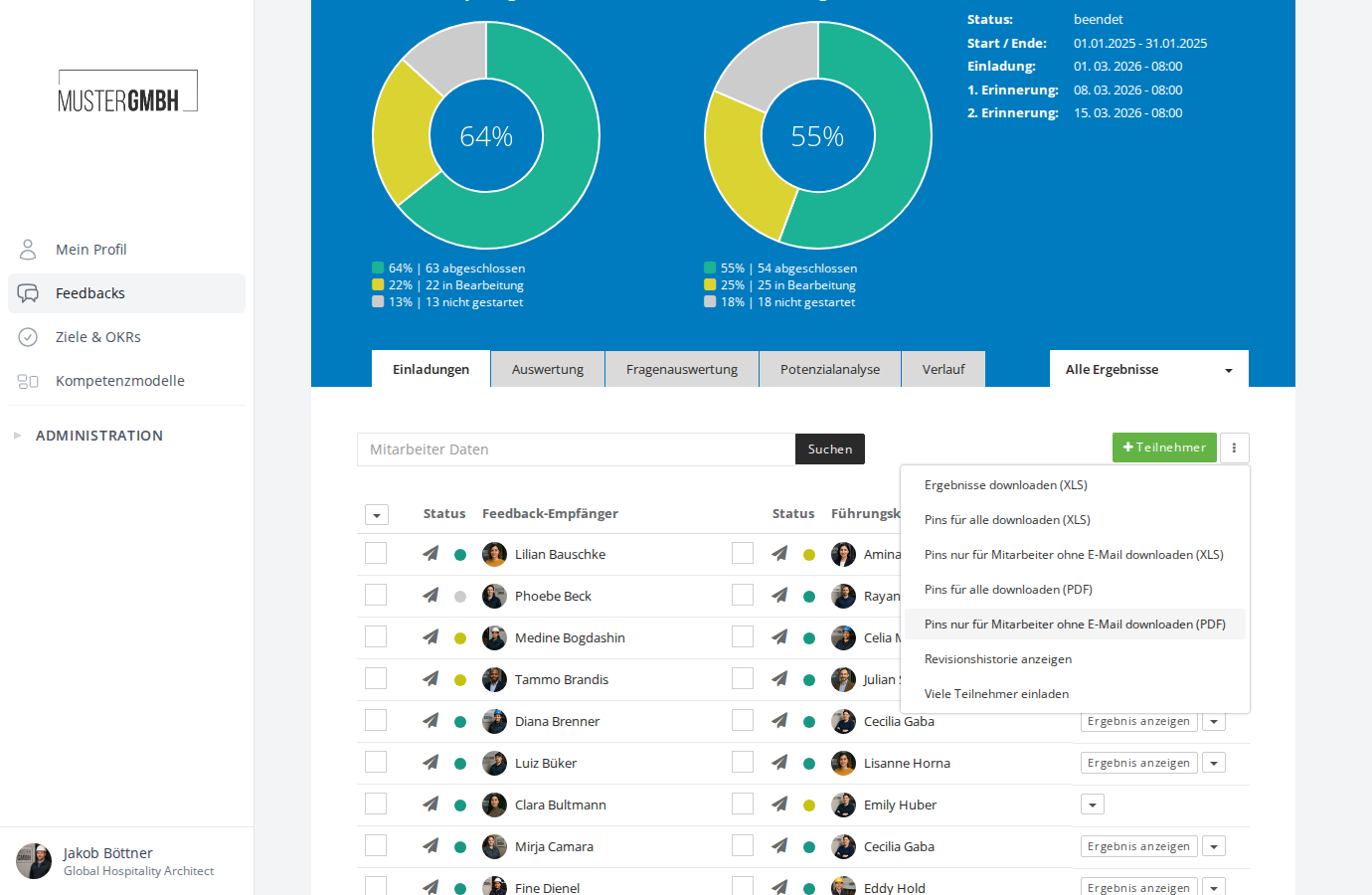
- Click the three-dot menu (⋮) next to the + Participant button.
- Choose Invite many participants.
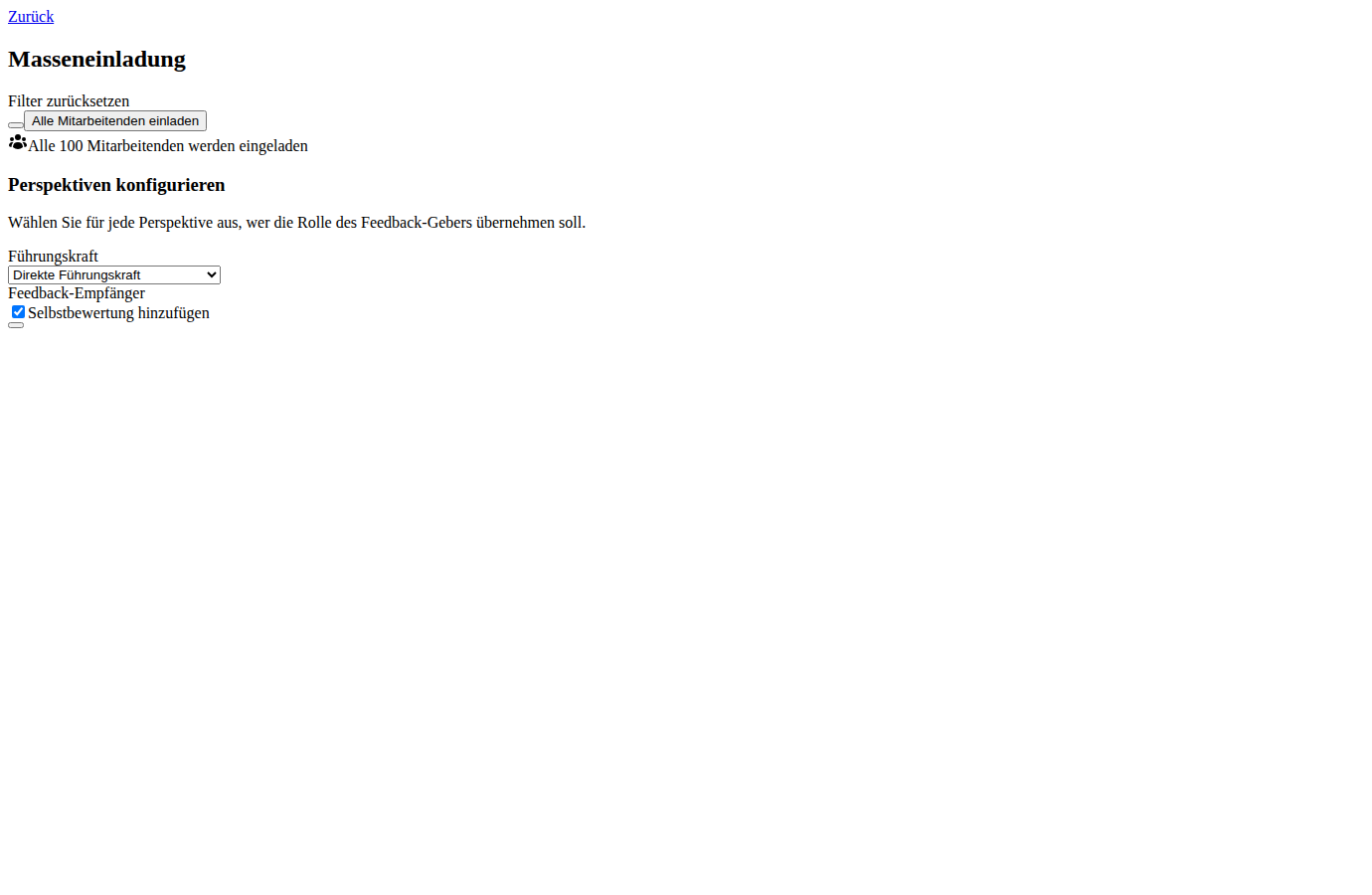
A dedicated page opens with these options:
- Filter employees: use filters to narrow the employees to invite by criteria such as department, location or other employee fields. Click Show matching employees to preview the filtered selection. Anyone who already takes part in the edition is marked as already invited in the preview.
- Invite all employees: this button resets the filters and invites all employees.
- Configure perspectives: for each perspective, set who takes on the feedback-giver role (for example direct supervisor, supervisor’s supervisor). If a perspective gets its feedback givers through nominations, set it to Do not assign.
- Self-review: if available, you can turn on the self-review perspective.
Click Create participations to create the invitations.
The participations are created in the background. You’ll be notified once it’s done.
Import the participant list
For larger invitations you can import a participant list from an XLS file. The import lives at the bottom of the invitation dialog.
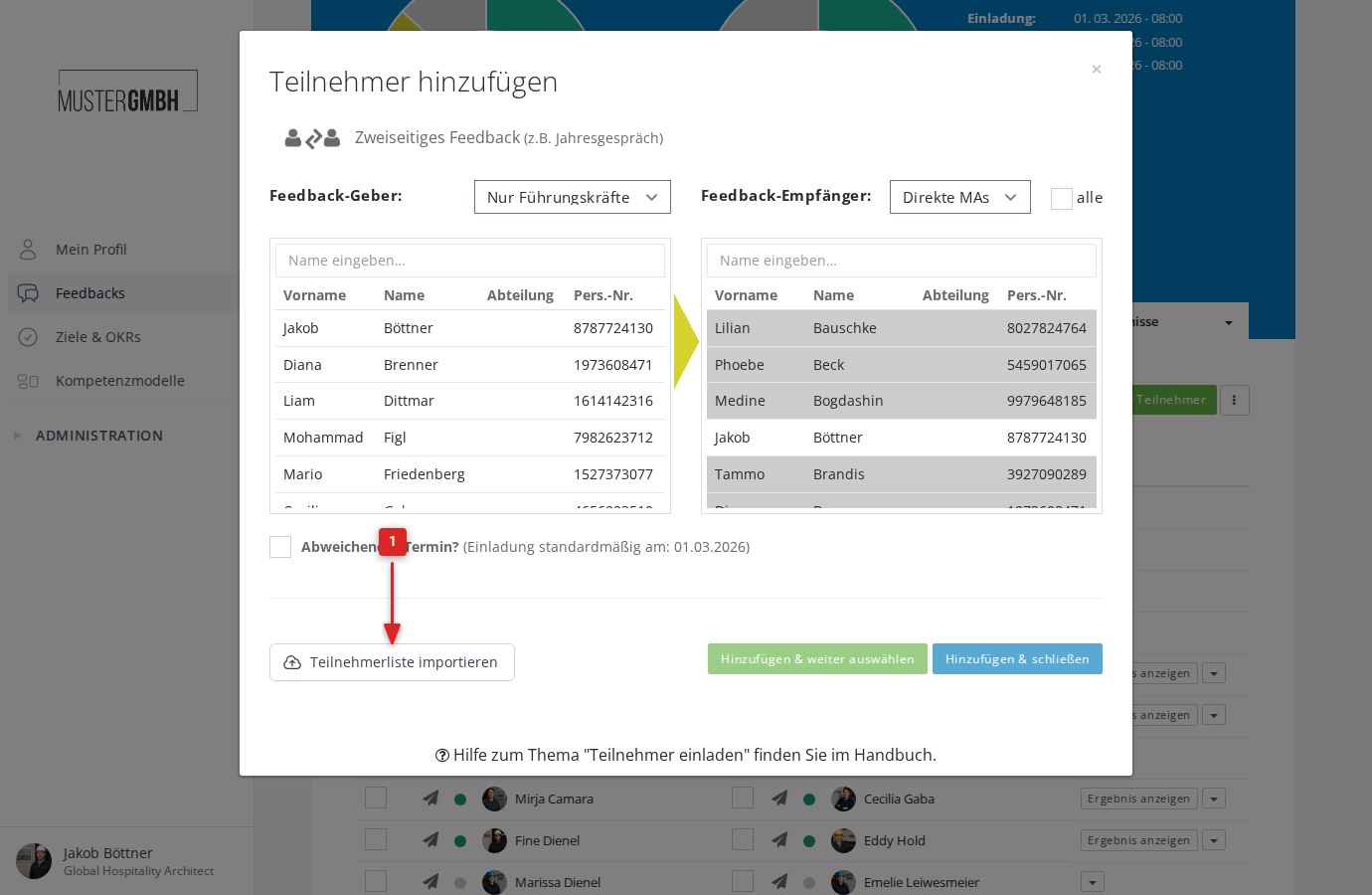
- Click Import participants.
- Choose Download list template (XLS) to get the import template.
- Fill in the template with the participants you want.
- Click Import participants again, then Upload list (XLS).
- Pick your filled-in file. The import starts automatically.
You’ll get an email once the import is done.
Every row needs a feedback giver. The exception: nominations are switched on and a nomination path is set up. Then a row may also hold the feedback recipient alone.
Different invitation date
If an automatic email-invitation time is configured for the feedback edition, you can set a different date for individual participants. The option appears at the bottom of the invitation dialog.
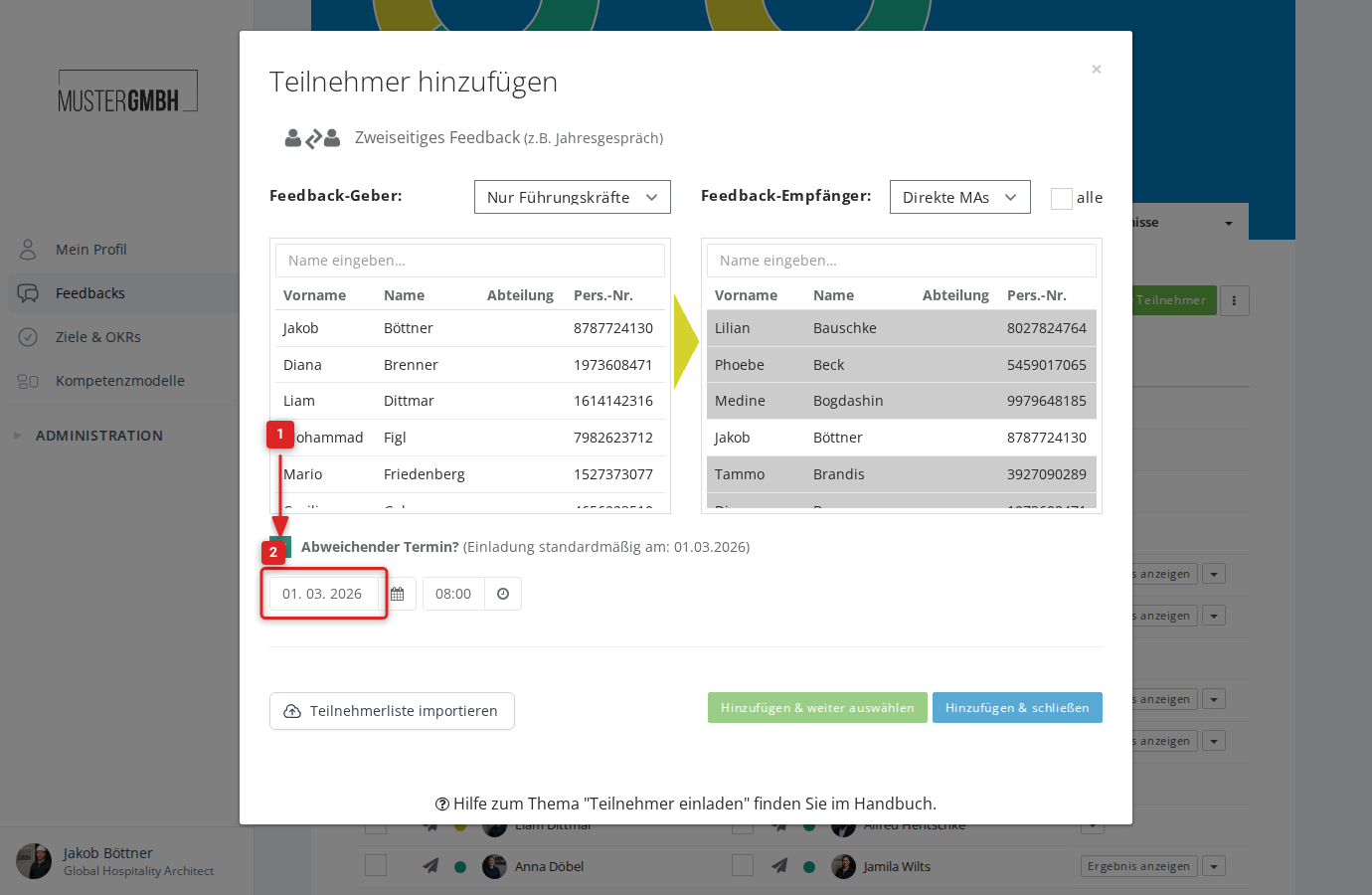
- Tick the Divergent invitation? checkbox.
- Pick the date and time you want.
- Add the participants as usual.
The participants invited this way get their email invitation at the different time instead of the edition’s standard invitation time.