Review status
The status page is the central place for managing a review. It shows the progress of the participations, gives you access to evaluations, and holds all the tools for steering the running process.
Open the status page
- Click “Reviews” in the sidebar
- Click the title of the review you want
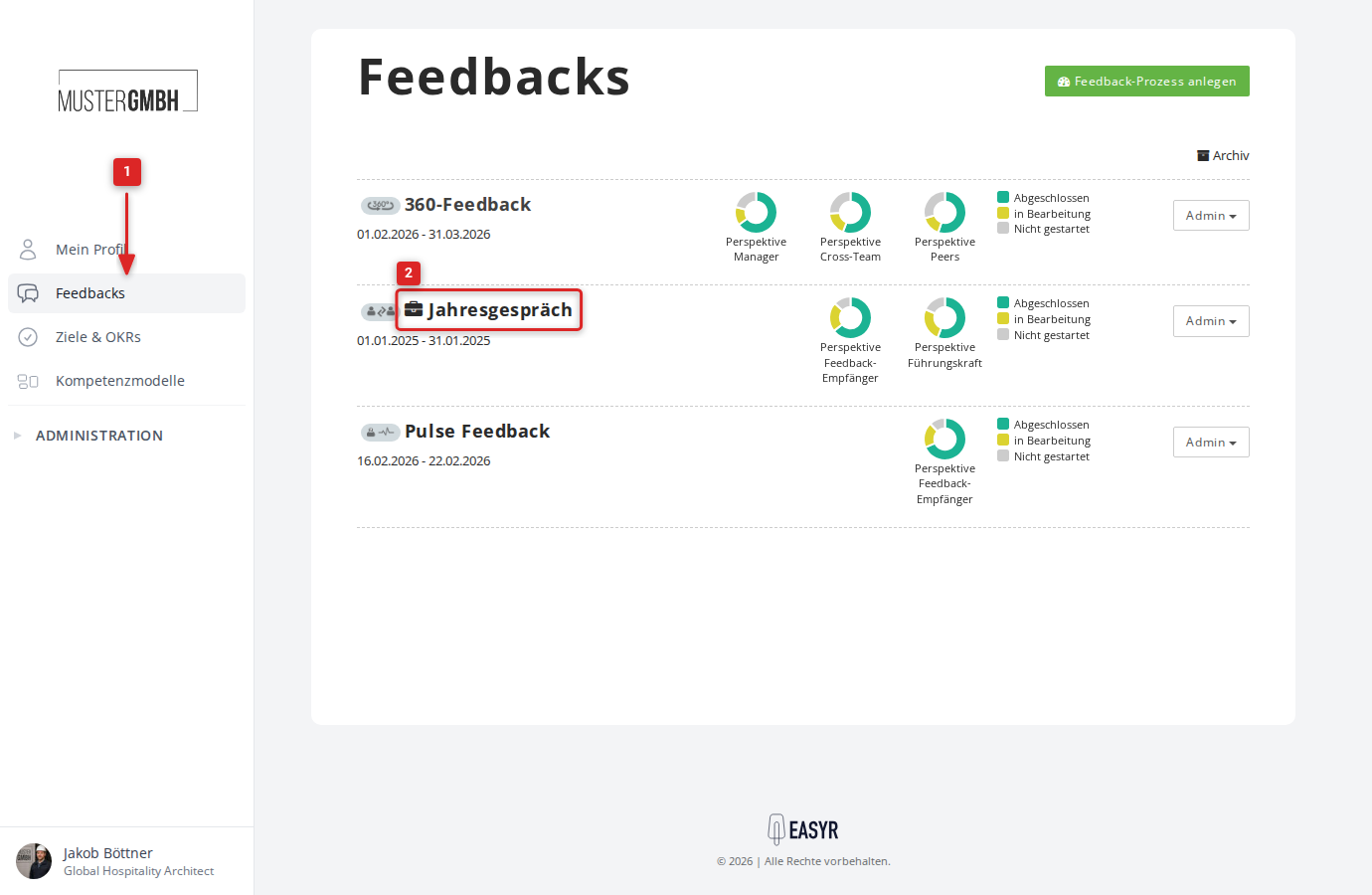
You land directly on the status page of the currently running edition.
Structure of the status page
The status page has two main areas: the header with status information and the detail area with tabs.
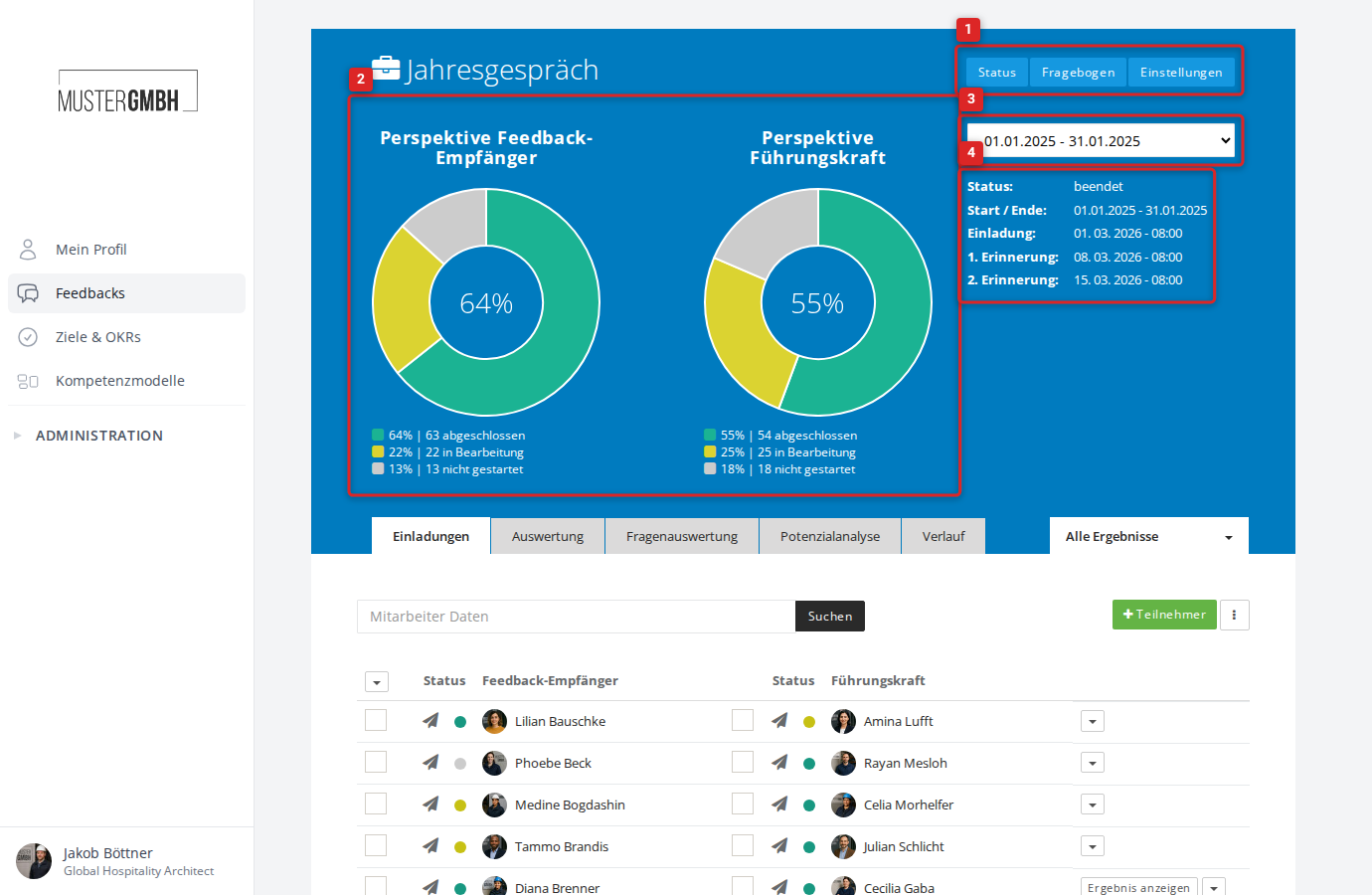
Header
The blue header shows:
- Title of the review and quick links to status, questionnaire, and settings
- Response rates as charts (per perspective)
- Edition selection for switching between editions
- Status information: current status, period, email invitation status
Response rates
The charts in the header show the progress per perspective. For reviews with up to two perspectives, pie charts are shown; for three or more perspectives (for example, in a 360° feedback), a horizontal bar chart is shown.
Each chart distinguishes three states:
- Green (finalized): the participant filled in and finalized the review completely.
- Yellow (in progress): the participant opened the review but has not finalized it.
- Grey (not started): the participant has not opened the review yet.
For more on response rates, see Overview of response rates.
Status information
To the right of the charts you find an overview with:
- Status: shows whether the edition is active, finished, or not yet started.
- Start / End: the period of the current edition.
- Invitation: the time of the automatic email invitation (if configured).
- 1st reminder: the time of the first automatic email reminder (if configured).
- 2nd reminder: the time of the second automatic email reminder (if configured).
The “Invitation”, “1st reminder”, and “2nd reminder” fields only appear when email invitations are enabled for the review. Each row gets a checkmark once the corresponding email has been sent.
Tabs in the detail area
Below the header are tabs for the different views of the review. Which tabs are visible depends on the review’s configuration. Evaluation, Question evaluation, Potential analysis, and Time series appear only when classic analyses are active for the process. Additional requirements are described under each tab.

Review
The “Invitations” tab shows the participant list of the current edition. Here you can:
- Search participants
- Invite new participants
- Send email invitations
- Show individual participants’ results
- Export results
For more, see Review invitations.
Evaluation
The “Evaluation” tab shows an aggregated view of all incoming answers. The results are broken down per question. From here you can also print the evaluation.
Question evaluation
The “Question evaluation” tab appears when strength values are enabled for at least one question in the questionnaire. It shows a detailed evaluation of the results per question.
Potential analysis
The “Potential analysis” tab appears when strength values are configured for the review. It shows an overview of the potential values per participant. The tab is not available for anonymous feedbacks or for 360° feedbacks.
Time series
The “Time series” tab shows how participation rates and result trends develop across several editions.
New dashboards
If new dashboards are active for the feedback process, open them from the Analyses tab. If classic analyses are active too, the tab is called Analyses (new). See Classic and new analyses and Open and manage dashboards.
Filter results
To the right of the tabs is the “All results” dropdown. Use it to create and activate filters to narrow the evaluation down to specific participant groups (for example, by department or location).
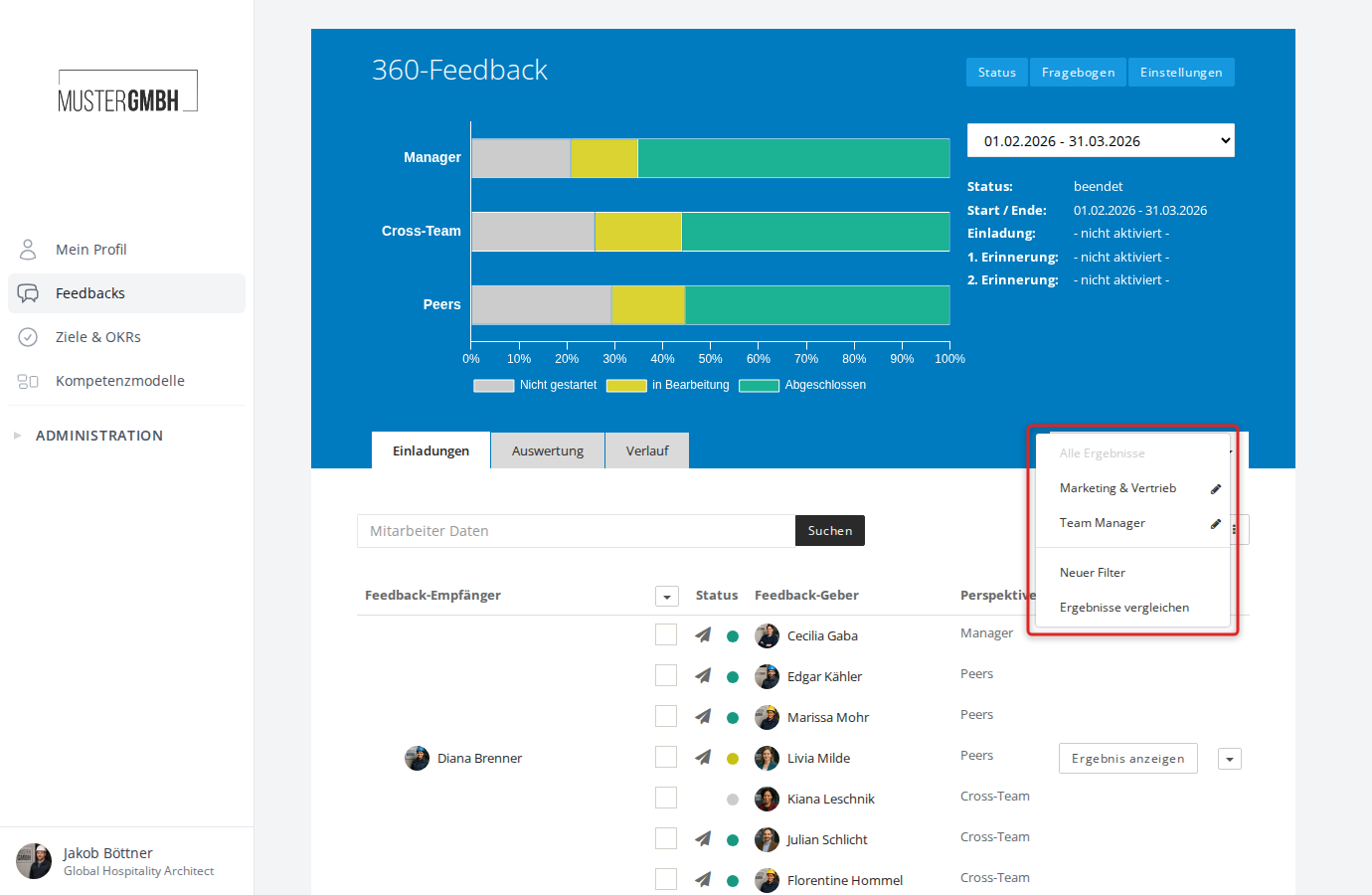
Using the same dropdown, you can also start a result comparison to compare filtered results or different editions with one another.
Switch editions
Use the dropdown in the header to switch between the editions of a review. All tabs and evaluations always refer to the currently selected edition.
For more, see Select an edition.