Open and manage dashboards
The standard dashboard immediately shows participation and the questions in your feedback process. To build a report with your own selection or order, create a copy or start with an empty dashboard.
Open a dashboard
Under Feedbacks, open the process and choose the edition you want to review. Switch to the Analyses tab. If classic analyses are also enabled, it is called Analyses (new).
Select a dashboard at the top left. Its analyses appear as cards below. Each card answers a separate question, such as “How far along is our feedback round?” or “How is collaboration rated?”.
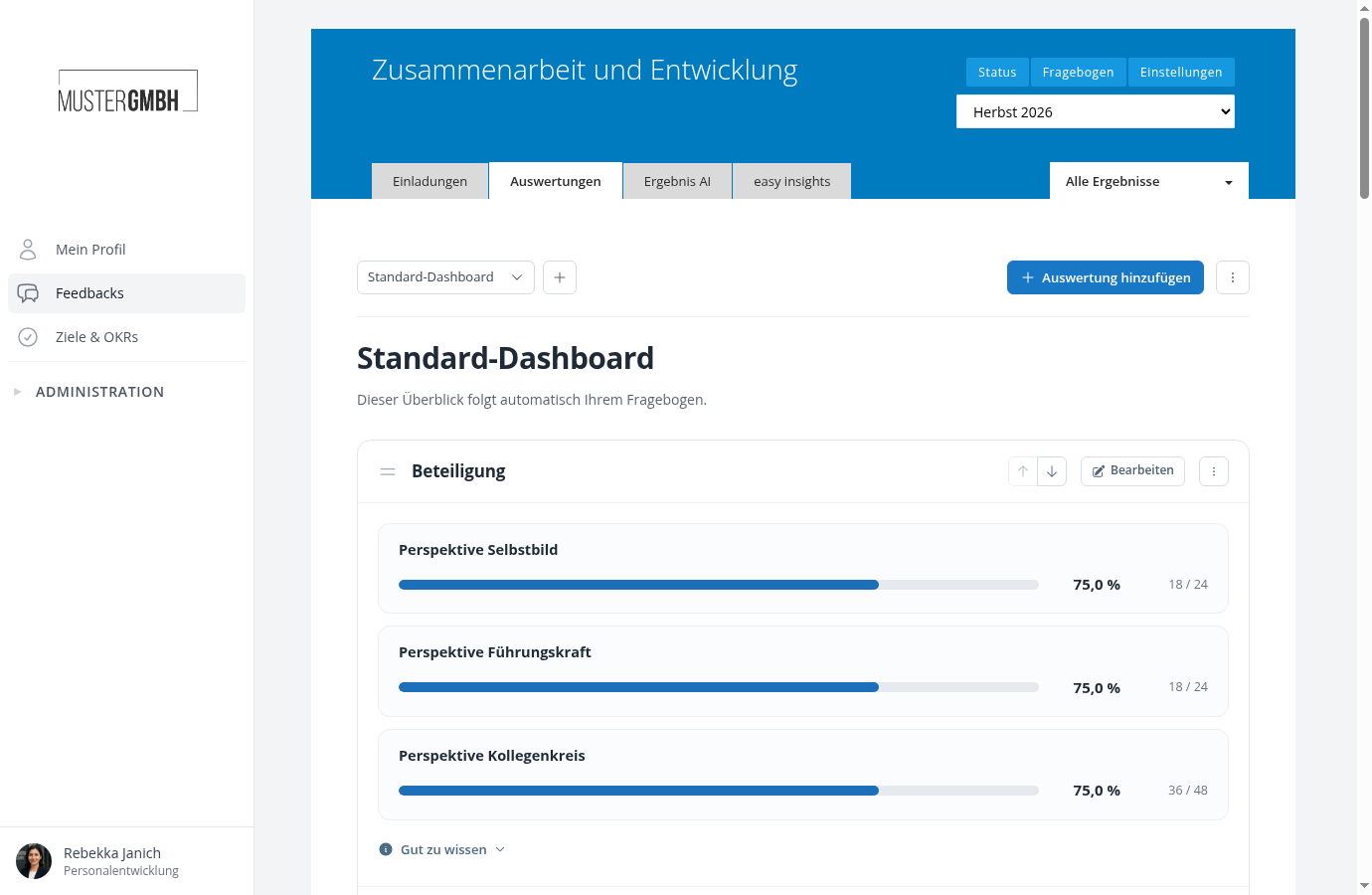
Dashboards belong to this feedback process. They are also available in its other editions, where they show the results for that edition. easyreview remembers your last opened dashboard per process. The page URL also preserves your choice when you reload.
Start from the standard dashboard
The standard dashboard starts with participation. It then shows the questions available for analysis in questionnaire order. New and removed questions are reflected automatically. Text and layout elements in the questionnaire are not analyzed as questions.
The standard dashboard is always available. Choosing Edit or trying to move one of its cards opens a dialog for creating your own copy. Enter a name, such as “Collaboration at a glance”, and choose Create copy.
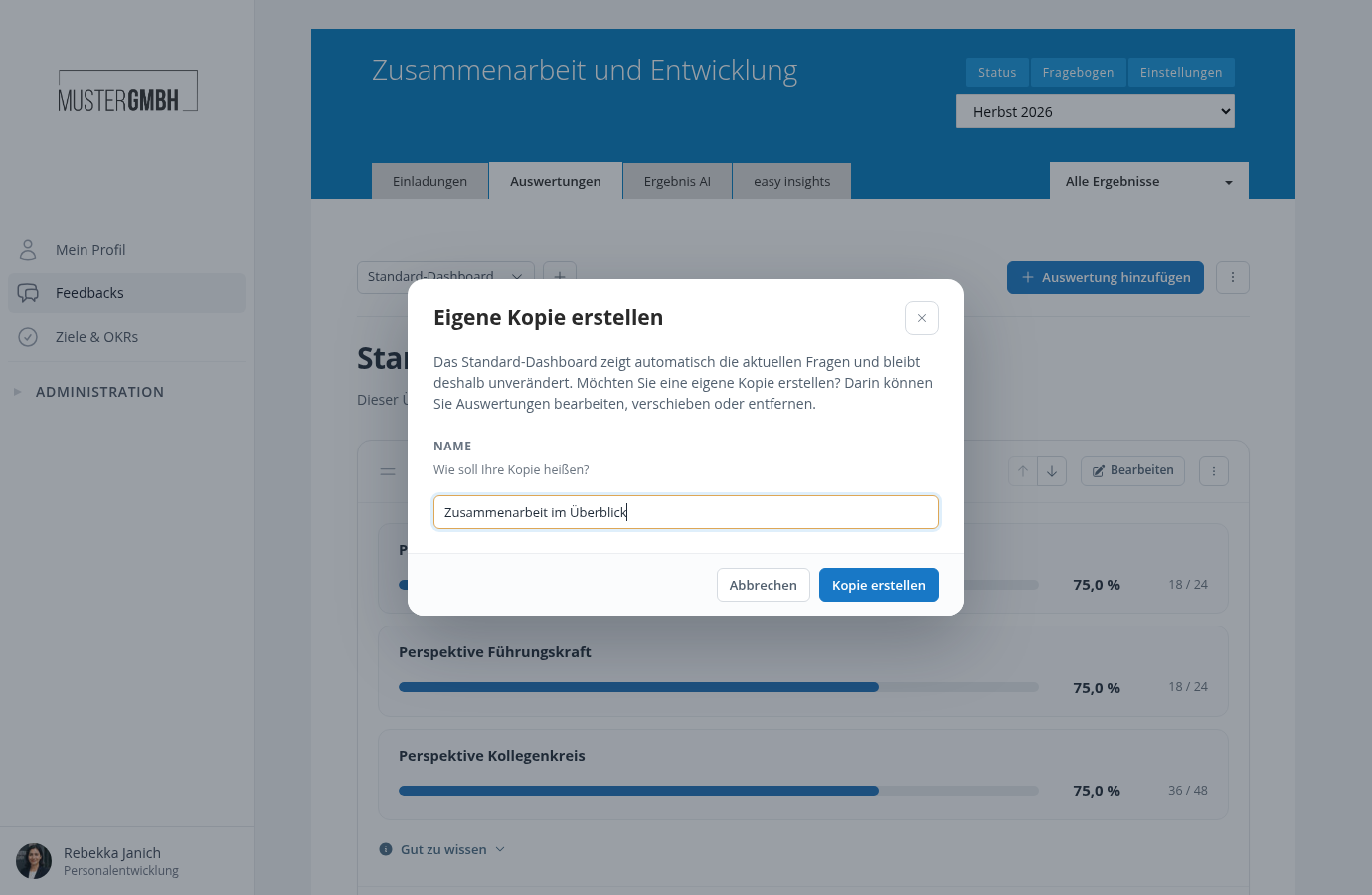
The copy keeps the existing cards. From then on, you control the selection. Questions added later appear automatically only in the standard dashboard. Your own cards still calculate their results from the current data.
Create an empty dashboard or rename one
The plus sign next to the dashboard selector opens New dashboard. Enter a name and choose Create. Then add the cards you need using Add analysis.
The dashboard’s three-dot menu contains Rename dashboard and Create private copy. A copy of a personal or shared dashboard initially gets “(copy)” added to its name. You can rename it afterward.
Edit and reorder cards
Use Edit on a card to change its selection and settings. Its menu lets you duplicate or remove it. For example, duplicate a card to add another view of the same question with a different metric.
Drag a card by the handle to the left of its title. The blue line shows where it will be inserted. You can also use the up and down arrows. Cards always appear one below another.
What can I delete?
Use Delete dashboard in the dashboard menu to delete one of your own dashboards. This also removes its cards and sharing settings. Survey responses are kept.
The standard dashboard cannot be deleted. You can read and privately copy a dashboard shared with you. Its owner makes changes to the original.