Page break
A questionnaire in easyreview is divided into pages. When filling it in, participants see one page at a time and move between pages with “Next” and “Back”. Splitting longer questionnaires across several pages makes them clearer and easier to work through.
In the questionnaire editor, each page is set off by a dashed border. The header of each page shows the page label (for example, “Page 1” or “Page 2”). If an internal title has been set, it is shown as well (for example, “Page 5: Competency assessment”).
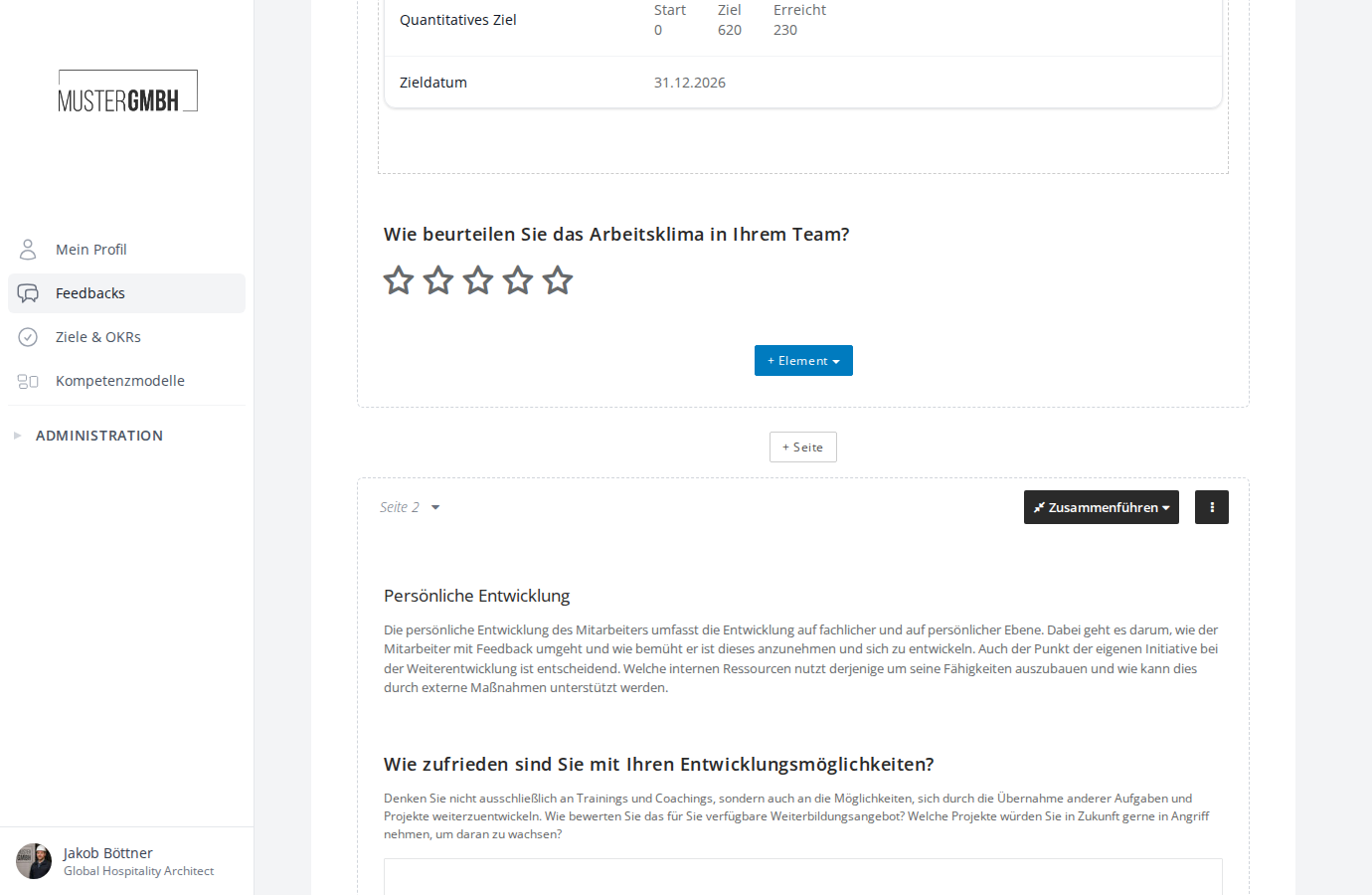
Add a page
To add a new page:
- Open the questionnaire editor of the review you want.
- Scroll to the end of the page after which you want to insert the new page.
- Click the ”+ Page” button located between two pages.
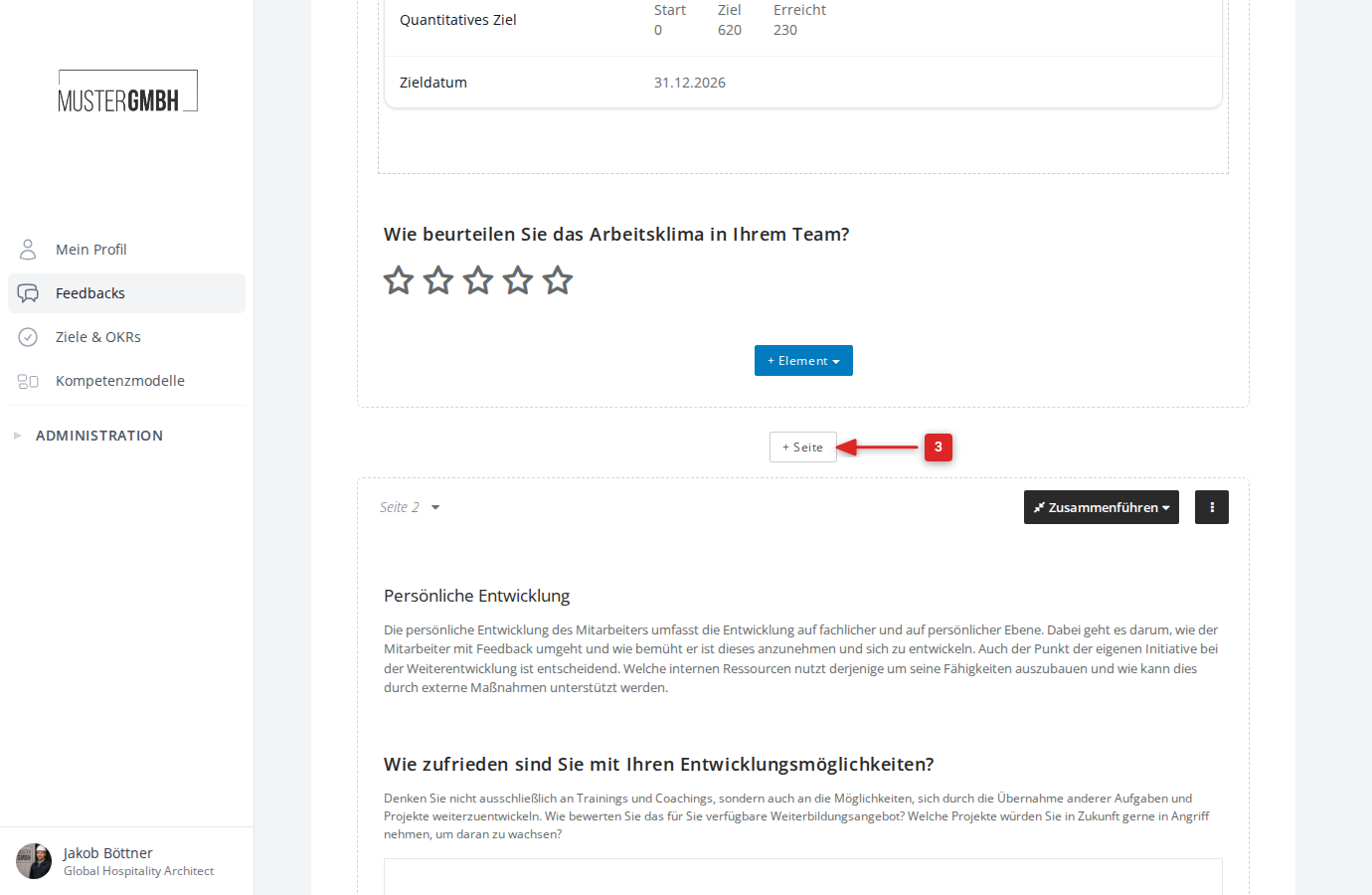
The new empty page is inserted at the desired position immediately.
Page tools
When you hover over the header of a page, the page tools appear. They consist of three areas:
- Page navigation (dropdown “Page 1”, “Page 2”, and so on): Click the dropdown to jump directly to another page.
- Merge (dropdown button): Offers two options:
- Merge up: Moves all elements of the current page to the previous page. The empty page is then removed.
- Merge down: Moves all elements to the next page and removes the current page.
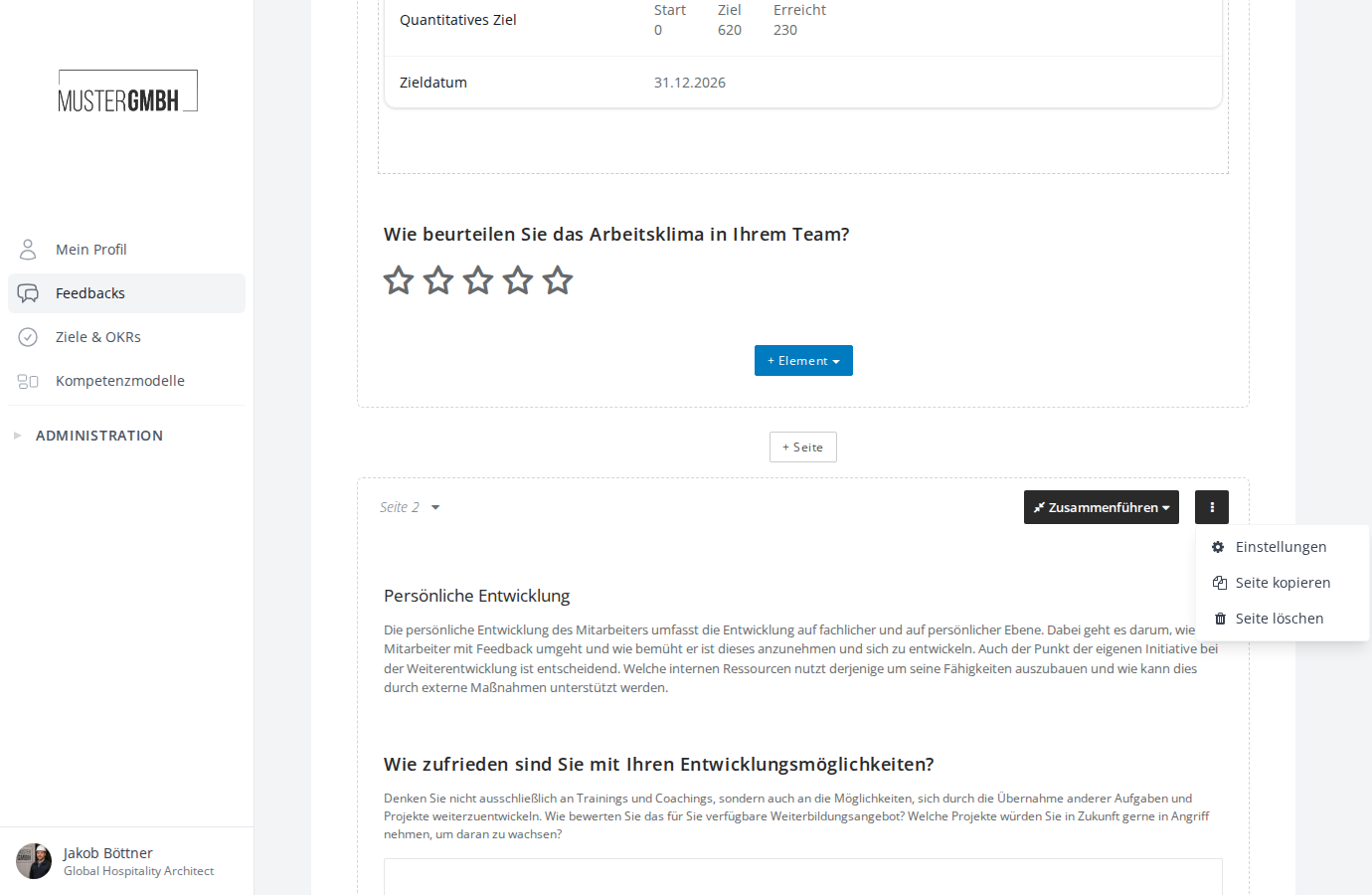
- Actions menu (⋮ button): Contains the following options:
- Settings: Opens the page settings (see the next section).
- Copy page: Creates a copy of the page with all its elements. The copy is inserted directly after the current page.
- Delete page: Removes the page and all elements on it permanently.
Configure a page
In the actions menu (⋮), click “Settings” to open the page settings. The form appears directly below the page header.
Internal title
In the “Internal title” field you can give the page a descriptive name (for example, “Introduction”, “Core questions”, or “Closing”). This title is shown only to HR administrators in the questionnaire editor. Employees do not see it. The internal title appears in the page navigation and in the page overview, which makes it easier to find your way around large questionnaires.
Visibility settings
Click “Visibility, layout & design settings” to expand the advanced settings. Here you control for whom and when the page is visible in the questionnaire.
A page’s visibility applies both in the questionnaire during participation and when results are viewed later.
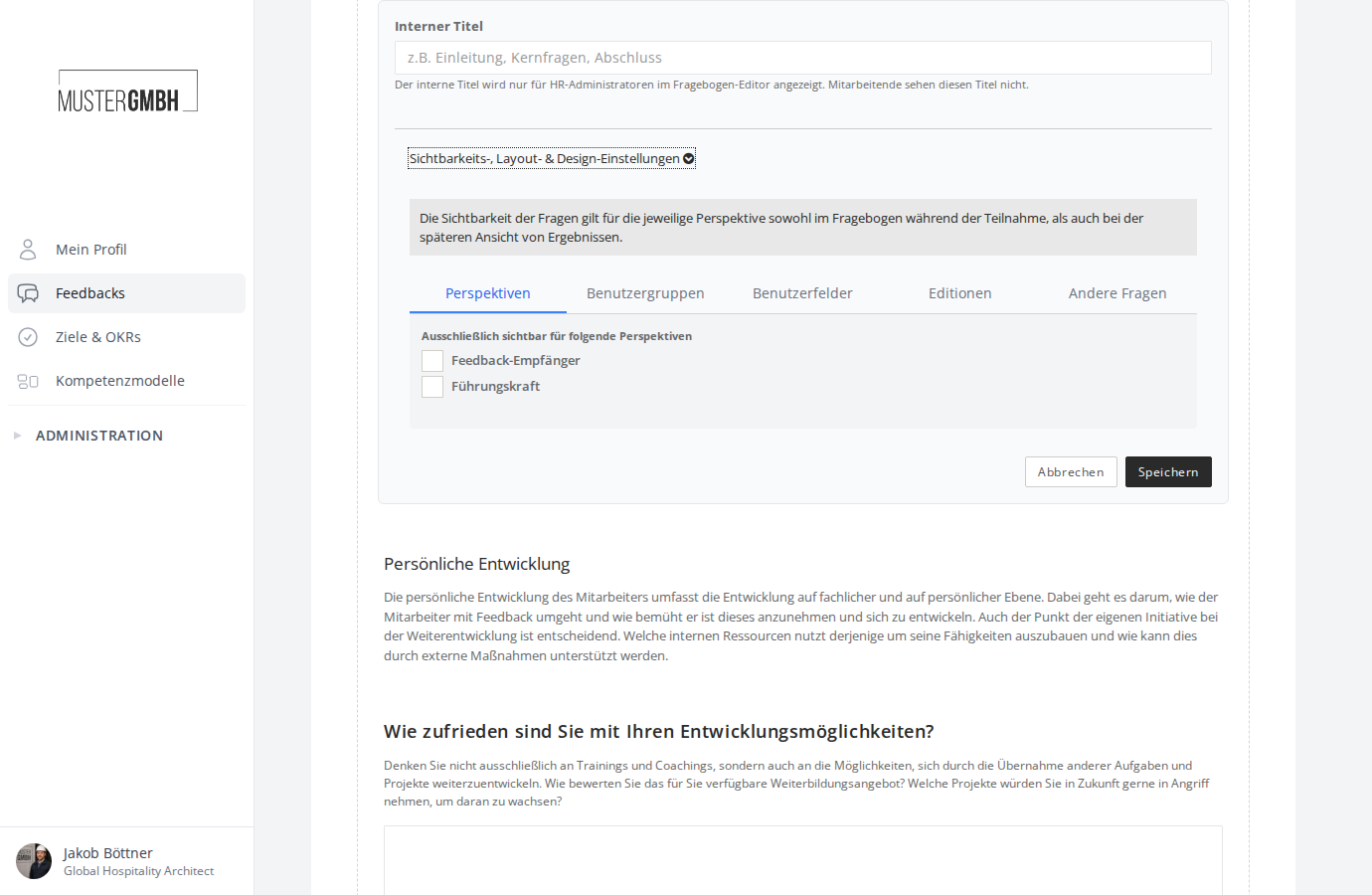
The settings are split into five tabs:
- Perspectives: Set the page to be visible only to specific perspectives (for example, only to “Reviewee” or only to “Supervisor”). If you select no perspective, the page is visible to all perspectives.
- User groups: Restrict visibility to members of specific user groups.
- User fields: Restrict visibility to users with specific field values in their user fields.
- Editions: Show the page only in specific editions of the review. Finished editions are locked and cannot be changed.
- Other questions: Make the page’s visibility depend on the answer to a previous question. You select a question and set which answer options make the page appear. Only multiple choice, rating, and scale questions on previous pages are available as a condition.
Page overview
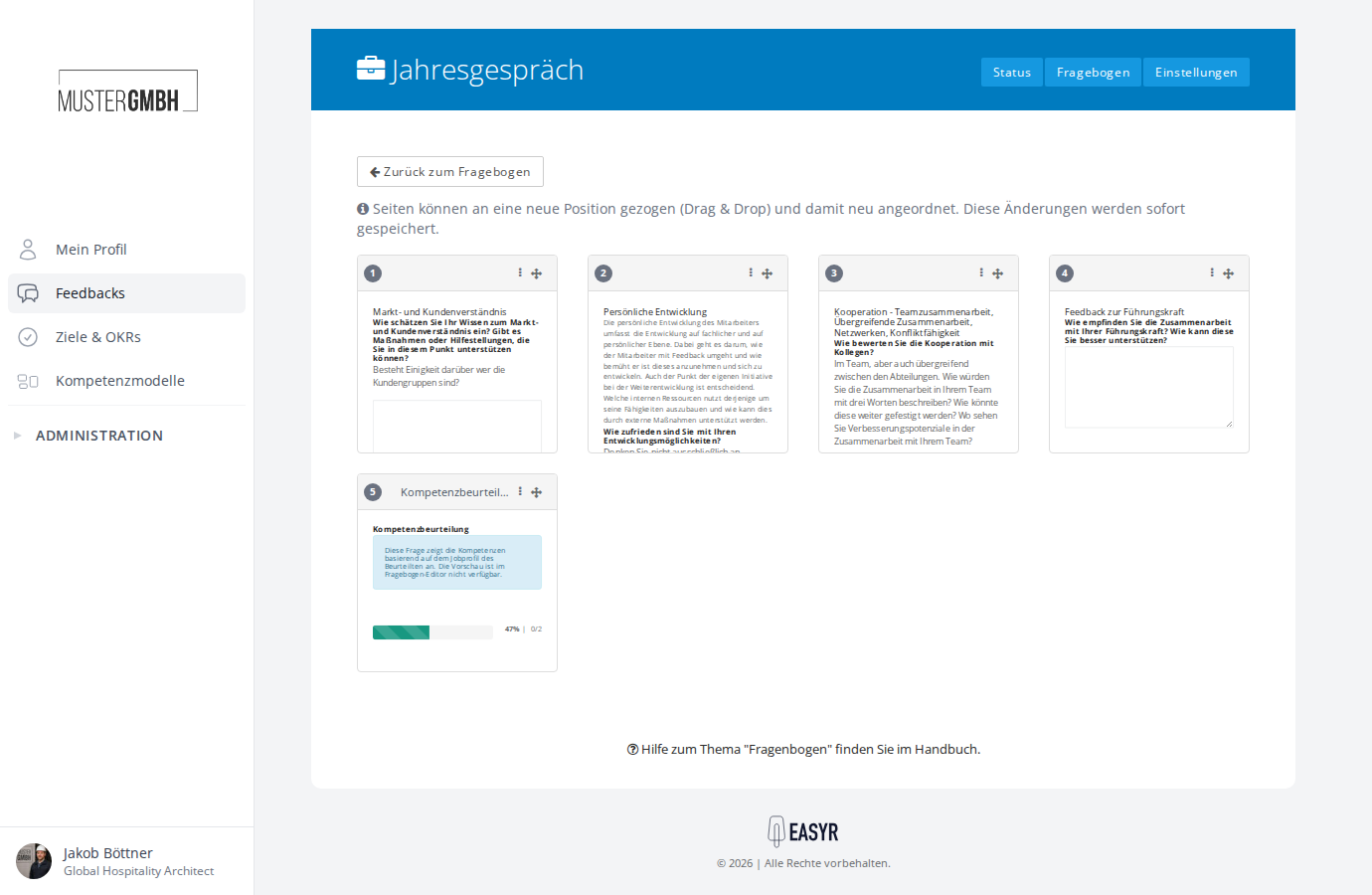
The “Page overview” button in the questionnaire editor’s toolbar opens a compact overview of all pages. Each page is shown as a card with its page number, internal title, and a scaled-down preview of the questions it contains.
Drag and drop pages to a new position. Changes are saved immediately. Click “Back to questionnaire” to return to the normal editor.
Using the actions menu (⋮) on each card, you can open the page settings, copy the page, or delete it.