Share dashboards with colleagues
Share one of your dashboards so colleagues can use the same set of analyses. Recipients see the current cards with their own data access rights. Sharing does not give them additional access to feedback results.
Share a dashboard
Open a dashboard you own and choose Sharing from its three-dot menu at the top right. For the standard dashboard, first create a private copy.
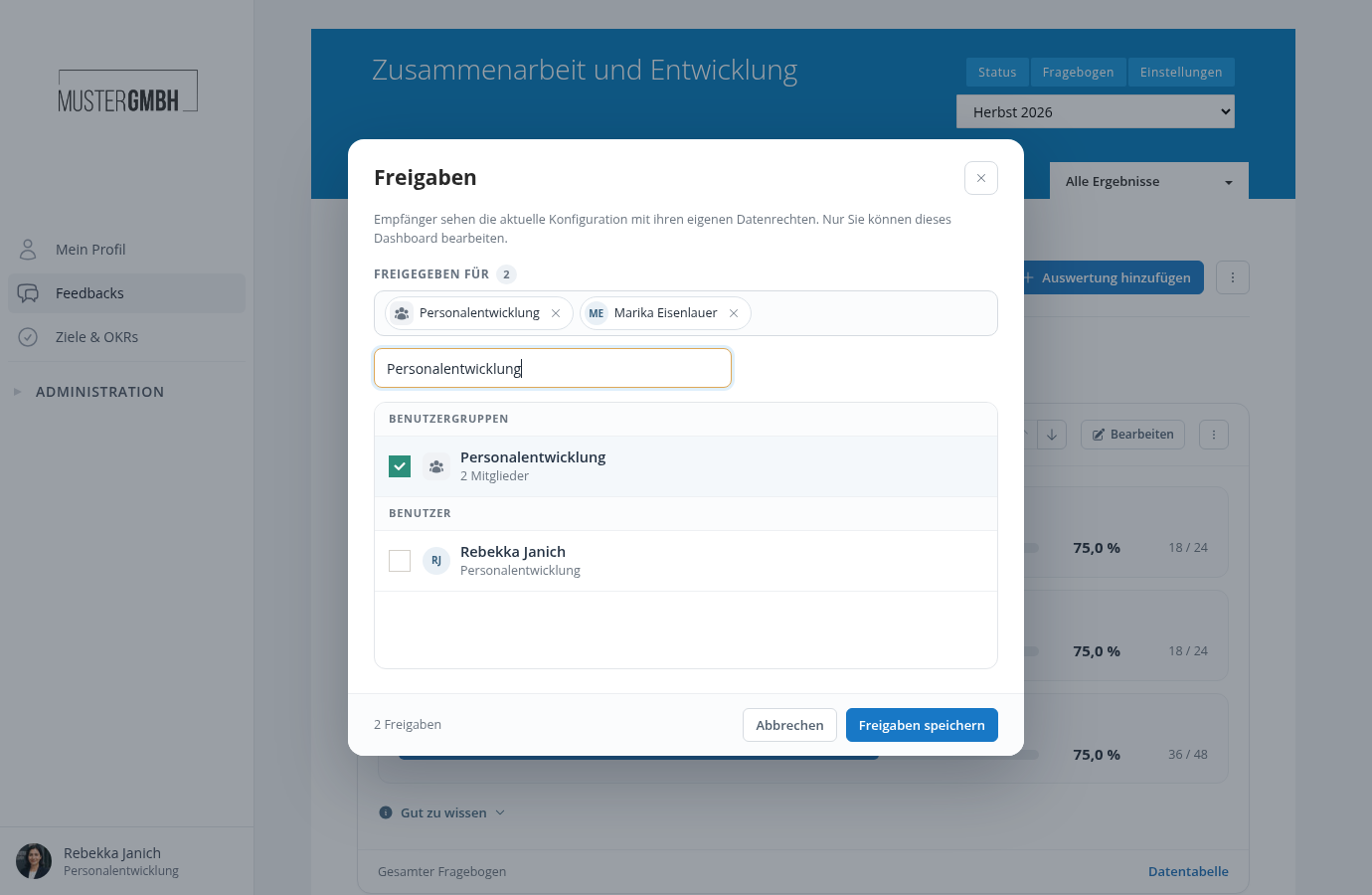
Search for users or user groups and add them to the selection. Shared with lists the recipients you have selected. Then choose Save sharing settings.
What do recipients see?
The dashboard appears in their selector with a sharing icon. When open, it shows Shared · Read-only. Hover over that label to see who owns it and whether it was shared directly or through one of your user groups.
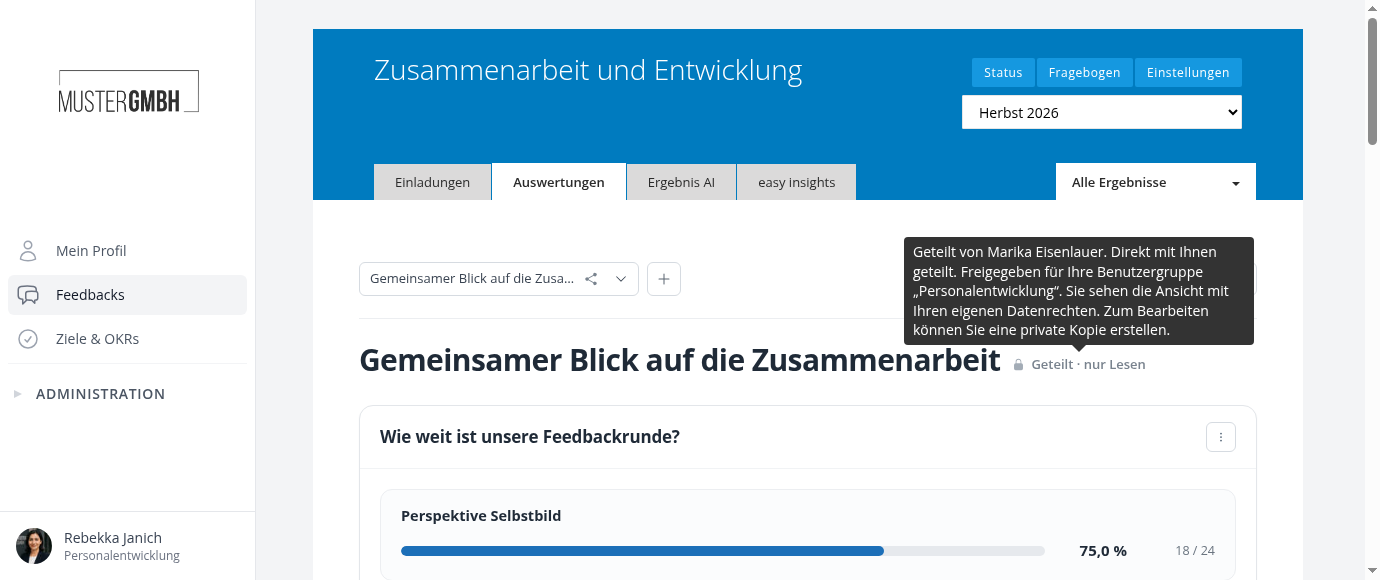
You are sharing the set of cards, not a frozen copy of your results. A manager, for example, sees only results they can access themselves. Filters, anonymity rules, and minimum counts also apply to the shared view. The same report can show different figures to two people.
Can colleagues change the report?
Only the owner edits the shared original. Changes to its cards and order become visible to recipients.
Anyone who needs their own version can choose Create private copy. The copy can be edited independently and is initially private. Later changes to the original are not applied to it.
Change or remove access
Open Sharing again, add or remove recipients, and save. Access through a group depends on membership in that group.
If someone has access both directly and through a group, removing just one route is not enough. Check both entries. Private copies already created are independent of the original and remain available, subject to their owners’ data access rights.