View a review result
You can open review results either from the participant list of a review edition or from an employee profile.
Open results from the participant list
- Open the participant list of the review edition
- Click “Show review” at the right edge of the row of the participation you want
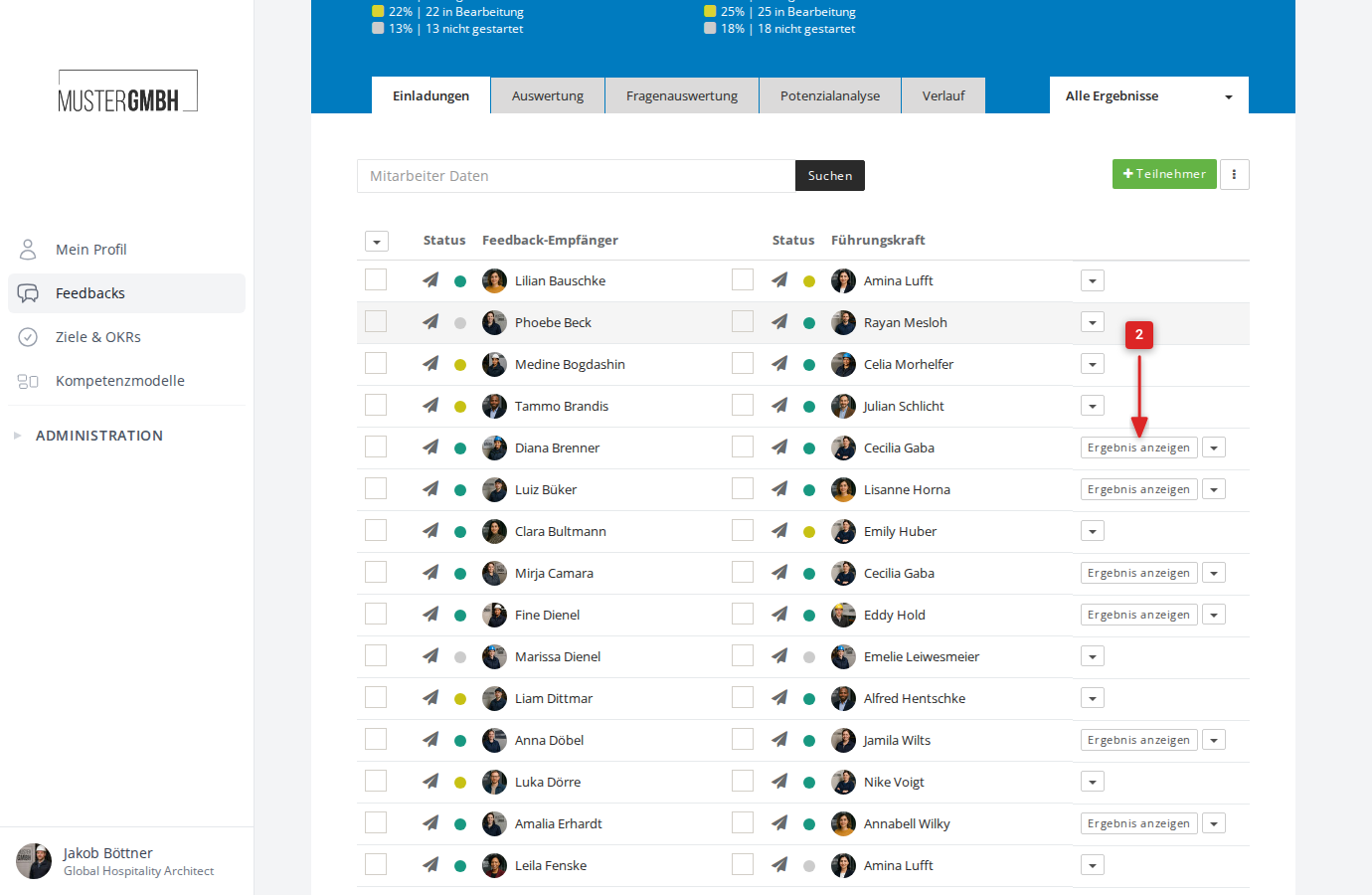
- The result opens
Open results from an employee profile
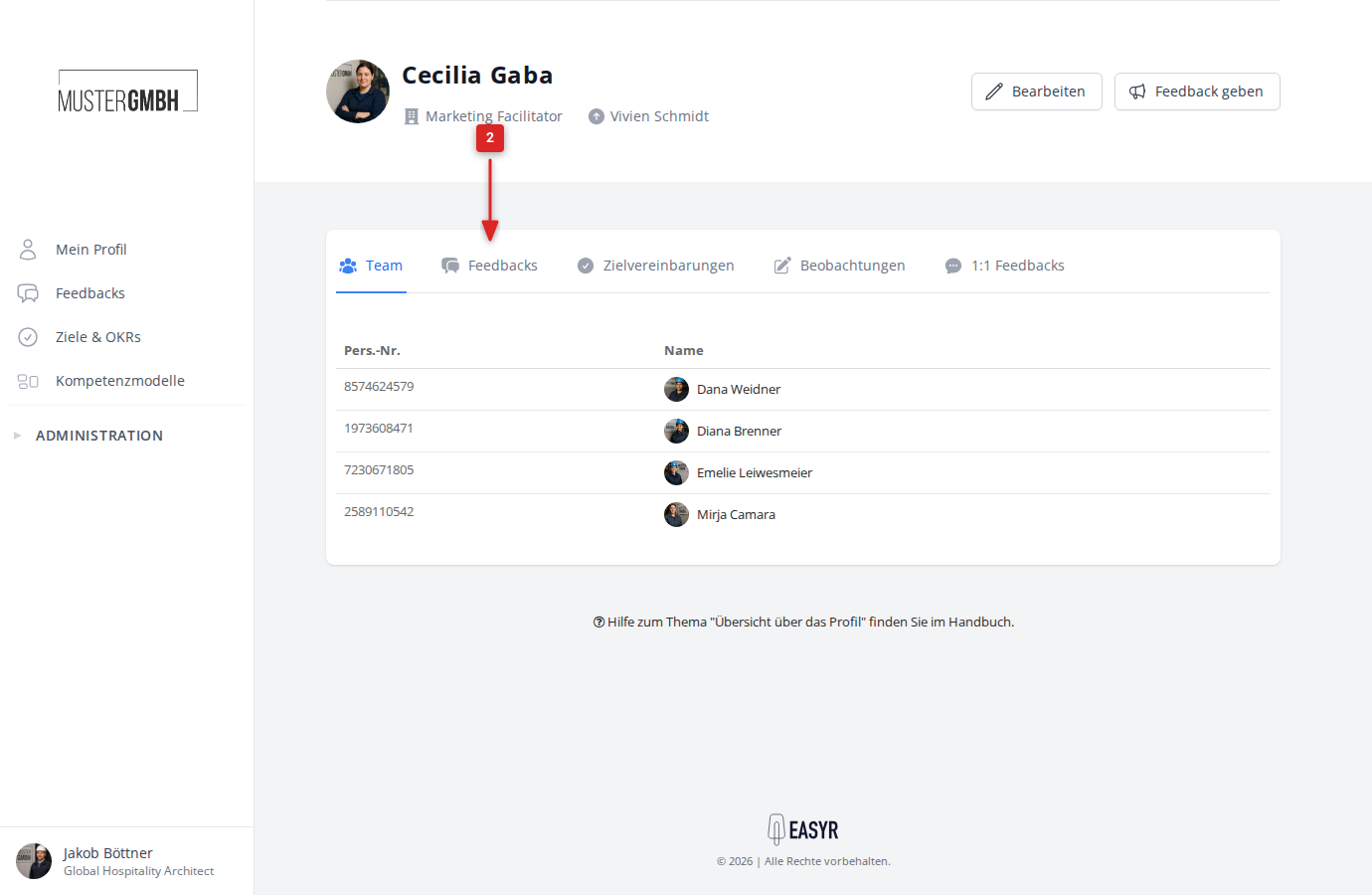
- Open the profile of the employee you want
- Click the “Feedbacks” tab
- Click “Show review” at the right edge of the row of the participation you want
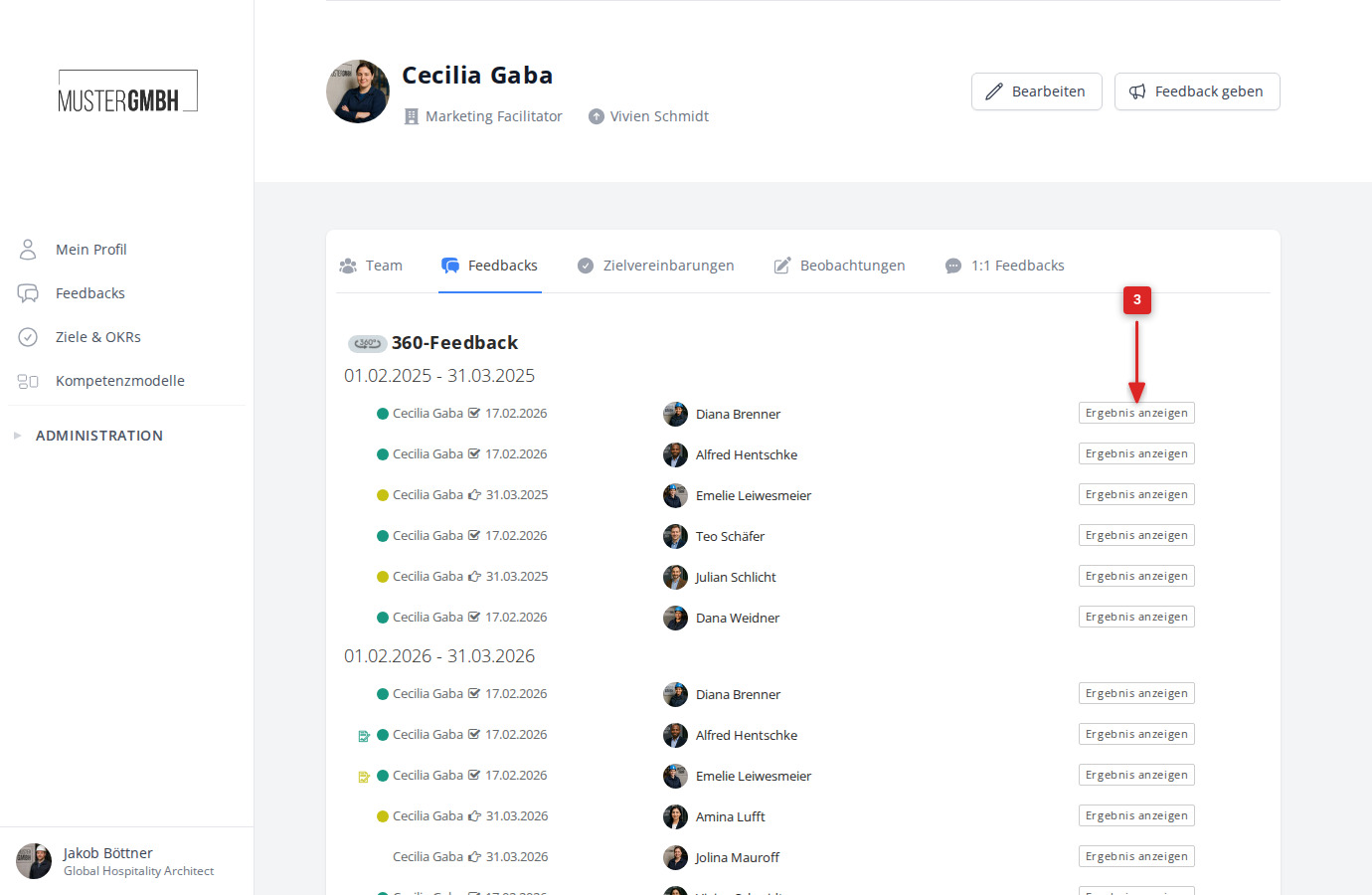
- The result opens
Who can see results
Access to review results follows these principles:
- Results can only be seen by the people involved in the participation (for example, the feedback recipient and the supervisor)
- Results can only be seen once everyone involved has finalized their participation
- Supervisors (external review) can also see their own finalized result before the feedback recipient has finalized their self-review. They cannot see the feedback recipient’s unfinalized results
- Employees with the “HR employee” or “Management” user role can see the result of any participation in which everyone involved has finalized it
Share a result
Employees with the “HR employee” user role or a moderator perspective can share a result with additional people using the share button in the header of the result view.
- Click “Share result” in the header of the result view
- Choose the person you want to share the result with
- Click “Share result” to confirm
The people you share with gain access to the result, even if they were not involved in the participation. Sharing does not bypass a quorum: if a perspective of a 360° feedback has not yet reached its quorum, the people you share with don’t see that perspective’s answers yet either.
Unlock results
When supervisor unlocking is active for a review, the feedback recipient can only see the result after the supervisor has explicitly unlocked it. Unlocking happens through the “Unlock results” button in the participant list.
Sealing
If sealing is active for a review, the following rule also applies:
- The reviewed employee (self-review) and employees with the “HR employee” or “Management” user role can only see the result once the participation has been sealed
Diplomatic status
If diplomatic status is active for a review, the following rule also applies:
- Employees with the “HR employee” user role cannot see the results unless they are involved in the participation themselves. Only employees with the “Management” user role can see the results.
The result view
Header
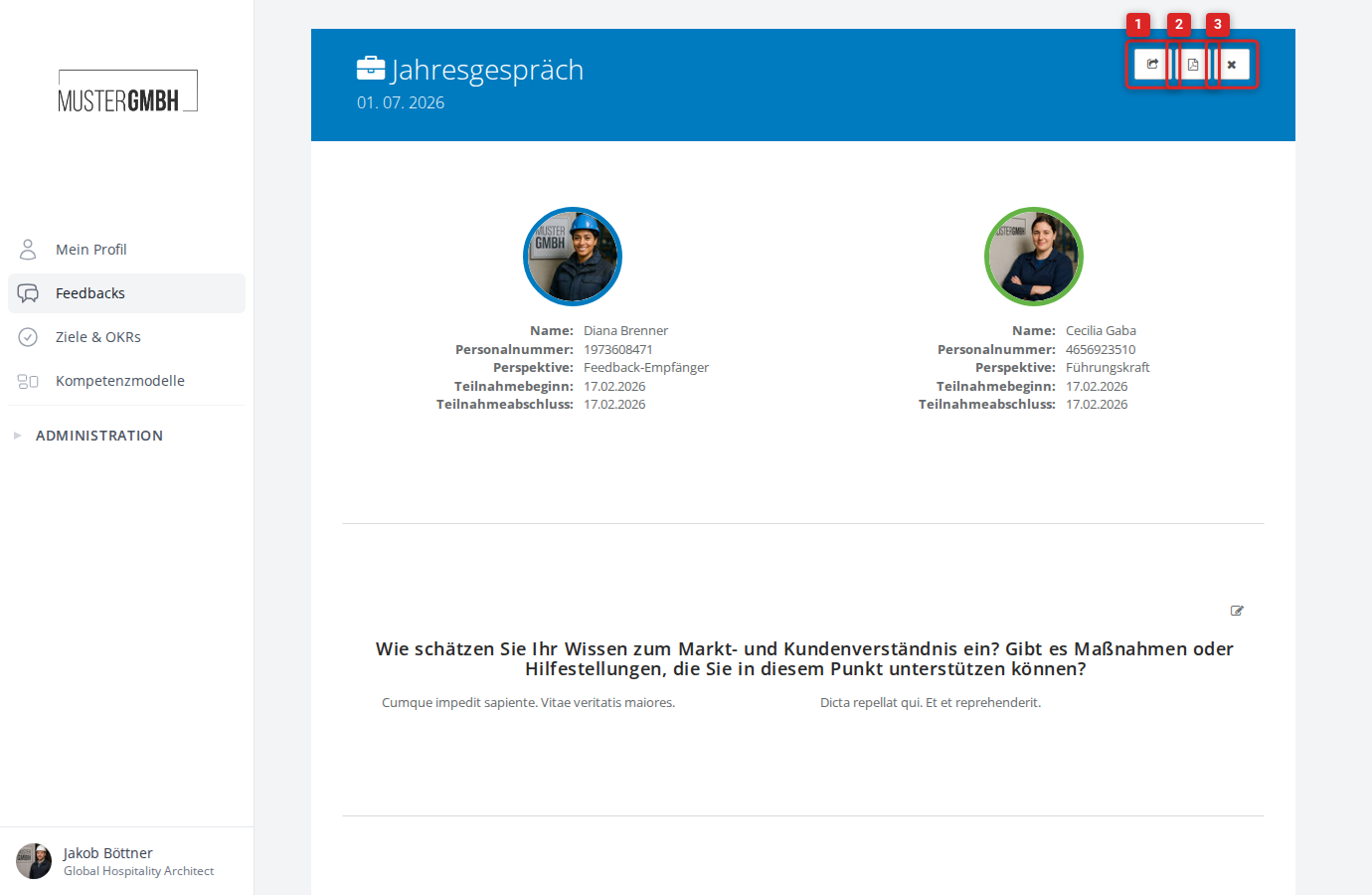
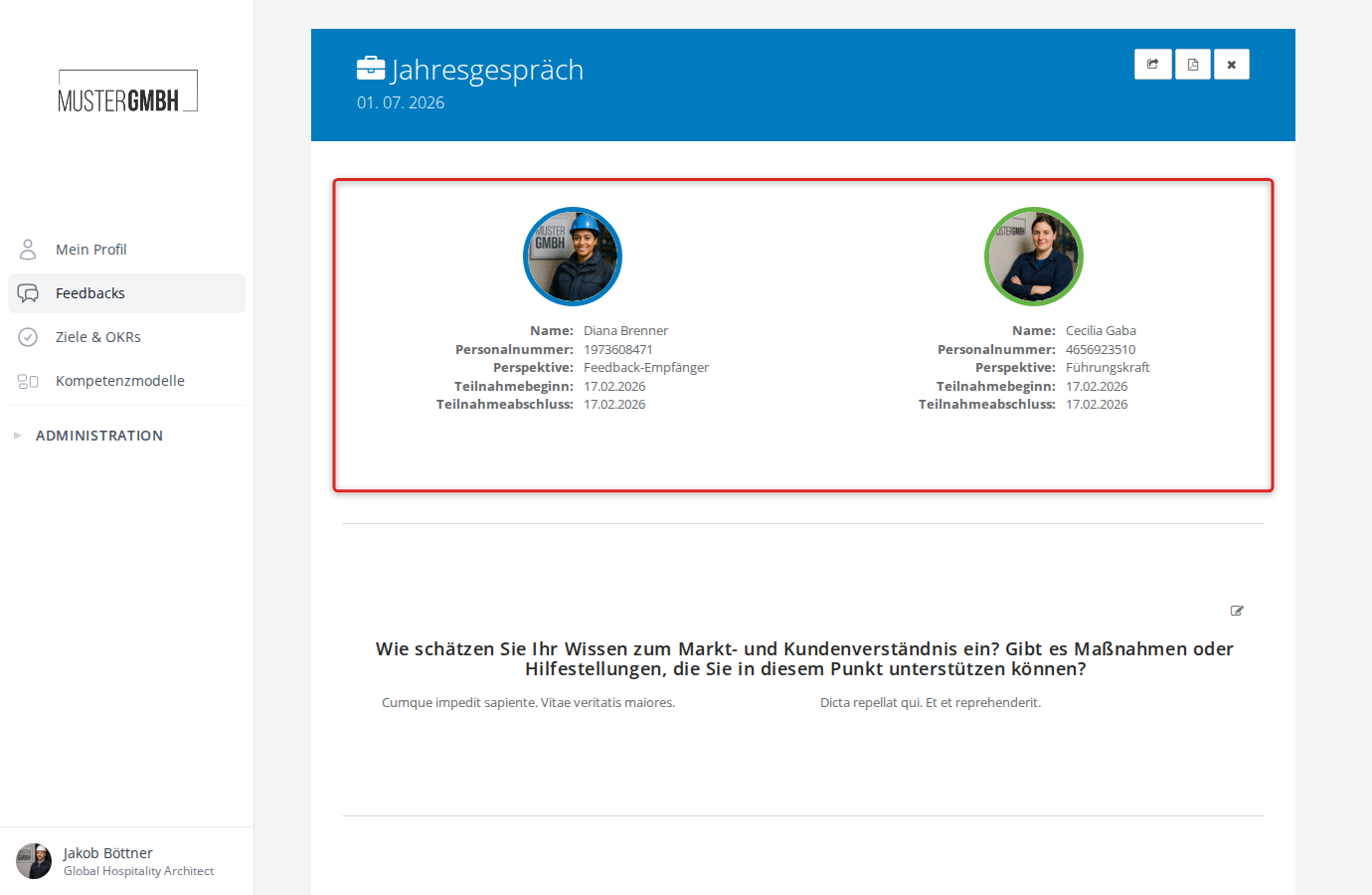
The result view begins with a header showing the title of the feedback process and the edition period. The header also contains these buttons:
- Share result — share the result with additional people (only visible to HR employees and moderators)
- PDF download — download the result as a PDF document
- Close — return to the previous page
Participant overview
Below the header, the people involved are shown with their details:
- Name and staff number
- Perspective (for example, “feedback recipient” or “supervisor”)
- Participation start and participation completion
The perspectives are colour-coded. These colours are used everywhere on the page to represent each person’s results.
Show and hide perspectives
For reviews with more than one perspective, you can show or hide individual perspectives in the result view. Click the coloured perspective markers in the participant overview to do so. Hidden perspectives no longer appear in the question results, the performance description, and the competency evaluation. This lets you look at the results for specific perspectives only.
Question results
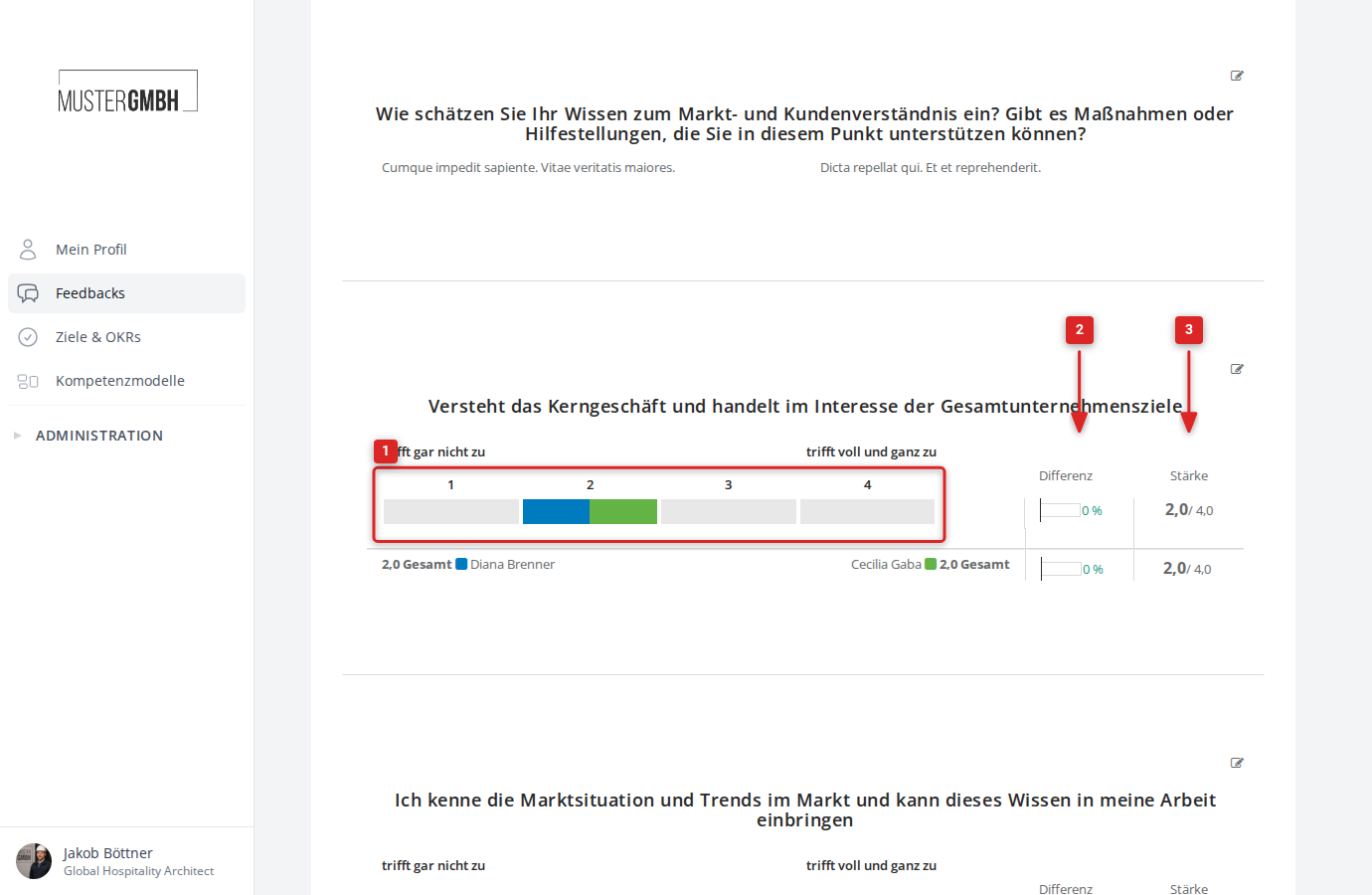
Below the participant overview the actual result begins. Each question of the questionnaire gets its own result view. The presentation differs for each question type. For rating questions, the following elements are shown:
- The colour-coded answers of those involved as a bar chart
- The difference between the self-review and external-review answers (as a percentage)
- The strength value reached per perspective
Edition comparison
For rating questions that appear across several edition cycles, the results of previous cycles can be compared directly in the result view. The additional edition results are shown below the current question.
Performance description
At the bottom of the result view, when the potential analysis is active, a performance description is shown. It shows the sum of the strength values reached from the self-review and external-review perspectives, plus the average. It also shows the potential level of the result being viewed.
Competency evaluation
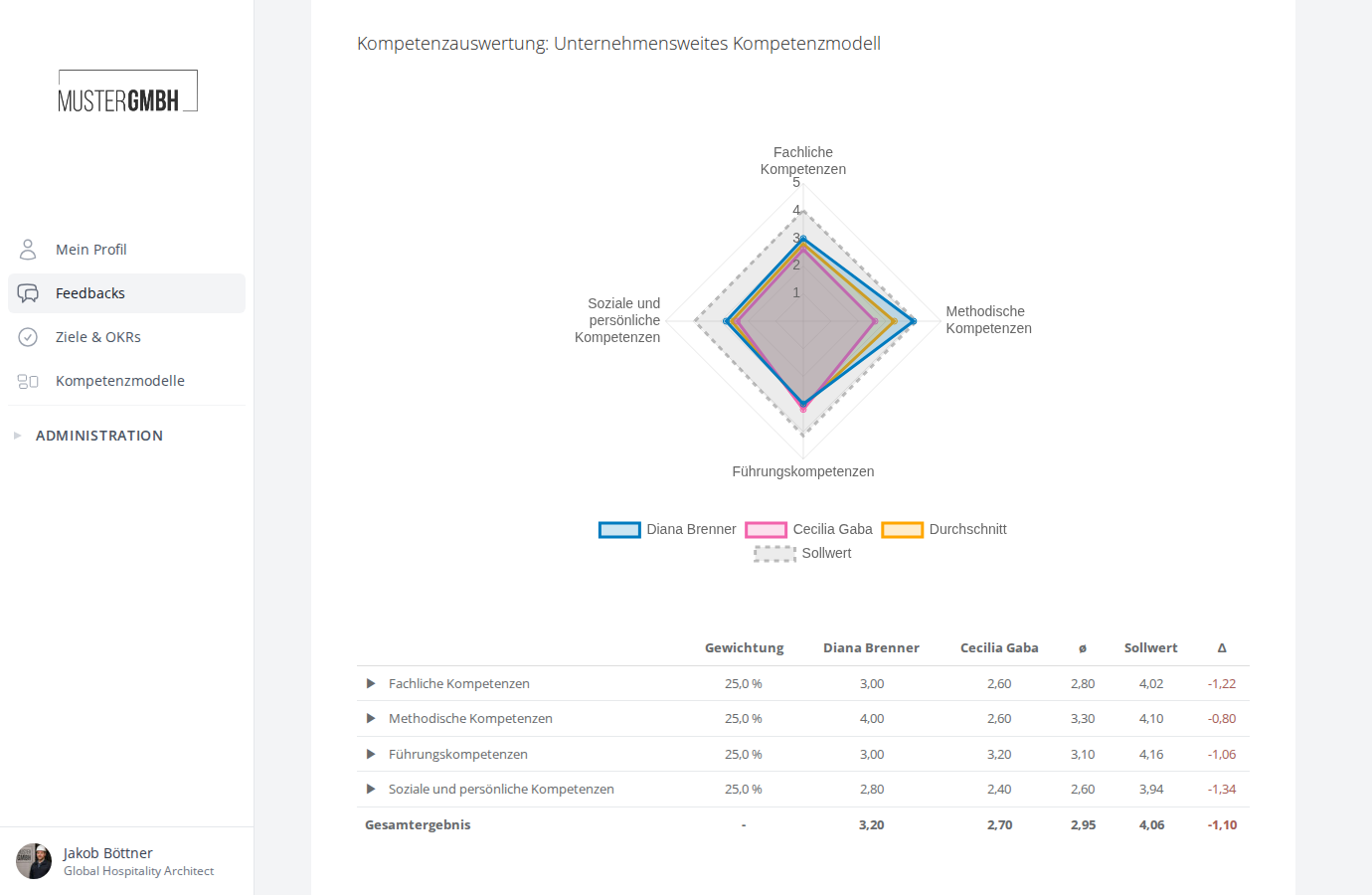
If a competency model is assigned to the feedback process, a competency evaluation is shown at the end of the result view. It includes:
- A radar chart that visually compares the competency ratings of both perspectives, the average, and the target value
- A detail table with the weighting, the individual values per perspective, the average, the target value, and the deviation per competency
Notes
Below the results you can add notes about the participation. This function is available to HR employees, supervisors, and moderators as long as the participation is not sealed. For more, see Add a note to a review result.
Sealing
If sealing is active for the review, a sealing area is shown at the bottom of the result view. It shows the current sealing status and — if you have the necessary permission — the “Seal Now” button to start the sealing process.