Add a note to a review result
You can add notes to any review result. This lets you document conversation outcomes, agreements or remarks right on the result.
Notes appear at the bottom of the result page. They can be public (visible to everyone who can access the result) or private (visible only to you).
Who can add notes?
Notes can be added by the following people, as long as the result is neither sealed nor currently being sealed:
- HR administrators
- Management
- Supervisors of the reviewed employee
- People with a moderator perspective in the review
Add a note
- Open the result view of the participation you want
- Scroll to the bottom of the result page and click “Add note”.
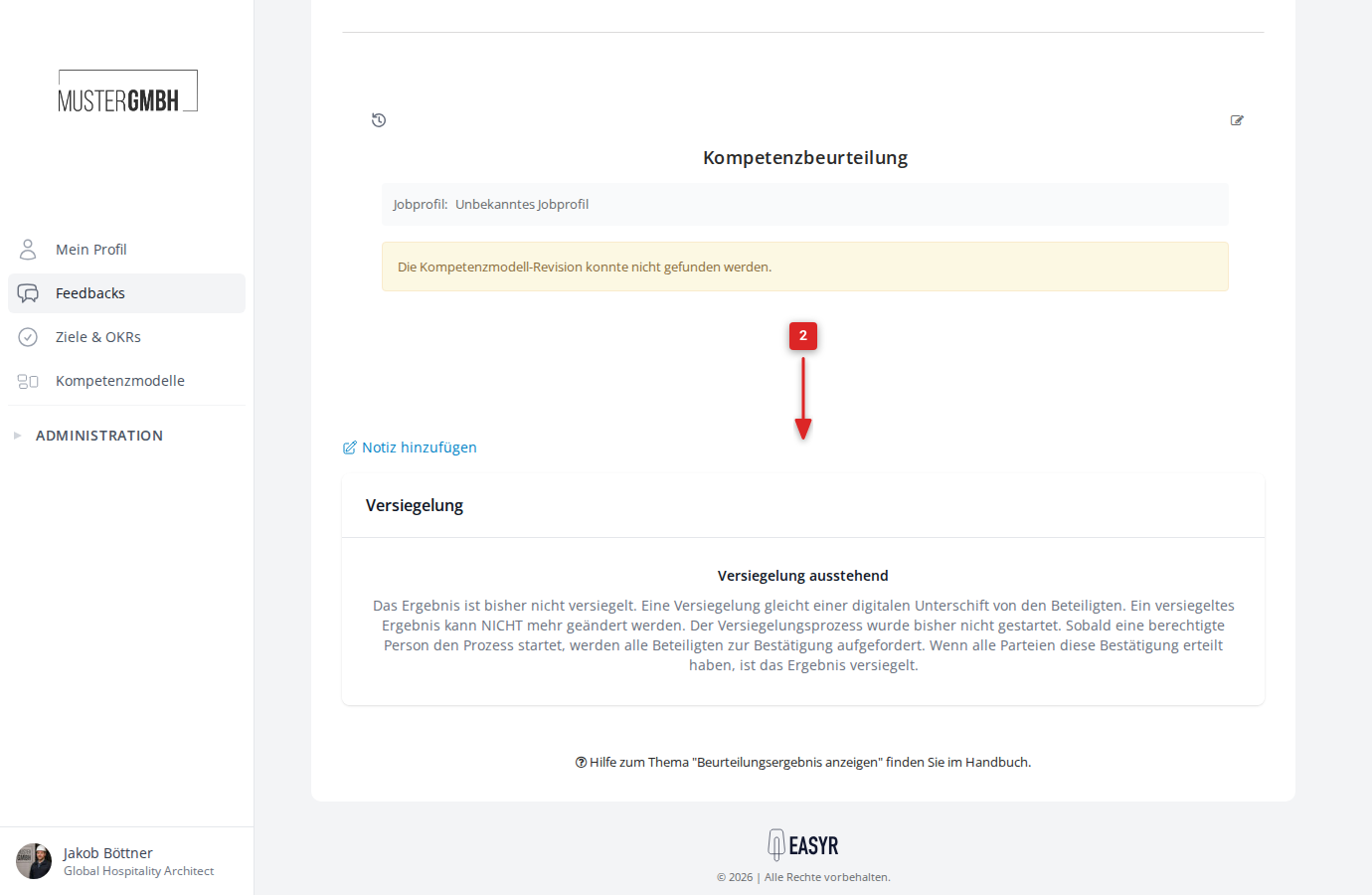
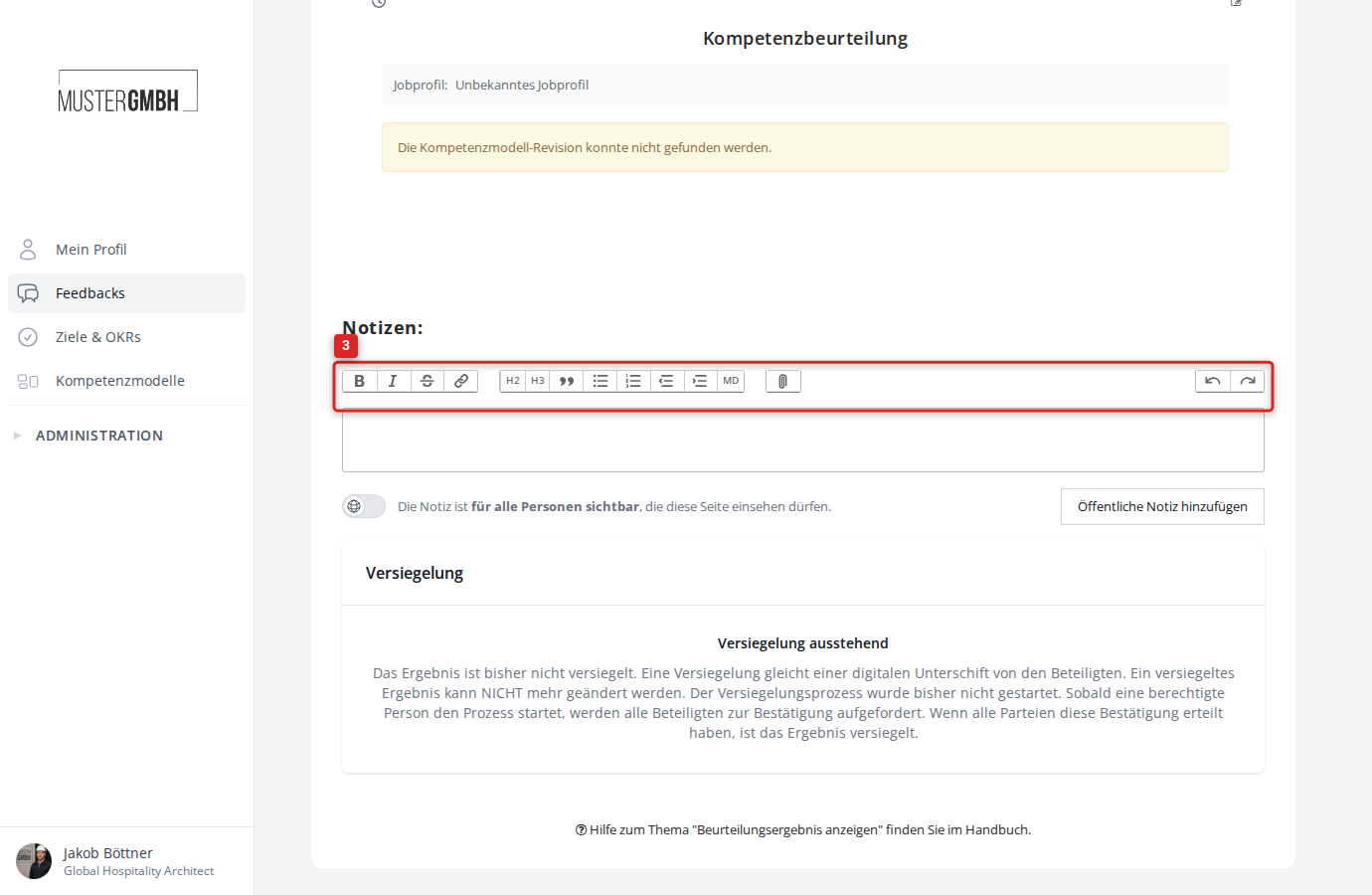
- The note area expands. Enter your text in the editor. You can format the text with the toolbar (bold, italic, headings, lists, links, file attachments).
- Choose the visibility: the toggle to the left of the button determines whether the note is public or private.
- Public (globe icon): everyone who can access the result can read the note. Below the toggle it reads: “The note is visible to everyone who is allowed to view this page.”
- Private (lock icon): only you can see the note. Below the toggle it reads: “The note is visible only to you. Others cannot read the note.”
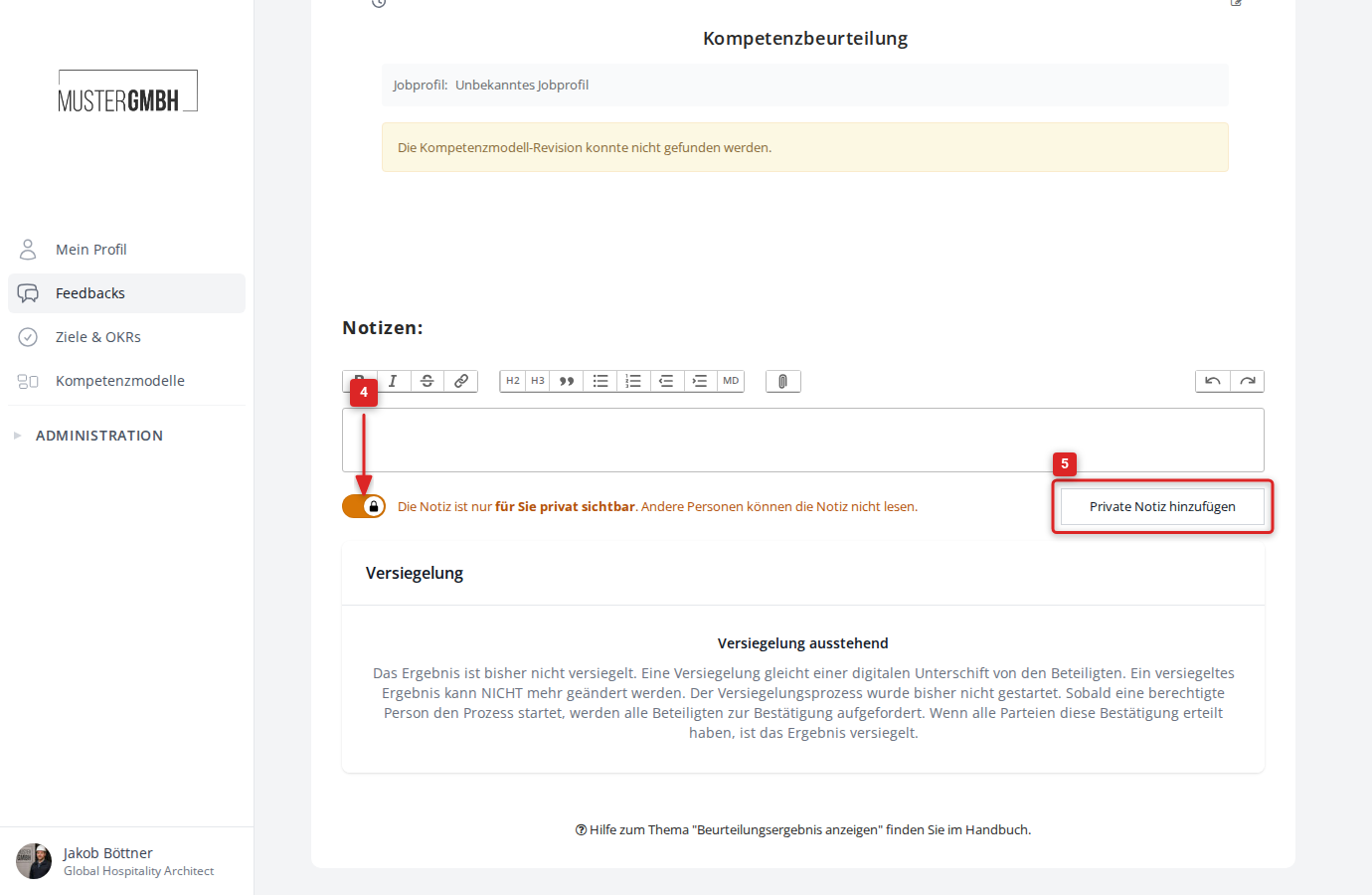
- Click “Add public note” (or “Add private note” if the Private toggle is on).
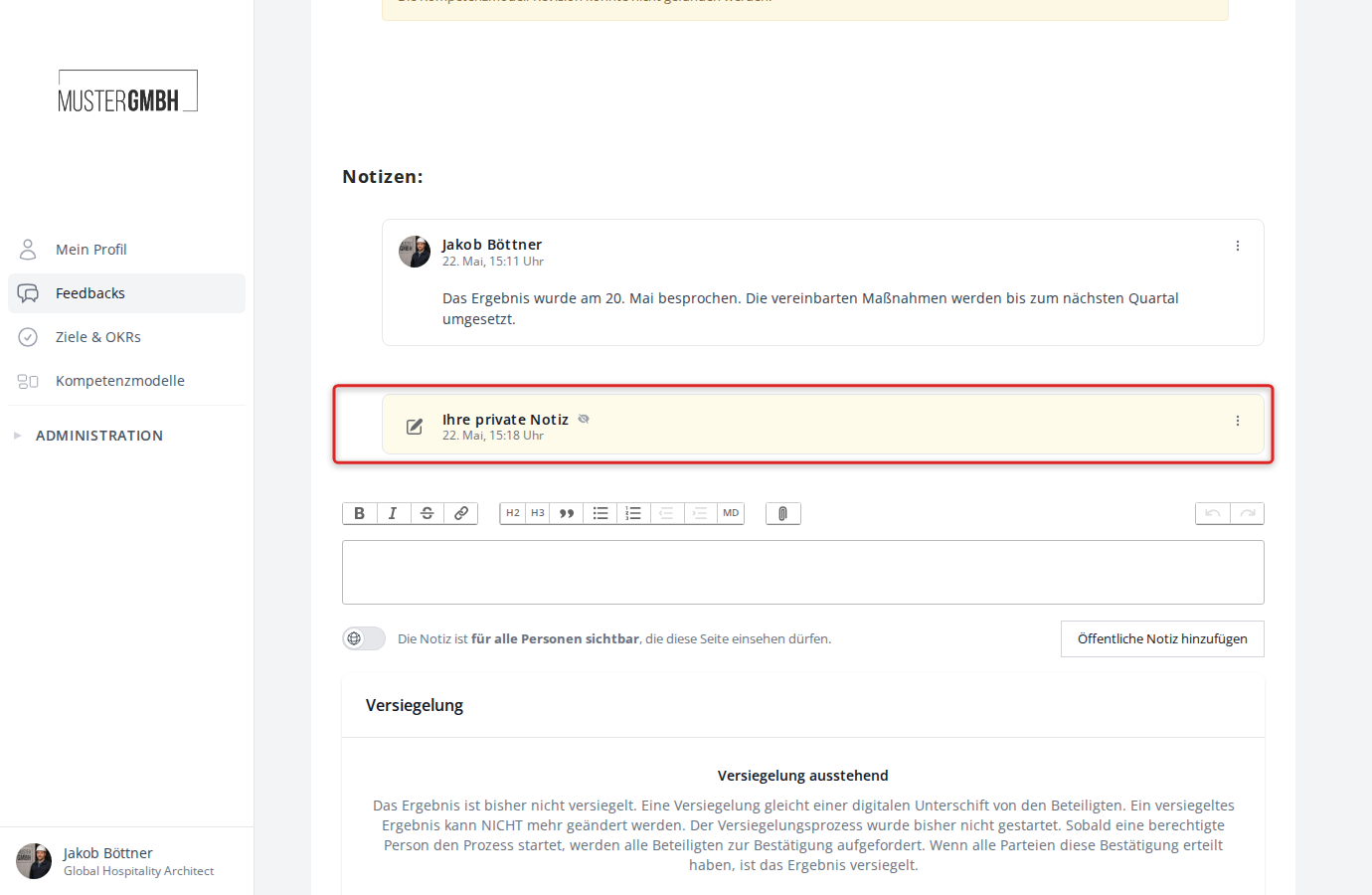
The note is saved and appears as a card above the form. The page does not reload.
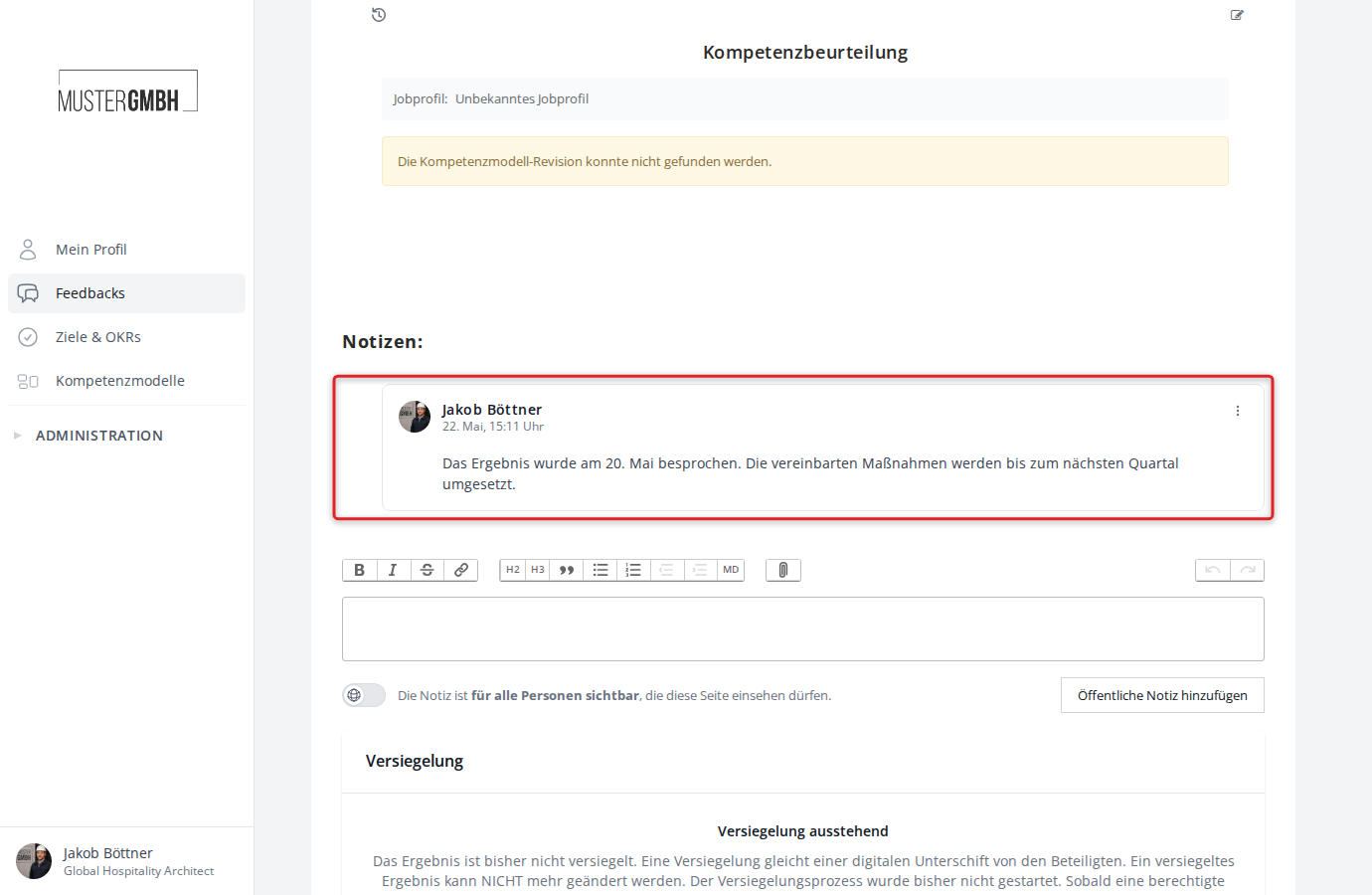
You can add as many notes in a row as you like.
Delete a note
Public notes can be deleted by HR administrators and management. Private notes can be deleted by their author.
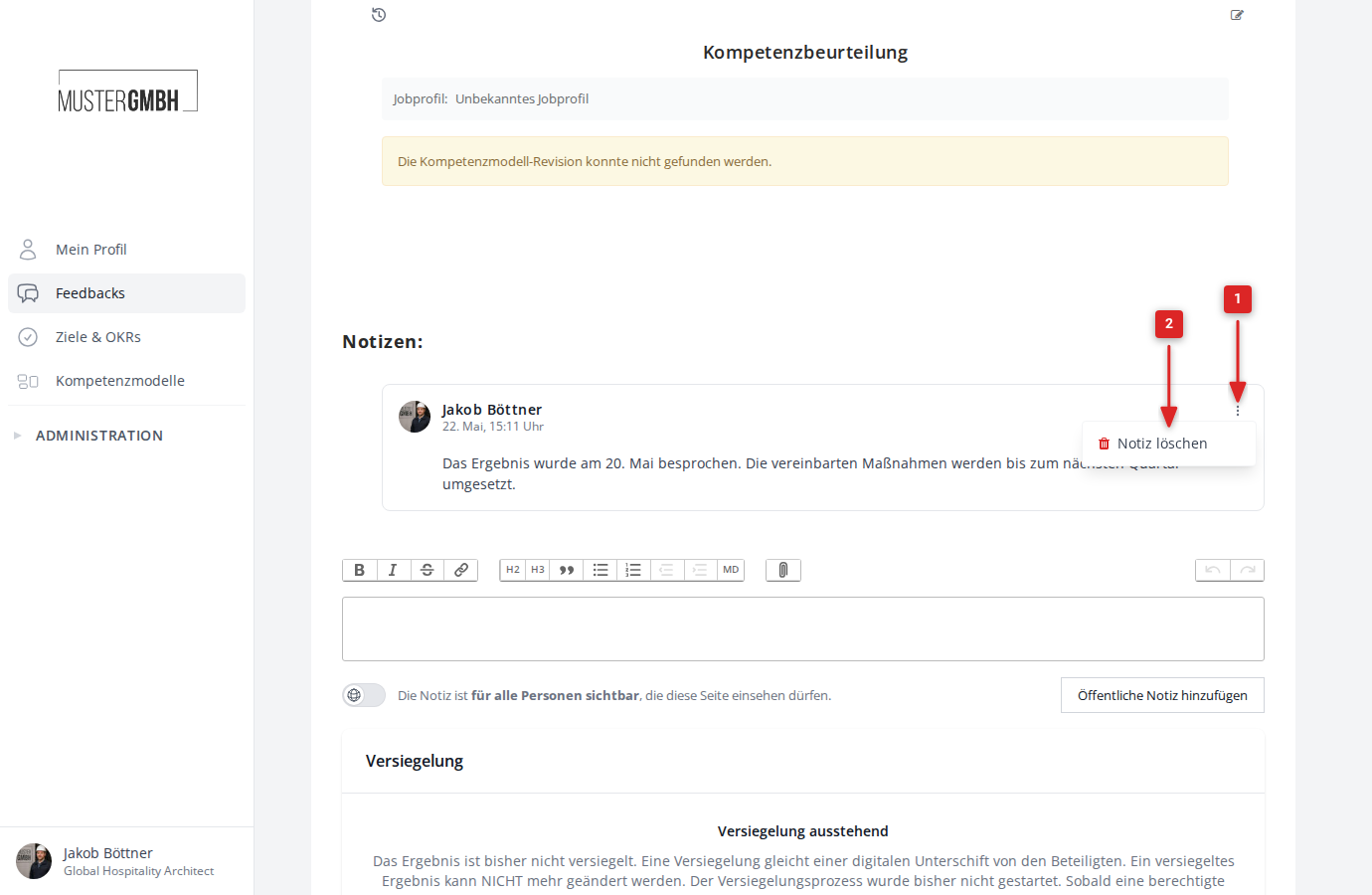
- Click the three-dot menu in the top right of the note card.
- Choose “Delete note”.
- Confirm the deletion in the confirmation dialog with “Delete now”.
Private notes
Private notes are marked with a lock icon and a yellow background. They start out collapsed and show only the note “Your private note”. Use the three-dot menu to expand and collapse the note (“Show note” / “Collapse note”).