Edit the questionnaire
This function is only available to users with the HR employee access level.
In the questionnaire editor you edit the questionnaire of a review. Here you add questions, arrange pages, and configure the structure of the questionnaire. For an overview of every available question and element type, see Element and question types.
Open the questionnaire editor
To open the questionnaire editor:
- Open the status page of the review you want to edit.
- Click “Questionnaire” in the navigation bar at the top.
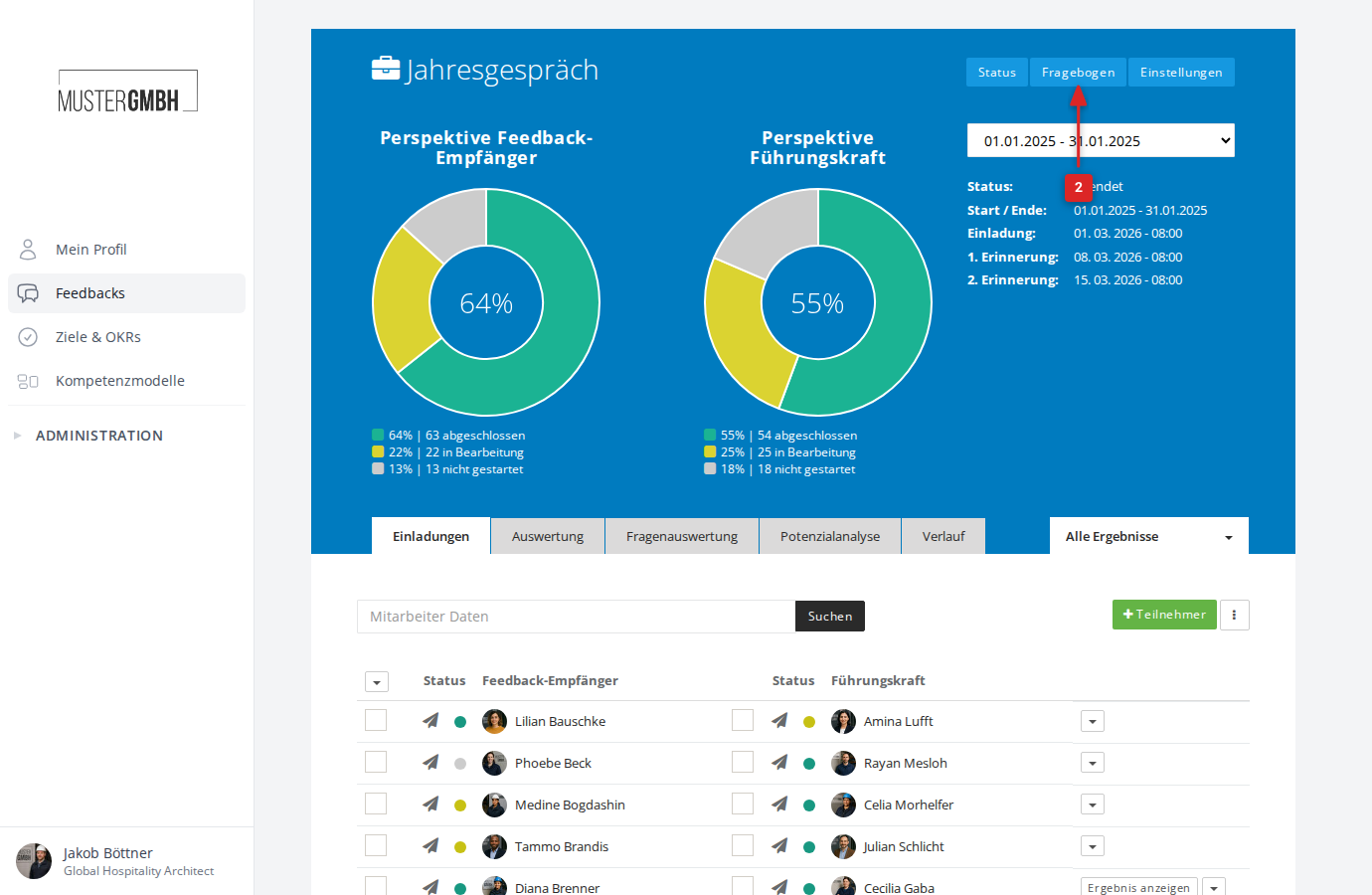
How the editor is laid out
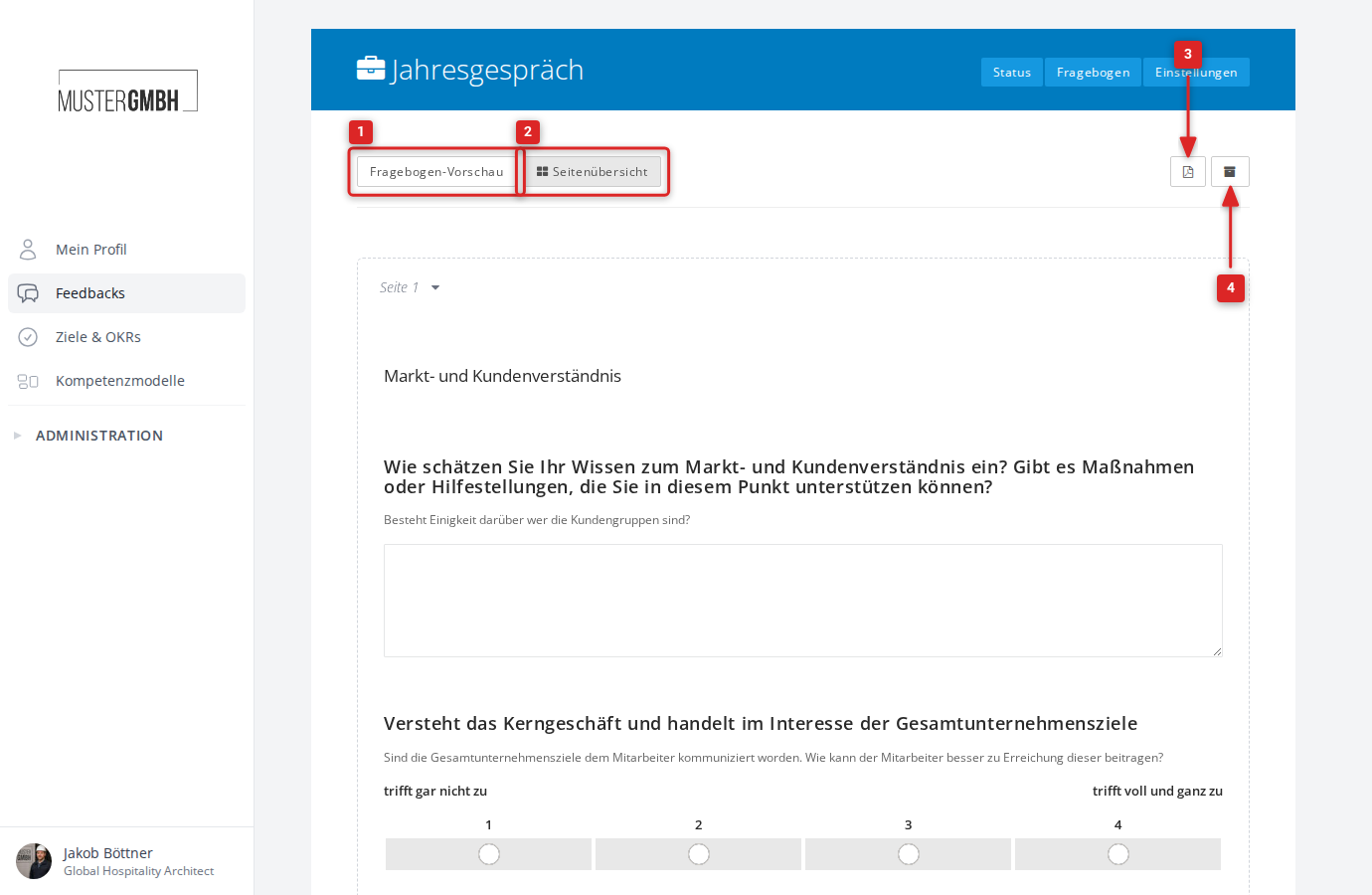
The questionnaire editor lists all pages and questions of your questionnaire one below the other. Each page is set off by a dashed border and starts with a page label (for example “Page 1”). At the end of each page sits the ”+ Element” button, which you use to insert a new question or element on that page.
Above the questionnaire you find the toolbar with these functions:
- Preview questionnaire: Opens the questionnaire in the view participants see while filling it in. See Questionnaire preview for details.
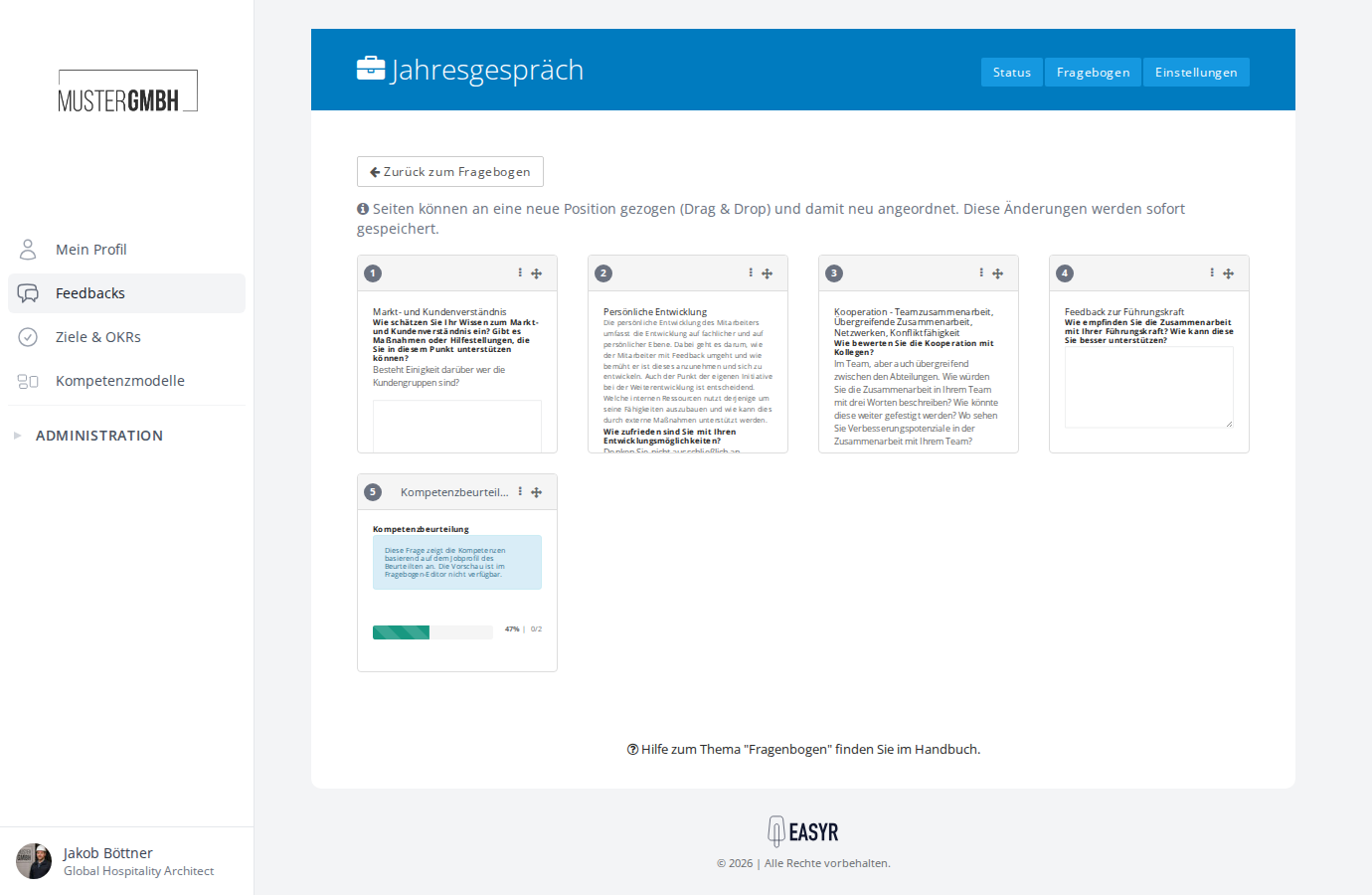
- Page overview: Shows all pages side by side as compact cards. Drag and drop to change the order of the pages.
- Download PDF: Downloads the questionnaire as a PDF file. See Export the questionnaire (PDF) for details.
- Archive: Shows or hides archived (deactivated) questions.
Edit questions and elements
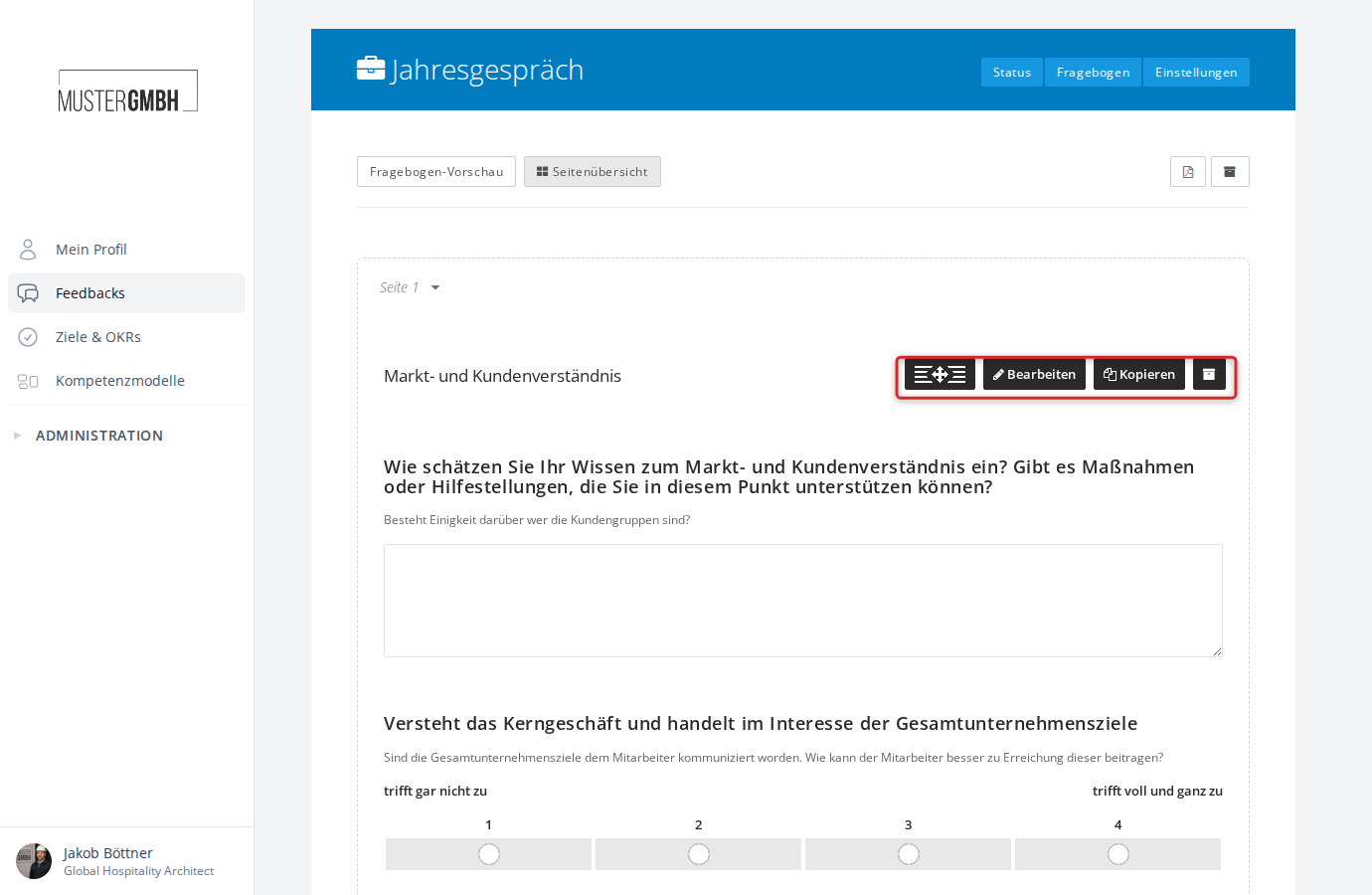
When you hover over a question or element, a toolbar appears with these actions:
- Move (handle icon): Drag and drop the question to another position, including onto a different page. See Move an element for details.
- Edit: Opens the form for editing the question. See Edit an element for details.
- Copy: Creates a copy of the question directly below the original.
- Archive (archive icon): Deactivates the question without deleting it. Archived questions are not visible to participants. For more on deleting and archiving, see Delete an element.
Add questions and elements
At the end of each page sits the ”+ Element” button. Click it to open a dropdown with every available question and element type. Pick the type you want to insert it on the page. See Add an element for details.
Manage pages
A questionnaire is divided into pages. While filling it in, participants see one page at a time and move between pages with “next” and “back”.
Add a page
Between two pages sits the ”+ Page” button. Click it to insert a new empty page at that spot.
Page tools
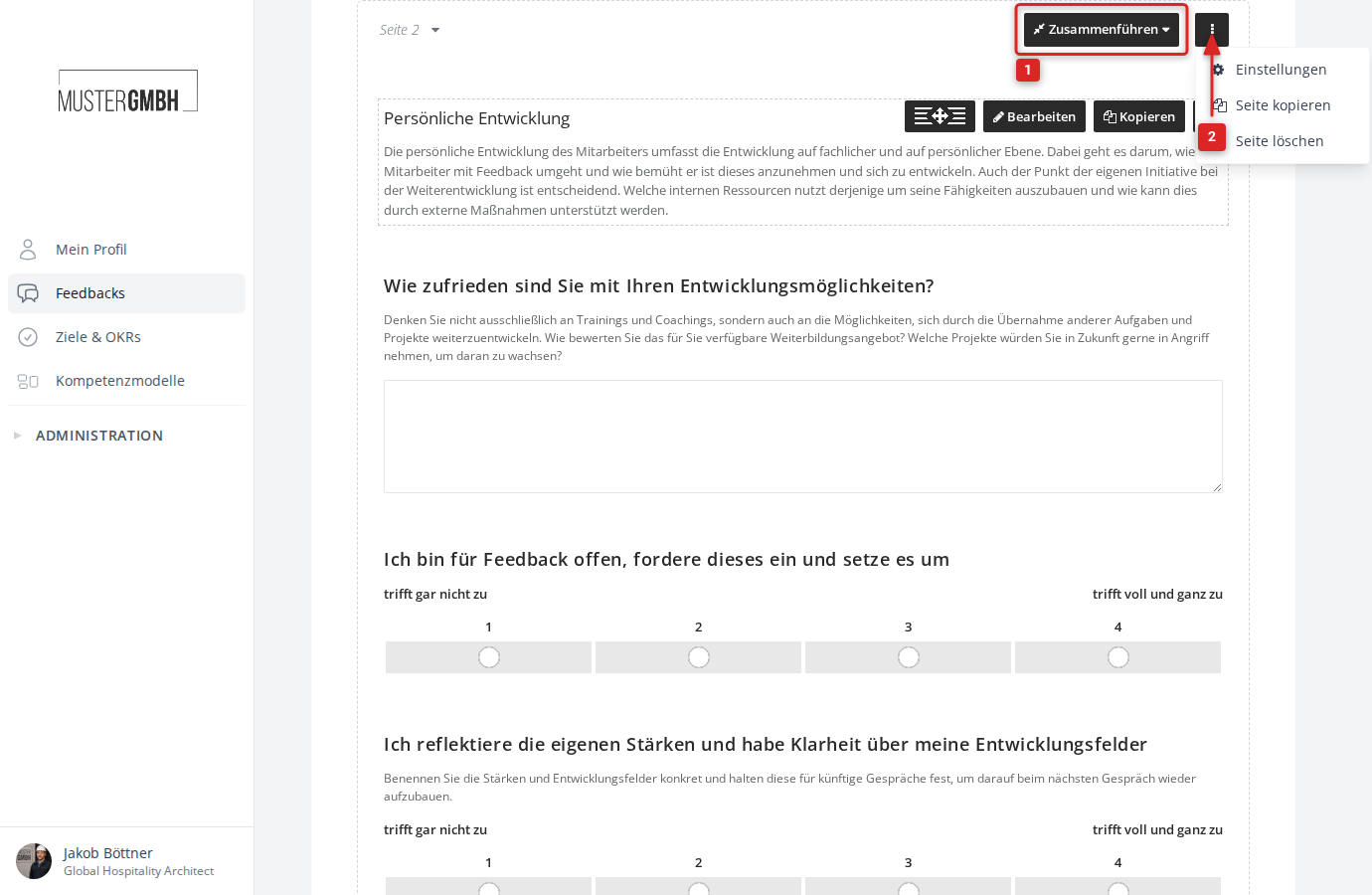
When you hover over the header area of a page, the page tools appear:
- Page navigation (the “Page 1”, “Page 2” … dropdown): Click the dropdown to jump directly to another page.
- Merge (dropdown): Moves all questions from the current page to the previous or next page and deletes the now-empty page.
- More actions (three-dot menu): Contains these options:
- Settings: Opens the page settings (for example internal title, visibility for specific perspectives, user groups, or editions).
- Copy page: Creates a copy of the page with all its questions.
- Delete page: Removes the page and all questions it contains.
Page overview
Click “Page overview” in the toolbar to see all pages side by side as compact cards. Each card shows the page number and a scaled-down preview of the questions it contains. Drag and drop a page to a new position. Changes are saved immediately.
Archived questions
By default, archived questions are hidden in the editor. To show them, click the archive icon in the toolbar at the top right. Archived questions then appear greyed out in the editor.
For an archived question, two actions are available:
- Restore: Reactivates the question so it is visible to participants again.
- Delete permanently: Removes the question irreversibly from the questionnaire.
Closing text
At the end of the questionnaire you can add a closing text. Participants see it after they have answered all questions and completed their participation. See Edit the closing text for details.