Settings of a feedback process at a glance
You reach every setting of a feedback process from one overview page. For each area it shows the current state in one line, for example “HR creates participations · With sealing”. You change settings on the subpages, and each subpage saves on its own.
Open the settings
From the feedbacks overview:
- In the sidebar, click “Feedbacks”.
- Click “Admin” on the feedback process you want.
- Choose “Settings”.
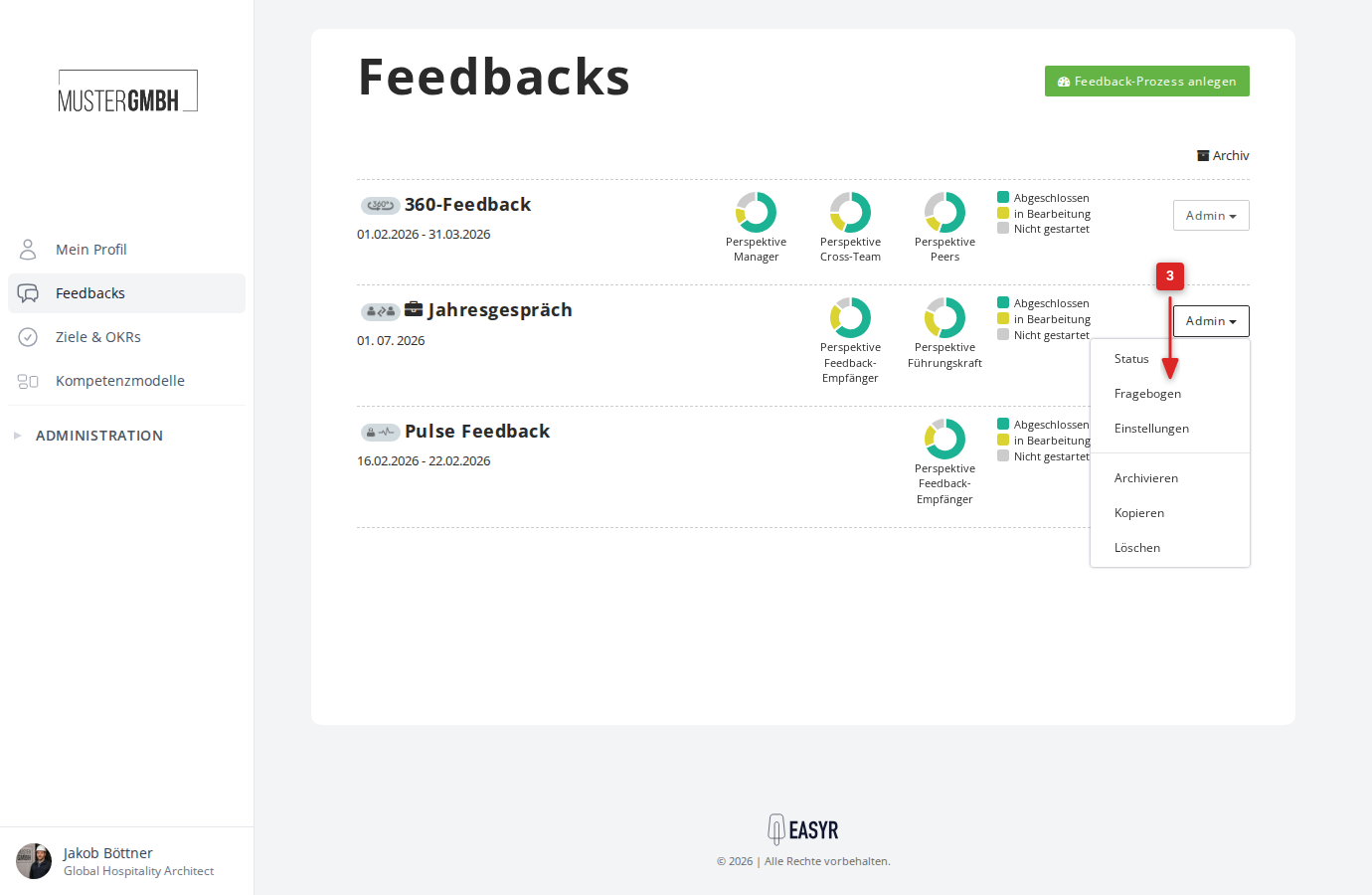
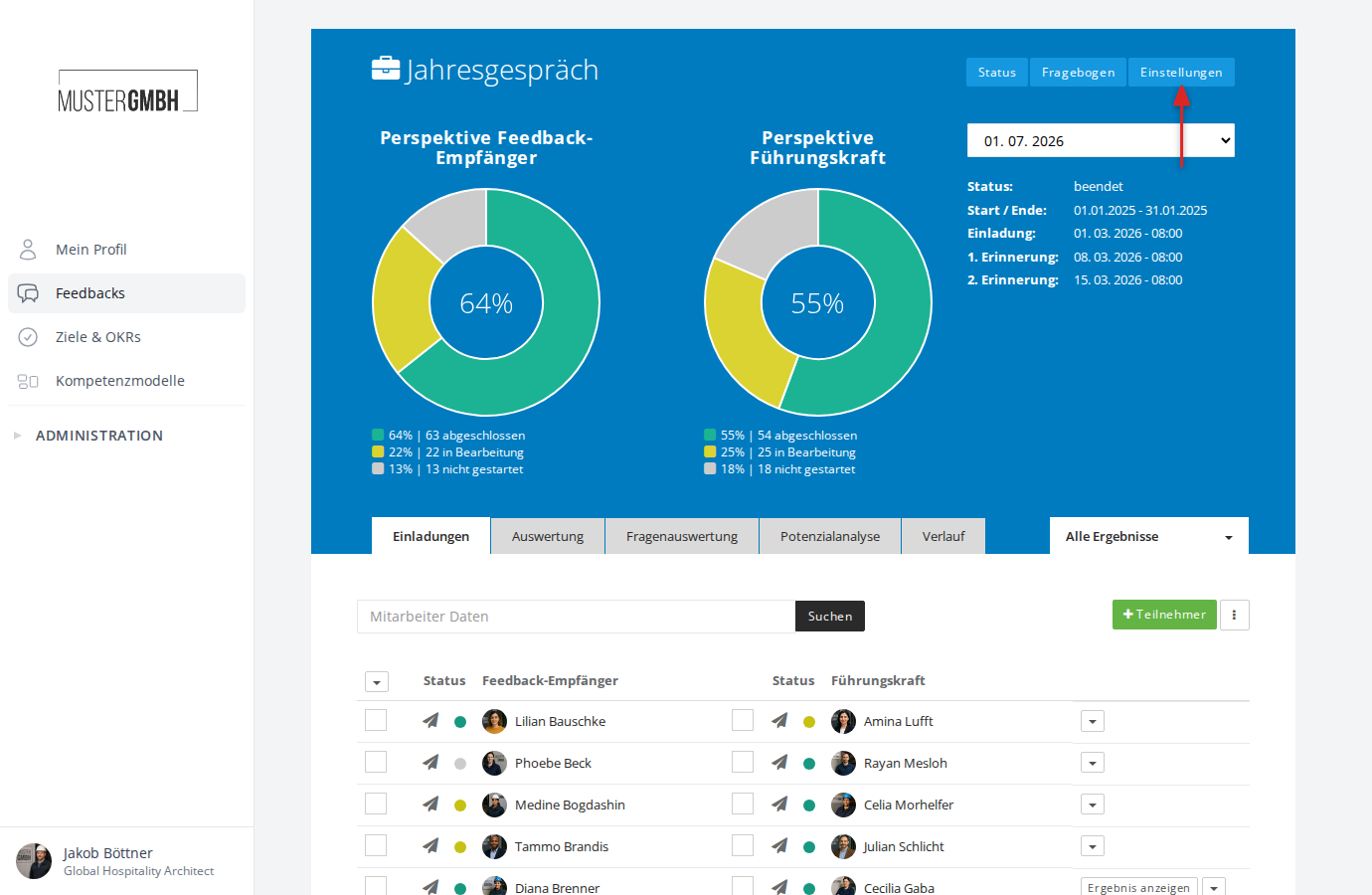
From within the feedback process, click “Settings” in the blue header. The header appears on the status page, in the questionnaire and on every settings page.
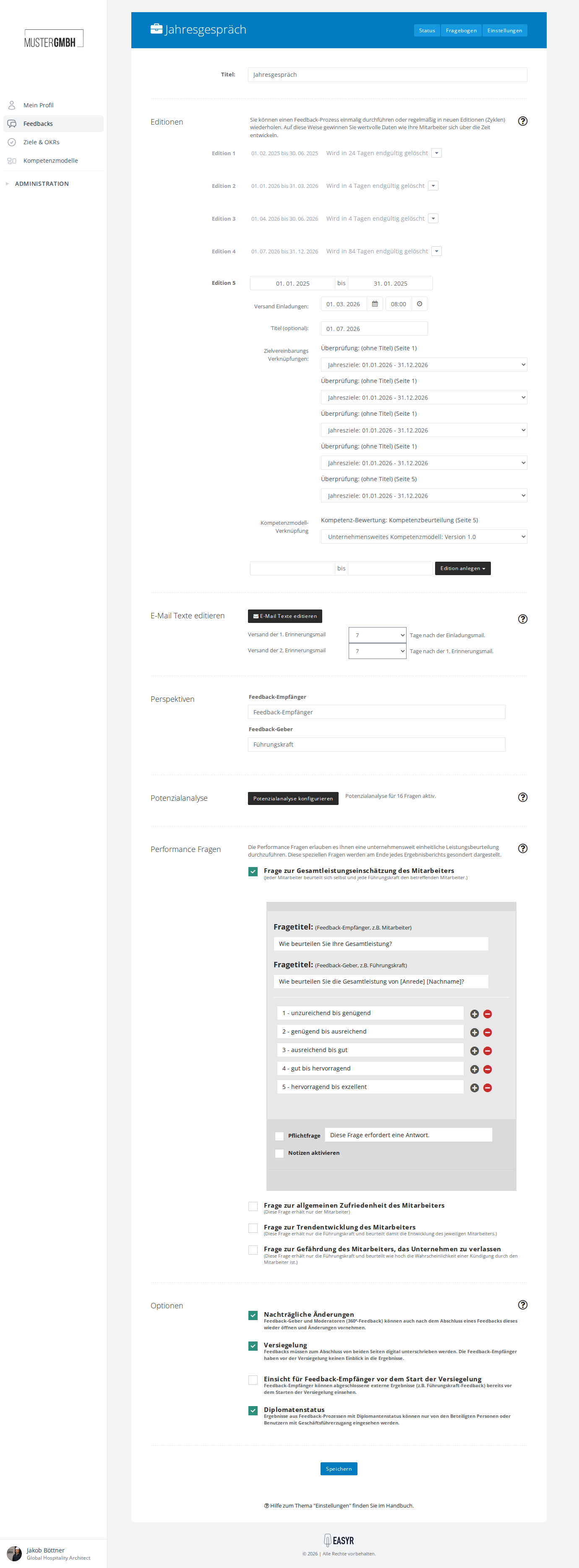
What the overview shows
The overview has three parts: the editions, the basic settings and the additional functions. Every row states the current setup, so you can check whether the process is configured the way you want without opening anything.
Editions
An edition is one round of the feedback process with its own period. The card shows the running edition with its status (“37 days left”), when the invitations go out and a timeline from the invitation through the start to the end. The planned editions are listed below it.
- Click “New edition” to set up the next round: Create editions.
- Use the ⋮ menu of an edition to change its dates or delete it: Set up automatic email invitations for editions, Delete editions.
- “All editions” opens the complete list, including completed and deleted editions.
Basic settings
You set these once, and they apply to all editions.
- General: the title of the process and the names of the perspectives, see Review perspectives.
- Process & visibility: who creates participations, how feedbacks are closed and who sees results, see Set up process and visibility.
- E-mails: opens the Notification Center with all emails of the process, see Notifications for feedbacks.
Additional functions
You only need additional functions when you want them. While a function is off, it does not affect the process. Its row then starts with “Off”, and the button reads “Set up” instead of “Edit”.
- Nominations: feedback providers are suggested and approved instead of being assigned directly, see Determine feedback providers through nominations.
- Performance questions: four standard questions for a uniform performance assessment, see Configure performance questions.
- Potential analysis: how much each answer contributes to the potential score, see Configure the potential analysis. If the questionnaire has no closed question yet, the row leads to the questionnaire.
- Translations: translate questionnaires into other languages automatically, see Translate questionnaires automatically. The row only appears if content translation is enabled for your company.
Change and save a setting
- On the overview, click “Edit” or “Set up” in the row of the area.
- Change the settings you want. On many pages, a result sentence at the bottom sums up your choice in one sentence.
- Click “Save” at the bottom of the page.
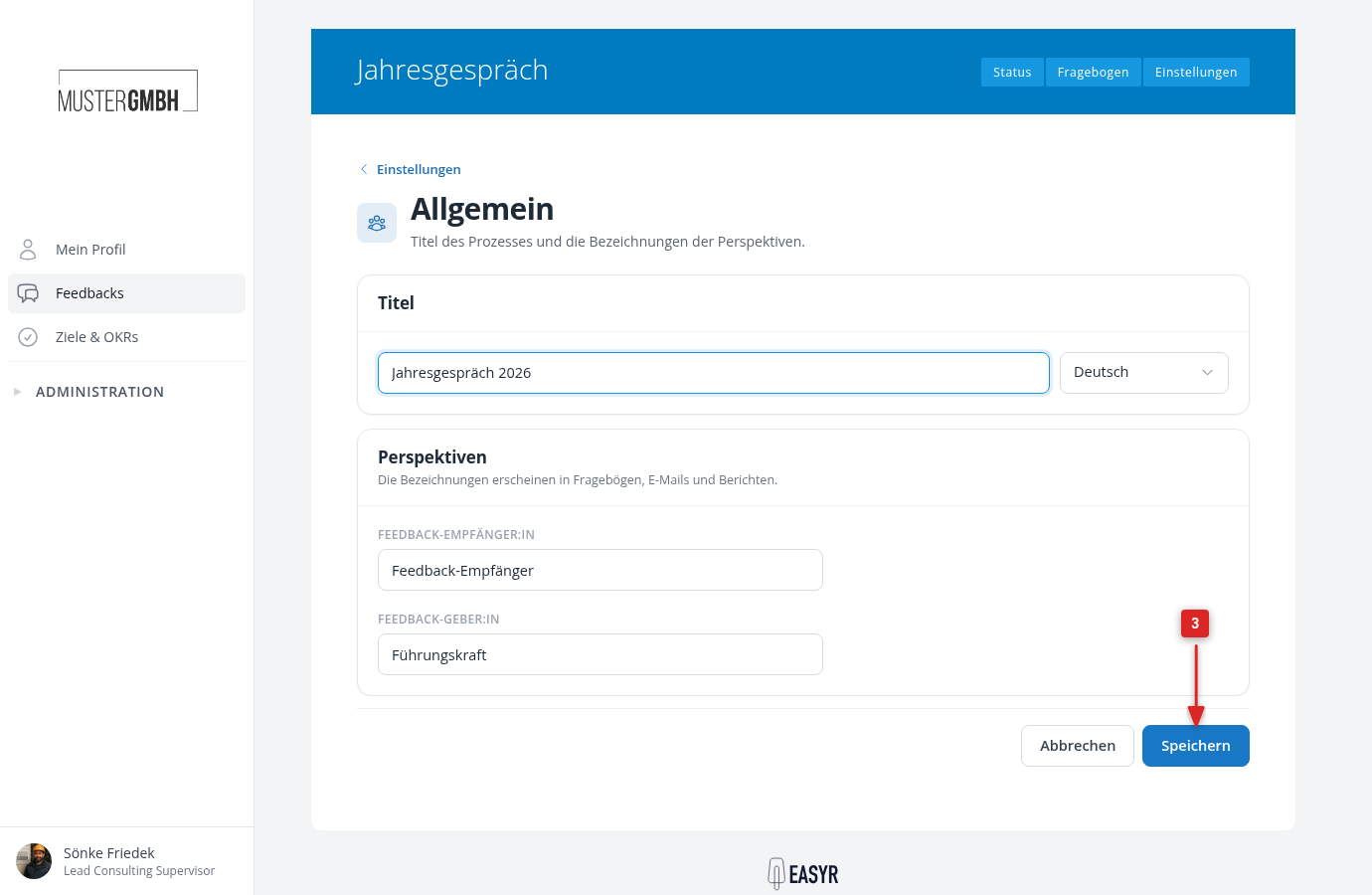
As long as you have not changed anything, the bar reads “No changes yet” and “Save” is grayed out. After saving, easyreview confirms with “Changes saved.” Click “Settings” at the top left to return to the overview.
Why a setting is missing
Which areas and settings exist depends on the type of feedback:
- Anonymous feedbacks, pulse feedbacks and external surveys (link) only have the minimums for “Analyses and dashboards” and for “Exports” in the “Process & visibility” area: from how many completed participations analyses and exports show results.
- Nominations are not available for anonymous feedbacks, pulse feedbacks and external surveys (link).
- External surveys (link) send no invitations, so the “E-mails” area is missing there.
- For pulse feedbacks, easyreview creates the editions on its own at the set frequency. There is no “New edition” button. You change the frequency under “All editions” in the “Interval” card.