Add an element
To add an element or question to a feedback process’s questionnaire:
- Open the questionnaire editor.
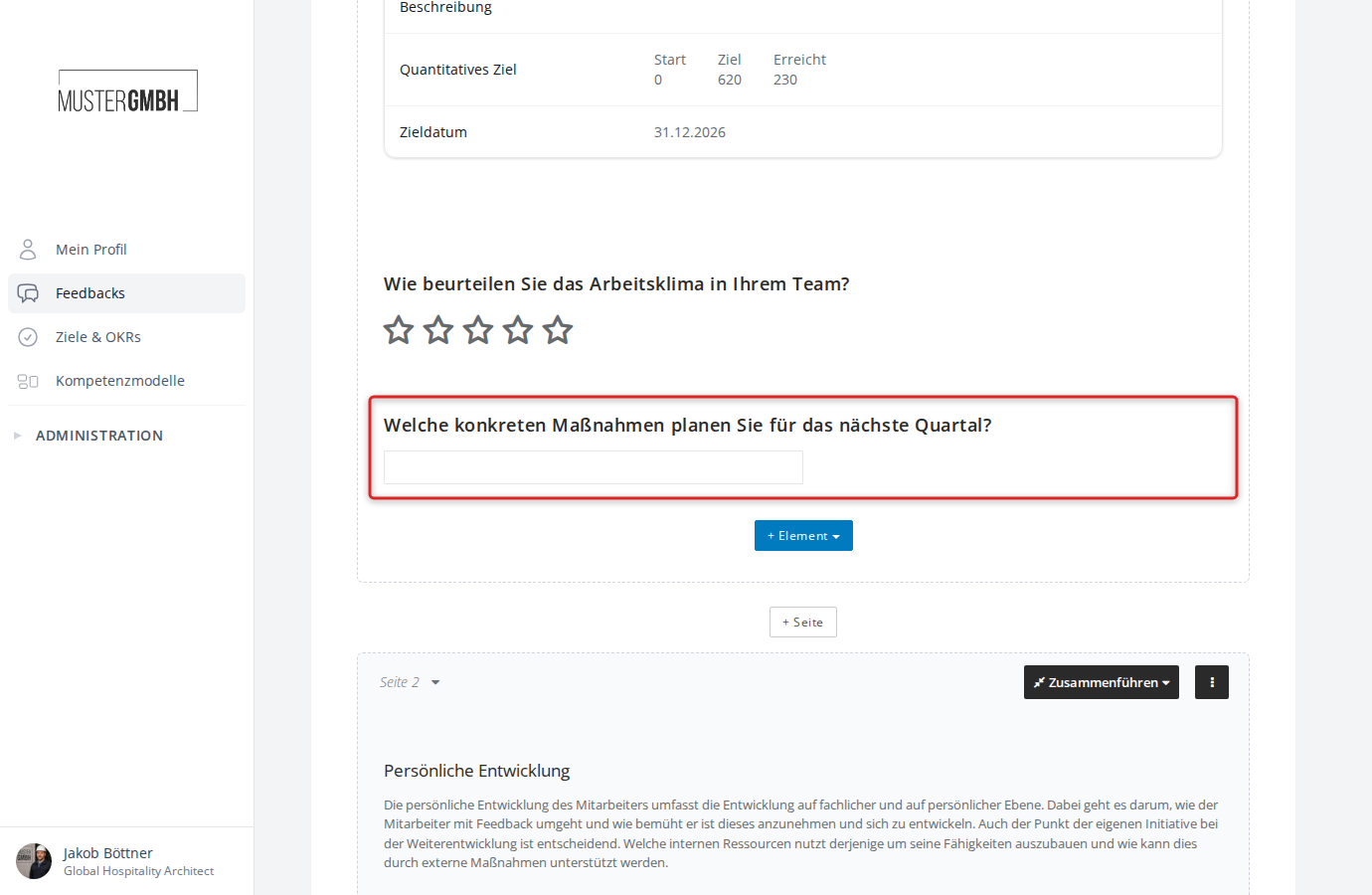
- In the editor, all pages of the questionnaire are listed one below the other, with a visible page break between them.
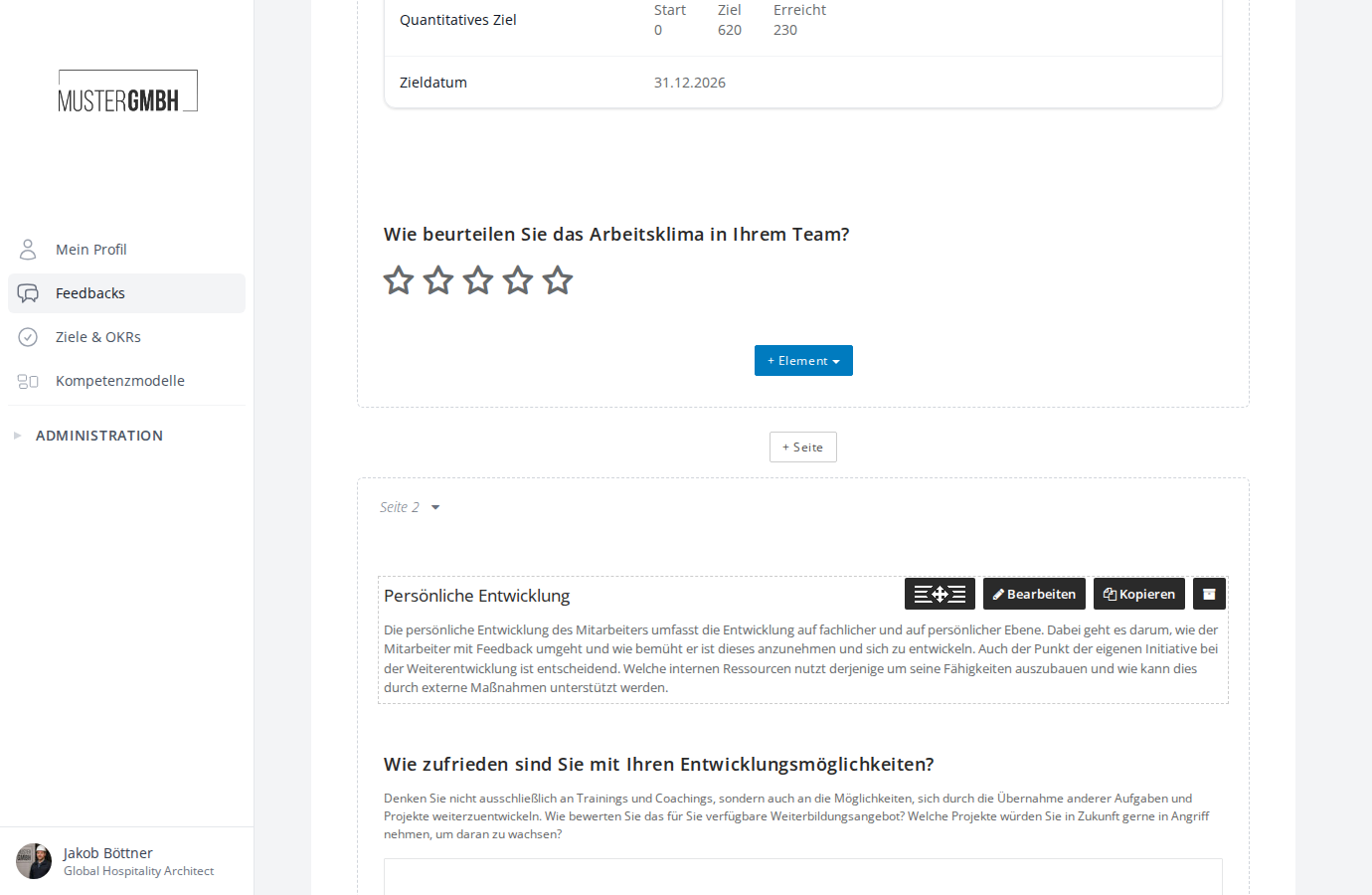
- Find the page where you want to add the element or question.
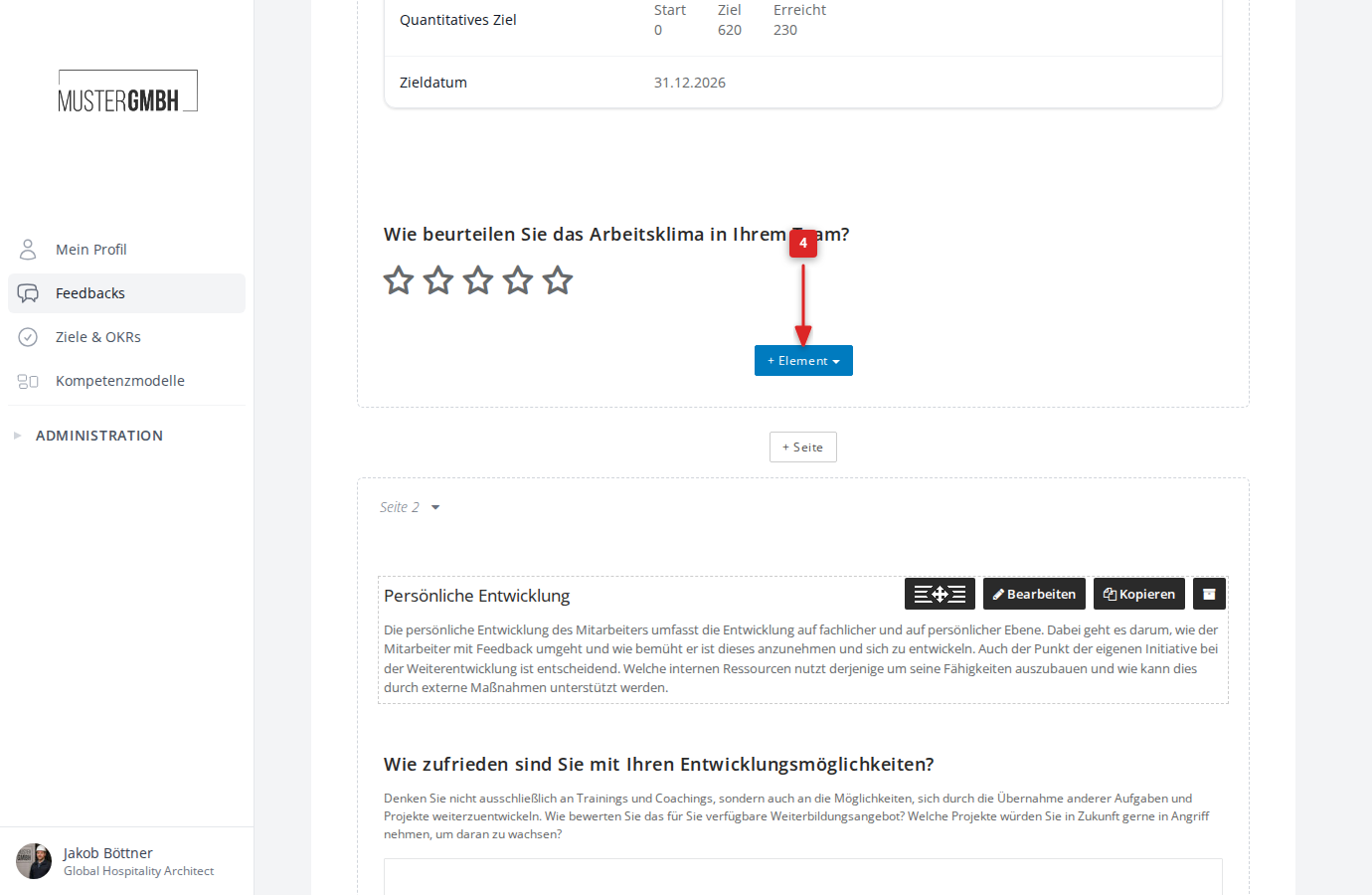
- Click + Element at the bottom of that page.
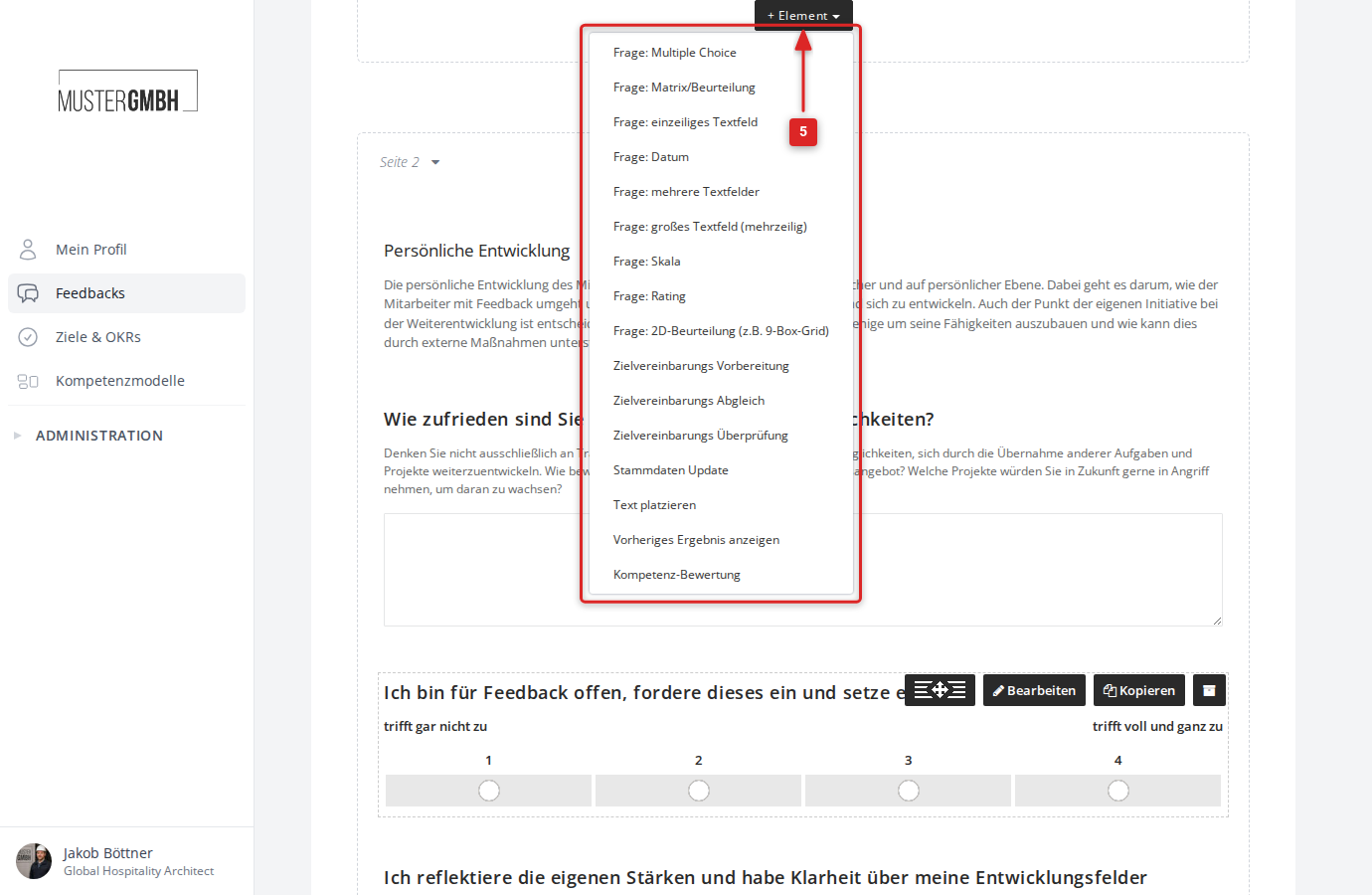
- In the dropdown menu, choose the element or question type you want.
- The form for the chosen type opens. Enter the question title for the reviewee (for example the employee).
- If needed, enter a separate question title for the reviewer (for example the supervisor). If you leave this field empty, the first title is used for both perspectives automatically.
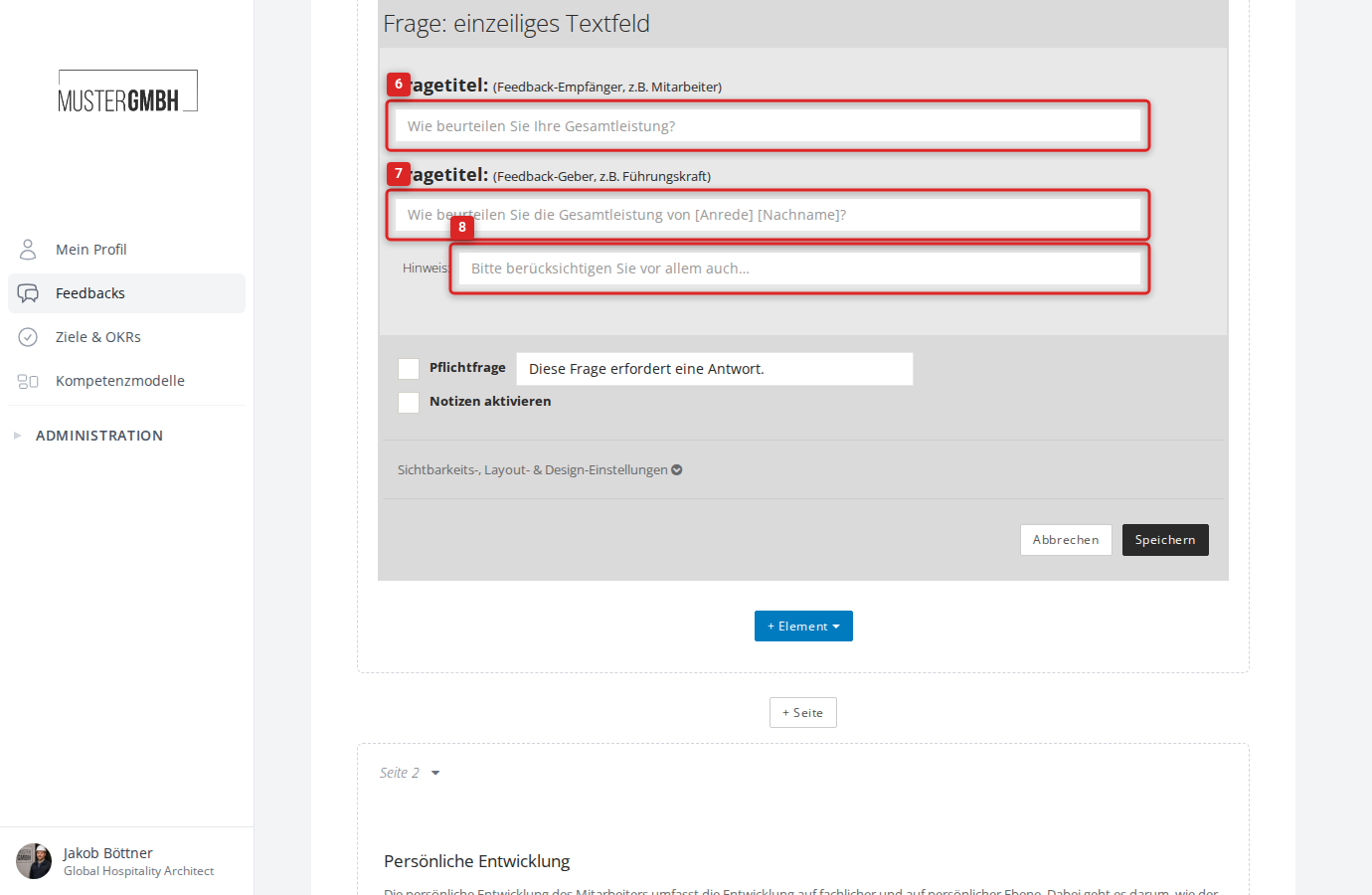
- Optional: In the Hint field, enter a text that is shown to all participants below the question title.
Configuring the settings
Different settings are available depending on the question type.
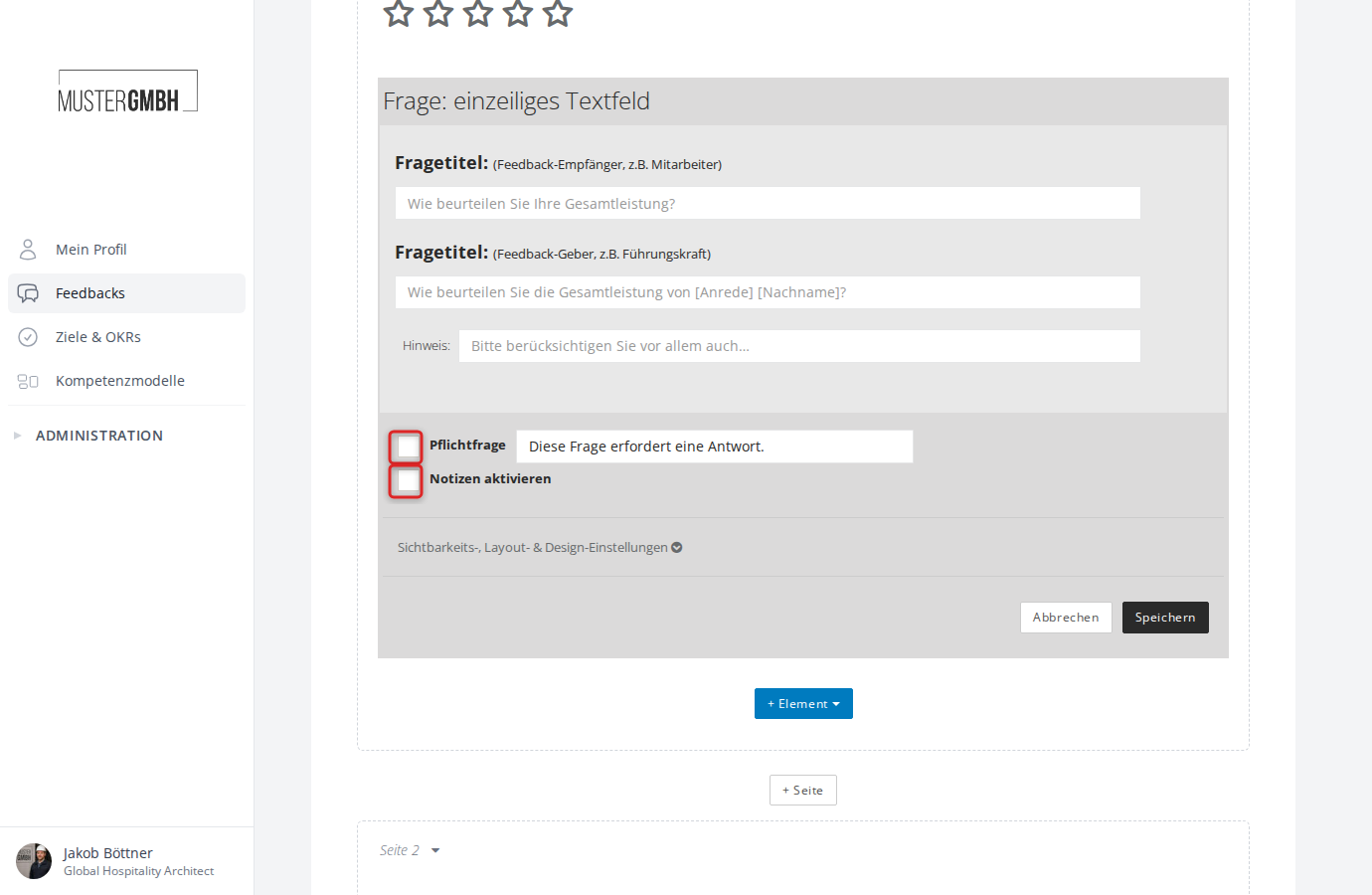
Required question and notes
- Required question: Select this checkbox if participants must answer the question. In the text field next to it, you can set your own hint that appears when the answer is missing.
- Enable notes: Select this checkbox to let participants add extra notes to the question.
Visibility, layout & design settings
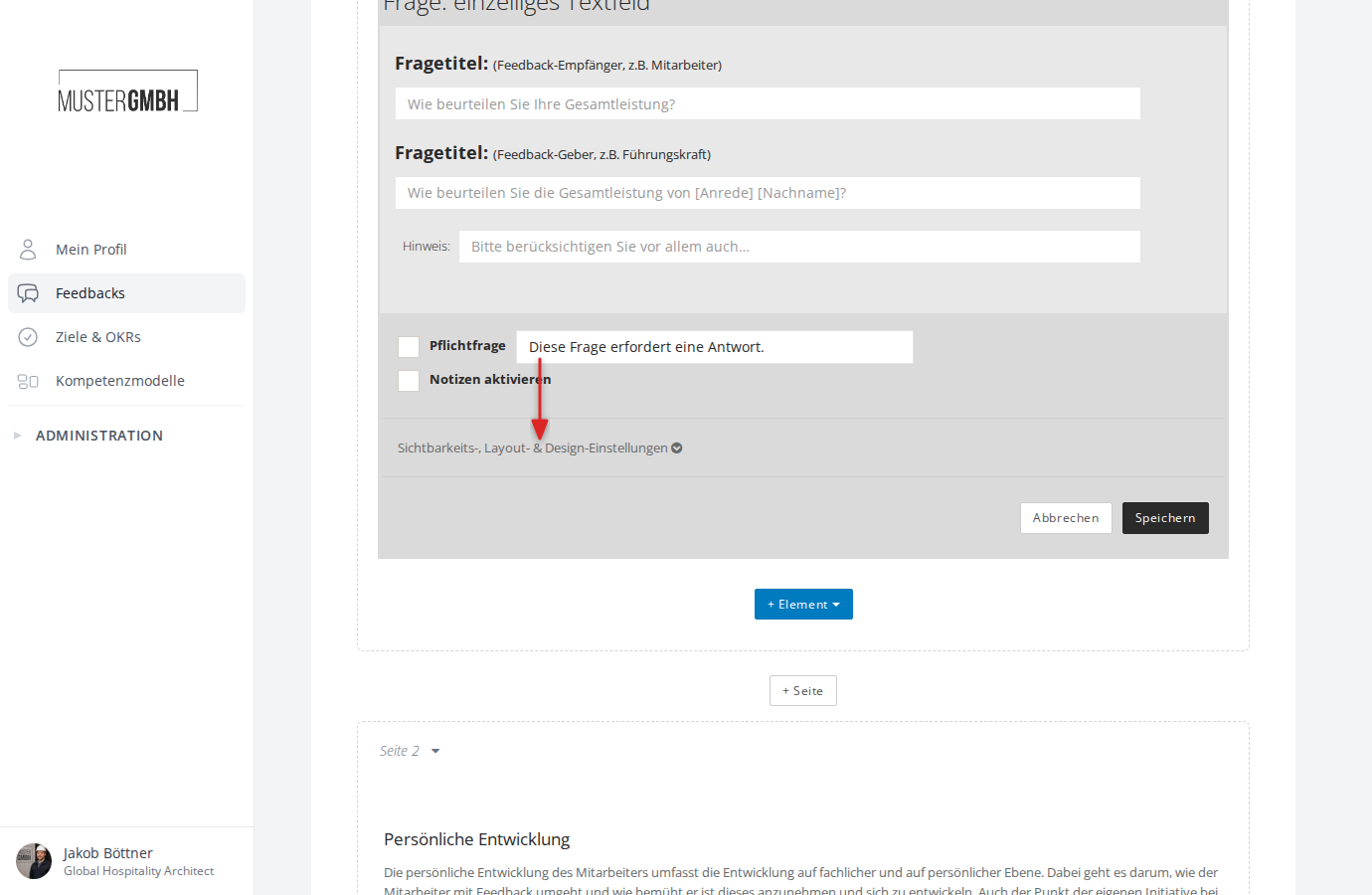
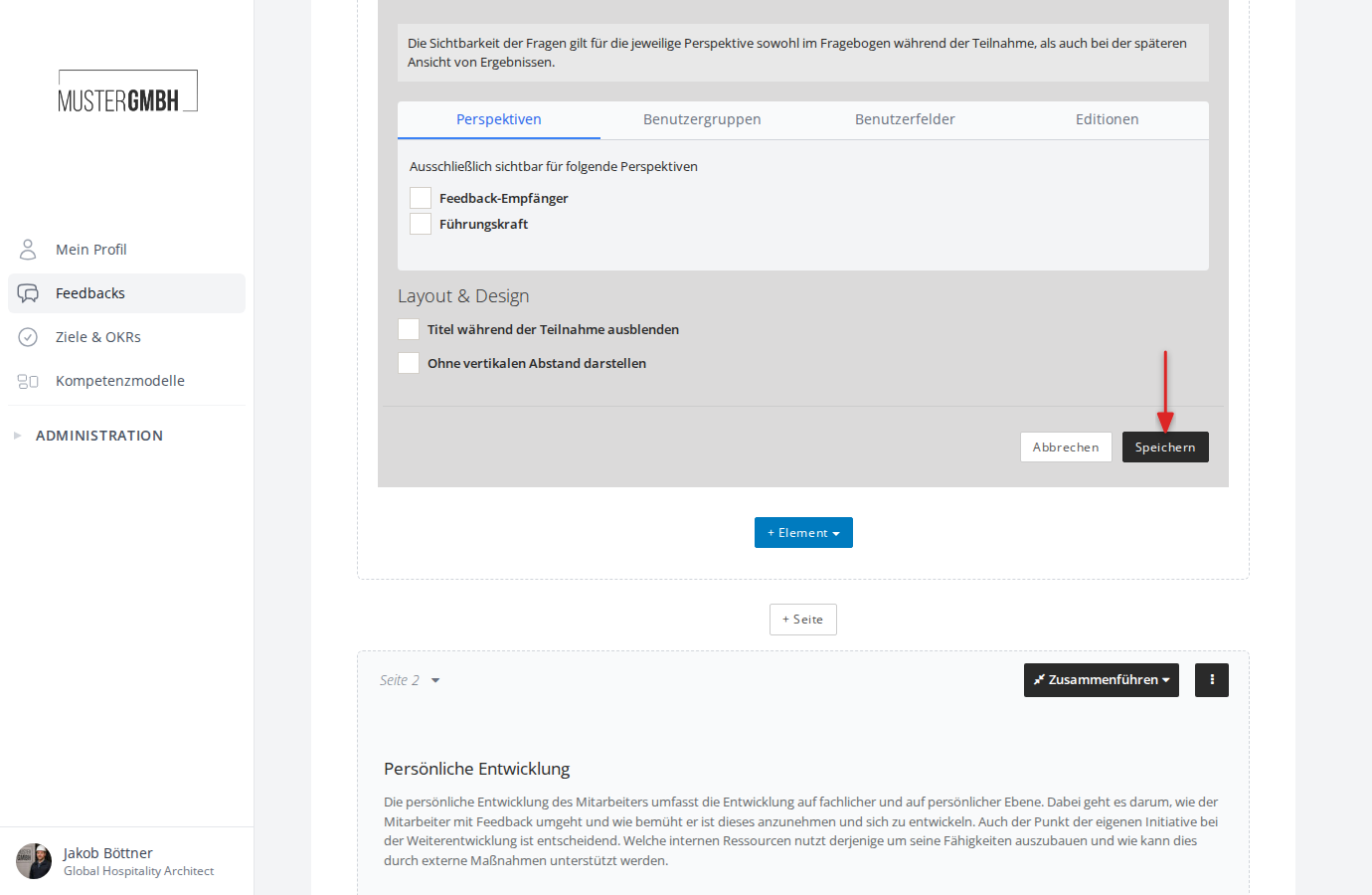
Click Visibility, layout & design settings to expand the advanced settings.
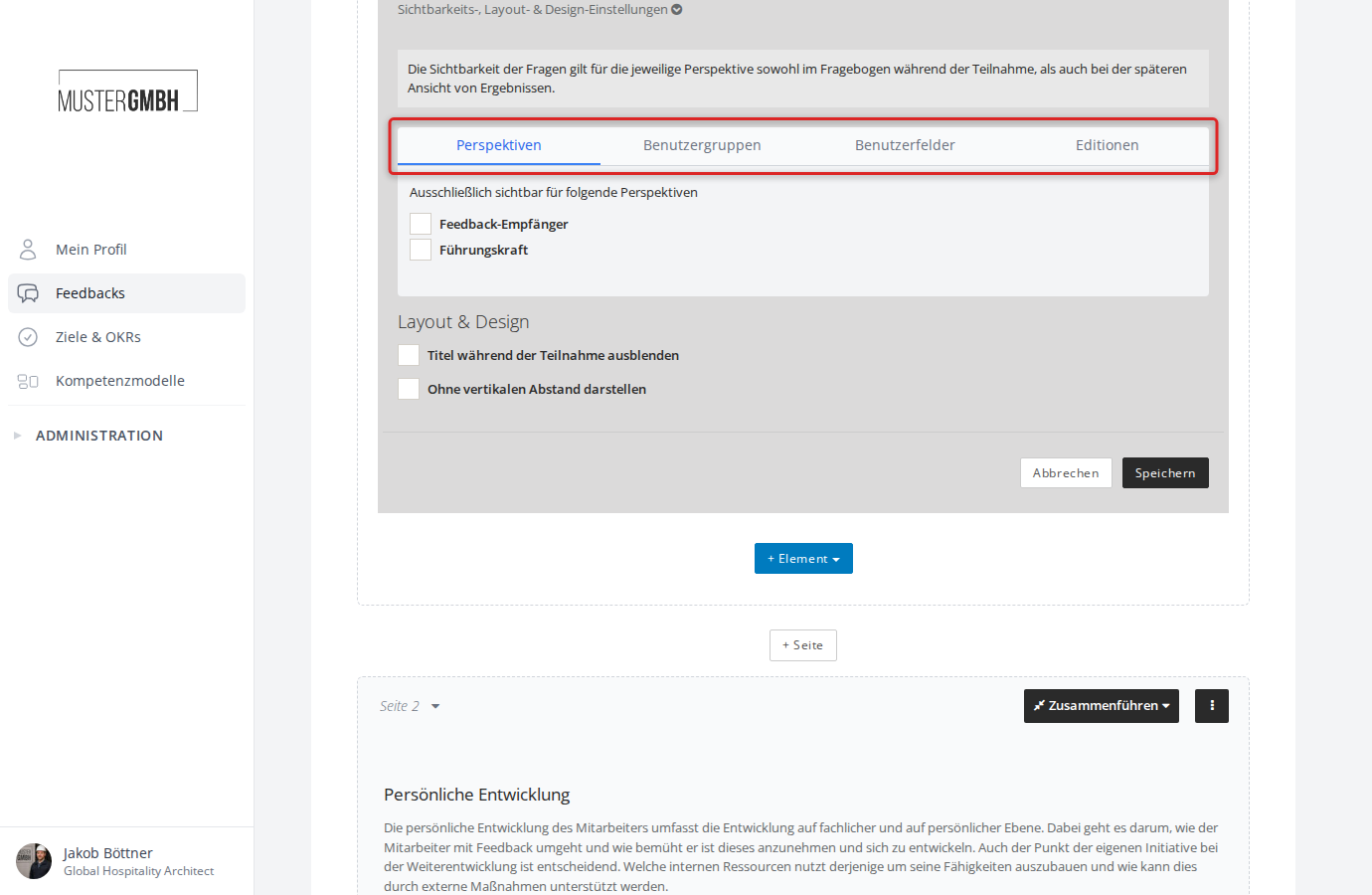
This area is split into tabs plus a separate layout section:
Perspectives
Here you decide which perspectives the question is visible to. By default, the question is visible to all perspectives. Select individual checkboxes to show the question only to certain perspectives (for example only to the reviewee or only to the supervisor).
As soon as you select at least one perspective, the extra option Show to all perspectives in results appears. Use it to make the answers visible to all perspectives in the results view even so.
User groups
Restrict visibility to specific user groups. By default, the question is visible to all user groups.
User fields
Restrict visibility to users with specific field values. This tab is only shown when matching user fields are configured in the system.
Editions
Shows the feedback process’s editions. Completed editions are locked and cannot be changed.
Layout & design
Below the tabs you find the Layout & Design section with these options:
- Hide title during participation hides the question title while participants fill out the questionnaire.
- Display without vertical padding removes the spacing to the previous question.
Saving
Click Save at the bottom right of the form.
After saving, the new element or question appears in the questionnaire editor.