Handle several nominations at once
Forty open lists two days before the deadline are not something you click through one by one. In the “Nominations” tab you tick the rows in question and do five things for all of them at once: remind, approve, advance, confirm the invitation by override or cancel. Before anything happens, a dialog shows per list what the action will do there. It is then worked off row by row, not all or nothing: whatever does not work is skipped and reported by name.
How to read the tab as a whole is covered in Keep an eye on nominations. What a single stuck list hangs on and what it needs is in A nomination is blocked: what to do.
Selecting the right rows
Filter first. The checkbox in the table header takes every selectable row on the page, and without a filter those almost always come from different groups. Then not a single action is possible.
- Narrow the table down to one group. For your own tasks the “Show 4 groups” button in the green strip is enough, it sets the “Status” filter to “Your turn”. For stragglers set “Status” to “Running” by hand, for leftovers to “Blocked”.
- Tick the rows you mean, or all of them at once through the checkbox in the table header.
- The bulk bar appears above the table with “3 selected” and the actions. On the right, “Clear selection” empties it again.
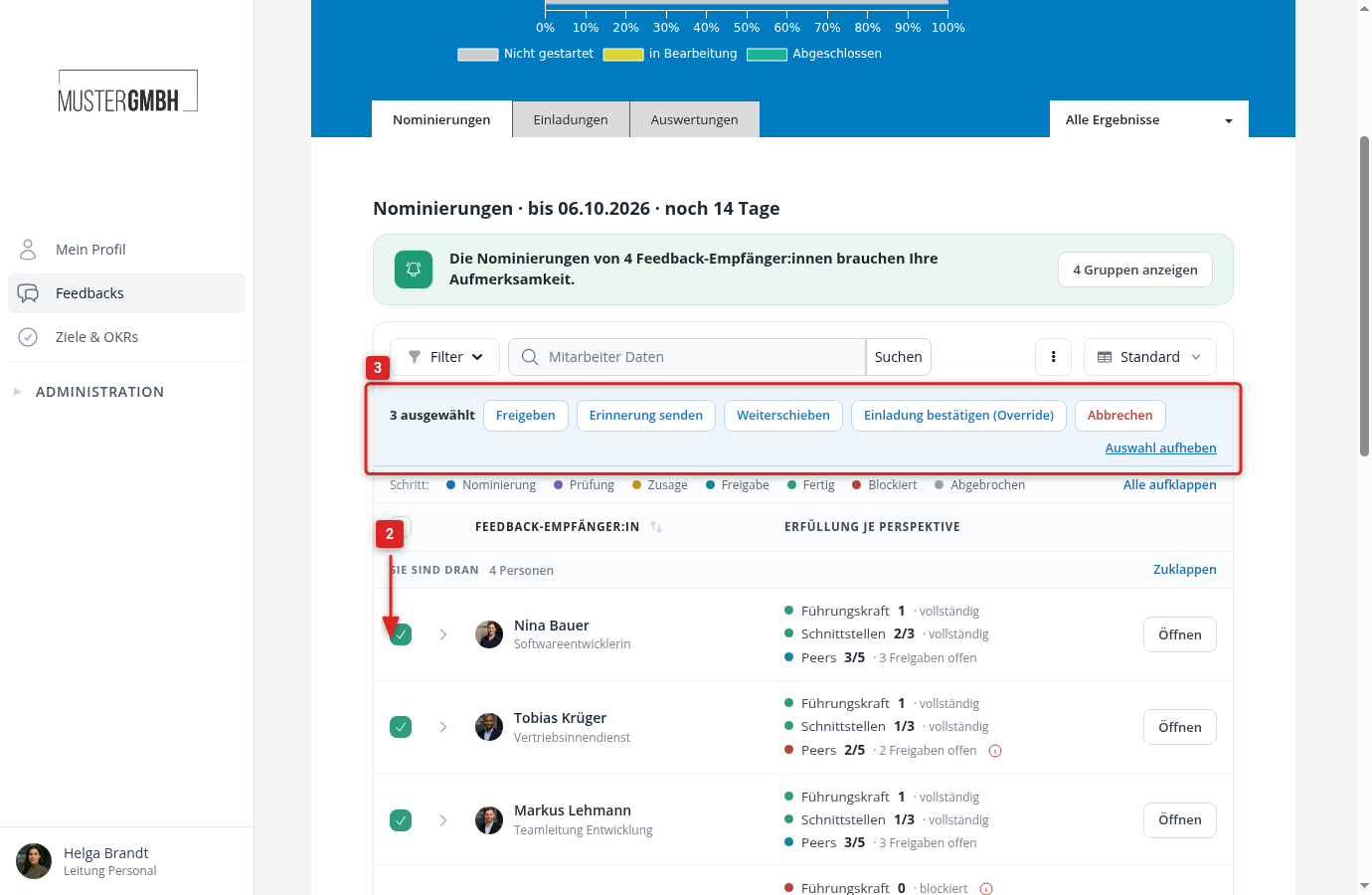
Not every row has a checkbox. It sits on running nominations you are allowed to manage, and on lists waiting for your own approval. HR and the management manage every row of the edition. A manager only when the feedback lets them manage the participations, otherwise they see a checkbox at most on the lists they are asked to approve themselves. The groups “Not started” and “Done” carry no checkboxes, nothing is running there any more.
The selection only lives on the page in front of you. Filtering, sorting, paging or reloading resets it. One page holds 50 rows.
Why an action is greyed out or missing
Every selected row has to come from the same group. Mix “Your turn” with “Running” and all the buttons go grey, with “Only possible with the same status” next to them. That is the most common reason why nothing can be clicked. There is one exception: if every selected row is blocked, the rows may come from “Your turn” and “Blocked” at once, just as the “Status” filter set to “Blocked” brings them.
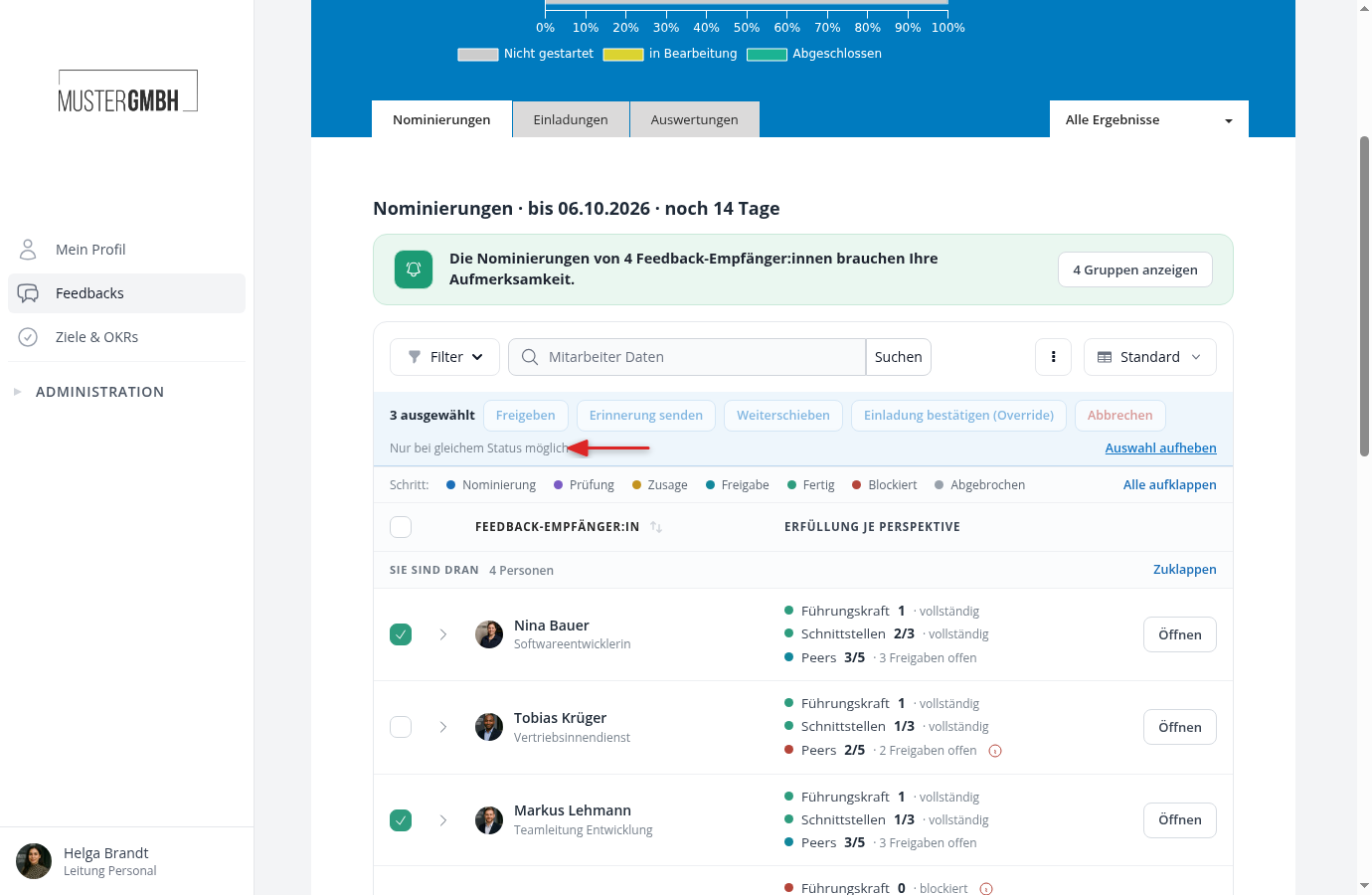
Two buttons come and go. “Advance” disappears as soon as a row from the “Blocked” group is in the selection, because there is no running step left there to end. “Approve” the other way round only appears when at least one selected row waits for your own approval. The four managing actions require you to be allowed to manage every single selected row.
What the five actions do
| Action | What it does |
|---|---|
| Send reminder | Sends the request of the current step again to the people who are up right now. Nothing about the state of the list changes. |
| Approve | Gives your own approval, exactly like “Approve list” on the nomination page. Never an override: a blocked approval stays open and is reported. |
| Advance | Ends the step the list stands at, without waiting for the stragglers. |
| Confirm invitation (override) | Ends the nomination path early. Those who accepted become feedback providers, anyone who did not accept drops off the list. A reason is required. |
| Cancel | Ends the nomination path without a result. Open nominations are removed, feedback providers already entered stay. A reason is possible but not needed. |
What “Advance” and the override do at each step is covered in A nomination is blocked: what to do. What counts here: both of them pass over people who have not answered yet.
A reminder only goes out when an immediate notification rule is switched on for that step. If it is missing, easyreview skips the row. Which rules exist and how to check them is covered in Notifications for nominations.
The dialog says beforehand what happens to each list
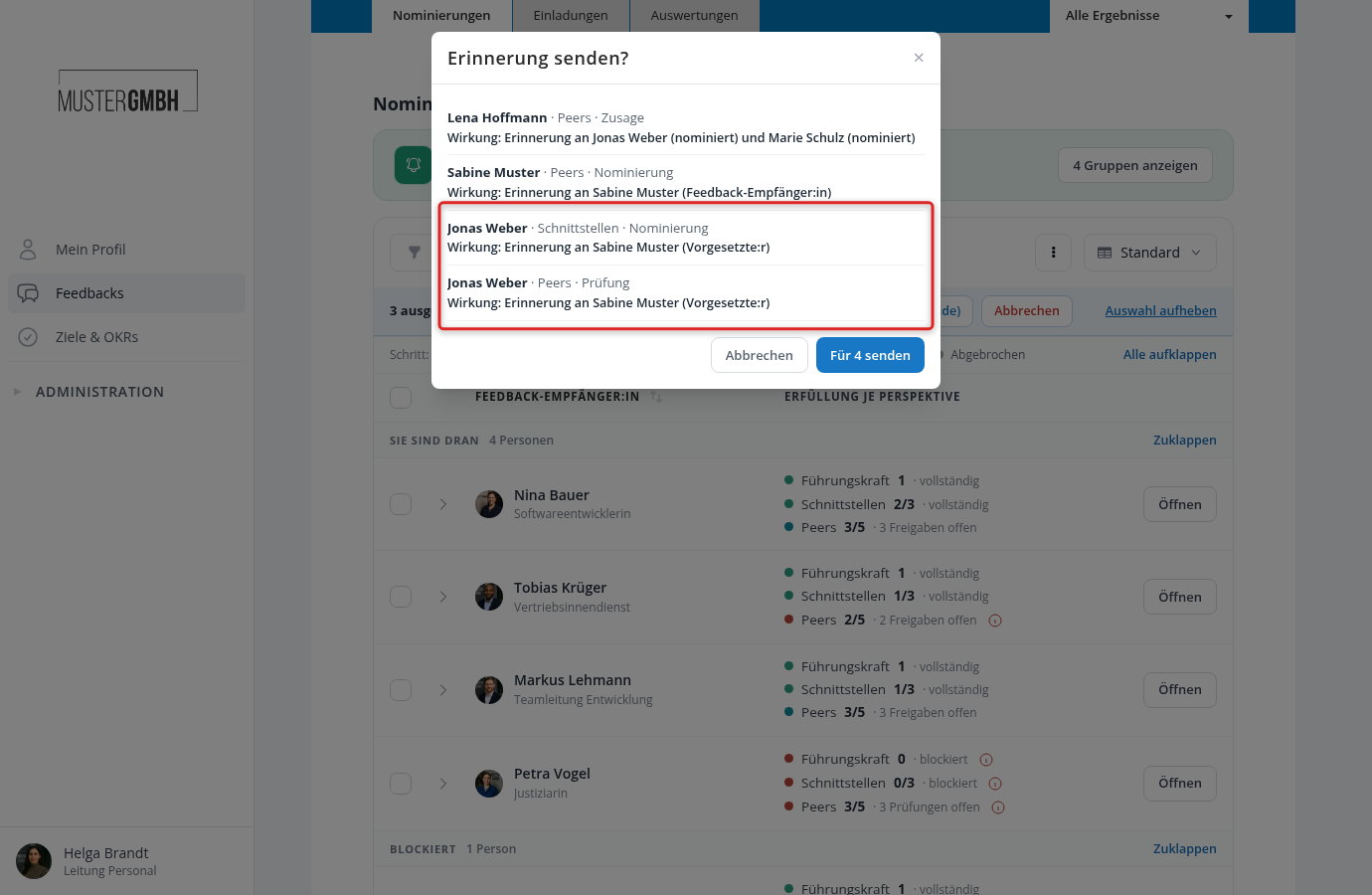
Every action opens a dialog, and that dialog is the real work. It lists one line per affected list: the name of the feedback recipient, then the perspective and the step, and below that the effect in bold. This is how it reads:
- “Effect: Reminder to Sabine Muster (Supervisor)”
- “Effect: Review will be completed (override)”
- “Effect: 2 people without an answer will be removed”
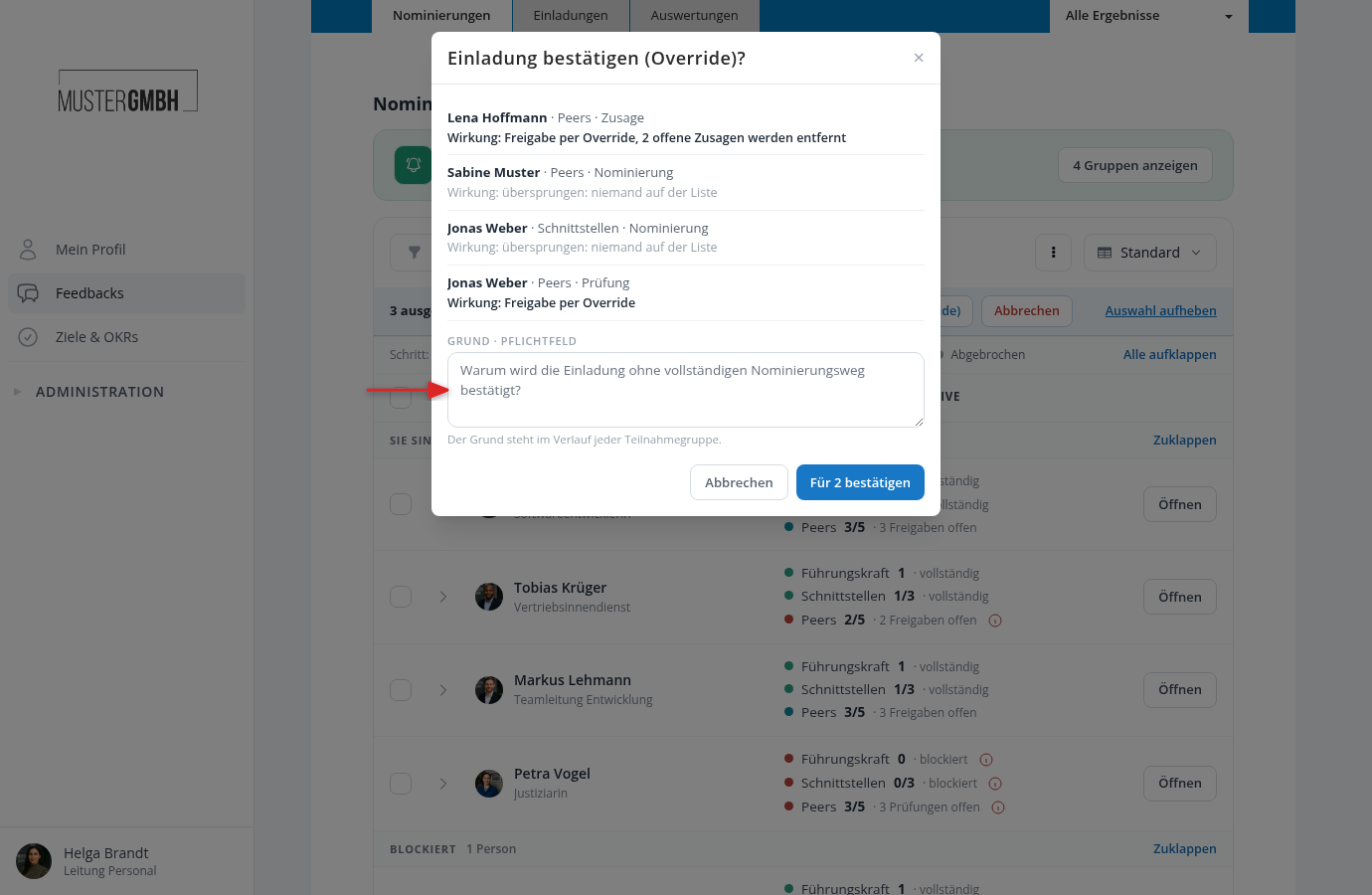
- “Effect: Approval via override, 2 open acceptances will be removed”
- “Effect: Nomination will be cancelled, 3 open nominations will be removed”
Grey lines that start with “skipped:” say what will not happen, for example “skipped: nomination running”, “skipped: nobody on the list” or “skipped: approval blocked”. The action leaves those lists alone.
One person can appear several times in the dialog. Every running perspective gets its own line, because each of them hangs on a step of its own. In the picture Jonas Weber appears twice: once for Peers in the review, once for a second perspective in the nomination. The figure on the button (“Send for 4”) counts the entries the action performs; skipped entries do not count.
“Confirm invitation (override)” and “Cancel” have a reason field below the list. For the override it is required, for cancelling it is optional. The reason lands in the history of every participation group concerned, together with your name and the date.
As long as you only read, nothing happens. “Cancel” at the bottom left and the Esc key close the dialog without triggering anything. Only in the “Cancel nomination?” dialog this button reads “Close”, so that it is not confused with “Cancel for 3”.
Reading the message afterwards
After you submit you are back in the tab, with up to three messages at the top.
In green stands what worked: “12 reminders sent.”, “3 lists approved.”, “4 nomination paths advanced.”, “2 invitations confirmed.” or “5 nomination paths cancelled.”
In red stands what did not, one line per reason: “2 skipped (The approval is blocked.): Nina Bauer, Tobias Krüger.” From the sixth name on, easyreview appends “+3 more”. On top of that comes “1 without a running nomination path: Felix Wagner.” for rows where nothing is running any more. If nothing at all went through, it says “None of the selected rows could be processed.”
The reasons in the brackets are the same sentences you get from a single action. These five are the ones you see most often:
| Reason | What is behind it |
|---|---|
| The nomination is still running. | “Advance” only ends the review, the acceptance and the approval. A list where nobody has nominated yet stays where it is. |
| The approval is blocked. | The list breaks the rule of the perspective, a replacement is open or an acceptance is missing. Only the override helps, or a look at the single list. |
| No notification is active for the current step, or there is nobody to remind. | The matching rule is switched off, or the step is not waiting for anybody any more. |
| This nomination path has already ended. | Between your selection and the submit the list was finished or cancelled. |
| You are not allowed to manage this nomination path. | The row does not belong to your area. |
A skipped row stays exactly as it was. You either handle it on its own through “Open”, or try the bulk again once the cause is out of the way.
Typical cases
Remind every straggler two days before the deadline
- Set the “Status” filter to “Running”.
- Tick the checkbox in the table header.
- “Send reminder” and skim the dialog. Whoever gets no mail stands there in grey.
- “Send for 40”.
Clear the leftovers once the period is over
Once the nomination period ends, every list that is not approved slips into the “Blocked” group, and easyreview no longer offers “Advance” there.
- Set the “Status” filter to “Blocked”.
- First “Send reminder”. It costs nothing and solves most cases.
- If there is no time left for that, take “Confirm invitation (override)” and enter a reason. Anyone who has not accepted by then drops off the list, and the dialog names them beforehand.
If the stragglers should still get their chance, extend the nomination period of the edition instead. That brings every overdue list back into the race at once, without anybody dropping off.
Give thirty approvals in one go
- The “Show 30 groups” button in the green strip. The table then stands on “Your turn”.
- Tick the checkbox in the table header.
- “Approve”. The dialog lists every list where your approval is open. Rows without an open approval are missing from it.
- “Approve for 30”. Blocked approvals appear in the red message afterwards and stay open.
Cancel a whole department
- Set the “Supervisor” or “User groups” filter to the department, plus “Status” to one group.
- Tick the checkbox in the table header.
- “Cancel” and enter a reason. It is optional, but it pays off here: it later appears in the history of every participation group.
- “Cancel for 12”. The paths are over afterwards and do not restart by themselves. Feedback providers already entered stay in the participant list.
Single rows are still handled through “Open”. What you can do on the nomination page of one person is covered in Manage the nominations of one person.