Making subsequent changes
Subsequent changes let feedback givers and moderators reopen a completed — but not yet sealed — participation and make changes to it.
This is useful for corrections, and it also lets you capture results in a shared conversation based on the feedback gathered so far. In that scenario, the supervisor reopens the participation after the meeting and records any changes.
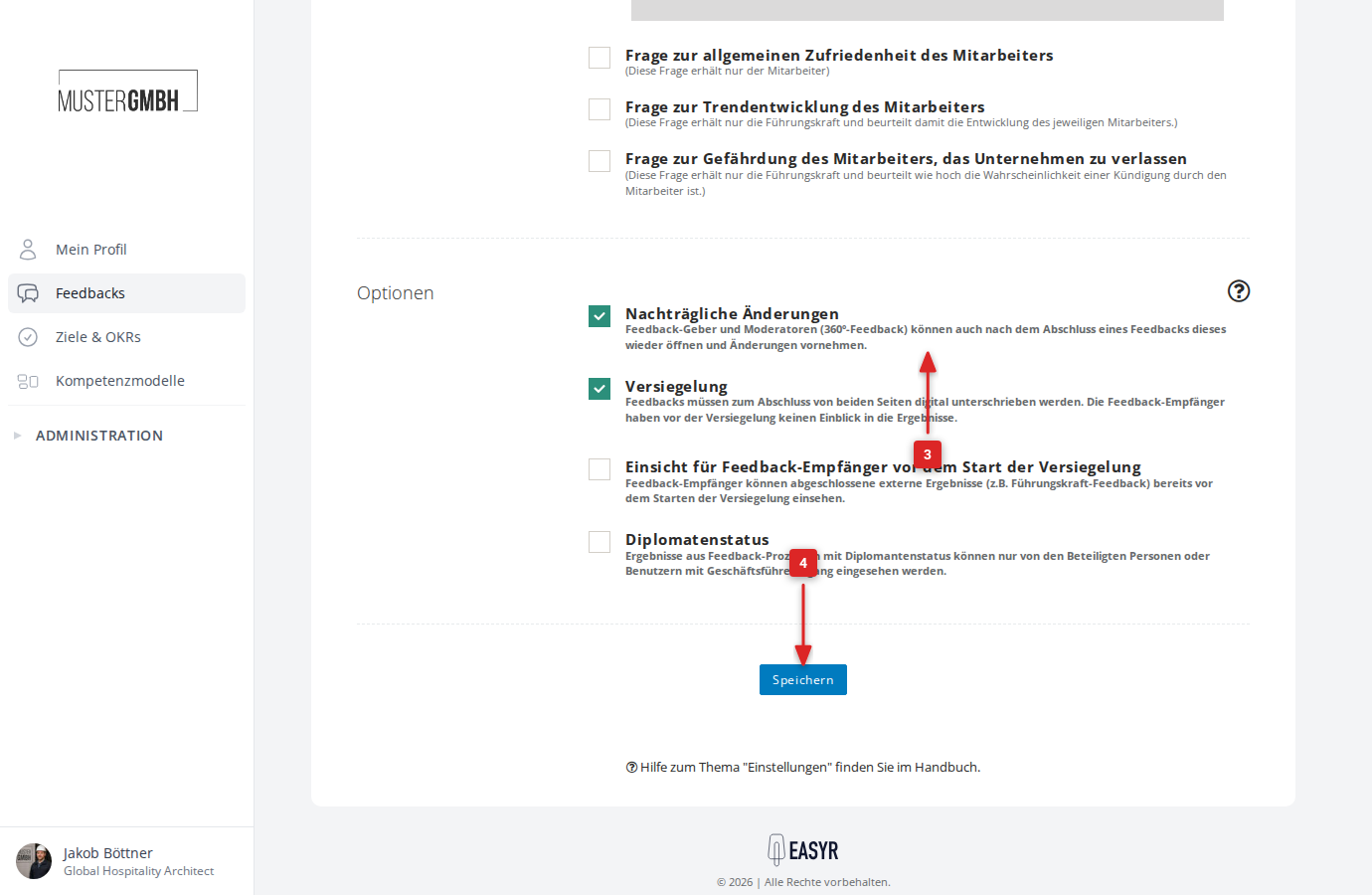
Turn on subsequent changes
To allow subsequent changes:
-
In the “Process & visibility” row, click “Edit”.
-
In the “Closing” card, tick the Later changes checkbox.
-
Click Save at the bottom of the page. easyreview confirms with “Changes saved.”
Change a result after the fact
Once the option is on, eligible feedback givers can change a result they have already completed.
To change a result after the fact:
-
Open the result of a feedback process in which you took part as a feedback giver
-
Click Correct assessment in the top right of the page
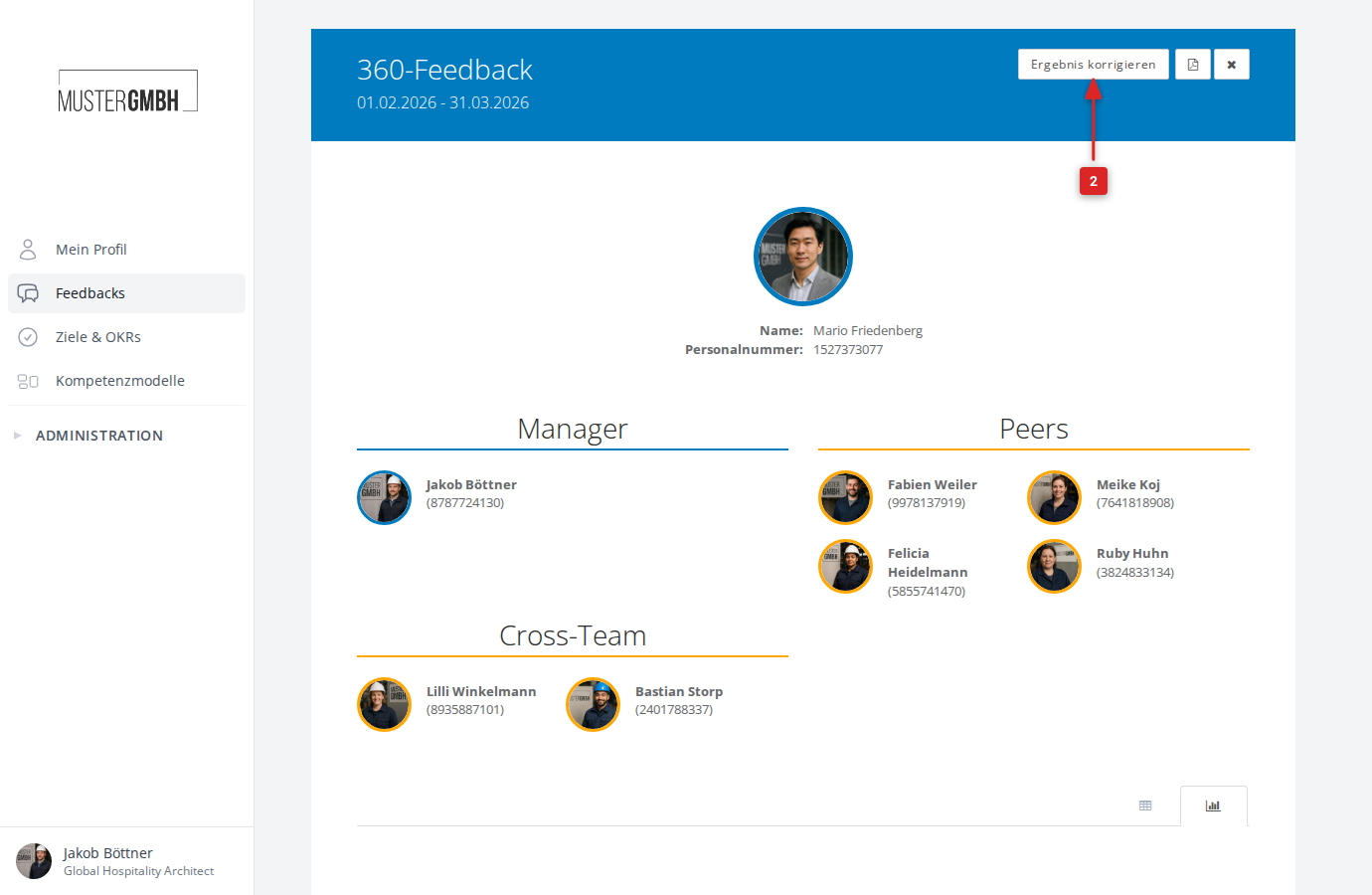
-
You are taken back into the participation, with your previous answers already pre-selected
-
Work through the pages of the questionnaire and make the changes you want
-
Important: be sure to complete the participation again on the last page of the questionnaire. Only then are your changed results stored as a completed participation (green participation indicator) in the system.
With “Correct assessment”, your participation counts as open again until you complete it again. If it belongs to a perspective with a quorum in a 360° feedback, that perspective can drop below its quorum again. Its answers are then hidden from others, HR included, until enough of its participations are completed again.
Requirements and limitations
The Correct assessment button only appears when all of the following are true:
- Subsequent changes is turned on for the feedback process
- Your own participation is already completed
- The edition has not yet ended (the end date is in the future)
- The result is not yet sealed and no sealing process is running
Related functions
There are two other ways to edit completed feedbacks after the fact:
- Reopen a participation: HR admins and supervisors can reopen another person’s completed participation.
- Edit answers: HR admins and management can edit a participation’s answers directly, without the participant having to do anything.