Create a filter
You can filter the participations and results of a review edition by a range of criteria. The filter applies to every sub-page of the review status, including new dashboards when they are active. See Filter, compare, and drill down.
Create a filter
- Open the status page of the review
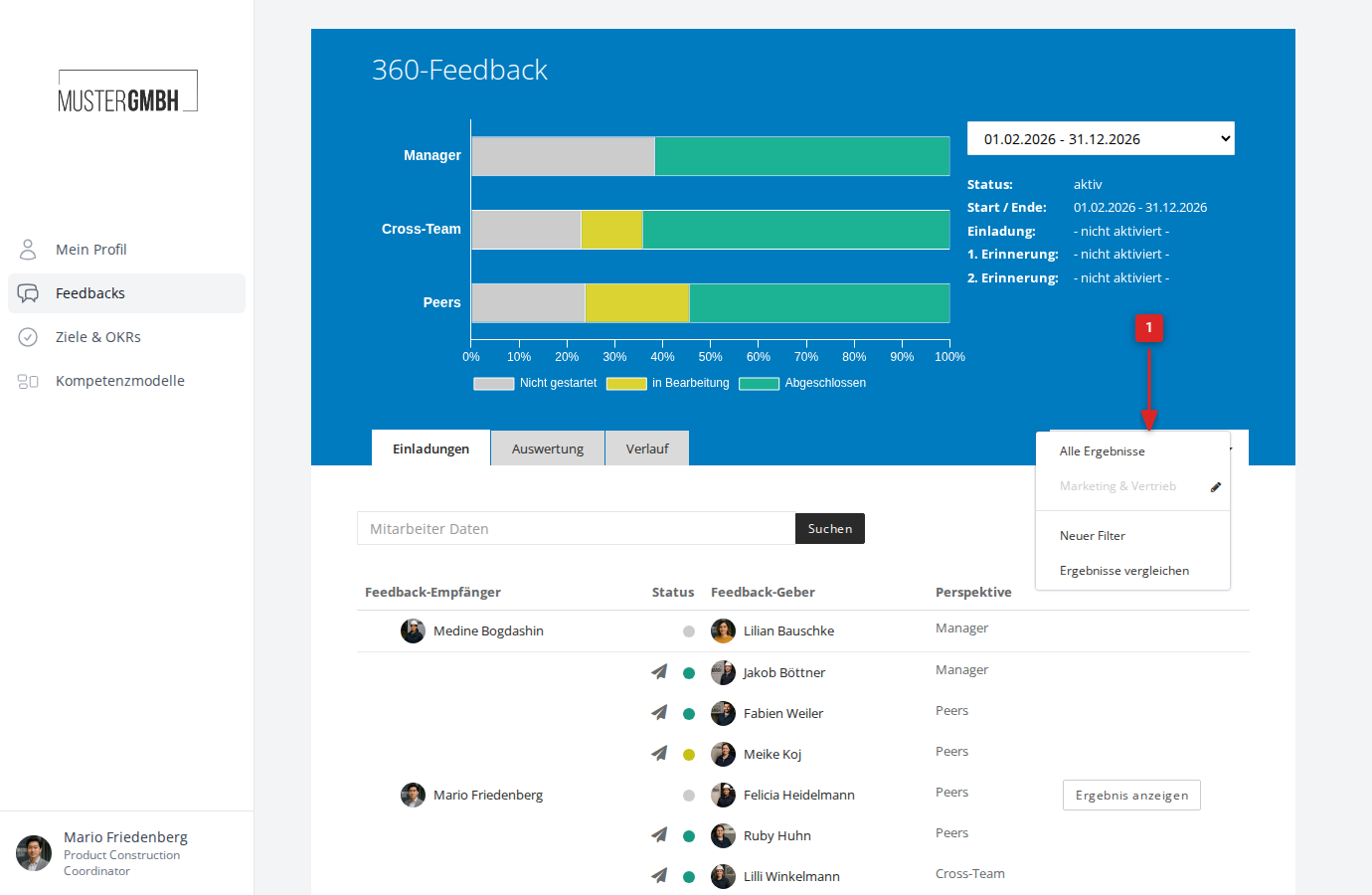
- Click the All results dropdown to the right of the tabs
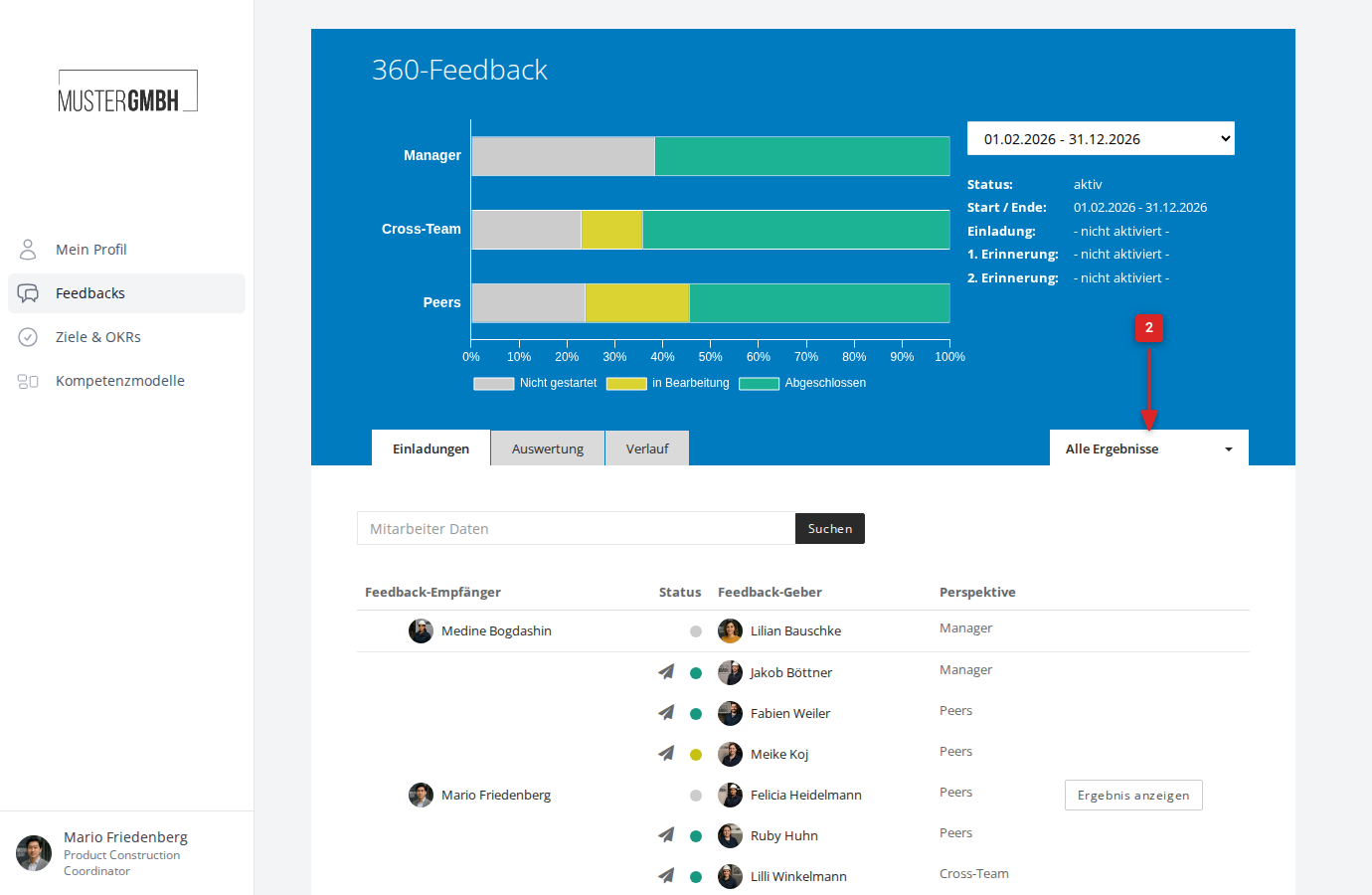
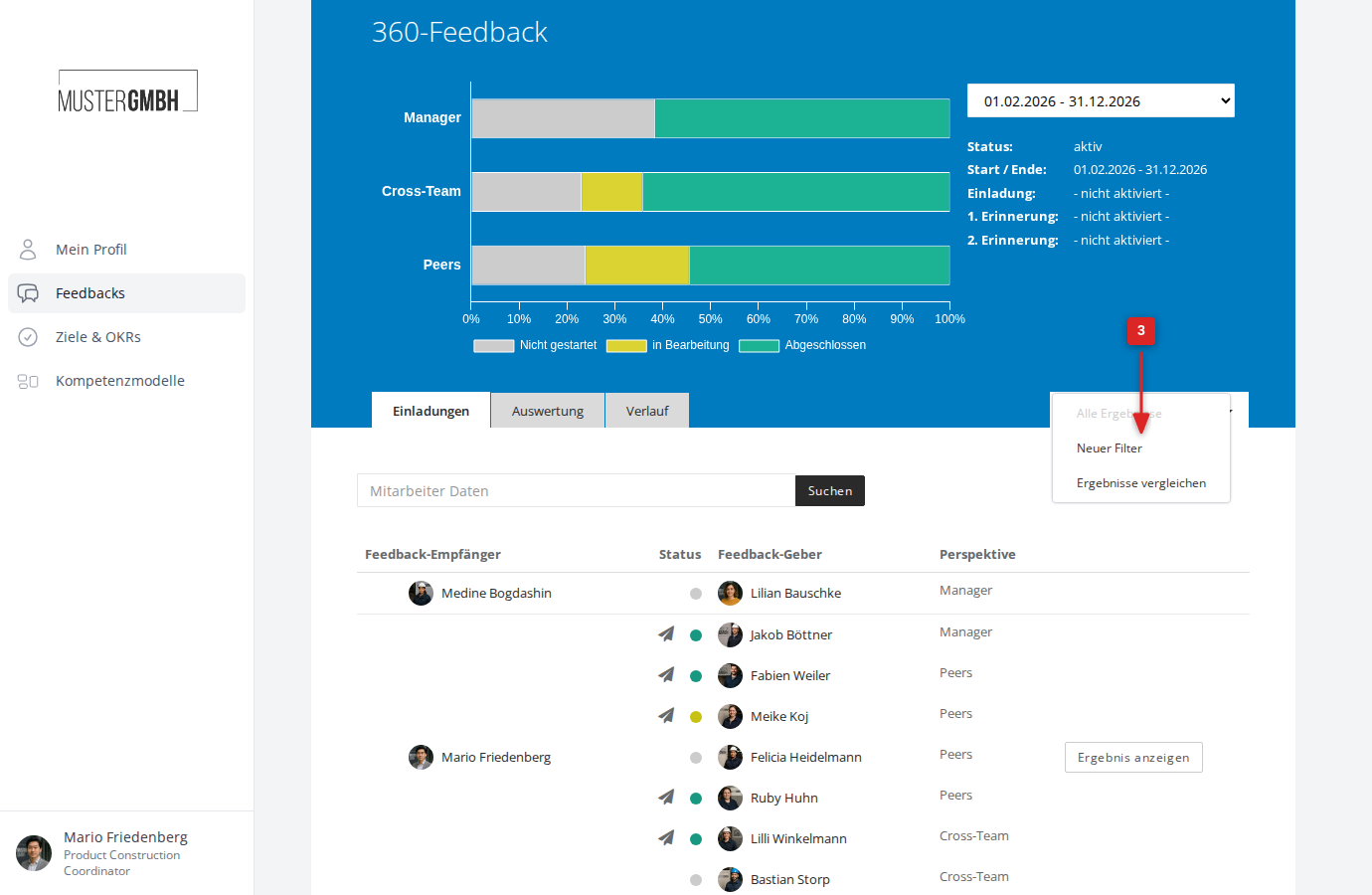
- In the dropdown, click New filter
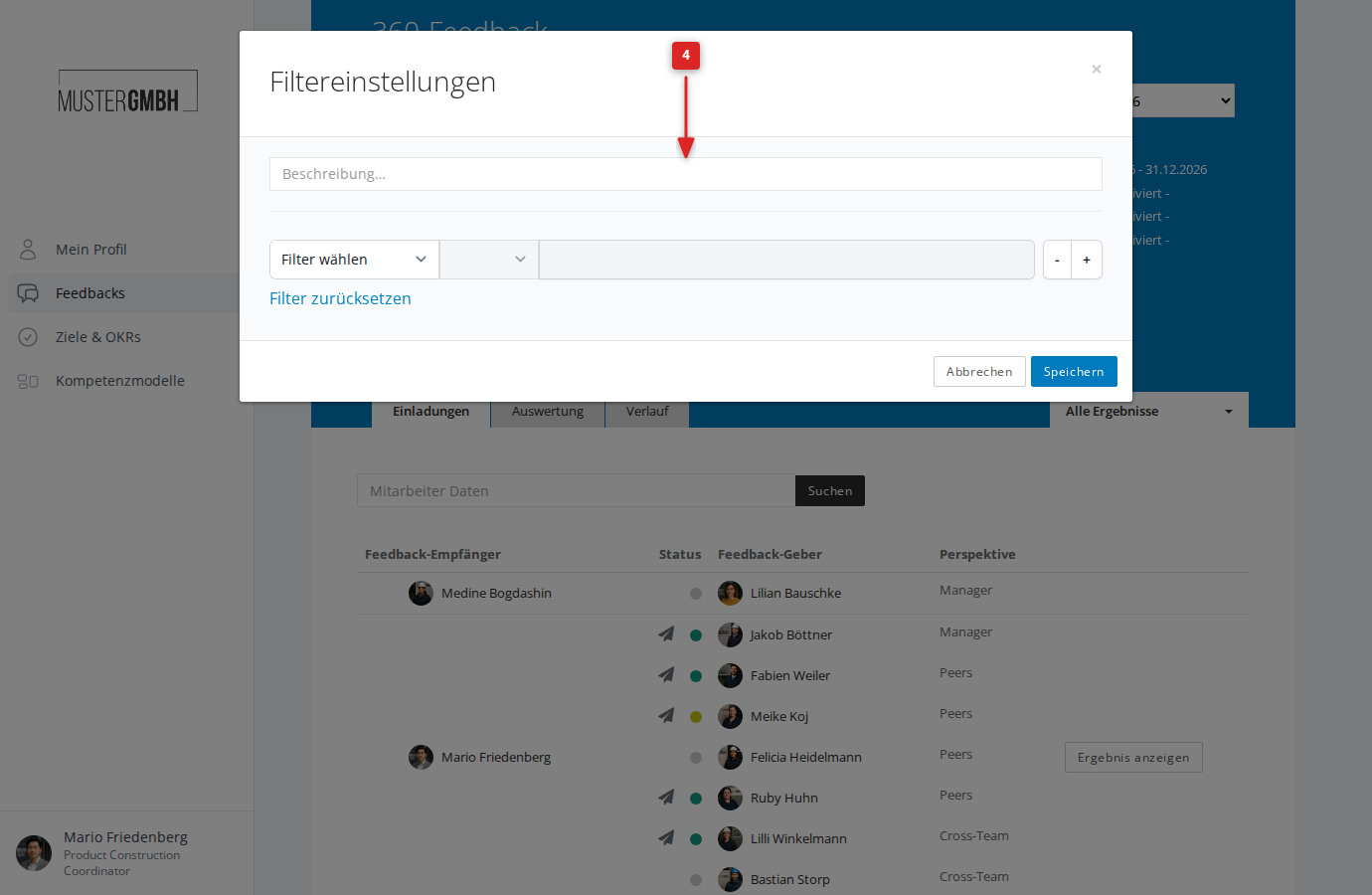
- In the Description field, enter a name for the filter (for example “Marketing & Sales”)
- Add a filter criterion: in the Choose filter dropdown, select the criterion you want (for example “Status”, “Position” or “Supervisor”). An operator field (for example “Equals”) and a value field then appear, where you choose the values you want.
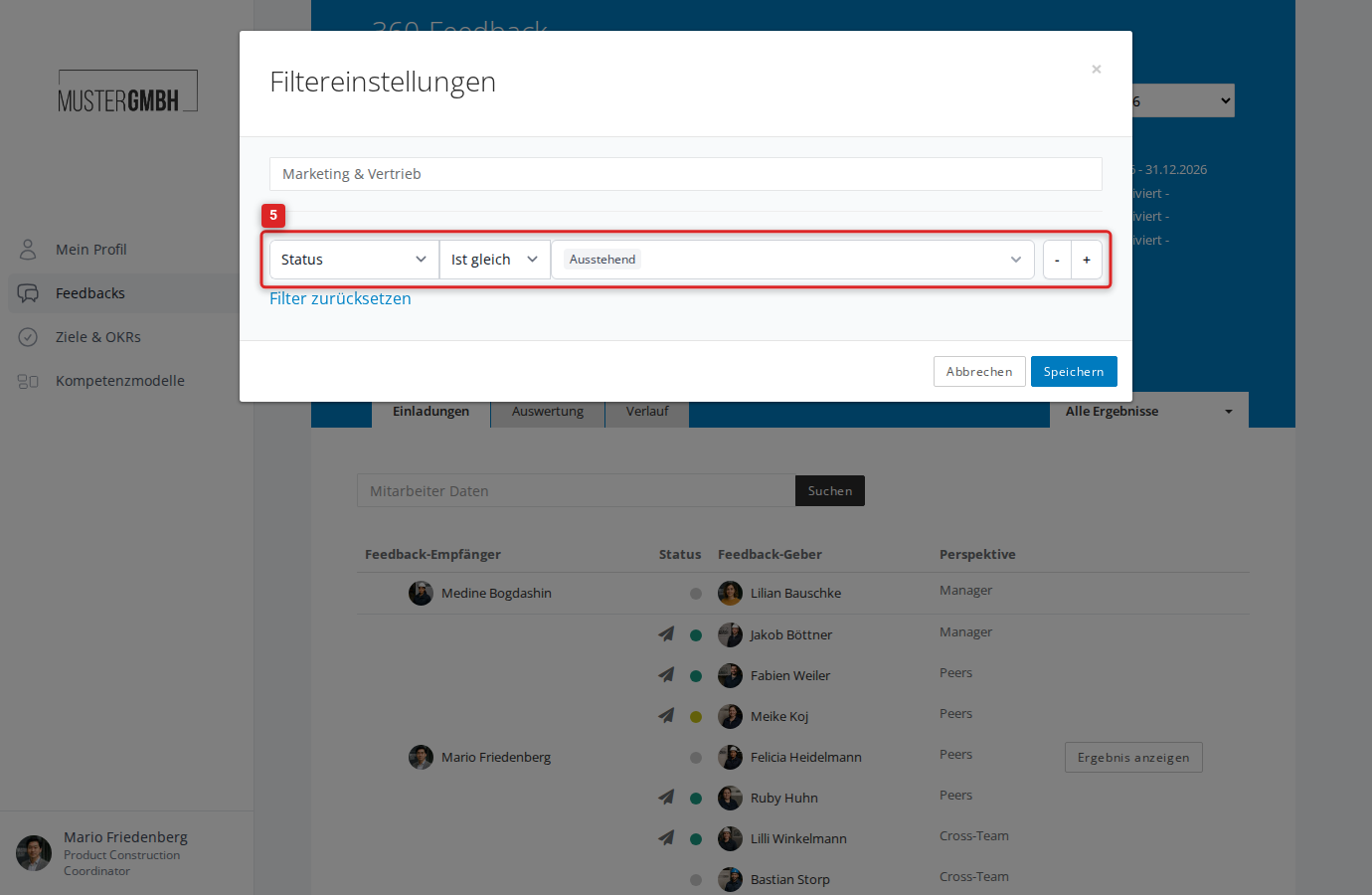
- To add more criteria, click the + button to the right of the filter row. To remove a criterion, click −.
- Click Save
The filter is saved and immediately active. The dropdown now shows the filter name instead of “All results”.
Filter criteria
When you create a filter, various criteria are available. Which criteria you see depends on your organization’s configuration and on the individual review.
Each filter criterion has three parts:
- Criterion — in the first dropdown, choose the field to filter by
- Operator — determines the kind of comparison (for example “Equals”, “Contains”)
- Value — enter the value you want, or choose it from a list
Status
Filters by the processing status of the participations. The available values are:
- Pending: Only participations that are not yet finalized.
- Finalized: Only finalized participations.
Sealings
Filters by sealing status:
- not started: No sealing has begun.
- started: Sealing is in progress but not yet complete.
- sealed: Sealing is fully complete.
Perspectives
If the review has several perspectives (for example Manager, Peers, Cross-Team), you can filter by individual perspective. The available perspectives are taken from the review configuration.
Position
Every position that exists in your organization is available as an option. You can choose one or more positions to show only participants with those positions.
Supervisor
Filters by the assigned supervisor. Two operators are available:
- Direct reports only: Shows only employees who report directly to the selected supervisor.
- All reports: Shows every employee in the selected supervisor’s reporting chain.
User groups
Filters by the user groups that participants belong to. Two operators are available:
- In group: Shows only participants who belong to the selected group.
- Not in group: Shows only participants who are not in the selected group.
Custom fields
Your organization’s custom fields appear as their own filter criteria. The input options depend on the field type:
- Text fields: Enter a search term. The “Contains” operator filters by partial matches.
- List fields: Choose one or more values from the predefined list.
- Yes/No fields: Choose “yes” or “no”.
- Date fields: Enter a date or a date range.
Combine several filter criteria
You can combine as many filter criteria in one filter as you like. Click the + button to add another filter row. All criteria are combined with AND — only participations that meet all criteria at once are shown.
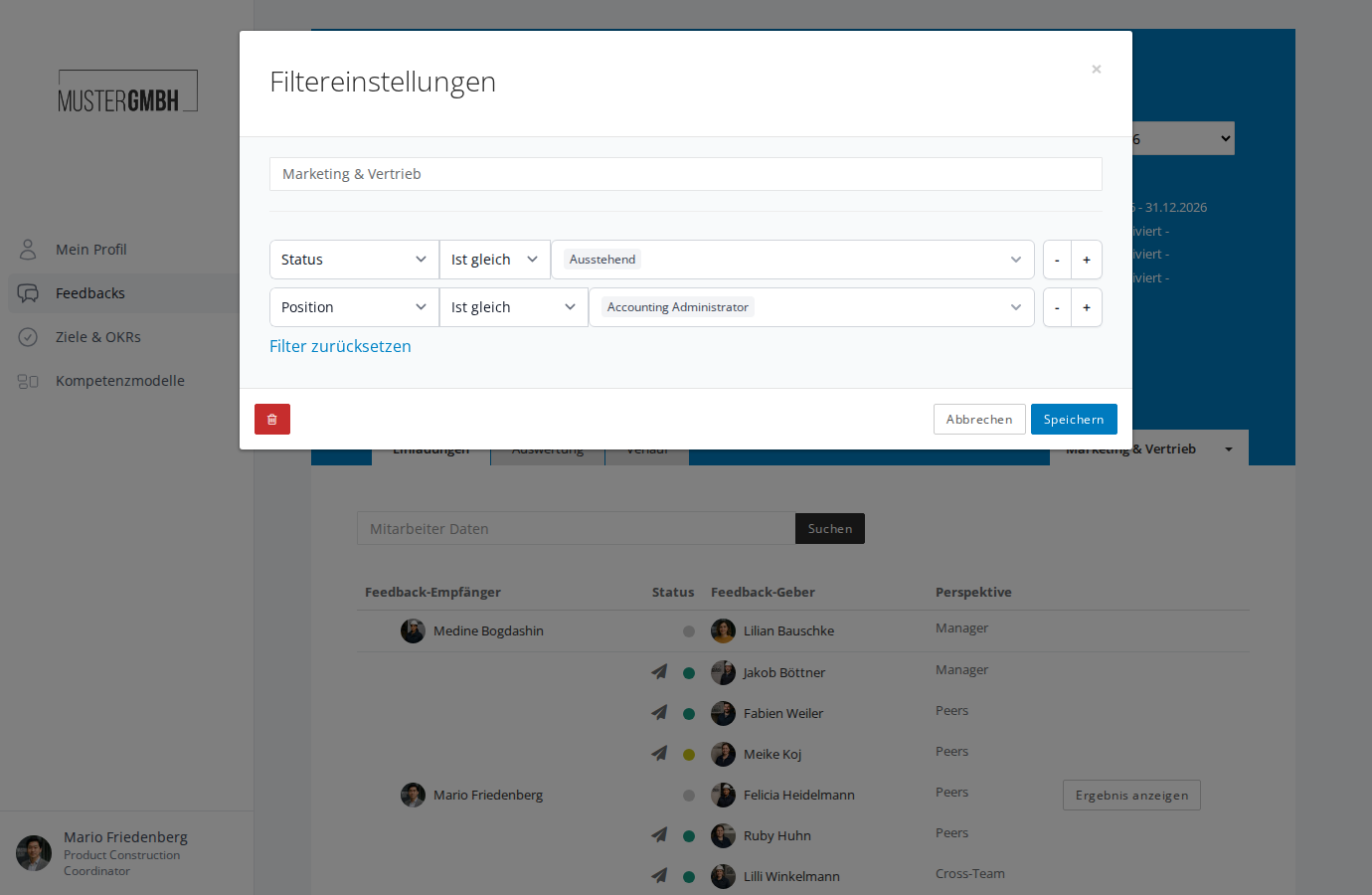
To remove a single criterion, click the − button next to its row. To remove all criteria at once, click Reset filter.