Invite participants by email
Invite participants manually
To invite individual participants by email:
- Open the participant list of the feedback edition.
- Mark the participants you want using the checkboxes to the left of their names.
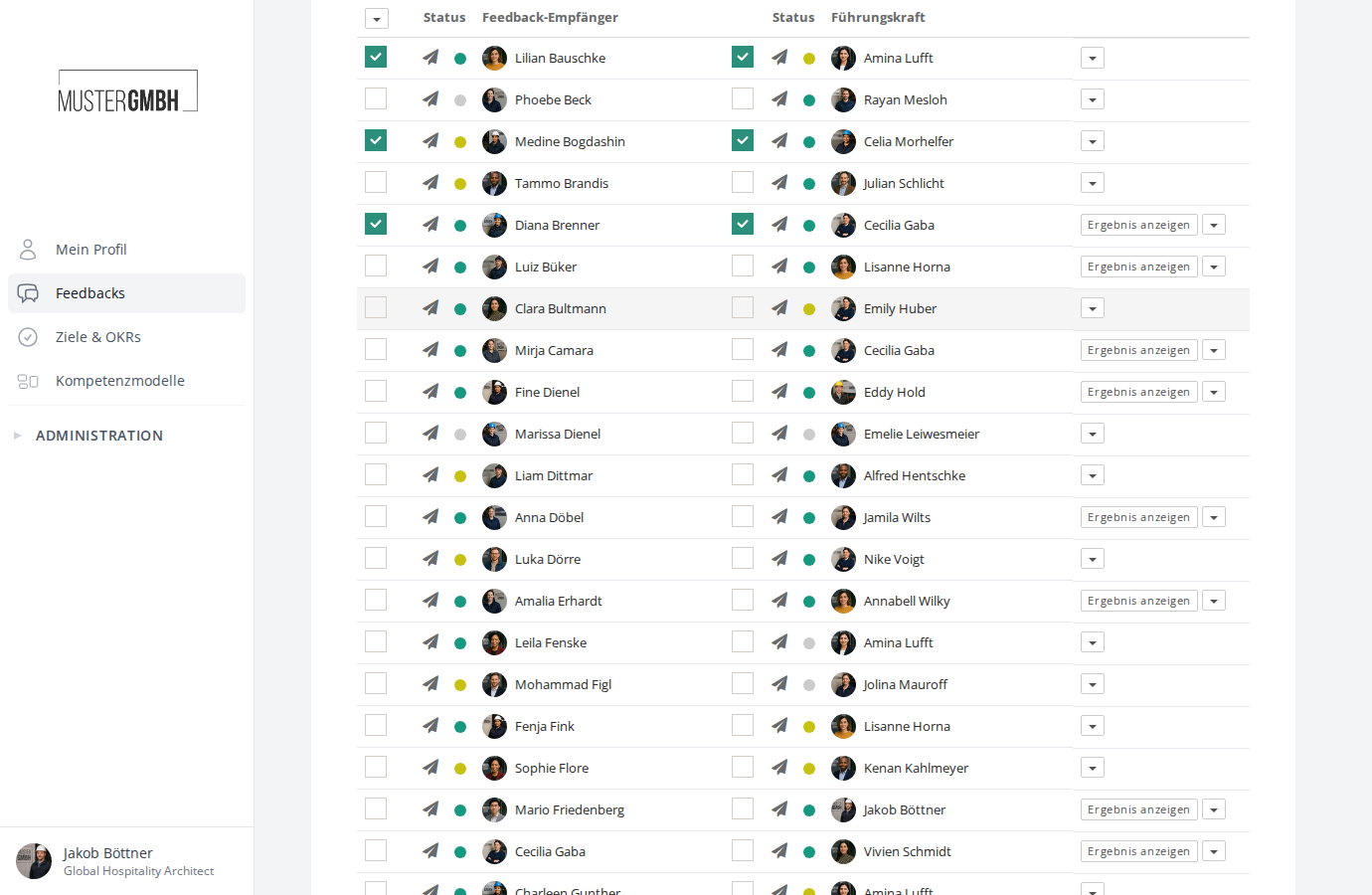
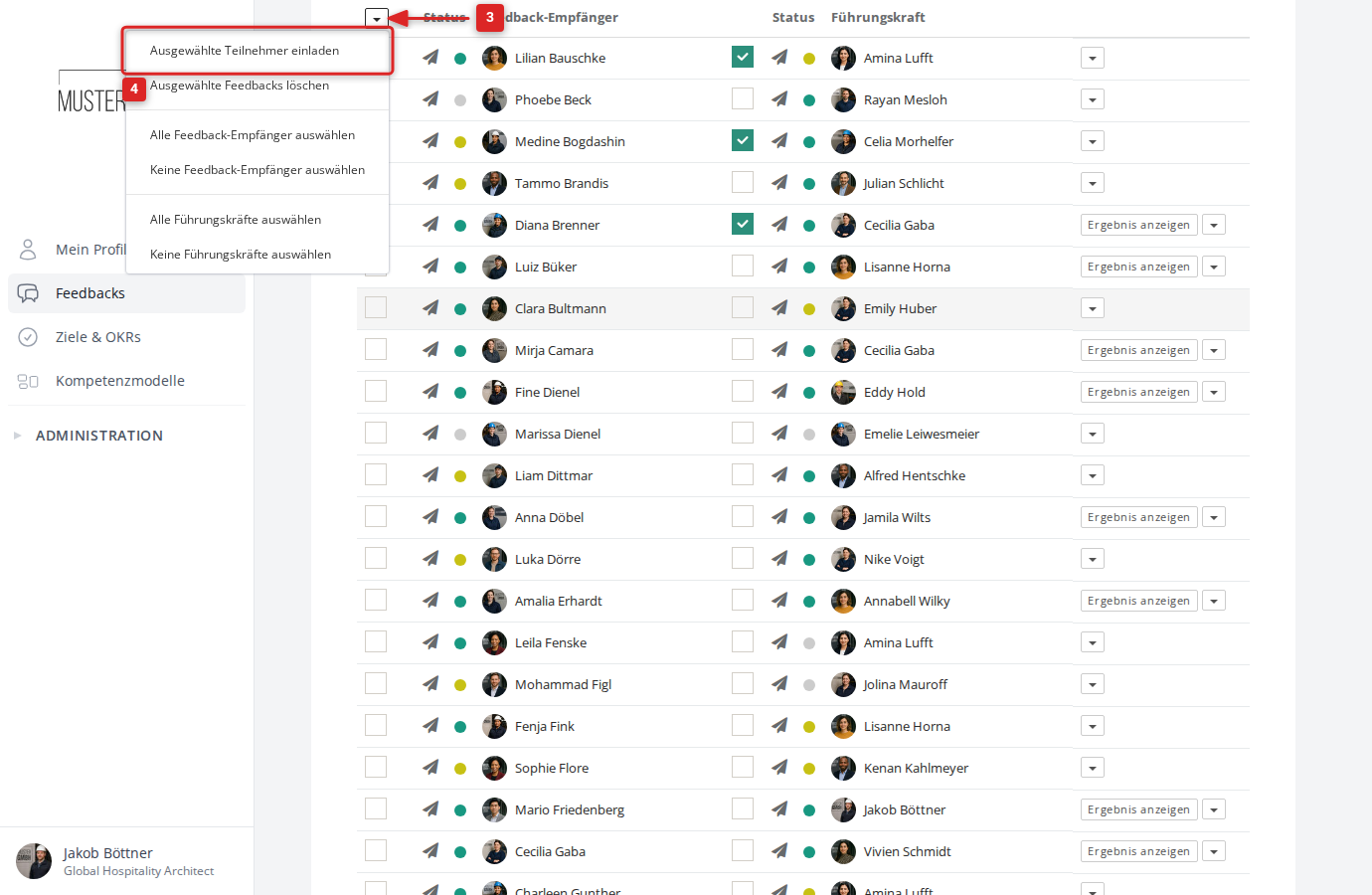
- Click the dropdown arrow at the top left of the participant list.
- Choose “Invite selected participants”.
- Confirm the send in the dialog.
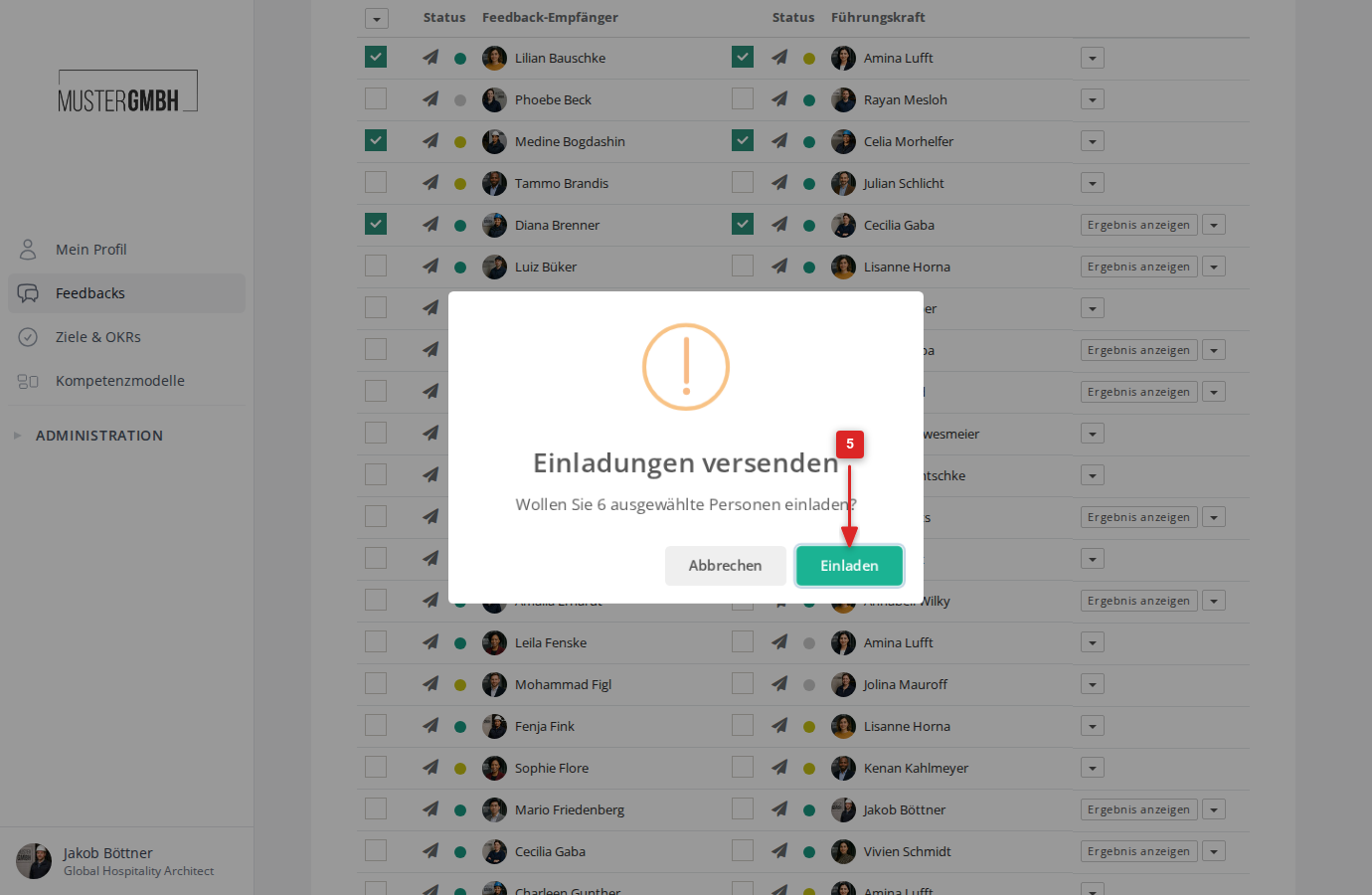
The page reloads. The invitations are sent by email within a few moments.
Use the quick selection
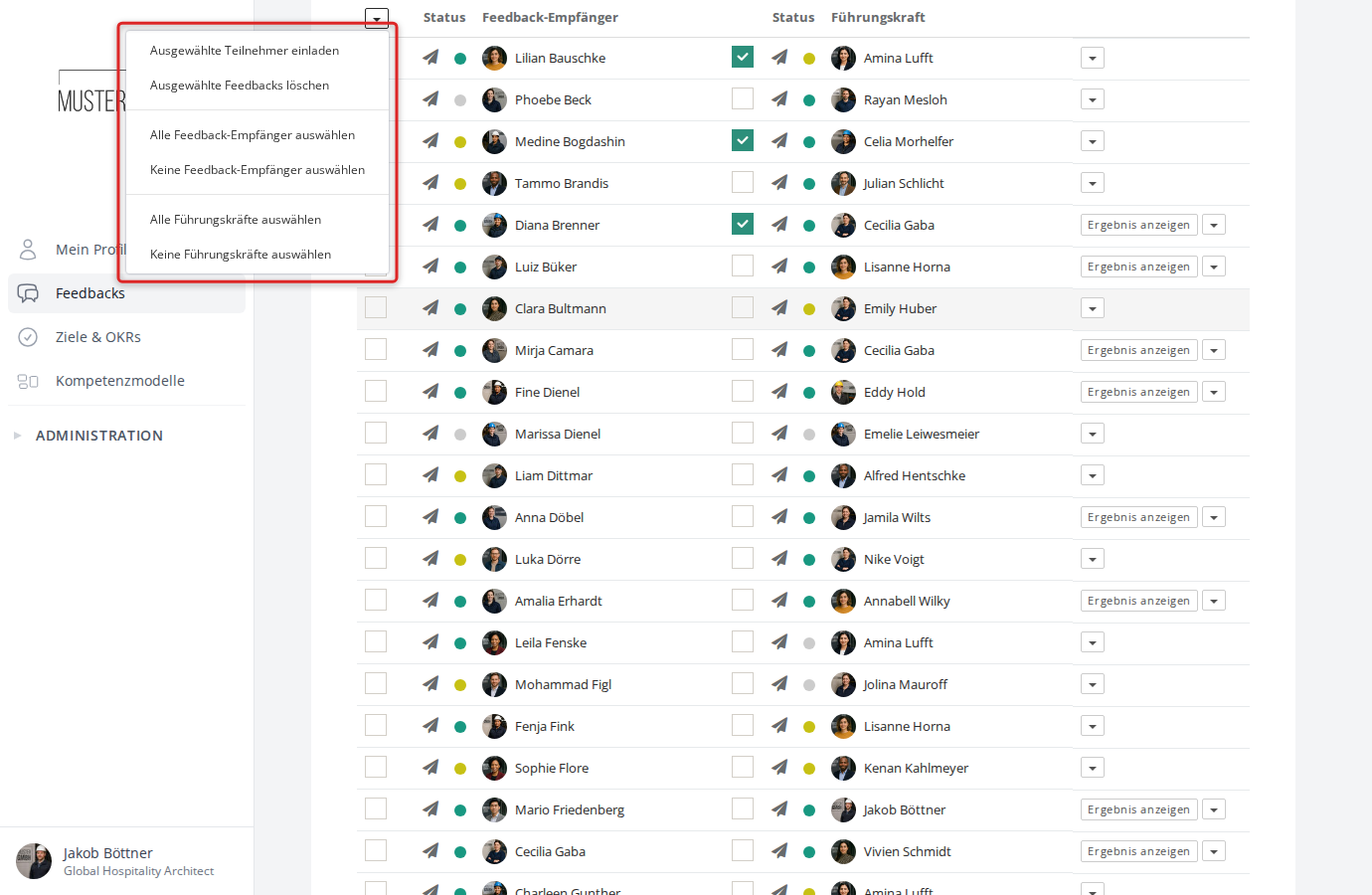
Besides the invite action, the dropdown menu offers quick-selection options:
- Select all reviewees / Select no reviewees
- Select all reviewers / Select no reviewers
This lets you mark, say, all feedback recipients at once instead of ticking every checkbox by hand.
Invite many participants at once (mass invitation)
When you want to invite a large number of employees at once, use the mass invitation. Unlike the manual invitation with checkboxes, it lets you set filters and configure the perspectives.
- Open the participant list of the feedback edition.
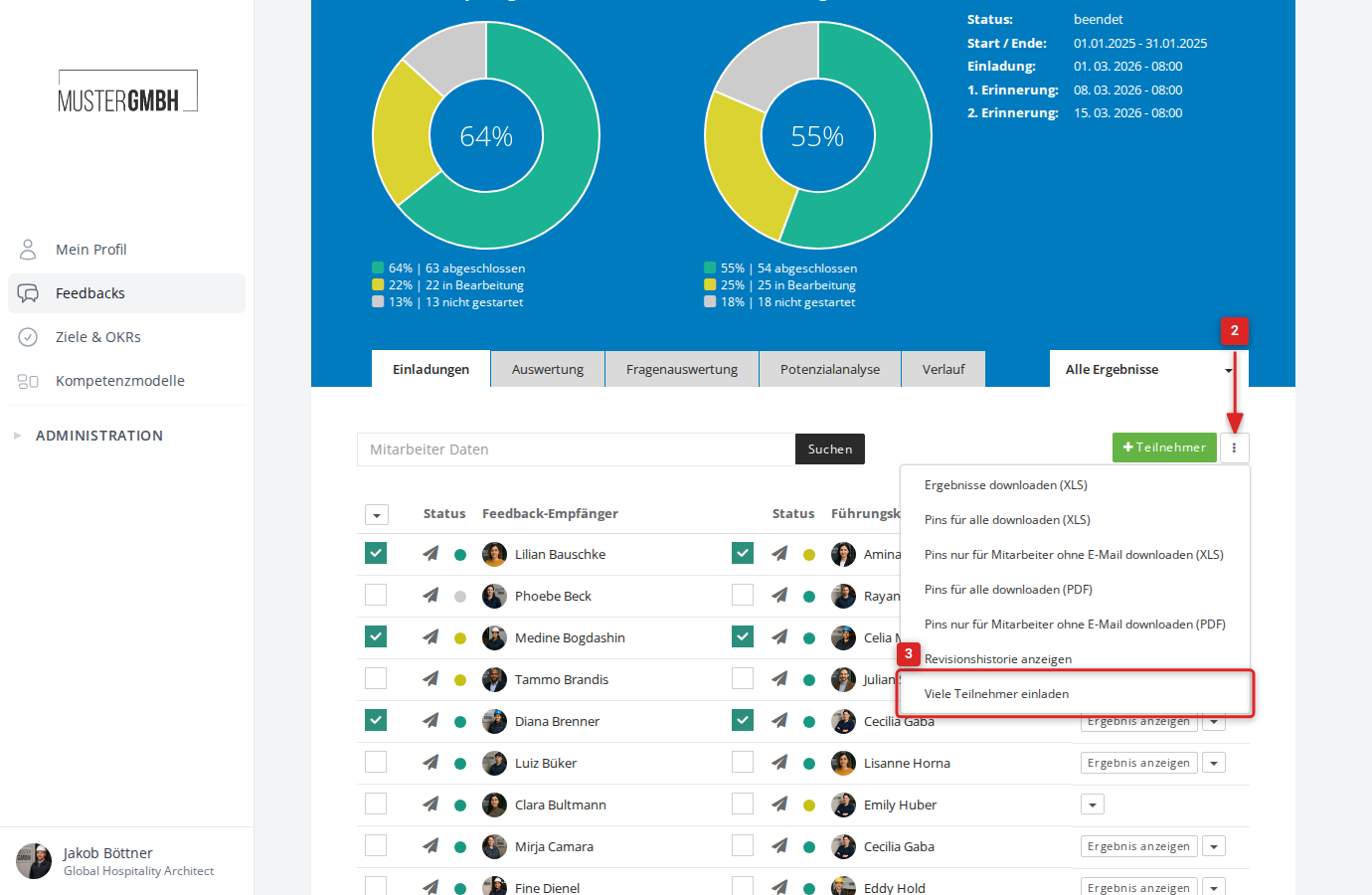
- Click the three-dot menu (⋮) to the right of the ”+ Participant” button.
- Choose “Invite many participants”.
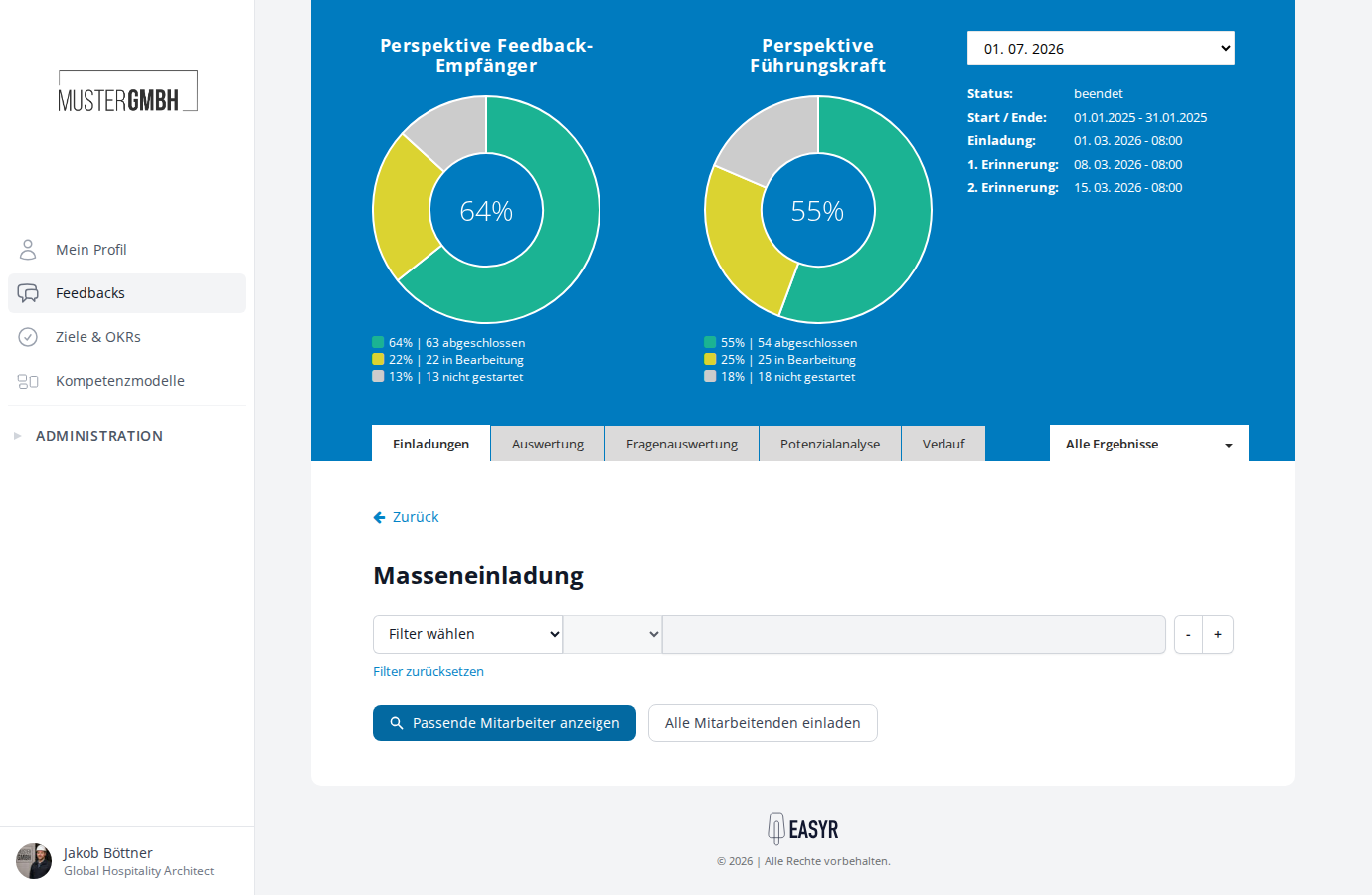
Filter employees or invite everyone
On the mass-invitation page you can use filters to pick specific employees — for example by user group, position or supervisor. Click “Show matching employees” to preview the filtered people.
Alternatively, click “Invite all employees” to invite everyone with no filter.
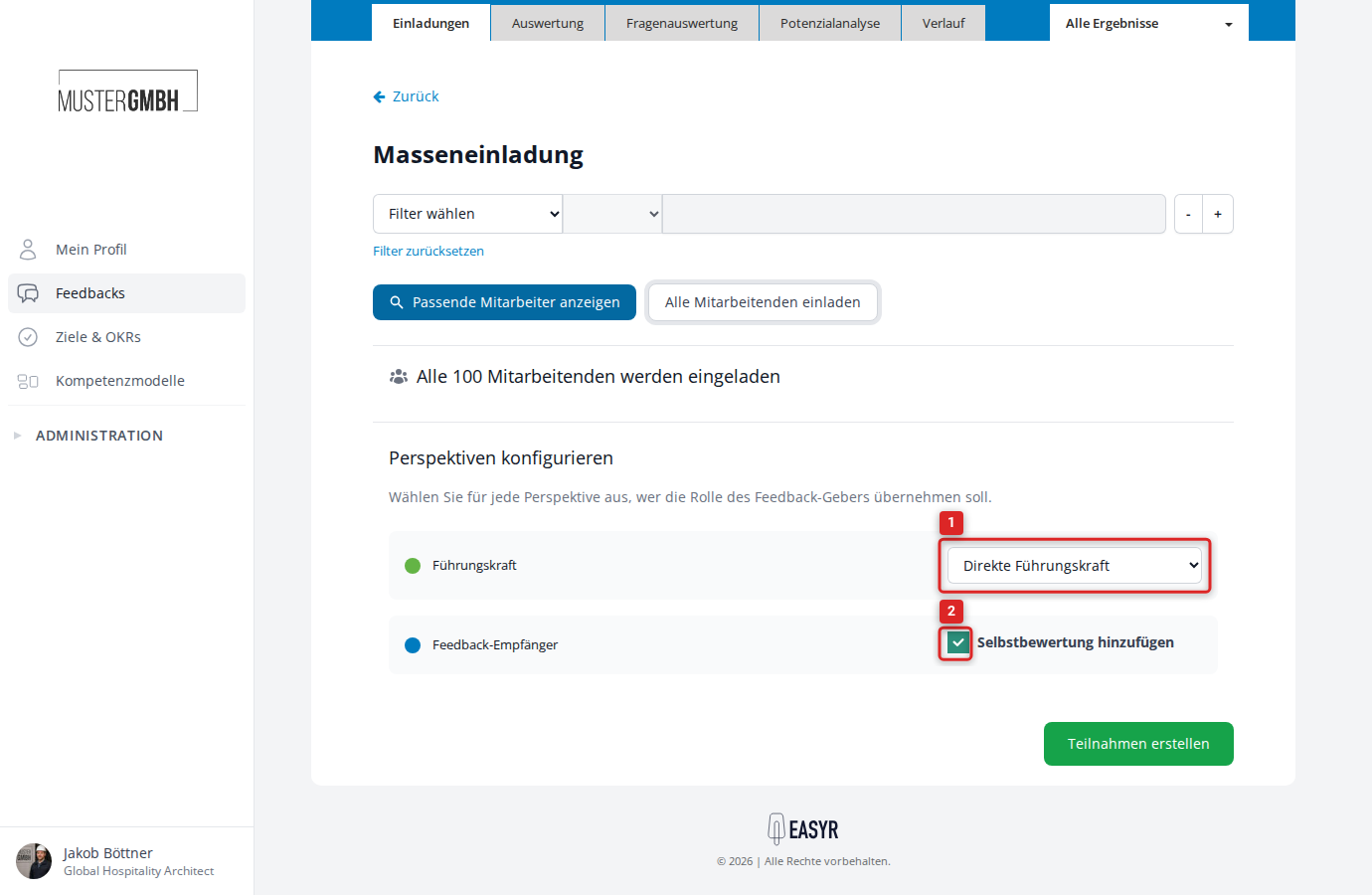
Configure perspectives
After the selection, the “Configure perspectives” section appears. Here you set who takes on each feedback-giver role:
- Supervisor: choose, for example, “Direct supervisor”, “Supervisor’s supervisor” or “Top-level supervisor”.
- Feedback recipient: tick “Add self-review” if the feedback recipients should assess themselves.
Click “Create participations” to start the process.
The invitations are processed in the background. A progress bar on the participant list shows the current status.