Delete an element
Archive an element
To archive an element or question in a review’s questionnaire:
- Open the questionnaire editor.
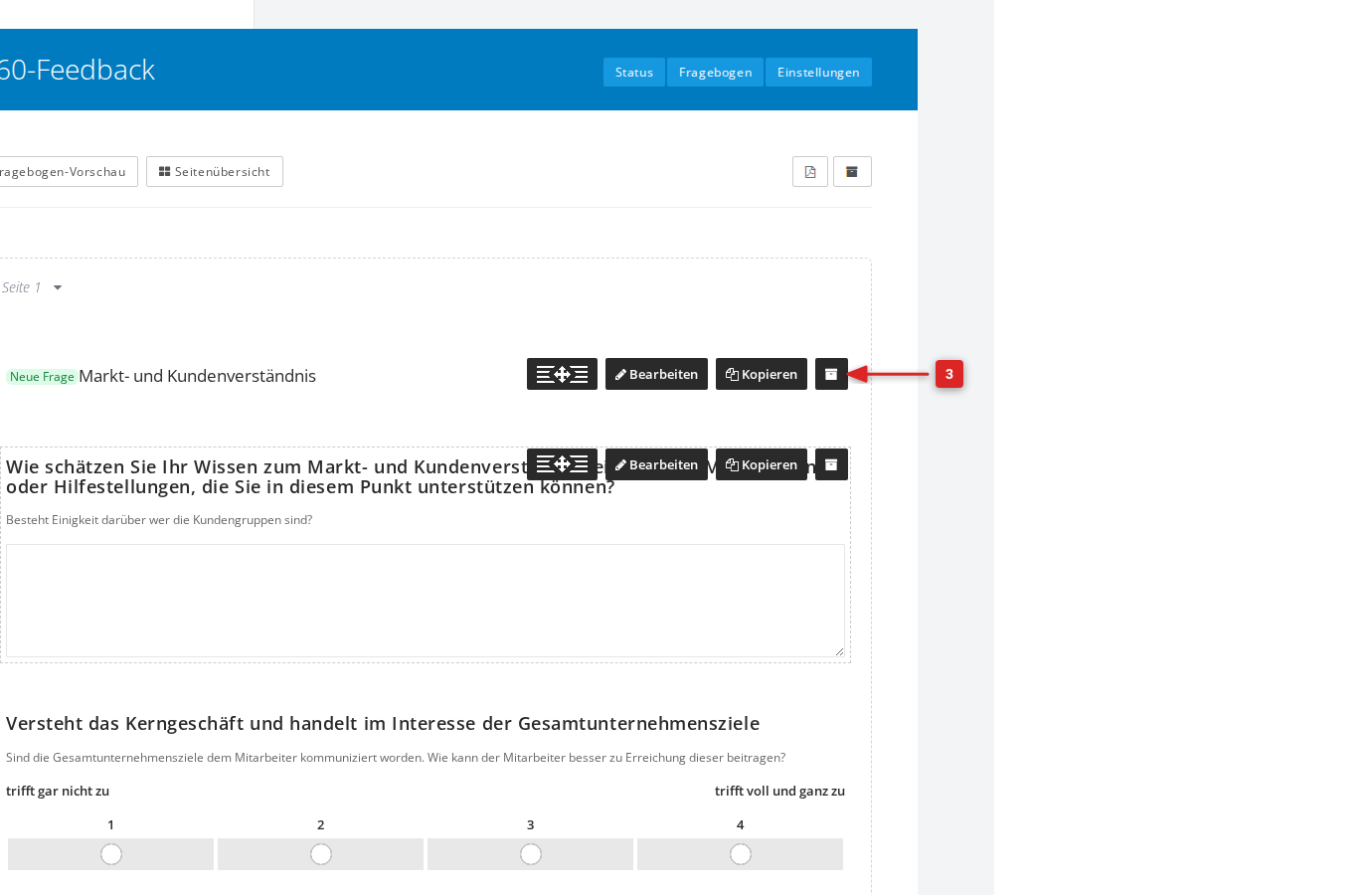
- Hover over the element or question you want to archive. A toolbar appears at its top-right edge.
- Click the archive icon in the toolbar.
- Confirm with Archive now.
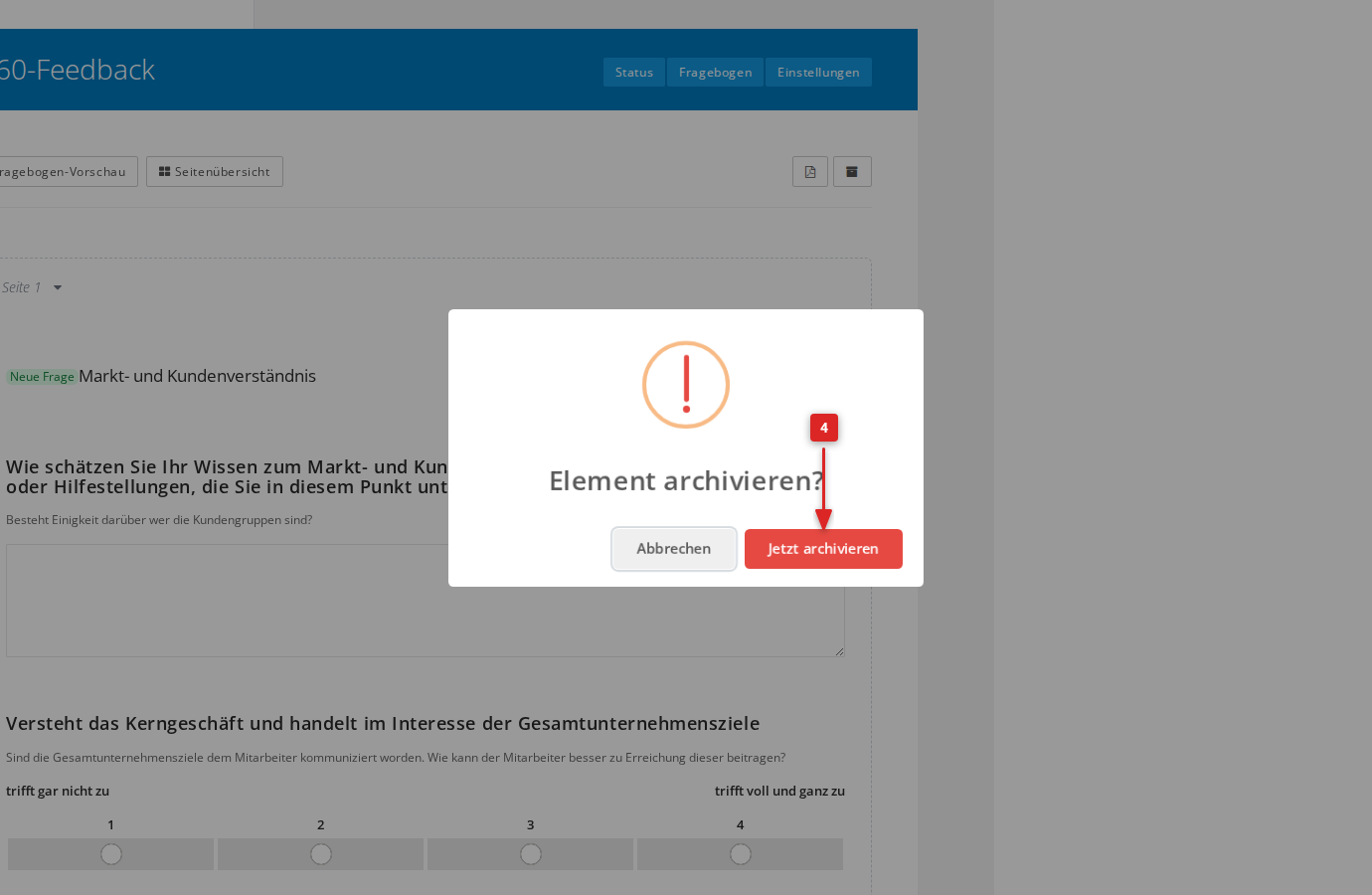
The element disappears from the questionnaire immediately. It no longer shows up in new review editions, but it stays intact in the results of editions that are already finished.
Show archived elements
To make archived elements visible in the questionnaire editor, click the archive icon in the top-right corner of the editor.
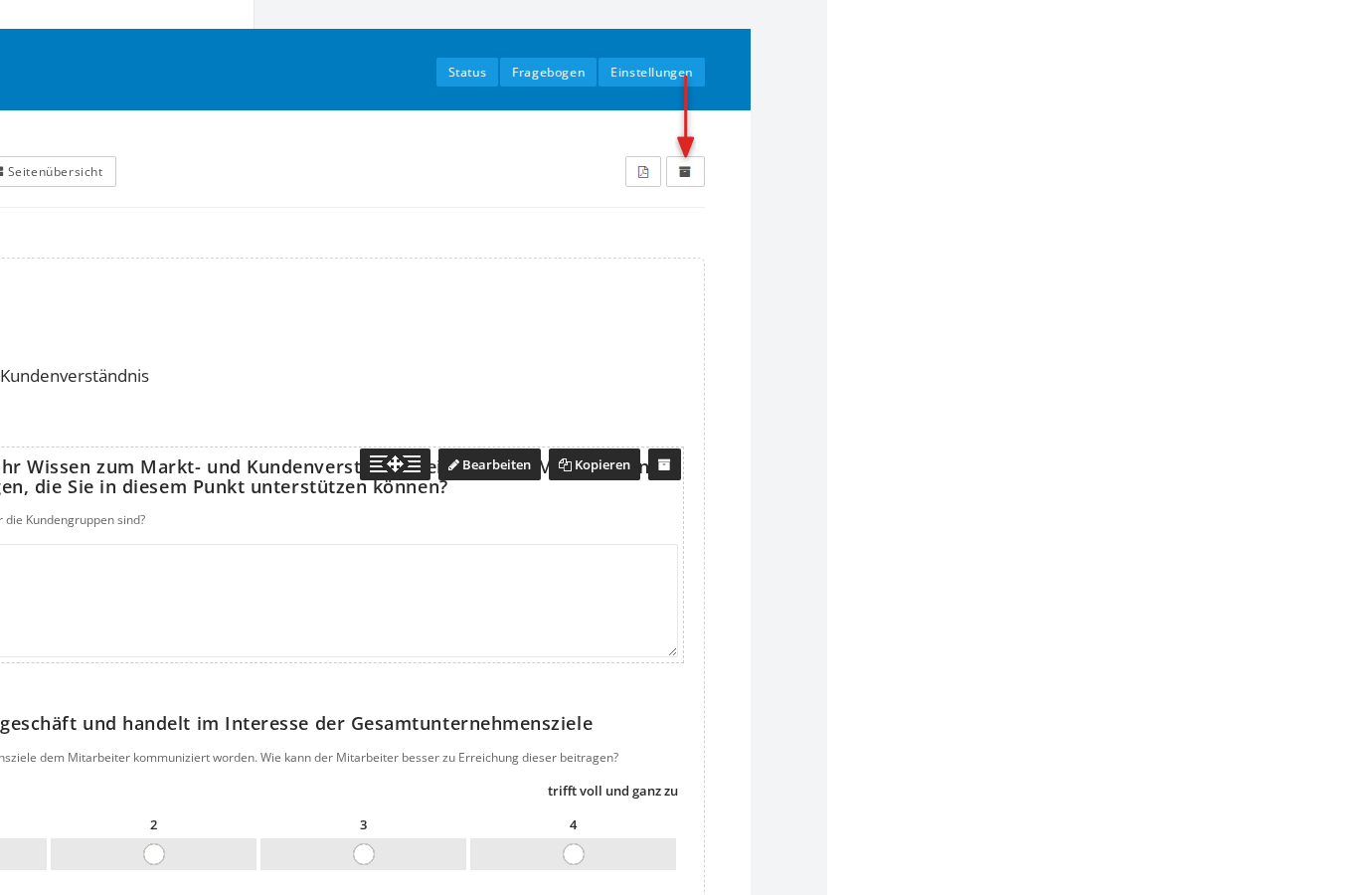
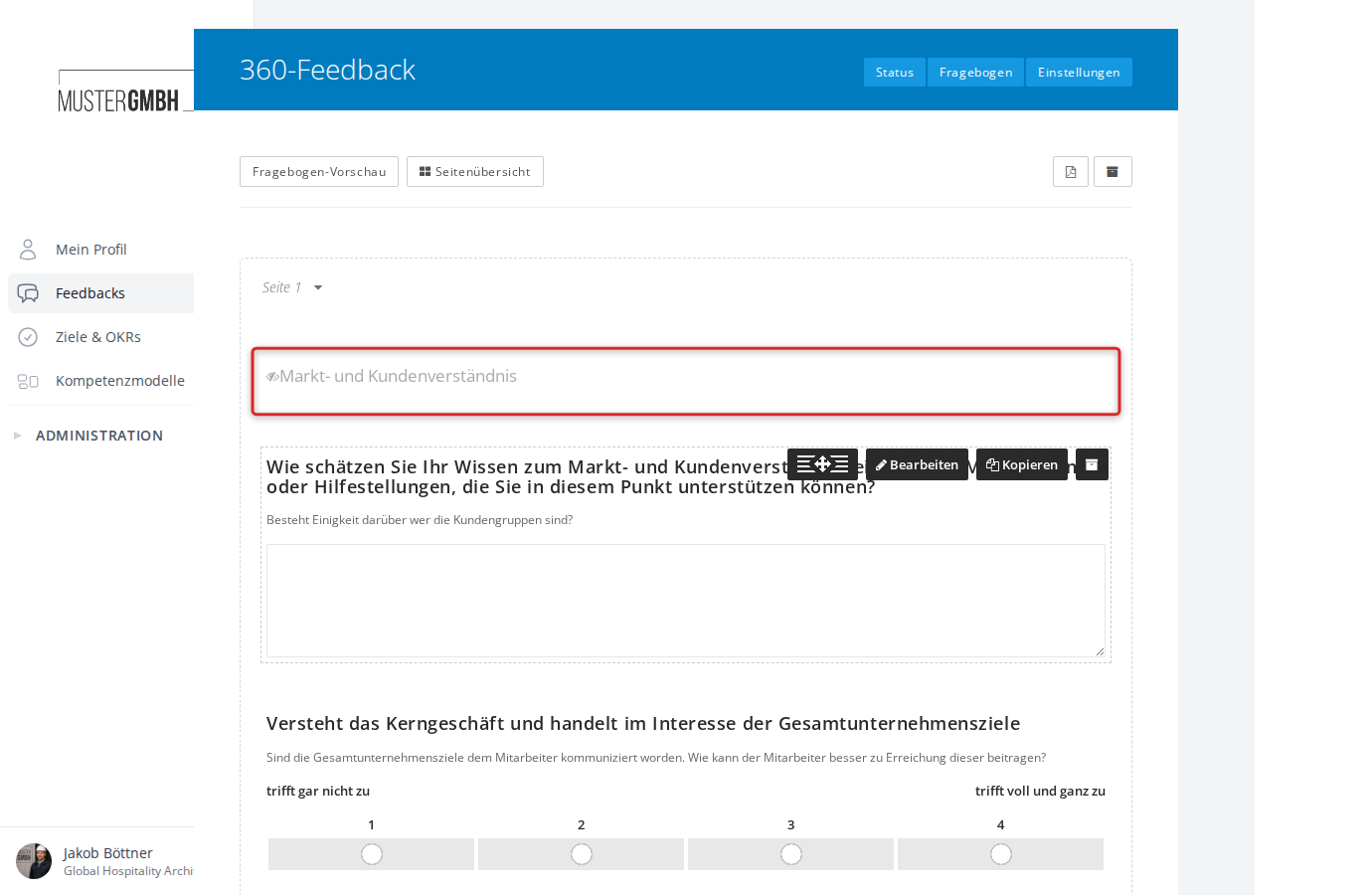
Archived elements now appear greyed out with a strikethrough marker. In this mode you can restore archived elements or delete them permanently.
Restore an element
To restore an archived element:
- Show the archived elements.
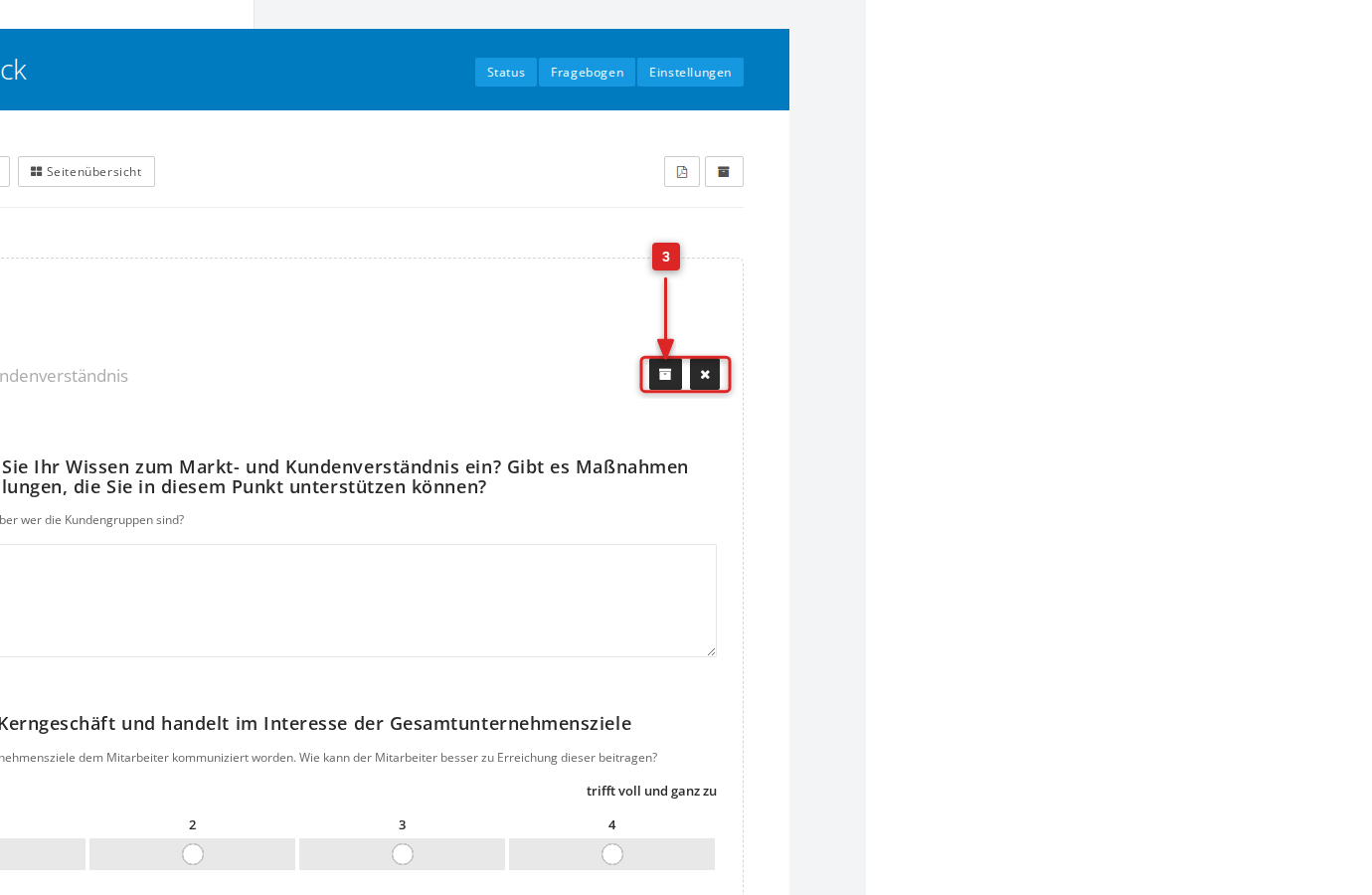
- Hover over the archived element. Two icons appear at its right edge.
- Click the archive icon (left) to restore the element.
- Confirm with Reactivate now.
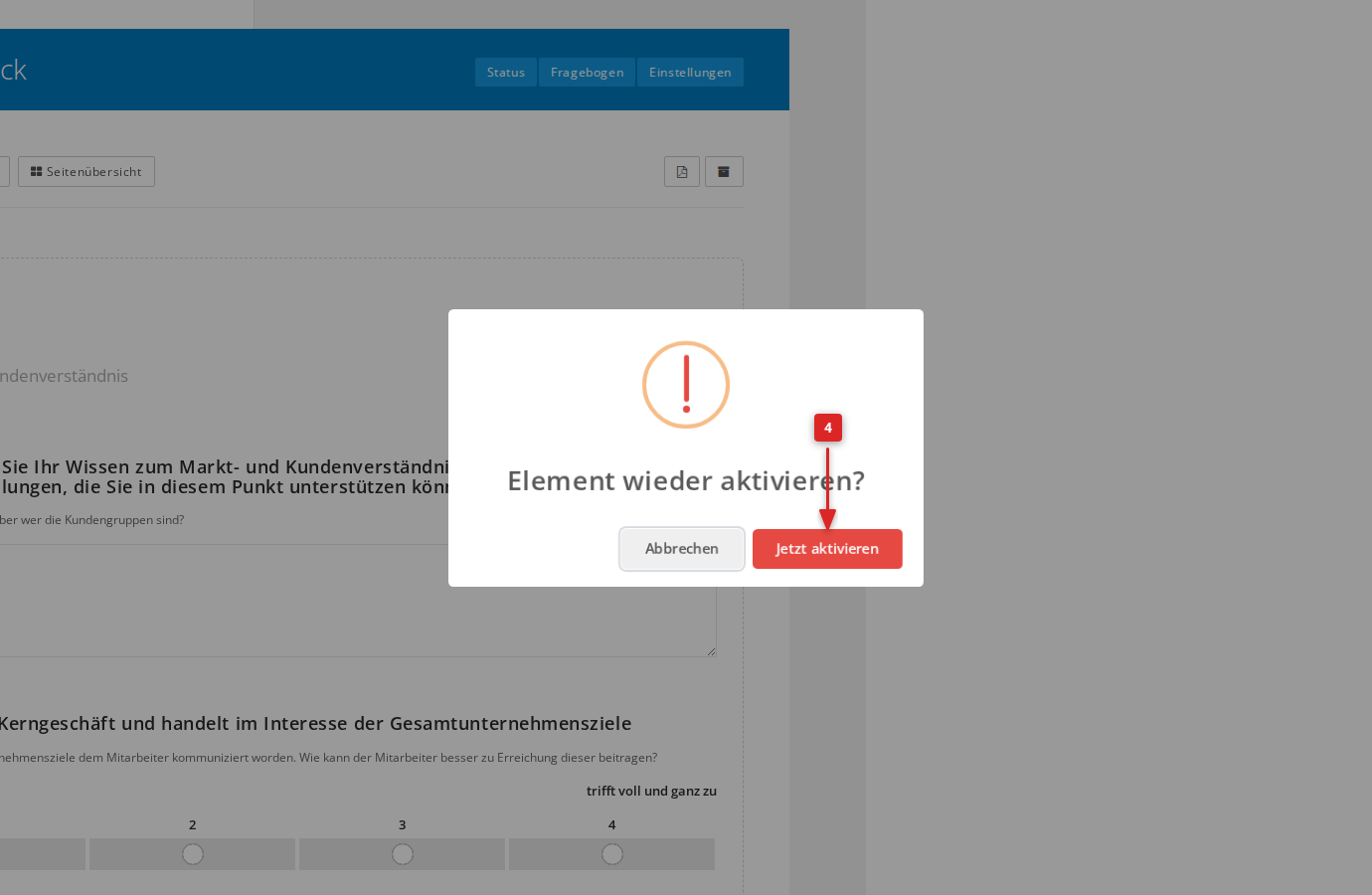
The element is restored immediately and appears for participants again from the next edition onward.
Delete an element permanently
To delete an archived element permanently:
- Show the archived elements.
- Hover over the archived element. Two icons appear at its right edge.
- Click the X icon (right) to delete the element permanently.
- Confirm with Delete now.
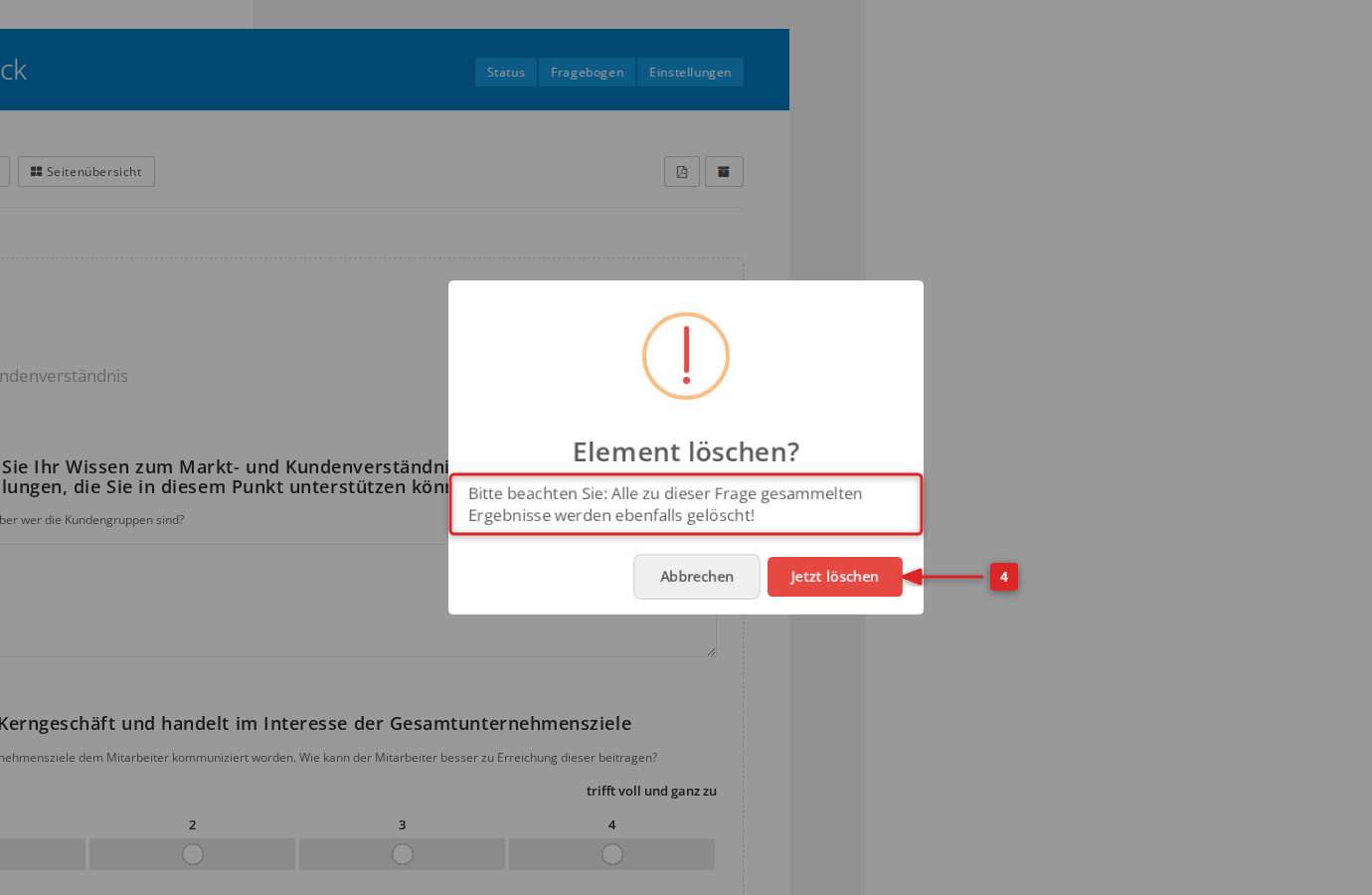
The element is removed irreversibly from the questionnaire and from all its results.