Add a participant to a 360° feedback
In a 360° feedback, one person receives feedback from several perspectives at once (for example manager, peers, cross-team). This article shows how to add feedback recipients and their feedback givers to the feedback process.
Open the feedback
- In the sidebar, click Feedbacks.
- Click the 360° feedback you want (for example “360 feedback”).
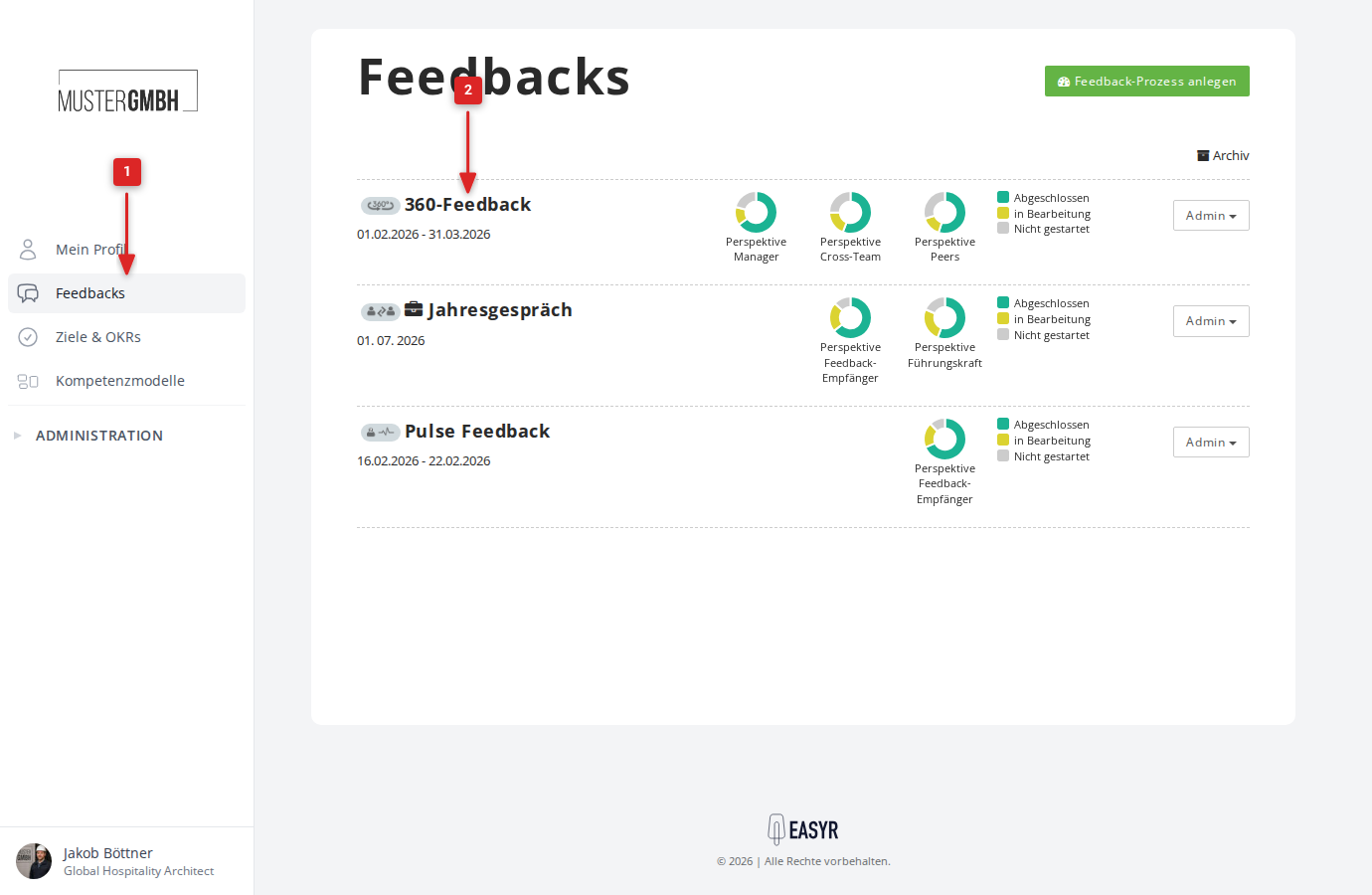
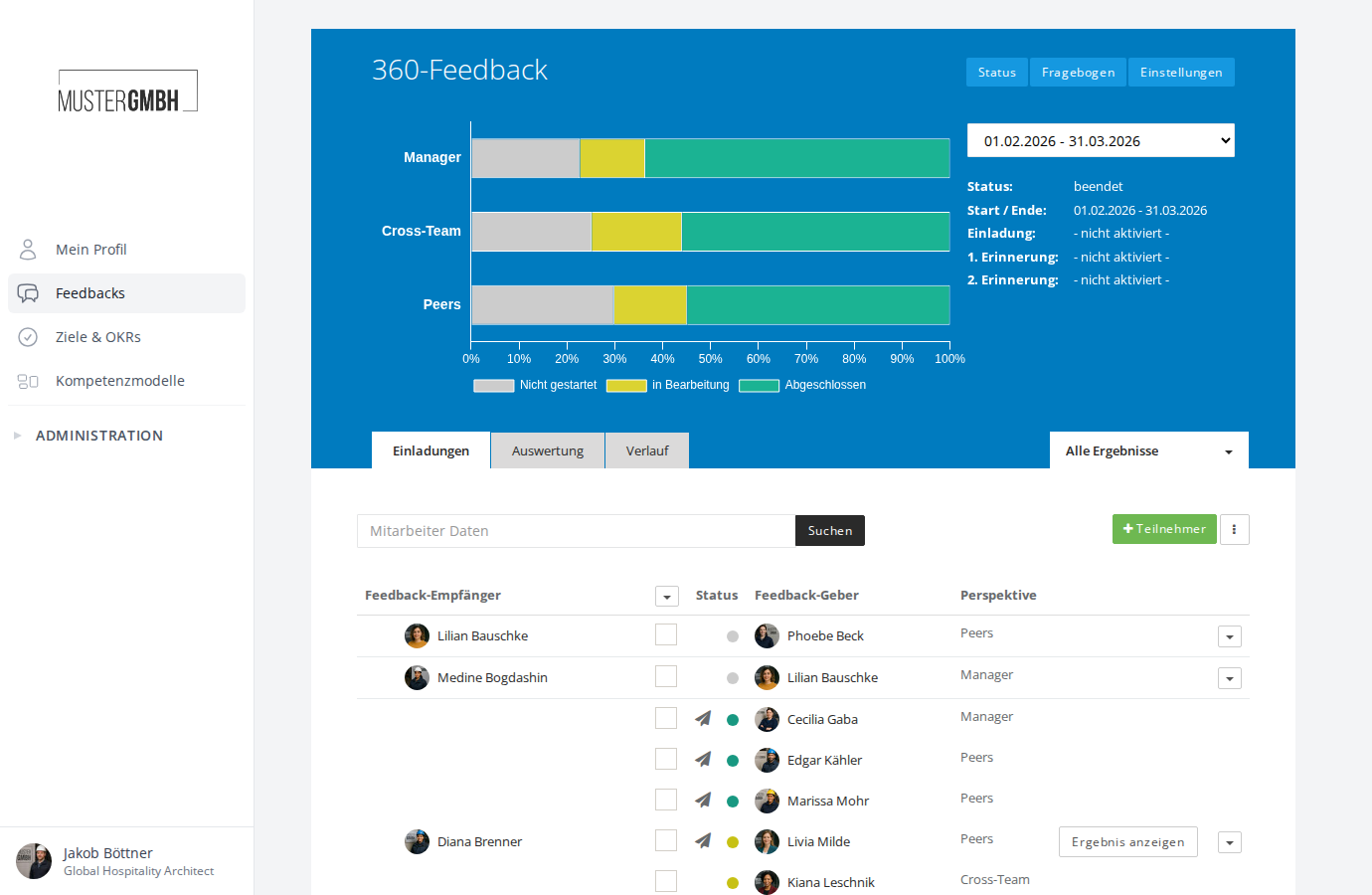
You land on the feedback’s edition page. Here you see the current status per perspective as a progress bar, the Invitations, Evaluation and Time series tabs, and the participant list.
Add participants
- Click the + Participant button above the participant list.
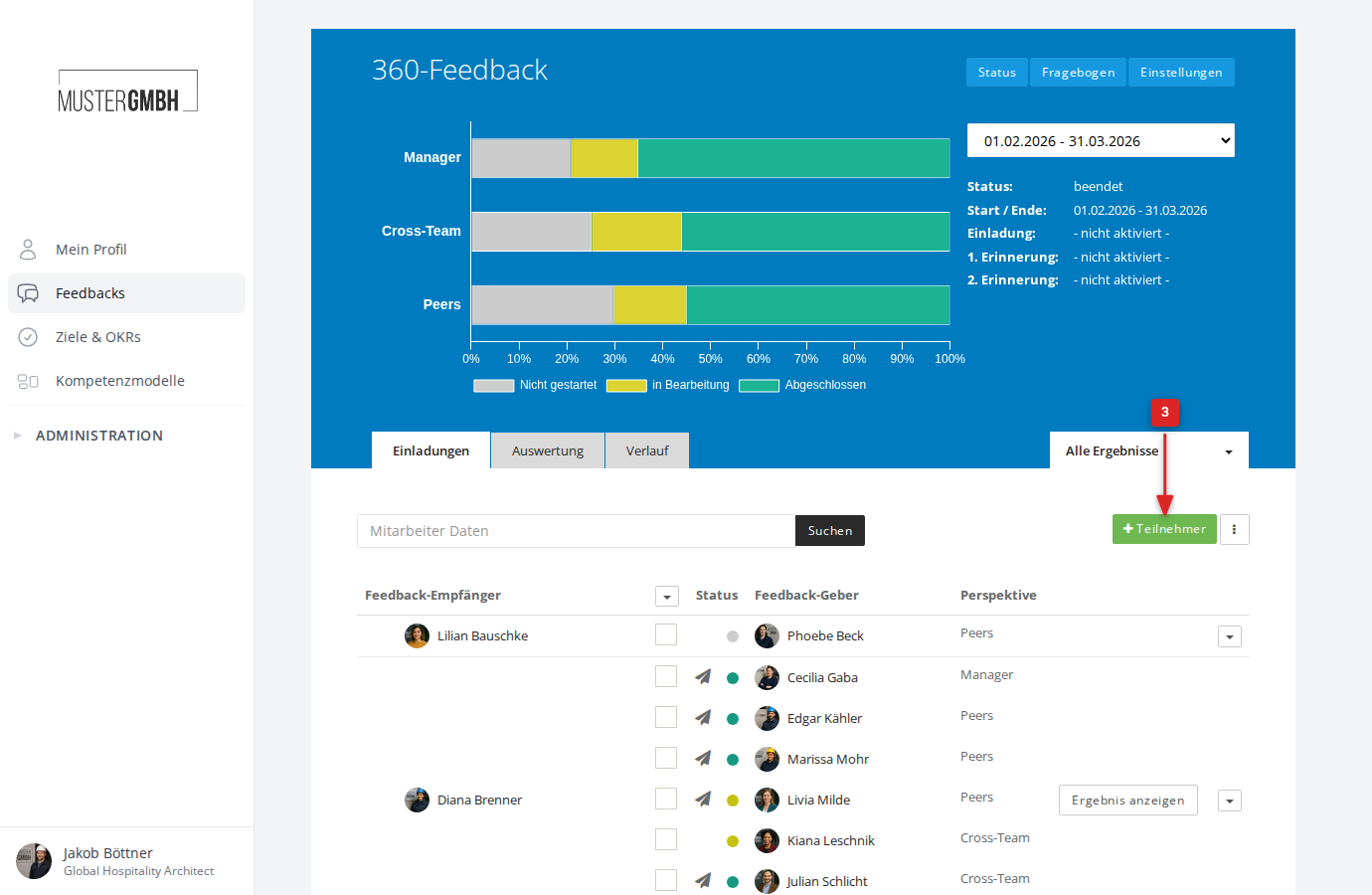
The “Add participants” window opens.
Choose a feedback recipient
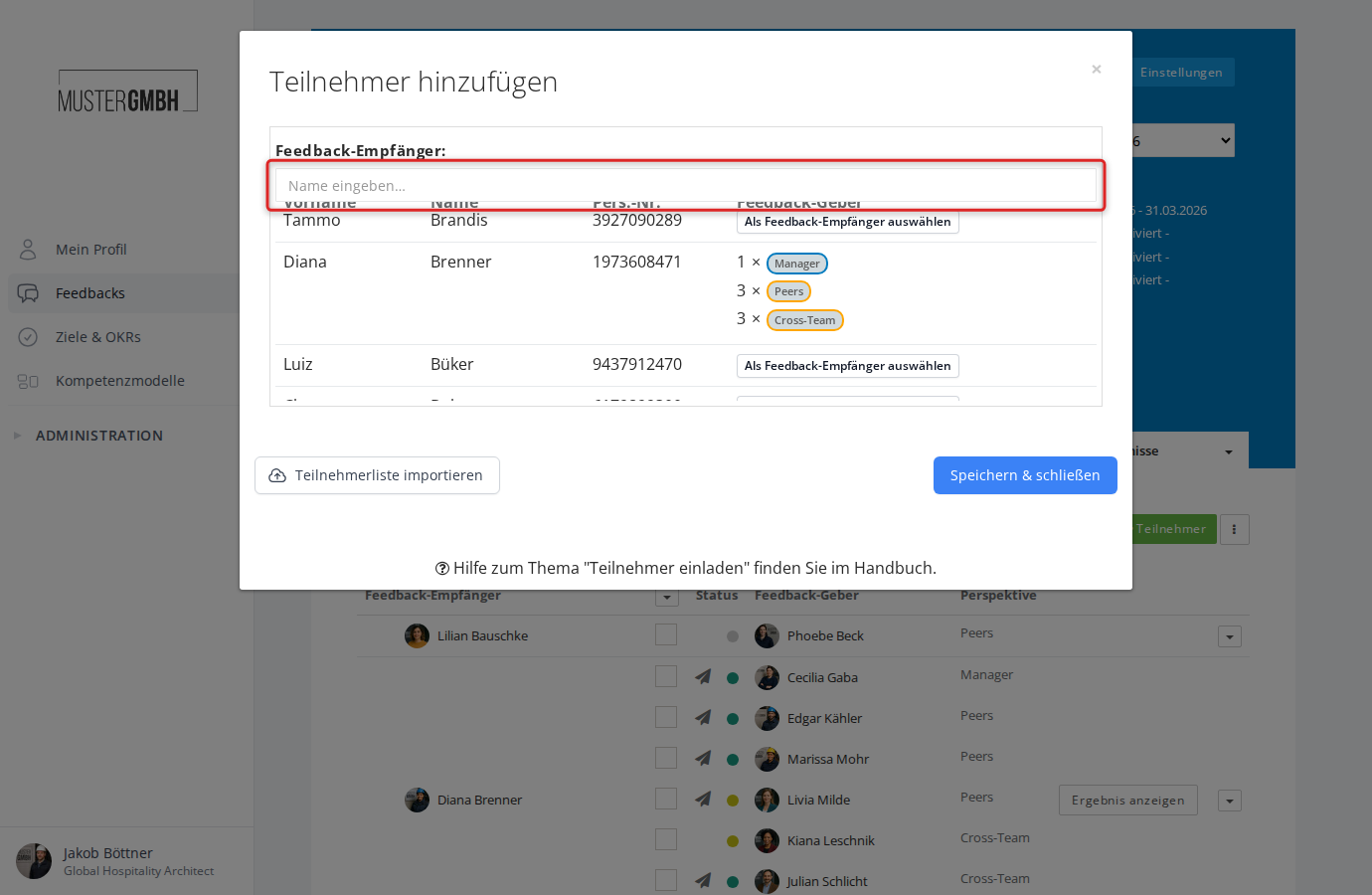
At the top of the window is the list of all employees under the Select employees: heading. The table shows first name, name, staff no. and any feedback givers already assigned.
People who already have feedback givers assigned show the count per perspective as badges (for example “1 × Manager”, “3 × Peers”). A self-assessment added automatically counts too. “No reviewers yet” means the person is already part of the edition, but nobody gives them feedback so far. Everybody else has a Select for review button.
- Find the person you want through the “Enter name…” search field, or scroll the list.
- Click the row of the person who should receive feedback.
Assign feedback givers
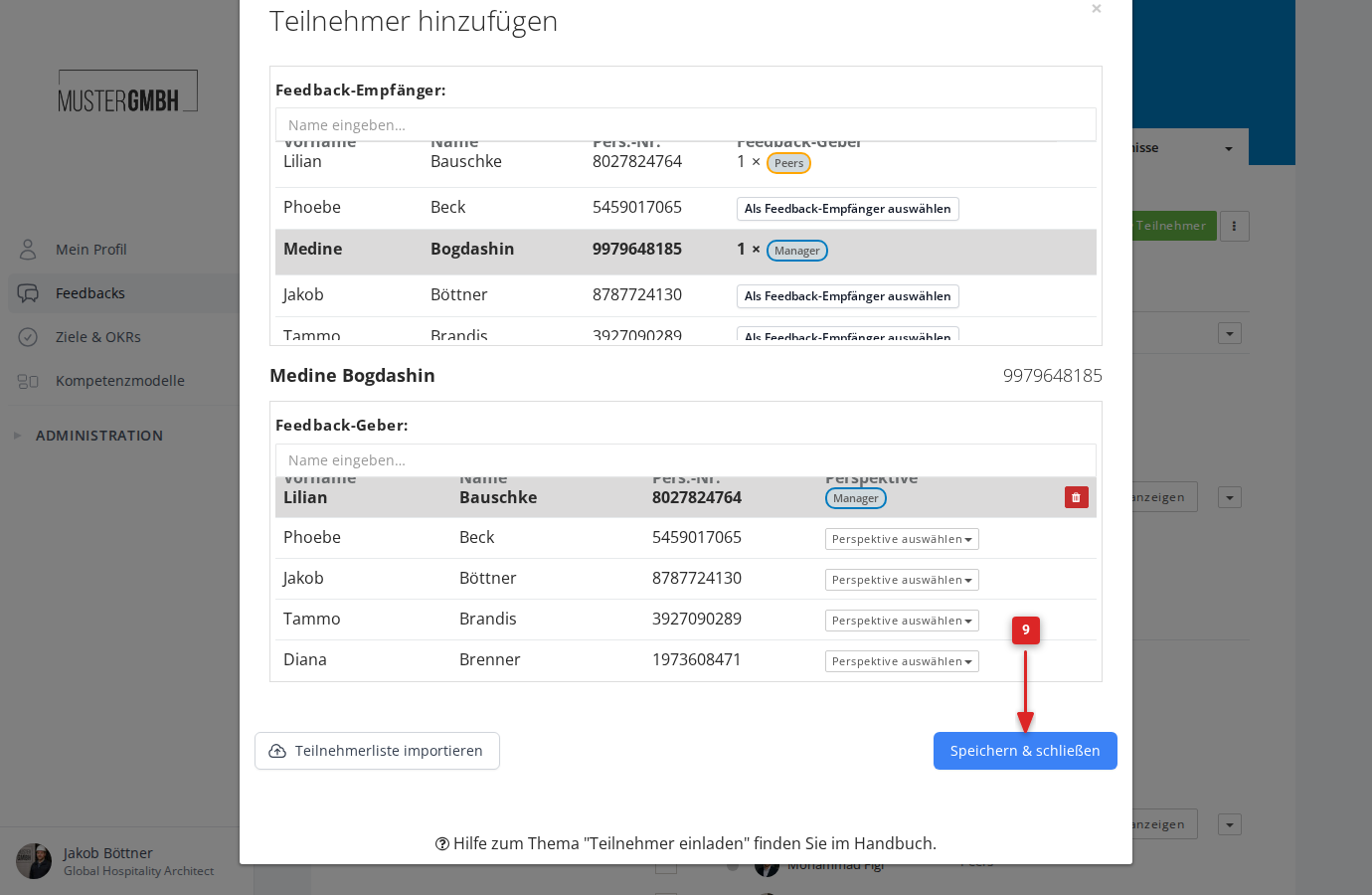
After you pick a feedback recipient, their name and staff number appear below, and the Select reviewer: section opens with another list of people.
- Find the feedback giver you want through the search field, or scroll the list.
- On the person you want, click Select as and pick the matching perspective (for example Manager, Peers or Cross-team).
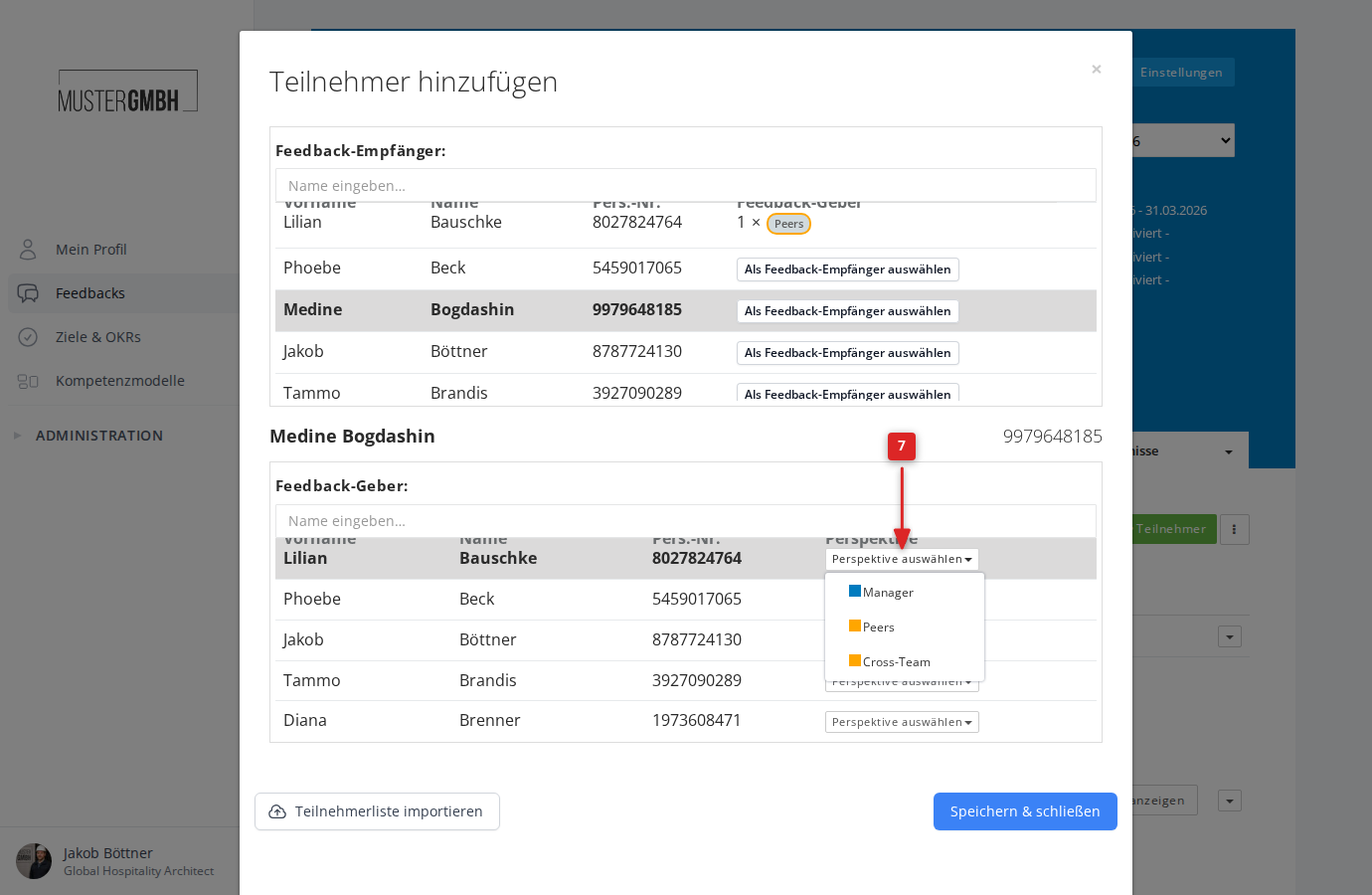
The feedback giver is assigned with the chosen perspective. The upper table shows the count per perspective as badges (for example “1 × Manager”, “3 × Peers”).
Next to an assigned feedback giver there’s a red delete icon. Use it to remove the assignment before saving. For participations that have already been invited or started, the delete icon is disabled.
- Repeat steps 6 and 7 until every feedback giver for this person is added.
Feedback recipients without feedback givers
If the feedback givers come through nominations or you’ll enter them later, don’t pick anyone in the Select reviewer: section and click Save & close. The selected person is then added without feedback givers.
When you open the window again, it shows “No reviewers yet” for them or, if the self-assessment is added automatically, its badge. On the edition page they appear in the participant list, with the “Nomination” link under their name when nominations are switched on.
Save
- Click Save & close to save all changes and close the window.
The new participants appear in the participant list on the edition page.
Import the participant list via XLS
Instead of adding participants one by one, you can upload an XLS file with the whole participant list.
- Open the “Add participants” window as described above.
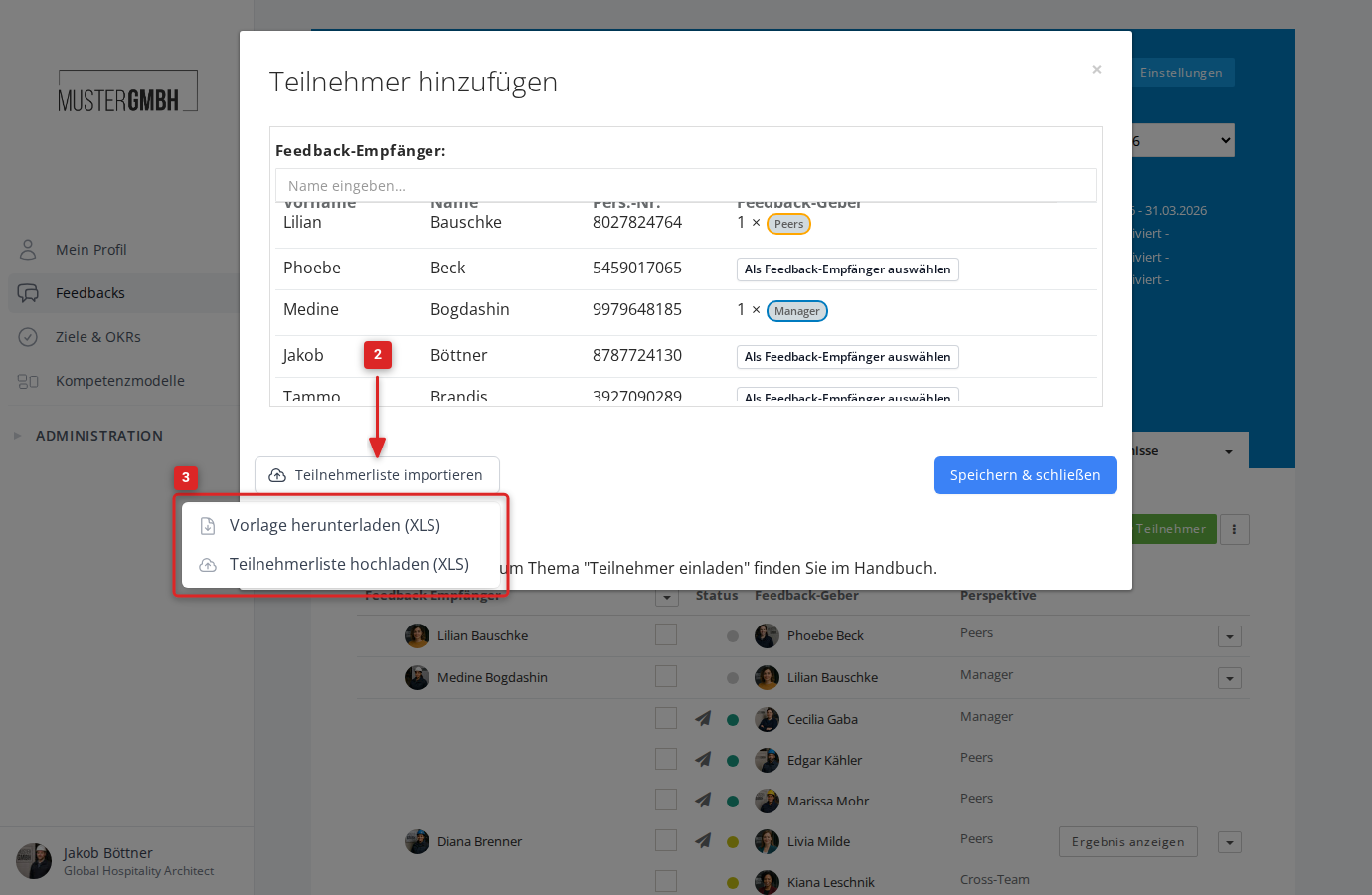
- At the bottom left, click Import participants.
- Choose Download list template (XLS) to get a template with the right structure.
- Fill in the template, then choose Upload list (XLS).
The template contains the defined perspectives and expects the email addresses of the feedback recipients and feedback givers. Each row holds one feedback recipient followed by their feedback givers with their perspective. If nominations are switched on and at least one nomination path is set up, a row may also hold the feedback recipient alone. Otherwise the import rejects it with “No reviewer selected”.