Getting started with feedbacks
With feedbacks you survey your colleagues and evaluate the results. Feedbacks in easyreview are flexible and can model a range of processes, for example:
- Annual employee reviews
- 360° feedback
- Pulse surveys
- External feedback (e.g. probation reviews)
- Satisfaction surveys
- Project evaluations
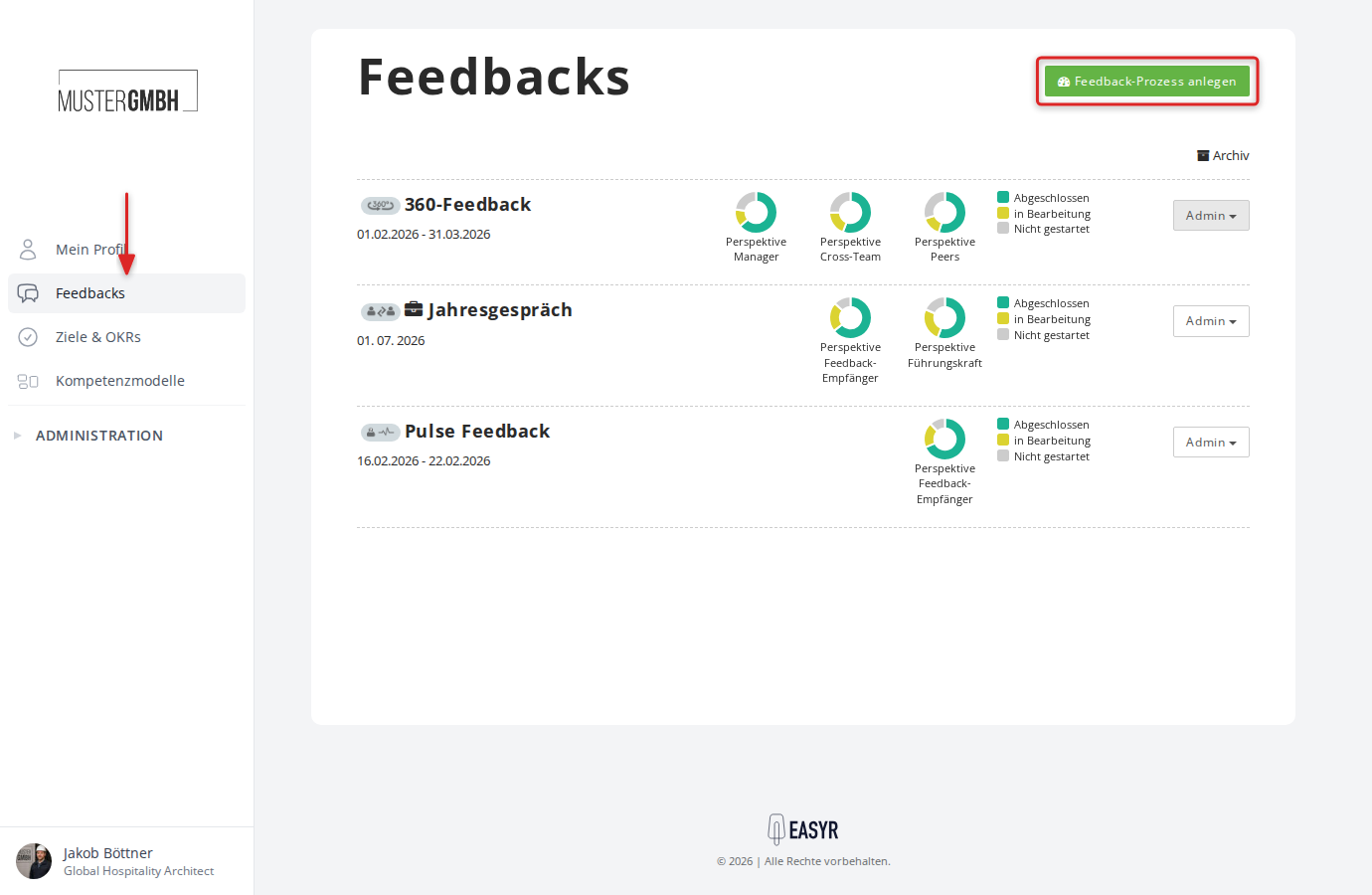
Feedback kinds
When you create a new feedback process, you choose one of seven feedback kinds. The kind determines how participation works and which perspectives are available.
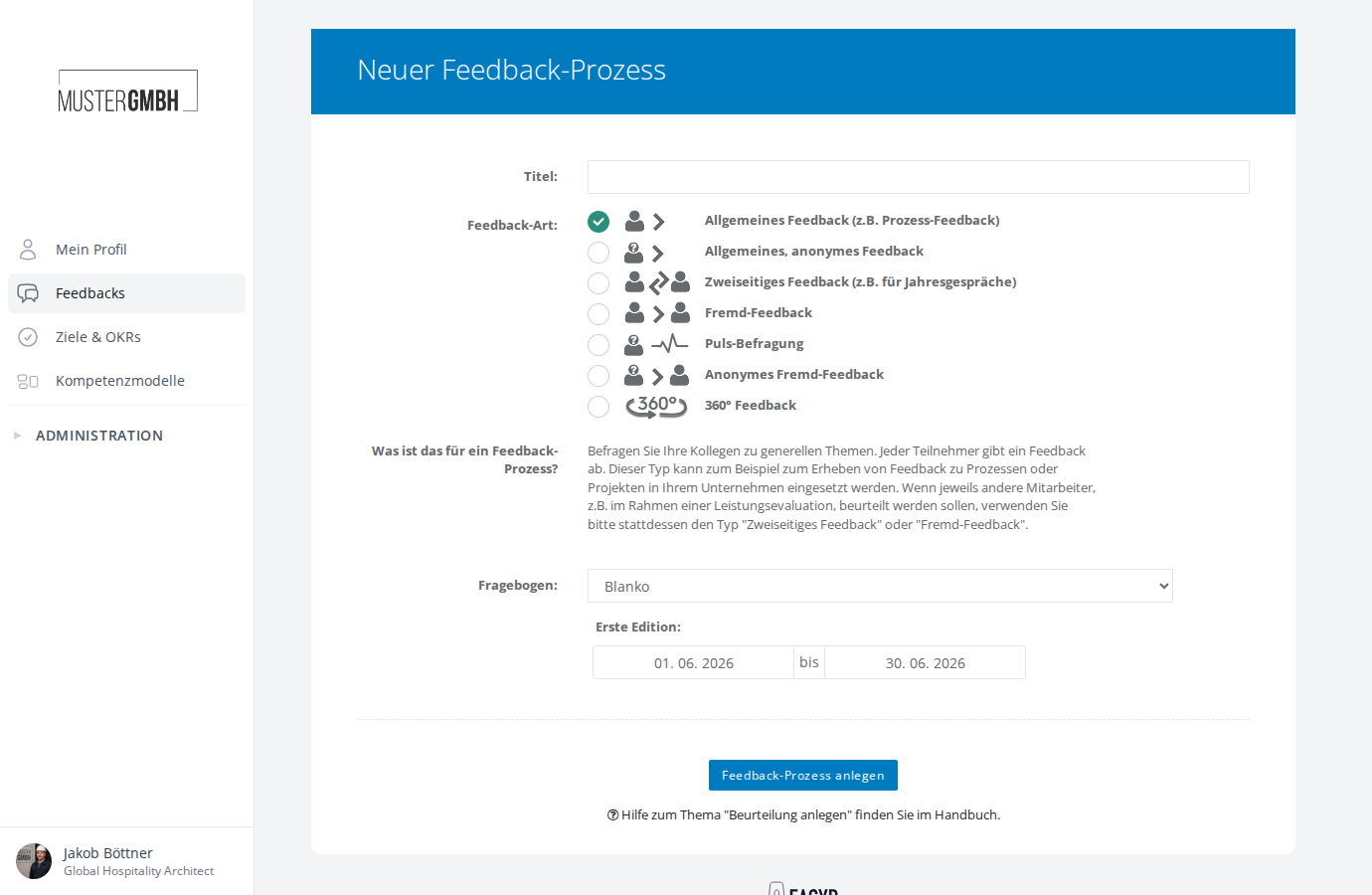
General reviews
Survey your colleagues on general topics. Each participant submits one feedback. This kind suits process feedback or project evaluations, for example.
General anonymous reviews
Like a general review, but anonymous. Results cannot be traced back to any participant. By default, aggregated results are only shown once there are at least 5 participations.
Two-sided reviews (employee reviews)
Collects feedback from two perspectives: a self-assessment by the person being reviewed and an external assessment by their supervisor. The typical use is annual employee reviews.
External feedback
Have employees assessed by colleagues, with no self-assessment. Suits probation reviews or team feedback from supervisors, for example.
Anonymous external feedback
Like external feedback, but anonymous. By default, results are only shown once there are at least 5 participations.
Pulse survey
Anonymous, recurring short surveys on a fixed interval. New editions are created automatically. Ideal for regularly gauging employee satisfaction.
360° feedback
Feedback from several perspectives (e.g. supervisors, peers, team members). A moderator role coordinates the process. For details, see What are 360° feedbacks?.
How a feedback process is built
Every feedback process is made up of several parts:
- A questionnaire
- One or more editions
- Invitation lists of participants
- Participations by the invited colleagues
- Results and analyses
Questionnaire
The questionnaire is the heart of every feedback process. Here you decide which questions your colleagues answer, and in what order. You can choose from a wide range of question types and configure each question individually.
Editions
Editions let you reuse the same questionnaire over time and spot trends. A typical example is annual employee reviews: you define the questionnaire once and create a new edition each year.
An edition is the bracket around a single cycle of the survey.
Read more in What are editions?
Perspectives
Depending on the feedback kind, different perspectives are available. A perspective determines the role from which a participant gives feedback.
Typical perspectives are:
- Employee: the person the feedback is about (in a two-sided feedback, this person gives a self-assessment)
- Supervisor: the person who gives an external assessment of the employee
- Moderator: coordinates the process in 360° feedback
In a two-sided feedback, both perspectives use the same questionnaire. The question wording can be adapted per perspective (e.g. “How do you assess your own performance?” versus “How do you assess Mr. Smith’s performance?”).
Invitations
Before colleagues can take part in a feedback, you invite them to the relevant edition. Once you have created an edition, you add participants (for one-sided feedback) or pairs of employee and supervisor (for two-sided feedback) to the invitation list.
Adding participants does not send any notification at first. Once you have assembled the participant list, you can email all invited employees to ask them to take part.
If you want the feedback recipients to propose their own feedback providers, turn nominations on.
For employees without an email address, you can enable participation using participation PINs.
Over the course of an edition, the invitation list is where you:
- track the progress of participations
- view the results of individual participations
- send reminders to outstanding participants
Participations
A participation is the submission of a result by a colleague. Depending on the feedback kind, it may be a simple one-sided feedback, or a self-assessment or external assessment (two-sided).
A participation starts when the invitation is opened and ends when the participant explicitly submits it. After that, the answers can no longer be changed.
Results and evaluation
The result views you see depend on whether the feedback process uses classic analyses, new dashboards, or both.
The Invitations tab shows participants and their progress regardless of the analysis version. When classic analyses are active, these additional views are available:
- Evaluation: aggregated results across several participants
- Question evaluation: a detailed analysis per question
- Potential analysis: evaluation of strength values and competencies (if configured)
- Time series: historical trends across several editions
With new dashboards, open the Analyses tab. If both versions are active, the new tab is called Analyses (new). Start with Classic and new analyses or Open and manage dashboards. The guide Create your first feedback dashboard walks through a concrete example.
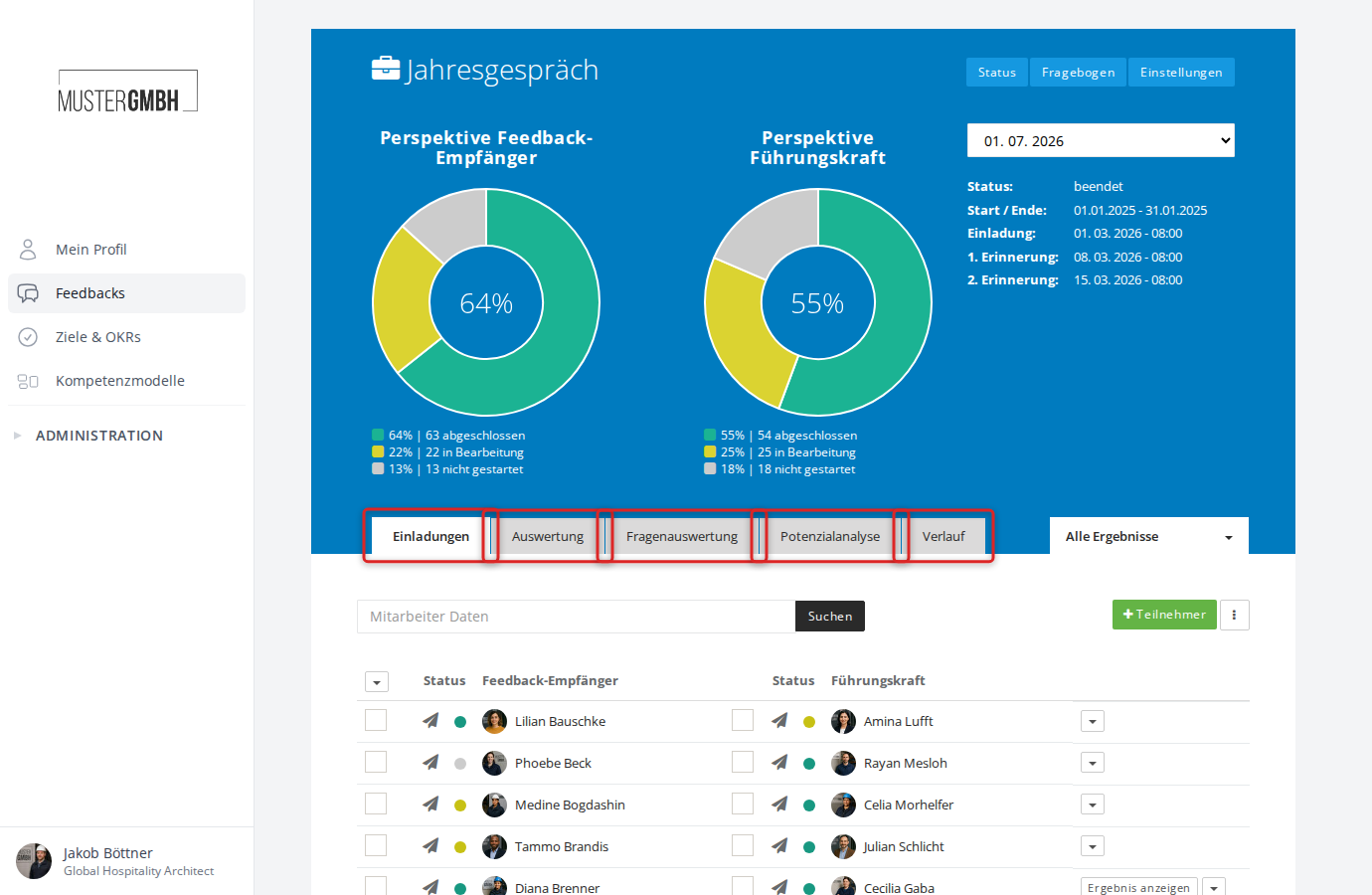
Results can be filtered, exported as PDF or XLS, and viewed side by side (two-sided) or in a detailed view (one-sided).
Sealing
Sealing is an optional step that digitally signs the results of a feedback process and locks them permanently. After sealing, no more changes can be made.
Read more in Sealing.
Managing feedback processes
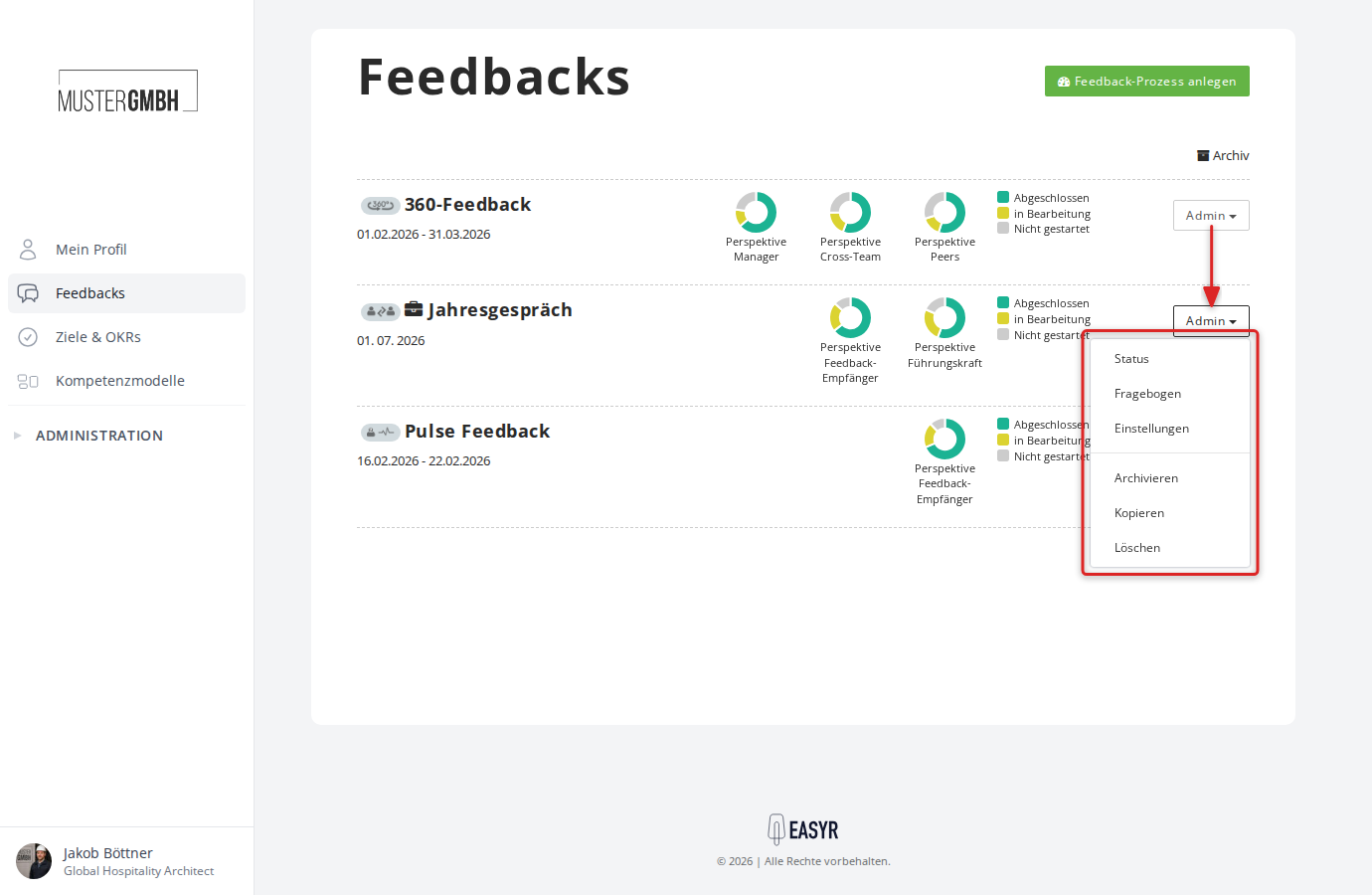
Use the Admin menu in the feedback overview to manage any feedback process:
- Status: go to the status page with participants and results
- Questionnaire: edit the feedback process’s questionnaire
- Settings: adjust the feedback process’s configuration
- Archive: move the feedback process to the archive
- Move: move it to another category (only shown when categories are enabled)
- Copy: create a copy of the feedback process
- Delete: delete the feedback process (recoverable for 90 days)