Audit log overview
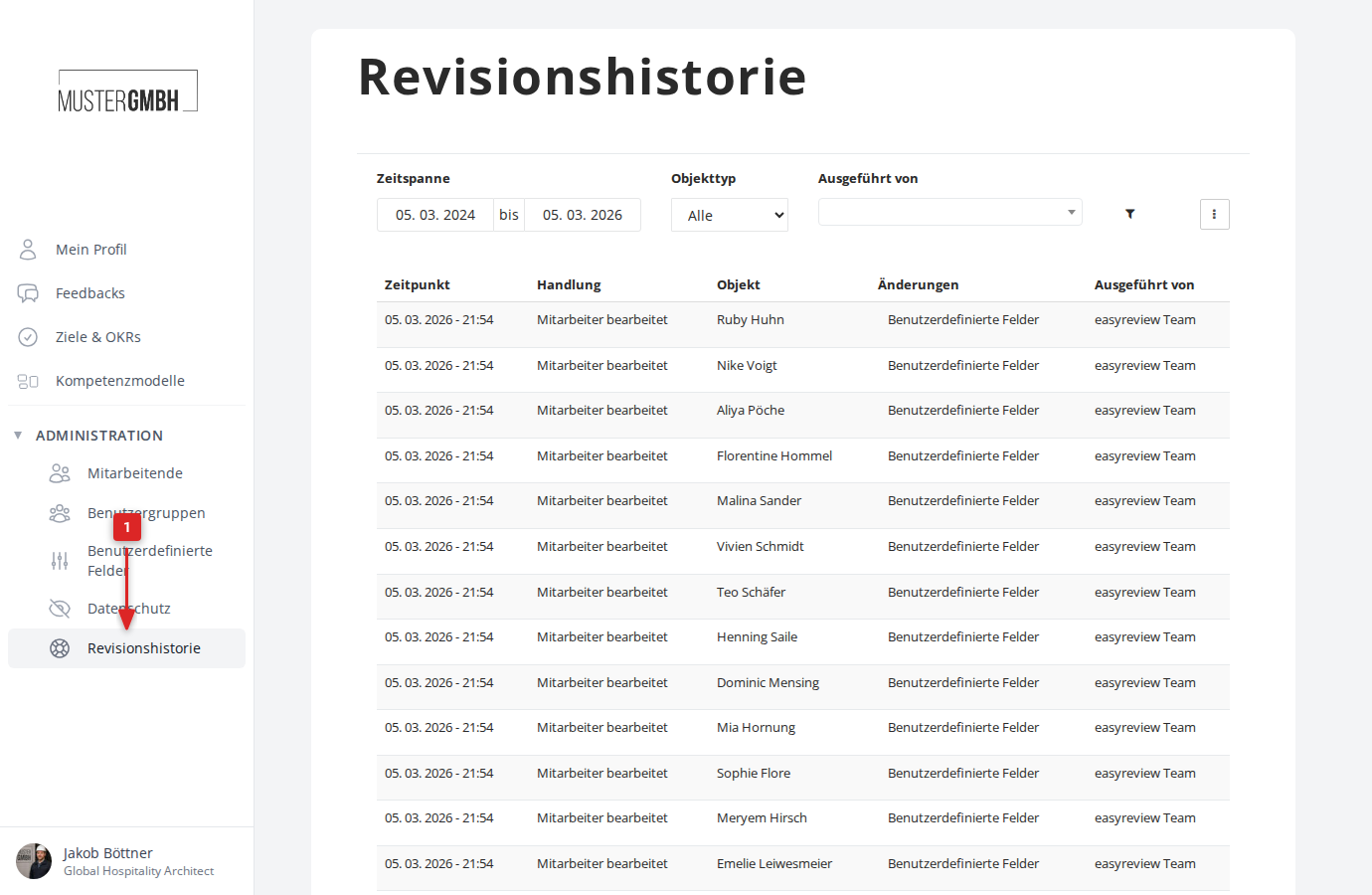
To open the audit log:
- In the sidebar under “Administration”, click “Audit log”.
- You now see an overview of the most recent changes.
What the overview shows
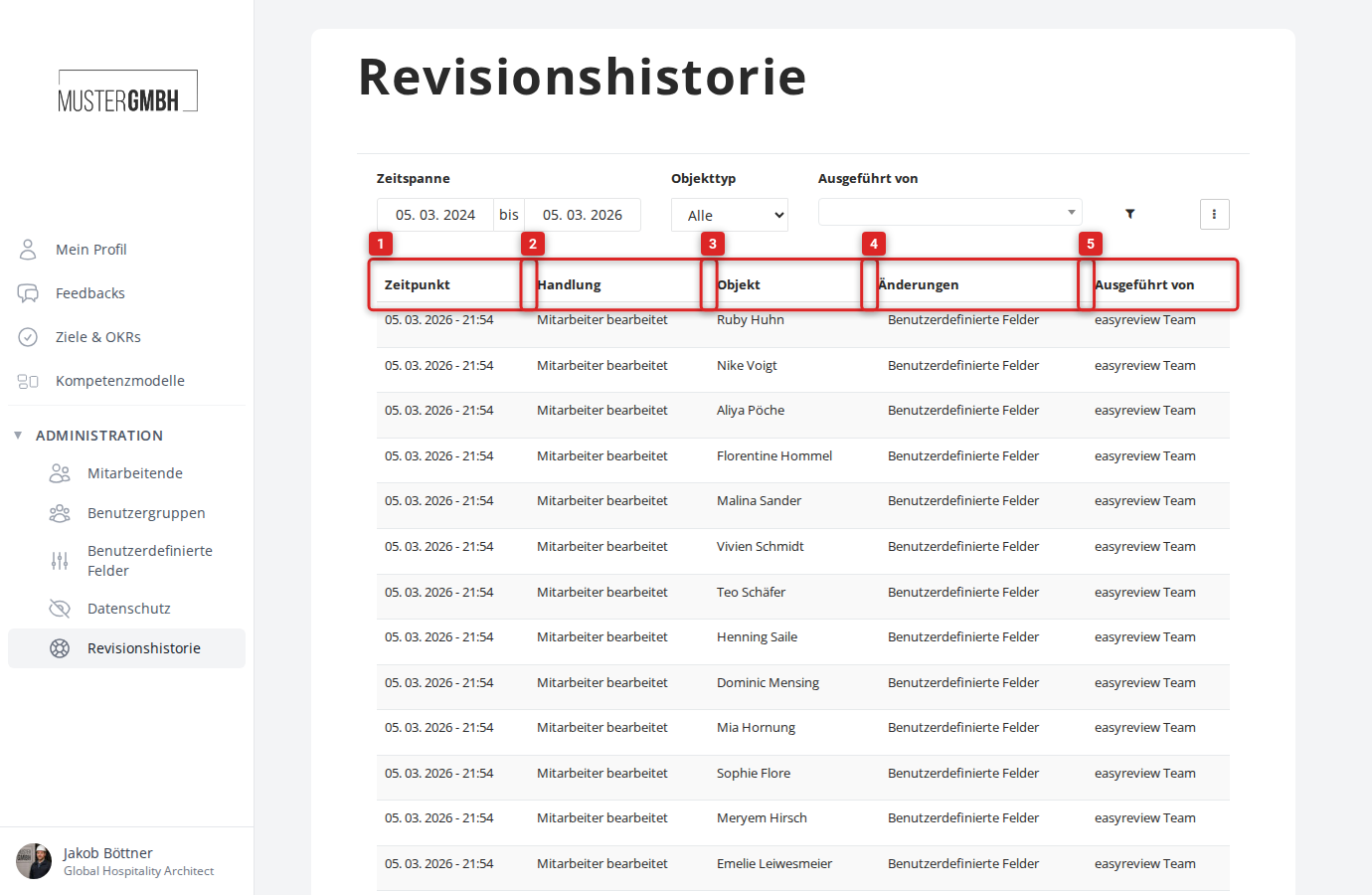
Each row records one change, with the following columns:
- Timestamp: The exact moment the change was made.
- Action: The kind of change (created, changed, deleted) and the type of data affected (for example an employee or a feedback).
- Affected: The record that was changed, usually as a link to the employee or feedback the change was made on.
- Changes: An overview of every data field that was modified.
- Operator: The employee who made the change. When a change is made by the easyreview support team, “easyreview Team” appears as the operator.
Which objects are logged
The audit log records changes to the following object types:
- Employee: Master data, access rights and custom fields.
- Feedback: Title, reminder intervals and options such as sealing or diplomatic status.
- Participant answer: Changes to answer values in feedbacks.
- Target agreement: Recipient, label, visibility and reminder settings.
- Intermediate goal: Title, description, progress and weighting.
- Target agreement process: Title and completion settings.
- Target agreement edition: Label, period and the associated target agreement process.
Use the “Object type” filter to narrow the view to a single type.
Browsing older changes
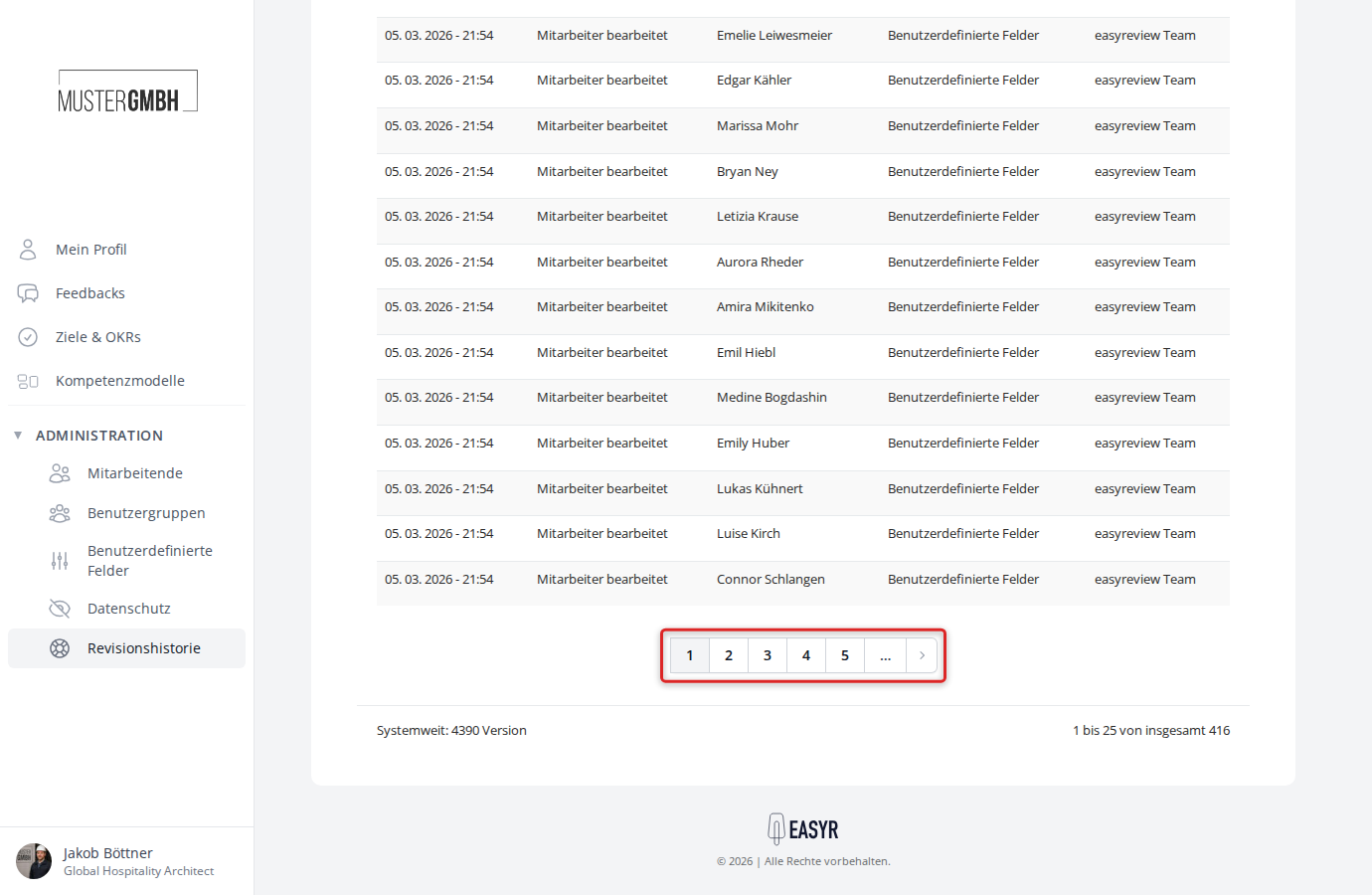
To page back to older changes:
- Scroll to the bottom of the page.
- In the pagination control, click the page you want or the next/previous button.
Filters
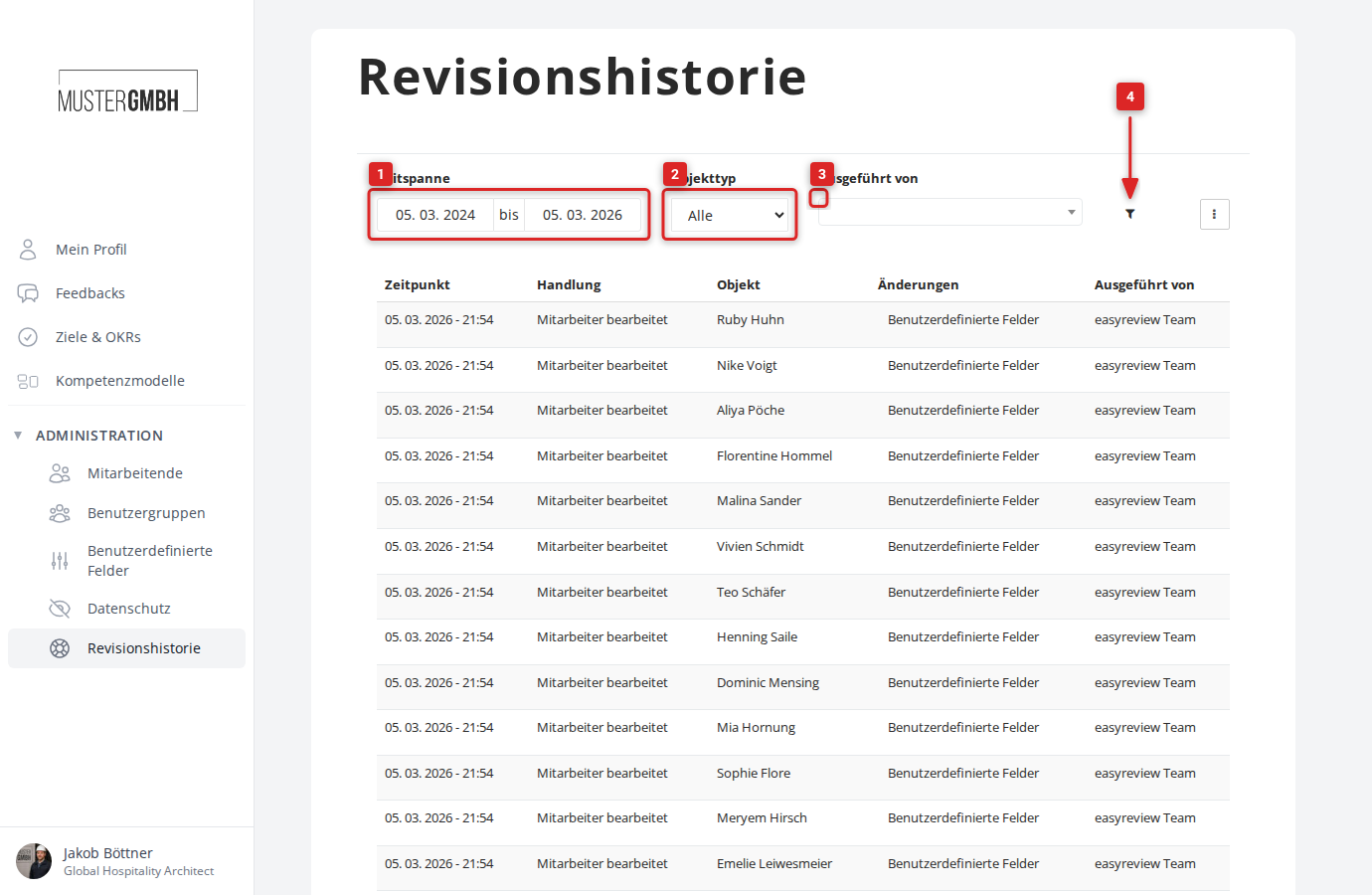
To find a specific change more easily, you can narrow the displayed changes by several criteria.
To filter the list of displayed changes:
- In the “Timeframe” area, set the start and end date you want.
- In the “Object type” field, choose which kind of changes to see (for example only employees, only target agreements, or all).
- In the “Operator” field, choose the employee whose changes you want to focus on.
- Click the funnel icon to apply the filter.
- You now see a filtered view of the changes based on the criteria you set.