Create and configure a competency model
Overview
With competency models in easyreview, you define and manage the competency frameworks for your organization. A competency model consists of competency categories (e.g. “Technical competency”, “Social competency”) and the competencies within them (e.g. “Analytical thinking”, “Teamwork”). Revisions let you version the rating scales and configurations, and job profiles assign competencies to specific roles.
Navigation
In the sidebar, click Competency models. You see the overview page with all existing competency models.
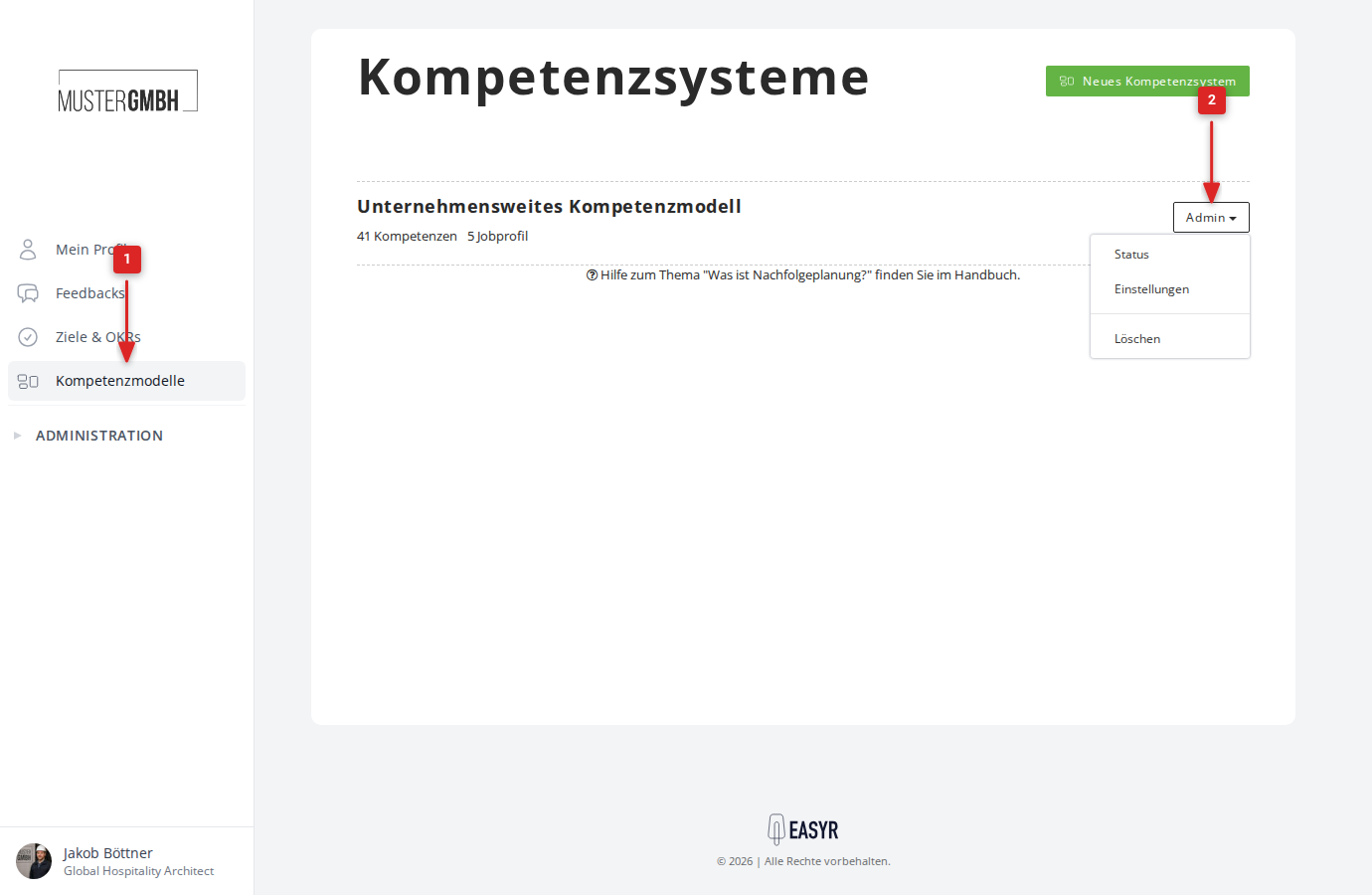
For each competency model, the name, the number of competencies and the number of job profiles are shown. The Admin button opens a dropdown menu with:
- Status: opens the status page of the current revision
- Settings: opens the competency model’s settings
- Delete: removes the competency model
Create a new competency model
- On the overview page, click the New competency system button.
- Enter the name of the competency model.
- Click Save.
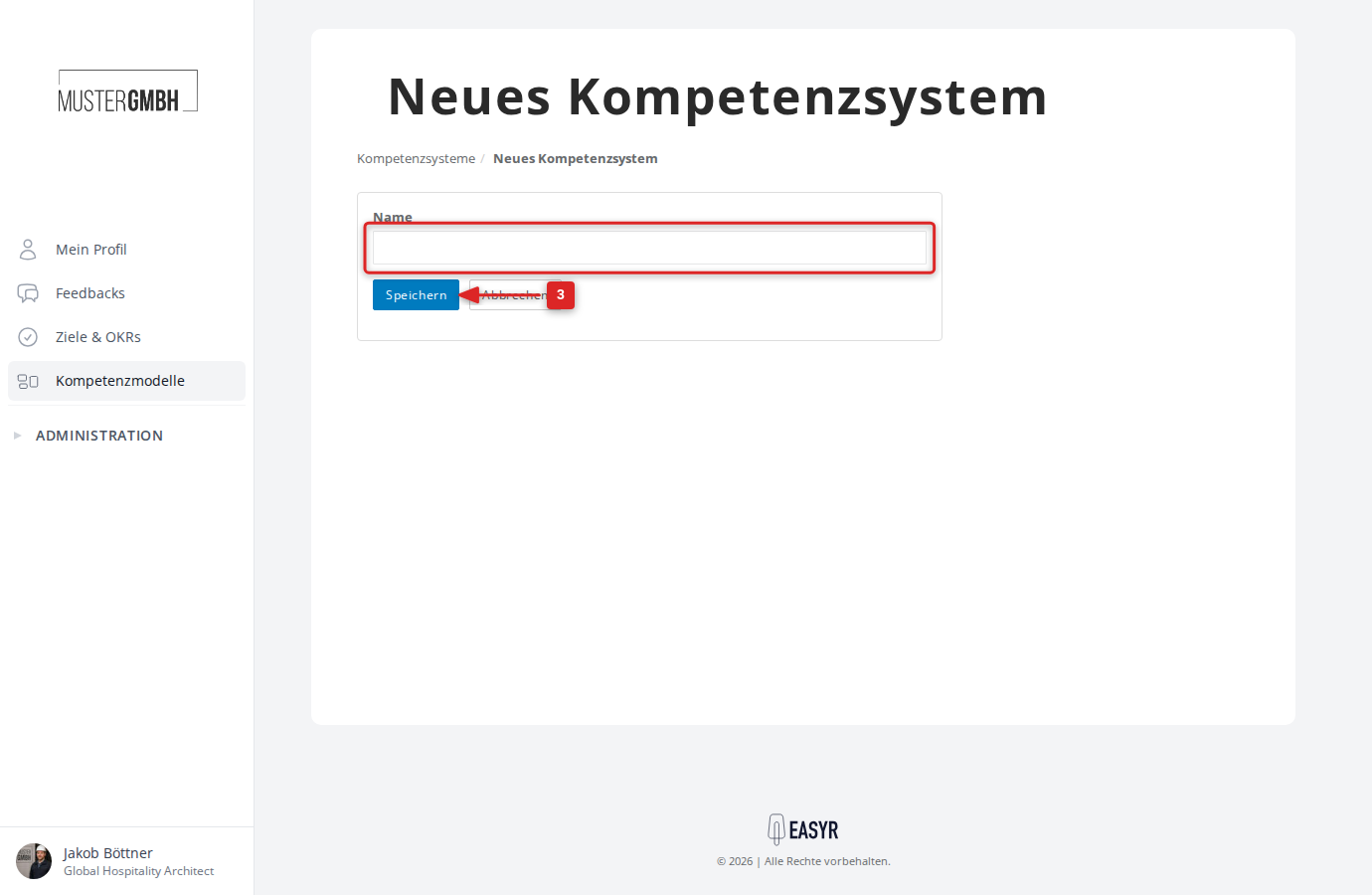
After creating it, you land on the competency model’s Settings page. A first revision with today’s date is also created automatically.
Competency model settings
The settings page is split into these areas:
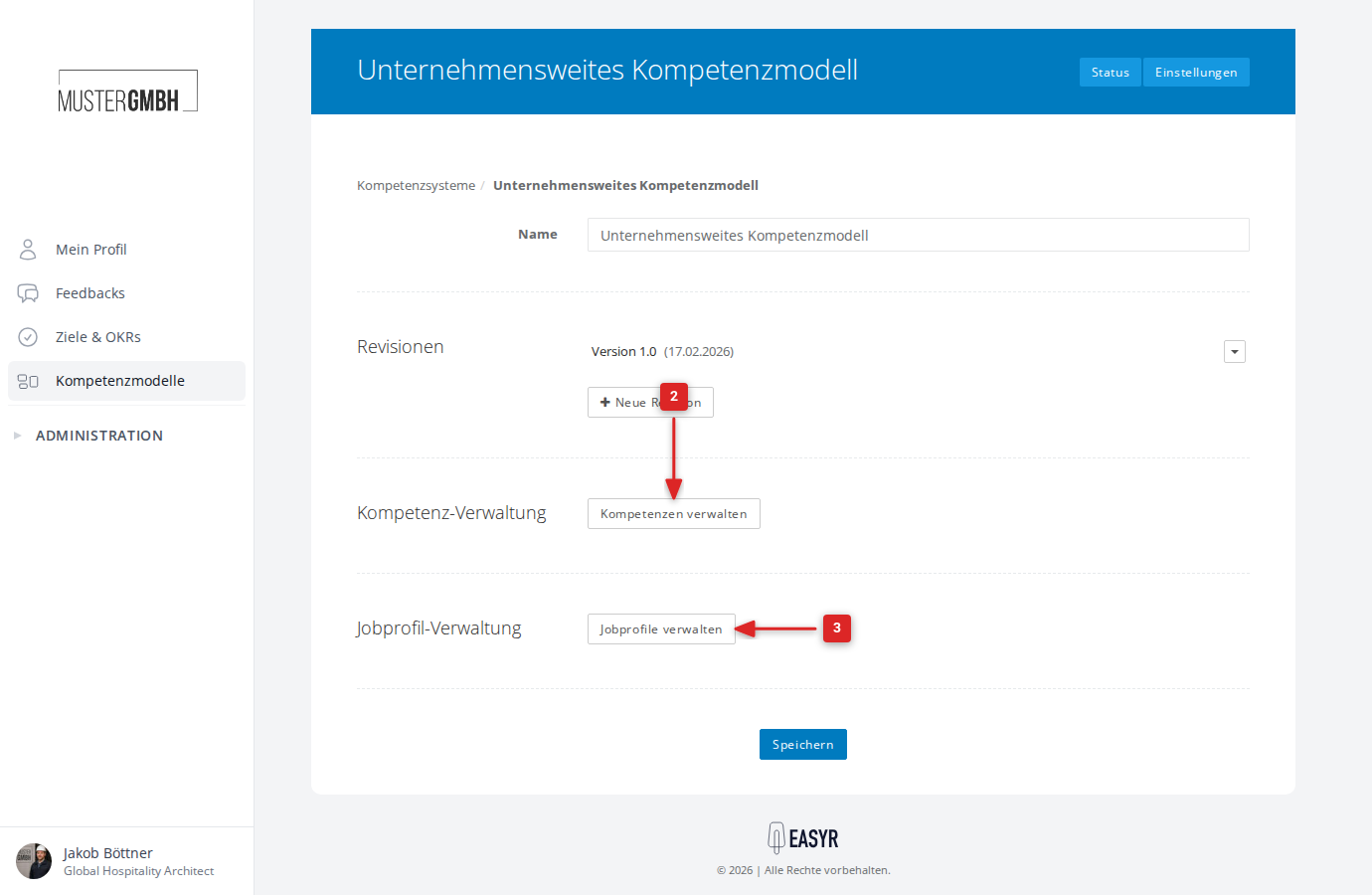
Change the name
At the top, you can edit the name of the competency model.
Revisions
Under Revisions, you see all revisions in reverse chronological order. Each revision shows its display name and effective date. Via the dropdown menu (arrow icon), you can:
- Edit: opens the revision settings
- Copy: creates a copy of the revision with today’s date
- Delete: removes the revision
Use the + New revision link to create another revision.
Competency management
The Manage competencies button takes you to the editor for categories and competencies.
Job profile management
The Manage job profiles button takes you to the job profile overview.
Manage competency categories and competencies
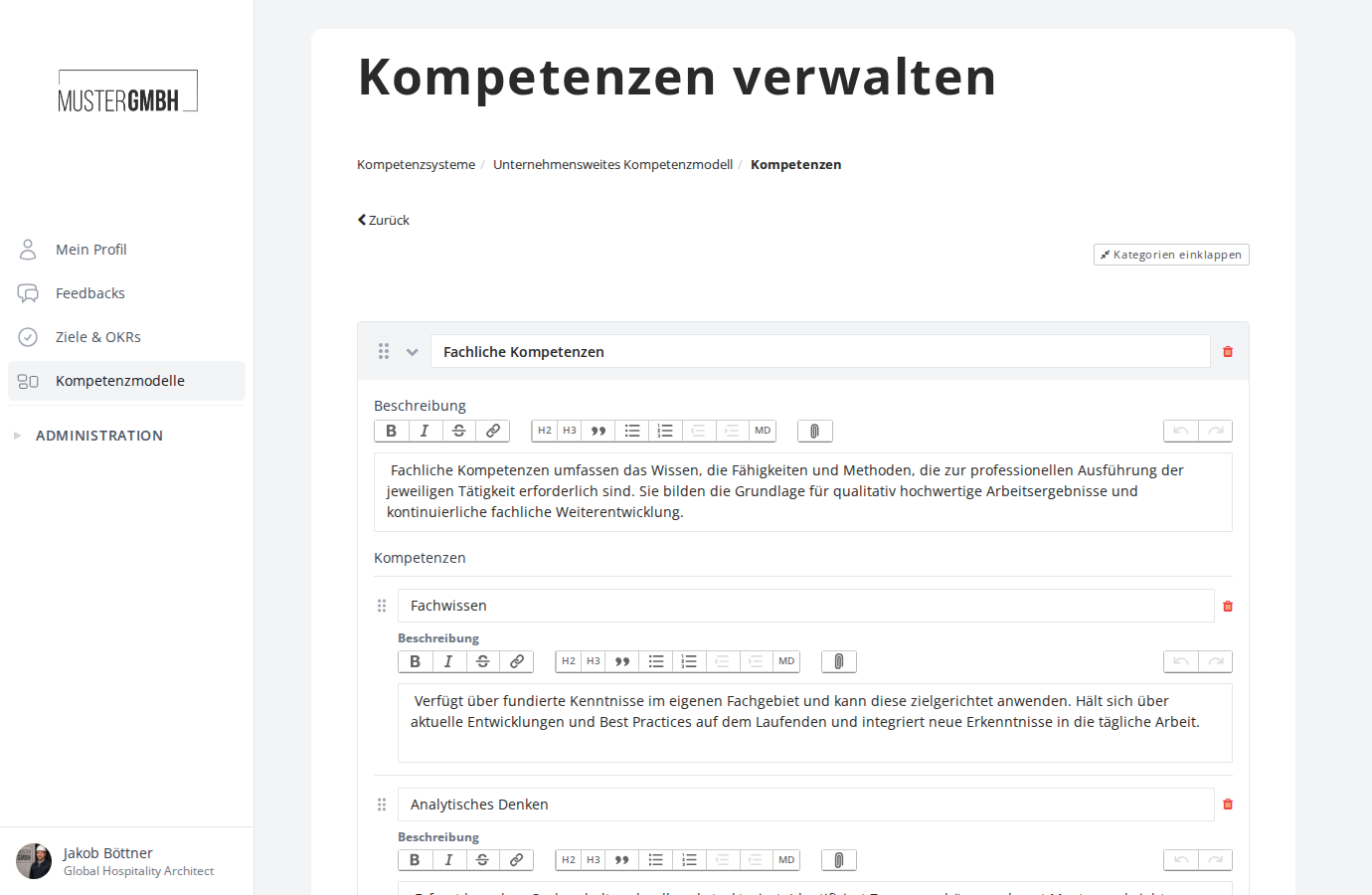
On the Manage competencies page, you define the structure of your competency model.
Add a category
- Click the + icon to add a new category.
- Enter the category name (e.g. “Technical competency”, “Social competency”, “Leadership competency”).
- Optional: fill in the description. The description editor supports formatting such as bold, italic, headings, lists and links.
Add a competency
- Within a category, click Add competency.
- Enter the competency name (e.g. “Analytical thinking”, “Teamwork”).
- Optional: fill in the competency’s description.
Reorder
Categories and competencies can be reordered by drag & drop. Use the grip icon (six dots) to the left of the name field.
Expand and collapse categories
Use the Expand categories / Collapse categories button at the top right to expand or collapse all categories at once.
Multiple languages
If multiple languages are configured, a language switcher appears at the top right. Use it to maintain names and descriptions in different languages.
Delete categories and competencies
Click the trash icon to the right of a category’s or competency’s name field to delete it.
Save
Click Save to apply all changes. All categories and competencies are stored together in a single save operation.
Configure a revision
The revision settings determine how competencies are rated and aggregated.
Edit a revision
- Go to the competency model’s settings.
- Open the dropdown menu of the revision you want and choose Edit.
Alternatively, use the Settings header link to go straight to the current revision.
General revision settings
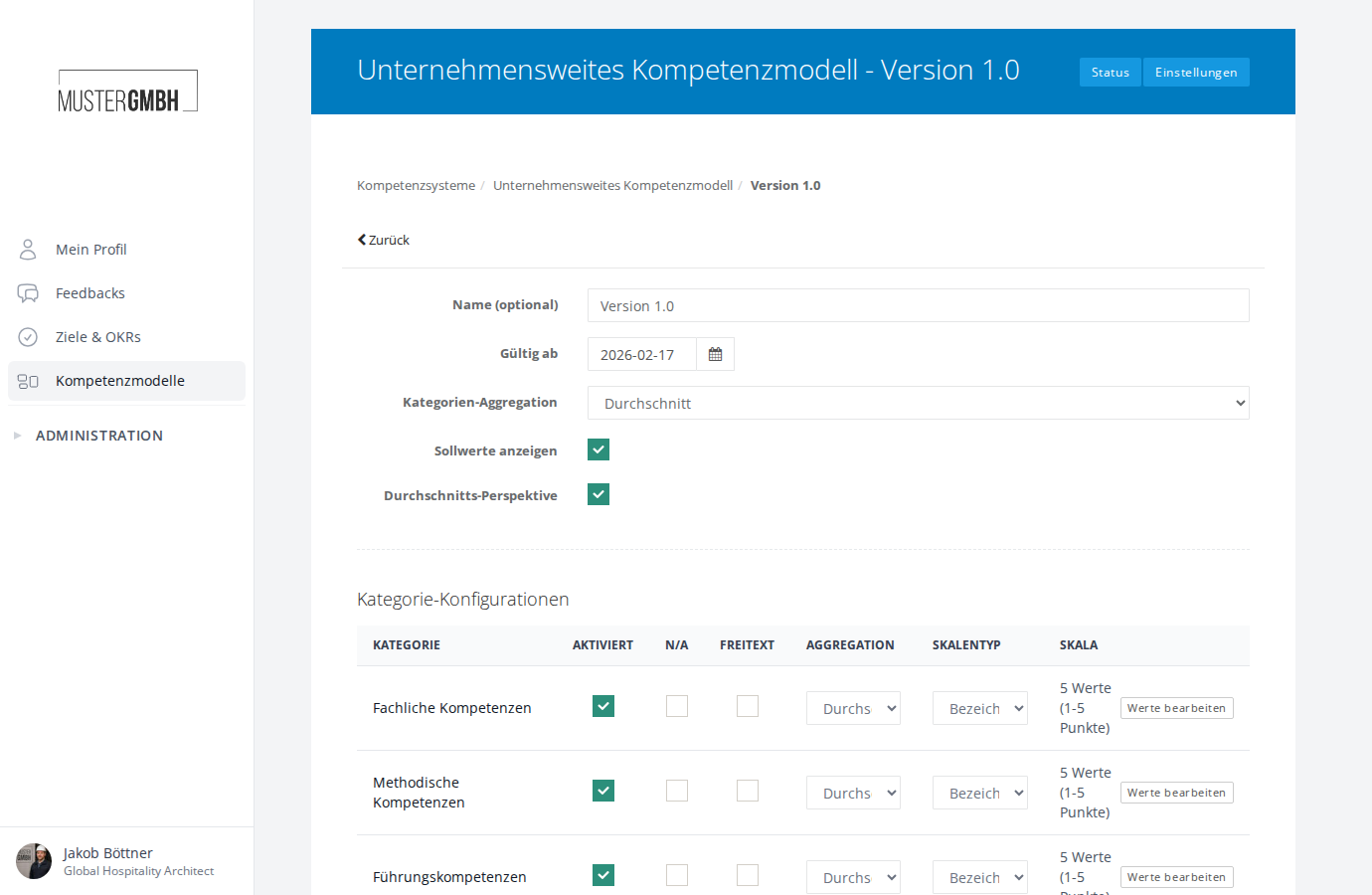
| Field | Description |
|---|---|
| Name (optional) | Optional display name of the revision. If empty, the date is shown. |
| Effective from | The date from which this revision is active. Must be unique within the competency model. |
| Category aggregation | Determines how the category results are combined into the overall result: Average or Sum. |
| Show target values | When enabled, target values are shown in the results. |
| Average perspective | When enabled, an average layer is shown as a comparison value. |
Category configurations
The Category configurations table shows each competency category with the following settings:
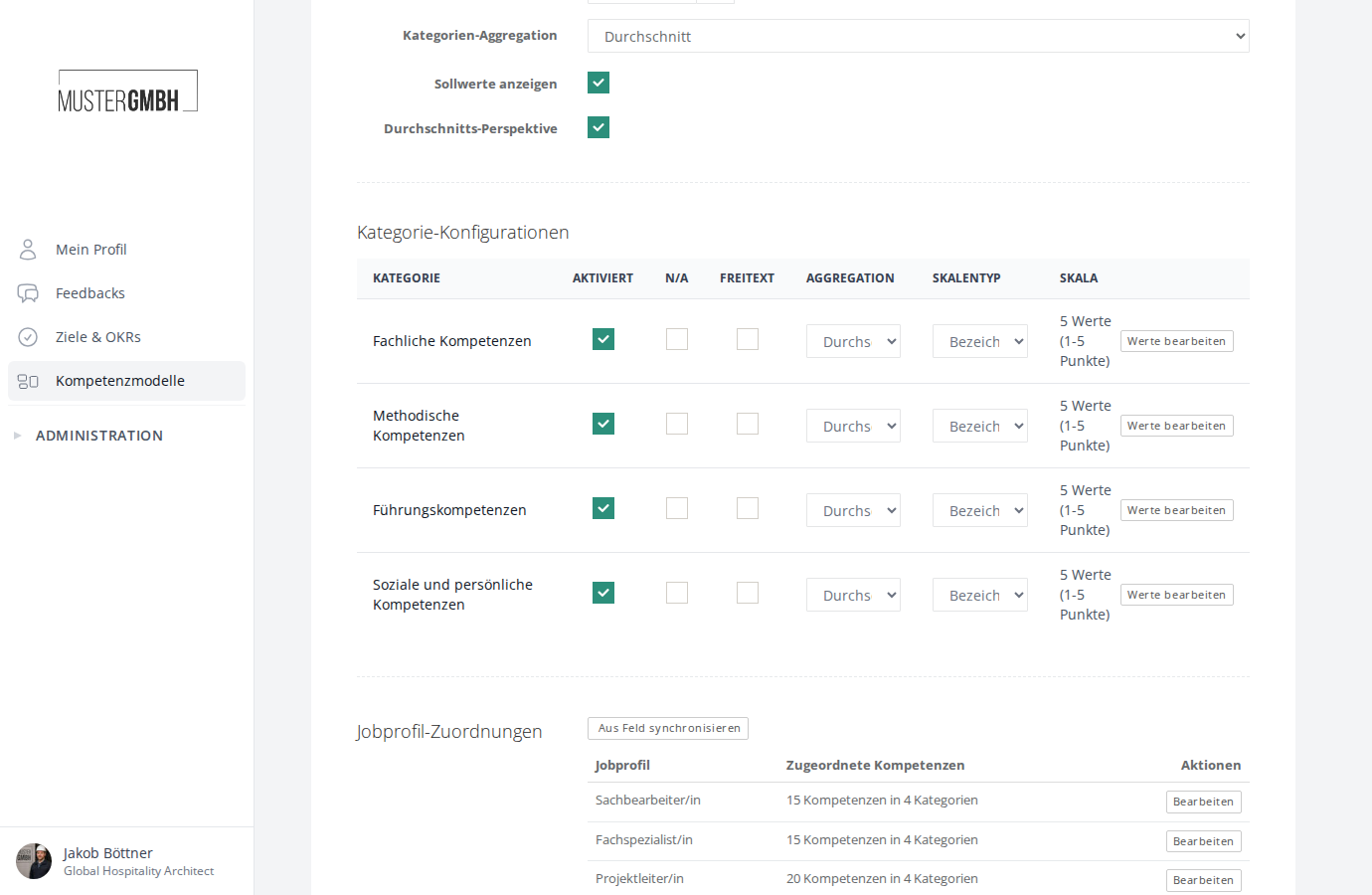
| Column | Description |
|---|---|
| Enabled | Enables or disables the category for this revision. Only enabled categories are counted in the rating. |
| N/A | Enables the “Not applicable” option. Raters can then mark individual competencies as “not applicable”. |
| Free-text | Enables free-text (write-in) competencies for this category. Participants can then add their own competencies. |
| Aggregation | Determines how the competency results within the category are combined: Average or Sum. |
| Scale type | Type of rating scale: Numeric range (e.g. 1 to 5) or Labels with point values (discrete steps with named labels). |
| Scale | For numeric range: minimum and maximum value. For labels with point values: click Edit values to define each step with a label and point value. |
Configure a rating scale with labels
When you choose Labels with point values as the scale type, the Edit values button opens a dialog:
- Add a row for each scale point.
- Enter the point value (number) and the label (e.g. “Needs improvement”, “Good”, “Very good”, “Excellent”).
- The labels support multiple languages. Switch via the language switcher.
- Click Close to leave the dialog.
Job profile assignments
At the bottom of the revision settings, you see the Job profile assignments table. For each job profile, the number of assigned competencies is shown. The Edit button takes you to that profile’s competency mapping.
The Sync from field button lets you create job profiles from a custom field (see the Job profiles section).
Copy a revision
To use an existing revision as the starting point for a new one:
- Go to the competency model’s settings.
- Open the revision’s dropdown menu and choose Copy.
- A new revision is created with today’s date and all configurations of the source revision.
Free-text competencies (write-in)
When the Free-text option is enabled for a competency category in the revision, participants can add their own competencies during a competency assessment that aren’t predefined in the model.
- Free-text competencies are managed per category.
- Previously created free-text competencies appear as autocomplete suggestions to encourage consistency.
- The minimum and maximum number of free-text competencies is set in the questionnaire configuration.
Job profiles
Job profiles define role-specific competency requirements. They set which competencies are relevant for a specific role and with what weight they are rated.
Create a job profile
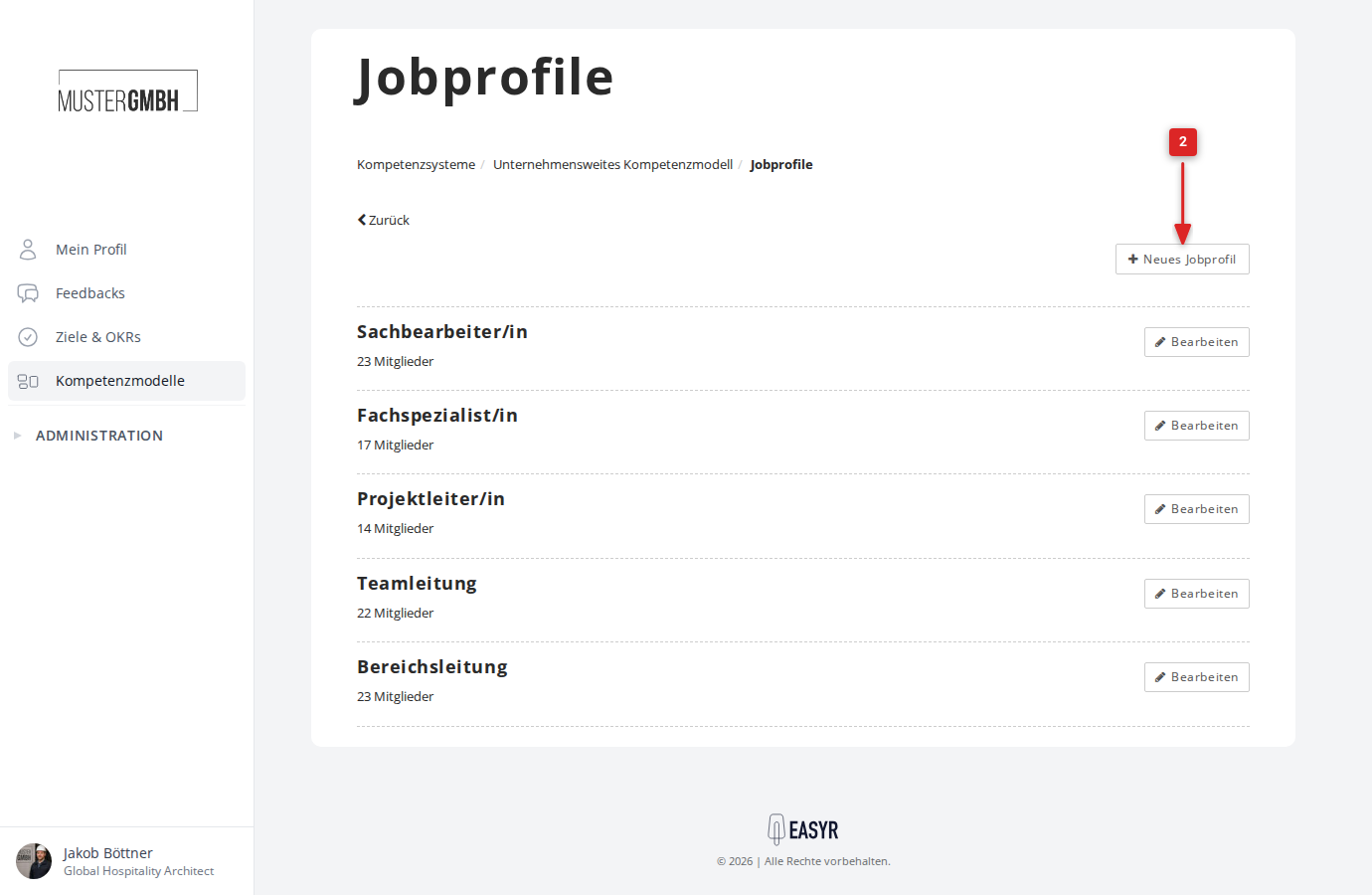
- From the competency model’s settings page, go to Manage job profiles.
- Click New job profile.
- Enter the name of the job profile (e.g. “Team lead”, “Senior developer”).
- Optional: store a description of the job profile.
- Optional: store a membership formula (Dentaku formula) to assign employees automatically based on custom fields.
- Click Save.
Edit a job profile
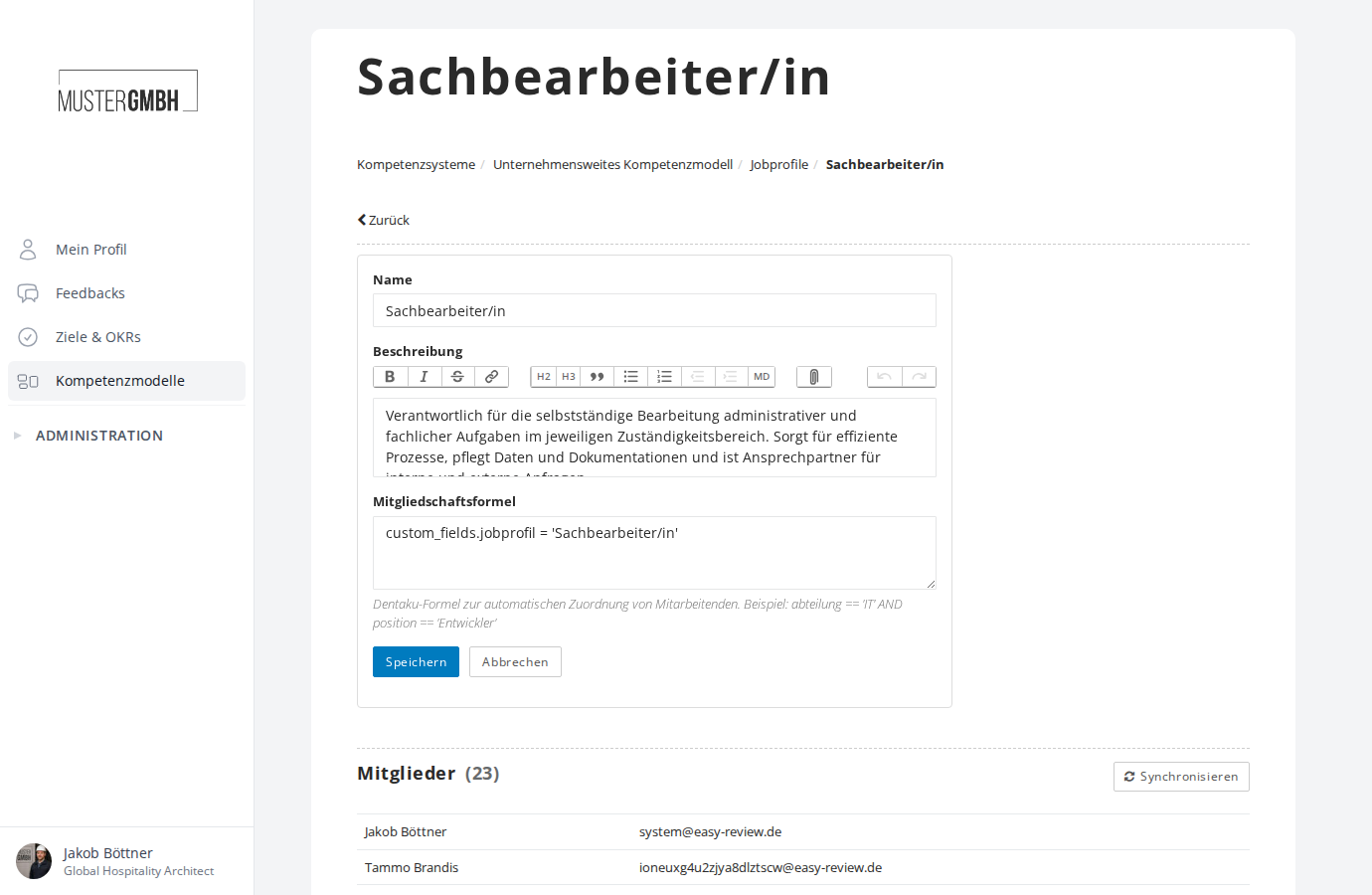
On a job profile’s edit page, you can adjust the name, description and membership formula. In the Members section, you see the currently assigned employees. The Sync button triggers automatic assignment based on the membership formula.
Assign competencies to a job profile
After creating a job profile, you configure the competency mapping on the revision settings page:
- In the Job profile assignments section, click Edit on the job profile you want.
- On the assignment page, you see all enabled categories with their competencies.
- Enable the checkboxes of the competencies that are relevant for this job profile.
- Optional: adjust the weight and target value per competency or category.
- Optional: store a description that explains the competency in the context of this job profile.
- Click Save.
Sync job profiles from a custom field
Instead of creating job profiles manually, you can sync them from a custom field of type “List”:
- On the revision settings page, in the Job profile assignments section, click Sync from field.
- Select the field you want.
- Check the preview: it shows which job profiles will be created, updated or removed.
- Confirm the actions and click Run synchronization.
Status page (competency analysis)
The Status header link takes you to the overview page of the competency ratings for the current revision.
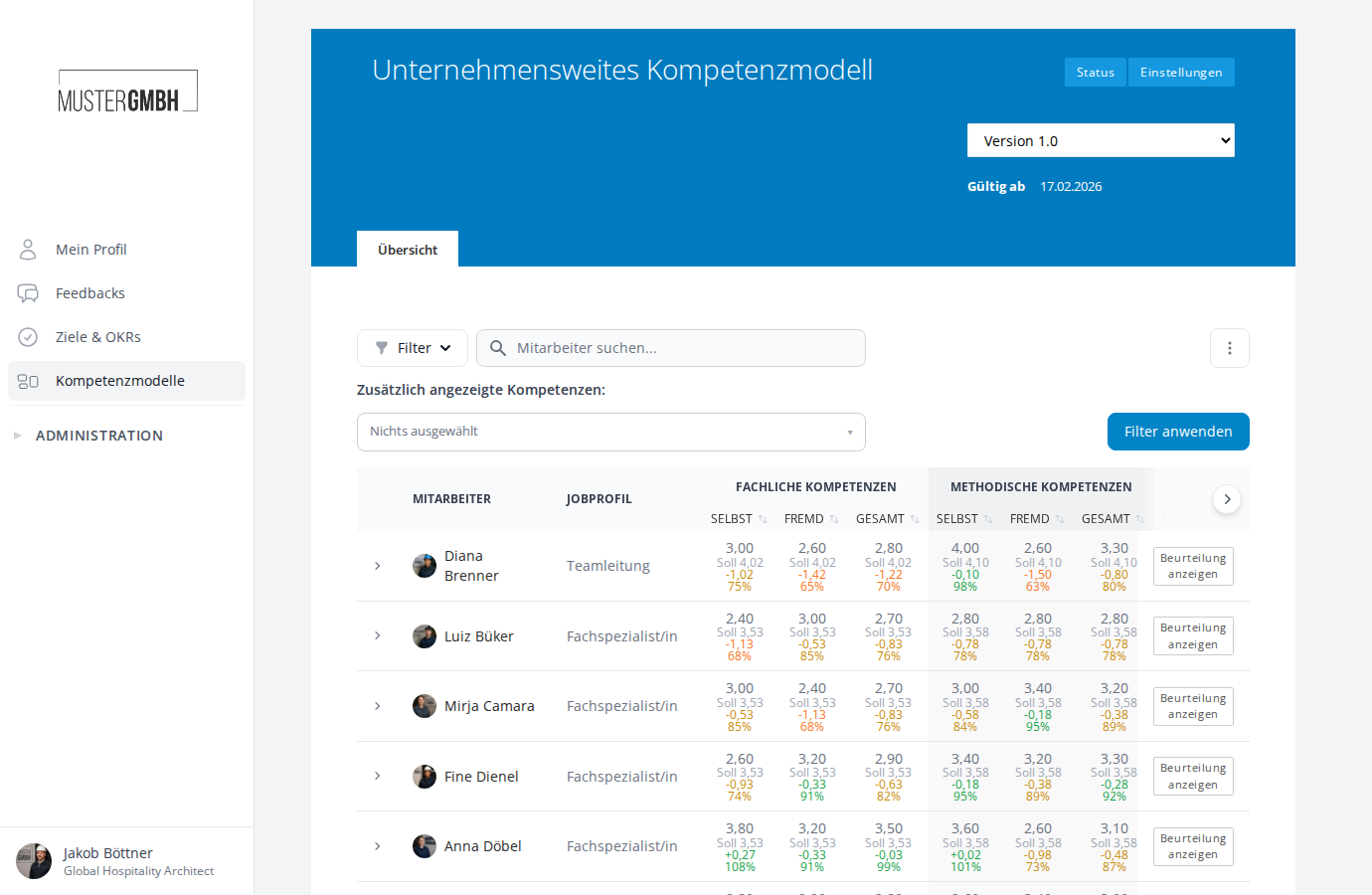
- Use the revision selector at the top to switch between revisions.
- The table shows each employee’s rating results, split by competency category (Self, Other, Total).
- Use Search and Filter to filter by employee, job profile or rating status.
- Use the competency selector to add individual competencies as extra columns.
- An Excel export of the results is available.
Related articles
- Manage revisions — configure rating scales and aggregation
- Job profiles & assignments — assign competencies to roles
- Add a competency assessment to the questionnaire — set up the question in the questionnaire
- Results overview & data export — result table, filters and Excel export